Agents > Capabilities
Agent Notifications
# Agent Notifications Warp delivers notifications from any supported coding agent so you always know when an agent finishes a task, encounters an error, or needs your input. Notifications work whether you're in a different tab or a different app. <VideoEmbed url="https://youtu.be/0l-7fZJClkE" title="Agent notifications in Warp" /> ## Notification types Warp categorizes agent notifications by what happened: * **Complete** - the agent finished its task successfully. You can review the output and continue working. * **Request** - the agent is blocked and needs your input. This includes command approval, permission requests, and idle prompts where the agent is waiting for you. * **Error** - the agent encountered an error that requires your attention. ## In-app notifications When you're working in Warp but not looking at the agent's tab, Warp provides several visual signals. ### Toast notifications Floating toast notifications appear in the corner of the Warp window when an agent in another tab needs attention. Toasts auto-dismiss after a few seconds. Hover over a toast to pause the timer, or click it to jump directly to the agent's session. Up to two toasts are visible at a time. If additional notifications arrive, the oldest toast is replaced. <figure>  <figcaption>Agent task completion notification.</figcaption> </figure> ### Notification mailbox The notification mailbox is a sidebar panel that collects all agent notifications in one place. Open it from the bell icon in the top-right corner of Warp. <figure>  <figcaption>Agent notification mailbox.</figcaption> </figure> The mailbox includes: * **Filter tabs** - switch between **All tabs**, **Unread**, and **Errors** to find what needs attention. If there are no unreads or errors, those filters don't appear. * **Mark all as read** - clear all unread indicators at once * **Click to navigate** - click any notification to jump directly to that agent's tab **Keyboard shortcuts:** * `↑` / `↓` - select previous / next notification * `Enter` - open the selected notification's session * `Shift+Tab` - cycle through filter tabs * `Esc` - close the mailbox ### Tab status indicators Each tab displays an icon reflecting its agent's current state — working, blocked, completed, or errored. Tabs with unread notifications show an attention badge so you can spot which sessions need action, even with many tabs open. {/* TODO: Add screenshot showing tab bar with status icons and attention badges */} Notifications are automatically marked as read when you navigate to the agent's tab. ## Desktop notifications When Warp is in the background or minimized, agent notifications are delivered as native system-level desktop alerts. This ensures you're aware of agent activity even while working in other apps. {/* TODO: Add screenshot showing a native desktop notification from Warp */} :::note Desktop notifications require system permissions. If you're not receiving them, check your OS notification settings for Warp. See [Desktop Notifications](/terminal/more-features/notifications/) for setup and troubleshooting. ::: ## Supported agents Agent notifications currently work with: * **Warp Agent** - supported out of the box. No setup required. * **Claude Code** - full support via notification plugin. * **Codex** - full support via native Codex configuration. * **OpenCode** - full support via notification plugin. ## Setting up notifications For the **Warp Agent**, notifications work out of the box — no setup needed. For **third-party CLI agents**, each agent requires a one-time setup. The process varies by agent: * **Claude Code** - one-click auto-install via a chip in Warp, or manual plugin commands. See [Claude Code setup](/agents/cli-agents/claude-code/#setting-up-notifications). * **Codex** - add `notification_condition = "always"` under `[tui]` in `~/.codex/config.toml`, then restart Codex. See [Codex setup](/agents/cli-agents/codex/#setting-up-notifications). * **OpenCode** - add `"@warp-dot-dev/opencode-warp"` to the `plugin` array in your OpenCode config. See [OpenCode setup](/agents/cli-agents/opencode/#setting-up-notifications). <figure>  <figcaption>Notification plugin install chip.</figcaption> </figure> If auto-install doesn't work or you're running an agent over SSH, Warp displays an installation-instructions chip in the terminal with setup steps you can follow directly. ## Notifications in orchestrated runs In a [multi-agent orchestration](/platform/orchestration/), the parent agent and each child agent are separate conversations. Today, in-app notifications fire on the parent's conversation only: child agent conversations are excluded from the toast stream and the notification mailbox so the mailbox doesn't get cluttered with per-child status churn. That means: * **Toasts and the mailbox** - watch the parent's conversation for `Complete`, `Request`, and `Error` notifications. * **Per-child state** - use the orchestration pill bar above the agent view header (in the Warp app) or the parent's **Sub-agents** tab on the <a href={`https://oz.warp.dev/runs`}>Runs page</a> (in the Oz web app) to see each child's live status. Both surfaces update as children transition through `INPROGRESS`, `SUCCEEDED`, `BLOCKED`, `FAILED`, `ERROR`, and `CANCELLED`. * **Blocked children** - if a child blocks on user input (for example, a command approval request), open that child from the pill bar to resolve the block. The parent's transcript also reflects the child's `BLOCKED` state so the parent can wait, send a follow-up, or cancel the child. ## Related pages * [Desktop Notifications](/terminal/more-features/notifications/) - configure system-level notification permissions and troubleshoot delivery * [Managing Agents](/platform/managing-cloud-agents/) - monitor all agent conversations, filter by status, and inspect sessions * [Multi-agent orchestration](/platform/orchestration/) - parent/child model, run state transitions, and the orchestration pill bar * [Third-party CLI agents](/agents/cli-agents/overview/) - overview of supported CLI agents and Warp features * [Claude Code](/agents/cli-agents/claude-code/) - setup and notification plugin installation * [Codex](/agents/cli-agents/codex/) - setup and notification configuration * [OpenCode](/agents/cli-agents/opencode/) - setup and notification plugin installationTell me about this feature: https://docs.warp.dev/agents/capabilities/agent-notifications/Warp surfaces notifications from coding agents, both in-app and via desktop alerts, so you know exactly when an agent needs your attention.
Warp delivers notifications from any supported coding agent so you always know when an agent finishes a task, encounters an error, or needs your input. Notifications work whether you’re in a different tab or a different app.
Notification types
Section titled “Notification types”Warp categorizes agent notifications by what happened:
- Complete - the agent finished its task successfully. You can review the output and continue working.
- Request - the agent is blocked and needs your input. This includes command approval, permission requests, and idle prompts where the agent is waiting for you.
- Error - the agent encountered an error that requires your attention.
In-app notifications
Section titled “In-app notifications”When you’re working in Warp but not looking at the agent’s tab, Warp provides several visual signals.
Toast notifications
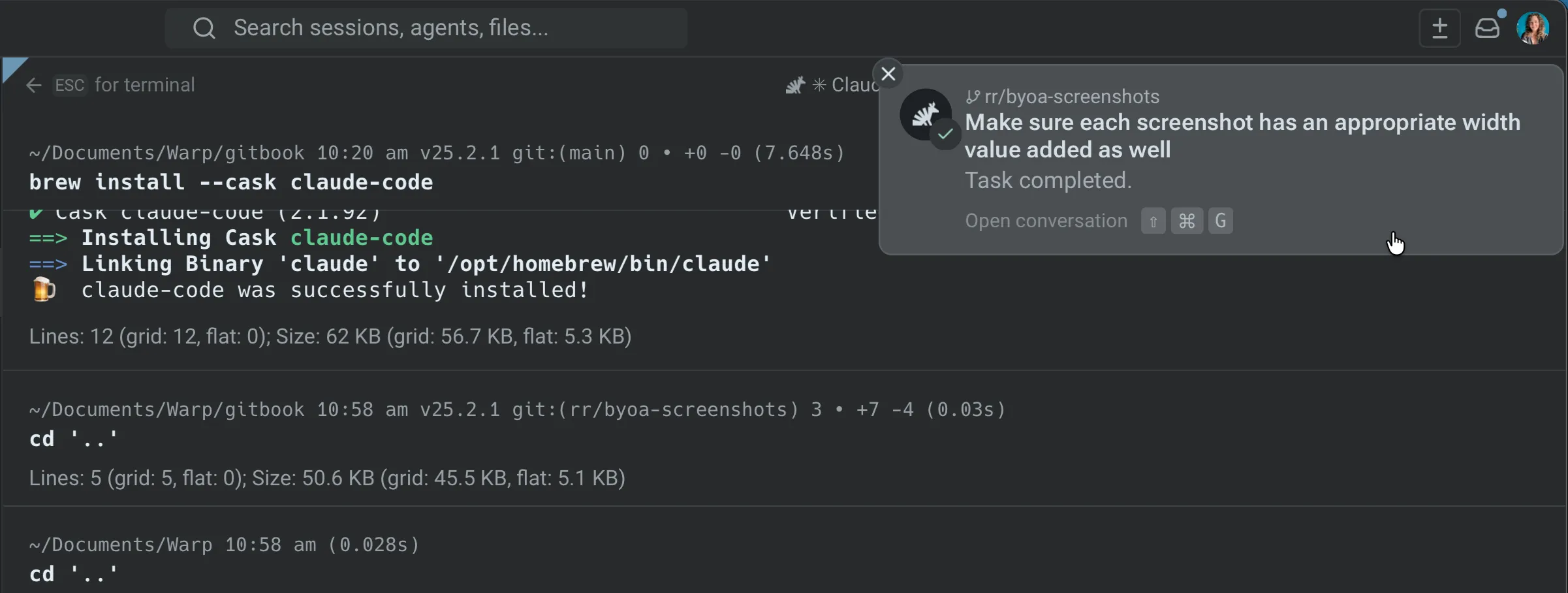
Section titled “Toast notifications”Floating toast notifications appear in the corner of the Warp window when an agent in another tab needs attention. Toasts auto-dismiss after a few seconds. Hover over a toast to pause the timer, or click it to jump directly to the agent’s session.
Up to two toasts are visible at a time. If additional notifications arrive, the oldest toast is replaced.
Notification mailbox
Section titled “Notification mailbox”The notification mailbox is a sidebar panel that collects all agent notifications in one place. Open it from the bell icon in the top-right corner of Warp.
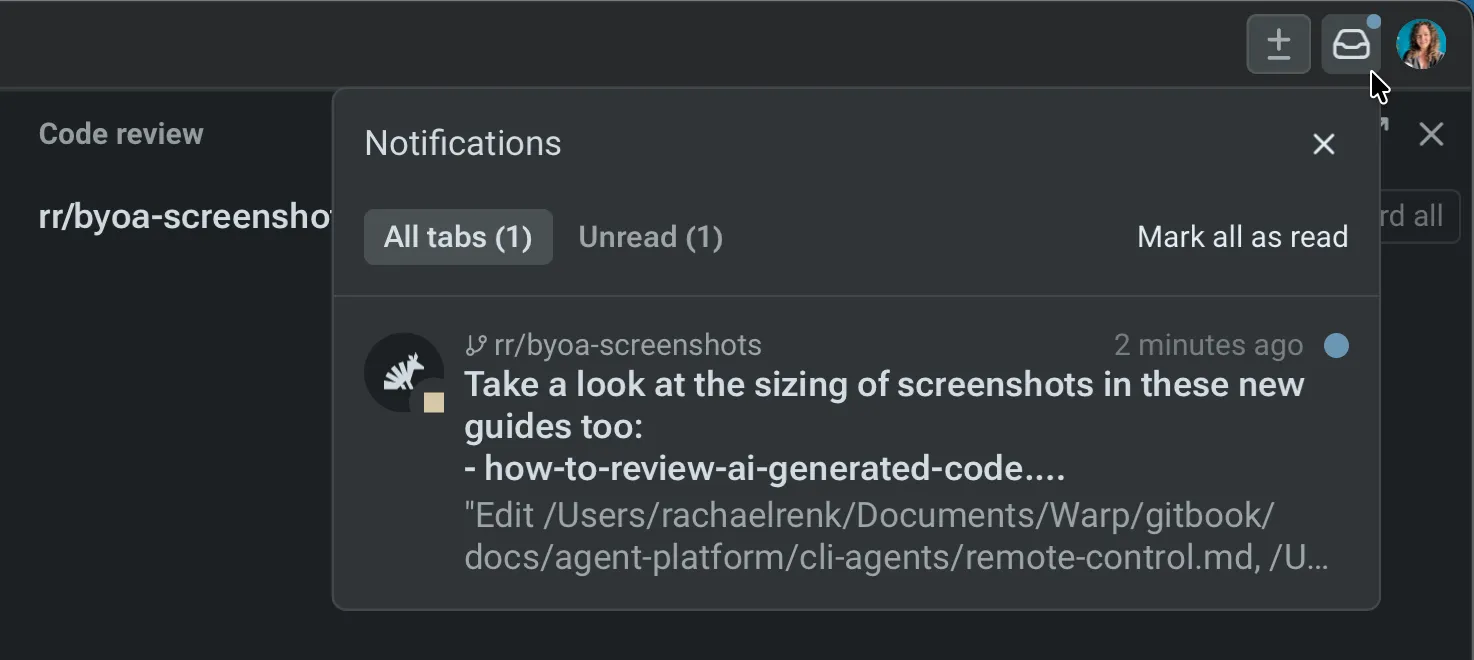
The mailbox includes:
- Filter tabs - switch between All tabs, Unread, and Errors to find what needs attention. If there are no unreads or errors, those filters don’t appear.
- Mark all as read - clear all unread indicators at once
- Click to navigate - click any notification to jump directly to that agent’s tab
Keyboard shortcuts:
↑/↓- select previous / next notificationEnter- open the selected notification’s sessionShift+Tab- cycle through filter tabsEsc- close the mailbox
Tab status indicators
Section titled “Tab status indicators”Each tab displays an icon reflecting its agent’s current state — working, blocked, completed, or errored. Tabs with unread notifications show an attention badge so you can spot which sessions need action, even with many tabs open.
Notifications are automatically marked as read when you navigate to the agent’s tab.
Desktop notifications
Section titled “Desktop notifications”When Warp is in the background or minimized, agent notifications are delivered as native system-level desktop alerts. This ensures you’re aware of agent activity even while working in other apps.
Supported agents
Section titled “Supported agents”Agent notifications currently work with:
- Warp Agent - supported out of the box. No setup required.
- Claude Code - full support via notification plugin.
- Codex - full support via native Codex configuration.
- OpenCode - full support via notification plugin.
Setting up notifications
Section titled “Setting up notifications”For the Warp Agent, notifications work out of the box — no setup needed.
For third-party CLI agents, each agent requires a one-time setup. The process varies by agent:
- Claude Code - one-click auto-install via a chip in Warp, or manual plugin commands. See Claude Code setup.
- Codex - add
notification_condition = "always"under[tui]in~/.codex/config.toml, then restart Codex. See Codex setup. - OpenCode - add
"@warp-dot-dev/opencode-warp"to thepluginarray in your OpenCode config. See OpenCode setup.
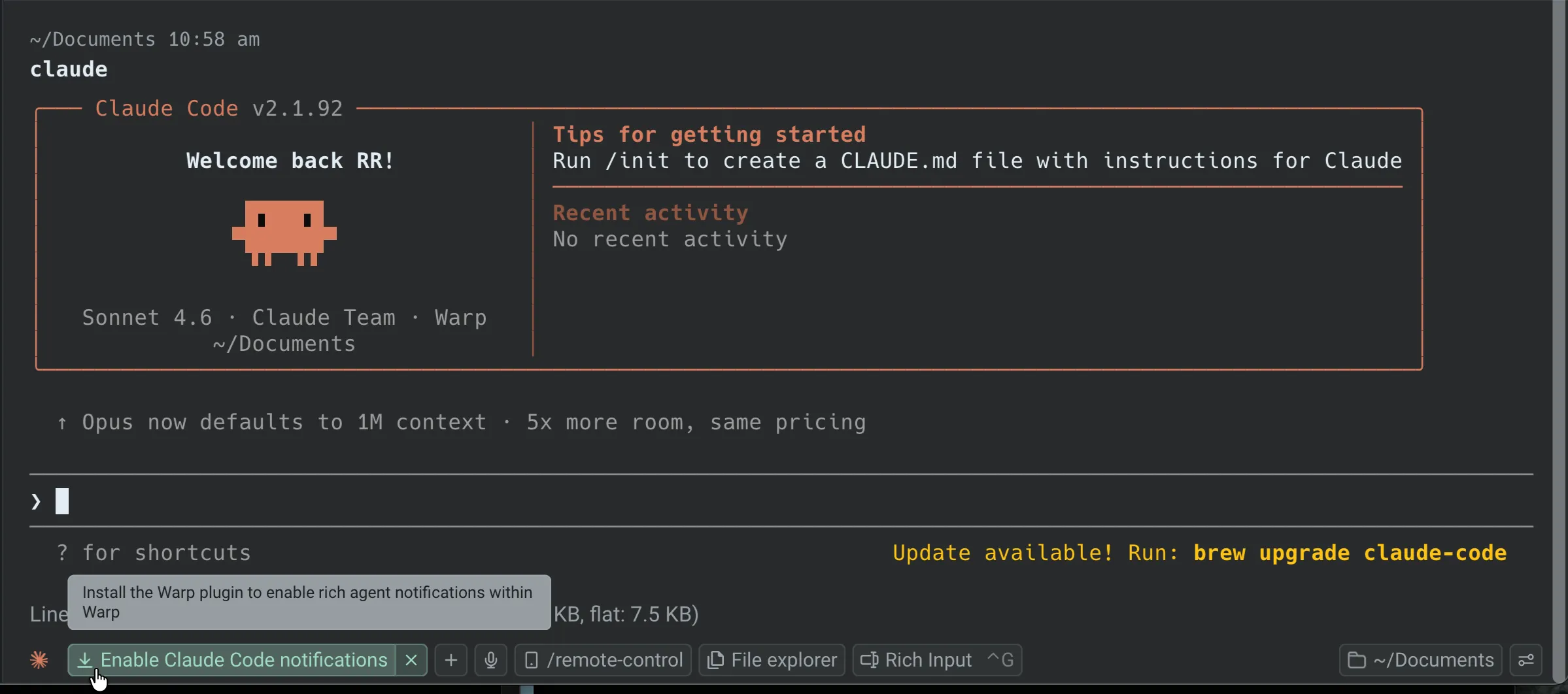
If auto-install doesn’t work or you’re running an agent over SSH, Warp displays an installation-instructions chip in the terminal with setup steps you can follow directly.
Notifications in orchestrated runs
Section titled “Notifications in orchestrated runs”In a multi-agent orchestration, the parent agent and each child agent are separate conversations. Today, in-app notifications fire on the parent’s conversation only: child agent conversations are excluded from the toast stream and the notification mailbox so the mailbox doesn’t get cluttered with per-child status churn.
That means:
- Toasts and the mailbox - watch the parent’s conversation for
Complete,Request, andErrornotifications. - Per-child state - use the orchestration pill bar above the agent view header (in the Warp app) or the parent’s Sub-agents tab on the Runs page (in the Oz web app) to see each child’s live status. Both surfaces update as children transition through
INPROGRESS,SUCCEEDED,BLOCKED,FAILED,ERROR, andCANCELLED. - Blocked children - if a child blocks on user input (for example, a command approval request), open that child from the pill bar to resolve the block. The parent’s transcript also reflects the child’s
BLOCKEDstate so the parent can wait, send a follow-up, or cancel the child.
Related pages
Section titled “Related pages”- Desktop Notifications - configure system-level notification permissions and troubleshoot delivery
- Managing Agents - monitor all agent conversations, filter by status, and inspect sessions
- Multi-agent orchestration - parent/child model, run state transitions, and the orchestration pill bar
- Third-party CLI agents - overview of supported CLI agents and Warp features
- Claude Code - setup and notification plugin installation
- Codex - setup and notification configuration
- OpenCode - setup and notification plugin installation