Agents > Capabilities
Profiles & Permissions
# Profiles & Permissions Agent Profiles let you configure how agents behave in different situations, including autonomy level, base model, tool access, and command permissions. Create multiple profiles for different workflows, control which commands run automatically, and set MCP server access rules per profile. ## Agent Profiles Agent Profiles let you configure how your Agent behaves in different situations. Each profile defines the Agent's autonomy, base models, and tool access. You can create multiple profiles and edit them directly in **Settings** > **Agents** > **Profiles**. * **Default profile**: Every user starts with a default profile, you can edit it at any time, and new profiles will copy its settings as a starting point. * **Other profiles**: Set up different profiles for different workflows (e.g., "Safe & cautious", "YOLO mode", etc.). Manage them in the Profiles settings menu. <figure>  <figcaption>Agent Profile settings.</figcaption> </figure> **In each Agent Profile, you can configure:** * The name of the profile * **Base model**: The core engine for your Agent. It handles most interactions and invokes other models when needed (e.g. for code generation). This model is also used for [Planning](/agents/capabilities/planning/) by default, though you can configure a separate planning model. * Agent autonomy and permissions <figure>  <figcaption>Editing an Agent Profile.</figcaption> </figure> ## Agent Permissions Agent Permissions let you define how your Agent in a specific Profile operates — control its autonomy, choose what tools or MCP servers it can access, and set when it should act independently or ask for approval. :::caution **Still getting approval prompts?** If the Agent keeps asking for permission to run certain commands (like `curl`, `rm`, or `wget`) even though you've set permissions to "Always allow," check your **Command denylist** in **Settings** > **Agents** > **Profiles**. The denylist takes precedence over your other permission settings. Remove commands from the denylist to allow them to auto-execute, or use [Run until completion](#run-until-completion) to bypass the denylist for the current task. ::: You can control how much autonomy the Agent has when performing different types of actions under **Settings** > **Agents** > **Profiles** > **Permissions**. Agent permission types: * Apply code diffs * Read files * Create plans * Execute commands * Interact with running commands (via [Full Terminal Use](/agents/capabilities/full-terminal-use/)) * Ask clarifying questions (via [Agent questions](/agents/local-agents/interacting-with-agents/agent-questions/)) <div align="center"></div> **Each permission has different levels of autonomy:** <table><thead><tr><th width="196.3369140625">Autonomy level</th><th>Description</th></tr></thead><tbody><tr><td>Agent Decides</td><td>Agent will act autonomously when it's confident, but prompt for approval when uncertain. This option balances speed with control, allowing the Agent to go ahead with common workflows while keeping you in the loop for more complex or risky steps.</td></tr><tr><td>Always ask</td><td>Agent will request explicit user approval before taking any action. Choose this for sensitive actions.</td></tr><tr><td>Always allow</td><td>Agent will perform the action without ever requesting explicit confirmation. Use this for tasks you fully trust the Agent to handle on its own.</td></tr><tr><td>Never</td><td>Agent will not ever take the action (i.e. Create plans).</td></tr></tbody></table> :::note For **Apply code diffs**, `Agent decides` currently behaves the same as `Always ask` — the Agent always prompts you to review diffs before applying them. Only `Always allow` skips the review prompt. When all Agent permissions are set to **Always allow**, the Agent gains full autonomy (“YOLO mode”); however, any denylist rules will still override these settings. ::: ### Ask questions The **Ask questions** permission controls whether the Agent can pause a conversation to ask you clarifying questions before continuing. The available settings are: * **Never ask** - The Agent does not pause for clarifying questions and continues with its best judgment. * **Ask unless auto-approve** - The Agent can ask during normal conversations, but questions are skipped while auto-approve is on. * **Always ask** - The Agent can pause for your answer even when auto-approve is on. For the full user flow, see [Agent questions](/agents/local-agents/interacting-with-agents/agent-questions/). ### Command allowlist The Agent lets you define an allowlist of commands that run automatically without confirmation. It’s empty by default, but users often add read-only commands such as: * `which .*` - Find executable locations * `ls(\s.*)?` - List directory contents * `grep(\s.*)?` - Search file contents * `find .*` - Search for files * `echo(\s.*)?` - Print text output You can add your own regular expressions to this list in **Settings** > **Agents** > **Profiles** > **Command allowlist**. Commands in the allowlist will always auto-execute, even if they are not read-only operations. <figure>  <figcaption>Command allowlist and denylists as part of an Agent Profile.</figcaption> </figure> ### Command denylist For safety, the Agent always prompts for confirmation before executing potentially risky commands. The default denylist includes several examples, such as: * `wget(\s.*)?` - Network downloads * `curl(\s.*)?` - Network requests * `rm(\s.*)?` - File deletion * `eval(\s.*)?` - Shell code execution The denylist takes precedence over both the allowlist and `Agent decides`: if a command matches the denylist, the Agent asks for permission even when that action type is set to **Always allow**. Add your own regular expressions to this list in **Settings** > **Agents** > **Profiles** > **Command denylist**. The one exception is [Run until completion](#run-until-completion), which bypasses your denylist by default. ### MCP permissions MCP servers let you extend the Agent with custom tools and data sources using standardized, plugin-like modules. In this settings menu, you can configure which MCP servers the Agent is allowed to call: * Use the MCP allowlist to give the Agent permission to call specific servers without asking. * Use the MCP denylist to require approval before calling certain servers, even if they’re also in the allowlist. * Or set the Agent to “decide” — it will act autonomously when confident, and ask for confirmation when uncertain. <figure>  <figcaption>MCP server interaction settings in an Agent Profile.</figcaption> </figure> :::note To learn how to build and configure your own MCP server, check out the [MCP feature docs](/agents/capabilities/mcp/). ::: ## Run until completion During an Agent interaction, you can give the Agent full autonomy for the current task. When auto-approve is on, every suggested command runs immediately until the task finishes, or you stop it with `Ctrl+C`. <Tabs> <TabItem label="macOS"> Auto-approve all Agent actions with: `⌘+Shift+I` </TabItem> <TabItem label="Windows"> Auto-approve all Agent actions with: `Ctrl+Shift+I` </TabItem> <TabItem label="Linux"> Auto-approve all Agent actions with: `Ctrl+Shift+I` </TabItem> </Tabs> <figure>  <figcaption>Auto-approve and take-over controls.</figcaption> </figure> :::caution _Run until completion_ is the purest form of “YOLO” mode: the Agent proceeds without asking for confirmation, and by default it also runs commands that match your command denylist. To keep your denylist in force during _Run until completion_, turn off **Allow auto-approve to bypass command denylist** in **Settings** > **Agents** > **Warp Agent** > **Input**. Denylist rules your team enforces through the [Admin Panel](/enterprise/team-management/admin-panel/) always require approval and are never bypassed. ::: --- ## Next steps Once you've configured how your agent operates, try giving it a larger task to plan and execute. * **[Planning](/agents/capabilities/planning/)** - Break down complex tasks into structured, executable plans that the agent runs step by step. * **[Code diffs](/agents/local-agents/code-diffs/)** - Review, refine, and apply code changes the agent generates. * **[Interactive Code Review](/agents/local-agents/interactive-code-review/)** - Leave inline comments on agent-generated diffs and have the agent address your feedback.Tell me about this feature: https://docs.warp.dev/agents/capabilities/agent-profiles-permissions/Agent Profiles let you customize how your Agent behaves, from its models and autonomy to the tools and permissions it can use.
Agent Profiles let you configure how agents behave in different situations, including autonomy level, base model, tool access, and command permissions. Create multiple profiles for different workflows, control which commands run automatically, and set MCP server access rules per profile.
Agent Profiles
Section titled “Agent Profiles”Agent Profiles let you configure how your Agent behaves in different situations. Each profile defines the Agent’s autonomy, base models, and tool access. You can create multiple profiles and edit them directly in Settings > Agents > Profiles.
- Default profile: Every user starts with a default profile, you can edit it at any time, and new profiles will copy its settings as a starting point.
- Other profiles: Set up different profiles for different workflows (e.g., “Safe & cautious”, “YOLO mode”, etc.). Manage them in the Profiles settings menu.
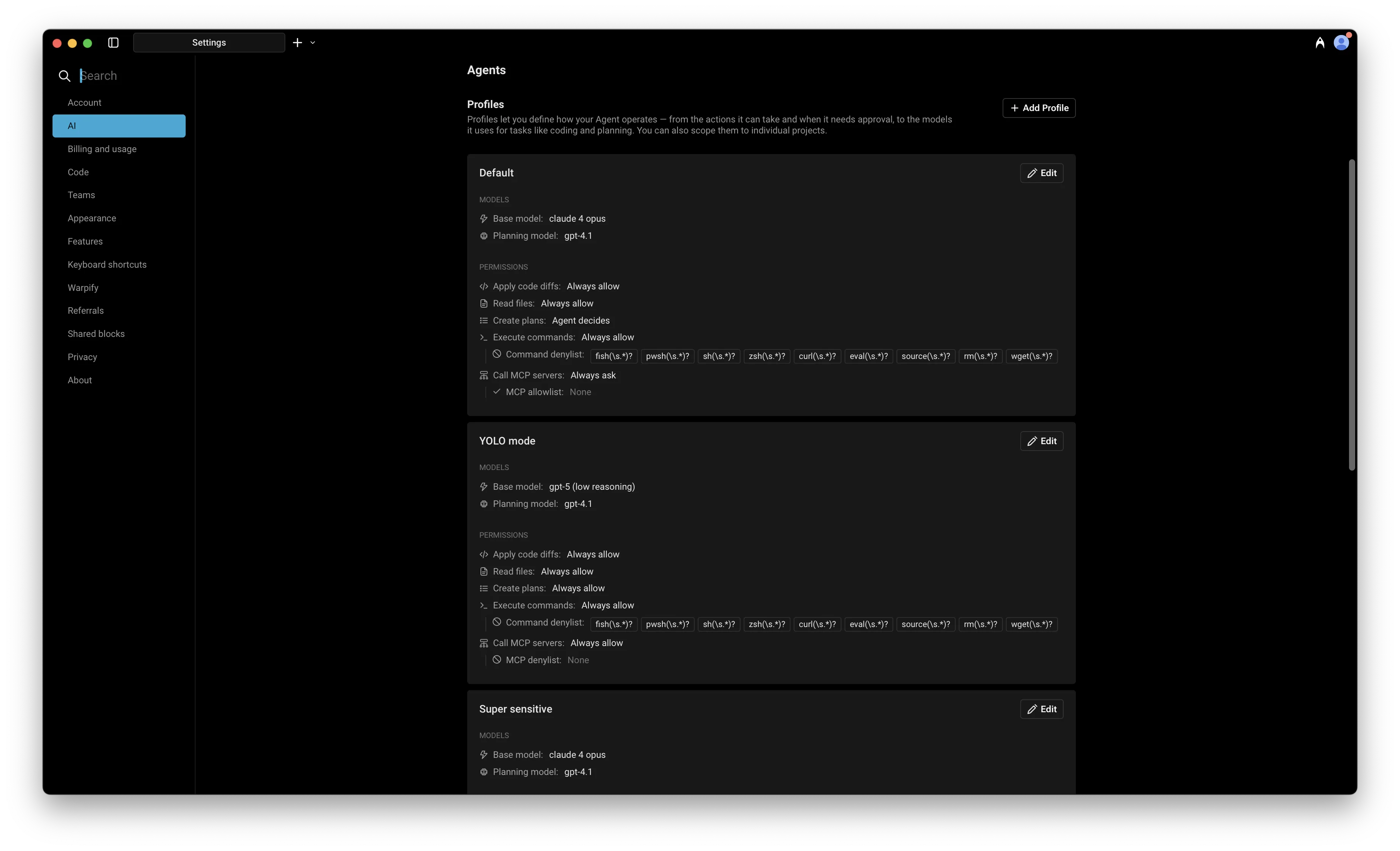
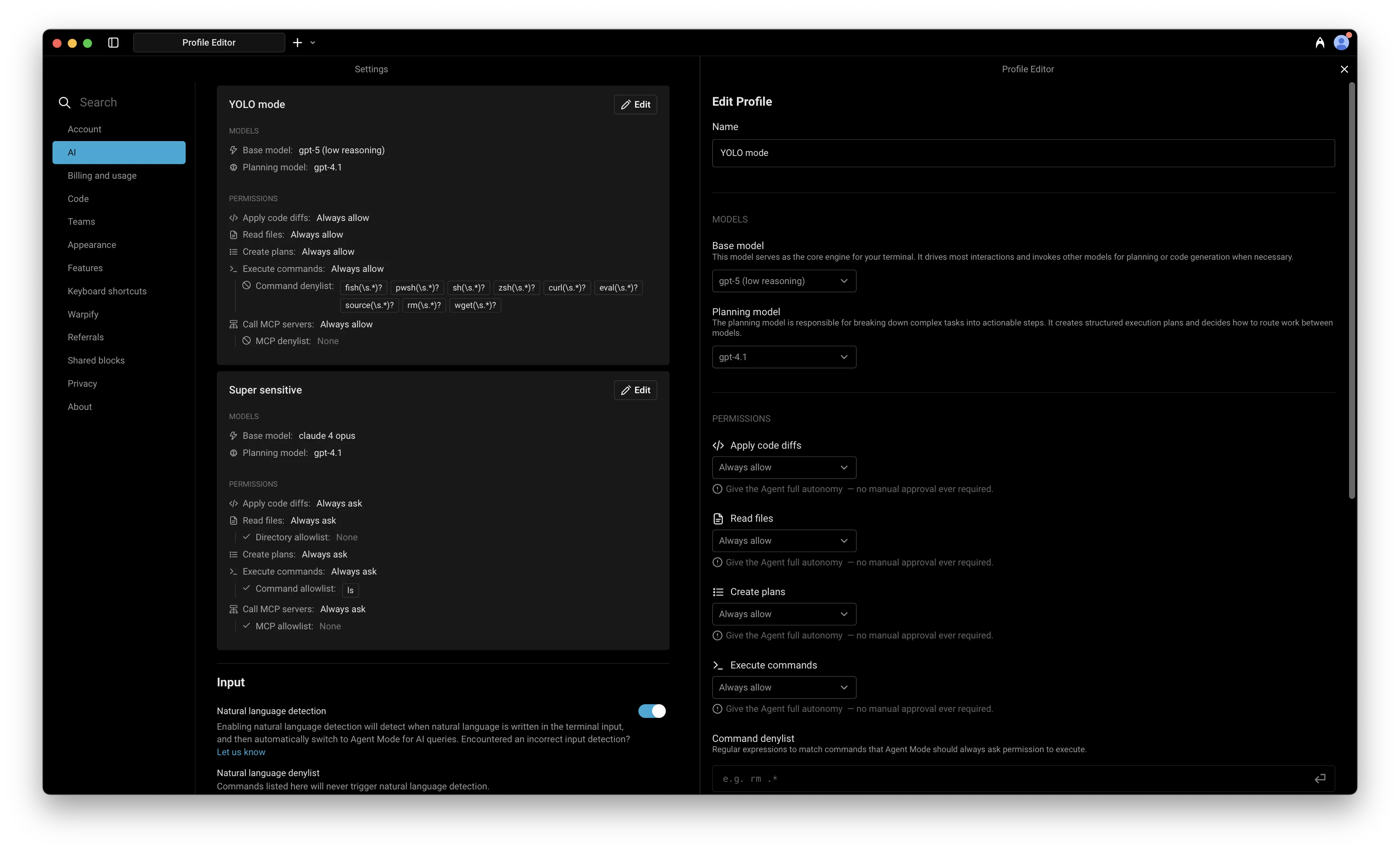
In each Agent Profile, you can configure:
- The name of the profile
- Base model: The core engine for your Agent. It handles most interactions and invokes other models when needed (e.g. for code generation). This model is also used for Planning by default, though you can configure a separate planning model.
- Agent autonomy and permissions
Agent Permissions
Section titled “Agent Permissions”Agent Permissions let you define how your Agent in a specific Profile operates — control its autonomy, choose what tools or MCP servers it can access, and set when it should act independently or ask for approval.
You can control how much autonomy the Agent has when performing different types of actions under Settings > Agents > Profiles > Permissions. Agent permission types:
- Apply code diffs
- Read files
- Create plans
- Execute commands
- Interact with running commands (via Full Terminal Use)
- Ask clarifying questions (via Agent questions)
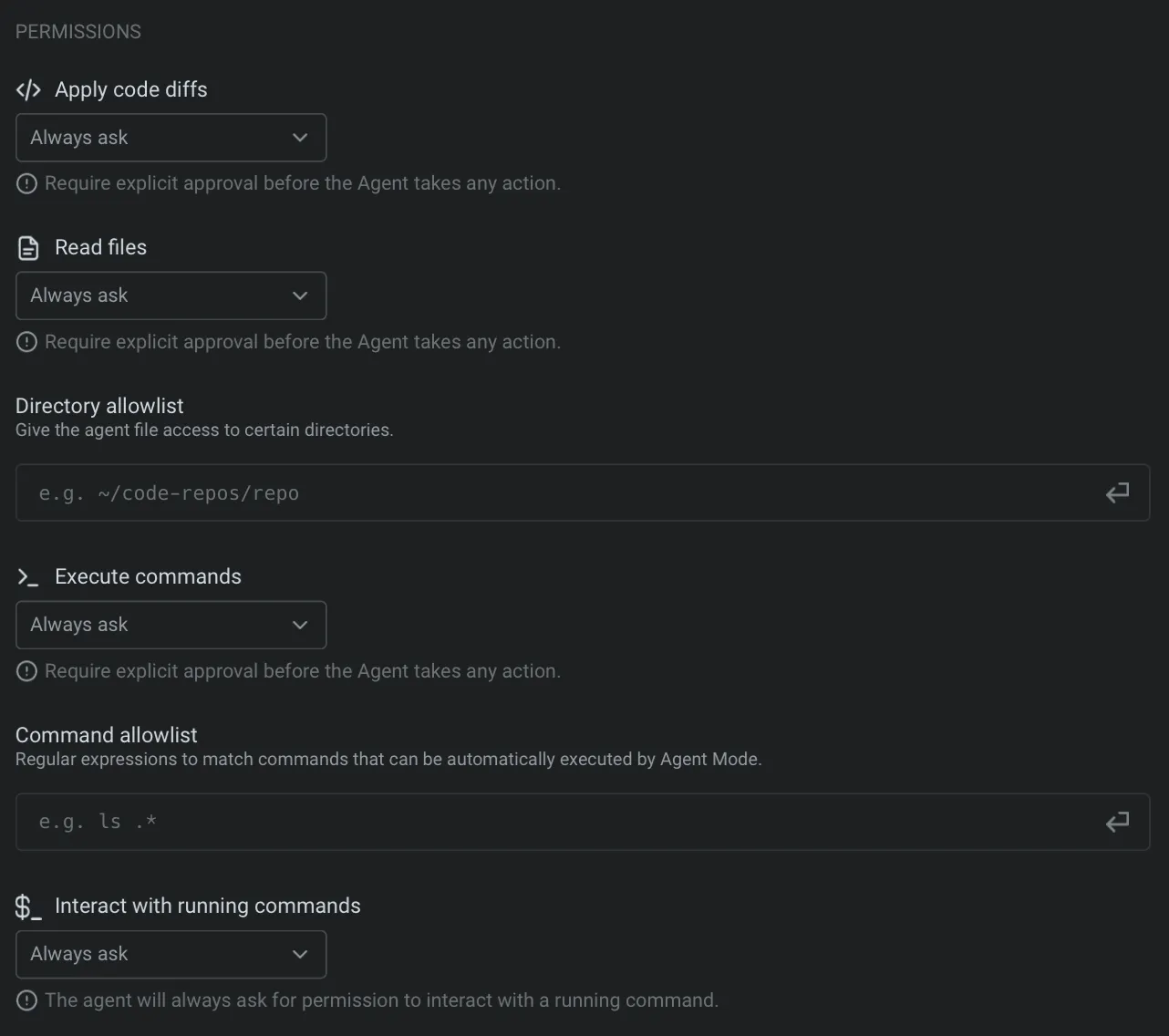
Each permission has different levels of autonomy:
| Autonomy level | Description |
|---|---|
| Agent Decides | Agent will act autonomously when it’s confident, but prompt for approval when uncertain. This option balances speed with control, allowing the Agent to go ahead with common workflows while keeping you in the loop for more complex or risky steps. |
| Always ask | Agent will request explicit user approval before taking any action. Choose this for sensitive actions. |
| Always allow | Agent will perform the action without ever requesting explicit confirmation. Use this for tasks you fully trust the Agent to handle on its own. |
| Never | Agent will not ever take the action (i.e. Create plans). |
Ask questions
Section titled “Ask questions”The Ask questions permission controls whether the Agent can pause a conversation to ask you clarifying questions before continuing.
The available settings are:
- Never ask - The Agent does not pause for clarifying questions and continues with its best judgment.
- Ask unless auto-approve - The Agent can ask during normal conversations, but questions are skipped while auto-approve is on.
- Always ask - The Agent can pause for your answer even when auto-approve is on.
For the full user flow, see Agent questions.
Command allowlist
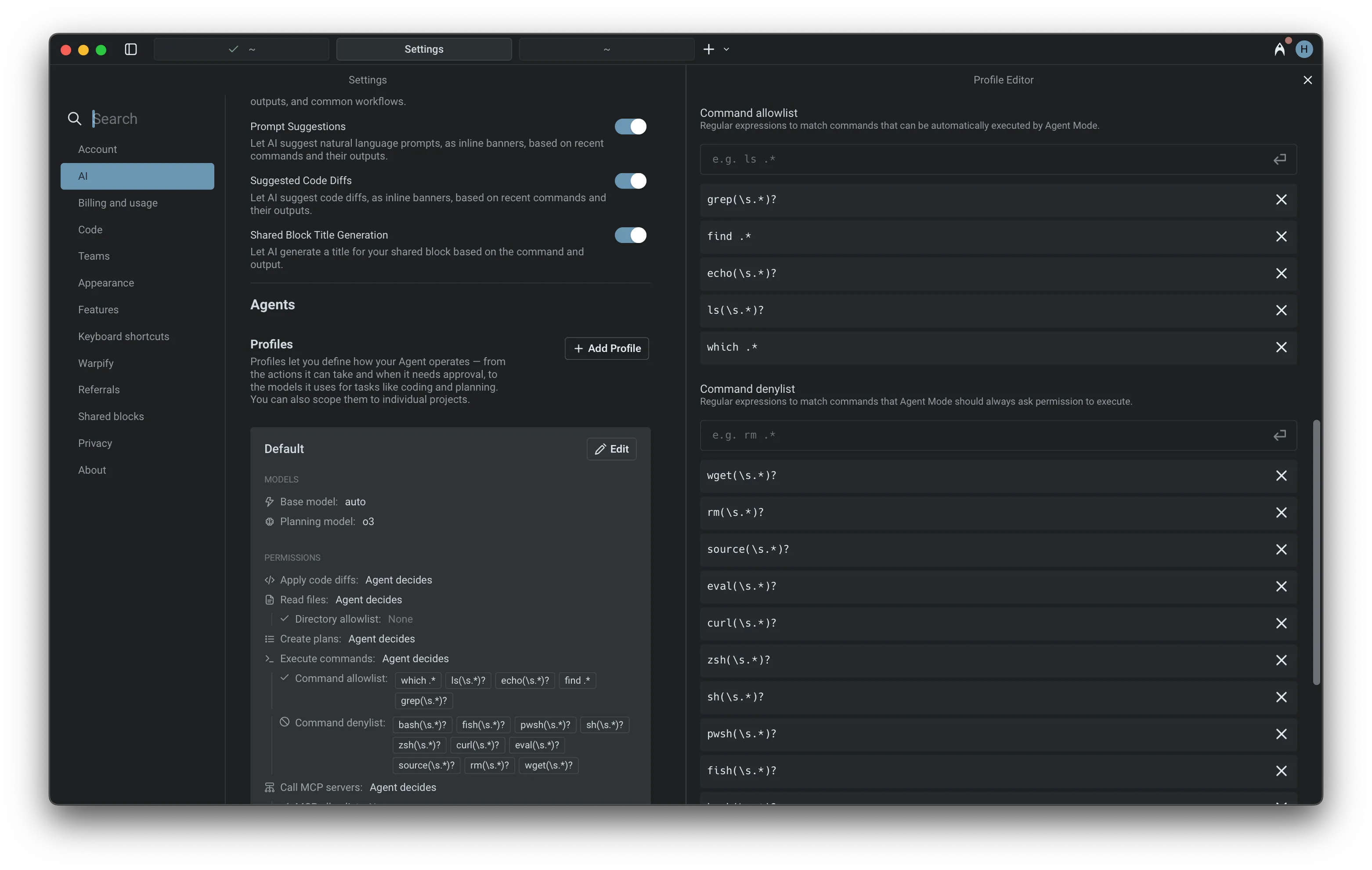
Section titled “Command allowlist”The Agent lets you define an allowlist of commands that run automatically without confirmation. It’s empty by default, but users often add read-only commands such as:
which .*- Find executable locationsls(\s.*)?- List directory contentsgrep(\s.*)?- Search file contentsfind .*- Search for filesecho(\s.*)?- Print text output
You can add your own regular expressions to this list in Settings > Agents > Profiles > Command allowlist. Commands in the allowlist will always auto-execute, even if they are not read-only operations.
Command denylist
Section titled “Command denylist”For safety, the Agent always prompts for confirmation before executing potentially risky commands. The default denylist includes several examples, such as:
wget(\s.*)?- Network downloadscurl(\s.*)?- Network requestsrm(\s.*)?- File deletioneval(\s.*)?- Shell code execution
The denylist takes precedence over both the allowlist and Agent decides: if a command matches the denylist, the Agent asks for permission even when that action type is set to Always allow. Add your own regular expressions to this list in Settings > Agents > Profiles > Command denylist. The one exception is Run until completion, which bypasses your denylist by default.
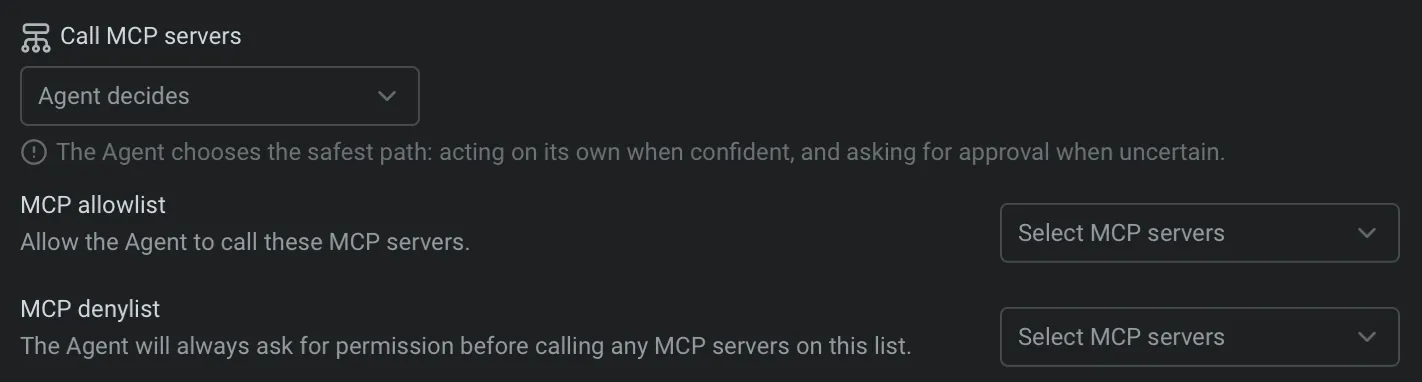
MCP permissions
Section titled “MCP permissions”MCP servers let you extend the Agent with custom tools and data sources using standardized, plugin-like modules.
In this settings menu, you can configure which MCP servers the Agent is allowed to call:
- Use the MCP allowlist to give the Agent permission to call specific servers without asking.
- Use the MCP denylist to require approval before calling certain servers, even if they’re also in the allowlist.
- Or set the Agent to “decide” — it will act autonomously when confident, and ask for confirmation when uncertain.
Run until completion
Section titled “Run until completion”During an Agent interaction, you can give the Agent full autonomy for the current task. When auto-approve is on, every suggested command runs immediately until the task finishes, or you stop it with Ctrl+C.
Auto-approve all Agent actions with: ⌘+Shift+I
Auto-approve all Agent actions with: Ctrl+Shift+I
Auto-approve all Agent actions with: Ctrl+Shift+I

Next steps
Section titled “Next steps”Once you’ve configured how your agent operates, try giving it a larger task to plan and execute.
- Planning - Break down complex tasks into structured, executable plans that the agent runs step by step.
- Code diffs - Review, refine, and apply code changes the agent generates.
- Interactive Code Review - Leave inline comments on agent-generated diffs and have the agent address your feedback.