Agents > Interacting with agents
Conversation Forking
# Conversation Forking Warp allows you to **fork conversations** to create a new thread that inherits all of the context, messages, and history from an existing conversation. This is useful when you want to branch off in a new direction without affecting the original conversation. <VideoEmbed url="https://www.loom.com/share/15164f2abc19437ebefb47a8c6b52eb8?t=54" title="Forking a conversation from a previous point video" /> ### How conversation forking works * When you fork a conversation, the new thread starts with the same context and history as the original. * Any follow-ups in the forked conversation do **not** impact the original. Likewise, continuing in the original conversation does not change the fork. * Forked conversations behave just like any other conversation: you can move them into new windows, panes, or tabs. * Your selected model and execution profile are preserved in the forked conversation. _Example_: You can fork a conversation to explore an alternate solution, ask “what if” questions, or continue down two separate paths in parallel. ### How to fork a conversation There are five ways to fork an existing conversation: #### 1. From the Command Palette Open the menu using the Command Palette (`⌘+Y` on macOS / `Ctrl+Shift+Y` on Windows/Linux). Select **Fork current conversation** to fork your current conversation, or fork a specific conversation from open conversations.  In addition, when you hover over any open conversation in the Command Palette, you'll see a **fork button**. This lets you fork not only active conversations, but also inactive and historical ones.  You can also access this conversation view from the conversation chip in the current conversation.  #### 2. From the footer of the most recent AI response block In any conversation in the block list, click the **fork button** in the footer of the most recent AI block. A new conversation opens in a separate pane with the full context of the original.  #### 3. Using the `/fork` slash command Type `/fork` in the input to fork the current conversation. You can optionally include a prompt after the command, and Warp will send that prompt in the newly forked conversation. * Press `Enter` to open the fork in a new pane (default) * Press `⌘+Enter` (macOS) or `Ctrl+Enter` (Windows/Linux) to open the fork in the current pane _Example_: `/fork Can you try a different approach?` Forks the selected conversation and immediately sends `Can you try a different approach?` in the forked conversation. #### 4. Using the `/fork-and-compact` slash command Type `/fork-and-compact` to fork the current conversation and automatically compact the forked version. This combines forking with [context window management](/agents/local-agents/interacting-with-agents/#context-window-management), giving you a fresh start with a summarized context. * Press `Enter` to open the fork in a new pane (default) * Press `⌘+Enter` (macOS) or `Ctrl+Enter` (Windows/Linux) to open the fork in the current pane  #### 5. Using the `/fork-from` slash command Type `/fork-from` to open a searchable menu of all queries in the current conversation. Select a query to fork the conversation from that specific point—everything up to and including that exchange is included in the fork, but subsequent messages are excluded. This is a more discoverable alternative to right-clicking on an agent response block. ### Fork from anywhere in a conversation In addition to forking from the end of a conversation, you can fork from any point in the conversation history. This lets you return to an earlier agent response and branch off in a new direction from there. <VideoEmbed url="https://youtu.be/SlhF4_0bBxY" title="Conversation forking workflow demo" /> To fork from a specific point, **right-click** on any agent response block or click the three-dot menu in the top-right corner of the block. * Select **Fork conversation from here** to create a new conversation that includes everything up to and including that response, but excludes any queries or responses that came after it. **This is particularly useful for:** * **Exploring alternate paths** - Go back to a point where the conversation was on track and try a different approach. * **Managing your context window** - If a conversation has grown too long, fork from an earlier point to continue with only the relevant context. * **Preventing context pollution** - When a conversation has accumulated errors or gone off track, fork from before those issues occurred to start fresh. ### Settings You can configure the default layout for forked conversations in **Settings** > **Features** > **Open forked conversation layout**: * **Split Pane** (default): Opens the forked conversation in a new pane alongside your current view. * **New Tab**: Opens the forked conversation in a new tab. This setting controls the default behavior when forking via the Command Palette, AI block footer button, or slash commands (when pressing `Enter`). ### Using forked conversations * Once forked, you can continue prompting as if you were still in the original conversation. The original conversation remains unchanged, allowing you to reference or continue both in parallel. * For example, after forking you can ask _"Could you explain more?"_ and Warp responds using the inherited context. **Forking is especially useful when:** * You want to explore different approaches without losing the original thread. * You need to keep one conversation "clean" while experimenting in another. * You want to reuse context or specific blocks from older conversations.Tell me about this feature: https://docs.warp.dev/agents/local-agents/interacting-with-agents/conversation-forking/Branch into a new agent thread with full context to explore alternatives without altering the original conversation.
Warp allows you to fork conversations to create a new thread that inherits all of the context, messages, and history from an existing conversation. This is useful when you want to branch off in a new direction without affecting the original conversation.
How conversation forking works
Section titled “How conversation forking works”- When you fork a conversation, the new thread starts with the same context and history as the original.
- Any follow-ups in the forked conversation do not impact the original. Likewise, continuing in the original conversation does not change the fork.
- Forked conversations behave just like any other conversation: you can move them into new windows, panes, or tabs.
- Your selected model and execution profile are preserved in the forked conversation.
Example: You can fork a conversation to explore an alternate solution, ask “what if” questions, or continue down two separate paths in parallel.
How to fork a conversation
Section titled “How to fork a conversation”There are five ways to fork an existing conversation:
1. From the Command Palette
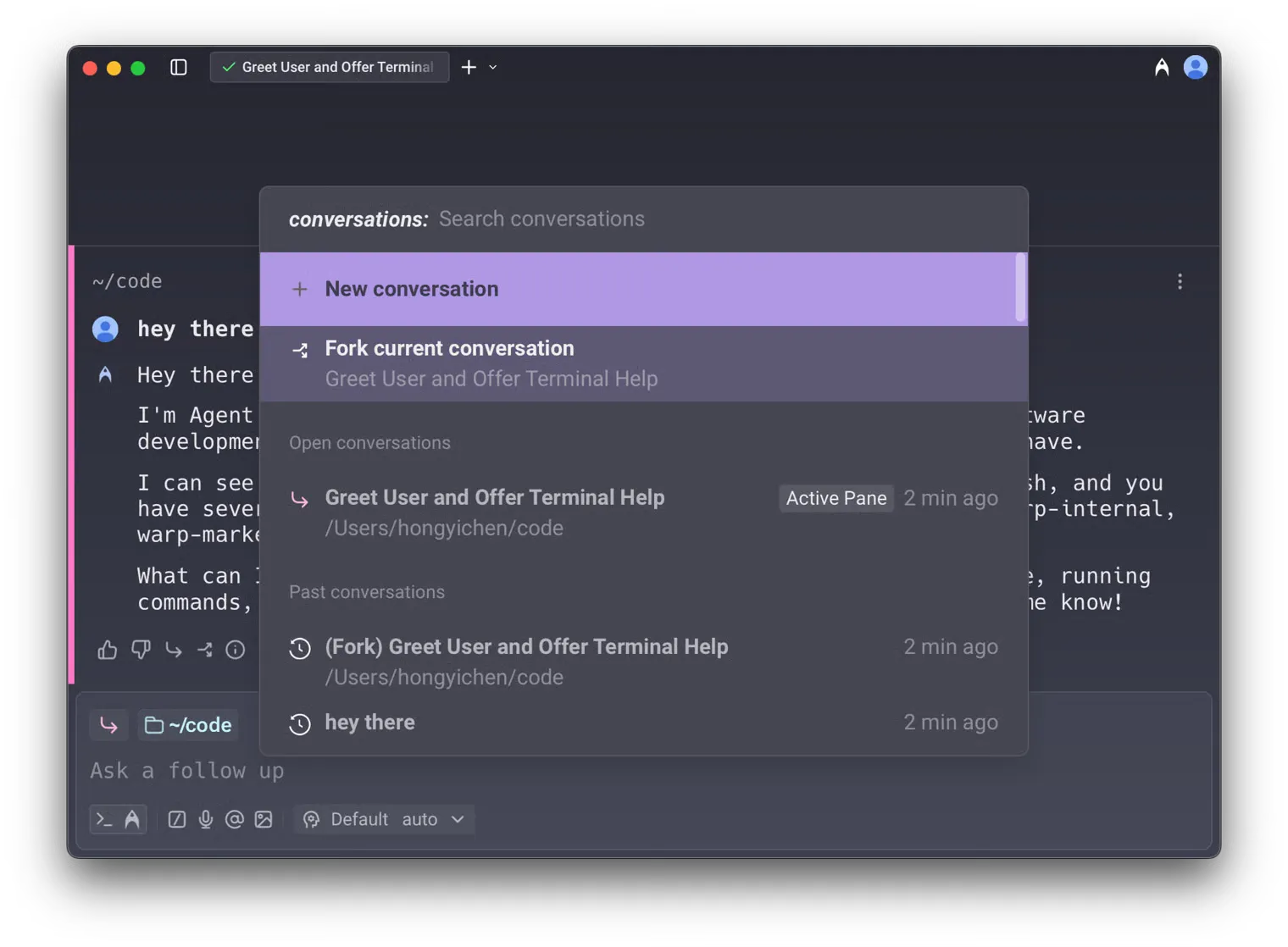
Section titled “1. From the Command Palette”Open the menu using the Command Palette (⌘+Y on macOS / Ctrl+Shift+Y on Windows/Linux).
Select Fork current conversation to fork your current conversation, or fork a specific conversation from open conversations.
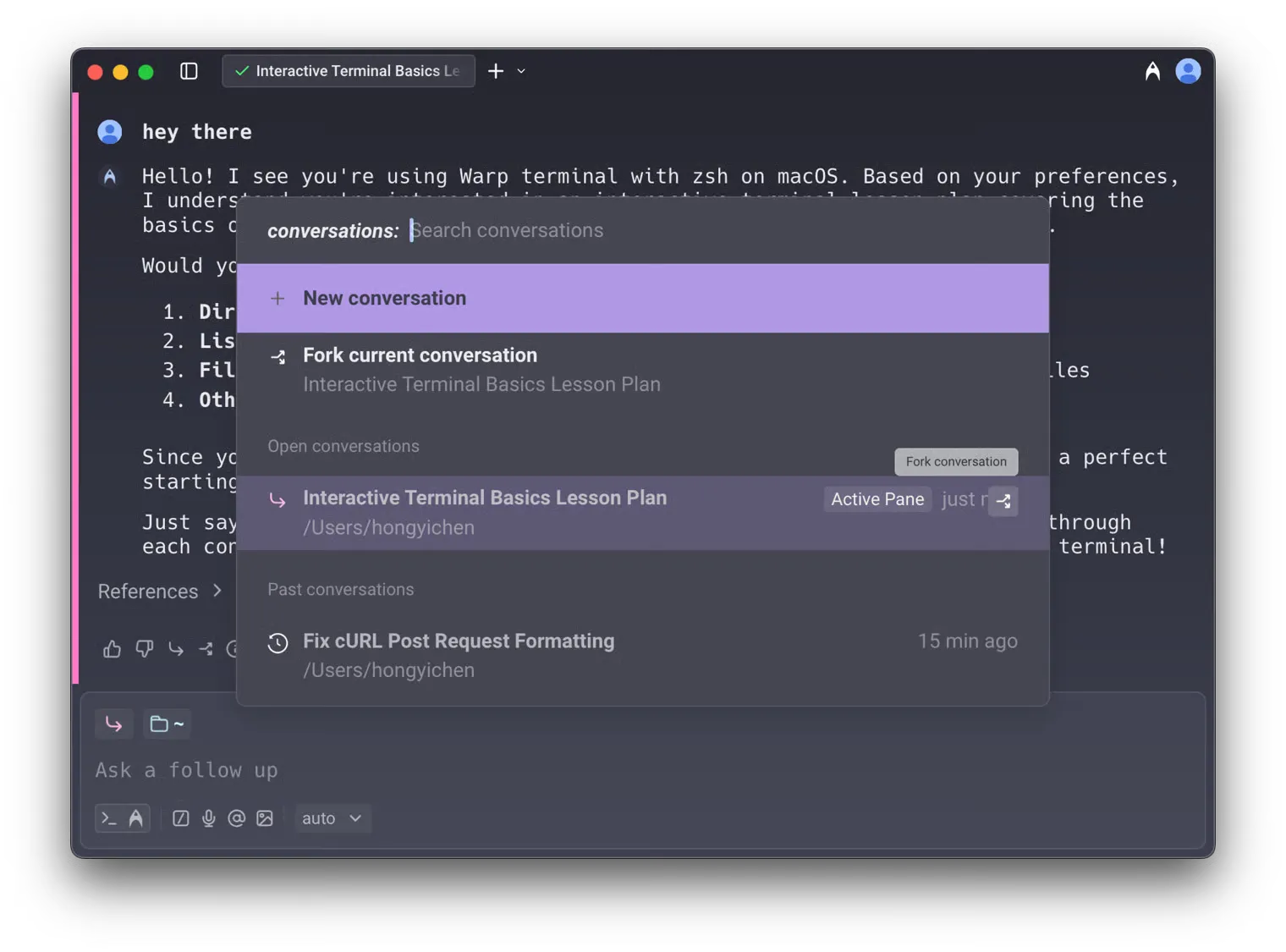
In addition, when you hover over any open conversation in the Command Palette, you’ll see a fork button. This lets you fork not only active conversations, but also inactive and historical ones.
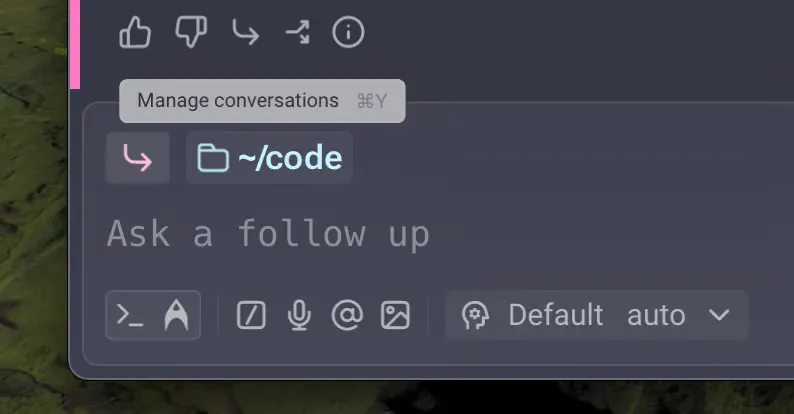
You can also access this conversation view from the conversation chip in the current conversation.
2. From the footer of the most recent AI response block
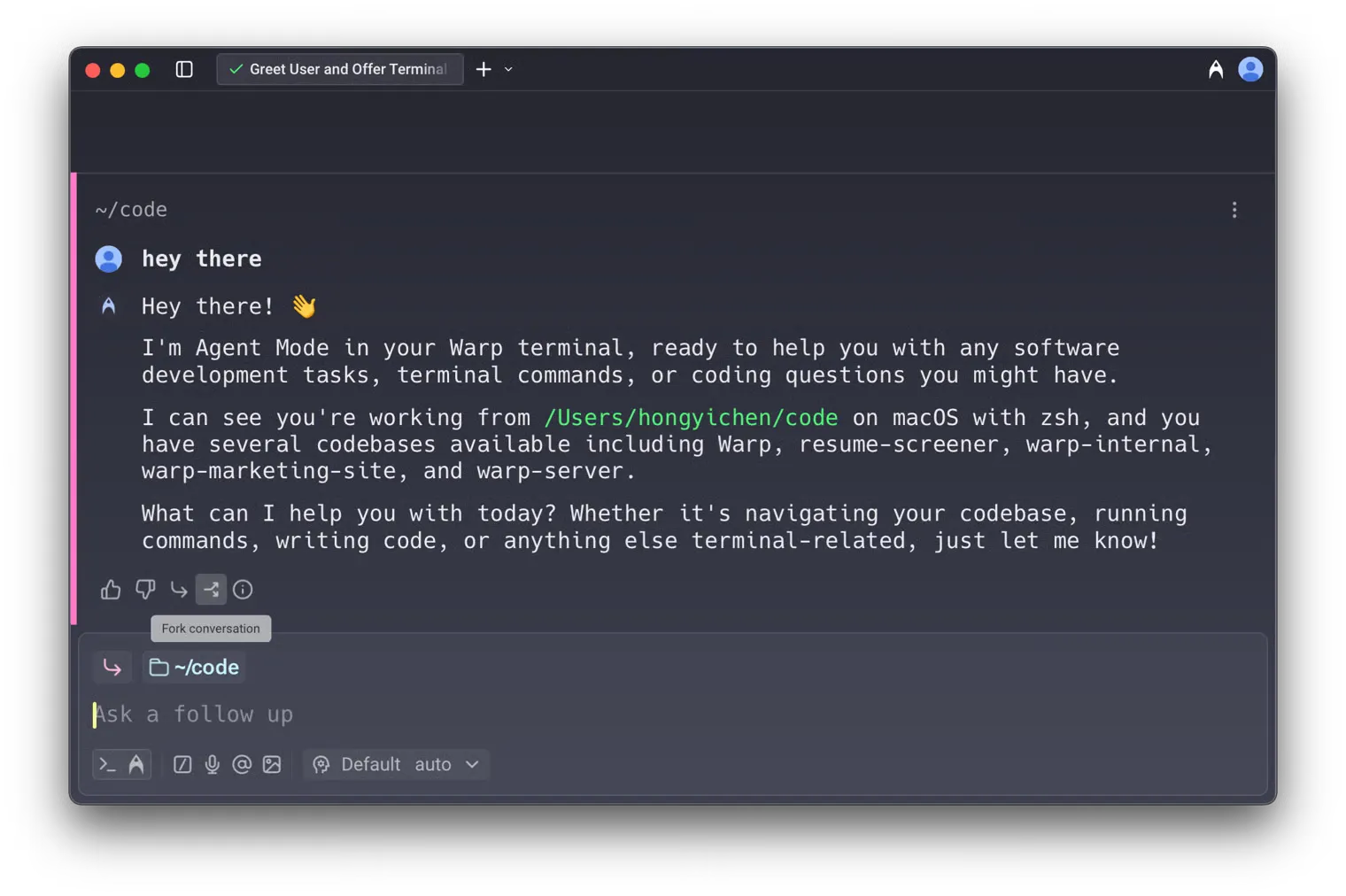
Section titled “2. From the footer of the most recent AI response block”In any conversation in the block list, click the fork button in the footer of the most recent AI block. A new conversation opens in a separate pane with the full context of the original.
3. Using the /fork slash command
Section titled “3. Using the /fork slash command”Type /fork in the input to fork the current conversation. You can optionally include a prompt after the command, and Warp will send that prompt in the newly forked conversation.
- Press
Enterto open the fork in a new pane (default) - Press
⌘+Enter(macOS) orCtrl+Enter(Windows/Linux) to open the fork in the current pane
Example: /fork Can you try a different approach? Forks the selected conversation and immediately sends Can you try a different approach? in the forked conversation.
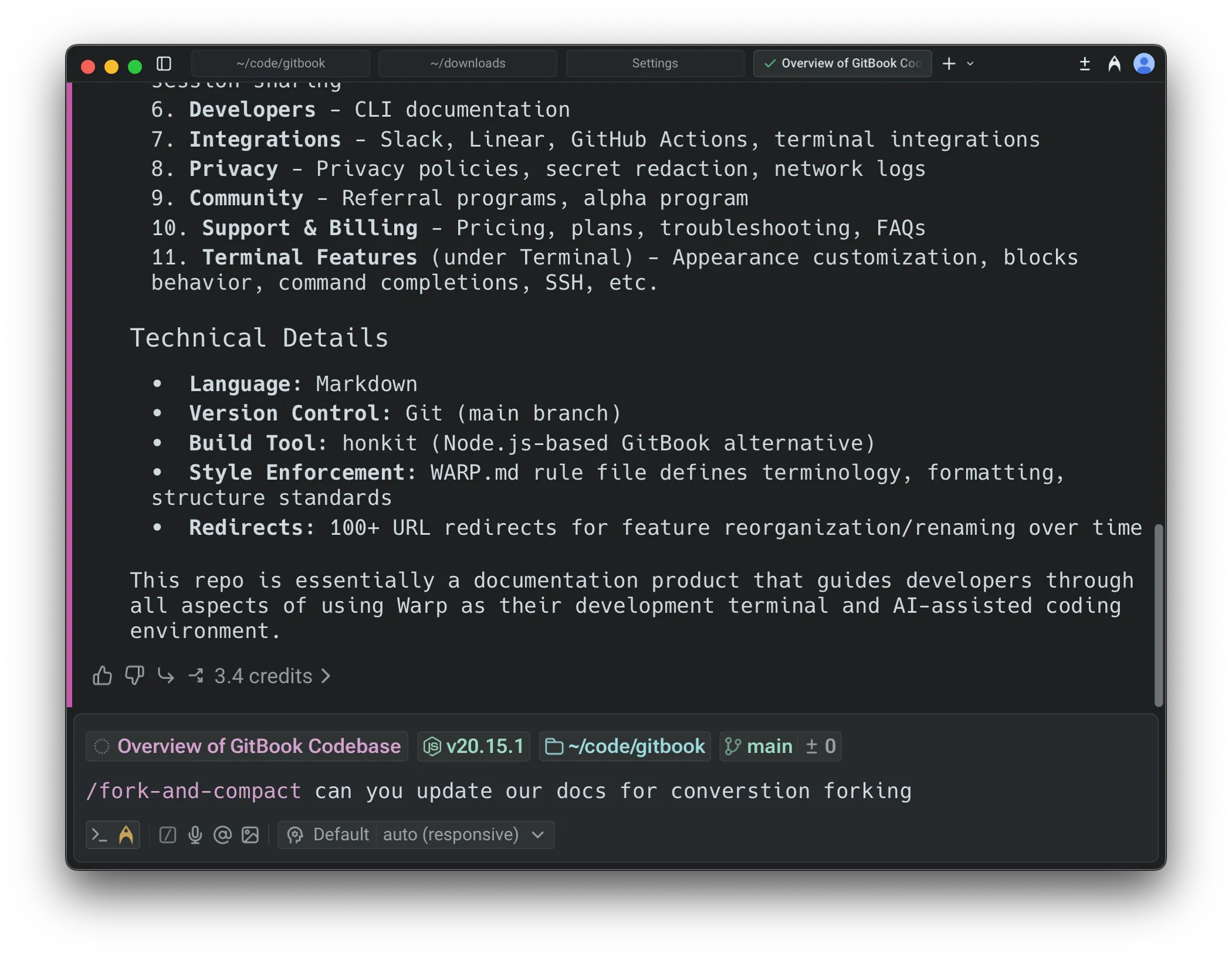
4. Using the /fork-and-compact slash command
Section titled “4. Using the /fork-and-compact slash command”Type /fork-and-compact to fork the current conversation and automatically compact the forked version. This combines forking with context window management, giving you a fresh start with a summarized context.
- Press
Enterto open the fork in a new pane (default) - Press
⌘+Enter(macOS) orCtrl+Enter(Windows/Linux) to open the fork in the current pane
5. Using the /fork-from slash command
Section titled “5. Using the /fork-from slash command”Type /fork-from to open a searchable menu of all queries in the current conversation. Select a query to fork the conversation from that specific point—everything up to and including that exchange is included in the fork, but subsequent messages are excluded.
This is a more discoverable alternative to right-clicking on an agent response block.
Fork from anywhere in a conversation
Section titled “Fork from anywhere in a conversation”In addition to forking from the end of a conversation, you can fork from any point in the conversation history. This lets you return to an earlier agent response and branch off in a new direction from there.
To fork from a specific point, right-click on any agent response block or click the three-dot menu in the top-right corner of the block.
- Select Fork conversation from here to create a new conversation that includes everything up to and including that response, but excludes any queries or responses that came after it.
This is particularly useful for:
- Exploring alternate paths - Go back to a point where the conversation was on track and try a different approach.
- Managing your context window - If a conversation has grown too long, fork from an earlier point to continue with only the relevant context.
- Preventing context pollution - When a conversation has accumulated errors or gone off track, fork from before those issues occurred to start fresh.
Settings
Section titled “Settings”You can configure the default layout for forked conversations in Settings > Features > Open forked conversation layout:
- Split Pane (default): Opens the forked conversation in a new pane alongside your current view.
- New Tab: Opens the forked conversation in a new tab.
This setting controls the default behavior when forking via the Command Palette, AI block footer button, or slash commands (when pressing Enter).
Using forked conversations
Section titled “Using forked conversations”- Once forked, you can continue prompting as if you were still in the original conversation. The original conversation remains unchanged, allowing you to reference or continue both in parallel.
- For example, after forking you can ask “Could you explain more?” and Warp responds using the inherited context.
Forking is especially useful when:
- You want to explore different approaches without losing the original thread.
- You need to keep one conversation “clean” while experimenting in another.
- You want to reuse context or specific blocks from older conversations.