Automation Platform > Cloud Agents
Access, billing, and identity permissions
# Access, billing, and identity permissions Cloud agent access depends on your plan and team membership. Billing follows the user or team responsible for the run. --- ## Overview: individual vs team access Cloud agents can be used in two ways: **Individual users** (without a team): * Can run cloud agents via CLI or API * Use available [usage balances](/support-and-community/plans-and-billing/credits/) for inference, hosted compute, and platform charges * Agents run on Warp-hosted infrastructure * Cannot use integrations (Slack, Linear, Jira, GitHub) or self-hosted agents **Teams** (users who are part of a [Warp team](/knowledge-and-collaboration/teams/)): * All individual capabilities, plus: * Can use integrations (Slack, Linear, Jira, and the [GitHub integration](/platform/integrations/github/)) to trigger agents * Can self-host agents on their own infrastructure (Enterprise only) * Share team-level configuration (environments, secrets, integrations) * Teams on Build, Max, or Business need available usage for cloud agents and integrations --- ## Usage requirements Cloud runs on Warp-hosted compute need eligible usage for compute and, when using Warp-provided models, inference. * **Self-serve plans** - Use remaining included usage or an eligible purchased balance. * **Enterprise** - Usage requirements follow your service agreement. Check the balance for the [user or agent billed for the run](#billing-for-cloud-agent-runs). Spending limits and billing restrictions can block a run even when a balance remains. ## Individual access Individual users can run cloud agents via the CLI or API without being part of a team. **How it works:** * Run agents using `oz agent run-cloud` or the Warp Platform API * Applicable charges draw from your available usage * Agents execute on Warp-hosted infrastructure **What you can do:** * Run cloud agents from CI/CD pipelines * Trigger agents programmatically via API * Use personal secrets for authentication **What requires a team:** * Integrations (Slack, Linear, Jira, and the [GitHub integration](/platform/integrations/github/)) * Self-hosted agent execution * Team secrets and shared configuration --- ## Team access A [Warp team](/knowledge-and-collaboration/teams/) is a group of users who share configuration and collaborate on cloud agents. Teams can be created on any plan, including Free. **What teams enable:** * **Integrations** - Create Slack, Linear, and Jira integrations that all team members can use, and enable the [GitHub integration](/platform/integrations/github/) so teammates can start agents with an `@warp-agent` mention * **Shared configuration** - Team-level environments, secrets, and settings * **Self-hosting** - Run agents on your own infrastructure (Enterprise only) * **Team visibility** - Shared observability into agent runs and history Integrations are created at the team level, not per-user. Once a Slack or Linear integration is installed, everyone on your Warp team can use **@warp** in the connected workspace. The integration behaves the same way for all teammates, and everyone shares the same underlying environment configuration. The GitHub integration is team-level in the same way: once an admin enables the GitHub organization, any teammate with a connected GitHub account can start a run by mentioning **@warp-agent**. When someone triggers a cloud agent for the first time, Warp may prompt them to grant GitHub authorization so the agent can open pull requests or push branches under their identity. This allows each run to use the correct permissions without requiring additional setup from an admin. #### Requirements for integrations Integrations start [cloud runs](/platform/). [Platform usage](/support-and-community/plans-and-billing/platform-credits/) applies to billable agent time; Warp-hosted compute and Warp-provided inference add their respective charges. Enterprise terms follow your contract. Your team must meet the following requirements to run integrations: * You must be on a **Build, Max, or Business** plan with [usage purchases](/support-and-community/plans-and-billing/add-on-credits/) enabled, or an eligible **Enterprise** plan. * The billed user or team must meet the [usage requirements](#usage-requirements). See [billing for cloud agent runs](#billing-for-cloud-agent-runs) for run attribution and what happens when usage runs out. :::note If you're on an Enterprise plan, please reach out to [contact sales](https://www.warp.dev/contact-sales) with any billing questions related to integrations. ::: ### Identity mapping Warp needs a reliable way to know which person a cloud agent run is acting for, across Warp, Slack, Linear, and GitHub. * Slack uses a dedicated account-linking flow to map a Slack user to their Warp account. This is the recommended path for Slack-triggered agents, since it doesn’t rely on email matching. * Linear currently maps identities using email address matching. Your Linear email must match your Warp account email for Warp to correctly attribute and scope agent runs. * The [GitHub integration](/platform/integrations/github/) maps the GitHub account that mentioned `@warp-agent` to the Warp account that connected it, rather than by email. Until a teammate connects their GitHub account, Warp replies in the thread with a link to connect instead of starting a run. That binding sets run attribution, team ownership, and billing; the run's GitHub access comes from the app installation instead. * Each teammate must authorize GitHub before an agent can write PRs or push branches on their behalf * For Slack-triggered, Linear-triggered, and locally triggered runs, agents operate using the GitHub permissions of the triggering user This ensures runs are scoped to what the user is allowed to see and modify, and that ownership of PRs remains clear across teams and repositories. The two exceptions are agent API key runs with [team GitHub authorization](#team-github-authorization) and runs started from an `@warp-agent` mention, which both authenticate as the Warp Factories GitHub App installation. --- ## Team GitHub authorization By default, cloud agents authenticate with GitHub using the personal token of the user who triggered the run. Team GitHub authorization gives you an alternative: authenticate with the **Warp Factories** GitHub App instead, so agents can clone repositories and open pull requests without relying on any individual's token. This is useful for fully automated workflows that use an [agent API key](/agents/cli/oz-cli/api-keys/), like CI/CD pipelines, [scheduled agents](/platform/triggers/scheduled-agents/), and SDK-triggered runs, where you want code changes attributed to the GitHub App rather than a specific person. ### How it works When an agent task is initiated with an agent API key, there is no individual user to authenticate on behalf of. Instead, Warp uses tokens issued by the **Warp Factories** GitHub App installation to authenticate directly with GitHub. The GitHub App token gives the agent access to the repositories included in the app installation — it can clone repos, create branches, push commits, and open pull requests. During installation, you choose whether the app can access **all repositories** or only **selected repositories** in your GitHub organization, and this controls what agent API key runs can access. ### Setting up team GitHub authorization 1. **Install the Warp Factories GitHub App.** A user with admin permissions on the GitHub organization installs the [Warp Factories](https://github.com/apps/warp-factories) GitHub App. During installation, grant the app access to **all repositories** or **selected repositories** in your org. :::note There are two places you may encounter this installation flow: * During the first-time experience for the Automation Platform, when you connect your GitHub account. * When you click **Configure access on GitHub** in the repository selector while creating an environment. Each installation is scoped to a single GitHub organization or personal account — you can install the app to multiple orgs separately. ::: <figure>  <figcaption>Installing the Warp Factories GitHub App.</figcaption> </figure> 2. **Enable the GitHub org for your Warp team.** A Warp team admin opens the Admin Panel in the Warp app (**Settings** > **Admin Panel** > **Platform**) and adds the GitHub organization under **Enabled GitHub Orgs**. This associates the GitHub App installation with your Warp team. <figure>  <figcaption>Enabled GitHub Orgs setting in the Admin Panel.</figcaption> </figure> 3. **Use an agent API key.** Tasks initiated with an agent API key on the team now use tokens from the GitHub App installation to clone repos and push changes. No individual GitHub authorization is needed. On GitHub, commits and pull requests are opened by the Warp Factories GitHub App rather than any individual user; in the cloud agent dashboard, the run is attributed to the bound [cloud agent](/platform/agents/). ### How this relates to environments An [environment](/platform/environments/) is a template for a cloud agent's sandbox — it defines the Docker image, repos, and setup commands, but it does not carry its own GitHub permissions. The same environment can be used by different users or by agent API key runs, and each will authenticate to GitHub independently. The environment configuration and the **Enabled GitHub Orgs** setting in the Admin Panel serve different purposes: * **Environment repo list** - "This agent needs repos A, B, and C." * **Enabled GitHub Orgs** - "This team can use the Warp Factories GitHub App to access repos in this GitHub organization." ### Personal tokens vs. GitHub App tokens Team GitHub authorization is complementary to the existing personal token flow: * **User-triggered runs** (personal API key, Slack, Linear, Warp app) - The agent authenticates using the triggering user's personal token. PRs and commits are attributed to that user. * **Agent API key runs with GitHub App authorization** - The agent authenticates as the GitHub App installation. On GitHub, PRs and commits are attributed to the Warp Factories GitHub App rather than any individual user. In the cloud agent dashboard, the run is attributed to the bound [cloud agent](/platform/agents/), which controls run filtering and audit attribution on the Warp side. * **[GitHub integration](/platform/integrations/github/) runs** (an `@warp-agent` mention on an issue or pull request) - The agent authenticates as the installation that delivered the event, so its repository access and its GitHub attribution match the agent API key flow. In the cloud agent dashboard the run is still attributed to the teammate who wrote the mention, and their team is billed. These flows can coexist on the same team. Personal tokens are still used for user-triggered runs from a personal API key, Slack, Linear, and the Warp app, and the GitHub App installation token is used for agent API key runs and for GitHub integration runs. :::caution GitHub App installation tokens are scoped to a single GitHub organization at a time. If your team works across repos in multiple GitHub organizations, the agent can only use the installation token for the organization enabled in the Admin Panel. Repos in other organizations require user-triggered runs with a personal API key. ::: :::note To change which repositories the GitHub App can access, edit the app installation in your [GitHub settings](https://github.com/settings/installations). ::: --- ## Data and permissions #### Slack / Linear Installing the Automation Platform app gives Warp access to the Slack channels or Linear teams where the app is installed. **When a run is triggered, Warp receives:** * The content of the tagged thread or issue * Relevant surrounding context used to build the agent prompt Warp stores only the content required for the agent to complete its task. You can message @warp directly, mention it in channels, or tag it on specific issues depending on the integration. #### GitHub Warp’s behavior in GitHub is defined by two layers of control: 1. **The Warp GitHub App installation scope** * Determines which organizations and repositories Warp can read and write to * Can be edited at any time in GitHub settings 2. **Permissions of the triggering user** * Agents inherit the user’s read/write privileges * Agents cannot elevate permissions, see additional repos, or write to repos the user cannot access **In practice, agents can only operate on repositories that:** * Are included in the environment configuration * Are accessible to both the GitHub app and the triggering user. Runs triggered by an `@warp-agent` mention through the [GitHub integration](/platform/integrations/github/) follow the first layer only. Warp receives the content of the issue, pull request, or review thread that carried the mention, including the recent comments and the diff of a commented file, and the run authenticates with the GitHub App installation that delivered the event. Cloning, commits, branches, pull requests, and status comments all use that installation's access rather than the mentioning user's, so the installation's repository selection is the only boundary on what those runs can reach. The repository that triggered the mention is cloned alongside any repositories in the configured environment, and only the repositories that installation covers are available to the agent. --- <span id="additional-notes-how-cloud-agents-use-credits" /> <span id="how-credit-usage-works" /> ## Billing for cloud agent runs Cloud agent runs consume usage dollars or credits, depending on your plan. They also incur [platform usage](/support-and-community/plans-and-billing/platform-credits/) for billable agent time, plus charges for Warp-hosted compute and Warp-provided inference. On self-serve team plans, billing follows the trigger: * **Runs acting as you** - Use your eligible included and purchased usage on the team. See [team purchase balances](/support-and-community/plans-and-billing/add-on-credits/#tracking-purchases-and-team-usage) for shared and member-specific balances. * **Agent API key runs** - Use eligible shared team usage, not the team owner's personal included allowance. Cloud agents don't receive a separate per-seat allowance. * **User-created schedules** - Use the creator's eligible usage by default. If configured to run as a cloud agent, the schedule uses shared team usage instead. Enterprise availability and billing follow your contract. Dedicated cloud allowances can be used before general-purpose balances. If no usable balance remains, a run can fail with an [insufficient credits](/factories/api-and-sdk/troubleshooting/errors/insufficient-credits/) error. Repeated unattended runs can trigger purchases subject to the team's [spend controls](/support-and-community/plans-and-billing/add-on-credits/#configuring-a-monthly-spend-limit). Contact your account manager with questions about your team's cloud run billing. For automated workflows that write to repositories, configure [team GitHub authorization](#team-github-authorization), or use a [personal API key](/agents/cli/oz-cli/api-keys/) to act as an individual user. #### Who configures triggers and workflows All triggers and instructions used by cloud agents are defined and controlled by your team’s authorized users. * Admins or other authorized users decide which triggers exist, when they fire, and what the agent should do in response. * Trigger behavior and the agent’s instructions (system prompts, workflow steps, repo access, etc.) are fully managed by your admins or other designated users. #### Staying aware of usage Review your triggers and available balance before relying on unattended runs. In the Warp app, open **Settings** > **Billing and usage** for usage and purchase controls. --- ## Troubleshooting If a cloud agent or integration run fails with an error code, use the error reference to narrow the fix: * **Missing GitHub or external authorization** - See [`external_authentication_required`](/factories/api-and-sdk/troubleshooting/errors/external-authentication-required/) when a user needs to authorize GitHub, Slack, or Linear before a run can continue. * **Insufficient repo permissions** - See [`not_authorized`](/factories/api-and-sdk/troubleshooting/errors/not-authorized/) when the triggering user or GitHub App lacks access to the repo the agent needs. * **Usage or spend caps block a run** - See [`insufficient_credits`](/factories/api-and-sdk/troubleshooting/errors/insufficient-credits/) or [`budget_exceeded`](/factories/api-and-sdk/troubleshooting/errors/budget-exceeded/) when the billed account has no usable balance or reached a configured limit. --- <span id="related-resources" /> ## Related pages * [Purchasing additional usage](/support-and-community/plans-and-billing/add-on-credits/) - Shared balances, auto-reload, and purchase limits. * [Platform usage](/support-and-community/plans-and-billing/platform-credits/) - Agent-hour billing for cloud runs. * [Usage and billing](/support-and-community/plans-and-billing/credits/) - Charge components and billing units.Tell me about this feature: https://docs.warp.dev/platform/team-access-billing-and-identity/Manage cloud agent access, usage billing, and identity permissions for individuals and teams across integrations.
Cloud agent access depends on your plan and team membership. Billing follows the user or team responsible for the run.
Overview: individual vs team access
Section titled “Overview: individual vs team access”Cloud agents can be used in two ways:
Individual users (without a team):
- Can run cloud agents via CLI or API
- Use available usage balances for inference, hosted compute, and platform charges
- Agents run on Warp-hosted infrastructure
- Cannot use integrations (Slack, Linear, Jira, GitHub) or self-hosted agents
Teams (users who are part of a Warp team):
- All individual capabilities, plus:
- Can use integrations (Slack, Linear, Jira, and the GitHub integration) to trigger agents
- Can self-host agents on their own infrastructure (Enterprise only)
- Share team-level configuration (environments, secrets, integrations)
- Teams on Build, Max, or Business need available usage for cloud agents and integrations
Usage requirements
Section titled “Usage requirements”Cloud runs on Warp-hosted compute need eligible usage for compute and, when using Warp-provided models, inference.
- Self-serve plans - Use remaining included usage or an eligible purchased balance.
- Enterprise - Usage requirements follow your service agreement.
Check the balance for the user or agent billed for the run. Spending limits and billing restrictions can block a run even when a balance remains.
Individual access
Section titled “Individual access”Individual users can run cloud agents via the CLI or API without being part of a team.
How it works:
- Run agents using
oz agent run-cloudor the Warp Platform API - Applicable charges draw from your available usage
- Agents execute on Warp-hosted infrastructure
What you can do:
- Run cloud agents from CI/CD pipelines
- Trigger agents programmatically via API
- Use personal secrets for authentication
What requires a team:
- Integrations (Slack, Linear, Jira, and the GitHub integration)
- Self-hosted agent execution
- Team secrets and shared configuration
Team access
Section titled “Team access”A Warp team is a group of users who share configuration and collaborate on cloud agents. Teams can be created on any plan, including Free.
What teams enable:
- Integrations - Create Slack, Linear, and Jira integrations that all team members can use, and enable the GitHub integration so teammates can start agents with an
@warp-agentmention - Shared configuration - Team-level environments, secrets, and settings
- Self-hosting - Run agents on your own infrastructure (Enterprise only)
- Team visibility - Shared observability into agent runs and history
Integrations are created at the team level, not per-user. Once a Slack or Linear integration is installed, everyone on your Warp team can use @warp in the connected workspace. The integration behaves the same way for all teammates, and everyone shares the same underlying environment configuration. The GitHub integration is team-level in the same way: once an admin enables the GitHub organization, any teammate with a connected GitHub account can start a run by mentioning @warp-agent.
When someone triggers a cloud agent for the first time, Warp may prompt them to grant GitHub authorization so the agent can open pull requests or push branches under their identity. This allows each run to use the correct permissions without requiring additional setup from an admin.
Requirements for integrations
Section titled “Requirements for integrations”Integrations start cloud runs. Platform usage applies to billable agent time; Warp-hosted compute and Warp-provided inference add their respective charges. Enterprise terms follow your contract.
Your team must meet the following requirements to run integrations:
- You must be on a Build, Max, or Business plan with usage purchases enabled, or an eligible Enterprise plan.
- The billed user or team must meet the usage requirements.
See billing for cloud agent runs for run attribution and what happens when usage runs out.
Identity mapping
Section titled “Identity mapping”Warp needs a reliable way to know which person a cloud agent run is acting for, across Warp, Slack, Linear, and GitHub.
- Slack uses a dedicated account-linking flow to map a Slack user to their Warp account. This is the recommended path for Slack-triggered agents, since it doesn’t rely on email matching.
- Linear currently maps identities using email address matching. Your Linear email must match your Warp account email for Warp to correctly attribute and scope agent runs.
- The GitHub integration maps the GitHub account that mentioned
@warp-agentto the Warp account that connected it, rather than by email. Until a teammate connects their GitHub account, Warp replies in the thread with a link to connect instead of starting a run. That binding sets run attribution, team ownership, and billing; the run’s GitHub access comes from the app installation instead. - Each teammate must authorize GitHub before an agent can write PRs or push branches on their behalf
- For Slack-triggered, Linear-triggered, and locally triggered runs, agents operate using the GitHub permissions of the triggering user
This ensures runs are scoped to what the user is allowed to see and modify, and that ownership of PRs remains clear across teams and repositories. The two exceptions are agent API key runs with team GitHub authorization and runs started from an @warp-agent mention, which both authenticate as the Warp Factories GitHub App installation.
Team GitHub authorization
Section titled “Team GitHub authorization”By default, cloud agents authenticate with GitHub using the personal token of the user who triggered the run. Team GitHub authorization gives you an alternative: authenticate with the Warp Factories GitHub App instead, so agents can clone repositories and open pull requests without relying on any individual’s token.
This is useful for fully automated workflows that use an agent API key, like CI/CD pipelines, scheduled agents, and SDK-triggered runs, where you want code changes attributed to the GitHub App rather than a specific person.
How it works
Section titled “How it works”When an agent task is initiated with an agent API key, there is no individual user to authenticate on behalf of. Instead, Warp uses tokens issued by the Warp Factories GitHub App installation to authenticate directly with GitHub.
The GitHub App token gives the agent access to the repositories included in the app installation — it can clone repos, create branches, push commits, and open pull requests. During installation, you choose whether the app can access all repositories or only selected repositories in your GitHub organization, and this controls what agent API key runs can access.
Setting up team GitHub authorization
Section titled “Setting up team GitHub authorization”-
Install the Warp Factories GitHub App. A user with admin permissions on the GitHub organization installs the Warp Factories GitHub App. During installation, grant the app access to all repositories or selected repositories in your org.
There are two places you may encounter this installation flow:
- During the first-time experience for the Automation Platform, when you connect your GitHub account.
- When you click Configure access on GitHub in the repository selector while creating an environment.
Each installation is scoped to a single GitHub organization or personal account — you can install the app to multiple orgs separately. :::
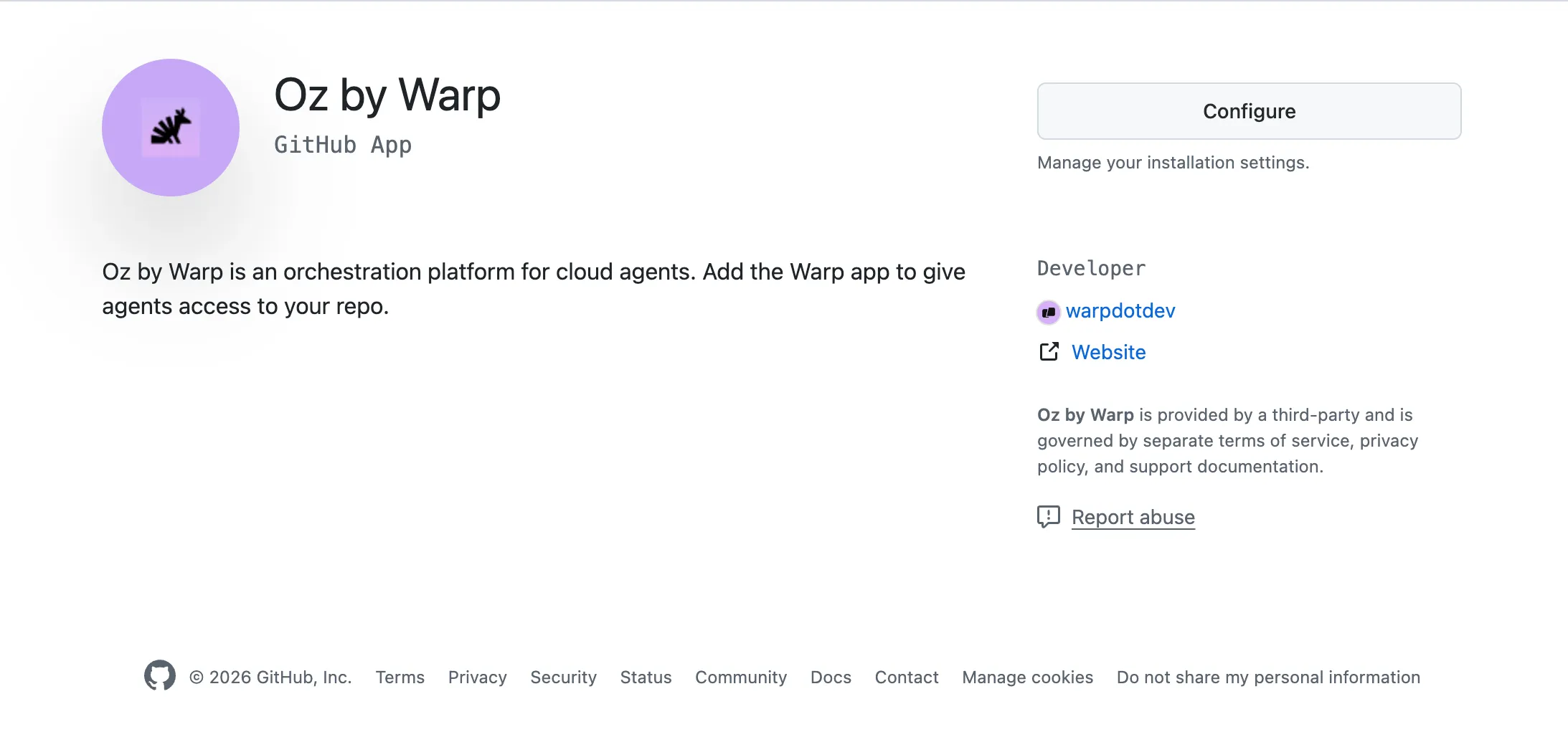
-
Enable the GitHub org for your Warp team. A Warp team admin opens the Admin Panel in the Warp app (Settings > Admin Panel > Platform) and adds the GitHub organization under Enabled GitHub Orgs. This associates the GitHub App installation with your Warp team.

Enabled GitHub Orgs setting in the Admin Panel. -
Use an agent API key. Tasks initiated with an agent API key on the team now use tokens from the GitHub App installation to clone repos and push changes. No individual GitHub authorization is needed. On GitHub, commits and pull requests are opened by the Warp Factories GitHub App rather than any individual user; in the cloud agent dashboard, the run is attributed to the bound cloud agent.
How this relates to environments
Section titled “How this relates to environments”An environment is a template for a cloud agent’s sandbox — it defines the Docker image, repos, and setup commands, but it does not carry its own GitHub permissions. The same environment can be used by different users or by agent API key runs, and each will authenticate to GitHub independently.
The environment configuration and the Enabled GitHub Orgs setting in the Admin Panel serve different purposes:
- Environment repo list - “This agent needs repos A, B, and C.”
- Enabled GitHub Orgs - “This team can use the Warp Factories GitHub App to access repos in this GitHub organization.”
Personal tokens vs. GitHub App tokens
Section titled “Personal tokens vs. GitHub App tokens”Team GitHub authorization is complementary to the existing personal token flow:
- User-triggered runs (personal API key, Slack, Linear, Warp app) - The agent authenticates using the triggering user’s personal token. PRs and commits are attributed to that user.
- Agent API key runs with GitHub App authorization - The agent authenticates as the GitHub App installation. On GitHub, PRs and commits are attributed to the Warp Factories GitHub App rather than any individual user. In the cloud agent dashboard, the run is attributed to the bound cloud agent, which controls run filtering and audit attribution on the Warp side.
- GitHub integration runs (an
@warp-agentmention on an issue or pull request) - The agent authenticates as the installation that delivered the event, so its repository access and its GitHub attribution match the agent API key flow. In the cloud agent dashboard the run is still attributed to the teammate who wrote the mention, and their team is billed.
These flows can coexist on the same team. Personal tokens are still used for user-triggered runs from a personal API key, Slack, Linear, and the Warp app, and the GitHub App installation token is used for agent API key runs and for GitHub integration runs.
Data and permissions
Section titled “Data and permissions”Slack / Linear
Section titled “Slack / Linear”Installing the Automation Platform app gives Warp access to the Slack channels or Linear teams where the app is installed.
When a run is triggered, Warp receives:
- The content of the tagged thread or issue
- Relevant surrounding context used to build the agent prompt
Warp stores only the content required for the agent to complete its task. You can message @warp directly, mention it in channels, or tag it on specific issues depending on the integration.
GitHub
Section titled “GitHub”Warp’s behavior in GitHub is defined by two layers of control:
- The Warp GitHub App installation scope
- Determines which organizations and repositories Warp can read and write to
- Can be edited at any time in GitHub settings
- Permissions of the triggering user
- Agents inherit the user’s read/write privileges
- Agents cannot elevate permissions, see additional repos, or write to repos the user cannot access
In practice, agents can only operate on repositories that:
- Are included in the environment configuration
- Are accessible to both the GitHub app and the triggering user.
Runs triggered by an @warp-agent mention through the GitHub integration follow the first layer only. Warp receives the content of the issue, pull request, or review thread that carried the mention, including the recent comments and the diff of a commented file, and the run authenticates with the GitHub App installation that delivered the event. Cloning, commits, branches, pull requests, and status comments all use that installation’s access rather than the mentioning user’s, so the installation’s repository selection is the only boundary on what those runs can reach. The repository that triggered the mention is cloned alongside any repositories in the configured environment, and only the repositories that installation covers are available to the agent.
Billing for cloud agent runs
Section titled “Billing for cloud agent runs”Cloud agent runs consume usage dollars or credits, depending on your plan. They also incur platform usage for billable agent time, plus charges for Warp-hosted compute and Warp-provided inference.
On self-serve team plans, billing follows the trigger:
- Runs acting as you - Use your eligible included and purchased usage on the team. See team purchase balances for shared and member-specific balances.
- Agent API key runs - Use eligible shared team usage, not the team owner’s personal included allowance. Cloud agents don’t receive a separate per-seat allowance.
- User-created schedules - Use the creator’s eligible usage by default. If configured to run as a cloud agent, the schedule uses shared team usage instead.
Enterprise availability and billing follow your contract. Dedicated cloud allowances can be used before general-purpose balances. If no usable balance remains, a run can fail with an insufficient credits error. Repeated unattended runs can trigger purchases subject to the team’s spend controls. Contact your account manager with questions about your team’s cloud run billing.
For automated workflows that write to repositories, configure team GitHub authorization, or use a personal API key to act as an individual user.
Who configures triggers and workflows
Section titled “Who configures triggers and workflows”All triggers and instructions used by cloud agents are defined and controlled by your team’s authorized users.
- Admins or other authorized users decide which triggers exist, when they fire, and what the agent should do in response.
- Trigger behavior and the agent’s instructions (system prompts, workflow steps, repo access, etc.) are fully managed by your admins or other designated users.
Staying aware of usage
Section titled “Staying aware of usage”Review your triggers and available balance before relying on unattended runs. In the Warp app, open Settings > Billing and usage for usage and purchase controls.
Troubleshooting
Section titled “Troubleshooting”If a cloud agent or integration run fails with an error code, use the error reference to narrow the fix:
- Missing GitHub or external authorization - See
external_authentication_requiredwhen a user needs to authorize GitHub, Slack, or Linear before a run can continue. - Insufficient repo permissions - See
not_authorizedwhen the triggering user or GitHub App lacks access to the repo the agent needs. - Usage or spend caps block a run - See
insufficient_creditsorbudget_exceededwhen the billed account has no usable balance or reached a configured limit.
Related pages
Section titled “Related pages”- Purchasing additional usage - Shared balances, auto-reload, and purchase limits.
- Platform usage - Agent-hour billing for cloud runs.
- Usage and billing - Charge components and billing units.