Terminal
Legacy SSH wrapper
# Legacy SSH wrapper :::note This is a fallback path. For the current, fully-featured way to use Warp over SSH, see the [SSH extension](/terminal/warpify/ssh/). ::: The legacy SSH wrapper brings a subset of Warp's features, such as Blocks, the input editor, and command completions, to a remote session without installing anything on the remote host. Warp falls back to it when [SSH extension install mode](/terminal/settings/all-settings/#ssh) is set to **Never install**, or when a host doesn't meet the SSH extension's [requirements](/terminal/warpify/ssh/#requirements). :::caution Limitations of the legacy SSH wrapper: * Warp preserves the remote login shell. It adds the enhanced Warp bootstrap to `bash` and `zsh` sessions; other shells continue without those enhancements. * For zsh, `xxd` is required to bootstrap Warp. Warp creates a temporary ZDOTDIR to bootstrap the shell and removes it once setup finishes. * For Windows, [Cygwin](https://www.cygwin.com/) is required to bootstrap the SSH wrapper. * `RemoteCommand` in your SSH config causes the SSH wrapper to fail. ::: <figure style={{ maxWidth: "563px" }}>  <figcaption>A remote session bootstrapped by the legacy SSH wrapper.</figcaption> </figure> ## Implementation We create a wrapper around `/usr/bin/ssh` to set up supported remote shells for Warp's feature set. We authenticate normally using `/usr/bin/ssh`, preserve the remote login shell, and enhance `bash` or `zsh` for Warp Blocks and the Input Editor. Other shells continue without the enhanced bootstrap. You can opt out of the wrapper by invoking `command ssh` directly. * Warp takes over the prompt which enables us to build a modern input editor. * Warp configures histcontrol to ignore commands with leading spaces. We do this so our bootstrapping code does not clutter the history. You can see the SSH wrapper by using `which warp_ssh_helper` in zsh, `type warp_ssh_helper` in bash. _Note:_ The SSH wrapper is only _initialized_ on your local machine. We don’t currently support bootstrapping nested ssh sessions. :::note Warp [Completions](/terminal/command-completions/completions/) for ssh show entries in `~/.ssh/config` and `~/.ssh/known_hosts` ::: ## Troubleshooting SSH ### channel 2: open failed: connect failed: open failed If you're seeing these errors, you may have some config on your server (usually in `/etc/ssh/sshd_config`) preventing Warp's ControlMaster connection from working. In this state, completions that require information from your remote host won't work and your history also won't work. `MaxSessions` must be either commented out or set to at least `2`. Write access in `/etc/ssh/` typically requires sudo access. After any edits, you'd also need to restart the `sshd` daemon. ### SSH wrapper fails There are several [known issues with the SSH wrapper](https://github.com/warpdotdev/Warp/issues?q=is%3Aissue+is%3Aopen+sort%3Acreated-desc+label%3ABugs+label%3ASSH). As a workaround, add `command ssh` to **Settings** > **Warpify** > **Subshells** > **Added commands**, then run `command ssh <user@server>` to connect. Warp then tries to enable features as a [subshell](/terminal/warpify/subshells/) instead of through the SSH wrapper. <DemoVideo src="/assets/terminal/subshell-ssh-demo.mp4" label="Command SSH subshell workaround" />Tell me about this feature: https://docs.warp.dev/terminal/warpify/ssh-legacy/Use the legacy SSH wrapper as a fallback when skipping the SSH extension or when it can't run on a remote host.
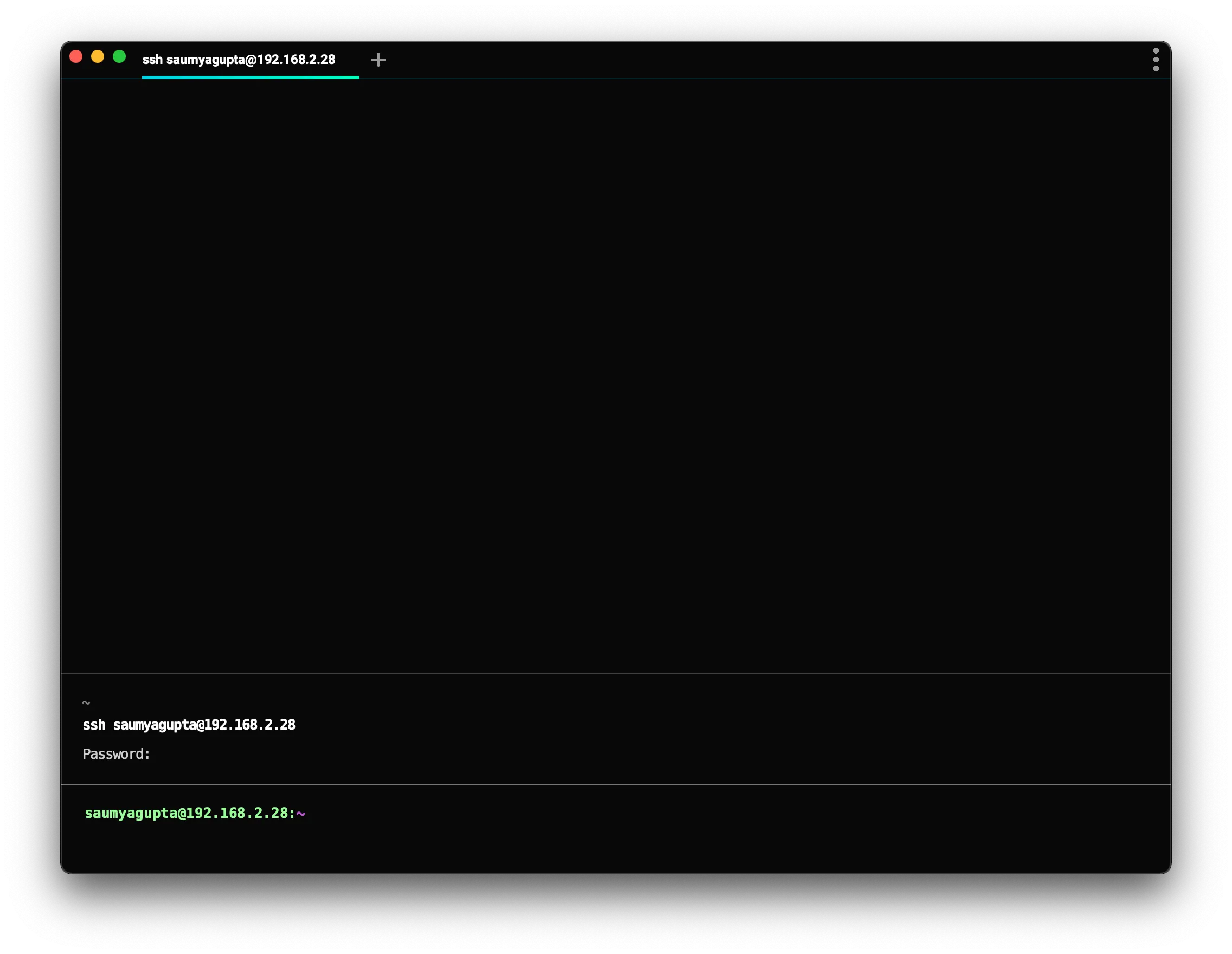
The legacy SSH wrapper brings a subset of Warp’s features, such as Blocks, the input editor, and command completions, to a remote session without installing anything on the remote host. Warp falls back to it when SSH extension install mode is set to Never install, or when a host doesn’t meet the SSH extension’s requirements.
Implementation
Section titled “Implementation”We create a wrapper around /usr/bin/ssh to set up supported remote shells for Warp’s feature set. We authenticate normally using /usr/bin/ssh, preserve the remote login shell, and enhance bash or zsh for Warp Blocks and the Input Editor. Other shells continue without the enhanced bootstrap. You can opt out of the wrapper by invoking command ssh directly.
- Warp takes over the prompt which enables us to build a modern input editor.
- Warp configures histcontrol to ignore commands with leading spaces. We do this so our bootstrapping code does not clutter the history.
You can see the SSH wrapper by using which warp_ssh_helper in zsh, type warp_ssh_helper in bash.
Note: The SSH wrapper is only initialized on your local machine. We don’t currently support bootstrapping nested ssh sessions.
Troubleshooting SSH
Section titled “Troubleshooting SSH”channel 2: open failed: connect failed: open failed
Section titled “channel 2: open failed: connect failed: open failed”If you’re seeing these errors, you may have some config on your server (usually in /etc/ssh/sshd_config) preventing Warp’s ControlMaster connection from working. In this state, completions that require information from your remote host won’t work and your history also won’t work.
MaxSessions must be either commented out or set to at least 2.
Write access in /etc/ssh/ typically requires sudo access. After any edits, you’d also need to restart the sshd daemon.
SSH wrapper fails
Section titled “SSH wrapper fails”There are several known issues with the SSH wrapper. As a workaround, add command ssh to Settings > Warpify > Subshells > Added commands, then run command ssh <user@server> to connect. Warp then tries to enable features as a subshell instead of through the SSH wrapper.