Terminal > Knowledge and collaboration
Team Admin Panel
# Team Admin Panel The Admin Panel gives team administrators centralized control over organization-wide Warp settings, including agent autonomy, privacy controls, billing limits, codebase indexing, and sharing policies. Settings configured in the Admin Panel are enforced across all team members and override individual preferences. ## What is the Admin Panel? The [Admin Panel](https://app.warp.dev/admin/) provides team administrators with centralized control over organization-wide settings in Warp. It allows you to manage workspace settings that are enforced across all members of your team. :::note Admin Panel access is restricted to team administrators. Right now, only the creator of a team is the designated admin. If your admin has set up styles that override user preferences, you will not be able to control them inside of Warp, and you'll see a note that your admin has configured this setting. ::: In multi-team workspaces, workspace admins configure supported settings across all teams. See [Workspace settings and team settings](/enterprise/team-management/workspaces/#workspace-settings-and-team-settings). **Key features:** * **AI Settings** - Control agent autonomy, permissions, and allowlists across your team * **Privacy Controls** - Configure data collection and enterprise secret redaction * **Billing Management** - Set spending limits and manage usage-based pricing * **Code Settings** - Control codebase indexing and context features * **Sharing Policies** - Manage link sharing and collaboration permissions ## Accessing the Admin Panel Team administrators can access the Admin Panel directly from the [Warp Admin Panel](https://app.warp.dev/admin/). <figure>  <figcaption>Admin Panel main interface.</figcaption> </figure> ## How settings enforcement works The Admin Panel uses a tier-based policy system to determine which settings administrators can control: ### Toggleable vs. fixed settings **Toggleable settings** can be modified by team administrators. These appear as dropdown menus with options like: * Enabled/Disabled for boolean settings * Specific autonomy levels for AI settings * Respect User Setting to allow individual control **Fixed settings** are determined by your billing tier and cannot be changed. These appear with a message: "Configuring this setting is not available on your plan." ### Setting inheritance When administrators configure organization-wide settings: 1. **Organization enforced** - Setting applies to all team members regardless of individual preferences 2. **Respect user setting** - Allows individual team members to control the setting themselves 3. **Tier restricted** - Setting is locked to default values based on billing plan ### User experience :::note Any changes made in the Admin Panel can take effect immediately for all team members. Consider testing settings in Warp before applying organization-wide policies. ::: When organization settings override individual preferences: * Users see their personal settings grayed out * A message indicates "your organization has configured this setting" * Users cannot modify settings that are organizationally enforced ## Plan limitations The features available in the Admin Panel vary by billing tier: **Free Tier** * Most settings are fixed and non-toggleable * Limited Codebase Context and sharing features **Business Plans** * Most settings become toggleable by administrators * Enhanced AI autonomy control * Advanced sharing and privacy features **Enterprise Plans** * Full admin control over all settings * Enterprise secret redaction * Custom LLM integration * Advanced compliance features For complete details about what's included in each plan, see [Warp pricing](https://www.warp.dev/pricing). ## Admin Panel sections The Admin Panel is organized into five main sections, each focused on a specific area of team management: ### AI settings Configure how Agents behave across your organization, including autonomy levels and command permissions. #### General AI settings **AI in Remote Sessions** Controls whether AI features are available during SSH sessions and remote connections. Enterprise plans can toggle this setting, while Free tier teams have it enabled by default. **Prompt Summarization Caching** When conversations become long enough to require summarization, this setting allows the summary to be cached temporarily by the LLM provider to improve performance. #### Autonomy settings Configure how much independence Agents have when performing different actions: **Apply Code Diffs** * Agent Decides - Prompt for review before applying code diffs (currently behaves the same as Always Ask) * Always Ask - Require explicit approval before applying any code changes * Always Allow - Apply code diffs without confirmation * Respect User Setting - Allow individual users to control this setting **Create Plans** Controls whether Agents can create structured task plans without user approval. **Execute Commands** Manages Agent's ability to run terminal commands autonomously. **Read Files** Controls Agent access to reading files in the codebase. #### Directory and command control **Directory Allowlist** Specify directories where Agents can read files without restriction. Use paths like `~/git/repo1` to grant access to specific project folders. **Command Allowlist** Regular expressions matching commands that Agent Mode can execute without asking permission. Common examples: * `grep .*` - Text search commands * `ls(\\s.*)?` - Directory listing * `which .*` - Finding executable locations **Command Denylist** Regular expressions for commands that always require explicit user approval, even if they would normally be allowed. Examples: * `rm -rf.*` - Recursive file deletion * `sudo.*` - Administrative commands * `curl.*` - Network requests :::caution Command denylist rules take precedence over allowlist rules and agent autonomy settings. If a command matches the denylist, user permission will always be required. ::: ### Privacy settings Manage data collection and security policies for your organization. **UGC Data Collection** Controls how Warp collects and uses user-generated content to improve the service: * Disabled - No UGC data collection * Enabled - Allow data collection for service improvement * Respect User Setting - Let individual users decide **Enterprise Secret Redaction** When enabled, applies regex patterns to prevent secrets from being sent to Warp servers or LLM providers. This feature is available on Enterprise plans and includes: * Automatic detection of common secret patterns * Custom regex patterns for organization-specific secrets * Unconditional application across all team members ### Code settings Control codebase indexing and AI code features for your team. **Codebase Context** Determines whether Warp indexes your team's Git repositories to provide context for AI features: * Disabled - No codebase indexing * Enabled - Index codebases for improved AI responses * Respect User Setting - Allow individual control Higher tier plans support more indexed repositories and larger file limits per codebase. ### Billing settings Configure billing preferences and spending controls. **Usage Based Pricing** Enable pay-as-you-go billing for credits beyond your plan's included quota. When enabled, you can set: **Monthly Spending Limit** Set a maximum monthly overage spending limit to control costs. The system displays current overage usage including: * Total overage credits used * Current month's overage costs ### Sharing settings Control how team members can share Warp Drive objects and collaborate. **Direct Link Sharing** Allow team members to share Notebooks, Workflows, and other objects via direct links. **Anyone with Link Sharing** Enable public access to shared objects - anyone with the link can view the content without being a team member.Tell me about this feature: https://docs.warp.dev/knowledge-and-collaboration/admin-panel/Centralized management for team administrators to configure workspace settings enforced across all team members.
The Admin Panel gives team administrators centralized control over organization-wide Warp settings, including agent autonomy, privacy controls, billing limits, codebase indexing, and sharing policies. Settings configured in the Admin Panel are enforced across all team members and override individual preferences.
What is the Admin Panel?
Section titled “What is the Admin Panel?”The Admin Panel provides team administrators with centralized control over organization-wide settings in Warp. It allows you to manage workspace settings that are enforced across all members of your team.
In multi-team workspaces, workspace admins configure supported settings across all teams. See Workspace settings and team settings.
Key features:
- AI Settings - Control agent autonomy, permissions, and allowlists across your team
- Privacy Controls - Configure data collection and enterprise secret redaction
- Billing Management - Set spending limits and manage usage-based pricing
- Code Settings - Control codebase indexing and context features
- Sharing Policies - Manage link sharing and collaboration permissions
Accessing the Admin Panel
Section titled “Accessing the Admin Panel”Team administrators can access the Admin Panel directly from the Warp Admin Panel.
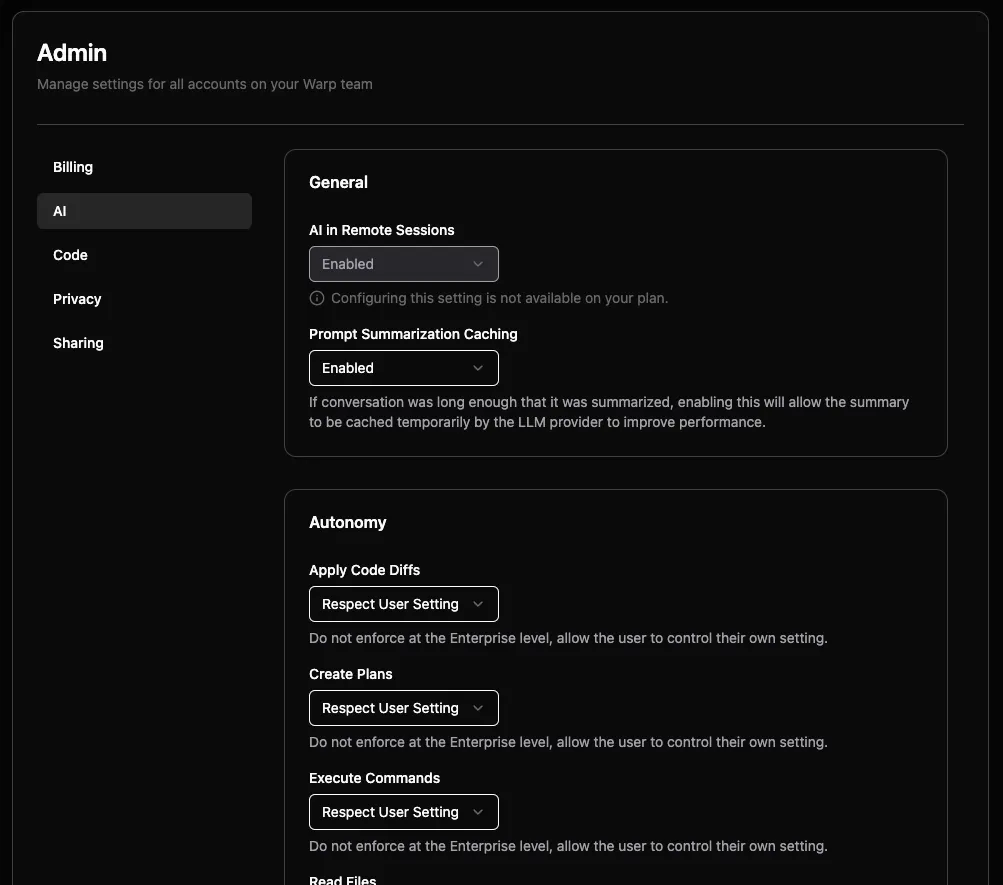
How settings enforcement works
Section titled “How settings enforcement works”The Admin Panel uses a tier-based policy system to determine which settings administrators can control:
Toggleable vs. fixed settings
Section titled “Toggleable vs. fixed settings”Toggleable settings can be modified by team administrators. These appear as dropdown menus with options like:
- Enabled/Disabled for boolean settings
- Specific autonomy levels for AI settings
- Respect User Setting to allow individual control
Fixed settings are determined by your billing tier and cannot be changed. These appear with a message: “Configuring this setting is not available on your plan.”
Setting inheritance
Section titled “Setting inheritance”When administrators configure organization-wide settings:
- Organization enforced - Setting applies to all team members regardless of individual preferences
- Respect user setting - Allows individual team members to control the setting themselves
- Tier restricted - Setting is locked to default values based on billing plan
User experience
Section titled “User experience”When organization settings override individual preferences:
- Users see their personal settings grayed out
- A message indicates “your organization has configured this setting”
- Users cannot modify settings that are organizationally enforced
Plan limitations
Section titled “Plan limitations”The features available in the Admin Panel vary by billing tier:
Free Tier
- Most settings are fixed and non-toggleable
- Limited Codebase Context and sharing features
Business Plans
- Most settings become toggleable by administrators
- Enhanced AI autonomy control
- Advanced sharing and privacy features
Enterprise Plans
- Full admin control over all settings
- Enterprise secret redaction
- Custom LLM integration
- Advanced compliance features
For complete details about what’s included in each plan, see Warp pricing.
Admin Panel sections
Section titled “Admin Panel sections”The Admin Panel is organized into five main sections, each focused on a specific area of team management:
AI settings
Section titled “AI settings”Configure how Agents behave across your organization, including autonomy levels and command permissions.
General AI settings
Section titled “General AI settings”AI in Remote Sessions Controls whether AI features are available during SSH sessions and remote connections. Enterprise plans can toggle this setting, while Free tier teams have it enabled by default.
Prompt Summarization Caching When conversations become long enough to require summarization, this setting allows the summary to be cached temporarily by the LLM provider to improve performance.
Autonomy settings
Section titled “Autonomy settings”Configure how much independence Agents have when performing different actions:
Apply Code Diffs
- Agent Decides - Prompt for review before applying code diffs (currently behaves the same as Always Ask)
- Always Ask - Require explicit approval before applying any code changes
- Always Allow - Apply code diffs without confirmation
- Respect User Setting - Allow individual users to control this setting
Create Plans Controls whether Agents can create structured task plans without user approval.
Execute Commands Manages Agent’s ability to run terminal commands autonomously.
Read Files Controls Agent access to reading files in the codebase.
Directory and command control
Section titled “Directory and command control”Directory Allowlist Specify directories where Agents can read files without restriction. Use paths like ~/git/repo1 to grant access to specific project folders.
Command Allowlist Regular expressions matching commands that Agent Mode can execute without asking permission. Common examples:
grep .*- Text search commandsls(\\s.*)?- Directory listingwhich .*- Finding executable locations
Command Denylist Regular expressions for commands that always require explicit user approval, even if they would normally be allowed. Examples:
rm -rf.*- Recursive file deletionsudo.*- Administrative commandscurl.*- Network requests
Privacy settings
Section titled “Privacy settings”Manage data collection and security policies for your organization.
UGC Data Collection Controls how Warp collects and uses user-generated content to improve the service:
- Disabled - No UGC data collection
- Enabled - Allow data collection for service improvement
- Respect User Setting - Let individual users decide
Enterprise Secret Redaction When enabled, applies regex patterns to prevent secrets from being sent to Warp servers or LLM providers. This feature is available on Enterprise plans and includes:
- Automatic detection of common secret patterns
- Custom regex patterns for organization-specific secrets
- Unconditional application across all team members
Code settings
Section titled “Code settings”Control codebase indexing and AI code features for your team.
Codebase Context Determines whether Warp indexes your team’s Git repositories to provide context for AI features:
- Disabled - No codebase indexing
- Enabled - Index codebases for improved AI responses
- Respect User Setting - Allow individual control
Higher tier plans support more indexed repositories and larger file limits per codebase.
Billing settings
Section titled “Billing settings”Configure billing preferences and spending controls.
Usage Based Pricing Enable pay-as-you-go billing for credits beyond your plan’s included quota. When enabled, you can set:
Monthly Spending Limit Set a maximum monthly overage spending limit to control costs. The system displays current overage usage including:
- Total overage credits used
- Current month’s overage costs
Sharing settings
Section titled “Sharing settings”Control how team members can share Warp Drive objects and collaborate.
Direct Link Sharing Allow team members to share Notebooks, Workflows, and other objects via direct links.
Anyone with Link Sharing Enable public access to shared objects - anyone with the link can view the content without being a team member.