Terminal > Warp Drive overview
Warp Drive on the web
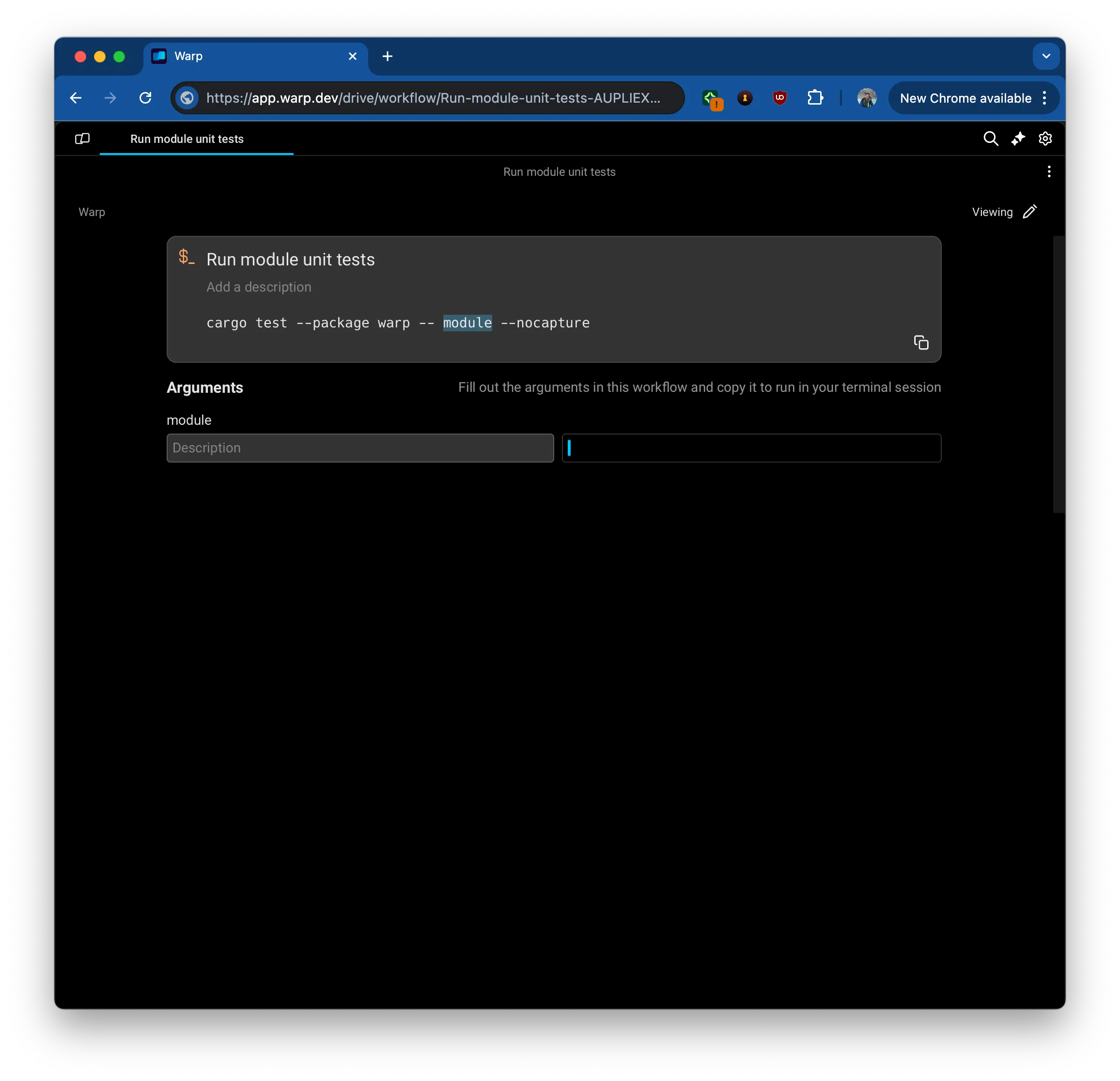
# Warp Drive on the web Warp Drive on the web lets you view and edit Warp Drive objects and shared sessions directly in any browser, including mobile devices and tablets. Access Workflows, Notebooks, Prompts, and session transcripts from anywhere without installing the Warp desktop app. ## What is Warp on the web? Warp Drive on the web lets you view and edit your Warp Drive objects and shared sessions directly in the browser, on any device. <figure>  <figcaption>A web-based rendering of a Team Workflow.</figcaption> </figure> ## How to access Warp on the web Warp's web-based viewing experience can currently be accessed via: * The [Warp web app homepage](https://app.warp.dev/app) * [Drive Object](/knowledge-and-collaboration/warp-drive/#sharing-your-drive-objects) Links * [Session Sharing](/agents/local-agents/session-sharing/#who-can-access-a-shared-session) Links :::caution You can edit and view web-based objects and sessions as normal. The one exception is executing a command from a workflow or notebook since there is no shell session running on the web. ::: ## Managing your view preferences - web or desktop If the Warp app is installed, links will open on the desktop by default. You can manage whether Warp links open in Warp's desktop app or the browser in multiple ways: :::note The desktop option is only presented if Warp's web service is able to detect the Warp app installed locally. Warp desktop opens localhost port 9277 to accomplish this detection. This is done in a separate process that does not have access to your terminal contents.\ \ If you would like to use Warp locally and do not have it installed, see our [installation guide.](/getting-started/quickstart/installation-and-setup/) ::: 1. The first time you follow a link, if Warp is not installed, you will be prompted to download it. You can dismiss the popup to stay on the web.  2. This preference can be changed at any point in **Settings** > **Features** > **General** > **Open links in desktop app**. Note that this setting is only available while on the web-based version of Warp. <figure>  <figcaption>Setting managing how to open links.</figcaption> </figure> 3. You can always switch between web and desktop views on a case-by-case basis. 1. To switch from a web-view to Desktop for a given object, open the _overflow menu > Open link on Desktop._  2. To stay on the web for a given object despite a global Desktop preference, follow the _View on the web_ option that is part of the redirect screen to Desktop.  ## Supported browsers Warp on the web supports all modern browsers, including: **Desktop** * Chrome * Firefox * Safari **Mobile** * iOS Safari 15+ * Android Chrome 58+ * Samsung Internet 7.2+ :::note These mobile browser versions are the minimum required for WebGL 2.0 support. Most up-to-date devices meet these requirements. ::: ## Touch screen and mobile support Warp supports all touch screen devices, including mobile phones, tablets, and touch-enabled laptops. Touch input works on both the web and the desktop app. ### Supported gestures * **Touch and scroll** - Vertical and horizontal scrolling work as expected * **Double tap** - Select text or elements * **Long press (hold)** - Open context menu (equivalent to right-click) ## Related features * [Warp Drive](/knowledge-and-collaboration/warp-drive/) - Store and share workflows, prompts, and environment variables * [Session Sharing](/agents/local-agents/session-sharing/) - Collaborate with others in real-time terminal sessionsTell me about this feature: https://docs.warp.dev/knowledge-and-collaboration/warp-drive/web/Access your Warp Drive objects and shared sessions from any browser or touch screen device, including mobile phones, tablets, and touch-enabled laptops.
Warp Drive on the web lets you view and edit Warp Drive objects and shared sessions directly in any browser, including mobile devices and tablets. Access Workflows, Notebooks, Prompts, and session transcripts from anywhere without installing the Warp desktop app.
What is Warp on the web?
Section titled “What is Warp on the web?”Warp Drive on the web lets you view and edit your Warp Drive objects and shared sessions directly in the browser, on any device.
How to access Warp on the web
Section titled “How to access Warp on the web”Warp’s web-based viewing experience can currently be accessed via:
- The Warp web app homepage
- Drive Object Links
- Session Sharing Links
Managing your view preferences - web or desktop
Section titled “Managing your view preferences - web or desktop”If the Warp app is installed, links will open on the desktop by default. You can manage whether Warp links open in Warp’s desktop app or the browser in multiple ways:
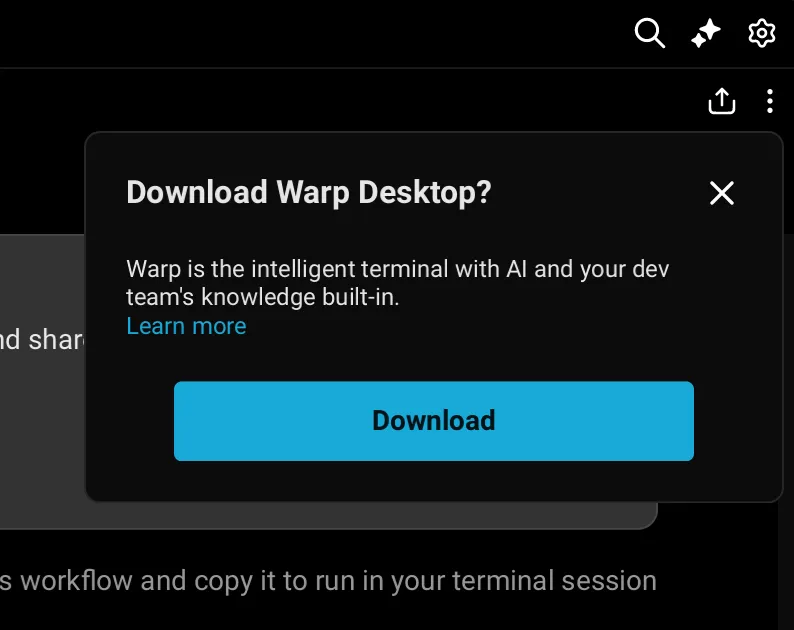
- The first time you follow a link, if Warp is not installed, you will be prompted to download it. You can dismiss the popup to stay on the web.
-
This preference can be changed at any point in Settings > Features > General > Open links in desktop app. Note that this setting is only available while on the web-based version of Warp.
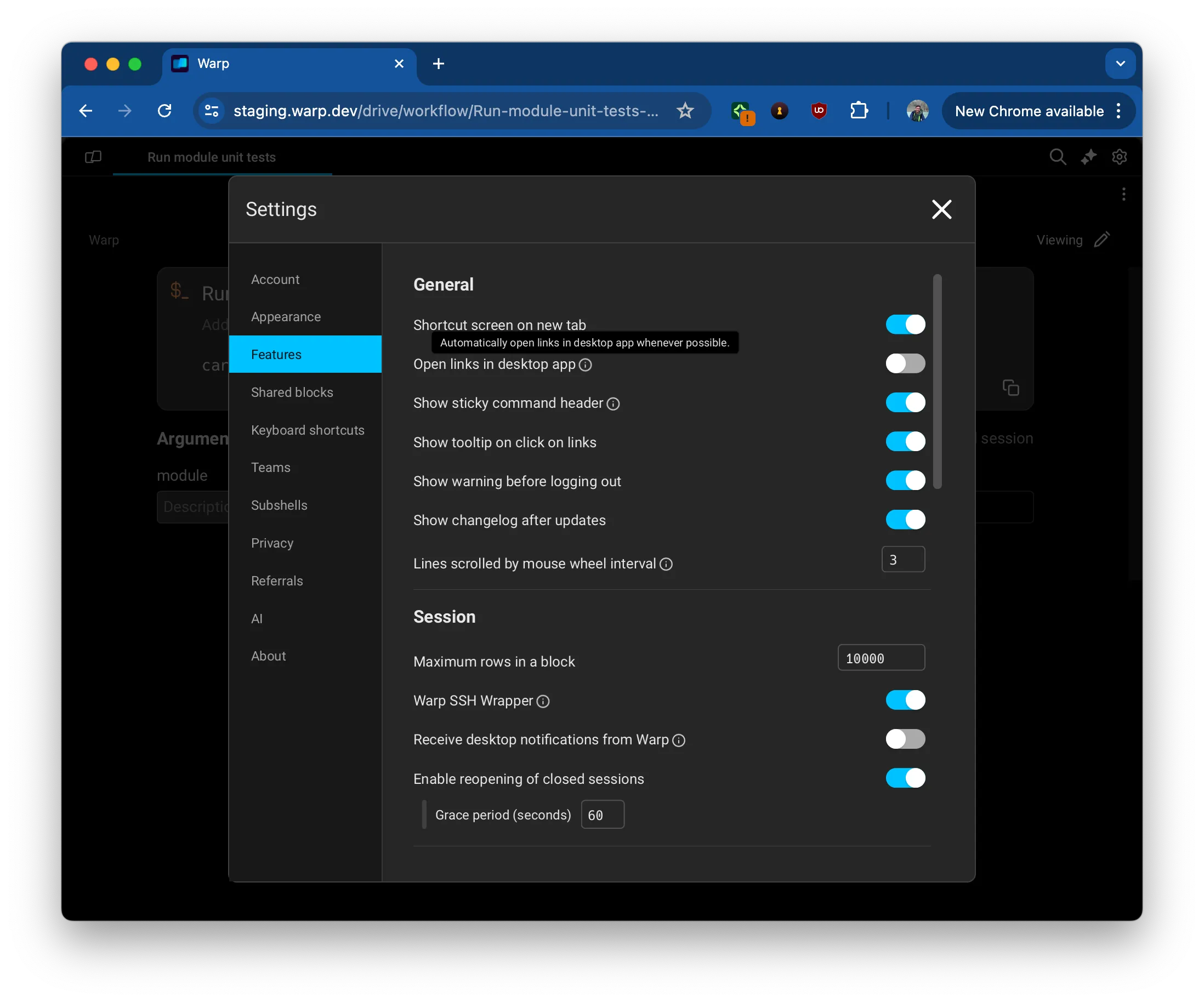
Setting managing how to open links. -
You can always switch between web and desktop views on a case-by-case basis.
-
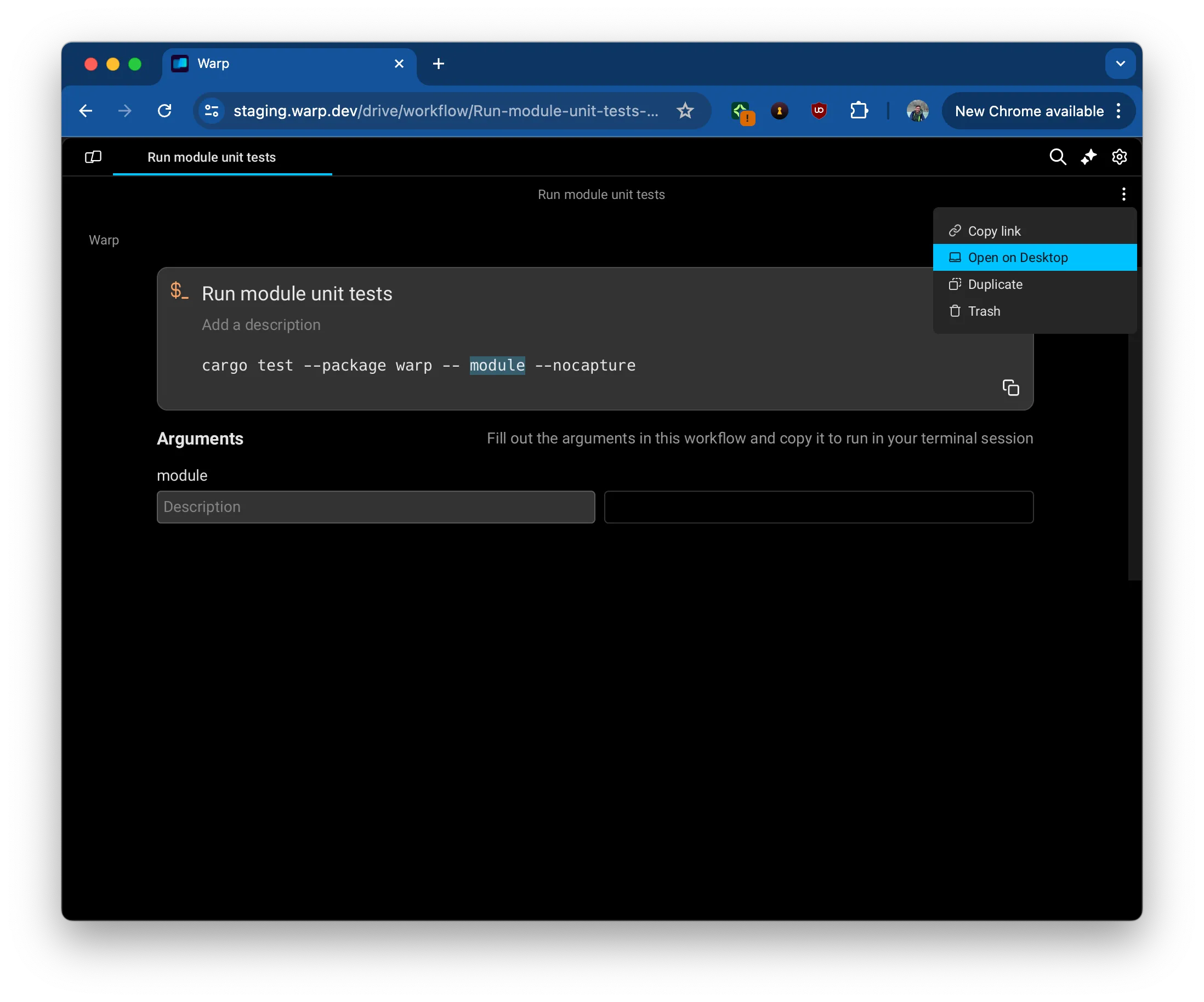
To switch from a web-view to Desktop for a given object, open the overflow menu > Open link on Desktop.
-
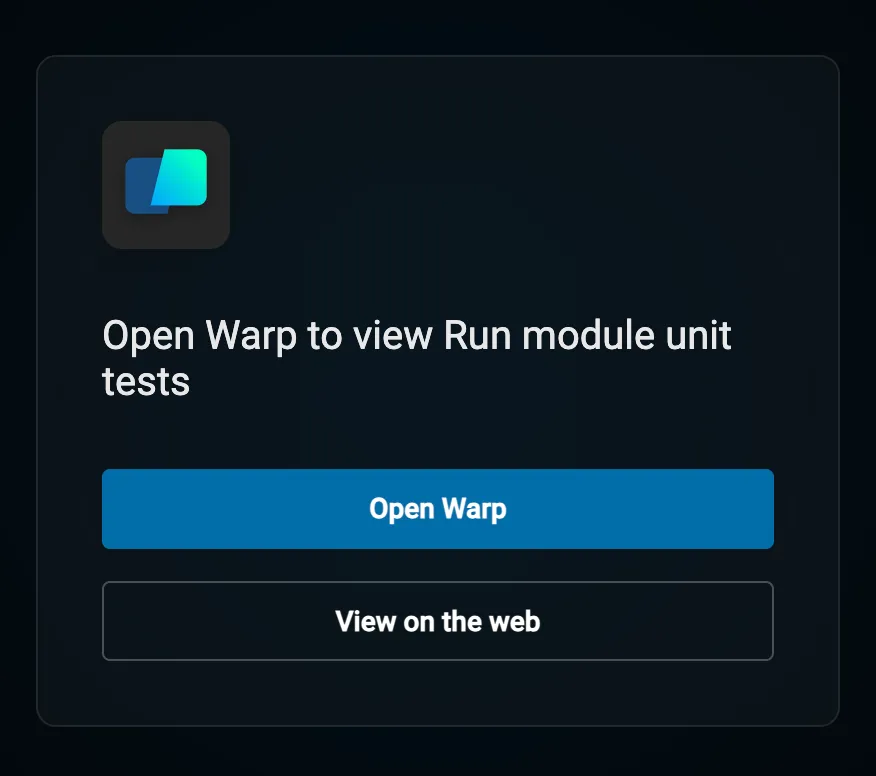
To stay on the web for a given object despite a global Desktop preference, follow the View on the web option that is part of the redirect screen to Desktop.
-
Supported browsers
Section titled “Supported browsers”Warp on the web supports all modern browsers, including:
Desktop
- Chrome
- Firefox
- Safari
Mobile
- iOS Safari 15+
- Android Chrome 58+
- Samsung Internet 7.2+
Touch screen and mobile support
Section titled “Touch screen and mobile support”Warp supports all touch screen devices, including mobile phones, tablets, and touch-enabled laptops. Touch input works on both the web and the desktop app.
Supported gestures
Section titled “Supported gestures”- Touch and scroll - Vertical and horizontal scrolling work as expected
- Double tap - Select text or elements
- Long press (hold) - Open context menu (equivalent to right-click)
Related features
Section titled “Related features”- Warp Drive - Store and share workflows, prompts, and environment variables
- Session Sharing - Collaborate with others in real-time terminal sessions