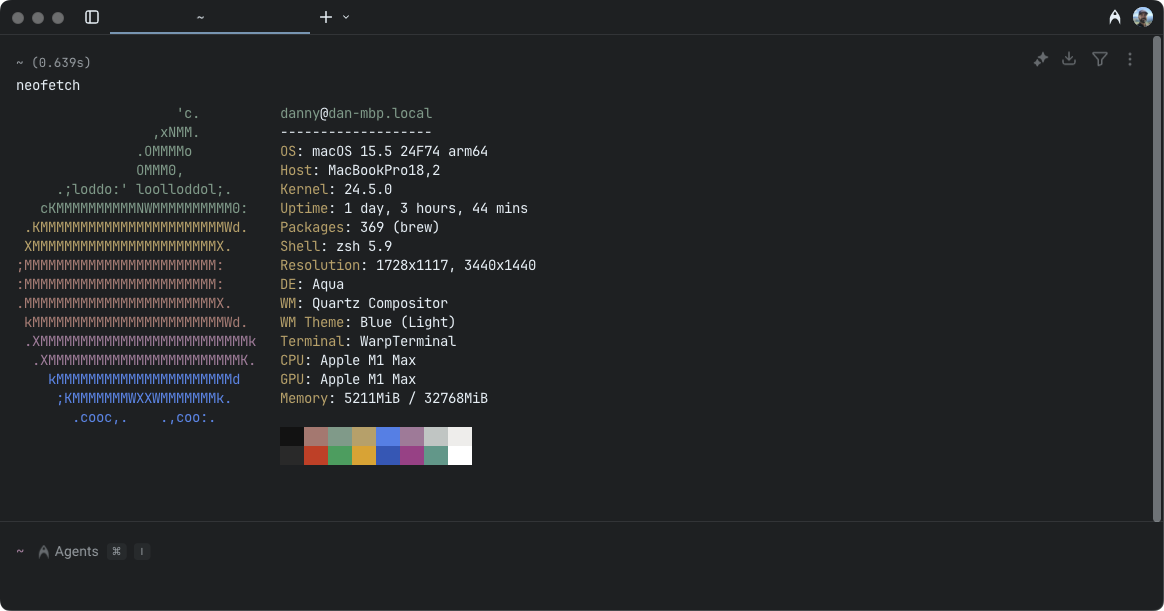
Terminal > Terminal appearance
Terminal themes
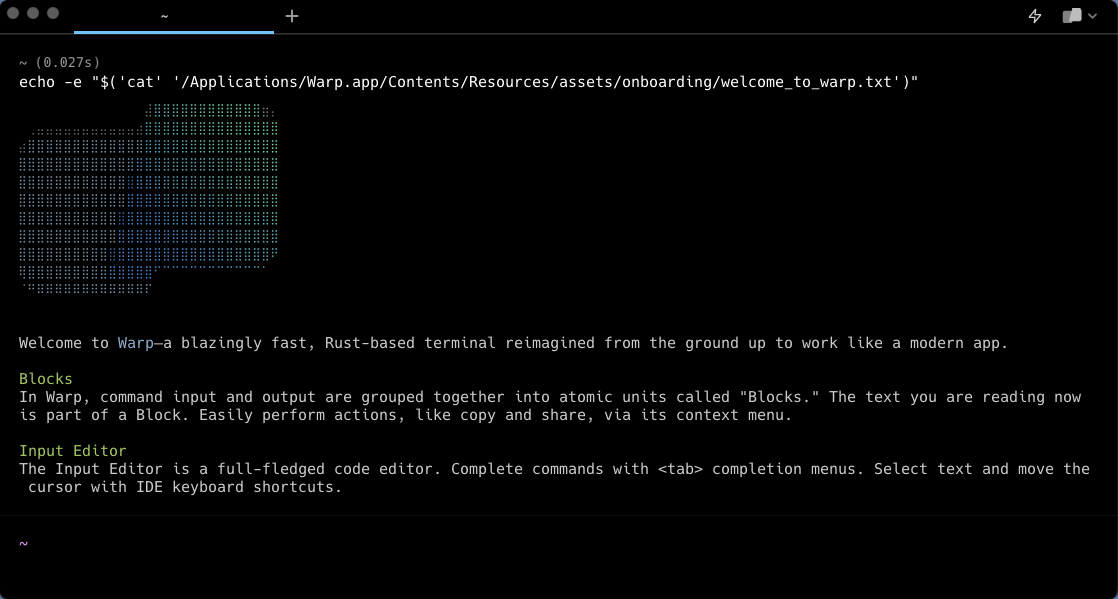
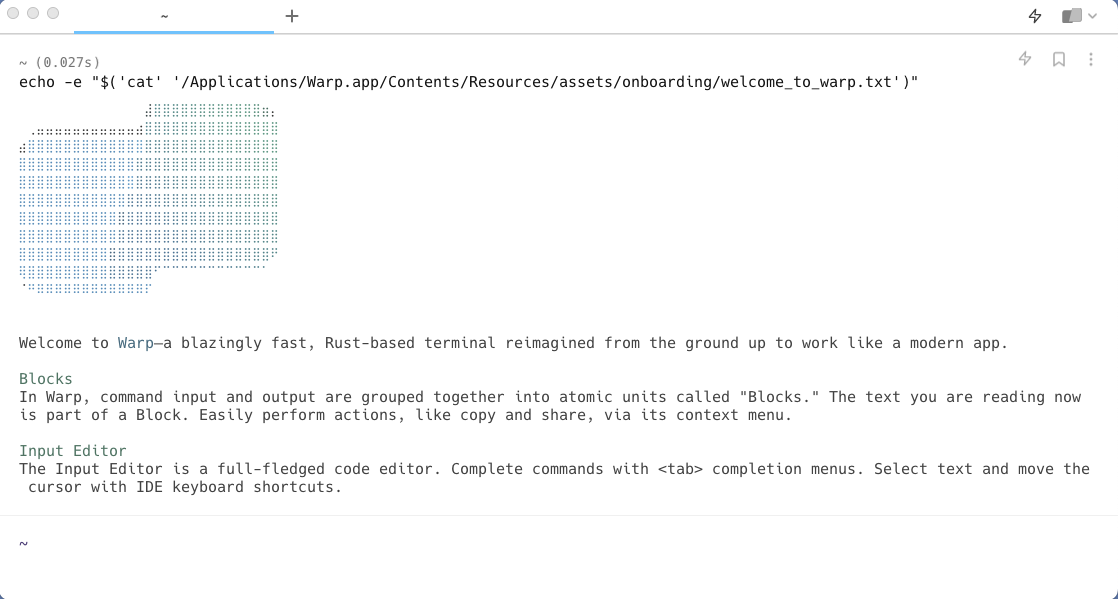
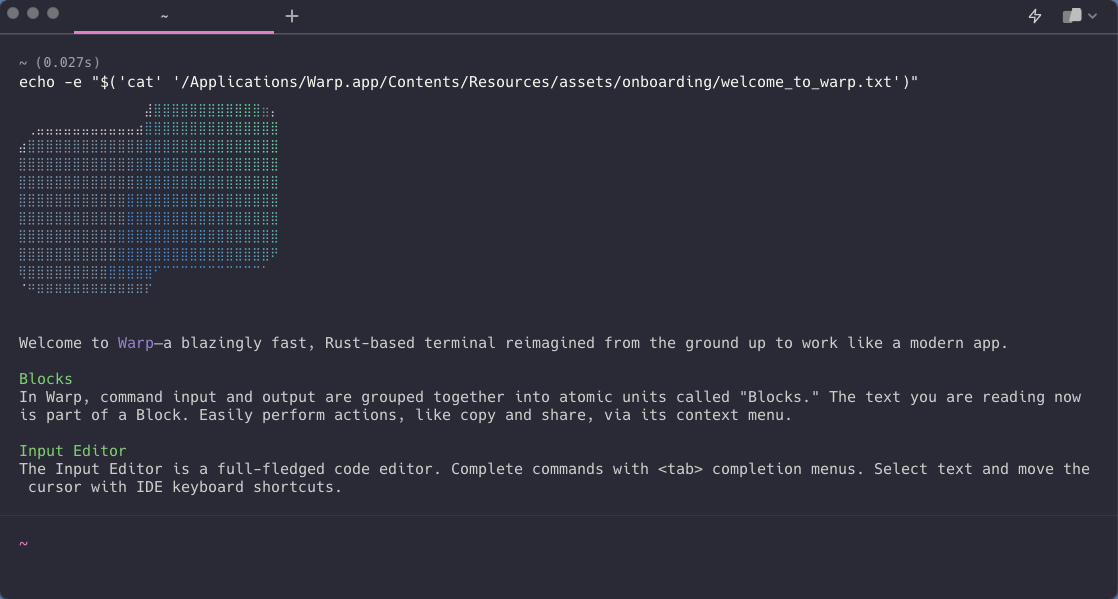
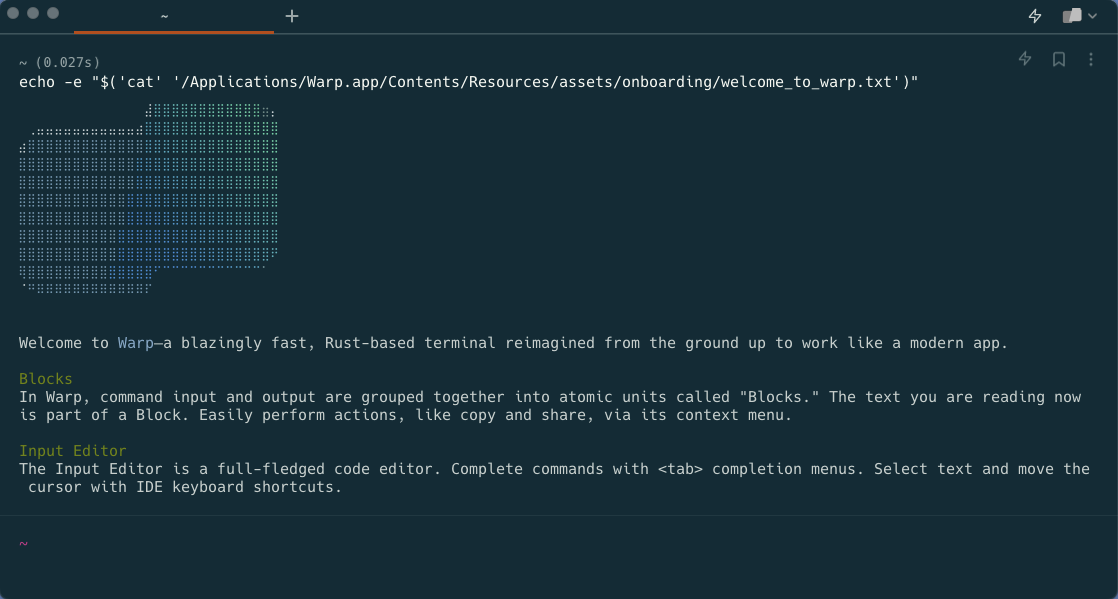
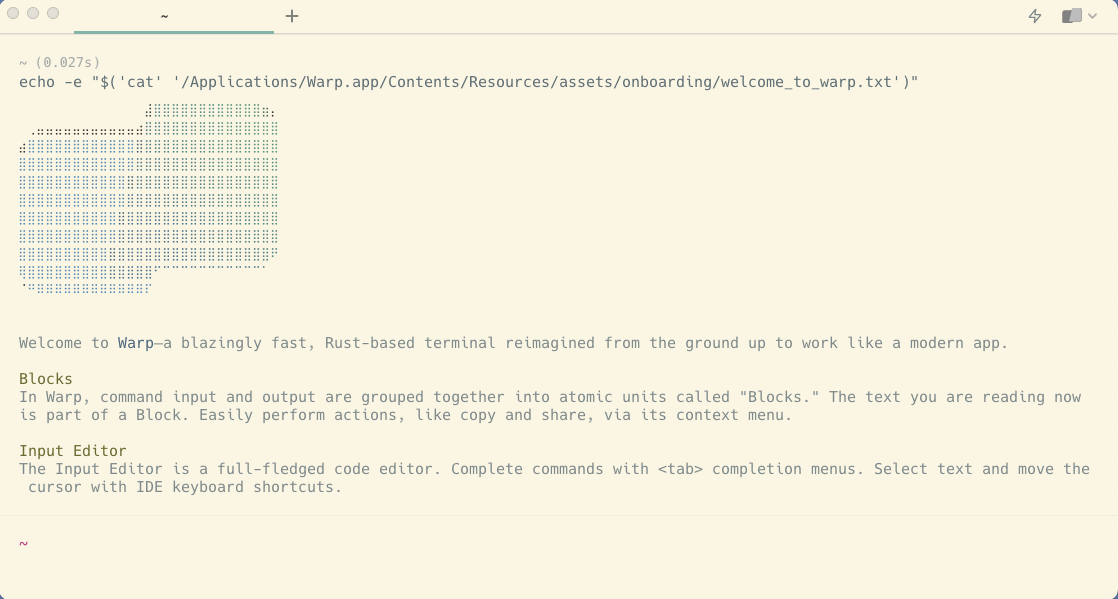
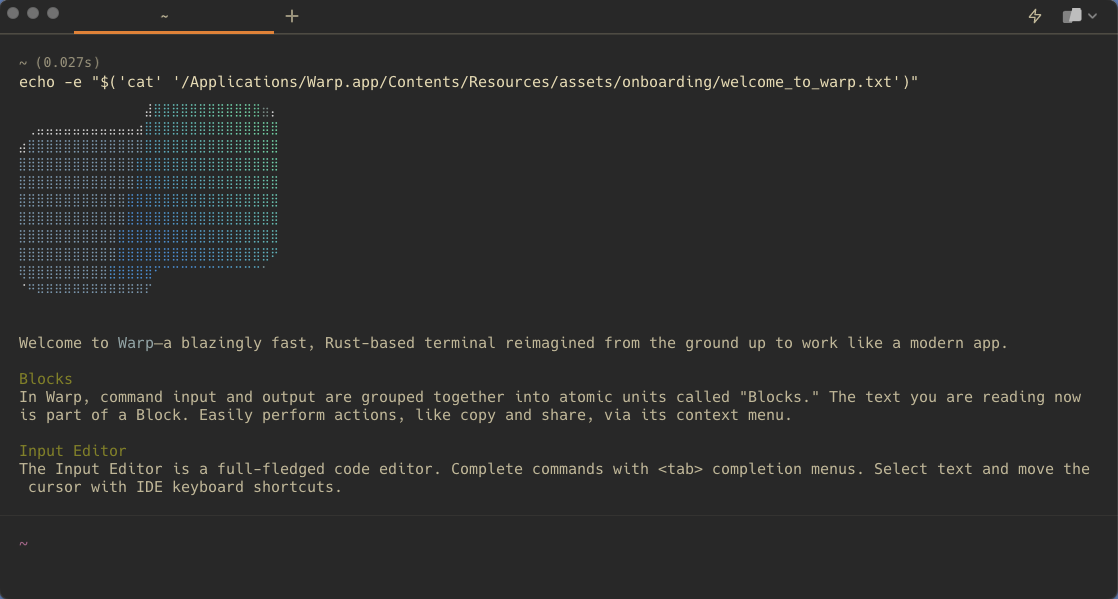
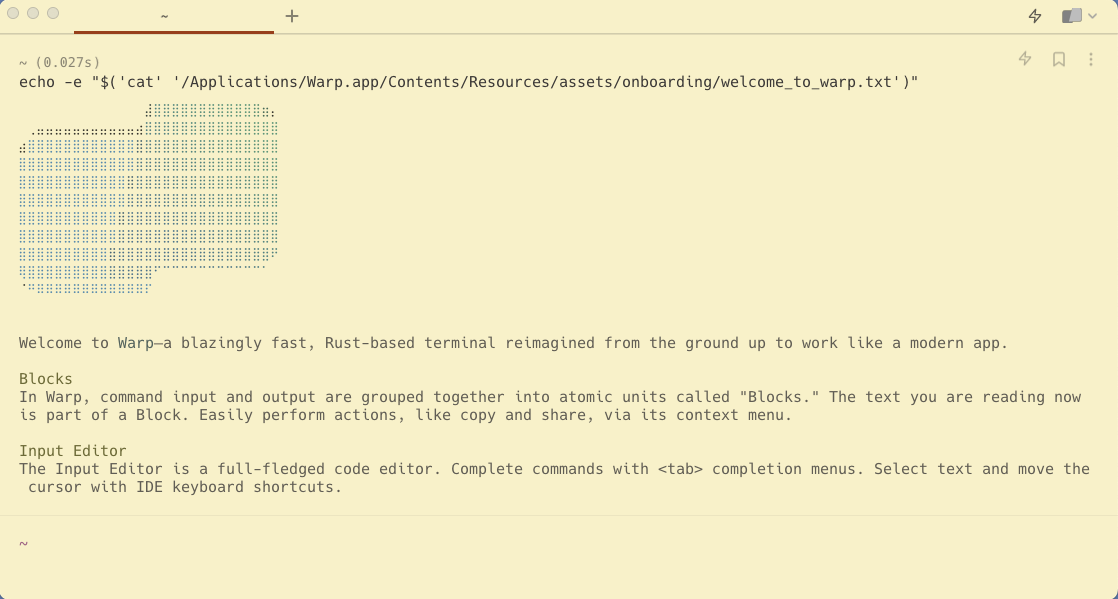
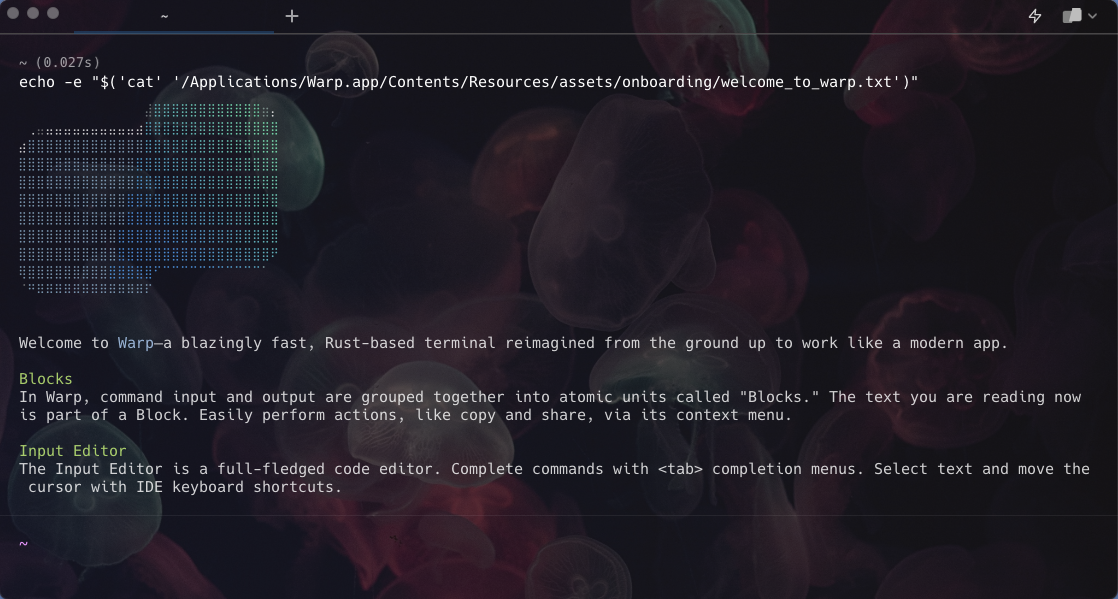
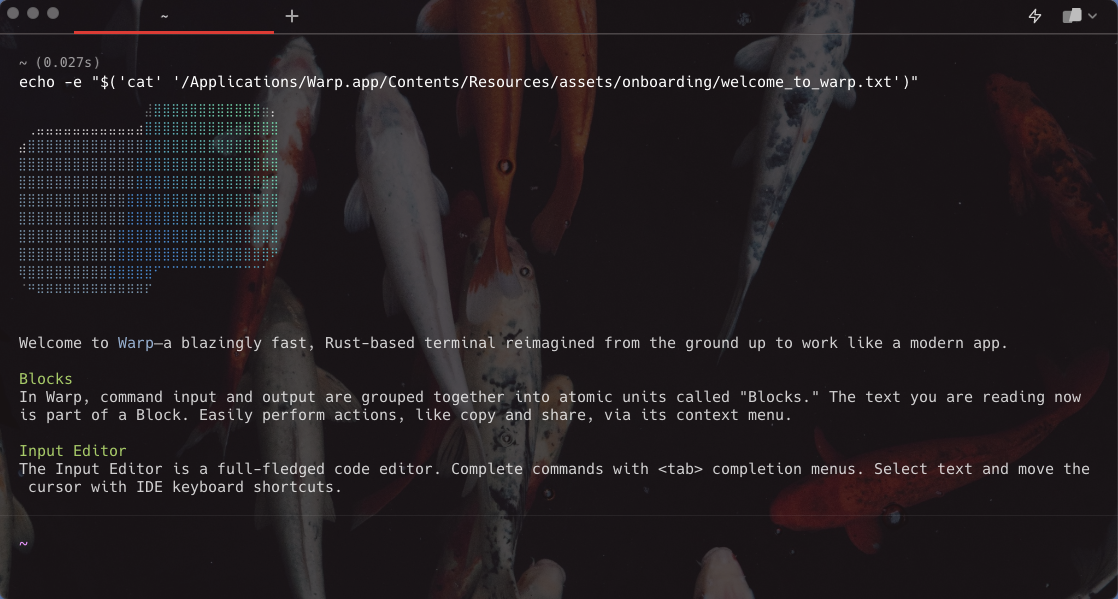
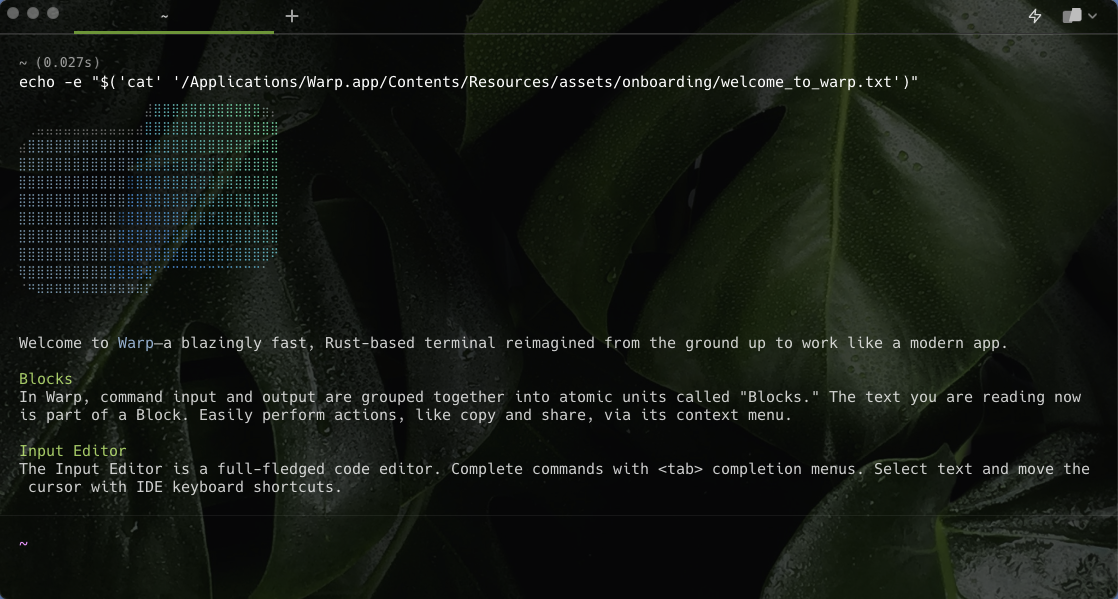
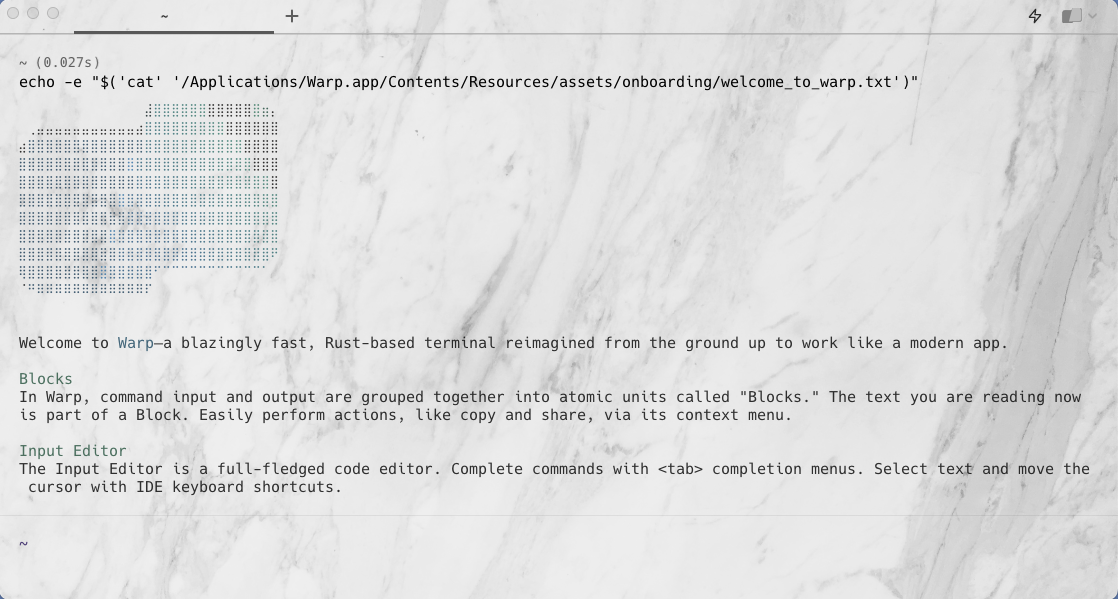
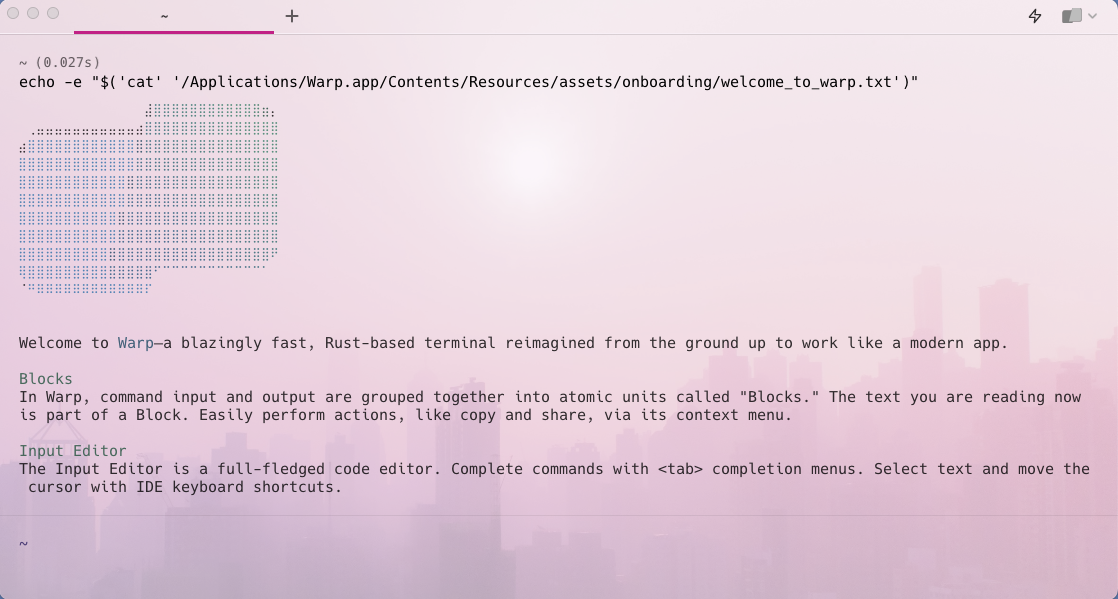
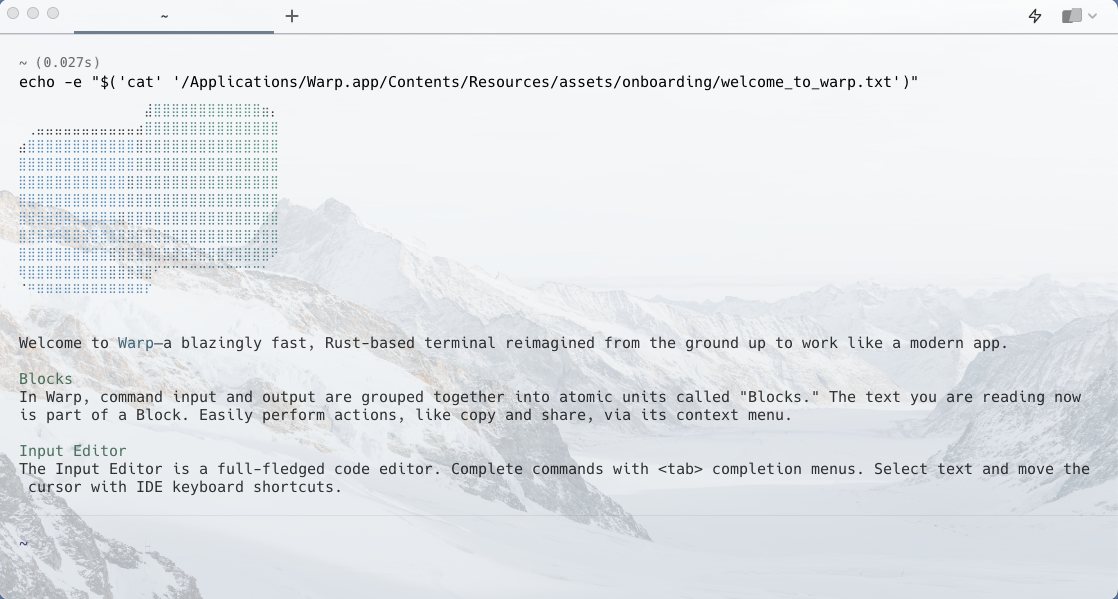
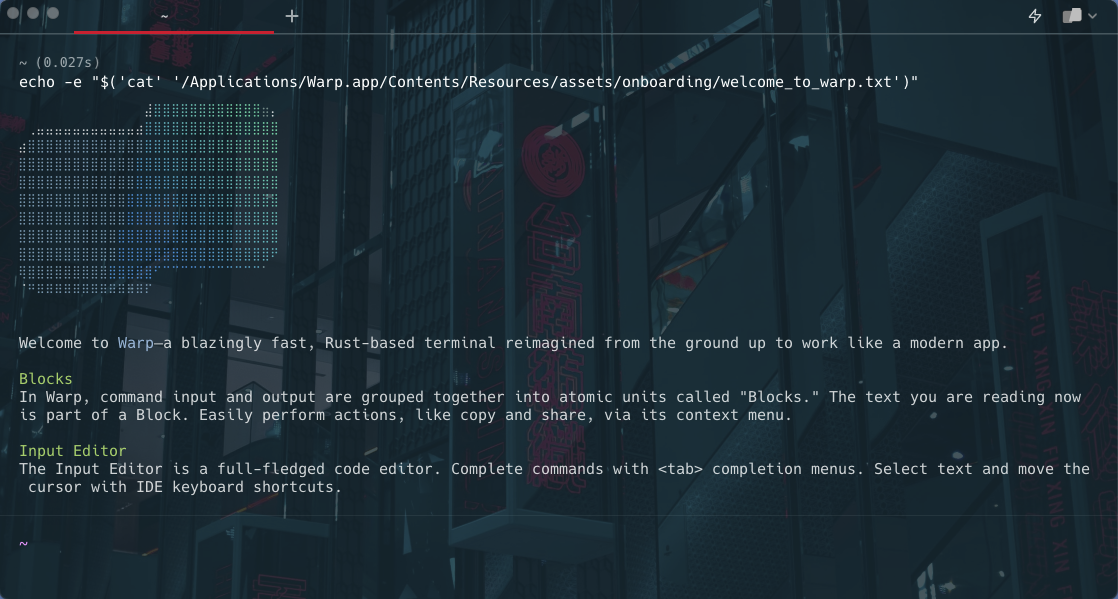
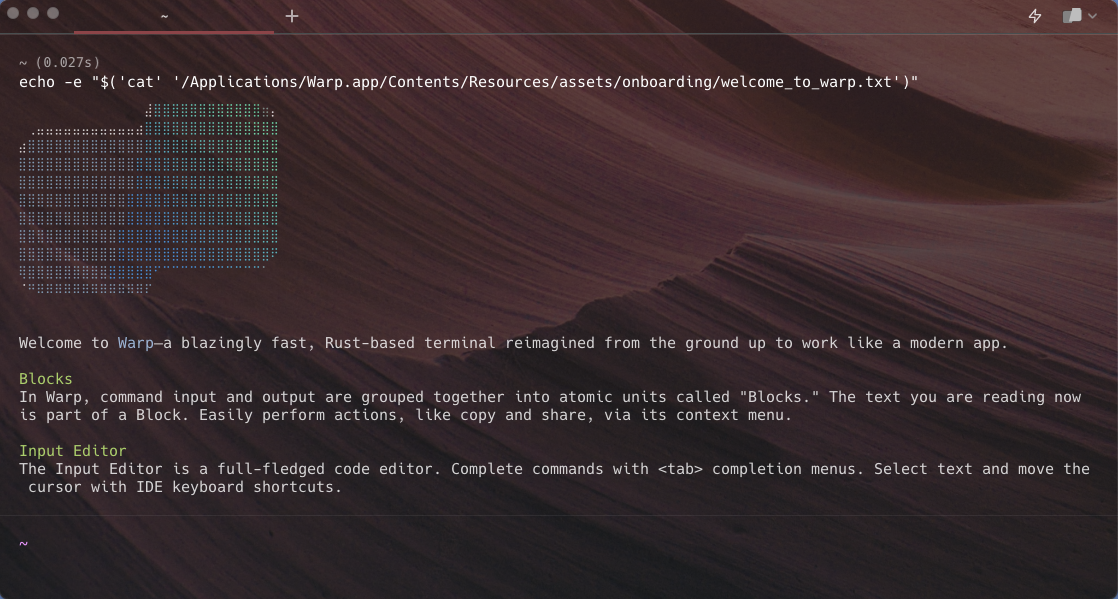
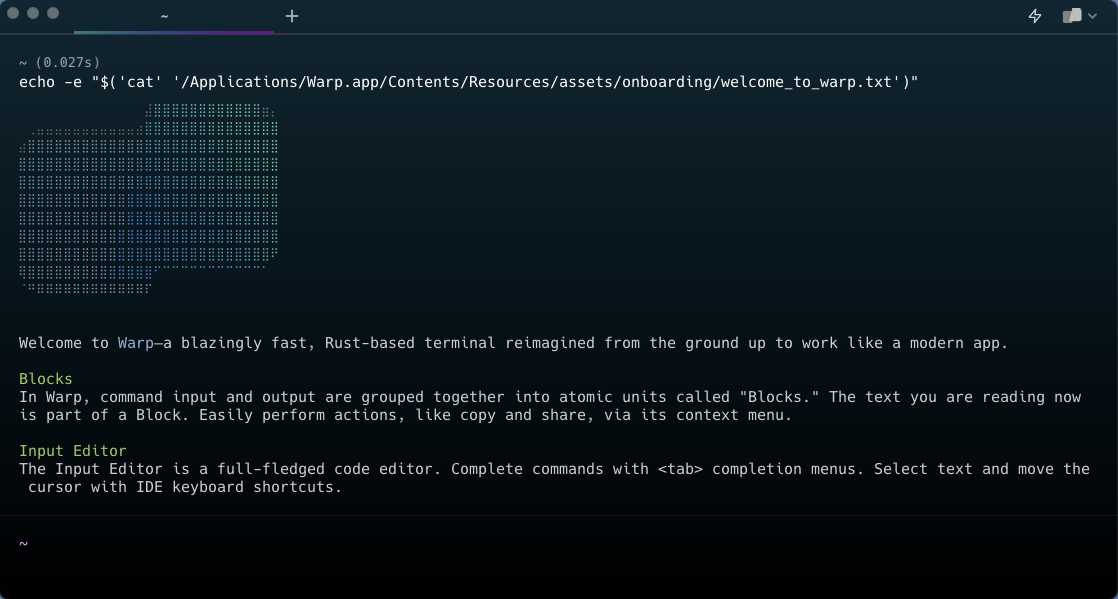
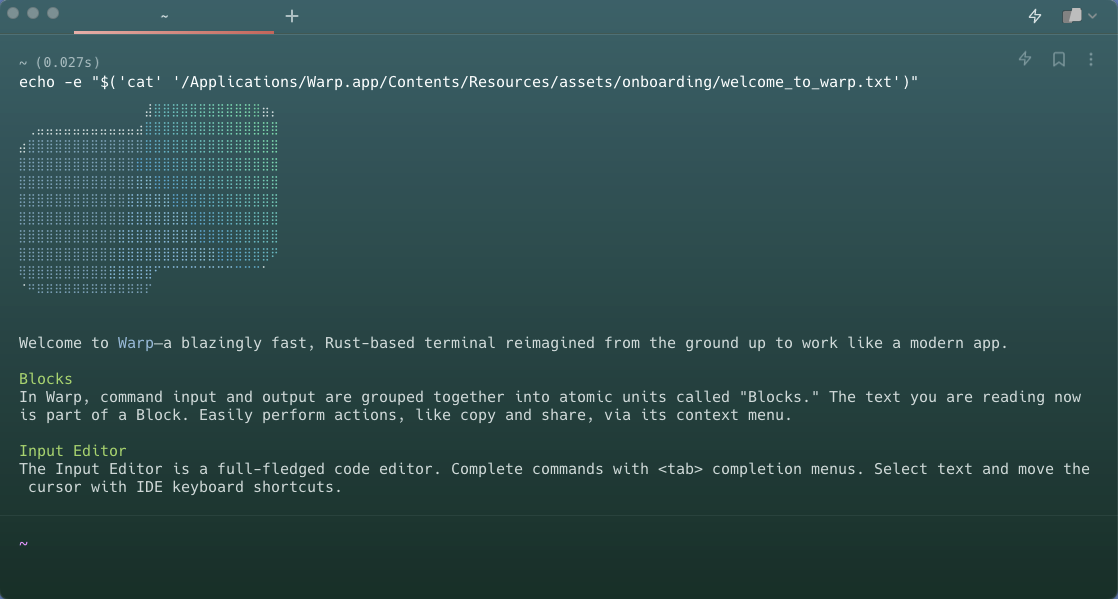
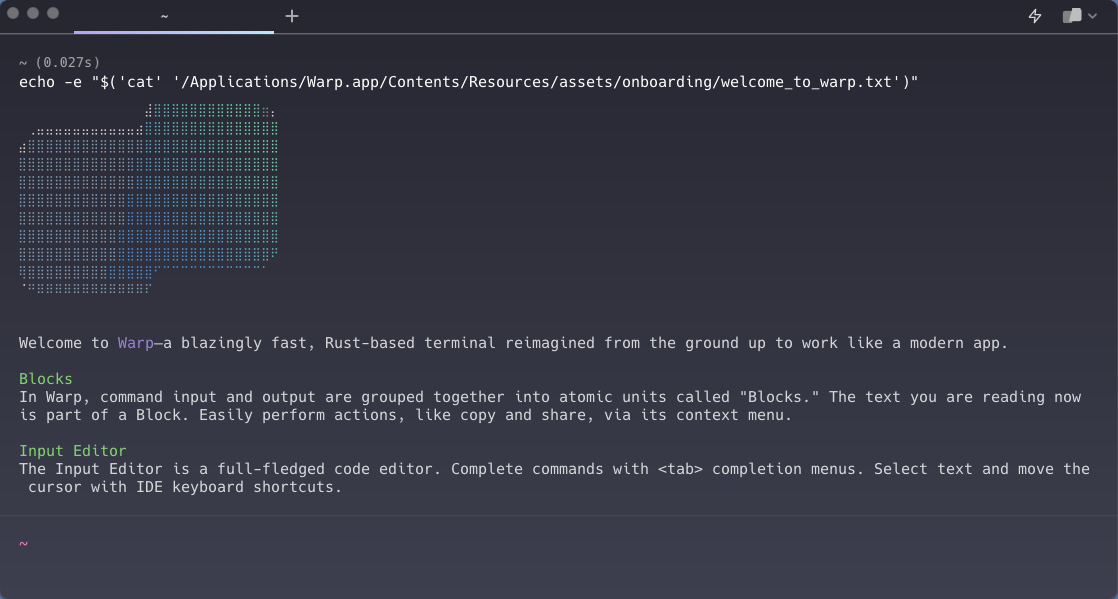
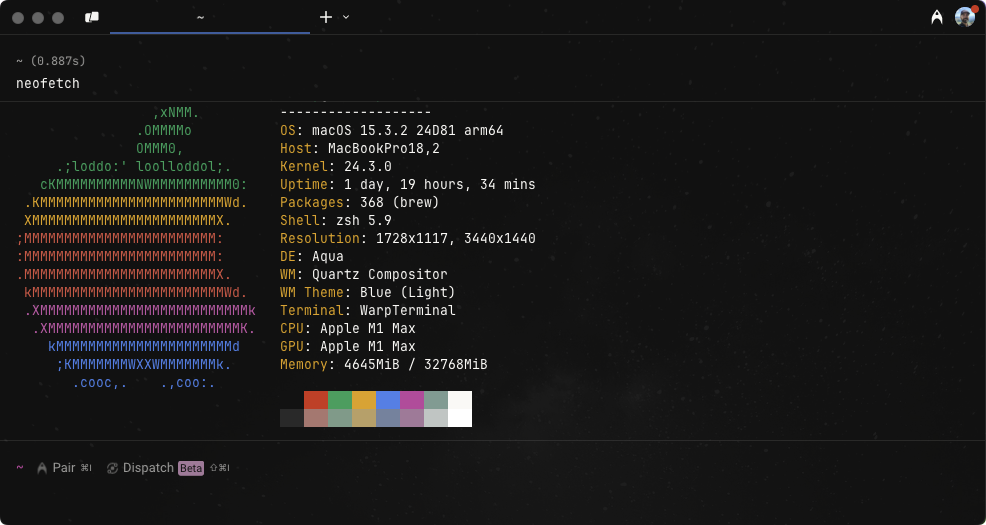
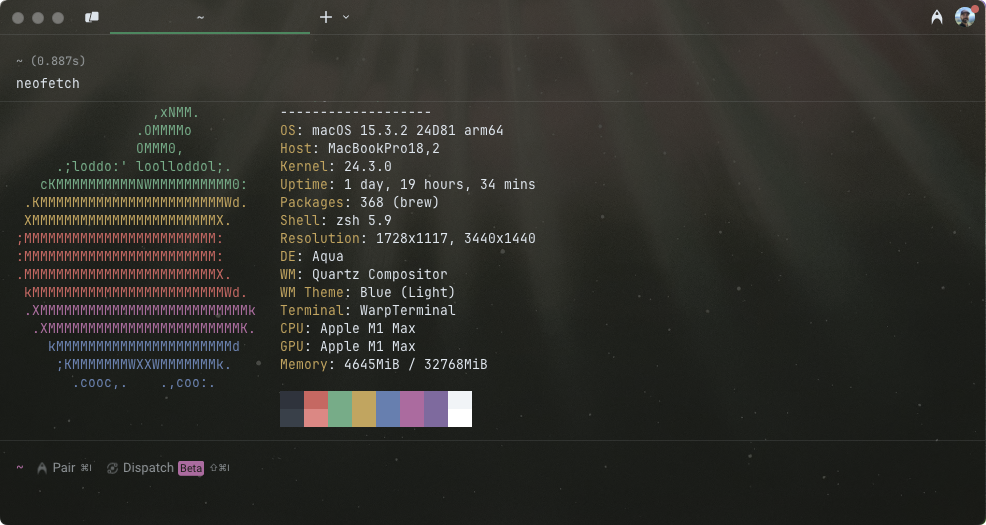
Warp includes several themes (out-of-box) and also supports setting custom themes.
Tell me about this feature: https://docs.warp.dev/terminal/appearance/themes/
Theme picker
Section titled “Theme picker”The theme picker can be accessed by:
- Navigating to Settings > Appearance.
- Clicking the Custom Themes (shaded) box.
- Upon selecting a theme, Warp’s appearance will update accordingly.
- Press the checkmark to save the selection, or the X to revert.
Theme creator
Section titled “Theme creator”Automatically create new themes based on a background image.
- Go to Settings > Appearance > Themes or search “Open theme picker” within the Command Palette.
- Click the + button in the theme picker.
- Upload the image and select the background color.
- Click “Create Theme” to save and accept the new theme.
OS theme sync
Section titled “OS theme sync”Warp supports synchronizing your theme with the OS’s light and dark themes. To enable this:
- Open the Settings > Appearance dialog.
- Click the toggle “Sync with OS”.
- You will then be able to select a specific theme for when the OS is in light mode and dark mode.
How it works
Section titled “How it works”Default themes
Section titled “Default themes”By default, Warp ships with these themes: