Terminal > More Features
Text selection
# Text selection ## Smart selection **Smart selection** goes beyond the typical double-click selection, which only highlights a single word. Instead, it uses semantic rules to treat common patterns (like URLs or file paths) as one unit, even when separated by punctuation or whitespace. <figure>  <figcaption>Using smart selection to select a file path by double clicking.</figcaption> </figure> Double-click on text in the input or block list. The following patterns are recognized: 1. URLs 2. File paths 3. Email addresses 4. IP addresses 5. Floating point numbers, including scientific notation. You can toggle smart selection on the **Settings** > **Features** > **Terminal** > **Double-click smart selection**. If disabled, you can instead manually select specific punctuation characters to be included within word boundaries. ## Rectangular selection **Rectangular selection** lets you highlight text in a clean vertical block (also called _column_ or _box_ selection). This is especially useful for copying command output, logs, or prefixed text without grabbing unwanted characters. <figure>  <figcaption>Using rectangular selection to select by columns in the block output.</figcaption> </figure> Hold the modifier keys while dragging your mouse: * macOS: `⌘+Option` * Windows and Linux: `Ctrl+Alt`Tell me about this feature: https://docs.warp.dev/terminal/more-features/text-selection/Use smart selection and rectangular (column) selection to quickly highlight text in Warp.
Smart selection
Section titled “Smart selection”Smart selection goes beyond the typical double-click selection, which only highlights a single word. Instead, it uses semantic rules to treat common patterns (like URLs or file paths) as one unit, even when separated by punctuation or whitespace.
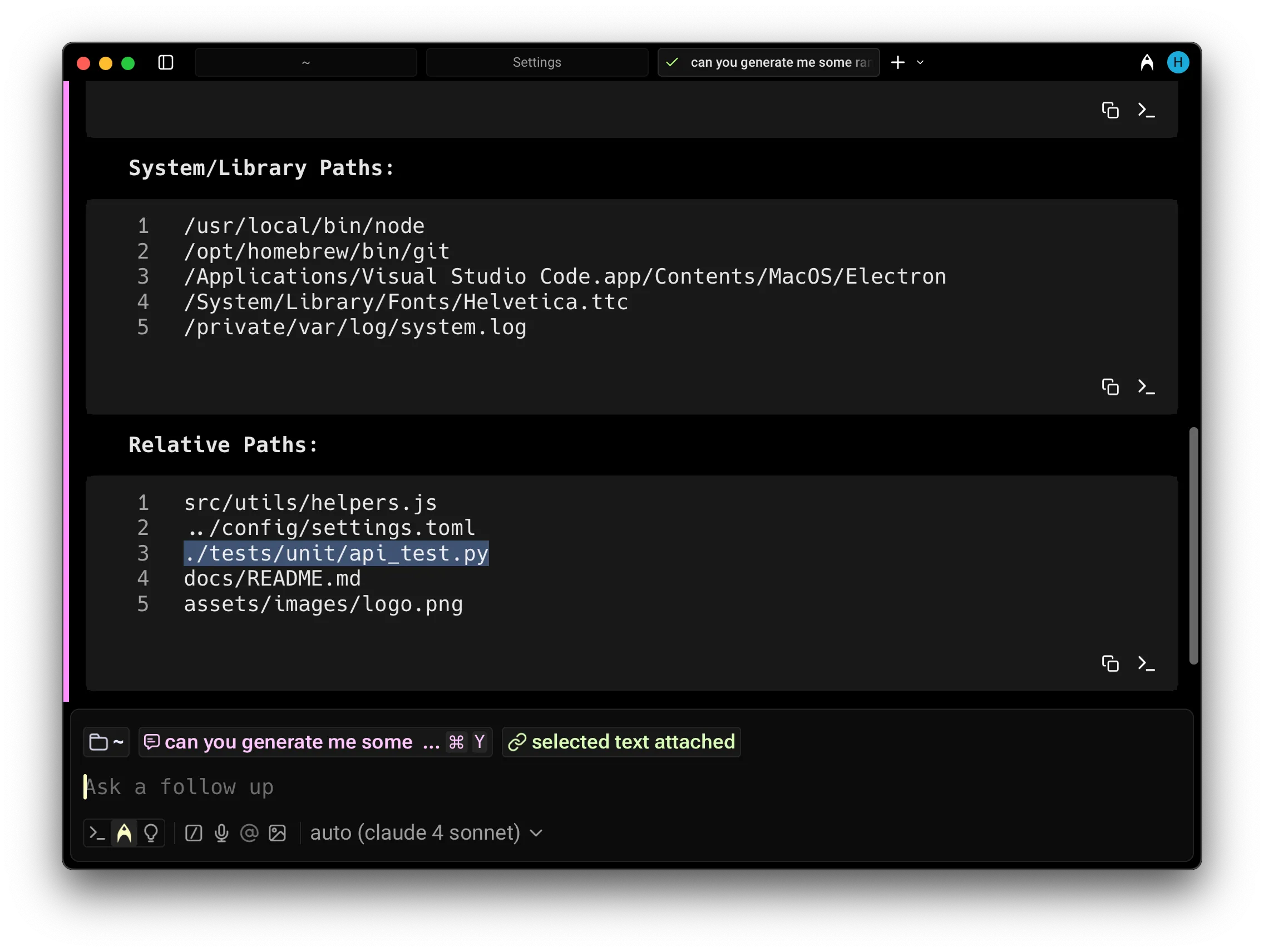
Double-click on text in the input or block list. The following patterns are recognized:
- URLs
- File paths
- Email addresses
- IP addresses
- Floating point numbers, including scientific notation.
You can toggle smart selection on the Settings > Features > Terminal > Double-click smart selection. If disabled, you can instead manually select specific punctuation characters to be included within word boundaries.
Rectangular selection
Section titled “Rectangular selection”Rectangular selection lets you highlight text in a clean vertical block (also called column or box selection). This is especially useful for copying command output, logs, or prefixed text without grabbing unwanted characters.
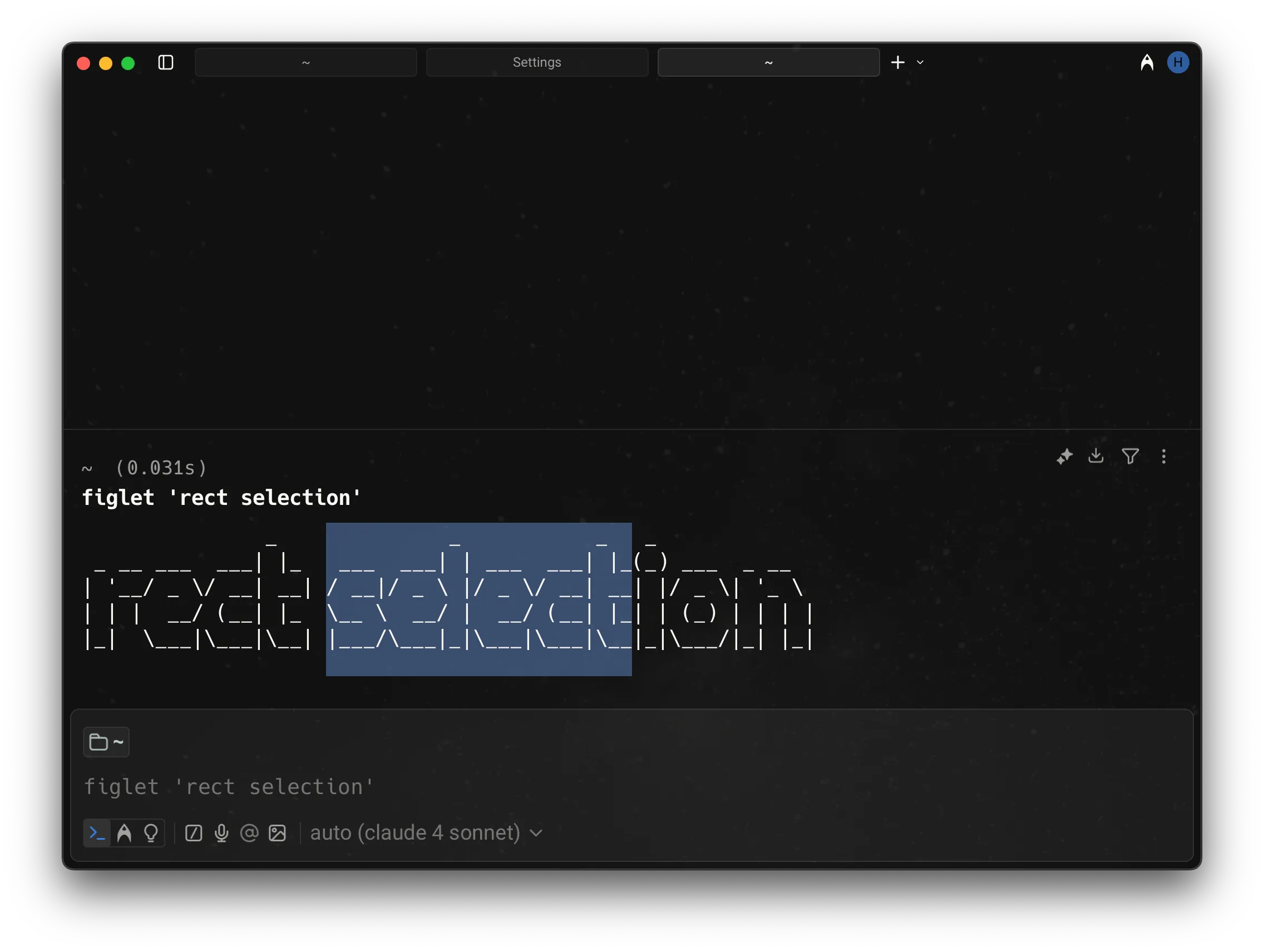
Hold the modifier keys while dragging your mouse:
- macOS:
⌘+Option - Windows and Linux:
Ctrl+Alt