Terminal > More Features
Full-screen apps
# Full-screen apps ## Mouse and scroll reporting Warp supports configuring how to handle mouse and scroll events. They can be sent to the currently running app, e.g. `vim`, or kept and handled by Warp. :::note Mouse reporting must be enabled to also toggle scroll reporting. ::: Once mouse reporting is enabled, Warp will use ANSI escape sequences to communicate mouse events to the running app. :::note If you want a mouse event to go to Warp instead (for example, for text selection) without disabling mouse reporting, you can hold the `Shift` key. ::: ### How to access it * From **Settings** > **Features** > **Terminal** > **Enable Mouse Reporting** * Scroll Reporting can be enabled after toggling **Enable Mouse Reporting** * From the [Command Palette](/terminal/command-palette/), search for "mouse reporting" * The entry is labeled "Enable mouse reporting" or "Disable mouse reporting" depending on the current setting * From the macOS Menu, **View** > **Toggle Mouse Reporting** ### How it works <VideoEmbed url="https://www.loom.com/share/a918696b002148d3beafd545b233c1be?hideEmbedTopBar=true&hide_owner=true&hide_share=true&hide_title=true" title="Mouse and Scroll Reporting Demo" /> ## Padding Warp supports configuring how much padding surrounds full-screen apps. The default is 0 pixel padding, but this can be changed to a custom padding amount or to match the padding in the block list. :::note Warp allows you to scale your terminal by fractions of a cell width | height. When your terminal size is not perfectly aligned to a cell width | height, the extra space appears as padding on the right | bottom. ::: ### How to access it * Go to **Settings** > **Appearance** > **Full-screen Apps** or from the [Command Palette](/terminal/command-palette/) search for "Appearance" * **Use custom padding in alt-screen** is enabled by default, you can disable it to match the block list padding * Set the desired uniform padding (px) pixels, which is set to 0px by default :::caution Some full-screen applications don't behave well when resizing. If you are experiencing rendering issues with full screen apps, try turning this setting off. This will ensure that full-screen apps don't need to resize when starting up. ::: <figure style={{ maxWidth: "375px" }}>  <figcaption>The alt-screen padding setting in appearance preferences.</figcaption> </figure> ## Kitty keyboard protocol Warp supports the [Kitty keyboard protocol](https://sw.kovidgoyal.net/kitty/keyboard-protocol/) (CSI u progressive enhancement) so full-screen apps can read keystrokes that legacy terminal escape sequences can't represent — for example, distinguishing `Ctrl+I` from `Tab`, capturing modifier-only key events, or detecting key release events. When a running app advertises that it supports the protocol, Warp emits the extended escape sequences automatically. No configuration is required. * **Supported in**: Vim, Neovim, Emacs, tmux, helix, and other modern TUI apps that opt into CSI u. * **Falls back to legacy encoding** when the running app doesn't request progressive enhancement, so older programs keep working unchanged. :::note If a TUI app reports unexpected key events after upgrading Warp, confirm the app itself supports the Kitty keyboard protocol. Most apps require an explicit opt-in (for example, `:set keyprotocol` in Neovim). :::Tell me about this feature: https://docs.warp.dev/terminal/more-features/full-screen-apps/Run Vim, Emacs, and other full-screen apps with configurable mouse reporting and padding.
Mouse and scroll reporting
Section titled “Mouse and scroll reporting”Warp supports configuring how to handle mouse and scroll events. They can be sent to the currently running app, e.g. vim, or kept and handled by Warp.
Once mouse reporting is enabled, Warp will use ANSI escape sequences to communicate mouse events to the running app.
How to access it
Section titled “How to access it”- From Settings > Features > Terminal > Enable Mouse Reporting
- Scroll Reporting can be enabled after toggling Enable Mouse Reporting
- From the Command Palette, search for “mouse reporting”
- The entry is labeled “Enable mouse reporting” or “Disable mouse reporting” depending on the current setting
- From the macOS Menu, View > Toggle Mouse Reporting
How it works
Section titled “How it works”Padding
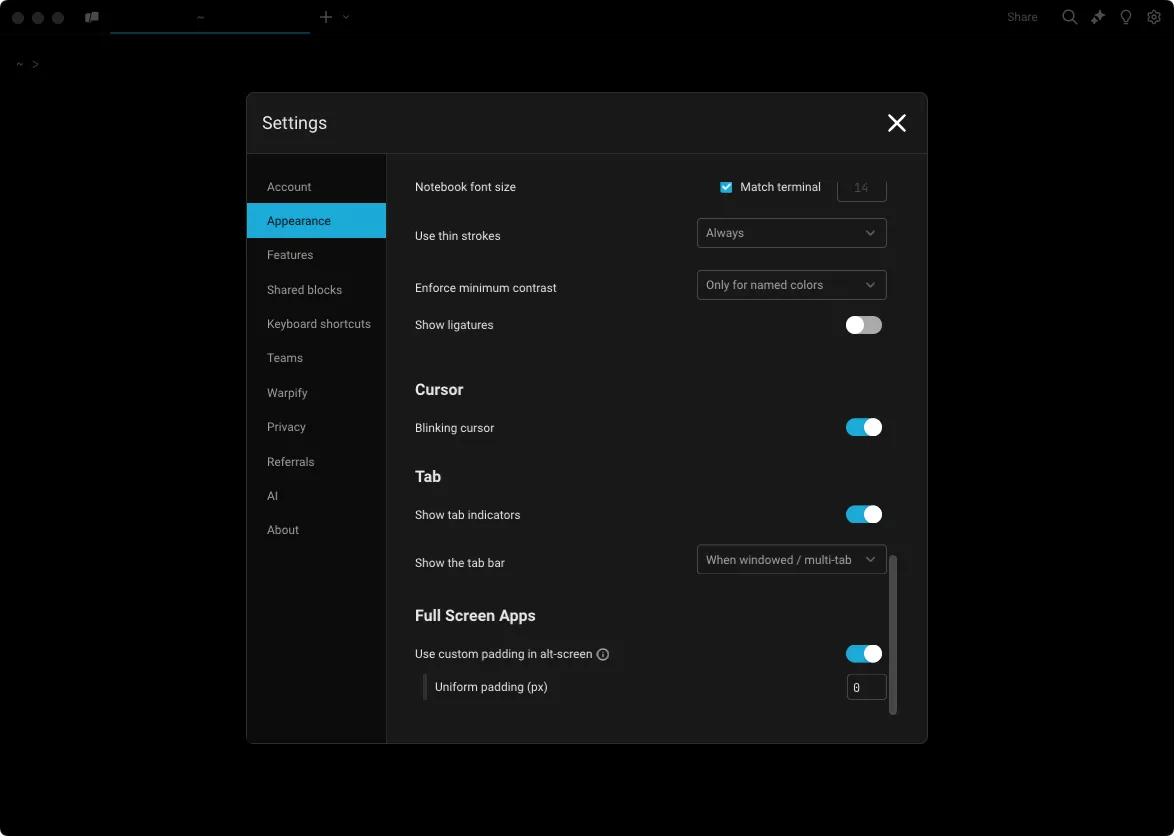
Section titled “Padding”Warp supports configuring how much padding surrounds full-screen apps. The default is 0 pixel padding, but this can be changed to a custom padding amount or to match the padding in the block list.
How to access it
Section titled “How to access it”- Go to Settings > Appearance > Full-screen Apps or from the Command Palette search for “Appearance”
- Use custom padding in alt-screen is enabled by default, you can disable it to match the block list padding
- Set the desired uniform padding (px) pixels, which is set to 0px by default
- Use custom padding in alt-screen is enabled by default, you can disable it to match the block list padding
Kitty keyboard protocol
Section titled “Kitty keyboard protocol”Warp supports the Kitty keyboard protocol (CSI u progressive enhancement) so full-screen apps can read keystrokes that legacy terminal escape sequences can’t represent — for example, distinguishing Ctrl+I from Tab, capturing modifier-only key events, or detecting key release events.
When a running app advertises that it supports the protocol, Warp emits the extended escape sequences automatically. No configuration is required.
- Supported in: Vim, Neovim, Emacs, tmux, helix, and other modern TUI apps that opt into CSI u.
- Falls back to legacy encoding when the running app doesn’t request progressive enhancement, so older programs keep working unchanged.