Agents > Oz CLI
API keys for the Oz CLI
# API keys for the Oz CLI :::caution The Oz CLI (the `oz` binary) is a supported legacy interface. Existing users do not need to change their workflows. For new multi-stage development workflows, use [Warp Factories](/factories/). Warp will publish guidance before any support change. ::: API keys let the Oz CLI, cloud agents, and self-hosted workers authenticate without human interaction. Use API keys for CI pipelines, headless servers, VMs, Codespaces, containers, and other automated environments. ## Personal vs. agent keys Choose a key type based on what needs to authenticate: * **Personal API keys** - Authenticate as you. By default, runs use your GitHub permissions, draw from your eligible usage, and inherit your account's [skills](/agents/capabilities/skills/). Use a personal key when the run should act on your behalf — for example, developer-triggered API automation, or the [Enterprise Analytics API](/enterprise/enterprise-features/analytics-api/), which only accepts personal keys. * **Agent** API keys - Run as a [cloud agent](/platform/agents/) on your team. Use an agent key for scheduled jobs, integrations (Slack, Linear, GitHub Actions), SDK-triggered runs, and other automation that isn't tied to a specific user. Billing and GitHub permissions are scoped to the team rather than to you. For [self-hosting with an external orchestrator](/factories/self-hosting/external-orchestrators/), create an Agent key associated with the Default Service Account. This key lets the orchestrator create and run tasks without using a person's identity, and it can authenticate a worker when one job performs both actions. ## Self-hosted worker API keys Self-hosted worker API keys authenticate managed `oz-agent-worker` daemons as your team. Use this key type with the [Docker](/factories/self-hosting/managed-docker/), [Kubernetes](/factories/self-hosting/managed-kubernetes/), [Direct](/factories/self-hosting/managed-direct/), or [Command](/factories/self-hosting/external-orchestrators/#using-the-command-backend) backend. You don't need to select an agent when creating one. ## Creating an API key Create personal and agent keys in the <a href={`https://oz.warp.dev/settings`}>Oz web app</a> or the Warp app. Create self-hosted worker keys in the <a href={`https://platform.warp.dev/settings`}>Warp Factories web app</a>. ### Creating a self-hosted worker API key 1. Open the <a href={`https://platform.warp.dev/settings`}>Warp Factories web app user settings page</a>. 2. In the API keys section, click **Generate new token**. 3. Under "Type," select **Self-hosted worker**. The key is tied to your team and does not require an agent selection. 4. Enter a name for the key and choose when it expires. 5. Click **Create key**. 6. In the "Copy API key" dialog, copy the key and store it securely. The key is shown only once. **Expected outcome:** The key appears in the API keys list with a **Team** badge and the expiration you selected. ### From the web app (recommended) 1. Open the <a href={`https://oz.warp.dev/settings`}>Oz web app settings page</a>. 2. In the API keys section, click **Generate new token**. 3. Choose the type: * **Personal** — Tied to your individual Warp account. * **Agent** — Runs as a cloud agent on your team. For an external self-hosting orchestrator, choose **Default Service Account** from the dropdown. 4. Enter a name for the key and choose an expiration (1 day, 30 days, 90 days, or never). 5. Click **Create key**. 6. Copy the raw API key and store it securely. **You won't be able to see it again after closing the dialog.** ### From the Warp app 1. In the Warp app, click your profile photo in the top-right corner, then click **Settings**. 2. In the sidebar, expand **Cloud platform** and click **API keys**. 3. In the API Keys section, click **+ Create API Key**. 4. Pick **Personal** for a personal key, or **Agent** / **Team** for an agent key tied to your team. (The toggle may still read **Team** in older versions of the desktop app.) 5. Name the key and choose an expiration (1 day, 30 days, 90 days, or never). 6. Click **Create key**. 7. Copy the raw API key and store it securely. **You won't be able to see it again after closing the dialog.** To create a self-hosted worker key, use the [Warp Factories web app flow](#creating-a-self-hosted-worker-api-key). <figure style={{ maxWidth: "563px" }}>  <figcaption>API key management interface in Warp settings.</figcaption> </figure> ## How key type affects billing and GitHub access The key type determines who the run acts as, which usage balances it can draw from, and which GitHub credentials it can use. ### Personal API key behavior * Run as you. * Use your eligible included and purchased usage on the team. Enterprise billing follows your contract. * Use your GitHub permissions. Code changes are attributed to your GitHub account. ### Agent API key behavior * Run as a cloud agent on your team. * Follow the [team billing rules for cloud runs](/platform/team-access-billing-and-identity/#billing-for-cloud-agent-runs). * Use the [Warp Factories](/factories/) GitHub App when [team GitHub authorization](/platform/team-access-billing-and-identity/#team-github-authorization) is configured. Without team GitHub authorization, agent keys are still useful for tasks that don't need to write to GitHub, such as analysis, monitoring, or triage. Review [purchase controls](/support-and-community/plans-and-billing/add-on-credits/) before relying on unattended runs. ## Authenticating with API keys You can authenticate with an API key in the CLI using either an environment variable or a command flag. Environment variables are recommended for security and easier reuse across multiple commands. **Via environment variable (recommended):** ```sh $ export WARP_API_KEY="wk-xxx..." $ oz agent run --prompt "analyze this codebase" ``` **Via command flag:** ```sh $ oz agent run --api-key "wk-xxx..." --prompt "analyze this codebase" ``` :::note API keys start with the prefix `wk-`. If your key doesn't have this prefix, it may be [invalid or from an older format](/factories/api-and-sdk/troubleshooting/errors/authentication-required/). ::: ## Managing API keys The <a href={`https://oz.warp.dev/settings`}>Oz web app settings page</a> and the Warp app's **Settings** > **Cloud platform** > **API keys** both list your active keys. Both surfaces show: * **Name** — The name you assigned when creating the key. * **Scope** — Personal keys show your user; agent keys show the cloud agent the key runs as. * **Expires at** — The key's expiration date, or "Never" if it doesn't expire. The Warp app also shows additional metadata that isn't surfaced in the Oz web app: * **Key** — A masked suffix (`wk-**xxxx`) to help identify the key. * **Created** — When the key was created. * **Last used** — When the key was last used for authentication. ### Deleting API keys To delete an API key, find it in either the Oz web app or the Warp app's API Keys list and click the delete icon next to the key. Deleted keys are immediately invalidated and cannot be recovered. Any services or scripts using the deleted key will lose access and may return an [`authentication_required` error](/factories/api-and-sdk/troubleshooting/errors/authentication-required/). ## Manage API keys from the CLI In addition to the web and Warp app surfaces, you can manage API keys directly with the [Oz CLI](/agents/cli/oz-cli/). These commands are useful for scripting key rotation and for headless environments. ### List keys `oz api-key list` prints your active API keys. * `--sort-by <FIELD>` — Sort by `name`, `created-at`, `last-used-at`, `expires-at`, or `scope`. * `--sort-order <DIR>` — Sort direction: `asc` or `desc`. * `--jq <FILTER>` — Filter the JSON output with a jq expression (for example, `--jq '.[].name'`). ```bash oz api-key list --sort-by last-used-at --sort-order desc ``` ### Create a key `oz api-key create <NAME>` creates a key and prints the raw secret once. Store it securely — you can't retrieve it again. * `<NAME>` — A name to identify the key (required). * `--agent <UID>` — Create an agent key that runs as the given cloud agent, instead of a personal key. * One expiration choice is required: `--expires-in <DURATION>` (for example, `30d`, `12h`, or `90m`), `--expires-at <RFC3339>` (an exact timestamp), or `--no-expiration`. * `--jq <FILTER>` — Filter the JSON output with a jq expression. ```bash # A personal key that expires in 30 days oz api-key create "ci-pipeline" --expires-in 30d # An agent key scoped to a cloud agent, with no expiration oz api-key create "nightly-triage" --agent AGENT_UID --no-expiration ``` ### Expire a key `oz api-key expire <NAME_OR_UID>` immediately invalidates a key (also available as `oz api-key delete`). Expired keys can't be recovered. * `<NAME_OR_UID>` — The name or UID of the key to expire (required). * `--force` — Skip the confirmation prompt. ```bash oz api-key expire "ci-pipeline" --force ``` ## Best practices * **Use personal keys for runs that should act as you.** When code changes should be attributed to your GitHub account, a personal key is the right choice. Use agent keys for automation that isn't tied to a specific user. * **Use environment variables.** Avoid passing API keys directly in commands where they may be logged or visible in shell history. * **Set appropriate expiration.** Use shorter expiration times for development and testing; consider longer durations for stable production workflows. * **Configure team GitHub authorization for agents that write to GitHub.** Personal keys authenticate as you with your GitHub permissions. Agent keys authenticate via the [Warp Factories GitHub App](/platform/team-access-billing-and-identity/#team-github-authorization) when team GitHub authorization is configured in the Admin Panel. * **Rotate keys periodically.** Create new keys and retire old ones on a regular schedule to limit exposure from compromised credentials. * **Store securely.** Use secret managers (like 1Password CLI, HashiCorp Vault, or cloud provider secret services) rather than plain text files.Tell me about this feature: https://docs.warp.dev/agents/cli/oz-cli/api-keys/Create and manage API keys for authenticating the Oz CLI, cloud agents, and self-hosted workers.
API keys let the Oz CLI, cloud agents, and self-hosted workers authenticate without human interaction. Use API keys for CI pipelines, headless servers, VMs, Codespaces, containers, and other automated environments.
Personal vs. agent keys
Section titled “Personal vs. agent keys”Choose a key type based on what needs to authenticate:
- Personal API keys - Authenticate as you. By default, runs use your GitHub permissions, draw from your eligible usage, and inherit your account’s skills. Use a personal key when the run should act on your behalf — for example, developer-triggered API automation, or the Enterprise Analytics API, which only accepts personal keys.
- Agent API keys - Run as a cloud agent on your team. Use an agent key for scheduled jobs, integrations (Slack, Linear, GitHub Actions), SDK-triggered runs, and other automation that isn’t tied to a specific user. Billing and GitHub permissions are scoped to the team rather than to you.
For self-hosting with an external orchestrator, create an Agent key associated with the Default Service Account. This key lets the orchestrator create and run tasks without using a person’s identity, and it can authenticate a worker when one job performs both actions.
Self-hosted worker API keys
Section titled “Self-hosted worker API keys”Self-hosted worker API keys authenticate managed oz-agent-worker daemons as your team. Use this key type with the Docker, Kubernetes, Direct, or Command backend. You don’t need to select an agent when creating one.
Creating an API key
Section titled “Creating an API key”Create personal and agent keys in the Oz web app or the Warp app. Create self-hosted worker keys in the Warp Factories web app.
Creating a self-hosted worker API key
Section titled “Creating a self-hosted worker API key”- Open the Warp Factories web app user settings page.
- In the API keys section, click Generate new token.
- Under “Type,” select Self-hosted worker. The key is tied to your team and does not require an agent selection.
- Enter a name for the key and choose when it expires.
- Click Create key.
- In the “Copy API key” dialog, copy the key and store it securely. The key is shown only once.
Expected outcome: The key appears in the API keys list with a Team badge and the expiration you selected.
From the web app (recommended)
Section titled “From the web app (recommended)”- Open the Oz web app settings page.
- In the API keys section, click Generate new token.
- Choose the type:
- Personal — Tied to your individual Warp account.
- Agent — Runs as a cloud agent on your team. For an external self-hosting orchestrator, choose Default Service Account from the dropdown.
- Enter a name for the key and choose an expiration (1 day, 30 days, 90 days, or never).
- Click Create key.
- Copy the raw API key and store it securely. You won’t be able to see it again after closing the dialog.
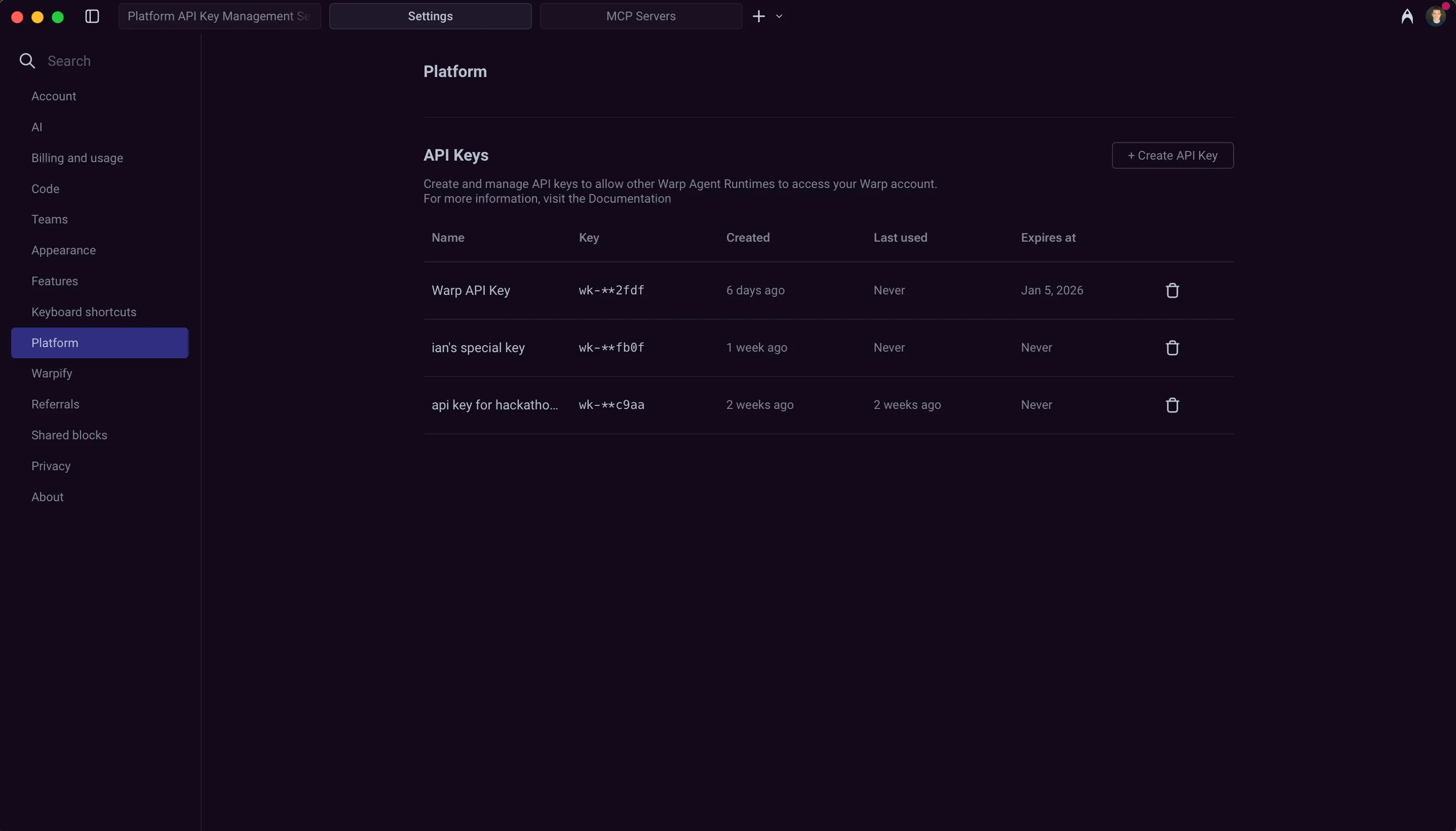
From the Warp app
Section titled “From the Warp app”- In the Warp app, click your profile photo in the top-right corner, then click Settings.
- In the sidebar, expand Cloud platform and click API keys.
- In the API Keys section, click + Create API Key.
- Pick Personal for a personal key, or Agent / Team for an agent key tied to your team. (The toggle may still read Team in older versions of the desktop app.)
- Name the key and choose an expiration (1 day, 30 days, 90 days, or never).
- Click Create key.
- Copy the raw API key and store it securely. You won’t be able to see it again after closing the dialog.
To create a self-hosted worker key, use the Warp Factories web app flow.
How key type affects billing and GitHub access
Section titled “How key type affects billing and GitHub access”The key type determines who the run acts as, which usage balances it can draw from, and which GitHub credentials it can use.
Personal API key behavior
Section titled “Personal API key behavior”- Run as you.
- Use your eligible included and purchased usage on the team. Enterprise billing follows your contract.
- Use your GitHub permissions. Code changes are attributed to your GitHub account.
Agent API key behavior
Section titled “Agent API key behavior”- Run as a cloud agent on your team.
- Follow the team billing rules for cloud runs.
- Use the Warp Factories GitHub App when team GitHub authorization is configured. Without team GitHub authorization, agent keys are still useful for tasks that don’t need to write to GitHub, such as analysis, monitoring, or triage.
Review purchase controls before relying on unattended runs.
Authenticating with API keys
Section titled “Authenticating with API keys”You can authenticate with an API key in the CLI using either an environment variable or a command flag. Environment variables are recommended for security and easier reuse across multiple commands.
Via environment variable (recommended):
$ export WARP_API_KEY="wk-xxx..."$ oz agent run --prompt "analyze this codebase"Via command flag:
$ oz agent run --api-key "wk-xxx..." --prompt "analyze this codebase"Managing API keys
Section titled “Managing API keys”The Oz web app settings page and the Warp app’s Settings > Cloud platform > API keys both list your active keys. Both surfaces show:
- Name — The name you assigned when creating the key.
- Scope — Personal keys show your user; agent keys show the cloud agent the key runs as.
- Expires at — The key’s expiration date, or “Never” if it doesn’t expire.
The Warp app also shows additional metadata that isn’t surfaced in the Oz web app:
- Key — A masked suffix (
wk-**xxxx) to help identify the key. - Created — When the key was created.
- Last used — When the key was last used for authentication.
Deleting API keys
Section titled “Deleting API keys”To delete an API key, find it in either the Oz web app or the Warp app’s API Keys list and click the delete icon next to the key.
Deleted keys are immediately invalidated and cannot be recovered. Any services or scripts using the deleted key will lose access and may return an authentication_required error.
Manage API keys from the CLI
Section titled “Manage API keys from the CLI”In addition to the web and Warp app surfaces, you can manage API keys directly with the Oz CLI. These commands are useful for scripting key rotation and for headless environments.
List keys
Section titled “List keys”oz api-key list prints your active API keys.
--sort-by <FIELD>— Sort byname,created-at,last-used-at,expires-at, orscope.--sort-order <DIR>— Sort direction:ascordesc.--jq <FILTER>— Filter the JSON output with a jq expression (for example,--jq '.[].name').
oz api-key list --sort-by last-used-at --sort-order descCreate a key
Section titled “Create a key”oz api-key create <NAME> creates a key and prints the raw secret once. Store it securely — you can’t retrieve it again.
<NAME>— A name to identify the key (required).--agent <UID>— Create an agent key that runs as the given cloud agent, instead of a personal key.- One expiration choice is required:
--expires-in <DURATION>(for example,30d,12h, or90m),--expires-at <RFC3339>(an exact timestamp), or--no-expiration. --jq <FILTER>— Filter the JSON output with a jq expression.
# A personal key that expires in 30 daysoz api-key create "ci-pipeline" --expires-in 30d
# An agent key scoped to a cloud agent, with no expirationoz api-key create "nightly-triage" --agent AGENT_UID --no-expiration
Expire a key
Section titled “Expire a key”oz api-key expire <NAME_OR_UID> immediately invalidates a key (also available as oz api-key delete). Expired keys can’t be recovered.
<NAME_OR_UID>— The name or UID of the key to expire (required).--force— Skip the confirmation prompt.
oz api-key expire "ci-pipeline" --forceBest practices
Section titled “Best practices”- Use personal keys for runs that should act as you. When code changes should be attributed to your GitHub account, a personal key is the right choice. Use agent keys for automation that isn’t tied to a specific user.
- Use environment variables. Avoid passing API keys directly in commands where they may be logged or visible in shell history.
- Set appropriate expiration. Use shorter expiration times for development and testing; consider longer durations for stable production workflows.
- Configure team GitHub authorization for agents that write to GitHub. Personal keys authenticate as you with your GitHub permissions. Agent keys authenticate via the Warp Factories GitHub App when team GitHub authorization is configured in the Admin Panel.
- Rotate keys periodically. Create new keys and retire old ones on a regular schedule to limit exposure from compromised credentials.
- Store securely. Use secret managers (like 1Password CLI, HashiCorp Vault, or cloud provider secret services) rather than plain text files.