Agents > Capabilities
Slash Commands
# Slash Commands Slash Commands are quick actions and saved prompts you can invoke by typing `/` in terminal mode or Agent Mode. They provide instant access to built-in actions like starting conversations, creating environments, switching models, opening static flows, and running saved prompts from Warp Drive. <figure>  <figcaption>Slash Commands menu.</figcaption> </figure> As you type, the menu filters results in real time, making it easy to find and run the command or prompt you need. ## Static slash commands Warp currently supports the following built-in Slash Commands: <table><thead><tr><th width="211.64453125">Slash Command</th><th>Description</th></tr></thead><tbody><tr><td><code>/add-mcp</code></td><td>Add a new <a href="/agents/capabilities/mcp/">MCP server</a>.</td></tr><tr><td><code>/add-prompt</code></td><td>Add a new <a href="/knowledge-and-collaboration/warp-drive/prompts/">Agent Prompt</a> in Warp Drive.</td></tr><tr><td><code>/add-rule</code></td><td>Add a new <a href="/agents/capabilities/rules/">Global Rule</a> for the Agent.</td></tr><tr><td><code>/agent</code></td><td>Start a new <a href="/agents/local-agents/interacting-with-agents/">agent conversation</a>. Optionally include a prompt to send immediately.</td></tr><tr><td><code>/changelog</code></td><td>Open the latest Warp <a href="/changelog/">changelog</a>.</td></tr><tr><td><code>/cloud-agent</code></td><td>Start a new <a href="/platform/">cloud agent conversation</a>. <code>{'*'}</code></td></tr><tr><td><code>/compact</code></td><td>Free up context by summarizing conversation history.</td></tr><tr><td><code>/compact-and</code></td><td>Compact the current conversation and then send a follow-up prompt.</td></tr><tr><td><code>/continue-locally</code></td><td>Fork the current cloud agent conversation into a local Warp session. See <a href="/platform/handoff/">Handoff between local and cloud agents</a>. Available while a cloud agent conversation is active.</td></tr><tr><td><code>/conversations</code></td><td>Open <a href="/agents/local-agents/interacting-with-agents/">conversation history</a>.</td></tr><tr><td><code>/copy-debugging-id</code></td><td>Copy debugging information for the current conversation to your clipboard, so you can include it when <a href="/support-and-community/troubleshooting-and-support/sending-us-feedback/">reporting an issue</a>. Available while a conversation is active.</td></tr><tr><td><code>/cost</code></td><td>Toggle credit usage details in the current conversation.</td></tr><tr><td><code>/create-environment</code></td><td>Create a <a href="/platform/environments/">Warp Environment</a> (Docker image + repos) via guided setup. <code>{'*'}</code></td></tr><tr><td><code>/create-new-project</code></td><td>Have the Agent walk you through creating a new coding project. <code>{'*'}</code></td></tr><tr><td><code>/environment</code></td><td>Switch the <a href="/platform/environments/">environment</a> for the current cloud agent conversation.</td></tr><tr><td><code>/export-to-clipboard</code></td><td>Export the current conversation to clipboard in markdown format.</td></tr><tr><td><code>/export-to-file</code></td><td>Export the current conversation to a markdown file.</td></tr><tr><td><code>/feedback</code></td><td>Open the static feedback experience. See <a href="/support-and-community/troubleshooting-and-support/sending-us-feedback/#using-feedback-in-warp">Using <code>/feedback</code> in Warp</a> for details.</td></tr><tr><td><code>/fork</code></td><td><a href="/agents/local-agents/interacting-with-agents/conversation-forking/">Forks the current conversation</a> into a new thread with the full context and history of the original. <br /><br />You can optionally include a prompt that will be sent immediately in the forked conversation.</td></tr><tr><td><code>/fork-and-compact</code></td><td><a href="/agents/local-agents/interacting-with-agents/conversation-forking/">Forks the current conversation</a> and automatically compacts the forked version.<br /><br />Useful when you want a fresh, summarized starting point that preserves relevant context while trimming the rest.</td></tr><tr><td><code>/fork-from</code></td><td>Open a searchable menu to <a href="/agents/local-agents/interacting-with-agents/conversation-forking/">fork the conversation</a> from a specific query. Select a query to create a fork that includes everything up to that point.</td></tr><tr><td><code>/handoff</code></td><td>Hand the current local conversation off to a cloud agent, carrying its history and a snapshot of your uncommitted changes. See <a href="/platform/handoff/local-to-cloud/">Handoff from local to cloud</a>. You can optionally include a follow-up prompt. <code>{'*'}</code></td></tr><tr><td><code>/harness</code></td><td>Switch the <a href="/platform/harnesses/">harness</a> for the current cloud agent conversation.</td></tr><tr><td><code>/host</code></td><td>Switch the execution host for the current cloud agent conversation.</td></tr><tr><td><code>/index</code></td><td>Index the current codebase using <a href="/agents/capabilities/codebase-context/">Codebase Context</a>.</td></tr><tr><td><code>/init</code></td><td>Index the current codebase and generate an <a href="/agents/capabilities/rules/">AGENTS.md file</a>. <code>{'*'}</code></td></tr><tr><td><code>/model</code></td><td>Switch the base agent model for the current conversation.</td></tr><tr><td><code>/new</code></td><td>Start a new <a href="/agents/local-agents/interacting-with-agents/">agent conversation</a> (alias for <code>/agent</code>).</td></tr><tr><td><code>/open-code-review</code></td><td>Open the <a href="/code/code-review/">code review</a> pane.</td></tr><tr><td><code>/open-file</code></td><td>Open a file for editing in Warp's <a href="/code/code-editor/">code editor</a>.</td></tr><tr><td><code>/open-mcp-servers</code></td><td>View the status of your <a href="/agents/capabilities/mcp/">MCP servers</a>.</td></tr><tr><td><code>/open-project-rules</code></td><td>Open the <a href="/agents/capabilities/rules/#project-rules">Project Rules</a> file (<code>AGENTS</code>).</td></tr><tr><td><code>/open-repo</code></td><td>Switch to another indexed repository.</td></tr><tr><td><code>/open-rules</code></td><td>View all of your global and project <a href="/agents/capabilities/rules/">rules</a>.</td></tr><tr><td><code>/open-settings-file</code></td><td>Open the Warp <a href="/terminal/settings/">settings file</a> (<code>settings.toml</code>) in Warp's code editor.</td></tr><tr><td><code>/open-skill</code></td><td>Open an interactive menu to browse and edit project or global <a href="/agents/capabilities/skills/">skills</a>.</td></tr><tr><td><code>/orchestrate</code></td><td>Break a task into subtasks and run them in parallel with multiple agents. See <a href="/platform/orchestration/">Multi-agent orchestration</a>. <code>{'*'}</code></td></tr><tr><td><code>/plan</code></td><td>Prompt the Agent to research and create a <a href="/agents/capabilities/planning/">plan</a> for a task. When the work benefits from parallel agents, the plan can include <a href="/platform/orchestration/">multi-agent orchestration</a>.</td></tr><tr><td><code>/profile</code></td><td>Switch the active <a href="/agents/capabilities/agent-profiles-permissions/">execution profile</a>.</td></tr><tr><td><code>/prompts</code></td><td>Search saved <a href="/knowledge-and-collaboration/warp-drive/prompts/">prompts</a>.</td></tr><tr><td><code>/queue</code></td><td>Queue a prompt to send after the agent finishes responding. See <a href="/agents/local-agents/interacting-with-agents/prompt-queueing/">Prompt Queueing</a>.</td></tr><tr><td><code>/remote-control</code></td><td>Publish the current third-party CLI agent session to the cloud so you can monitor and steer it from another device. See <a href="/agents/cli-agents/remote-control/">Remote Control</a>.</td></tr><tr><td><code>/rename-conversation</code></td><td>Rename the current conversation.</td></tr><tr><td><code>/rename-tab</code></td><td>Rename the current tab. Include the new tab name as an argument (for example, <code>/rename-tab deploy</code>).</td></tr><tr><td><code>/rewind</code></td><td>Rewind to a previous point in the conversation.</td></tr><tr><td><code>/set-tab-color</code></td><td>Set the color of the current tab. Takes a required color argument: <code>red</code>, <code>green</code>, <code>yellow</code>, <code>blue</code>, <code>magenta</code>, <code>cyan</code>, or <code>none</code> to clear it. See <a href="/terminal/windows/tabs/#tab-colors">Tab colors</a>.</td></tr><tr><td><code>/skills</code></td><td>Invoke a <a href="/agents/capabilities/skills/">skill</a> from a searchable menu.</td></tr><tr><td><code>/usage</code></td><td>Open <a href="/support-and-community/plans-and-billing/">billing and usage</a> settings.</td></tr></tbody></table> :::caution Slash commands marked with a `*` use metered inference to complete the task. See [usage and billing](/support-and-community/plans-and-billing/credits/). ::: #### Using Agent Prompts via Slash Commands In addition to static commands, the menu also shows [Agent Prompts](/knowledge-and-collaboration/warp-drive/prompts/) saved in your [Warp Drive](/knowledge-and-collaboration/warp-drive/). * These prompts can be custom ones you’ve created or ones shared with you. * As you type after `/`, prompts are filtered dynamically, so you can quickly run them without leaving the input field. <figure>  <figcaption>Slash Commands menu with filtered Agent Prompts.</figcaption> </figure> ### Tips * **Context-aware:** Many Slash Commands use your current working directory or file selection as context. * **Quick access:** Use `/` from terminal mode or Agent Mode to avoid navigating through menus. ### Example of using a Slash Command Below is an example interaction when `/init` is run: <figure>  <figcaption>The /init setup flow, step 1 of 2.</figcaption> </figure> <figure>  <figcaption>The /init setup flow, step 2 of 2.</figcaption> </figure>Tell me about this feature: https://docs.warp.dev/agents/capabilities/slash-commands/Use Slash Commands in terminal mode or Agent Mode to quickly run built-in actions or saved prompts without leaving the input field.
Slash Commands are quick actions and saved prompts you can invoke by typing / in terminal mode or Agent Mode. They provide instant access to built-in actions like starting conversations, creating environments, switching models, opening static flows, and running saved prompts from Warp Drive.
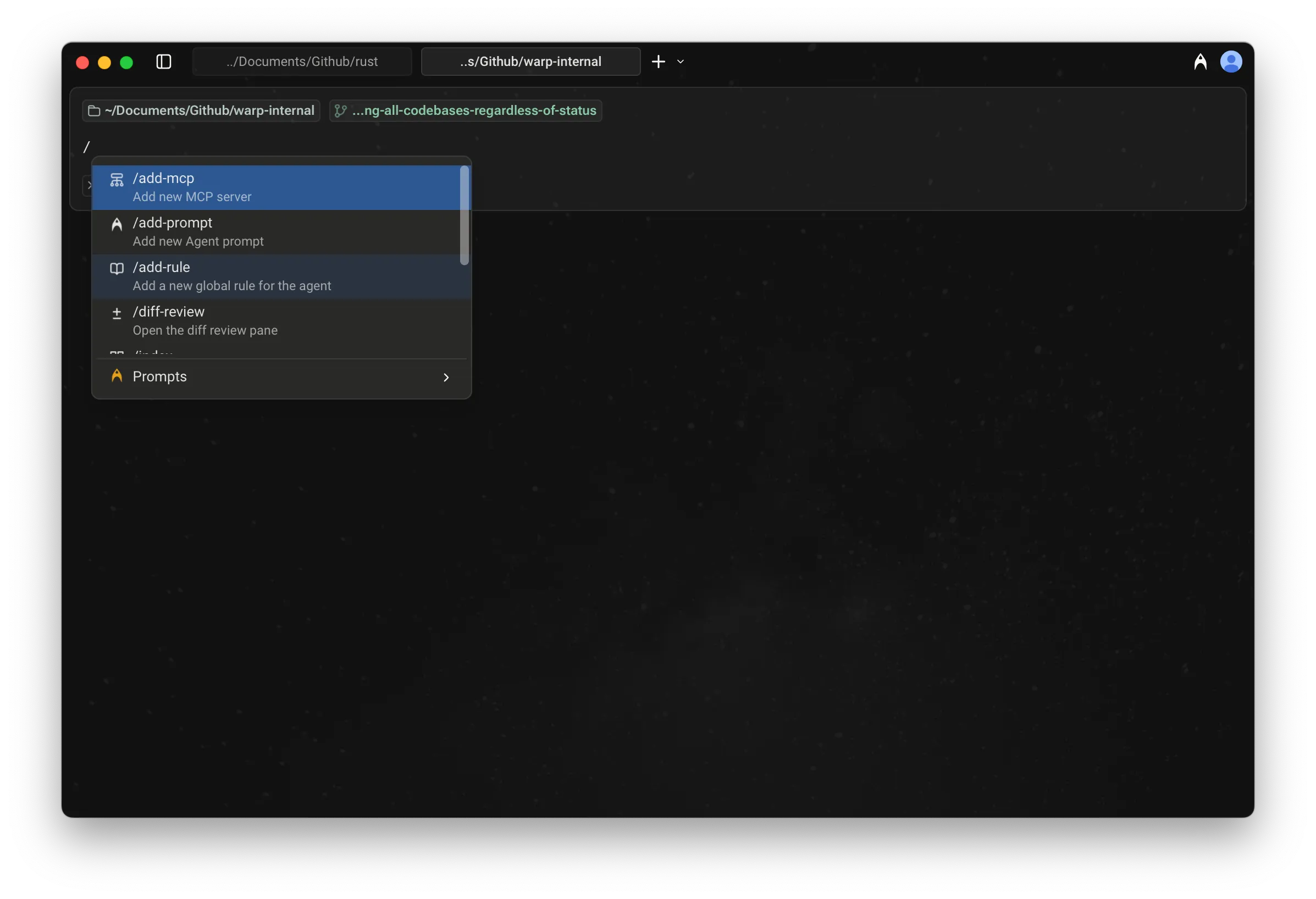
As you type, the menu filters results in real time, making it easy to find and run the command or prompt you need.
Static slash commands
Section titled “Static slash commands”Warp currently supports the following built-in Slash Commands:
| Slash Command | Description |
|---|---|
/add-mcp | Add a new MCP server. |
/add-prompt | Add a new Agent Prompt in Warp Drive. |
/add-rule | Add a new Global Rule for the Agent. |
/agent | Start a new agent conversation. Optionally include a prompt to send immediately. |
/changelog | Open the latest Warp changelog. |
/cloud-agent | Start a new cloud agent conversation. * |
/compact | Free up context by summarizing conversation history. |
/compact-and | Compact the current conversation and then send a follow-up prompt. |
/continue-locally | Fork the current cloud agent conversation into a local Warp session. See Handoff between local and cloud agents. Available while a cloud agent conversation is active. |
/conversations | Open conversation history. |
/copy-debugging-id | Copy debugging information for the current conversation to your clipboard, so you can include it when reporting an issue. Available while a conversation is active. |
/cost | Toggle credit usage details in the current conversation. |
/create-environment | Create a Warp Environment (Docker image + repos) via guided setup. * |
/create-new-project | Have the Agent walk you through creating a new coding project. * |
/environment | Switch the environment for the current cloud agent conversation. |
/export-to-clipboard | Export the current conversation to clipboard in markdown format. |
/export-to-file | Export the current conversation to a markdown file. |
/feedback | Open the static feedback experience. See Using /feedback in Warp for details. |
/fork | Forks the current conversation into a new thread with the full context and history of the original. You can optionally include a prompt that will be sent immediately in the forked conversation. |
/fork-and-compact | Forks the current conversation and automatically compacts the forked version. Useful when you want a fresh, summarized starting point that preserves relevant context while trimming the rest. |
/fork-from | Open a searchable menu to fork the conversation from a specific query. Select a query to create a fork that includes everything up to that point. |
/handoff | Hand the current local conversation off to a cloud agent, carrying its history and a snapshot of your uncommitted changes. See Handoff from local to cloud. You can optionally include a follow-up prompt. * |
/harness | Switch the harness for the current cloud agent conversation. |
/host | Switch the execution host for the current cloud agent conversation. |
/index | Index the current codebase using Codebase Context. |
/init | Index the current codebase and generate an AGENTS.md file. * |
/model | Switch the base agent model for the current conversation. |
/new | Start a new agent conversation (alias for /agent). |
/open-code-review | Open the code review pane. |
/open-file | Open a file for editing in Warp’s code editor. |
/open-mcp-servers | View the status of your MCP servers. |
/open-project-rules | Open the Project Rules file (AGENTS). |
/open-repo | Switch to another indexed repository. |
/open-rules | View all of your global and project rules. |
/open-settings-file | Open the Warp settings file (settings.toml) in Warp’s code editor. |
/open-skill | Open an interactive menu to browse and edit project or global skills. |
/orchestrate | Break a task into subtasks and run them in parallel with multiple agents. See Multi-agent orchestration. * |
/plan | Prompt the Agent to research and create a plan for a task. When the work benefits from parallel agents, the plan can include multi-agent orchestration. |
/profile | Switch the active execution profile. |
/prompts | Search saved prompts. |
/queue | Queue a prompt to send after the agent finishes responding. See Prompt Queueing. |
/remote-control | Publish the current third-party CLI agent session to the cloud so you can monitor and steer it from another device. See Remote Control. |
/rename-conversation | Rename the current conversation. |
/rename-tab | Rename the current tab. Include the new tab name as an argument (for example, /rename-tab deploy). |
/rewind | Rewind to a previous point in the conversation. |
/set-tab-color | Set the color of the current tab. Takes a required color argument: red, green, yellow, blue, magenta, cyan, or none to clear it. See Tab colors. |
/skills | Invoke a skill from a searchable menu. |
/usage | Open billing and usage settings. |
Using Agent Prompts via Slash Commands
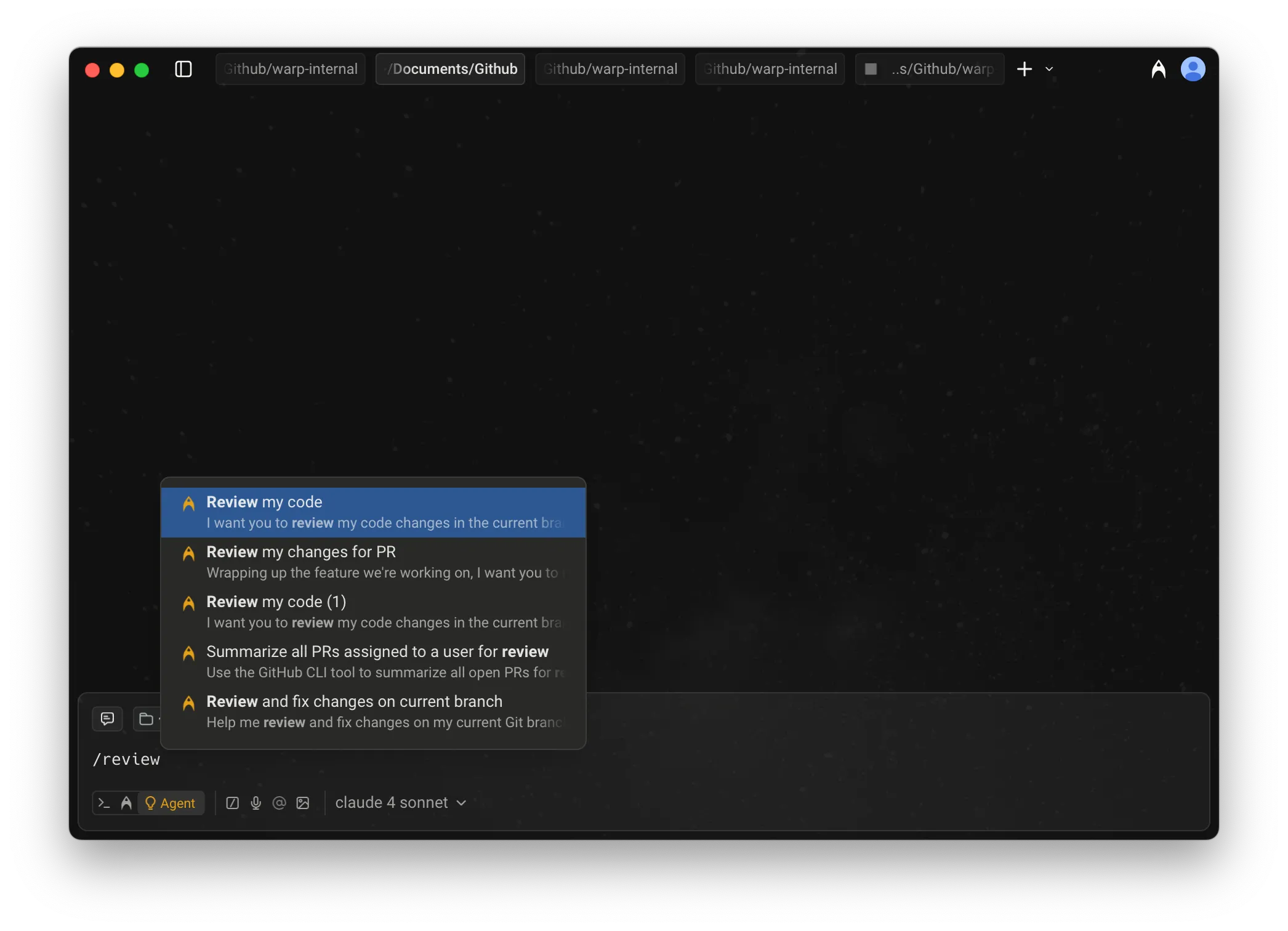
Section titled “Using Agent Prompts via Slash Commands”In addition to static commands, the menu also shows Agent Prompts saved in your Warp Drive.
- These prompts can be custom ones you’ve created or ones shared with you.
- As you type after
/, prompts are filtered dynamically, so you can quickly run them without leaving the input field.
- Context-aware: Many Slash Commands use your current working directory or file selection as context.
- Quick access: Use
/from terminal mode or Agent Mode to avoid navigating through menus.
Example of using a Slash Command
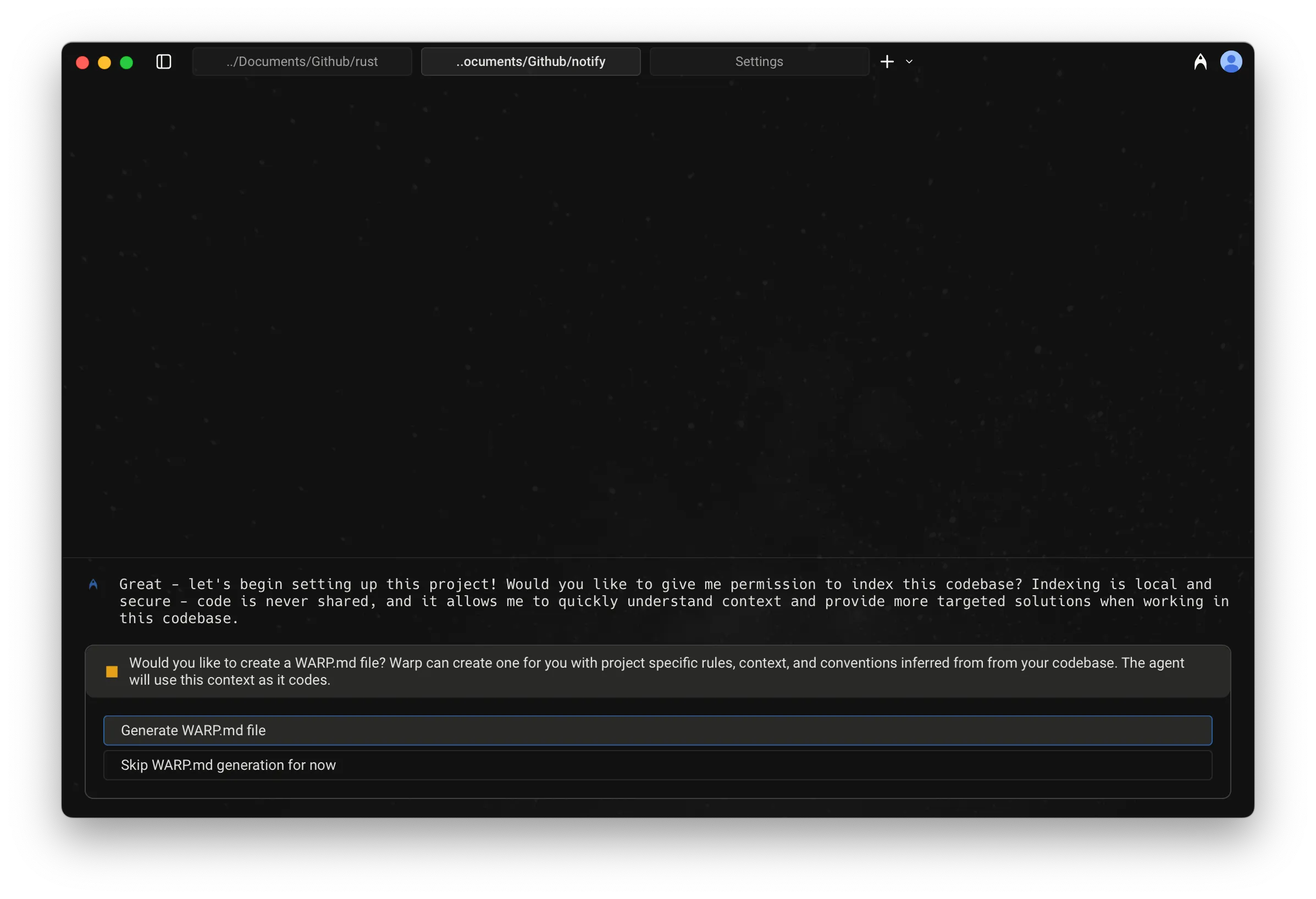
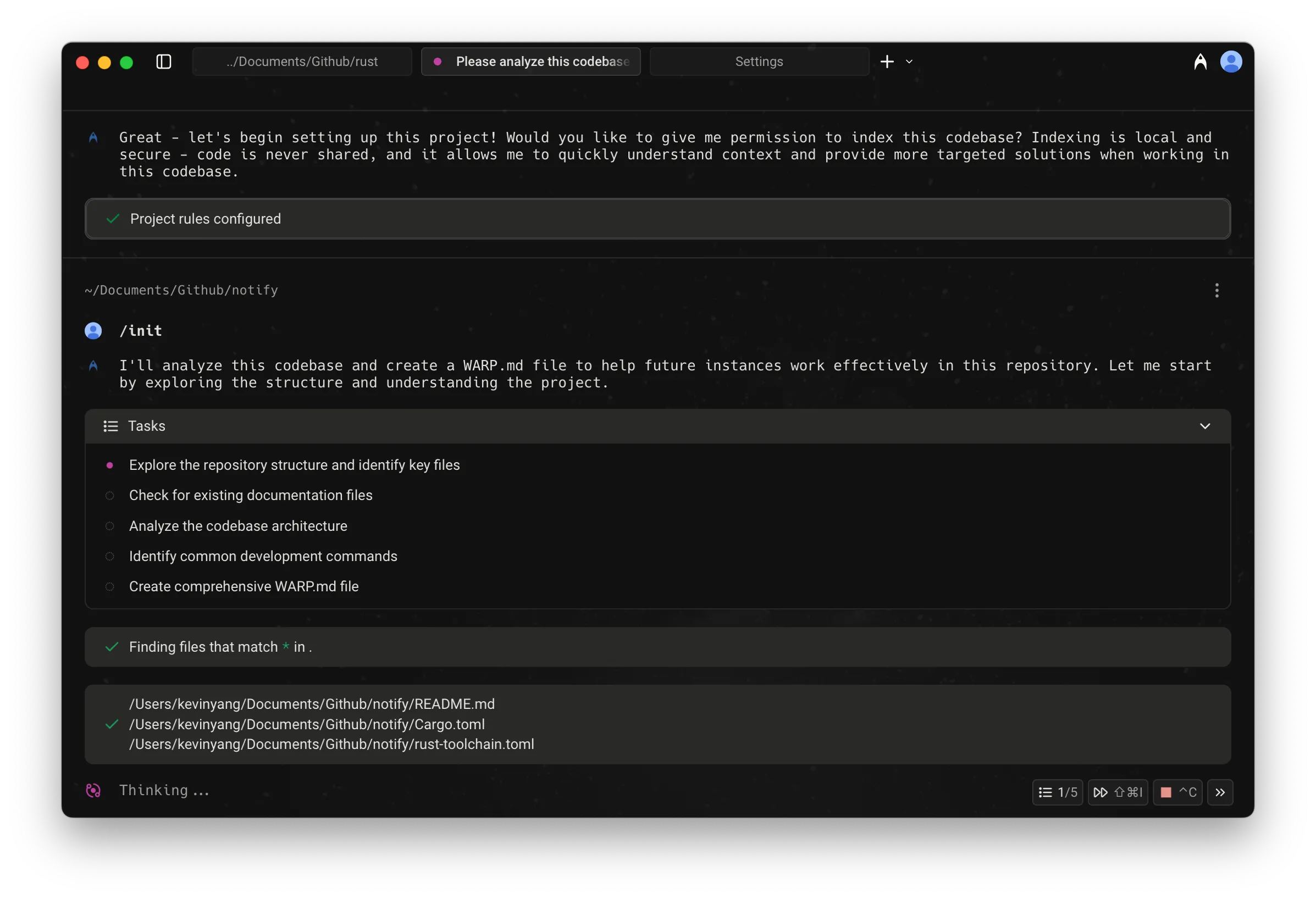
Section titled “Example of using a Slash Command”Below is an example interaction when /init is run: