# Terminal integrations
## Docker
{% hint style="info" %}
Currently, the Docker extension is only available on macOS.
{% endhint %}
[Warp’s Docker extension](https://hub.docker.com/extensions/warpdotdev/warp) makes it more convenient to open Docker containers in Warp. With the extension, you can click to open any Docker container in a [Warpified subshell](https://docs.warp.dev/terminal/warpify/subshells), without manually running `docker exec` or typing out lengthy container IDs.
Select a container from the list and specify a shell type. Note, that only `bash|zsh|fish` are supported shells for docker containers. Then, select a user (optional) and finally click “Open in Warp” to run commands within the Docker container.
Warp's extension for Docker lists available containers
## Raycast
{% hint style="info" %}
Currently, the Raycast extension is only available on macOS.
{% endhint %}
Warp + Raycast extension helps you open new windows, tabs, or Launch Configurations with [ease](https://twitter.com/warpdotdev/status/1678432353461637121).
{% embed url="" %}
Warp + Raycast Extension Link
{% endembed %}
{% hint style="info" %}
**Terminal Tip**\
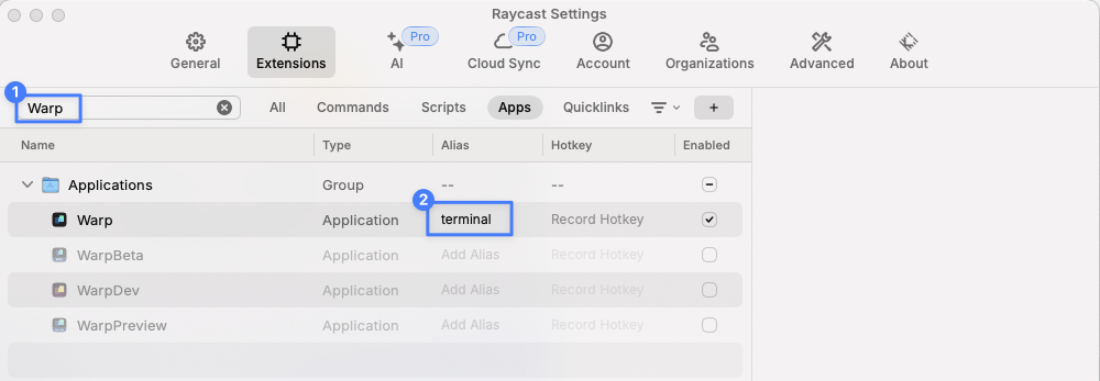
Within `Raycast Settings > Extensions > Apps` search for Warp and assign the alias "terminal" so that it will show up on a search.
{% endhint %}
Raycast Terminal Tip
## VSCode
{% tabs %}
{% tab title="macOS" %}
Press `SHIFT-CMD-C` while in [VSCode](https://code.visualstudio.com/docs/terminal/basics) to open a new session in Warp.

To configure this, navigate to Settings in VSCode and search for `Terminal › External: Osx Exec`.\
\
Change this to `Warp.app` if you've installed Warp in the default location. Otherwise, put in the full path to the executable.
{% endtab %}
{% tab title="Windows" %}
Press `CTRL-SHIFT-C` while in [VSCode](https://code.visualstudio.com/docs/terminal/basics) to open a new session in Warp.
To configure this, navigate to Settings in VSCode and search for `Terminal › External: Windows Exec`.\
\
Change this to `%LOCALAPPDATA%\Programs\Warp\warp.exe` if you've installed Warp in the default location for a single user or `%PROGRAMFILES%\Warp\warp.exe` if you've installed Warp in the default location for all users. Otherwise, put in the full path to the executable.
{% endtab %}
{% tab title="Linux" %}
Press `CTRL-SHIFT-C` while in [VSCode](https://code.visualstudio.com/docs/terminal/basics) to open a new session in Warp.
To configure this, navigate to Settings in VSCode and search for `Terminal › External: Linux Exec`.\
\
Change this to `warp-terminal` if you've installed Warp with your distribution's package manager. Otherwise, put in the full path to the executable (e.g. if it is an AppImage).
{% endtab %}
{% endtabs %}
## JetBrains IDEs
{% hint style="info" %}
Currently, the JetBrains IDE configuration is only available on macOS.
{% endhint %}
Press a keyboard shortcut of choice while in a JetBrains IDE to open a new session in Warp.
To configure this, use the Apple Menu. Click on **Preferences**, go to `External Tools` , and click **Add**. In this menu, put the following information:
* *Name*: Open Warp
* *Program*: `/Applications/Warp.app`
* *Arguments*: `$ProjectFileDir$`
* *Working Directory*: `/Applications`
Then press `Ok`. Now you will be able to `Open Warp` from the Apple Menu under `Tools` -> `External Tools`.

To attach this configuration to a keyboard shortcut, you must go to the Apple Menu -> `Preferences`. Then go to `Keymap` -> `External Tools`. You will find `Open Warp`. Right-click on it, and select **Add Keyboard Shortcut**. Type your desired shortcut and click save! You're ready to open Warp with a keyboard shortcut.

---
# Agent Instructions: Querying This Documentation
If you need additional information that is not directly available in this page, you can query the documentation dynamically by asking a question.
Perform an HTTP GET request on the current page URL with the `ask` query parameter:
```
GET https://docs.warp.dev/terminal/integrations-and-plugins.md?ask=
```
The question should be specific, self-contained, and written in natural language.
The response will contain a direct answer to the question and relevant excerpts and sources from the documentation.
Use this mechanism when the answer is not explicitly present in the current page, you need clarification or additional context, or you want to retrieve related documentation sections.