# Tab Configs

Tab Configs let you define reusable tab setups — including directory, startup commands, pane layout, shell, and theme — in a simple TOML file. Select a Tab Config from the `+` menu to open a fully configured tab with a single click.

## How Tab Configs work

Each Tab Config is a `.toml` file stored in `~/.warp/tab_configs/`. Every file defines a single tab layout with optional pane splits, startup commands, and parameterized inputs. Tab Configs appear in the `+` menu alongside your existing tabs, so you can launch a preconfigured workspace instantly.

## Creating a Tab Config

### From the UI

1. Click the **+** button in the tab bar to open the new-tab menu.
2. Click **+ New tab config**. Warp creates a new `.toml` file in `~/.warp/tab_configs/` and opens it for editing.

### Manually

1. Create a new `.toml` file in `~/.warp/tab_configs/`. Use snake\_case for the file name (e.g., `dev_server.toml`).
2. Define the tab layout using the schema below, then save the file. The new config appears in the `+` menu automatically.

### Save an existing tab as a Tab Config

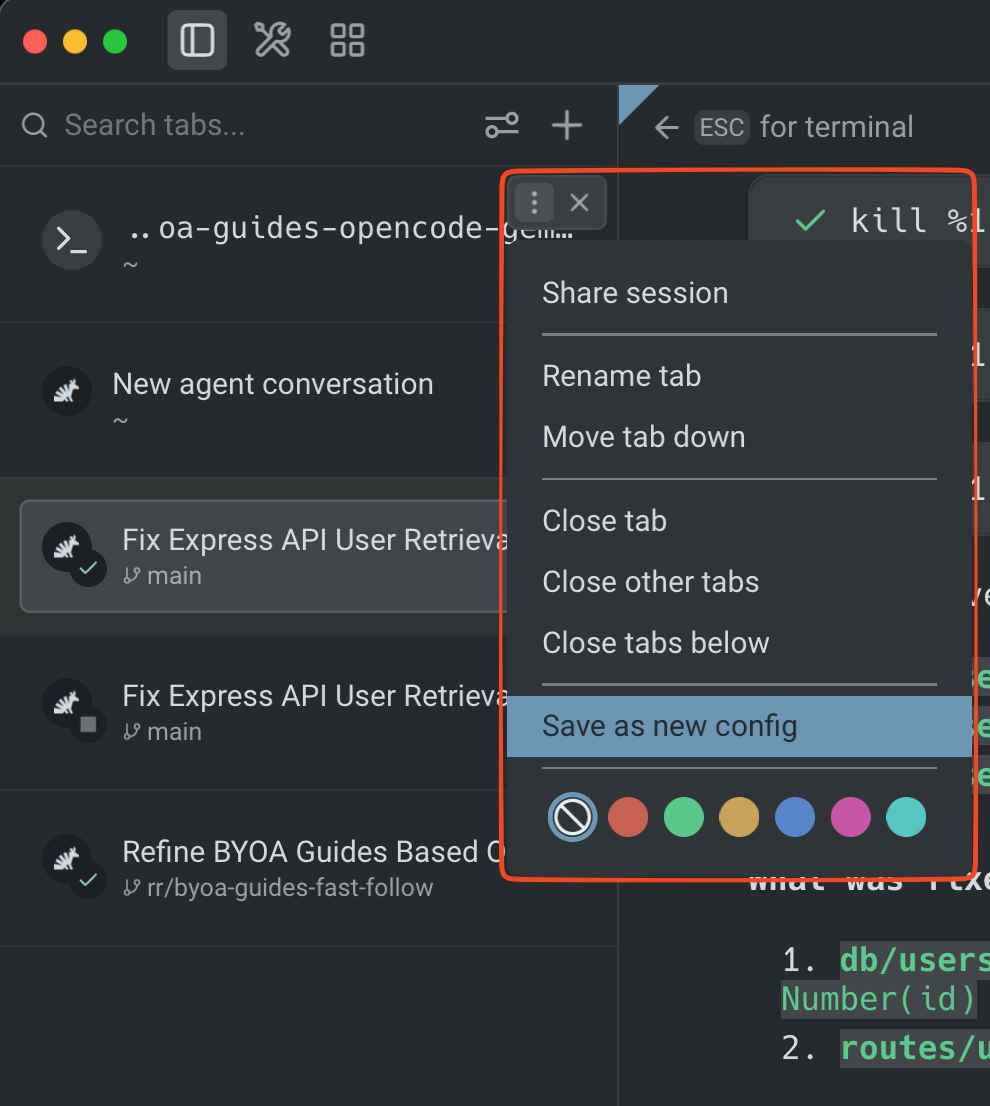
You can also capture a tab's current state as a reusable Tab Config without writing TOML. Right-click any tab in the [vertical tabs](https://docs.warp.dev/terminal/windows/vertical-tabs) panel or horizontal tab bar to open the context menu, then click **Save as new config**. Warp generates a `.toml` file from the tab's layout, commands, and directory and adds it to the `+` menu.

<figure><img src="https://4009768362-files.gitbook.io/~/files/v0/b/gitbook-x-prod.appspot.com/o/spaces%2FPsjNxoJ0NFCXW6rRdHH3%2Fuploads%2Fgit-blob-615f8618b803f8990465bf59a9cbfbbf7cc3edf4%2Fsave-new-tab-config.png?alt=media" alt="Tab context menu in Warp&#x27;s vertical tabs panel with Save as new config highlighted" width="375"><figcaption><p>Right-click a tab and choose <strong>Save as new config</strong> to turn the current tab state into a reusable Tab Config.</p></figcaption></figure>

## Managing Tab Configs

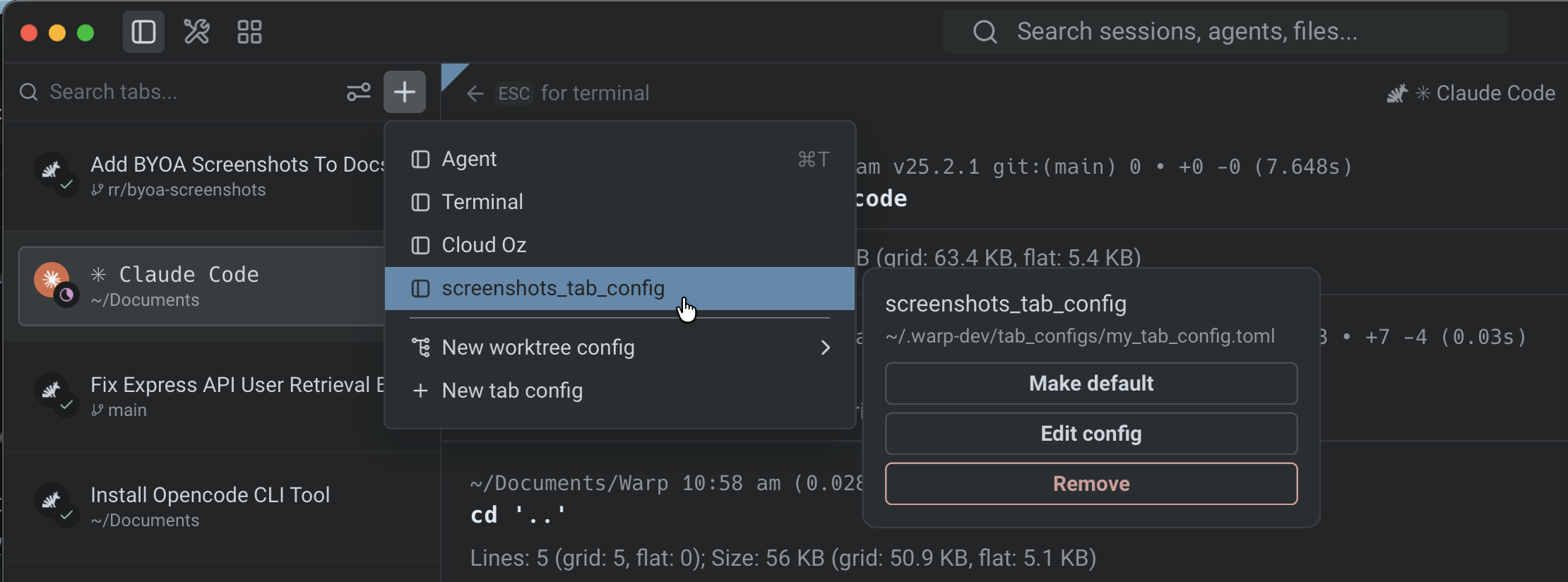
Saved Tab Configs appear in the `+` menu for quick access. When you hover a Tab Config in the menu, a **sidecar panel** appears alongside it with options to:

* **Edit config** — Open the underlying `.toml` file for manual editing. The editor also shows a footer to invoke the **update tab config** skill, so you can describe changes in natural language and have Warp's agent apply them.
* **Remove** — Remove the Tab Config from the `+` menu.
* **Make default** — Assign the Tab Config as the default `Cmd T` action for new tabs.

<figure><img src="https://4009768362-files.gitbook.io/~/files/v0/b/gitbook-x-prod.appspot.com/o/spaces%2FPsjNxoJ0NFCXW6rRdHH3%2Fuploads%2Fgit-blob-c4f05e7a8e9cf81cb63c0499ff136b9ce079e447%2Fsaved-tab-config-menu.png?alt=media" alt="Warp&#x27;s + menu open with a saved screenshots_tab_config entry highlighted, and a sidecar panel showing Make default, Edit config, and Remove action buttons" width="563"><figcaption><p>Saved Tab Configs appear in the <code>+</code> menu. Hover a config to reveal the sidecar panel with <strong>Make default</strong>, <strong>Edit config</strong>, and <strong>Remove</strong> actions.</p></figcaption></figure>

## Using skills to manage Tab Configs

Warp includes built-in skills for creating and modifying Tab Configs through natural language:

* **Create Tab Config** — Generate a new Tab Config from a description (e.g., "create a 2x2 grid with one pane running my dev server").
* **Update Tab Config** — Modify an existing Tab Config by describing the changes you want.

To use these skills, type `/skills` in Agent Mode and select the tab config skill, or use the footer that appears when editing a Tab Config file.

## Tab Config TOML schema

### Top-level fields

* **`name`** (required, string) — display name shown in the `+` menu.
* **`title`** (optional, string) — custom tab title. Supports `{{param}}` template variables.
* **`color`** (optional, string) — tab color. One of: `"black"`, `"red"`, `"green"`, `"yellow"`, `"blue"`, `"magenta"`, `"cyan"`, `"white"`. Actual color values are derived from your Warp [Theme](https://docs.warp.dev/terminal/appearance/themes).

### Pane list

All panes are defined in a flat `[[panes]]` array. The first entry is the root of the pane tree. Each entry is either a **split node** (branch) or a **leaf node**.

#### Leaf node fields

* **`id`** (required, string) — unique identifier for this pane. Use descriptive names like `"editor"` or `"server"`.
* **`type`** (required, string) — `"terminal"` (standard shell), `"agent"` (opens in Agent Mode), or `"cloud"` (cloud mode pane, no local shell).
* **`directory`** (optional, string) — initial working directory. Supports `~` expansion and `{{param}}` template variables.
* **`commands`** (optional, array of strings) — commands to run in sequence when the tab opens.
* **`shell`** (optional, string) — shell executable to use for this pane (e.g. `"pwsh"`, `"zsh"`, `"bash"`, `"fish"`). Only applies to `terminal` and `agent` pane types. If omitted or the specified shell is not installed, the user's default shell is used.
* **`is_focused`** (optional, bool) — set to `true` on at most one pane to give it initial focus.

#### Split node fields

* **`id`** (required, string) — unique identifier for this split.
* **`split`** (required, string) — `"horizontal"` (children arranged left-to-right) or `"vertical"` (children arranged top-to-bottom).
* **`children`** (required, array of strings) — ordered list of child pane `id` values. Must contain at least 2 entries. Order determines visual order.

{% hint style="info" %}
All children within a split are equally sized. There are no flex or proportion values.
{% endhint %}

### Parameters

Parameters let users fill in values at open time via a modal prompt. Declare them with `[params.<name>]` tables and reference them in `directory`, `commands`, and `title` using `{{name}}` syntax.

Each parameter has:

* **`type`** (optional, string) — `"text"` (default, freeform input), `"branch"` (Git branch picker), or `"repo"` (repository picker).
* **`description`** (optional, string) — label shown in the fill-in UI.
* **`default`** (optional, string) — default value.

`{{autogenerated_branch_name}}` is a reserved template variable. If a Tab Config references it, Warp generates a unique worktree branch name on each open instead of prompting the user.

## Examples

### Single pane

A simple config that opens a terminal in a project directory and starts a dev server:

```toml
name = "Dev Server"

[[panes]]
id = "main"
type = "terminal"
directory = "~/code/my-app"
commands = ["npm run dev"]
```

### Two panes side by side

An editor and server running in parallel, with the editor focused:

```toml
name = "Editor + Server"
color = "green"

[[panes]]
id = "root"
split = "horizontal"
children = ["editor", "server"]

[[panes]]
id = "editor"
type = "terminal"
directory = "~/code/my-app"
commands = ["nvim ."]
is_focused = true

[[panes]]
id = "server"
type = "terminal"
directory = "~/code/my-app"
commands = ["npm run dev"]
```

### Cross-shell development

A config that opens two panes side by side, each with a different shell:

```toml
name = "Cross Shell"
color = "cyan"

[[panes]]
id = "root"
split = "horizontal"
children = ["bash_pane", "pwsh_pane"]

[[panes]]
id = "bash_pane"
type = "terminal"
shell = "bash"
directory = "~/code/my-app"
is_focused = true

[[panes]]
id = "pwsh_pane"
type = "terminal"
shell = "pwsh"
directory = "~/code/my-app"
```

### Worktree with parameters

A parameterized config that creates a new Git worktree on open:

```toml
name = "New Worktree"
title = "{{branch_name}}"

[[panes]]
id = "main"
type = "terminal"
directory = "{{repo}}"
commands = [
  "git worktree add -b {{branch_name}} ../{{branch_name}} {{base_branch}}",
  "cd ../{{branch_name}}",
]

[params.repo]
type = "repo"
description = "Repository path"

[params.base_branch]
type = "branch"
description = "Base branch to branch from"

[params.branch_name]
type = "text"
description = "New branch name"
default = "my-feature"
```

### Quick worktree setup

You can also create a worktree-based Tab Config directly from the `+` menu by clicking **New worktree config** and selecting the repo you want your worktree to be from. Warp generates the Tab Config automatically and saves it for future use.

## Related pages

* [Launch Configurations (Legacy)](https://docs.warp.dev/terminal/windows/launch-configurations) — the previous session configuration format. Existing configs still work, but Tab Configs are the recommended approach for new setups.
* [Tabs](https://docs.warp.dev/terminal/windows/tabs) — tab management, keyboard shortcuts, and behavior settings
* [Themes](https://docs.warp.dev/terminal/appearance/themes) — customize the colors used by tab color settings
* [Working Directory](https://docs.warp.dev/terminal/more-features/working-directory) — how Warp resolves working directories
* [Third-Party CLI Agents](https://docs.warp.dev/agent-platform/third-party-agents) — use the `"agent"` pane type to open tabs in Agent Mode


---

# Agent Instructions: Querying This Documentation

If you need additional information that is not directly available in this page, you can query the documentation dynamically by asking a question.

Perform an HTTP GET request on the current page URL with the `ask` query parameter:

```
GET https://docs.warp.dev/terminal/windows/tab-configs.md?ask=<question>
```

The question should be specific, self-contained, and written in natural language.
The response will contain a direct answer to the question and relevant excerpts and sources from the documentation.

Use this mechanism when the answer is not explicitly present in the current page, you need clarification or additional context, or you want to retrieve related documentation sections.