# Files, links, & scripts
## Files & Links
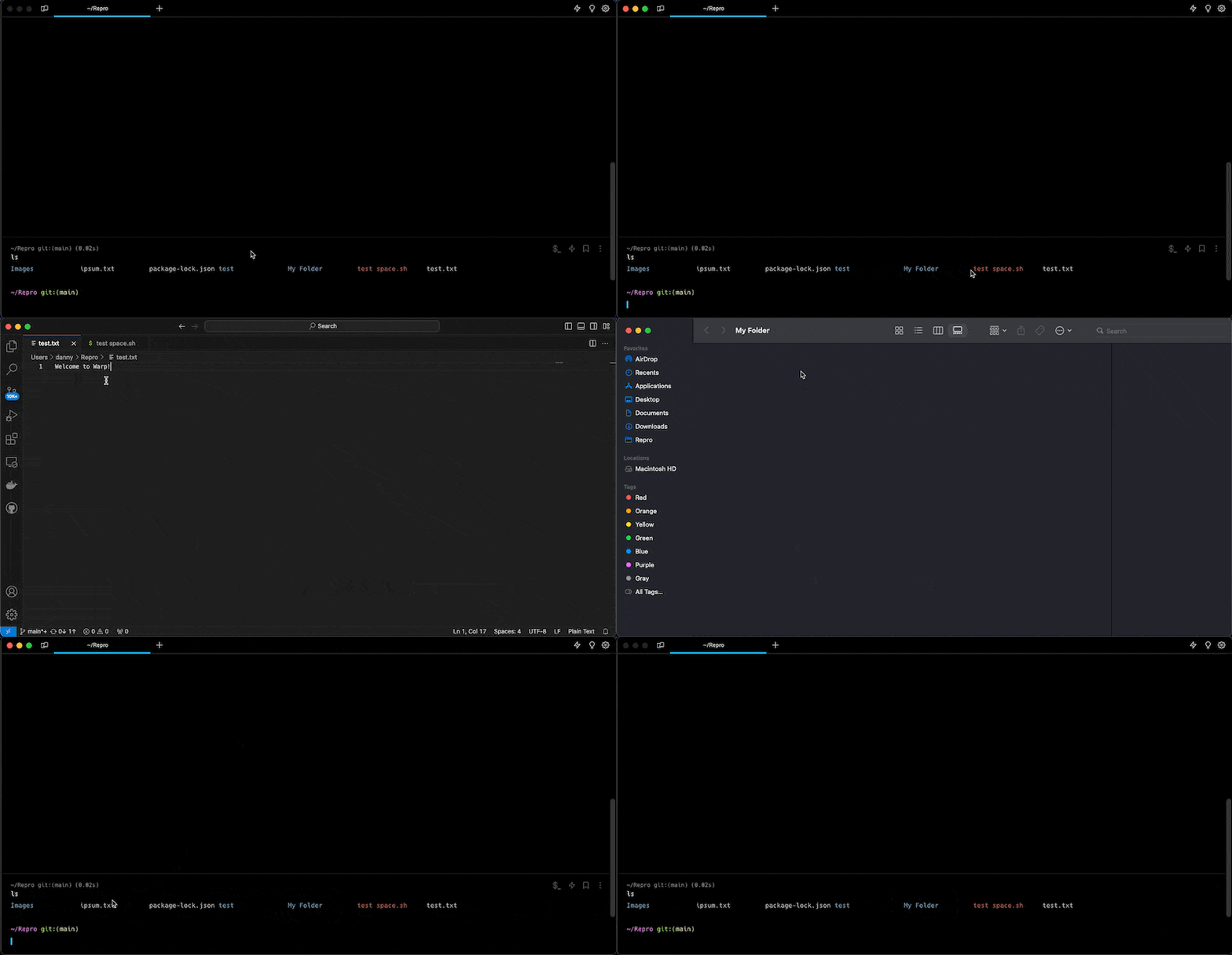
Warp supports opening files, folders, and URL links that are within Blocks. Multiple URL protocols are supported e.g. `https`, `ftp`, `file`, etc. Warp can open files and folders in a variety of editors and opens web links directly in your default browser. Warp can also open markdown files directly with a [Markdown Viewer](https://docs.warp.dev/terminal/more-features/markdown-viewer).
{% hint style="info" %}
Warp also supports iTerm2 and Kitty Image protocols on macOS and Linux. You will need to use a cli tool to view images, in some cases the tools expect `$TERM=kitty`, so you may need to workaround this by setting `TERM=kitty` before the command. We're working on updating the popular tools to recognize Warp natively.
{% endhint %}
Warp parses relative and absolute file paths. Warp also tries to capture line and column numbers attached to the file path, supported formats include:
* `file_name:line_num`
* `file_name:line_num:column_num`
* `file_name[line_num, column_num]`
* `file_name(line_num, column_num)`
* `file_name, line: line_num, column: column_num`
* `file_name, line: line_num, in`
{% tabs %}
{% tab title="macOS" %}
1. After hovering over a link, open it directly by holding down `CMD` while clicking it.
2. Clicking a link normally will open a clickable tooltip that says “Open File/Folder/Link”.
3. Right-clicking a link will open a context menu that supports copying the absolute file path or URL to the clipboard.
{% endtab %}
{% tab title="Windows" %}
1. After hovering over a link, open it directly by holding down `CTRL` while clicking it.
2. Clicking a link normally will open a clickable tooltip that says “Open File/Folder/Link”.
3. Right-clicking a link will open a context menu that supports copying the absolute file path or URL to the clipboard.
{% endtab %}
{% tab title="Linux" %}
1. After hovering over a link, open it directly by holding down `CTRL` while clicking it.
2. Clicking a link normally will open a clickable tooltip that says “Open File/Folder/Link”.
3. Right-clicking a link will open a context menu that supports copying the absolute file path or URL to the clipboard.
{% endtab %}
{% endtabs %}
* You can also Drag and drop a folder or file onto the Warp dock icon to open a new tab in this directory.
* You can also right-click on a folder or file in Finder, then select Services, and "Open new Warp Tab | Window here".
* Configure the default editor to open files by navigating to **Settings** > **Features** > **General** > **Choose an editor to open file links**.
* Selecting "Default App" uses your system's default application for the file type.
#### List of supported editors
Non exhaustive list of editors, please submit new ones on our GitHub, see [Sending Feedback](https://docs.warp.dev/support-and-community/troubleshooting-and-support/sending-us-feedback#sending-warp-feedback).
1. `$EDITOR`
2. Visual Studio Code
3. JetBrains IDEs
* WebStorm
* PhpStorm
* GoLand
* PyCharm
* DataGrip
* DataSpell
* Rider
* RubyMine
4. Zed and Zed Preview
5. Cursor
6. Windsurf
7. Sublime Text
8. Android Studio
Files & Links Demo
## Scripts
Warp can open `.command` and Unix Executable files from the finder directly.
1. Find a `.command` or Shell script you'd like to open in Finder.
2. Right-click and open the script with Warp.
{% hint style="warning" %}
Make sure the file has the appropriate executable permissions before you can run it in Warp. (e.g. `chmod +x script.command`)
{% endhint %}
Scripts Demo
---
# Agent Instructions: Querying This Documentation
If you need additional information that is not directly available in this page, you can query the documentation dynamically by asking a question.
Perform an HTTP GET request on the current page URL with the `ask` query parameter:
```
GET https://docs.warp.dev/terminal/more-features/files-and-links.md?ask=
```
The question should be specific, self-contained, and written in natural language.
The response will contain a direct answer to the question and relevant excerpts and sources from the documentation.
Use this mechanism when the answer is not explicitly present in the current page, you need clarification or additional context, or you want to retrieve related documentation sections.