# Terminal prompt
Warp supports two prompt types: the **Warp prompt** and the **Shell prompt (PS1)**.
## Choosing your prompt type
To switch your prompt type:
1. Open **Settings** > **Appearance**.
2. Under **Input**, set **Input type** to **Warp** or **Shell (PS1)**.
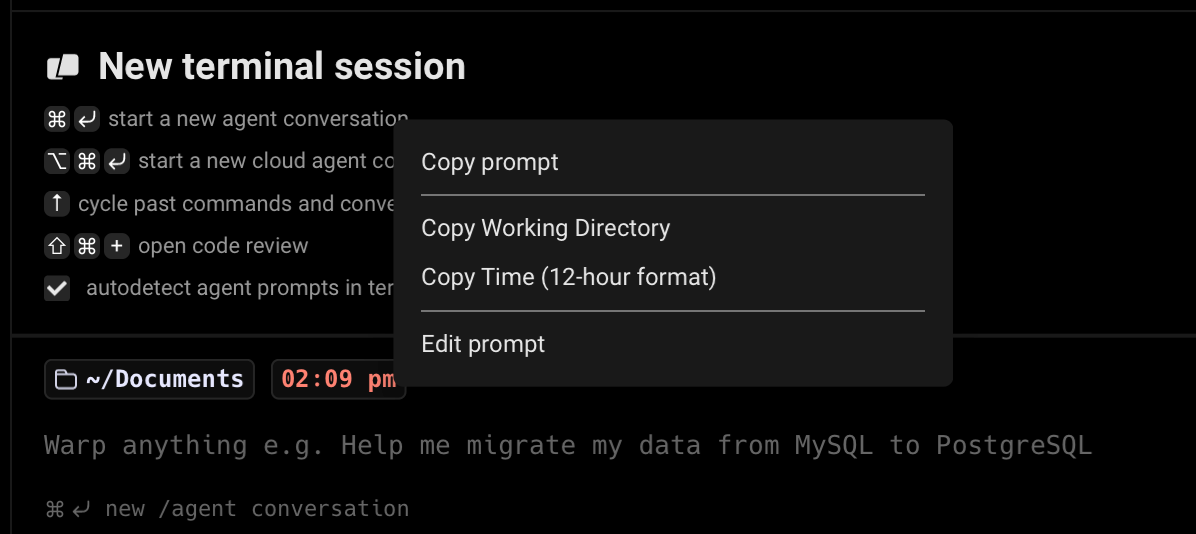
When using the Warp prompt, you can right-click the prompt area to copy the entire prompt, working directory, current git branch, git uncommitted file count, and more.
When using a Shell prompt, you can right-click the prompt area to copy the entire prompt, or select any part of the prompt in previously run blocks in your session.
## Warp prompt
Warp has a native prompt that displays context chips showing information such as your current working directory, git branch, svn status, Kubernetes context, pyenv, date, and time. The Warp prompt is the default when **Input type** is set to **Warp**.
To customize which context chips your Warp prompt displays:
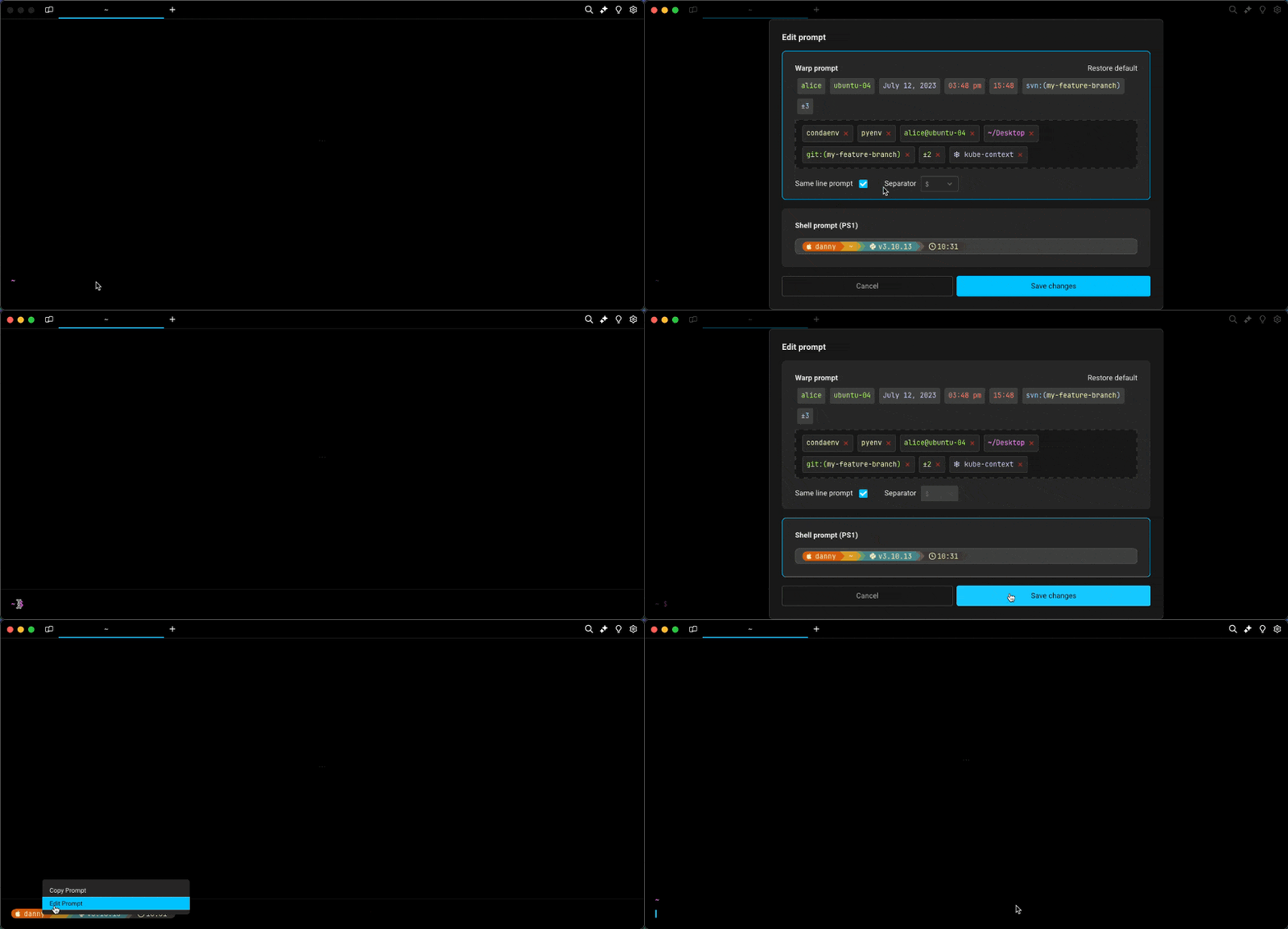
1. Right-click the prompt area and select **Edit prompt**.
Right-click the prompt area to access Edit prompt
2. Select **Warp Prompt**.
3. Drag and drop context chips to configure which pieces of information your prompt displays.
### Git and Subversion
Git and Subversion context chips show which branch you are on locally, as well as the number of uncommitted changed files. This includes any new files, modified files, and deleted files that are staged or unstaged.
### Kubernetes
The Kubernetes context chip shows relevant information when you're using one of the following commands:
`kubectl|helm|kubens|kubectx|oc|istioctl|kogito|k9s|helmfile|flux|fluxctl|stern|kubeseal|skaffold|kubent|kubecolor|cmctl|sparkctl|etcd|fubectl`
{% hint style="info" %}
Warp respects the `KUBECONFIG` environment variable. Make sure you set it to your preferred configuration file location if it's not the default path of `~/.kube/config`.
{% endhint %}
## Shell prompt (PS1)
You can use a Shell prompt instead of the Warp prompt by configuring the **PS1** variable or installing a supported shell prompt plugin (see [Shell Prompt Compatibility Table](#shell-prompt-compatibility-table)).
To enable the Shell prompt:
1. Open **Settings** > **Appearance**.
2. Under **Input**, set **Input type** to **Shell (PS1)**.
3. Configure your PS1 variable in your shell's RC file, or install a supported prompt plugin.
{% hint style="info" %}
The PS1 is a variable used by the shell to generate the prompt, it represents the primary prompt string (hence the "PS") - which the terminal typically displays before typing new commands.
{% endhint %}
### Multi-line and right-sided prompts
The Shell prompt supports multi-line or right-sided prompts in zsh and fish, not bash. However, you can't have a multiline right-side prompt, only a multiline left prompt.
{% hint style="info" %}
If you want to add a new line to your Shell prompt, run the following based on your shell or prompt:
```sh
# Bash
echo -e '\nPS1="${PS1}"$'\''\\n'\''' >> ~/.bashrc
# Zsh
echo -e '\nPROMPT="${PROMPT}"$'\''\\n'\''' >> ~/.zshrc
# Fish
echo -e '\nfunctions --copy fish_prompt fish_prompt_orig; function fish_prompt; fish_prompt_orig; echo; end' >> ~/.config/fish/config.fish
# Powershell
$rawString = @'
$originalPrompt = Get-Item Function:\prompt
Set-Item -Path Function:\prompt_original -Value $originalPrompt
function prompt {
"$(& prompt_original)`n"
}
'@
Add-Content -Path $PROFILE -Value "`n$rawString`n"
# Powerlevel10k
p10k configure
# Starship Prompt
echo '[line_break]\ndisabled = false' >> ~/.config/starship.toml
```
{% endhint %}
## How it works
Warp Prompt | Shell (Ps1) Prompt Demo
### Shell prompt compatibility table
| Shell | Tool | Does it work? |
| --------------------------- | ------------------------------------------------------------------------- | --------------------------------------------------------------- |
| bash \| zsh | [PS1](https://www.warp.dev/blog/whats-so-special-about-ps1) | Working |
| bash \| zsh \| fish \| pwsh | [Starship](https://github.com/starship/starship) | [Working\*](#starship) |
| bash \| zsh \| fish \| pwsh | [oh-my-posh](https://github.com/JanDeDobbeleer/oh-my-posh) | Working |
| zsh | [Powerlevel10k](https://github.com/romkatv/powerlevel10k) | [Working\*](#powerlevel10k) |
| zsh | [Spaceship](https://github.com/spaceship-prompt/spaceship-prompt) | [Working\*](#spaceship) |
| zsh | [oh-my-zsh](https://github.com/ohmyzsh/ohmyzsh) | Working |
| zsh | [prezto](https://github.com/sorin-ionescu/prezto) | [Working\*](#prezto) |
| ssh | | Working |
| bash | [oh-my-bash](https://github.com/ohmybash/oh-my-bash) | Not supported |
| bash | [bash-it](https://github.com/Bash-it/bash-it) | Not supported |
| bash | [SBP](https://github.com/brujoand/sbp) | Not supported |
| bash | [synth-shell-prompt](https://github.com/andresgongora/synth-shell-prompt) | Not supported |
| bash \| zsh | [Powerline-shell](https://github.com/b-ryan/powerline-shell) | Not supported |
| zsh | [zplug](https://github.com/zplug/zplug) | Not supported |
| fish | [tide](https://github.com/IlanCosman/tide) | [Not supported](https://github.com/warpdotdev/Warp/issues/3358) |
| fish | [oh-my-fish](https://github.com/oh-my-fish/oh-my-fish) | [Not supported](https://github.com/warpdotdev/Warp/issues/3796) |
## Known incompatibilities
If you're having issues with prompts, please see below or our [Known Issues](https://docs.warp.dev/support-and-community/troubleshooting-and-support/known-issues#configuring-and-debugging-your-rc-files) for more troubleshooting steps.
### Starship
#### Starship Settings
Some `~/.config/starship.toml` settings are known to cause errors in Warp. `#` or `DEL` the following lines to resolve known errors:
```
# Get editor completions based on the config schema
'' = 'https://starship.rs/config-schema.json'
# Disables the custom module
[custom]
disabled = false
```
For `fish` shell, optional for `bash|zsh`, disable the multi-line prompt in Starship by putting the following in your `~/.config/starship.toml`:
```
[line_break]
disabled = true
```
You may also see an error relating to timeout. You can set the `command_timeout` variable in your `~/.config/starship.toml` to fix this. See more in the [starship docs](https://starship.rs/config/#prompt).
#### Starship + bash
Starship prompt may not render properly if your [default shell](https://docs.warp.dev/getting-started/supported-shells#changing-what-shell-warp-uses) is `/bin/bash`. To [workaround](https://github.com/warpdotdev/Warp/issues/3066#issuecomment-1548643121) the issue, we recommend you upgrade bash, find the path with `echo $(which bash)`, then put the path in **Settings** > **Features** > **Session** > **"Startup shell for new sessions"**.
#### Starship + zsh
If you want to restore the additional line after the Starship prompt on `zsh`, add the following to the bottom of your `~/.zshrc` file: `PROMPT="${PROMPT}"$'\n'`
### Powerlevel10k
When installing the Powerlevel10k (P10k) prompt, we recommend you use the [Meslo Nerd Font](https://github.com/romkatv/powerlevel10k/blob/master/font.md).\
\
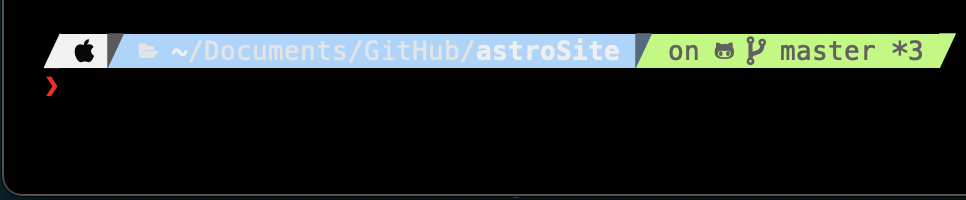
P10K may display the arrow dividers as grey instead of color. The color for those chars is rendered grey due to Warp's minimum contrast setting. To [workaround](https://github.com/warpdotdev/Warp/issues/2851#issuecomment-1605005256) this issue, go to **Settings** > **Appearance** > **Text** > **Enforce minimum contrast** and set it to "Never".
Example of the grey dividers in p10k
Warp does support [p10k](https://github.com/romkatv/powerlevel10k#installation) version 1.19.0 and above. Ensure you have the latest version installed and restart Warp after the installation/update of p10k. Then enable the custom prompt as stated [above](#choosing-your-prompt-type) and it should work.
{% hint style="info" %}
Warp still doesn't fully support some p10k features like transient prompt and visual features like gradients.
{% endhint %}
{% embed url="" %}
Installing Powerlevel10k
{% endembed %}
{% hint style="warning" %}
Please note the Installing Powerlevel10k video mentions enabling a custom prompt in **Settings** > **Features** > **Honor users custom prompt (PS1)**, but it's now in **Settings** > **Appearance** > **Input** > **Classic** > **Current prompt** > **Shell Prompt (PS1)** .
{% endhint %}
### Spaceship
This prompt can cause an issue with typeahead in Warp's input editor. To [workaround](https://github.com/warpdotdev/Warp/issues/1973#issuecomment-1340150521) the issue, run `echo "SPACESHIP_PROMPT_ASYNC=FALSE" >>! ~/.zshrc`.
### Prezto
Although Warp does have support for prezto's prompt, enabling the [prezto utility module](https://github.com/sorin-ionescu/prezto/blob/master/modules/utility/README.md) in the `.zpreztorc` is not supported as with many other autocompletion [plugins that are incompatible](https://docs.warp.dev/support-and-community/troubleshooting-and-support/known-issues#list-of-incompatible-tools).
### Disabling unsupported prompts for Warp
We advise using Warp's default prompt or installing one of the supported tools, see [Compatibility Table](#shell-prompt-compatibility-table). You can disable unsupported prompts for Warp as such:
```
if [[ $TERM_PROGRAM != "WarpTerminal" ]]; then
##### WHAT YOU WANT TO DISABLE FOR WARP - BELOW
# Unsupported Custom Prompt Code
##### WHAT YOU WANT TO DISABLE FOR WARP - ABOVE
fi
```
#### iTerm2
The iTerm2 shell integration breaks Warp and your custom prompt will not be able to be visible with this on. If you're coming from iTerm2 please check your dotfiles for it. We advise disabling the integration for Warp like so:
```
if [[ $TERM_PROGRAM != "WarpTerminal" ]]; then
##### WHAT YOU WANT TO DISABLE FOR WARP - BELOW
test -e "${HOME}/.iterm2_shell_integration.zsh" && source "${HOME}/.iterm2_shell_integration.zsh"
##### WHAT YOU WANT TO DISABLE FOR WARP - ABOVE
fi
```