Factories: Warp Factories documentation for setup, agent roles, definitions as code, integrations, measurement, and infrastructure.
# Warp Factories overview
Canonical page: [/factories/](https://docs.warp.dev/factories/)
> Warp Factories is open infrastructure for building internal software factories as code, from triage to implementation, review, and monitoring.
A software factory takes in requests (bug reports, feature specs, support escalations), and a coordinated fleet of agents works them into a stream of mergeable pull requests instead of a growing backlog. Warp Factories gives you the building blocks, so your team stays in the loop where it matters, approving specs when needed and merging every pull request.  ## What is a software factory? [Section titled “What is a software factory?”](#what-is-a-software-factory) In practice, that means tracking each request as a work item, such as an issue, ticket, or triggered task, and moving it through specialized agents that triage it, write a specification when one is needed, implement the change, and review the result. A factory is one deployed instance of that pattern, connecting your repositories and engineering tools to a team of agents, execution infrastructure, and a measurable workflow. Each factory applies a single policy across all of its work sources, so deploy separate factories for repository groups that need different policies. ### Sizing a factory [Section titled “Sizing a factory”](#sizing-a-factory) Size factories by product surface, not by workflow. Group the repositories that ship together into one factory. For example: * One factory for your main application * One factory for your marketing site * One factory for your data pipelines Don’t split those same repositories across multiple factories by team or task (frontend vs. platform, for example). Add [agents](/factories/factory-agents/) and [skills](/factories/factory-skills/) to specialize instead. 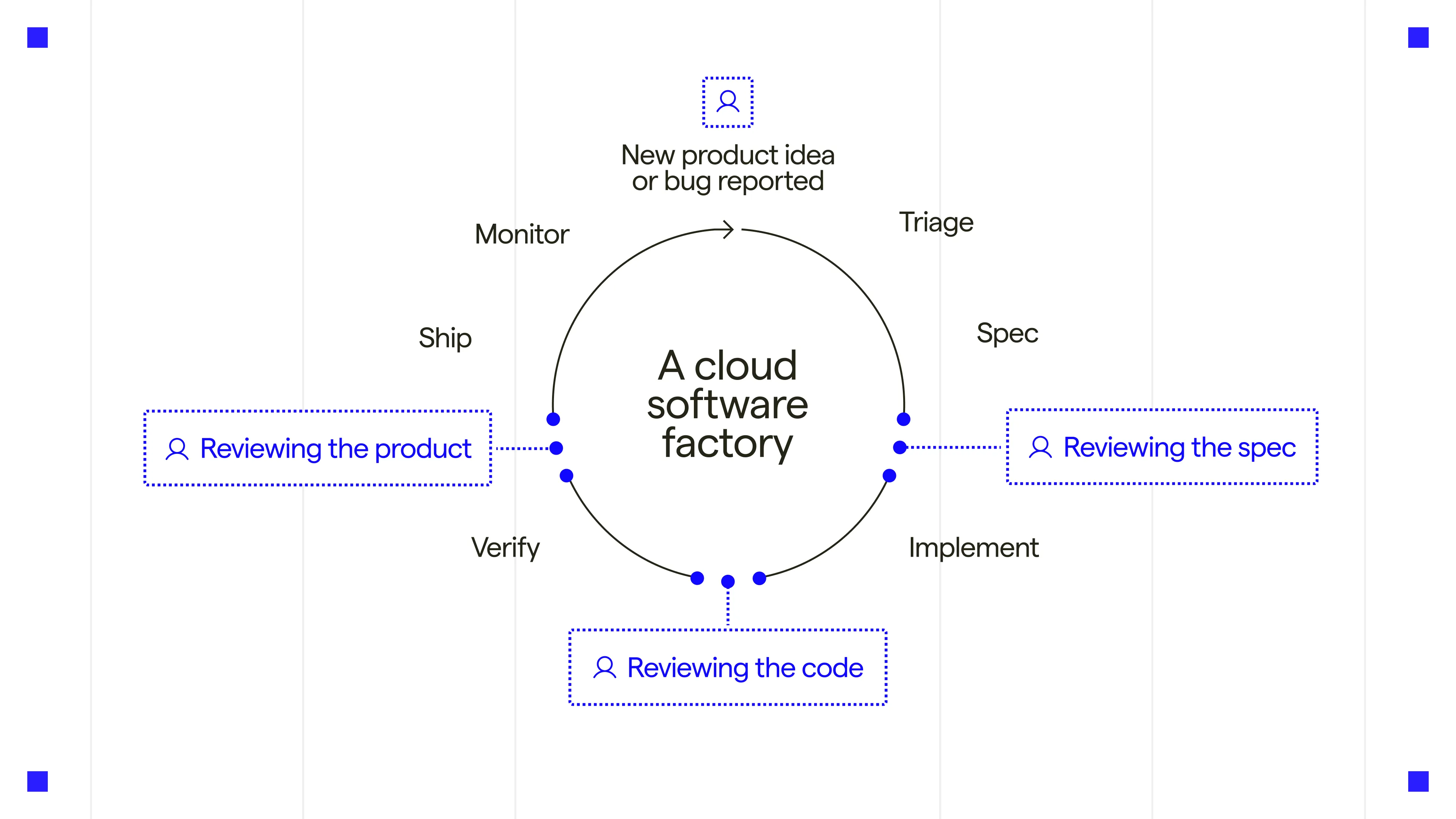 The general software factory loop. Warp Factories’ default agents cover triage through review; add custom agents for the rest. ## Who benefits from Warp Factories [Section titled “Who benefits from Warp Factories”](#who-benefits-from-warp-factories) Warp Factories is designed for engineering teams with repeatable work that extends beyond one coding session. Here’s where it helps most: * Process a backlog of issues with a consistent triage and delivery policy. * Fix defects reported through support channels. * Review incoming pull requests or maintain services across repositories. ## What you get with Warp Factories [Section titled “What you get with Warp Factories”](#what-you-get-with-warp-factories) * **Coordinated specialist agents** - A team of [factory agents](/factories/factory-agents/) handles each work item. A coordinating foreman routes it through the triage, spec, implement, and review agents, skipping stages that don’t apply. You can add custom agents and automations to handle work the defaults don’t cover. * **Definitions as code** - [Version-controlled definition files](/factories/factory-as-code/) describe your repositories, agents, automations, runners, [skills](/factories/factory-skills/), and MCP servers, so factory changes get the same review, history, and rollback as code changes. * **Integrations and the Factory MCP** - Work flows in from [Slack](/factories/integrations/slack/), [GitHub](/factories/integrations/github/), [GitLab](/factories/integrations/gitlab/), [Linear](/factories/integrations/linear/), and [Jira](/factories/integrations/jira/), plus [custom webhooks](/factories/webhooks/), direct runs, and schedules. The [Factory MCP](/factories/factory-mcp/) connects coding agents and other MCP clients. * **Model and harness choice** - Each agent can use a different model and [supported harness](/platform/harnesses/), including the Warp Agent, Claude Code, and Codex. * **Measurement and self-improvement** - The [factory dashboard](/factories/factory-dashboard/) shows work-item status, runs, automations, costs, and benchmarks. [Scorers](/factories/measure-and-improve/scorers/) classify completed runs, [Benchmarks](/factories/benchmarks/) compare fixed tasks across configurations, and [Self-improvement](/factories/measure-and-improve/self-improvement/) turns repeated failures into follow-up work the factory proposes for review. * **Infrastructure control** - Run on Warp-hosted infrastructure, or self-host execution on an eligible Enterprise plan. Teams can also connect supported inference providers, scope secrets, and (if eligible) store transcripts, artifacts, and run attachments in their own S3 or GCS buckets. See [infrastructure and security](/factories/infrastructure-and-security/) for the available controls. ## How Warp Factories relates to other Warp products [Section titled “How Warp Factories relates to other Warp products”](#how-warp-factories-relates-to-other-warp-products) | Product | How it relates | | ----------------------- | -------------------------------------------------------------------------------------------------------------------------------------------------------------------- | | **Warp** | The interactive terminal where you develop locally with agents and code review. A factory runs independently in the cloud. | | **Warp Agent** | Warp’s built-in agent harness. A factory’s agents can run on it or on another supported harness. | | **Warp Agent CLI** | Runs the Warp Agent in any terminal and exchanges work with a factory through the Factory MCP. | | **Automation Platform** | Provides the cloud runs, runners, integrations, secrets, [multi-agent orchestration](/platform/orchestration/), and APIs that a factory assembles into one workflow. | ## The platform behind a factory [Section titled “The platform behind a factory”](#the-platform-behind-a-factory) Warp Factories is built on the [Automation Platform](/platform/overview/), Warp’s programmable system for running and coordinating agents at scale. A factory doesn’t replace the platform; it assembles the platform’s primitives into one standing workflow, so what you already know about cloud agents carries over: * **Runs** - Every factory agent executes as a [cloud agent run](/platform/), with the same run records and [session sharing](/platform/viewing-cloud-agent-runs/) as any other cloud agent. * **Execution** - [Runners](/platform/runners/) provide the compute each agent works on, and eligible Enterprise teams can route execution to [managed self-hosted workers](/platform/self-hosting/). * **Agent configuration** - Each agent runs on a supported [harness](/platform/harnesses/) and model, with [secrets](/platform/secrets/) and [MCP servers](/platform/mcp/) scoping what it can reach. * **Billing** - A factory’s runs consume [platform credits](/support-and-community/plans-and-billing/platform-credits/) the same way as any other cloud agent run. The factory layer adds the workflow on top: the foreman and its agents, work items that carry each request across runs, definitions as code, default automations for connected tools, and the Scorer and Self-improvement loop. Use a standalone [cloud agent](/platform/) for a single task or one-trigger automation. Any agent can spawn children with [multi-agent orchestration](/platform/orchestration/) without a factory. Use a factory for standing, multi-stage work that needs named agents with separate configuration and one place to route, measure, and improve the process. ## Key terms [Section titled “Key terms”](#key-terms) Setup gives a factory and its foreman the same name by default, so it’s easy to mistake one for the other. Here’s how the terms differ: * **factory** - An individual deployed software factory, built on Warp Factories infrastructure and connecting your repositories and tools to a team of agents. Distinct from Warp Factories, the product, and from the foreman, its coordinating agent. * **foreman** - The coordinating agent inside a factory, and the only one you talk to. It dispatches the other [factory agents](/factories/factory-agents/) and reports back. Every factory has exactly one. * **Foreman name** - The handle your team @-mentions in Slack and Linear to reach the foreman. Setup copies it from the factory’s name, so the two usually match even though they’re different things. See [Foreman name](/factories/factory-agents/#foreman-name).
```
flowchart LR
subgraph Factory["One factory"]
Foreman["Foreman"] --> Agents["Triage, spec, implement, and review agents"]
end
Slack["Slack or Linear"] -->|"@handle"| Foreman
```
## Next steps [Section titled “Next steps”](#next-steps) * [**Set up a factory**](/factories/quickstart/) - Create a factory and send its first work item. * [**Understand the execution model**](/factories/how-factories-work/) - See how the foreman coordinates stages, runs, and human decisions. * [**Meet the factory agents**](/factories/factory-agents/) - See what each agent does and how to configure its model, harness, and instructions. * **Adapt the system** - [Define the factory as code](/factories/factory-as-code/) and [connect its work sources](/factories/connect-your-factory/), or start from a working definition in [warp-factory-examples](https://github.com/warpdotdev/warp-factory-examples).
# Factory automations
Canonical page: [/factories/automations/](https://docs.warp.dev/factories/automations/)
> An automation starts factory runs from a trigger, routes them to an agent, and filters which events start a run.
An **automation** is a factory resource that starts runs from a trigger and routes them to an agent. Triggers fired by a connected tool or a [custom webhook](/factories/webhooks/) also carry filters that decide which events start a run. Every default automation Warp creates when you connect a provider, and every custom one you add, is this same resource. See [`automations//automation.md`](/factories/factory-as-code/#automationsnameautomationmd) for the full schema. Automation filters decide which events from your connected tools start factory work. Every trigger on an automation carries filters (e.g., a repository, channel, team, project, label, author, or webhook payload field) and an event starts a run only when it matches them. Filters let a factory watch busy channels and repositories without acting on everything in them. ## How matching works [Section titled “How matching works”](#how-matching-works) An event starts an automation only when it matches the trigger’s provider, event type, and filters: * **Every filter must match.** A trigger that sets both a team and a label matches only events carrying both. * **Within one filter, any value matches.** A **Labels** filter listing `bug` and `regression` matches an issue with either label. * **A filter you leave empty matches everything.** A trigger with no filters at all starts work for every event of its type. One event can match more than one automation, and each match starts its own run. If a single action starts duplicate runs, narrow or remove one of the overlapping triggers. ## Filters don’t control access [Section titled “Filters don’t control access”](#filters-dont-control-access) Filters decide when work starts, not what a running agent can reach. Access comes from what you authorize on each provider: the GitHub App installation, the GitLab bot’s project membership, the Slack app’s authorization, the Linear OAuth scope, or the Jira app installation. Tightening a filter never shrinks that access, and removing one never widens it. To change what an integration can reach, change what you authorize for that provider. Filters are still your main control over who starts runs. On GitHub and GitLab, the event author doesn’t need to be a Warp team member, so use author, member, and branch filters to decide whose activity starts work. Slack mentions and direct messages additionally require a Slack account linked to a member of the factory’s Warp team. A custom webhook authenticates each delivery with the webhook’s own secret or the sender’s signature, so anyone holding that credential can start work; its filters only decide which deliveries do. ## What each source can filter on [Section titled “What each source can filter on”](#what-each-source-can-filter-on) Every source filters on where the event happened: a repository, project, conversation, or team. The remaining filters vary by source and event type: | Source | Filters | | ----------------------------------------- | ------------------------------------------------------------------------------------------------------------------------------------------------------ | | [Slack](/factories/integrations/slack/) | Conversations, authors or members, keywords, emoji, and reacted-message authors | | [GitHub](/factories/integrations/github/) | Repository, branches, base branches, paths, labels, authors, assignees, mentioned users or teams, reviewers, review states, workflows, and conclusions | | [GitLab](/factories/integrations/gitlab/) | Project, actions, and base branch | | [Linear](/factories/integrations/linear/) | Teams, labels, project, workflow state, assignee, mentioned user, and, for comment events, a specific issue | | [Jira](/factories/integrations/jira/) | Jira projects and assignment keywords | | [Custom webhooks](/factories/webhooks/) | The webhooks the trigger listens to, and a pattern over the delivery’s JSON payload | Each integration guide lists which filters appear on which event types. Webhook payload patterns follow their own grammar, described in [payload filters for webhook triggers](#payload-filters-for-webhook-triggers). ## Edit filters on an automation [Section titled “Edit filters on an automation”](#edit-filters-on-an-automation) 1. In the factory’s dashboard, open **Automations**, then create an automation or edit an existing one. 2. Under **Triggers**, open a trigger and set the filters shown for its event. Click **More filters** for the event-specific options. 3. Click **Save**. To confirm the routing works, send a matching test event, such as opening a test issue, and check that a work item starts in the factory dashboard. Review the default automations Warp creates when you connect a provider, too: their filters are starting points, not fixed rules. ## Filters in definitions as code [Section titled “Filters in definitions as code”](#filters-in-definitions-as-code) In a [factory definition](/factories/factory-as-code/), each entry under an automation’s `triggers` takes an optional `filter` whose keys mirror the filters in the automation editor: automations/labeled-issue/automation.md
```markdown
---
enabled: true
agent: foreman
triggers:
- provider: github
event: issue_labeled
filter:
repos: [acme/payments-service]
labels: [factory-ready]
---
Review the labeled issue and decide the next required stage.
```
The same matching rules apply: every key must match, any listed value within a key matches, and an omitted key matches everything. Each integration guide shows the keys its provider accepts. For example, this automation from [`04-code-review-only`](https://github.com/warpdotdev/warp-factory-examples/tree/main/examples/04-code-review-only) in the [warp-factory-examples](https://github.com/warpdotdev/warp-factory-examples) repository scopes reviews to one base branch and excludes work-in-progress PRs with a `not_in` list: automations/pr-opened/automation.md
```markdown
---
triggers:
- provider: github
event: pull_request_opened
filter:
repos: [acme/api-service]
base_branches: [main]
labels:
not_in: [wip]
---
A pull request was opened against the default branch. If it is a draft,
stop silently. Otherwise review it and post your findings and verdict on
the PR.
```
For more automations that use these filters, including branches, paths, workflow conclusions, and emoji reactions, see [`06-common-automations`](https://github.com/warpdotdev/warp-factory-examples/tree/main/examples/06-common-automations). ## Payload filters for webhook triggers [Section titled “Payload filters for webhook triggers”](#payload-filters-for-webhook-triggers) A [custom webhook](/factories/webhooks/) trigger (`provider: webhook`, `event: received`) binds an automation to one or more webhooks with `webhook_ids`, which takes webhook UIDs and supports only `in`. Its optional `payload` filter is a pattern that mirrors the shape of the delivery’s JSON body, so you can route on the payload without running an agent to decide: * Payload filters match against the webhook’s JSON body. * Fields are ANDed together: every key in the pattern must match. * An array means “match any of these values.” * `in`, `not_in`, and `exists` are supported as operators on a field. * Nested objects let you filter on nested payload fields. This trigger starts a run for opened or reopened pull requests from a GitHub webhook, skipping drafts and bot authors:
```yaml
triggers:
- provider: webhook
event: received
filter:
webhook_ids: [WEBHOOK_UID]
payload:
action: [opened, reopened]
pull_request:
draft: [false]
sender:
type:
not_in: [Bot]
```
In the dashboard, the **Webhook** trigger’s JSON editor validates a pattern as you type, and **Test filter** evaluates it against a stored delivery. See [add a Webhook trigger to an automation](/factories/webhooks/#add-a-webhook-trigger-to-an-automation). For exact matching semantics, limits, and validation rules, see [payload filter reference](#payload-filter-reference). ## Payload filter reference [Section titled “Payload filter reference”](#payload-filter-reference) * **Values match by type.** Strings match exactly and case-sensitively, numbers match numerically (`1` equals `1.0`), and booleans and `null` are matchable values. * **A missing key fails `in` and passes `not_in`.** A field the payload doesn’t carry can’t be in any set, so `{"env": {"not_in": ["dev"]}}` matches a delivery with no `env` field. A nested pattern object requires its key to be present. * **Arrays of objects match on any element.** When the payload value is an array of objects, a nested pattern matches if any element matches; when it’s an array of scalars, `in` matches on any overlap and `not_in` requires none. * **Operators on the same field AND together.** For example, combining `in` and `exists: true` on one field requires both to hold. * **Limits** - A pattern nests up to 10 levels deep, holds up to 64 leaf fields, and lists up to 32 values per set. * **Validation** - Warp rejects a pattern that lists the same value in both `in` and `not_in` on one field, or that combines `exists: false` with a non-empty `in`. * **Fail closed** - A filter that can’t be evaluated never matches, so a broken filter keeps an automation silent rather than firing it. ## Troubleshooting [Section titled “Troubleshooting”](#troubleshooting) * **A matching event doesn’t start work** - Confirm the automation is enabled and the trigger’s event type matches, then check every filter; a single mismatch prevents routing. Each integration guide’s troubleshooting section covers provider-specific causes, such as app installation coverage. * **A webhook delivery doesn’t start work** - Open the delivery in the webhook’s **Recent deliveries** to confirm it was accepted rather than rejected or deduplicated, then use **Test filter** on the automation’s **Webhook** trigger against that delivery. See [troubleshooting custom webhooks](/factories/webhooks/#troubleshooting). ## Related pages [Section titled “Related pages”](#related-pages) * [**Connect your factory**](/factories/connect-your-factory/) - Choose the sources that route work into the factory. * [Slack](/factories/integrations/slack/), [GitHub](/factories/integrations/github/), [GitLab](/factories/integrations/gitlab/), [Linear](/factories/integrations/linear/), and [Jira](/factories/integrations/jira/) integration guides - Per-source setup, events, and filter details. * [**Custom webhooks**](/factories/webhooks/) - Start automations from any system that can POST JSON, with the setup flow and authentication modes. * [**Definitions as code**](/factories/factory-as-code/) - Manage automations, triggers, and filters as version-controlled files. * [**warp-factory-examples**](https://github.com/warpdotdev/warp-factory-examples) - Complete factory definitions with example automations and filters. * [**Factory dashboard**](/factories/factory-dashboard/) - Create and edit automations in the factory’s **Automations** view.
# Benchmarking factory agent configurations
Canonical page: [/factories/benchmarks/](https://docs.warp.dev/factories/benchmarks/)
> Benchmarks compare a factory agent's model and runner configurations on fixed tasks. Use the results to choose a production configuration.
Benchmarks compare model and runner configurations for one factory agent on the same fixed tasks. Use a benchmark to test a change on representative work before you apply it to your factory. This video shows how to compare benchmark results for quality and cost before changing a coding agent’s configuration.  ## How benchmarks work [Section titled “How benchmarks work”](#how-benchmarks-work) A benchmark helps you choose an agent configuration based on repeatable evidence. Run representative tasks with different configurations, then compare their results before you change a live factory. A benchmark suite is a reusable collection of tasks that evaluates one factory agent. Each task has a prompt and “Correctness criteria,” which tell the built-in Correctness Scorer what a successful trial must do. A trial is a single run of a task under one configuration. Repetitions create additional trials. When you launch a suite, choose the configurations, Scorers, and repetitions to compare. Warp runs the trials, then scores the completed ones. The run keeps those inputs, so later changes to the suite do not change its past results. 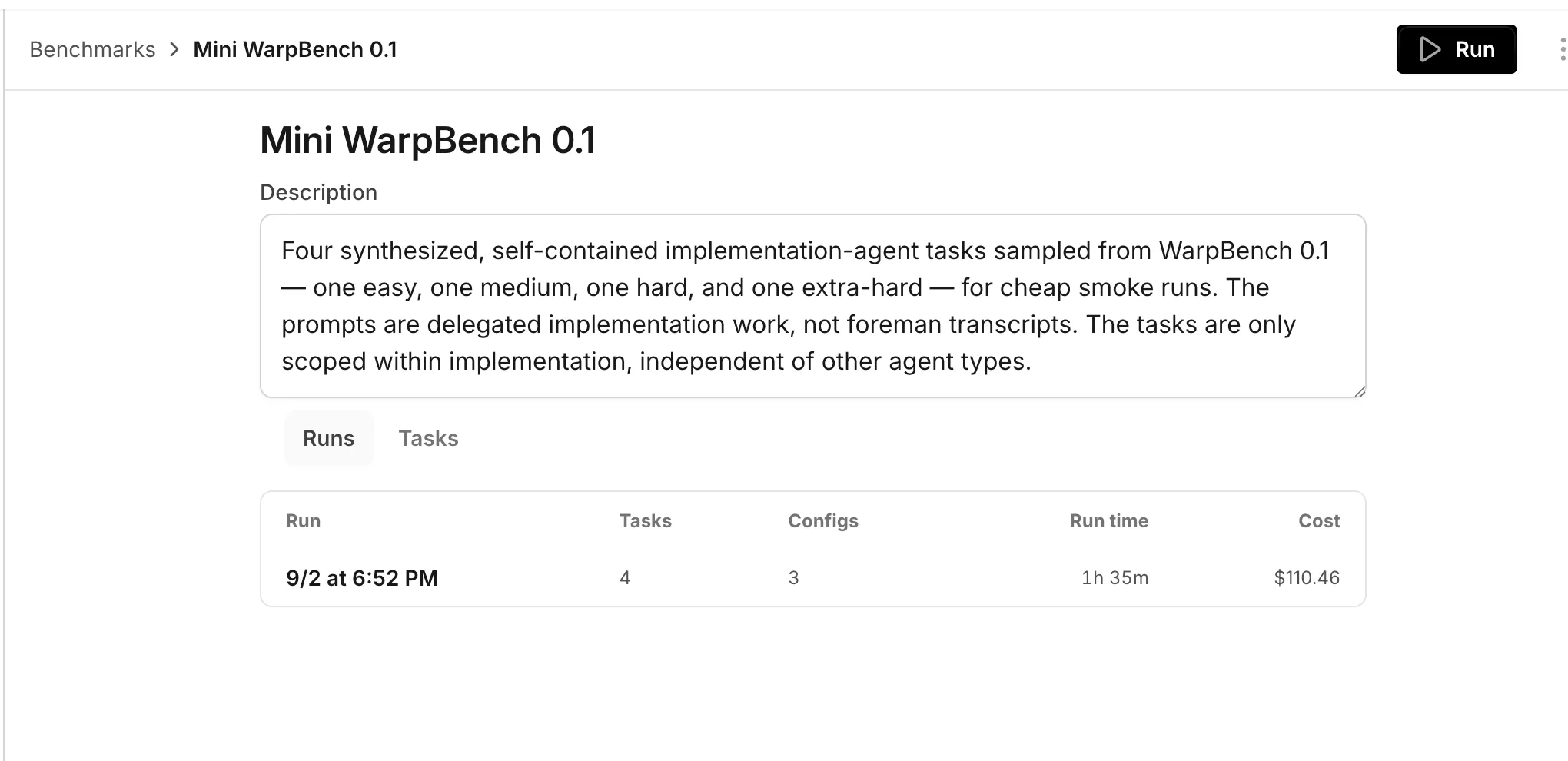 The Runs tab for a benchmark suite. Use separate suites for focused questions: * **Factory default** - Compare models and runners to choose the default configuration for a coding agent. * **Frontend changes** - Compare configurations on representative frontend tasks before applying one to that workflow. ## Create and run a benchmark [Section titled “Create and run a benchmark”](#create-and-run-a-benchmark) To use Benchmarks, you need a factory with an agent to evaluate. Use a completed run from that agent when you want a task to reproduce real work, or write a task yourself. This video shows how to turn your team’s coding tasks into a reusable benchmark suite.  1. In the [Warp Factories web app](https://platform.warp.dev), open your factory, click **Benchmarks**, then click **New**. 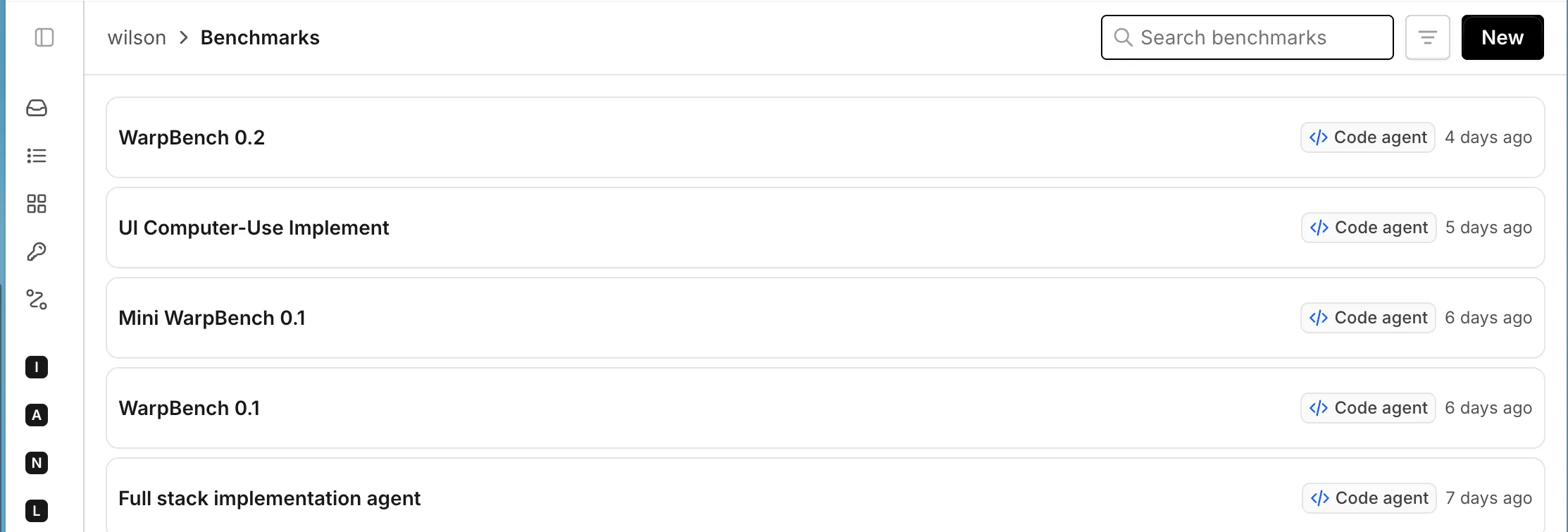 The Benchmarks page for a factory. 2. Enter a name and optional description, then choose the agent to evaluate. The suite runs every task as that agent. 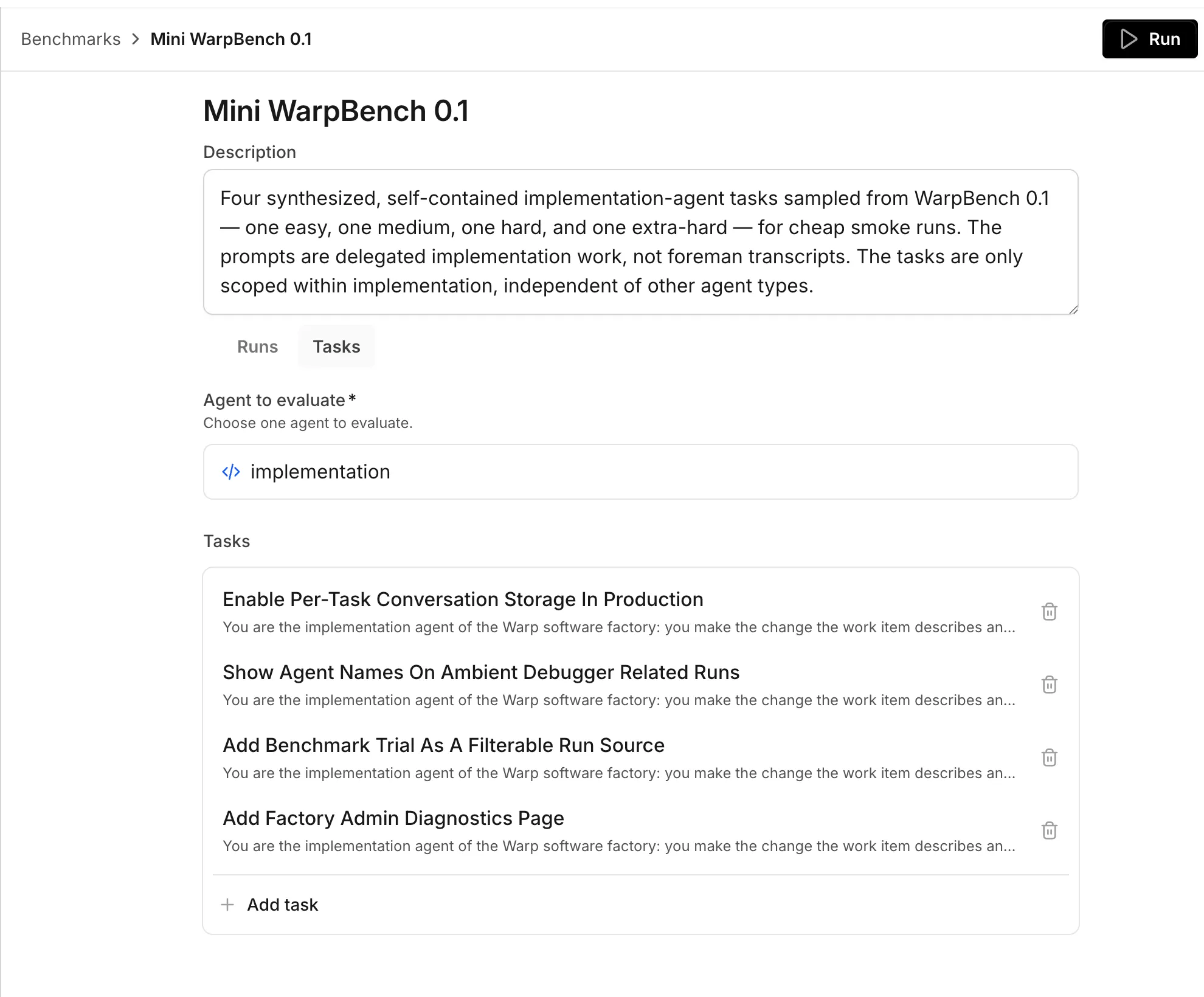 The benchmark editor with a selected agent. 3. Click **Add task**. Warp saves the benchmark, then opens task setup. 4. Select a completed run, then click **Add task**. To write a task instead, click **Start from scratch instead**. 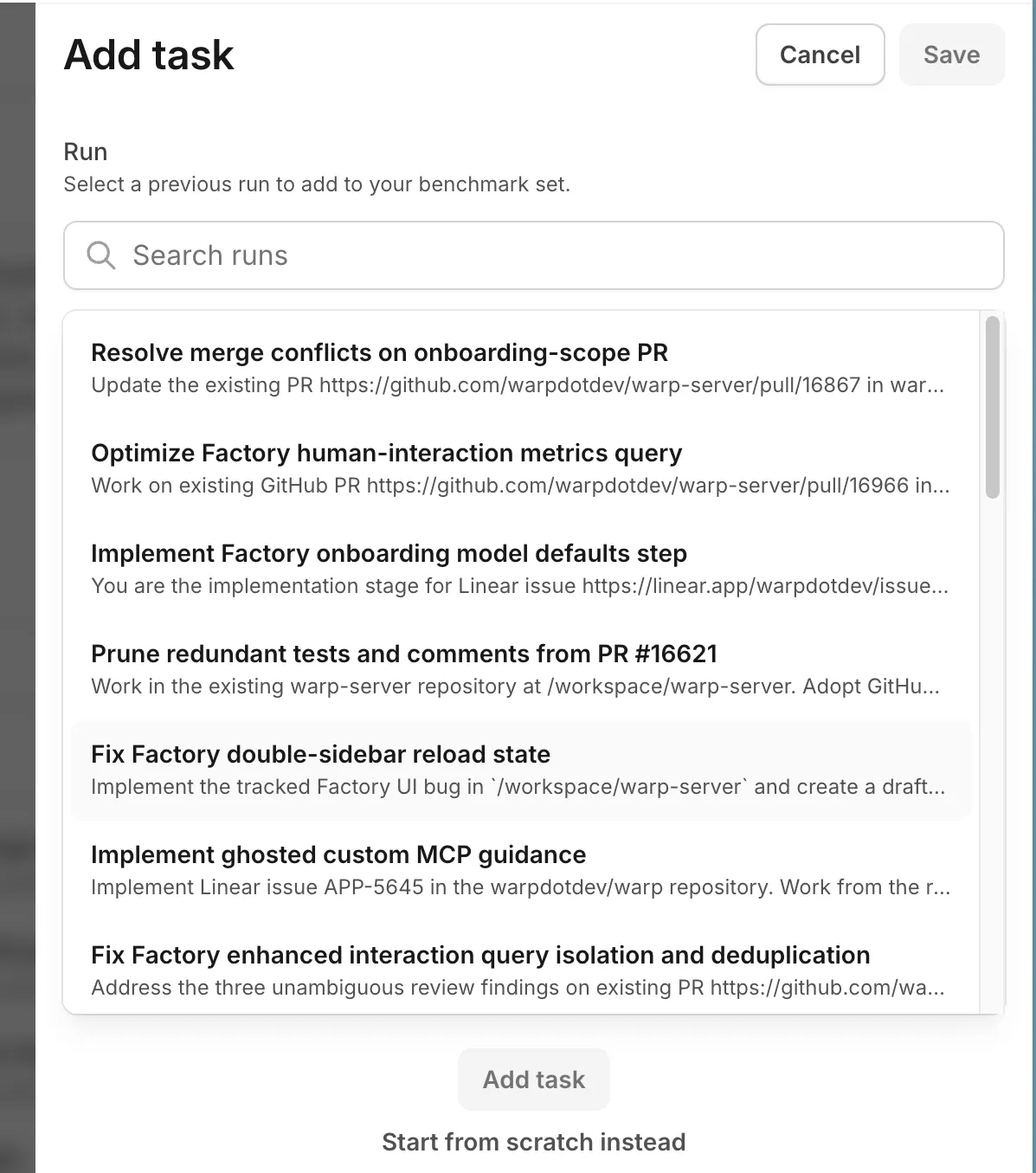 The task source picker. 5. Review the task prompt and enter “Correctness criteria” for the task. 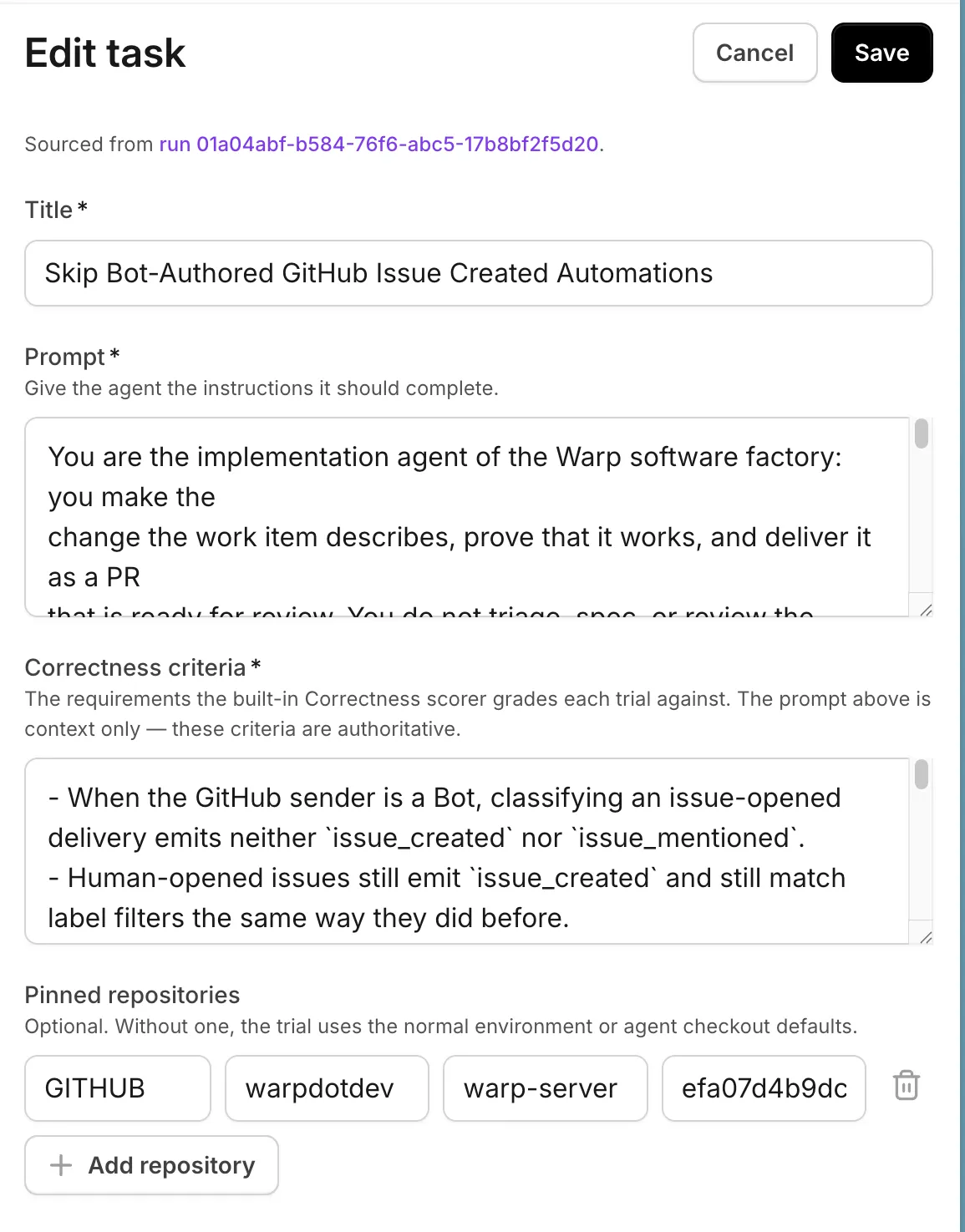 The task editor for a benchmark suite. 6. Click **Run**. In the launch dialog, choose the model and runner for each configuration. Optionally mark one configuration as the baseline. Third-party harness comparisons are not available yet. 7. Add configurations, select Scorers, and set “Repetitions.” The dialog shows the number of trials created. More trials and Scorers increase the run’s cost. 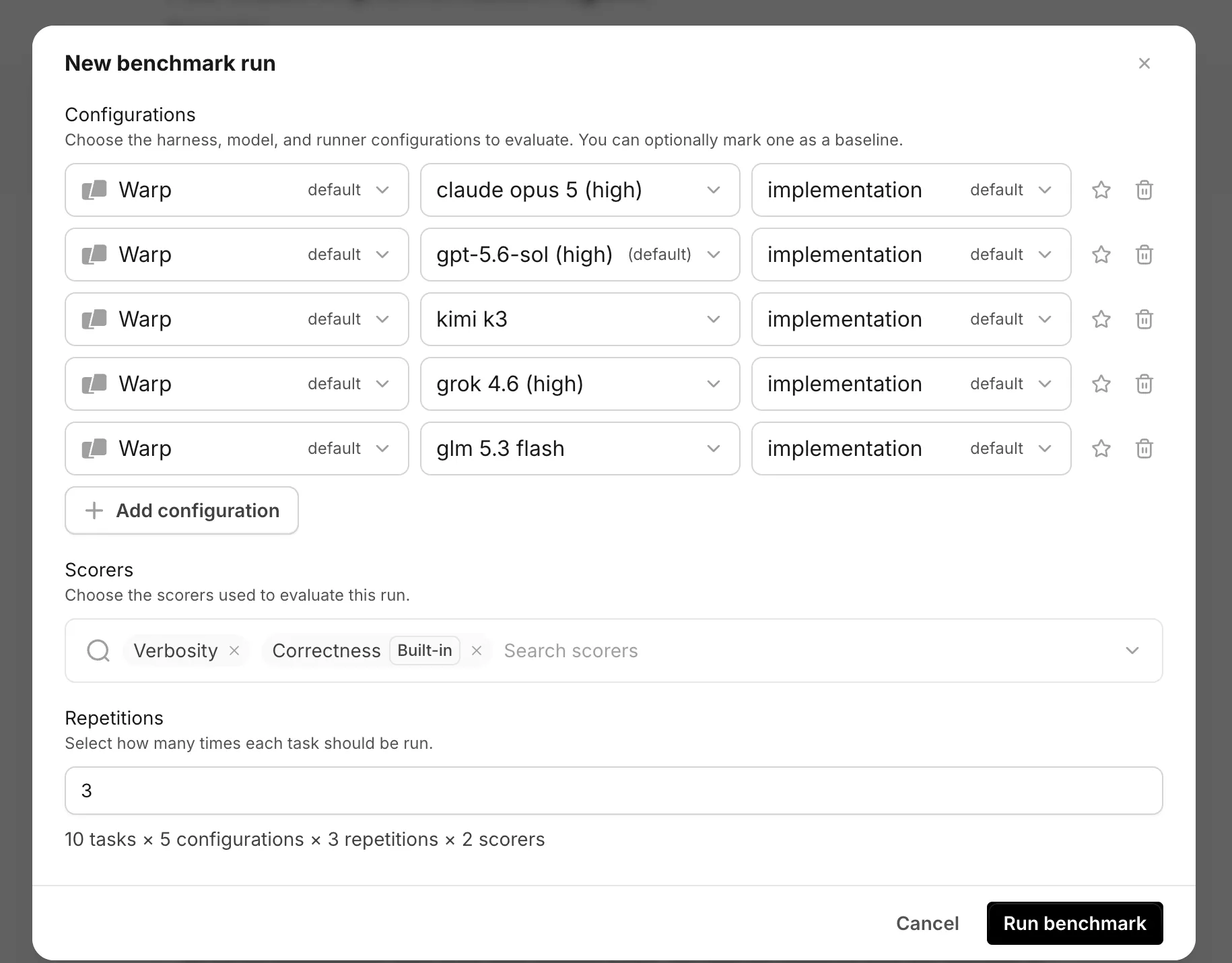 The launch configuration for a benchmark run. 8. Click **Run benchmark**. The benchmark page shows its status and scored trials. You can cancel a running or scoring benchmark. ## Review benchmark results [Section titled “Review benchmark results”](#review-benchmark-results) After the run completes, review the result as a comparison, not as a universal model ranking: 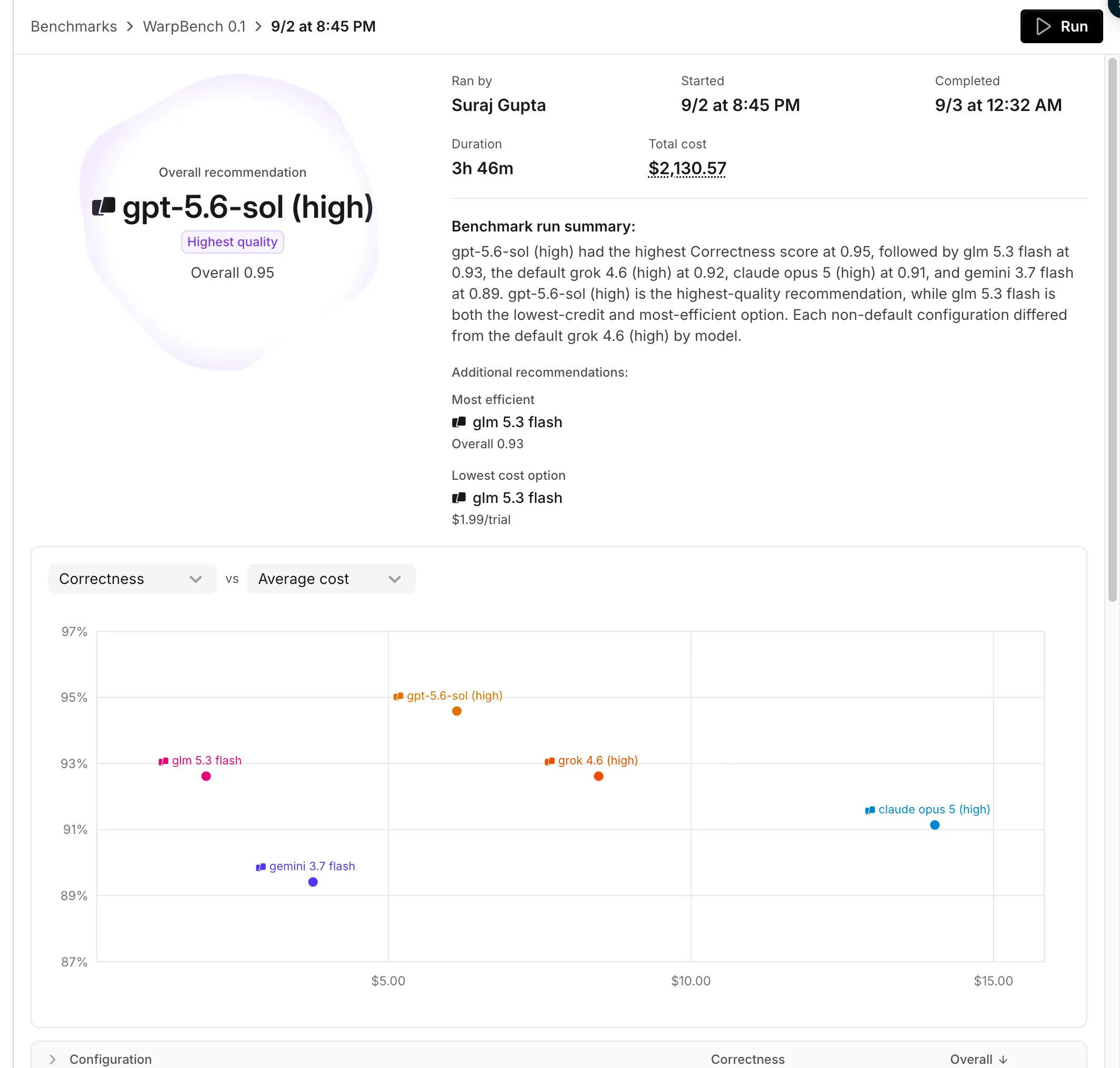 A completed benchmark result and comparison chart. * **Overall recommendation** - Identifies the highest-quality configuration when at least two configurations have comparable results. * **Additional recommendations** - Highlight the most efficient and lowest-cost configurations when the result supports those comparisons. * **Comparison chart** - Compare the selected result dimensions across configurations. * **Overall table** - Compare each Scorer’s average and the combined Overall value. Expand a configuration, task, and repetition to inspect its individual trials. * **Scorer grids** - Show each task’s results across configurations for a selected Scorer. 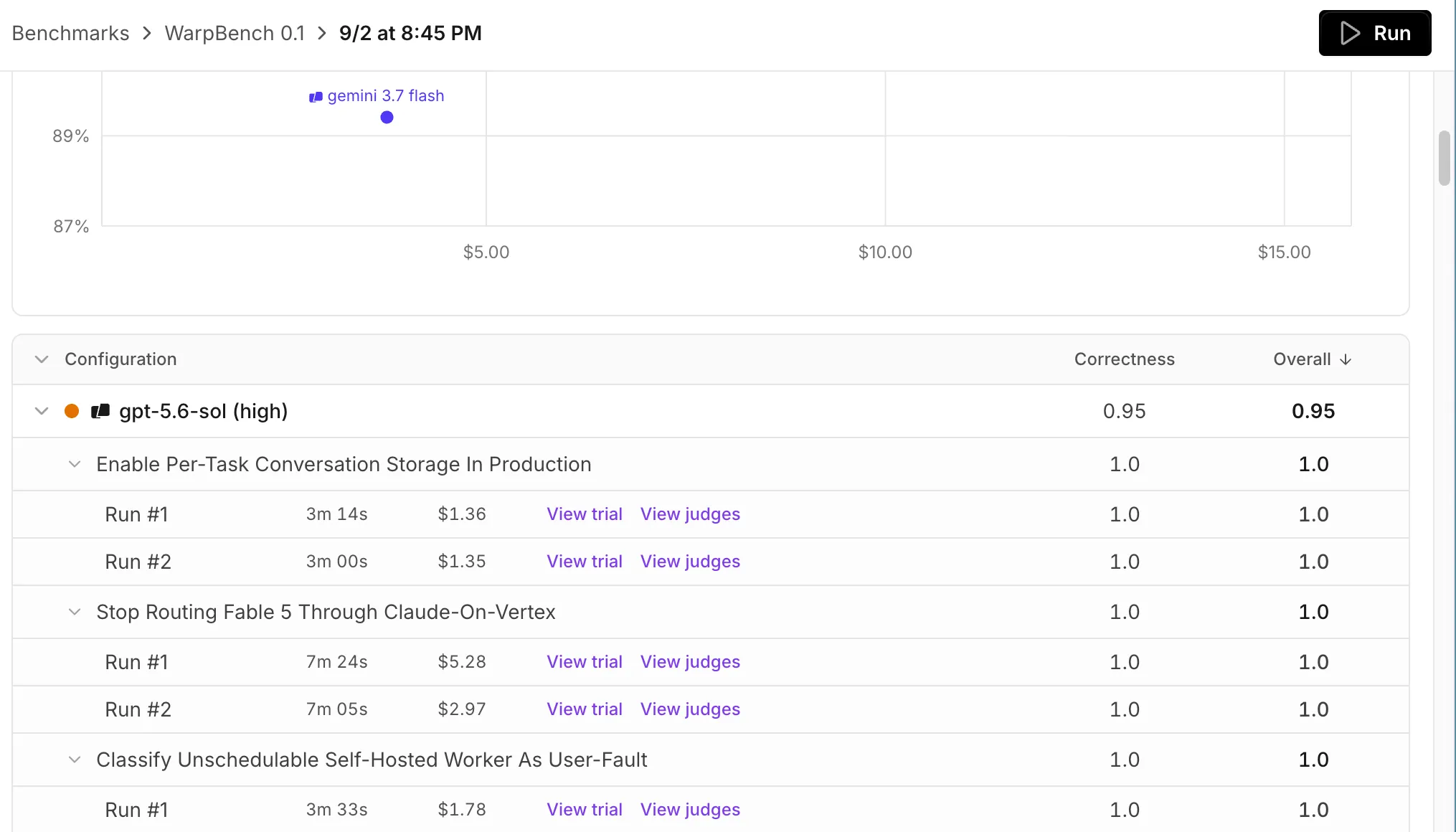 Expanded trial results for a configuration. The run’s “Total cost” includes model usage for trials and Scorer usage. It estimates those costs from credits at your team’s current rate, so it is not a billed amount. A failed or cancelled benchmark shows only results that finished scoring before the run stopped. ## Apply a result [Section titled “Apply a result”](#apply-a-result) Change one configuration at a time. If the evidence supports a candidate, update the agent’s model or runner in the factory dashboard, or submit the change through your [factory definition](/factories/factory-as-code/). Keep the relevant Scorers active, then compare later production runs with the baseline you recorded before the change. For version-controlled factories, define reusable suites in `benchmarks//suite.yaml` and their tasks in `benchmarks//tasks/.yaml`. See [benchmark suite files](/factories/factory-as-code/#benchmarkssuite-slugsuiteyaml). ## Related pages [Section titled “Related pages”](#related-pages) * [Measure and improve a factory](/factories/measure-and-improve/) - Configure Scorers and use benchmark evidence in an improvement loop. * [Factory dashboard](/factories/factory-dashboard/) - Track factory work, runs, and benchmark suites. * [Factory definition syntax](/factories/factory-as-code/) - Define factories and benchmark suites as code.
# Connect your factory
Canonical page: [/factories/connect-your-factory/](https://docs.warp.dev/factories/connect-your-factory/)
> Route work into your factory from Slack, GitHub, GitLab, Linear, Jira, local agents, direct runs, and schedules.
Connect your factory to the tools where your team already discusses, tracks, and reviews work. Wherever work starts, the factory keeps the original context from that source (the thread, issue, or pull request), and posts results in the same place. Each source feeds into this factory’s repositories. If the work belongs to a different product surface, [start a new factory](/factories/#sizing-a-factory) for it instead. ## Choose a source [Section titled “Choose a source”](#choose-a-source) Pick the sources that match where work starts for your team. You can connect multiple sources, but not both Linear and Jira at the same time. The setup wizard currently offers Linear; to use Jira, connect it after setup or in your [factory definition](/factories/factory-as-code/). Once a source is connected, here’s the concrete action that hands it work — each links to that integration’s full instructions rather than repeating them. | Source | Best for | Start work by | Continues in | | ----------------------------------------- | --------------------------------------------------------------------------- | ----------------------------------------------------------------------------------------------------------------------------------- | ----------------------------------------- | | [Slack](/factories/integrations/slack/) | Chat and support requests | [Mentioning the app in a channel, thread, or DM](/factories/integrations/slack/#start-and-continue-work-from-slack) | The Slack thread or DM | | [GitHub](/factories/integrations/github/) | Issues, pull requests, reviews, and CI | [Adding the factory’s label and mentioning **@warp-factory**](/factories/integrations/github/#mention-the-factory) | The issue, pull request, or review thread | | [GitLab](/factories/integrations/gitlab/) | Merge request activity and bot mentions | [Mentioning the factory’s bot in a merge request comment](/factories/integrations/gitlab/#mention-the-factory) | The merge request thread | | [Linear](/factories/integrations/linear/) | Planned issues | [Assigning the issue to the factory, or mentioning the Warp app in a comment](/factories/integrations/linear/#route-agent-sessions) | The Linear issue and its agent session | | [Jira](/factories/integrations/jira/) | Work items assigned to Warp | [Assigning or mentioning **Warp** on a work item](/factories/integrations/jira/#connect-jira-and-add-an-automation) | The Jira agent session | | [Custom webhooks](/factories/webhooks/) | Any system that can POST JSON: CI, monitoring, alerting, and internal tools | [Posting JSON to the webhook’s URL from the external system](/factories/webhooks/#configure-the-sender) | The factory work item | | [Factory API](/factories/factory-api/) | Custom integrations and scripts that dispatch by factory UID | [Calling `POST /factory/{uid}/runs` with a prompt](/factories/factory-api/#dispatch-a-run-to-a-factory) | The factory work item | | [Factory MCP](/factories/factory-mcp/) | Exchanging work with a local coding agent, in both directions | [Calling `send_task` from a connected coding agent](/factories/factory-mcp/#send-new-work-to-a-factory) | The factory work item | | Direct runs and schedules | One-off or recurring work | [Clicking **New** on the factory’s Runs page, or adding a schedule trigger](#direct-runs-and-schedules) | The factory work item | ## Connect a source [Section titled “Connect a source”](#connect-a-source) Each integration guide walks through authorizing access — grant only what the factory needs. New connections add default automations, so events start working right away. Review the [automations](/factories/automations/) and adjust their filters and run settings to fit your workflow. After connecting, send a test request, such as mentioning the factory in Slack or assigning it an issue, and confirm it picks up the work and replies at the source. ## How work reaches your factory [Section titled “How work reaches your factory”](#how-work-reaches-your-factory)
```
flowchart LR
Event["Event from a connected tool"] --> Automation["Matching automation"]
Schedule["Schedule"] --> Automation
Automation --> Foreman["Foreman agent"]
Direct["Direct request"] --> Foreman
Foreman --> Work["Work item"]
Work --> Results["Results posted back to the source"]
```
An event from a connected tool starts the automation based on filter matching, such as a specific repository, channel, or label. Schedules start their automation on a timer, and direct requests go straight to the factory. Every request lands with the foreman agent, which turns it into a work item and dispatches the agents each stage needs. A reply in the same thread, issue, or pull request continues that work item instead of starting a new one, and repeated event deliveries don’t create duplicates. See [how Warp Factories work](/factories/how-factories-work/) for the full lifecycle, including where people stay in the loop. ## Review the default automations [Section titled “Review the default automations”](#review-the-default-automations) When you create a factory through the setup wizard, Warp adds default automations for each tool you connect, so common requests work immediately: * **GitHub** - Starts work when the factory is mentioned or assigned, and follows up when pull requests close or merge, completing a linked tracker issue when it can. See the [GitHub integration guide](/factories/integrations/github/). * **GitLab** - Starts work when someone mentions the factory’s bot in a merge request comment. See the [GitLab integration guide](/factories/integrations/gitlab/). * **Jira** - Starts work when someone assigns or mentions Warp on a work item in one of the Jira projects you selected. See the [Jira integration guide](/factories/integrations/jira/). * **Linear** - Starts work when a new agent session arrives from one of the Linear teams you selected. See the [Linear integration guide](/factories/integrations/linear/). * **Slack** - Starts work from mentions and messages, as described in the [Slack integration guide](/factories/integrations/slack/). These defaults are starting points. Review each automation’s filters, agent, and run settings, and adjust them to match your workflow. For automation files you can adapt, such as CI failure triage, a scheduled dependency audit, and Slack reaction intake, see [`06-common-automations`](https://github.com/warpdotdev/warp-factory-examples/tree/main/examples/06-common-automations) in the [warp-factory-examples](https://github.com/warpdotdev/warp-factory-examples) repository. ## Custom webhooks [Section titled “Custom webhooks”](#custom-webhooks) A [custom webhook](/factories/webhooks/) gives the factory an authenticated URL that any system can POST JSON to, and an automation decides which deliveries start work by filtering on the payload. Use it for tools Warp doesn’t connect to directly, such as your CI system, PagerDuty, Sentry, or Stripe, without writing any code on your side. ## Factory API [Section titled “Factory API”](#factory-api) The [factory API](/factories/factory-api/) lets your own code discover a factory and dispatch a task to it by UID, without knowing which agent handles the work. Use it to build a custom integration for a tool Warp doesn’t connect to directly - see [Build a Mattermost bot for Warp Factories](/guides/external-tools/build-a-mattermost-bot-for-warp-factories/) for a worked example. ## Factory MCP [Section titled “Factory MCP”](#factory-mcp) The Factory MCP connects local coding agents and other MCP clients to your factory, and it works in both directions. Send work to the factory, or take work over from it by pulling a task down to your machine, iterating on it locally, and handing it back to the same work item. See the [Factory MCP guide](/factories/factory-mcp/). ## Direct runs and schedules [Section titled “Direct runs and schedules”](#direct-runs-and-schedules) Not every task starts in an external tool: * Start a direct run for one-off work. Click **New** on the factory’s Runs page and describe the task to the foreman, the same way you would from Slack or an issue tracker. * Create a scheduled automation for recurring work, such as maintenance or reports. See the [triggers overview](/platform/triggers/) for how schedules and other triggers work across the platform. This automation from [`06-common-automations`](https://github.com/warpdotdev/warp-factory-examples/tree/main/examples/06-common-automations) runs a dependency audit every Monday: automations/weekly-dependency-audit/automation.md
```markdown
---
triggers:
- provider: schedule
event: cron_fired
schedule:
name: weekly-dependency-audit
cron: "0 9 * * 1"
---
Run the weekly dependency audit. List outdated and vulnerable dependencies,
apply safe minor and patch upgrades on a branch, run the tests, and open a
PR with the changes and a summary of anything that needs a human decision.
```
# Factory agents
Canonical page: [/factories/factory-agents/](https://docs.warp.dev/factories/factory-agents/)
> Every factory has a team of default agents: a foreman that coordinates the work, plus triage, spec, implement, and review agents.
Every factory has a **foreman**, the agent you talk to from the tool that sends the request, such as Slack or Linear. Four other default agents each cover one part of the software development lifecycle: triage scopes the request, spec writes the plan, implement writes the code, and review checks it. Together they take a work item from the moment it reaches your factory to a pull request ready for review. ## The default agents [Section titled “The default agents”](#the-default-agents) Every factory gets a foreman, and you choose one to four other agents to go with it. These defaults are a starting point — you can [add custom agents and automations](#add-custom-agents-and-automations) for work they don’t cover. The default agents’ prompts, descriptions, and models are reproduced as files in [`00-warp-default-agents`](https://github.com/warpdotdev/warp-factory-examples/tree/main/examples/00-warp-default-agents) in the [warp-factory-examples](https://github.com/warpdotdev/warp-factory-examples) repository. | Agent | What it does | What it produces | | --------- | ---------------------------------------------------------------- | ----------------------------------------------------------- | | Foreman | Coordinates the work and talks to the requester | Decisions, questions, status updates, and the final handoff | | Triage | Investigates the request and establishes scope | Evidence, issue context, complexity, and open questions | | Spec | Turns requirements into a concrete plan with validation criteria | Product and technical specs in a draft pull request | | Implement | Makes and validates the code change | Code, tests, validation results, and visual evidence | | Review | Independently checks the finished change | Findings and a recommendation | These are responsibilities, not a fixed pipeline. A small, well-understood change can skip the Planning stage entirely, and review can send work back for another pass. By default, work that goes through Planning needs a human to approve the spec before the Building stage starts. For the complete lifecycle, see [how Warp Factories work](/factories/how-factories-work/). ### Foreman [Section titled “Foreman”](#foreman) The **foreman agent** runs the factory floor. It decides which agent a work item goes to next, hands the work over, and keeps the requester informed. It’s the only default agent that talks to the requester directly. When another agent needs a human answer, the foreman asks the question and routes the answer back. For revisions and follow-ups, the foreman goes back to the same agent and continues its existing conversation instead of starting a new one, so no context is lost. When the work is done, the foreman presents the final pull request and its supporting evidence, then marks the work item complete. Complete means the work was handed to a human, not that the change was merged or deployed. Merging stays with your team. #### Foreman name [Section titled “Foreman name”](#foreman-name) The foreman answers to a handle your team @-mentions in Slack and Linear, labeled **Foreman name** under **Settings** > **Identity** in the [factory dashboard](/factories/factory-dashboard/) and written as [`alias`](/factories/factory-as-code/#alias) in the definition. Factory setup copies it from the factory’s name, so unless you change one of them, `payments` is the factory’s name and `@payments` reaches its foreman. They are still two things: the handle addresses the foreman, and the foreman speaks for the factory. Give them different names if the overlap causes confusion on your team. ### Triage [Section titled “Triage”](#triage) Triage researches the codebase and related issues first, and reproduces a problem only when research can’t establish the cause. It reports context, scope, complexity, and open questions that the foreman uses to decide whether to ask the requester for clarification, request a spec, or go straight to implementation. ### Spec [Section titled “Spec”](#spec) Spec works through the foreman to define requirements, then writes product and technical specifications in a draft pull request with criteria for validating the change. The implement agent later continues that pull request. By default, the foreman waits for a person to approve the spec before implementation starts. Change that in the foreman’s instructions. ### Implement [Section titled “Implement”](#implement) Implement continues the spec’s branch and draft pull request rather than starting over. It adds tests, runs the repository’s validation, and, when [computer use](/agents/capabilities/computer-use/) is available, captures visual evidence of user-facing changes. If review finds problems, implement revises. It never merges. ### Review [Section titled “Review”](#review) Review independently examines the change for unmet requirements, broken conventions, missing or failing tests, security issues, and evidence that doesn’t hold up. It reruns or extends validation where the evidence is thin, then recommends accepting, revising, or asking a human to decide. The recommendation is advice — review doesn’t approve or merge the pull request. ## Built-in skills [Section titled “Built-in skills”](#built-in-skills) Every default agent comes with GitHub skills, and the foreman also comes with a Slack skill. The issue tracker you choose during setup adds to that baseline: choosing Linear or Jira gives the agents that tracker’s skill and instructions. If you don’t choose a tracker, the agents get only the baseline skills. Define custom procedures with [factory skills](/factories/factory-skills/) to extend what an agent can do beyond the built-in set. ## Configure agent behavior [Section titled “Configure agent behavior”](#configure-agent-behavior) 1. From the [factory dashboard](/factories/factory-dashboard/) sidebar, select your factory and click **Agents**. 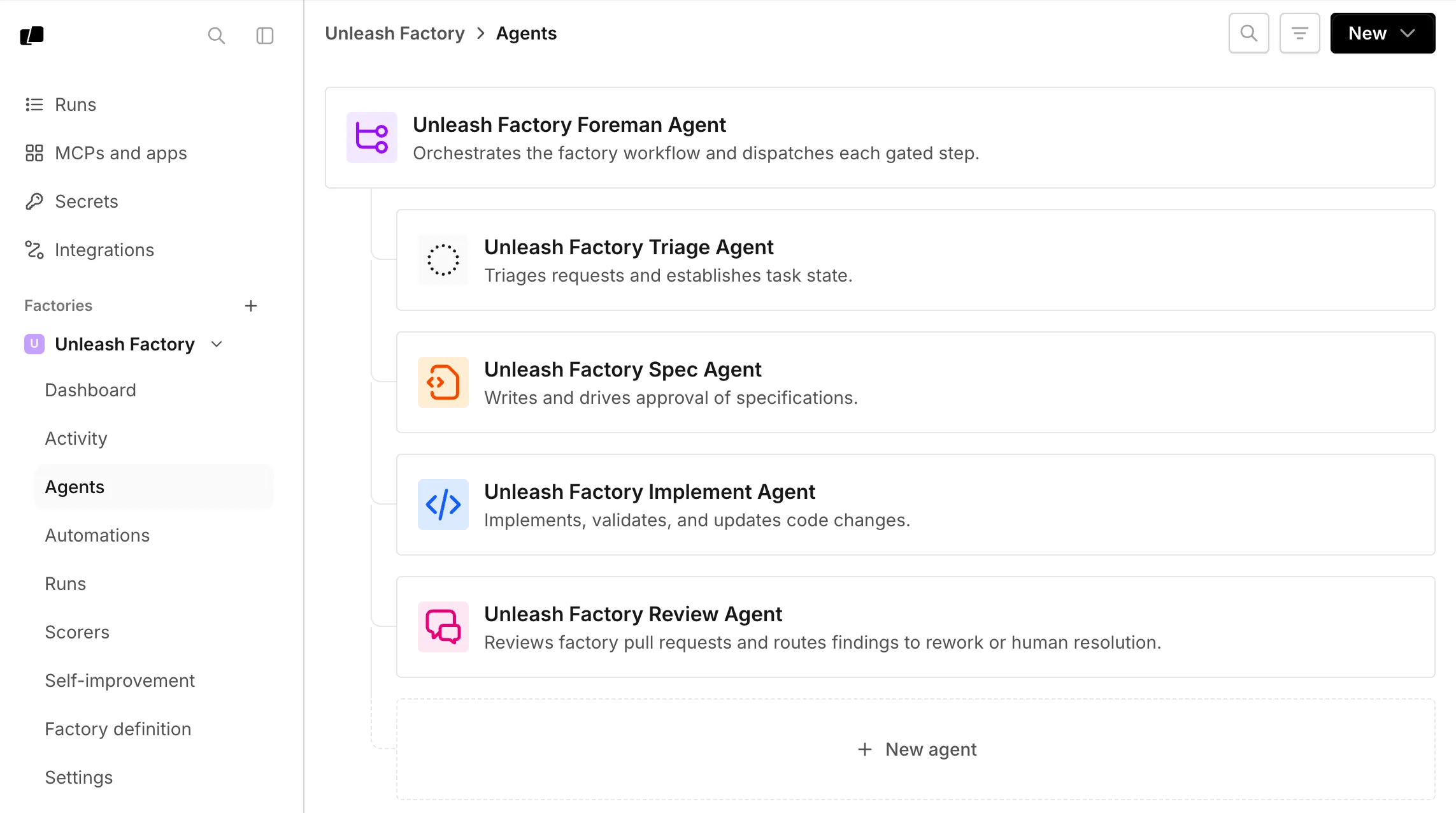 The Agents page lists a factory’s foreman and default agents. 2. Click an agent to open its settings page. From here, you can edit the agent description, harness, model, runner, host, [MCP servers](/platform/mcp/), [secrets](/platform/secrets/), and instructions. 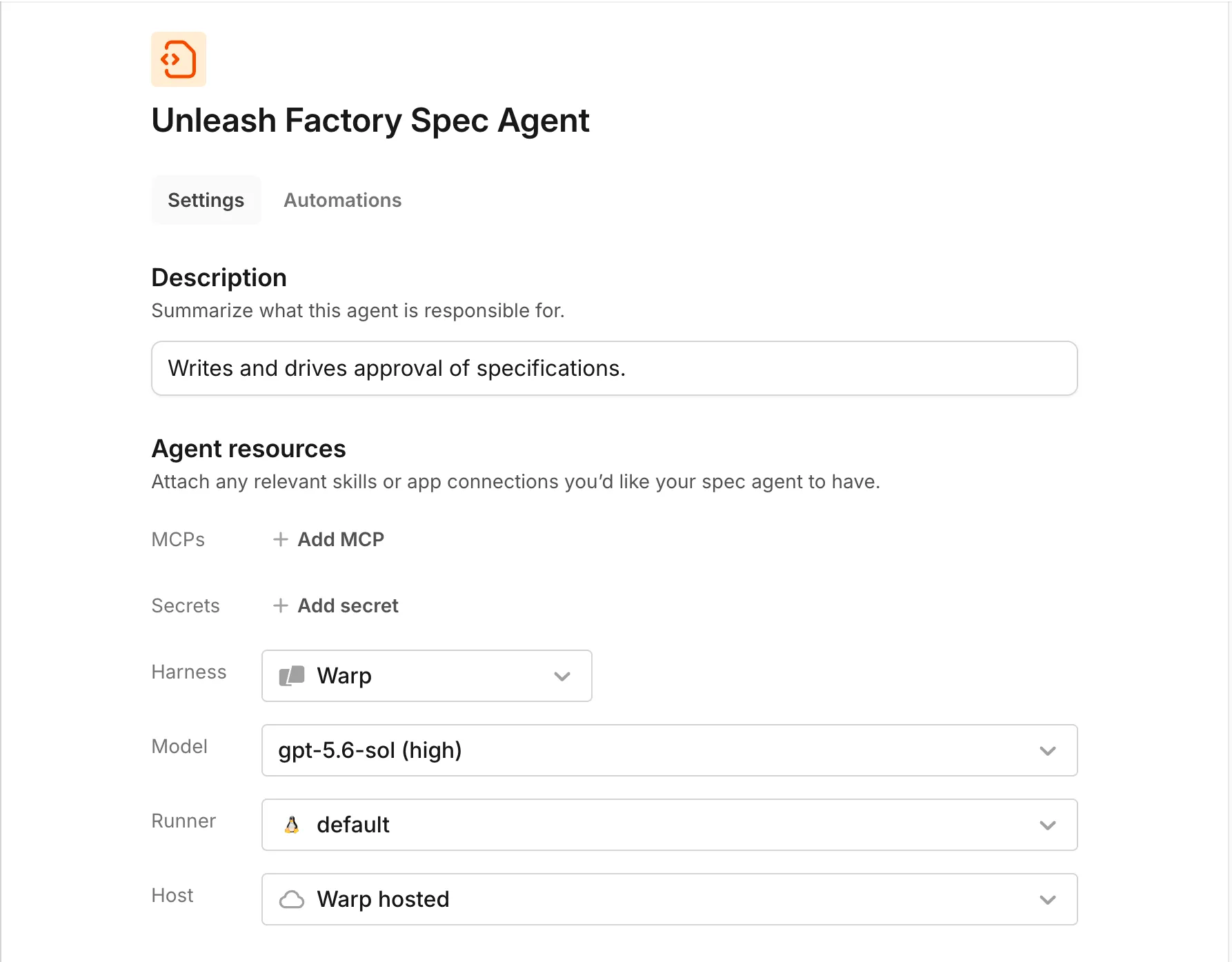 An agent’s settings page, where you configure its model, harness, runner, and host. You can also manage the factory as version-controlled code with [factory definition files](/factories/factory-as-code/) in a Git repository. A factory’s settings live in one of two places: * A **Warp-managed factory** lets you edit everything, including harness, auth, and credential strategy, from the dashboard. * A **GitHub-backed factory** keeps those settings in its definition files. The dashboard shows them read-only, and you edit the files to make changes. For more information about the two locations, see [where the definition lives](/factories/factory-as-code/#where-the-definition-lives). Factory setup doesn’t choose models for you. To change the model an agent uses, edit that agent. ## Choose models and harnesses per agent [Section titled “Choose models and harnesses per agent”](#choose-models-and-harnesses-per-agent) Each agent can run on its own model and harness. Supported harnesses include the Warp Agent harness, Claude Code, and Codex, and any agent can use any of them. A foreman running on Claude Code or Codex can still dispatch the factory’s other agents, and the runs it starts are still tracked as its children. Third-party harnesses require a Build plan or higher; on the Free plan every agent runs on the Warp Agent harness. See [Warp pricing](https://www.warp.dev/pricing) for what each plan includes. Default model IDs change over time, so choose based on what each agent has to do well: | Agent | What to optimize for | | --------- | ----------------------------------------------------------------------------------------- | | Foreman | Orchestration, instruction following, and long-running conversations | | Triage | Research, evidence gathering, and working with connected tools | | Spec | Synthesizing requirements, technical reasoning, and precise writing | | Implement | Coding strength, with a harness that fits your repositories and toolchain | | Review | A different model or harness from the implement agent, so the two don’t share blind spots | See [model choice for agents](/agents/inference/model-choice/) and [harnesses for cloud agents](/platform/harnesses/) for available options. ### Configuring a third-party harness [Section titled “Configuring a third-party harness”](#configuring-a-third-party-harness) Change an agent’s harness to Claude Code or Codex to run it with that provider’s own coding tool instead of the Warp Agent. 1. From the [factory dashboard](/factories/factory-dashboard/) sidebar, select your factory and click **Agents**. 2. Click an agent to open its settings page. In the “Harness” dropdown, select **Claude Code** or **Codex**. 3. In the **Auth** field, choose a compatible, team-owned secret from the list or click **New auth secret** to create one. 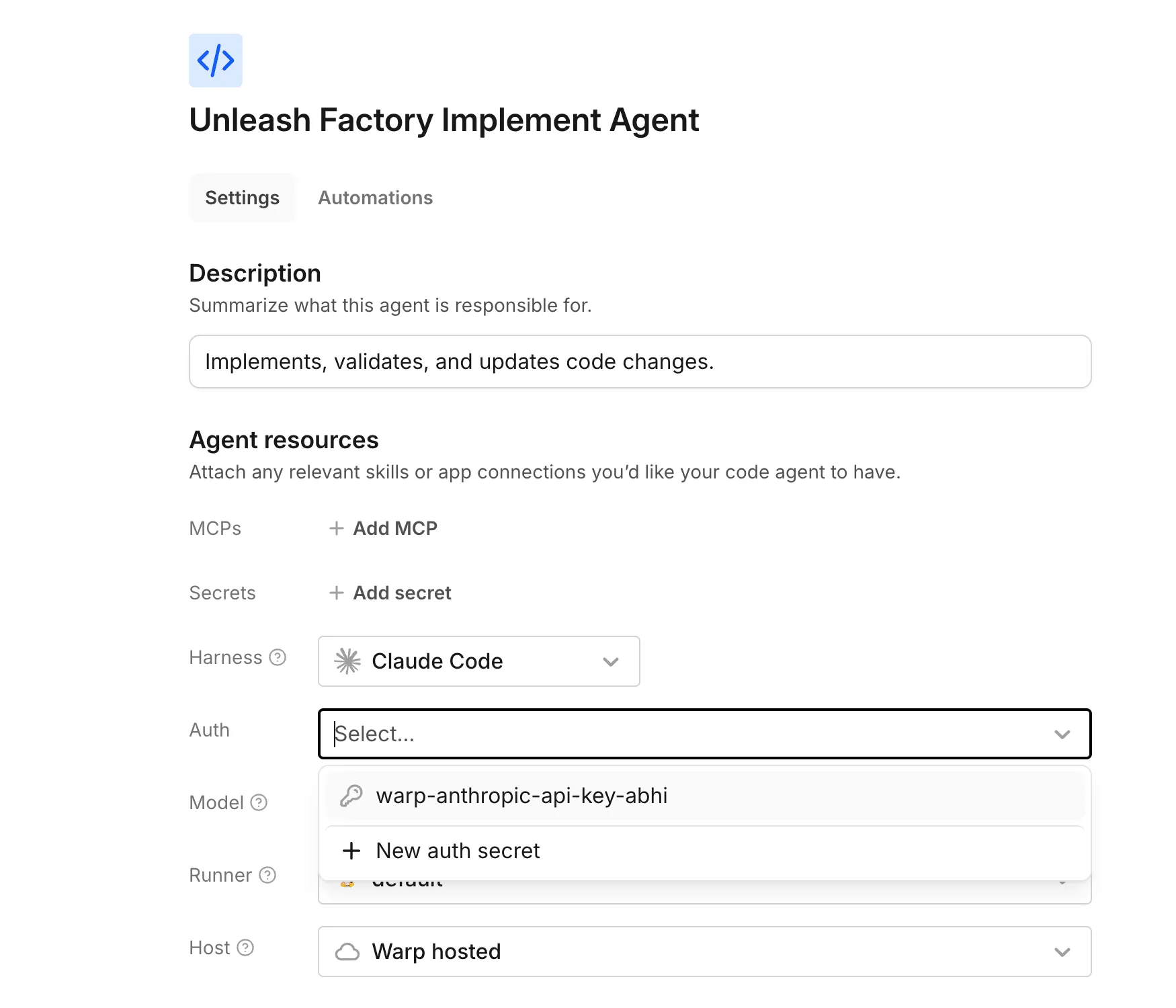 The Auth field’s dropdown, showing a team-owned secret and the option to add a new one. 4. Choose a **Model** from that harness’s own catalog. 5. In the top-right corner, click **Save**. With a Warp-managed factory, you can edit harness, auth, and model from the dashboard. A GitHub-backed factory sets them through [`agentDefaults.harness` or a per-agent `harness` override](/factories/factory-as-code/#agentdefaultsharness) in the definition files. For an example, see [`03-multi-harness`](https://github.com/warpdotdev/warp-factory-examples/tree/main/examples/03-multi-harness). ## Add custom agents and automations [Section titled “Add custom agents and automations”](#add-custom-agents-and-automations) Add a custom agent for a role that needs separate instructions, configuration, and runs. For a Warp-managed factory, open **Agents** in the [factory dashboard](/factories/factory-dashboard/), click **New**, then click **Custom agent**. For a GitHub-backed factory, add `agents//agent.md`. See the [`agent.md` configuration keys](/factories/factory-as-code/#agentsnameagentmd). Custom agents have no built-in skills. Add [factory skills](/factories/factory-skills/) based on who needs them: * **One agent** - Put the skill under `agents//skills/`. * **Every agent** - Put the skill under `skills/`. ### Choose a configured factory agent [Section titled “Choose a configured factory agent”](#choose-a-configured-factory-agent) Use `run_agents` when the foreman should give work to one of the agents configured in your factory. The foreman receives a list of those agents, with a unique ID (UID) for each one. Run the child remotely by setting the call’s `remote` field, then copy the chosen agent’s UID into `agent_run_configs[].agent_identity_uid`. Only use UIDs from the list, and select an agent for every child in the call. The `name` field only labels the child run; it doesn’t choose the factory agent. Warp uses the UID to load that agent’s configured environment, runner, host, harness, and model unless the call overrides them. To start a child without factory configuration, use [multi-agent orchestration](/platform/orchestration/) from any Warp conversation. Automations start a chosen agent on a [schedule](/factories/factory-as-code/#triggersschedule) or when an event fires. They’re one more way for work to enter your factory; the foreman still coordinates whatever they start. For all the ways to route work into a factory, see [connect your factory](/factories/connect-your-factory/). ## Human decision points and permissions [Section titled “Human decision points and permissions”](#human-decision-points-and-permissions) | Decision | Default behavior | What enforces it | | -------------- | --------------------------------------------------------------------------------------- | ------------------------------------------------------------------------- | | Spec approval | The foreman asks a human to clarify ambiguity and approve every spec | Workflow policy in the foreman’s instructions, which your team can change | | Merging | Agents never merge; the foreman hands the finished pull request to a human | Your repository’s permissions decide who can approve and merge | | Runtime access | Each agent reaches only the repositories, secrets, and MCP servers in its configuration | Platform configuration and the permissions of the connected providers | The first two rows are conventions: they live in the foreman’s instructions and your repository settings, and your team can change them. Access is different. What an agent can reach comes from its configuration and the permissions of the connected providers, never from its instructions — changing what an agent is told to do doesn’t change what it’s able to do. So enforce with the real controls: branch protection and repository permissions decide who merges, and each agent’s configuration decides what it can reach. Next, capture these choices in [factory definitions as code](/factories/factory-as-code/).
# Use the factory API
Canonical page: [/factories/factory-api/](https://docs.warp.dev/factories/factory-api/)
> Discover factories and dispatch tasks by UID with the public factory API, without learning the foreman agent's internals.
Use the factory API to find a factory and start work from a custom integration without managing agent details. Build it into a chat bot, script, or service for any tool Warp doesn’t connect to directly. ## How it works [Section titled “How it works”](#how-it-works) * `GET /factory` - list factories your account can access. Add `search` to filter by name or alias, case-insensitive. * `GET /factory/{uid}` - get one factory by UID. * `POST /factory/{uid}/runs` - dispatch a run to the factory’s foreman agent. Pass a `prompt`; the server resolves the foreman for you. A dispatched run is an ordinary [cloud agent run](/platform/): retrieve it, send it follow-ups, or cancel it through the same [Agent API](/reference/api-and-sdk/) you’d use for any run. ## When to use the factory API vs the Agent API [Section titled “When to use the factory API vs the Agent API”](#when-to-use-the-factory-api-vs-the-agent-api) Use the factory API to find or start work on a factory. Use the Agent API for everything else - a standalone cloud agent, run management, or orchestration. | Task | Recommended API | | ---------------------------------------------------------- | -------------------------------------------------------------------------------------------------------------- | | Find a factory by name before dispatching to it | factory API - `GET /factory?search=` | | Start a new task on a factory | factory API - `POST /factory/{uid}/runs` | | Continue, monitor, or cancel a run (factory or standalone) | Agent API - `GET /agent/runs/{runId}`, `POST /agent/runs/{runId}/followups`, `POST /agent/runs/{runId}/cancel` | | Run a standalone cloud agent with no factory involved | Agent API - `POST /agent/run` | | Build a multi-agent orchestration | Agent API - see [multi-agent orchestration](/platform/orchestration/) | The Agent API isn’t deprecated: every factory run is still an ordinary run, so the same endpoints handle status, follow-ups, and cancellation no matter which API started it. ## Discover a factory [Section titled “Discover a factory”](#discover-a-factory) ### Search factories by name [Section titled “Search factories by name”](#search-factories-by-name)
```python
import os
from oz_agent_sdk import OzAPI
client = OzAPI(api_key=os.environ.get("WARP_API_KEY"))
# Find a factory by name or alias — no UIDs needed up front
page = client.factories.list(search="payments")
factory = page.factories[0]
# With the pagination scheme wired, iteration auto-pages
for f in client.factories.list(search="payments"):
print(f.uid, f.name)
```
The REST equivalent:
```http
GET /api/v1/factory?search=payments
Authorization: Bearer YOUR_API_KEY
```
### Get a factory when the UID is already known [Section titled “Get a factory when the UID is already known”](#get-a-factory-when-the-uid-is-already-known)
```python
factory = client.factories.get(factory.uid)
```
```http
GET /api/v1/factory/YOUR_FACTORY_UID
Authorization: Bearer YOUR_API_KEY
```
## Dispatch a run to a factory [Section titled “Dispatch a run to a factory”](#dispatch-a-run-to-a-factory) Dispatch with just the factory’s UID and a `prompt`:
```python
run = client.factories.runs.create(
factory.uid,
prompt="Investigate and fix the flaky payment webhook retry test",
title="Fix flaky payment webhook retry test",
ticket_ref="linear:PAY-123",
)
print(run.run_id, run.run_url, run.state)
```
```http
POST /api/v1/factory/YOUR_FACTORY_UID/runs
Authorization: Bearer YOUR_API_KEY
Content-Type: application/json
{
"prompt": "Investigate and fix the flaky payment webhook retry test",
"title": "Fix flaky payment webhook retry test",
"ticket_ref": "linear:PAY-123"
}
```
Every field except `prompt` is optional. Omit `title` and the server derives one from the prompt. `ticket_ref` identifies the originating ticket in `:` form (for example `linear:PAY-123` or `jira:PROJ-456`); pass `ticket_url` to link the factory’s task record back to it, or omit both for an adhoc reference. ## Continue and monitor the run [Section titled “Continue and monitor the run”](#continue-and-monitor-the-run)
```python
status = client.agent.runs.retrieve(run.run_id)
```
Send a follow-up the same way you would for any run:
```http
POST /api/v1/agent/runs/YOUR_RUN_ID/followups
Authorization: Bearer YOUR_API_KEY
Content-Type: application/json
{
"message": "Also add a regression test for the retry backoff"
}
```
See [key endpoints](/reference/api-and-sdk/#key-endpoints) for the full set of run-management operations, including cancellation. ## Related pages [Section titled “Related pages”](#related-pages) * [Connect your factory](/factories/connect-your-factory/) - Every way work can enter a factory, including the factory API alongside Slack, GitHub, and Factory MCP. * [Build a Mattermost bot for Warp Factories](/guides/external-tools/build-a-mattermost-bot-for-warp-factories/) - A worked example that discovers a factory and dispatches and continues a task from a custom chat integration. * [Factory MCP](/factories/factory-mcp/) - Connect a local coding agent to a factory instead of calling the REST API directly. * [Oz API & SDK](/reference/api-and-sdk/) - Full endpoint reference, SDKs, and error codes for the underlying Agent API. * [How Warp Factories work](/factories/how-factories-work/) - The stages a dispatched task moves through after the foreman picks it up.
# Factory definition syntax
Canonical page: [/factories/factory-as-code/](https://docs.warp.dev/factories/factory-as-code/)
> Look up every file and key in a factory definition: factory.yaml, agents, automations, runners, benchmarks, scorers, skills, and webhooks.
Every factory is defined by files: a `factory.yaml` plus directories of agents, automations, runners, benchmarks, scorers, skills, and webhooks, versioned in a Git repository. The files are the source of truth — when they change, Warp updates the factory to match. Definition files are YAML and Markdown. Keys are case-sensitive. For complete working definitions you can copy, see the [warp-factory-examples](https://github.com/warpdotdev/warp-factory-examples) repository. Its examples range from a single-repo quickstart to a full issue-to-PR lifecycle. ## Where the definition lives [Section titled “Where the definition lives”](#where-the-definition-lives) You choose who hosts the definition repository when you create a factory: * **Warp-managed (default)** - Warp hosts the repository for you. You edit the factory in the [Warp Factories web app](/factories/factory-dashboard/), and every change is validated, committed to the files, and applied in one step. You never interact with the repository directly, and the definition can’t end up in an invalid state. * **GitHub** - The definition lives in a repository you own. The repository is the only way to change the factory: the web app shows the configuration read-only and links back to the files. Open a pull request, and any change merged to the production branch (`main` by default) updates the factory. See [Pull request checks](#pull-request-checks). Both modes use the same files, so everything on this page applies to either. You can also link a GitHub repository to a Warp-managed factory later. Definition files describe how the factory is configured, not what it is doing: work items, runs, and metrics live in the web app and are never written to the files. ## Validate a definition [Section titled “Validate a definition”](#validate-a-definition) Warp checks that definition files use valid YAML or Markdown, include required fields, and refer to resources the factory can access. Checks run when you save changes to a Warp-managed factory, when a pull request targets a GitHub-backed factory’s production branch, and before Warp applies a new definition. ### Pull request checks [Section titled “Pull request checks”](#pull-request-checks) When the definition lives in GitHub, every pull request that targets the production branch gets a **warp/factory-config** check. It reports problems by file and line. If the definition is valid, the check summarizes what merging will create, update, or delete. A pull request that doesn’t change the definition passes immediately. Make the check required in your repository’s branch protection rule or ruleset to stop an invalid definition from merging. When a change lands on the production branch, Warp applies it as a whole: a definition that fails validation never partially applies, and the factory keeps running its last valid definition until the branch is fixed. Warp-managed factories validate each edit when you save it in the web app instead. For subdirectory check names and troubleshooting, see [factory-definition pull request checks](/factories/integrations/github/#factory-definition-pull-request-checks). ### Validate locally or in CI [Section titled “Validate locally or in CI”](#validate-locally-or-in-ci) Use the [`validate_factory_files.py`](https://github.com/warpdotdev/warp-factory-examples/blob/main/scripts/validate_factory_files.py) script to check a definition before you open a pull request or from your own CI. The script needs only Python 3 and doesn’t require a Warp login or an existing factory.
```bash
python3 scripts/validate_factory_files.py path/to/factory-root
```
Run it against the factory root so it can check the complete definition. The script reports problems by file and line. A successful result means the files and their cross-file references are valid; the pull request check also checks settings that depend on your Warp team and current factory. For a CI job built on the script, see the example repository’s [validation workflow](https://github.com/warpdotdev/warp-factory-examples/blob/main/.github/workflows/validate.yml). ### Validate with a coding agent [Section titled “Validate with a coding agent”](#validate-with-a-coding-agent) * **In Warp** - Ask the Warp Agent to change or check a factory definition. Its built-in `factory-files` skill validates the result before opening a pull request. For example: “Add a nightly dependency-audit automation to this factory and validate the definition.” * **Through Factory MCP** - Connect any other coding agent to [Factory MCP](/factories/factory-mcp/) for the same schema and validation tools. See the [Factory MCP tool reference](/factories/factory-mcp/#tool-reference). * **Anywhere else** - Have the agent run the [validator script](#validate-locally-or-in-ci). ## JSON Schema [Section titled “JSON Schema”](#json-schema) Warp publishes the definition format as JSON Schema documents for editor completion and validation. Each field has a description, and the schema flags unknown fields. The endpoints are unauthenticated: * `https://app.warp.dev/api/v1/factory-files/schemas` - The supported schema versions, and which one is current. * `https://app.warp.dev/api/v1/factory-files/schemas/v1alpha1` - Every `v1alpha1` document in one bundle, keyed by document name. * `https://app.warp.dev/api/v1/factory-files/schemas/v1alpha1/` - One document on its own, usable directly as a schema reference. There is one document per file kind: `factory.schema.json` for `factory.yaml`; `agent.schema.json`, `automation.schema.json`, and `scorer.schema.json` for the frontmatter of the corresponding Markdown files; `runner.schema.json`, `webhook.schema.json`, `benchmark_suite.schema.json`, and `benchmark_suite_task.schema.json` for the YAML files; and `common.schema.json` for the definitions the others share. Editors with a YAML language server can read a document from its URL, for completion and inline validation as you type. In VS Code with the YAML extension, add the reference as a comment on the file’s first line: factory.yaml
```yaml
# yaml-language-server: $schema=https://app.warp.dev/api/v1/factory-files/schemas/v1alpha1/factory.schema.json
schemaVersion: v1alpha1
name: payments-factory
```
Editors apply YAML schemas to `.yaml` files, not to the frontmatter of the Markdown files, so check those with one of the [validation paths](#validate-a-definition) above. ## Directory structure [Section titled “Directory structure”](#directory-structure) Each resource takes its name from its path: `agents/reviewer/agent.md` defines an agent named `reviewer`.
```text
factory.yaml
agents/
foreman/
agent.md
skills/
incident-triage/
SKILL.md
reviewer/
agent.md
automations/
labeled-issue/
automation.md
runners/
linux-build.yaml
benchmarks/
pull-request-review/
suite.yaml
tasks/
broken-doc-link.yaml
scorers/
tests-run/
scorer.md
skills/
repository-conventions/
SKILL.md
webhooks/
internal-ci.yaml
```
Only `factory.yaml` and at least one agent are required. For a complete working definition, see the [example factory definition](#example-factory-definition) below. The smallest complete example tree is [`01-single-repo-quickstart`](https://github.com/warpdotdev/warp-factory-examples/tree/main/examples/01-single-repo-quickstart); the fullest is [`02-sdlc-issue-to-pr`](https://github.com/warpdotdev/warp-factory-examples/tree/main/examples/02-sdlc-issue-to-pr). ## `factory.yaml` [Section titled “factory.yaml”](#factoryyaml) The factory’s root document. It names the factory, scopes it to repositories, and sets the execution defaults every agent inherits. factory.yaml
```yaml
schemaVersion: v1alpha1
name: payments-factory
repositories:
- owner: acme
name: payments-service
agentDefaults:
model: auto
```
### `schemaVersion` [Section titled “schemaVersion”](#schemaversion) Required. The definition schema version. The only supported value is `v1alpha1`. ### `name` [Section titled “name”](#name) Required. The factory’s name. ### `description` [Section titled “description”](#description) Optional. What the factory is for. ### `alias` [Section titled “alias”](#alias) Optional. The handle used to @-mention the factory’s foreman on connected platforms like Slack and Linear; the factory dashboard labels this field **Foreman name**. Up to 60 characters: letters, numbers, spaces, `.`, `_`, and `-`. Must be unique across your workspace (compared case-insensitively). ### `credentialStrategy` [Section titled “credentialStrategy”](#credentialstrategy) Optional. Whose credentials the factory’s runs execute with: `EXECUTOR` (the principal executing the run, the default) or `CREATOR` (the user who created the run). Agents can override it per role. ### `repositories` [Section titled “repositories”](#repositories) Required. The repositories the factory works in, as `owner` and `name` pairs. On a GitLab-backed factory these are the projects you selected under the connected group.
```yaml
repositories:
- owner: acme
name: payments-service
- owner: acme
name: payments-docs
```
### `secrets` [Section titled “secrets”](#secrets) Optional. Names of [managed secrets](/platform/secrets/) granted to every agent in the factory, in addition to anything individual agents declare. ### `mcpServers` [Section titled “mcpServers”](#mcpservers) Optional. [MCP servers](/platform/mcp/) granted to every agent, keyed by the name the agent sees. Each entry references a Warp-managed MCP server by `warpId`.
```yaml
mcpServers:
sentry:
warpId: SENTRY_MCP_SERVER_ID
```
### `cloudProviders` [Section titled “cloudProviders”](#cloudproviders) Optional. Cloud-provider identity federation for agent runs. `gcp` accepts `projectNumber` (quote it so YAML keeps it a string), `workloadIdentityFederationPoolId`, `workloadIdentityFederationProviderId`, and an optional `serviceAccountEmail`. `aws` accepts `roleArn`.
```yaml
cloudProviders:
aws:
roleArn: arn:aws:iam::123456789012:role/warp-factory
```
### `integrations` [Section titled “integrations”](#integrations) Optional. The integration providers attached to the factory. `type` accepts `slack`, `linear`, or `jira`. Declare at most one issue tracker: `linear` and `jira` are mutually exclusive, and omitting a tracker is also valid. GitHub is not declared here; repository access comes from `repositories` and the connected GitHub App.
```yaml
integrations:
- type: slack
- type: linear
```
### `agentDefaults` [Section titled “agentDefaults”](#agentdefaults) Required. The execution defaults every agent inherits. Declare exactly one of `model` or `harness`; the other keys are optional. An agent that sets one of these keys for itself overrides the default.
```yaml
agentDefaults:
model: auto
runner: linux-build
environmentId: PAYMENTS_ENVIRONMENT_ID
```
### `agentDefaults.model` [Section titled “agentDefaults.model”](#agentdefaultsmodel) The model that runs execute with, as a `model_id` from [model choice for agents](/agents/inference/model-choice/). `model` is shorthand for running on the Warp Agent harness:
```yaml
model: auto
```
is equivalent to:
```yaml
harness:
type: oz
model: auto
```
`model` and `harness` are mutually exclusive everywhere they appear. ### `agentDefaults.harness` [Section titled “agentDefaults.harness”](#agentdefaultsharness) The harness and model that runs execute with. Use the `harness` form to run a third-party harness or to set advanced options. `type` accepts `oz`, `claude`, `codex`, or `gemini` — the values the definition schema validates. `claude-code` is also accepted as an alias for `claude`; prefer `claude`, the canonical [harness identifier](/platform/harnesses/#harness-identifiers) that the CLI and the Agent API use for the same harness. For what each harness does and which ones your team can run, see [supported harnesses](/platform/harnesses/).
```yaml
harness:
type: codex
model: gpt-5.3-codex
reasoningLevel: high
auth:
source: managedSecret
secretName: CODEX_API_KEY
```
For a third-party harness, `auth` sets where credentials come from: `source: managedSecret` reads the [managed secret](/platform/secrets/) named by `secretName`, and `source: workerEnvironment` reads them from your self-hosted worker’s environment (and requires a self-hosted `workerHost`). The `oz` harness supplies its own credentials and takes no `auth` or `reasoningLevel`. For a definition that runs a different harness per agent, with managed-secret auth for Claude Code and Codex, see [`03-multi-harness`](https://github.com/warpdotdev/warp-factory-examples/tree/main/examples/03-multi-harness). To configure the same third-party harness from the dashboard instead, see [configuring a third-party harness](/factories/factory-agents/#configuring-a-third-party-harness). ### `agentDefaults.runner` [Section titled “agentDefaults.runner”](#agentdefaultsrunner) The name of a runner defined under [`runners/`](#runnersnameyaml) that provides the compute for runs. ### `agentDefaults.environmentId` [Section titled “agentDefaults.environmentId”](#agentdefaultsenvironmentid) The ID of an existing [environment](/platform/environments/) that runs execute in. Most factories never set this: leave it out, and Warp manages the workspace from the factory’s repositories. ### `agentDefaults.secrets` [Section titled “agentDefaults.secrets”](#agentdefaultssecrets) Managed secrets for agents that don’t declare their own. An agent that declares `secrets` replaces this list rather than adding to it; factory-wide [`secrets`](#secrets) always apply. ### `agentDefaults.mcpServers` [Section titled “agentDefaults.mcpServers”](#agentdefaultsmcpservers) MCP servers for agents that don’t declare their own, in the same form as [`mcpServers`](#mcpservers). Like secrets, an agent that declares its own map replaces this one, and factory-wide servers always apply. ### `agentDefaults.workerHost` [Section titled “agentDefaults.workerHost”](#agentdefaultsworkerhost) Where runs execute: `warp` for Warp-hosted compute, or the ID of a connected worker in the [managed self-hosting architecture](/platform/self-hosting/#managed-architecture). Configure the worker’s Docker, Kubernetes, or Direct backend on the worker itself; the factory definition selects the worker and a compatible runner. ### `agentDefaults.computerUseModel` [Section titled “agentDefaults.computerUseModel”](#agentdefaultscomputerusemodel) Optional. The `model_id` that Computer Use runs with. Omit it to let Warp select the model automatically.
```yaml
agentDefaults:
model: auto
computerUseModel: claude-5-sonnet-high
```
Use `computer-use-agent-auto` for automatic selection. Pin a specific model when a benchmark or other repeatable workflow needs a fixed model. For models with multiple variants, the suffix selects the effort level; `thinking` enables thinking, and `xhigh-fast` selects fast mode. | Model | Supported values | | ----------------- | ----------------------------------------------------------------------------------------------------------------------------------------------------- | | Auto | `computer-use-agent-auto` | | Claude Sonnet 5 | `claude-5-sonnet-low`, `claude-5-sonnet-medium`, `claude-5-sonnet-high`, `claude-5-sonnet-xhigh`, `claude-5-sonnet-max` | | Claude Opus 5 | `claude-5-opus-low`, `claude-5-opus-medium`, `claude-5-opus-high`, `claude-5-opus-xhigh`, `claude-5-opus-xhigh-fast`, `claude-5-opus-max` | | Claude Fable 5.1 | `claude-5-1-fable-low`, `claude-5-1-fable-medium`, `claude-5-1-fable-high`, `claude-5-1-fable-xhigh`, `claude-5-1-fable-max` | | Claude Fable 5 | `claude-5-fable-low`, `claude-5-fable-medium`, `claude-5-fable-high`, `claude-5-fable-xhigh`, `claude-5-fable-max` | | Claude Opus 4.8 | `claude-4-8-opus-low`, `claude-4-8-opus-medium`, `claude-4-8-opus-high`, `claude-4-8-opus-xhigh`, `claude-4-8-opus-xhigh-fast`, `claude-4-8-opus-max` | | Claude Opus 4.7 | `claude-4-7-opus-high`, `claude-4-7-opus-xhigh`, `claude-4-7-opus-max` | | Claude Opus 4.6 | `claude-4-6-opus-high`, `claude-4-6-opus-max` | | Claude Sonnet 4.6 | `claude-4-6-sonnet-high`, `claude-4-6-sonnet-max` | | Claude Opus 4.5 | `claude-4-5-opus`, `claude-4-5-opus-thinking` | | Claude Sonnet 4.5 | `claude-4-5-sonnet`, `claude-4-5-sonnet-thinking` | | Claude Haiku 4.5 | `claude-4-5-haiku` | The selected value must be available to your plan and workspace. See [model choice for agents](/agents/inference/model-choice/) for model variants, availability, and data-retention details. An agent or automation can declare `computerUseModel` to override the inherited value for its runs. For an agent, omitting the key or setting it to `null` inherits `agentDefaults.computerUseModel`. For an automation, omitting the key or setting it to `null` inherits the selected agent’s effective value, including an agent-level override. The setting applies only to Computer Use on the Warp Agent harness (`type: oz`); Warp keeps but ignores it for a third-party harness or when Computer Use is disabled. It can appear alongside either `model` or `harness` because it doesn’t select the agent’s main model. ## `agents//agent.md` [Section titled “agents/\/agent.md”](#agentsnameagentmd) One file per agent. The YAML frontmatter configures how the agent runs, and the Markdown body is the agent’s prompt: the durable instructions for its role. The agent’s name comes from its directory. agents/reviewer/agent.md
```markdown
---
description: Reviews factory-produced pull requests
agentType: REVIEW
---
Review each pull request against the repository's standards. Request
changes when tests are missing; never approve your own edits.
```
The frontmatter accepts: * `description` - Optional. What the agent does. * [`agentType`](#agenttype) - Optional. The agent’s role. * `credentialStrategy` - Optional. Overrides the factory-level [`credentialStrategy`](#credentialstrategy) for this agent’s runs. * `model` or `harness`, `runner`, `environmentId`, `secrets`, `mcpServers`, `workerHost`, `computerUseModel` - Optional. The same keys as [`agentDefaults`](#agentdefaults); a key declared here overrides the default for this agent. ### `agentType` [Section titled “agentType”](#agenttype) The agent’s role: `CUSTOM` (the default), `FOREMAN` (alias `MAIN`), `TRIAGE`, `SPEC`, `IMPLEMENT`, `REVIEW`, or `VERIFY`. Every definition declares exactly one foreman — the factory’s entry point and the default target for automations. See [factory agents](/factories/factory-agents/) for what each role does. ## `automations//automation.md` [Section titled “automations/\/automation.md”](#automationsnameautomationmd) One file per automation. The frontmatter declares when runs start and how they execute, and the Markdown body is the prompt each run starts with. The automation’s name comes from its directory. automations/labeled-issue/automation.md
```markdown
---
agent: foreman
triggers:
- provider: github
event: issue_labeled
filter:
repos: [acme/payments-service]
labels: [factory-ready]
---
Review the labeled issue and decide the next required stage. Return
unresolved product questions to a human.
```
### `enabled` [Section titled “enabled”](#enabled) Optional. Turns the automation on or off. Defaults to `true`. ### `agent` [Section titled “agent”](#agent) Optional. The name of the agent that handles this automation’s runs. Defaults to the foreman. ### `triggers` [Section titled “triggers”](#triggers) Required. One or more events that start runs. Each trigger declares a `provider` and an `event`, an optional `filter`, and, for schedules, a `schedule`. The providers and their events: * `github` - `check_run_rerequested`, `check_suite_completed`, `check_suite_rerequested`, `issue_assigned`, `issue_created`, `issue_labeled`, `issue_mentioned`, `pull_request_assigned`, `pull_request_closed`, `pull_request_labeled`, `pull_request_mentioned`, `pull_request_merged`, `pull_request_opened`, `pull_request_ready`, `pull_request_reopened`, `pull_request_review_requested`, `pull_request_review_submitted`, `pull_request_synchronized`, `push`, `workflow_run_completed` * `gitlab` - `bot_mentioned`, `merge_request`, `push` * `linear` - `agent_session_created`, `comment_created`, `issue_assigned`, `issue_created`, `issue_labeled`, `issue_state_changed` * `jira` - `agent_session_created`, `issue_created`, `issue_labeled`, `status_changed` * `slack` - `app_mention`, `member_joined_channel`, `message_dm`, `message_posted`, `reaction_added` * `schedule` - `cron_fired` * `webhook` - `received` * `factory` - `work_item_stage_changed` Slack, Linear, and Jira triggers require the matching [integration](/platform/integrations/) to be connected. GitHub triggers work through the factory’s `repositories`, and GitLab triggers through the group connected to your workspace — see the [GitLab integration](/factories/integrations/gitlab/). `webhook` triggers listen to [custom webhooks](/factories/webhooks/) declared under [`webhooks/`](#webhooksnameyaml). ### `triggers[].filter` [Section titled “triggers\[\].filter”](#triggersfilter) Optional. Narrows which events start runs. The keys a filter accepts depend on the provider and event: for example `repos`, `labels`, and `authors` for GitHub events, or `channels`, `users`, and `keywords` for Slack messages. Filter keys combine with AND, an omitted key matches everything, and each key takes a list that matches any of its values (or an `in`/`not_in` object to include or exclude). Slack and Linear filters take names (channels, users, teams, projects, states), and Warp resolves them to IDs when it applies the change. A `webhook` trigger with the `received` event requires `webhook_ids` in its filter, a list of webhook UIDs (`in` only; the file name isn’t accepted), and takes an optional `payload` pattern that mirrors the delivery’s JSON body. See [payload filters for webhook triggers](/factories/automations/#payload-filters-for-webhook-triggers) for the pattern grammar.
```yaml
triggers:
- provider: webhook
event: received
filter:
webhook_ids: [WEBHOOK_UID]
payload:
status: [failed]
```
### `triggers[].schedule` [Section titled “triggers\[\].schedule”](#triggersschedule) Declares a cron schedule inline on a `schedule` / `cron_fired` trigger: a five-field cron expression or a descriptor like `@daily` or `@every 1h`, always interpreted in UTC. An optional `name` distinguishes multiple schedules on one automation.
```yaml
triggers:
- provider: schedule
event: cron_fired
schedule:
name: weekday-mornings
cron: "0 9 * * 1-5"
```
### Execution overrides [Section titled “Execution overrides”](#execution-overrides) An automation may also declare `model` or `harness`, `runner`, `environmentId`, `secrets`, `mcpServers`, `workerHost`, and `computerUseModel` (the same keys as [`agentDefaults`](#agentdefaults)) to override the target agent’s settings for the runs it starts. ## `runners/.yaml` [Section titled “runners/\.yaml”](#runnersnameyaml) Optional. Each file defines a runner: the compute a run executes on. The runner’s name comes from the file name, and agents and automations select it by that name. See [cloud agent runners](/platform/runners/) for how runners behave. For three runners selected per agent, including a macOS runner, see [`02-sdlc-issue-to-pr`](https://github.com/warpdotdev/warp-factory-examples/tree/main/examples/02-sdlc-issue-to-pr). runners/linux-build.yaml
```yaml
description: Linux runner for payments builds and tests
setupCommands:
- corepack enable
instanceShape:
vcpus: 4
memoryGb: 8
platform:
os: linux
arch: x86_64
linux:
dockerImage: ubuntu:22.04
```
### `setupCommands` [Section titled “setupCommands”](#setupcommands) Optional. Shell commands run in order while the sandbox is prepared. ### `instanceShape` [Section titled “instanceShape”](#instanceshape) Optional. The compute size, as `vcpus` and `memoryGb`. Omit it to take the workspace default. ### `platform` [Section titled “platform”](#platform) The operating system and architecture. `os` is `linux` (the default) or `macos`, and `arch` is `x86_64` (the default on Linux) or `aarch64` (the only option on macOS). Linux runners require `linux.dockerImage`, the container image the sandbox boots, so every Linux runner declares a `platform` section. macOS runners accept an optional `mac.version` (`"14"`, `"15"`, `"26"`, or `"27"`; quote it, and it defaults to `"26"`). ## `benchmarks//suite.yaml` [Section titled “benchmarks/\/suite.yaml”](#benchmarkssuite-slugsuiteyaml) Optional. This file defines a [benchmark suite](/factories/benchmarks/): one agent, optional reusable configurations, and an ordered set of reusable tasks. The suite slug is its stable file location, not its display name, so renaming `name` does not move the file or change the suite’s identity. benchmarks/pull-request-review/suite.yaml
```yaml
name: Pull request review
description: Compare configurations for the review agent.
agent: reviewer
configurations:
- name: Baseline
role: baseline
agents:
- agent: reviewer
model: auto
- name: Candidate
role: candidate
agents:
- agent: reviewer
model: auto-efficient
tasks:
- broken-doc-link
```
### `name` [Section titled “name”](#name-1) Required. The suite display name. It must be unique in the factory. ### `description` [Section titled “description”](#description-1) Optional. A short summary of what the suite measures. ### `agent` [Section titled “agent”](#agent-1) Required. The name of an agent declared by the factory. Every task in the suite runs as this agent. ### `configurations` [Section titled “configurations”](#configurations) Optional. One to six reusable configurations for benchmark runs. When a run doesn’t supply its own configurations, Warp uses these presets. Each configuration requires a unique `name` and a `role` of `baseline` or `candidate`; a suite can have at most one baseline. The optional `agents` list pins named factory agents to the models and harnesses they use during that configuration’s trials. Each entry requires `agent` and exactly one of `model` or `harness`. A `harness` override requires `type` and `model` and optionally accepts `auth`. List an agent at most once per configuration. Agents omitted from the list use their configuration at launch time. ### `tasks` [Section titled “tasks”](#tasks) Optional. An ordered list of unique task slugs. Each slug must match exactly one file under `benchmarks//tasks/`, and every task file must appear once in this list. A suite without tasks saves successfully but cannot run. ## `benchmarks//tasks/.yaml` [Section titled “benchmarks/\/tasks/\.yaml”](#benchmarkssuite-slugtaskstask-slugyaml) Optional. Each file defines one task in its parent suite. The task slug is the file name without `.yaml` and stays stable when you change the task’s title. benchmarks/pull-request-review/tasks/broken-doc-link.yaml
```yaml
title: Fix a broken documentation link
prompt: Find the broken internal documentation link and update it.
successCriteria: The destination resolves and the link text names the destination.
startingRepoRefs:
- github.com:acme/payments-docs@0123456789abcdef0123456789abcdef01234567
```
### `title` [Section titled “title”](#title) Required. The task display name. It does not need to match the task slug. ### `prompt` [Section titled “prompt”](#prompt) Required. The instructions the agent receives for the task. ### `successCriteria` [Section titled “successCriteria”](#successcriteria) Required. The requirements the Correctness Scorer uses to evaluate each trial. ### `sourceRunId` [Section titled “sourceRunId”](#sourcerunid) Optional. The ID of the prior run the task came from. This records provenance only and can refer to a deleted run. ### `startingRepoRefs` [Section titled “startingRepoRefs”](#startingreporefs) Optional. The GitHub or GitLab repositories and exact commits the task starts from. Use either `github.com:OWNER/REPO@COMMIT_SHA` or `gitlab.com:OWNER/REPO@COMMIT_SHA`; `COMMIT_SHA` must be a full 40-character commit SHA, not a branch or tag. Omit this key to use the agent’s normal checkout defaults. ## `scorers//scorer.md` [Section titled “scorers/\/scorer.md”](#scorersnamescorermd) Optional. Each file defines a scorer: an LLM judge that classifies a sample of an agent’s finished runs against a rubric. The directory segment is only a stable filesystem slug — the required `name` field is the scorer’s identity. The YAML frontmatter declares the classification contract, and the Markdown body after the closing `---` fence is the rubric. See [Configuring Scorers](/factories/measure-and-improve/scorers/) for how scores are used. scorers/tests-run/scorer.md
```markdown
---
name: tests-run
description: Checks whether implementation runs include test evidence.
agents:
- reviewer
labels:
- value: tests_run
description: The transcript contains a test command and its result.
score: 1
- value: tests_skipped
score: 0
passingScore: 1
samplingRate: 25
model: claude-4-5-haiku
---
Evaluate whether the agent ran the relevant tests before finishing. Return
exactly one declared label.
```
### `name` [Section titled “name”](#name-2) Required. The scorer’s identity. Renaming it is a content edit, not a directory move. ### `description` [Section titled “description”](#description-2) Optional. A short summary of what the scorer checks. ### `agents` [Section titled “agents”](#agents) Required. The agents whose runs this scorer evaluates, as a list of one or more agent names. Each name matches an agent defined under [`agents/`](#agentsnameagentmd). ### `output` [Section titled “output”](#output) Optional. The scorer output form. `classification` is the current supported value. ### `labels` [Section titled “labels”](#labels) Required. The classifications the judge may return, each with a `value`, a numeric `score` from 0 through 1, and an optional `description`. At least one label must score at or above `passingScore` and at least one below it. ### `passingScore` [Section titled “passingScore”](#passingscore) Required. The threshold, from 0 through 1, at or above which a run counts as passing. ### `samplingRate` [Section titled “samplingRate”](#samplingrate) Optional. The percentage of eligible runs to score. Defaults to 25. ### `model` [Section titled “model”](#model) Required. The model that judges the runs. ### `selfImprovement` [Section titled “selfImprovement”](#selfimprovement) Optional. When `true`, failing scores can feed the factory’s self-improvement flow, which proposes definition changes as pull requests. Defaults to `false`. ## `webhooks/.yaml` [Section titled “webhooks/\.yaml”](#webhooksnameyaml) Optional. Each file defines a [custom webhook](/factories/webhooks/): an authenticated URL that external systems POST JSON to, which `webhook` triggers on automations subscribe to. The webhook’s name comes from the file name. The file never holds the secret itself: `secretName` references a [managed secret](/platform/secrets/) that already exists on the team, and Warp never generates one for a file-declared webhook. webhooks/internal-ci.yaml
```yaml
authMode: token
secretName: INTERNAL_CI_WEBHOOK_SECRET
deliveryIdHeader: X-CI-Run-Id
enabled: true
```
### `authMode` [Section titled “authMode”](#authmode) Optional. How deliveries authenticate: `token` (the default, an `Authorization: Bearer` header), `url_token` (the secret embedded in the URL path), or `signature` (the sending provider’s own signature scheme). See [authentication modes](/factories/webhooks/#authentication-modes) for how each works. ### `signatureScheme` [Section titled “signatureScheme”](#signaturescheme) The provider signature to verify: `github`, `pagerduty`, `sentry`, `standard_webhooks`, `stripe`, or `vercel`. Required when `authMode` is `signature`, and invalid otherwise. ### `secretName` [Section titled “secretName”](#secretname) Required. The name of the managed secret holding the webhook’s bearer token, URL token, or provider signing secret. A `url_token` secret must contain only URL-safe characters (letters, digits, `-`, `.`, `_`, and `~`), because it becomes a segment of the ingress URL. ### `deliveryIdHeader` [Section titled “deliveryIdHeader”](#deliveryidheader) Optional. The header the sender stamps its own delivery identity into, used to deduplicate retries. Must be a valid HTTP header name; credential-bearing headers such as `Authorization`, `Cookie`, and provider signature headers are rejected. ### `enabled` [Section titled “enabled”](#enabled-1) Optional. Defaults to `true`. Set it to `false` to stop deliveries immediately without deleting the webhook, or to create a webhook before its provider has issued a signing secret; see [Setting up a Vercel webhook](/factories/webhooks/vercel/). On a Warp-managed factory, creating a webhook in the dashboard writes this file for you and stores the secret under the name you enter in the “Secret name” field. ## Skills [Section titled “Skills”](#skills) A skill is a directory containing a `SKILL.md`, not a YAML key. Skills under `skills/` are available to every agent in the factory; skills under `agents//skills/` are available only to that agent. See [factory skills](/factories/factory-skills/) for when to add one, and [Skills](/agents/capabilities/skills/) for the file format. ## Example factory definition [Section titled “Example factory definition”](#example-factory-definition) A complete, working definition: one repository, a foreman, an automation triggered by a GitHub label, and a Linux runner. `PAYMENTS_ENVIRONMENT_ID` and `SENTRY_MCP_SERVER_ID` stand in for the IDs of an existing environment and MCP server. The [warp-factory-examples](https://github.com/warpdotdev/warp-factory-examples) repository has more definitions like this one: the default agents as files, the full lifecycle with scorers and skills, a harness per agent, single-agent factories for code review and UI verification, and a catalog of common automations. factory.yaml
```yaml
schemaVersion: v1alpha1
name: payments-factory
description: Processes approved work for the payments service
alias: payments
repositories:
- owner: acme
name: payments-service
agentDefaults:
model: auto
runner: linux-build
environmentId: PAYMENTS_ENVIRONMENT_ID
```
agents/foreman/agent.md
```markdown
---
description: Routes approved payments work through the factory
agentType: FOREMAN
secrets:
- SENTRY_AUTH_TOKEN
mcpServers:
sentry:
warpId: SENTRY_MCP_SERVER_ID
---
Own each work item from intake through human handoff.
Confirm the request is ready before dispatching implementation. Require
repository validation and independent review before marking work complete.
```
automations/labeled-issue/automation.md
```markdown
---
enabled: true
agent: foreman
triggers:
- provider: github
event: issue_labeled
filter:
repos: [acme/payments-service]
labels: [factory-ready]
---
Review the labeled issue and decide the next required stage. Preserve the
issue's acceptance criteria and return unresolved product questions to a human.
```
runners/linux-build.yaml
```yaml
description: Linux runner for payments builds and tests
setupCommands:
- corepack enable
instanceShape:
vcpus: 4
memoryGb: 8
platform:
os: linux
arch: x86_64
linux:
dockerImage: ubuntu:22.04
```
### Routing to a self-hosted worker [Section titled “Routing to a self-hosted worker”](#routing-to-a-self-hosted-worker) To route this factory’s work to a [managed self-hosted worker](/factories/infrastructure-and-security/#choose-an-execution-host) instead of Warp-hosted compute, set `workerHost` on `agentDefaults` (or override it per agent or automation) to the worker’s ID: factory.yaml
```yaml
agentDefaults:
model: auto
runner: linux-build
workerHost: SELF_HOSTED_WORKER_ID
```
Pair `workerHost` with a runner whose `platform` matches the worker’s operating system and architecture. Follow the [Self-hosting quickstart](/platform/self-hosting/quickstart/) to deploy and connect a managed worker, then see [choose an execution host](/factories/infrastructure-and-security/#choose-an-execution-host) for the factory-specific setup. For a working definition, see [`07-self-hosted-worker`](https://github.com/warpdotdev/warp-factory-examples/tree/main/examples/07-self-hosted-worker). ## Related pages [Section titled “Related pages”](#related-pages) * [**Factory MCP for coding agents**](/factories/factory-mcp/) - Read the schema and validate a tree from any coding agent, and send work to a factory. * [**GitHub integration**](/factories/integrations/github/#factory-definition-pull-request-checks) - How the **warp/factory-config** check appears on pull requests, and what to check when it doesn’t. * [**Factory dashboard**](/factories/factory-dashboard/#edit-definitions-in-the-factory-definition-tab) - Where a Warp-managed definition is edited and validated on save. * [**warp-factory-examples**](https://github.com/warpdotdev/warp-factory-examples) - Complete definitions to copy, plus the validator script and a CI workflow that runs it.
# Factory dashboard
Canonical page: [/factories/factory-dashboard/](https://docs.warp.dev/factories/factory-dashboard/)
> Track work items, inspect runs, read factory metrics, and manage agents, automations, webhooks, and settings from the factory dashboard.
The factory dashboard is the web app for operating a single factory. Open the [Warp Factories web app](https://platform.warp.dev), then select a factory to track its work, inspect its runs and pull requests, and manage its agents, automations, and settings. ## Getting oriented [Section titled “Getting oriented”](#getting-oriented) Select a factory in the sidebar to open its pages. **Runs**, **MCPs and apps**, **Secrets**, and **Integrations** sit above the factory list and cover your whole team, not a single factory. **Inbox** sits there too, but it’s neither team-wide nor per-factory: there’s a single global Inbox page, and it shows only the items waiting on you personally, across every factory you have access to. Everything else on this page is scoped to the factory you select. A factory opens on its **Dashboard** page, covered next. **Factory definition** appears only on Warp-managed factories, since a factory whose definition lives in your own repository is edited there instead. ## Read metrics on the Dashboard page [Section titled “Read metrics on the Dashboard page”](#read-metrics-on-the-dashboard-page) **Dashboard** is the factory’s landing page. It summarizes the factory over a date range you choose: * **Autonomy** - The share of the factory’s merged PRs that needed no human code push before merging. Opening the PR counts as a push, so a human-authored PR that a factory run later revised doesn’t count as autonomous; comments, reviews, requested changes, and the merge itself don’t count as a push. * **PR cycle time** - The median time the factory’s merged PRs took from run kickoff through PR, first review, and merge, with an independent median for each stage - the stage medians don’t sum to the headline. * **Cost per PR** - The median cost of PRs opened in the range. When a single run produces more than one PR, its cost splits evenly across them. Treat it as a lower-bound estimate: it can miss some run usage and does not match billing. See [Measure and improve a factory](/factories/measure-and-improve/) for its limitations. The page also charts opened versus merged PRs and a breakdown of runs, and the **Cost per PR** card expands to list the most expensive PRs in the range. When Scorers are set up, Scorer cards summarize recent classification results. 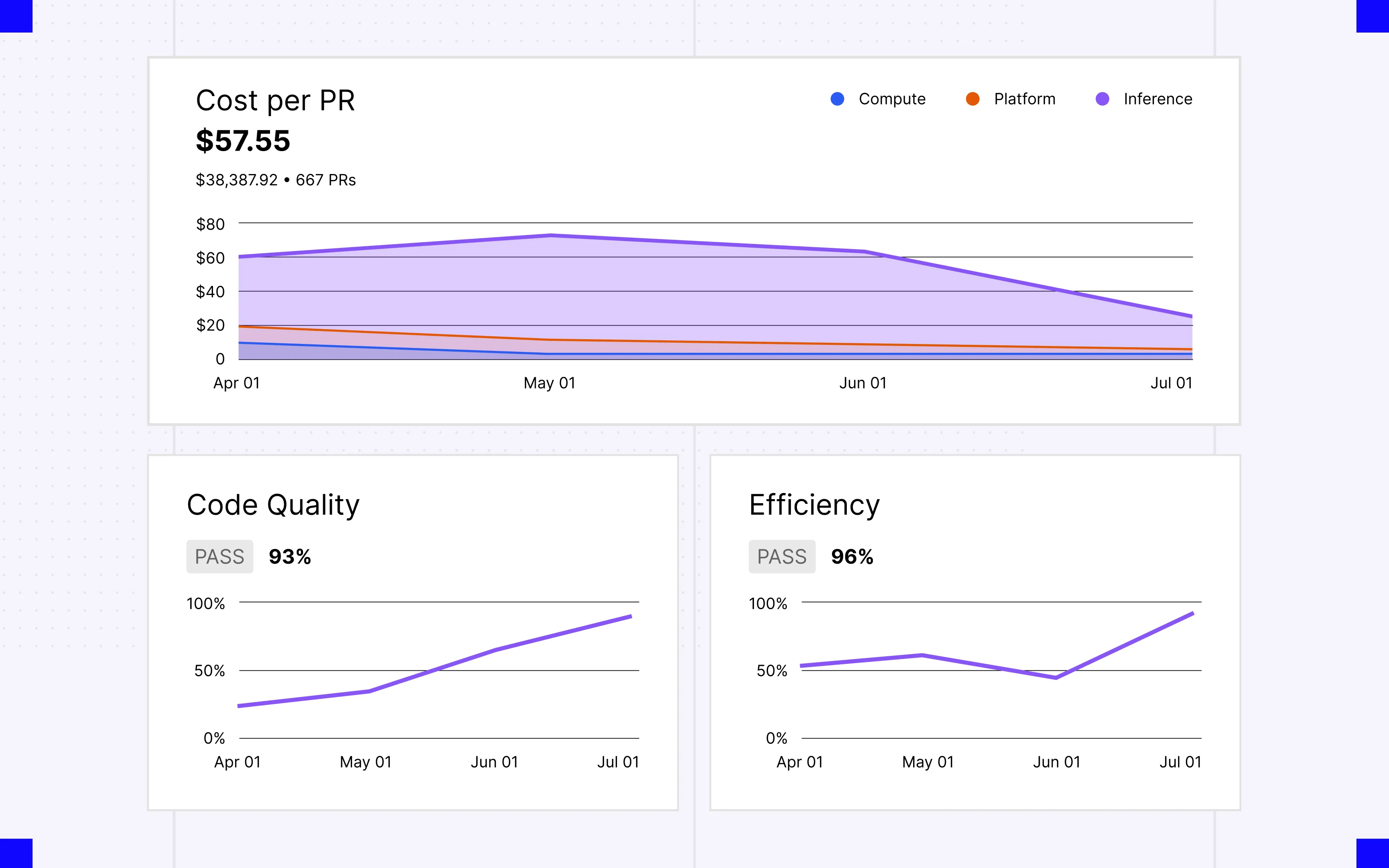 Cost per PR and example Scorer cards on the Dashboard page. ## Find what needs you in Inbox [Section titled “Find what needs you in Inbox”](#find-what-needs-you-in-inbox) **Inbox** collects the questions, spec approvals, and pull request reviews waiting on you across every factory, so you don’t have to check each factory’s Runs page for stalled work. See the [factory inbox](/factories/factory-inbox/) page for the kinds of items it shows and how to resolve them. ## Inspect runs [Section titled “Inspect runs”](#inspect-runs) A run is a single agent execution. A single request can span several runs as different agents pick it up, and related runs group under their parent in the list. The team-level **Runs** page lists every run you have access to; a factory’s **Runs** page lists only runs from that factory’s agents. Click **New** on a factory’s **Runs** page to send a prompt to the factory’s foreman agent. Open a run to see its timeline and cost, plus a **Sub-agents** tab for child runs when the agent used [multi-agent orchestration](/platform/orchestration/). From there you can view the agent’s full session, stop or score the run, or turn it into a benchmark task. ## Manage agents and automations [Section titled “Manage agents and automations”](#manage-agents-and-automations) **Agents** lists the factory’s agents. Create agents and edit their instructions, model or harness, runner, host, secrets, and MCP servers. **Automations** defines the triggers that start runs: a schedule (including custom cron expressions), a GitHub, Linear, Slack, or Jira event, or a delivery to a custom webhook. **Webhooks** lists the factory’s [custom webhooks](/factories/webhooks/), where you create them, copy their URLs, rotate secrets, and read the delivery log. The automation editor doesn’t change execution settings; an automation only overrides them through [execution overrides in the definition files](/factories/factory-as-code/#execution-overrides). When the factory’s definition lives in an external repository, Agents, Automations, and Scorers are read-only; make changes there through pull requests. ## Edit definitions in the Factory definition tab [Section titled “Edit definitions in the Factory definition tab”](#edit-definitions-in-the-factory-definition-tab) **Factory definition** is the factory dashboard’s view of the definition files that [definitions as code](/factories/factory-as-code/) describes in full. Where the definition lives decides what you get: * **Warp-managed** - Browse and edit the definition files. Saving validates the definition and commits all changes together. * **Managed in GitHub** - The tab doesn’t appear. Edit the definition through pull requests in your repository, and **Settings** links back to it. * **Live-managed** - The factory is managed through the API, so there are no definition files to browse. When an agent proposes a change to a Warp-managed definition, a spec review for the branch appears in your [inbox](/factories/factory-inbox/). Open it to comment on the diff, use **Request changes** to send feedback back to the agent, or **Approve & merge**. ## Score and benchmark [Section titled “Score and benchmark”](#score-and-benchmark) **Scorers** is where you create Scorers and read their results. **Self-improvement** lists the pull requests the self-improvement flow opens after analyzing runs your Scorers mark as failing, and **Benchmarks** compares model and runner configurations against a fixed set of tasks. See [Configuring Scorers](/factories/measure-and-improve/scorers/), [Configuring and reviewing Self-improvement](/factories/measure-and-improve/self-improvement/), and [benchmarking factory agent configurations](/factories/benchmarks/) for what each one is and how to use it. ## Change factory settings [Section titled “Change factory settings”](#change-factory-settings) **Settings** holds the configuration the factory owns: * **Identity** - The factory’s name, avatar, and [**Foreman name**](/factories/factory-as-code/#alias), the handle your team @-mentions. * **Repositories** - The repos the factory works in. * **Pull request authorship** - Whether pull requests are authored by the agent or the run creator (the definition’s [`credentialStrategy`](/factories/factory-as-code/#credentialstrategy)). * **Analysis model** - The model [Self-improvement](/factories/measure-and-improve/self-improvement/) uses to analyze failed runs. * **Runners** - The compute the factory’s runs execute on. * **Integrations** - The integrations this factory can access. * **Deletion** - Deletes the factory. This cannot be undone. For a file-managed factory, `runners/*.yaml` in the repository is the source of truth. Anything managed in an external repository is read-only in Settings. ## Next steps [Section titled “Next steps”](#next-steps) * [Factory inbox](/factories/factory-inbox/) - See and resolve the questions, spec approvals, and PR reviews waiting on you. * [How Warp Factories work](/factories/how-factories-work/) - The stages work moves through and where humans stay in the loop. * [Definitions as code](/factories/factory-as-code/) - Define agents, automations, runners, and source ownership in code. * [Factory agents](/factories/factory-agents/) - What each default agent does and how to configure it. * [Measure and improve a factory](/factories/measure-and-improve/) - Configure Scorers and use them in an improvement loop. * [Benchmarking factory agent configurations](/factories/benchmarks/) - Create a benchmark suite and compare configurations on fixed tasks. * [Troubleshooting Warp Factories](/factories/troubleshooting/) - Fixes for setup problems, work that doesn’t start, and stuck runs.
# Factory inbox
Canonical page: [/factories/factory-inbox/](https://docs.warp.dev/factories/factory-inbox/)
> See every question, spec approval, and pull request review waiting on you across your factories, and resolve them from one place.
**Inbox** collects everything your factories need from you specifically, across every factory you have access to, in one place. Instead of checking each factory’s Runs page for stalled or waiting work, open Inbox from the sidebar to see it all at a glance. ## What appears in your inbox [Section titled “What appears in your inbox”](#what-appears-in-your-inbox) Each item is one of six kinds: * **Asked question** - An agent needs a decision from you before it can continue. * **Answered question** - An agent already answered a question, for your information. No action is required. * **Spec review** - A spec needs your approval before implementation starts. * **PR review** - One or more pull requests are ready for your review. * **Blocked** - A run stopped and needs attention, and nothing else on that task already needs yours. * **Failed** - A run ended in an error, under the same condition as Blocked. Inbox only shows work tied to tasks *you* started. It’s a personal queue, not a team-wide feed: a teammate’s task, even a blocked or failed one, never appears in your inbox. Items clear on their own once they stop being relevant. For example, a PR review clears when someone reviews or merges the pull request, and a question clears once it’s answered. You can also resolve any item yourself. ## Reviewing your inbox [Section titled “Reviewing your inbox”](#reviewing-your-inbox) 1. Click a row to open its details in a side pane. From there, click a chip or the primary action, like **View run**, to open the underlying resource: the run, pull request, spec, or originating thread or ticket. 2. Once you’ve handled an item, mark it **resolved**. Click **Undo** in the confirmation to bring it back if you resolved it by mistake. 3. Mark items **read** or **unread** to track what you’ve reviewed without resolving them. 4. Filter by factory, read state, or kind, or search titles and descriptions, to narrow a long inbox. ## Related pages [Section titled “Related pages”](#related-pages) * [Factory dashboard](/factories/factory-dashboard/) - Track runs, manage agents, and change factory settings. * [How Warp Factories work](/factories/how-factories-work/) - Where a factory pauses for a person to decide something. * [Cloud agent session sharing](/platform/viewing-cloud-agent-runs/) - Follow and steer a run in real time from its session.
# Factory MCP for coding agents
Canonical page: [/factories/factory-mcp/](https://docs.warp.dev/factories/factory-mcp/)
> Connect any coding agent to create and operate your team's factories, send in work, continue tasks locally, and hand results back.
Factory MCP is a hosted Model Context Protocol (MCP) server that connects coding agents to your team’s factories. An agent can send work to a factory, pull down a task to continue locally, and return the result. ## What you can use it for [Section titled “What you can use it for”](#what-you-can-use-it-for) * **Send work in** - Turn anything from your local session into a factory task: a bug you found, review feedback, or a half-finished change. * **Continue a task locally** - Pull a task’s context into your own checkout, work with your own tools, and return the result to the same task. * **Stay in sync** - List and search tasks, read a task’s conversation, and message its [foreman](/factories/factory-agents/), the agent that orchestrates each task inside the factory. * **Create a factory** - Let your coding agent guide you through choosing a team, code host, repositories, factory agents, and integrations. * **Edit a factory’s definition** - Read the definition schema and validate a factory’s [definition files](/factories/factory-as-code/) before opening a pull request. ## Connect and authenticate [Section titled “Connect and authenticate”](#connect-and-authenticate) ### In Warp [Section titled “In Warp”](#in-warp) There is nothing to configure. When your account has access, Warp connects agent sessions to Factory MCP and handles authentication for you. To create your first factory, ask the agent to set one up — the setup prompt below is for agents outside Warp. ### Set up with your coding agent [Section titled “Set up with your coding agent”](#set-up-with-your-coding-agent) Paste this prompt into a coding agent that can run commands and configure MCP servers:
```text
Set up a factory for me. Read https://docs.warp.dev/factories/factory-mcp.md, follow the setup instructions for your coding environment to connect to and authenticate with Factory MCP, then use Factory MCP to onboard me.
```
The agent connects to Factory MCP, opens a browser sign-in where you log in or create a Warp account, then walks you through the same choices as the [setup wizard](/factories/quickstart/#set-up-your-factory): team, code host, repositories, agents, and integrations. It finishes by linking your new factory’s dashboard. If the Warp Factories web app is still open to its setup screen in your browser, refresh the page to pick up the new factory. ### In other MCP clients [Section titled “In other MCP clients”](#in-other-mcp-clients) Factory MCP is a streamable HTTP server at `https://app.warp.dev/api/v1/mcp/factory`. Point any MCP client that supports remote servers at that URL; on first connect, the client opens a browser so you can sign in and approve access. With Claude Code:
```bash
claude mcp add --transport http --scope local warp-factory https://app.warp.dev/api/v1/mcp/factory
```
In clients that use the `mcpServers` JSON format, such as Cursor:
```json
{
"mcpServers": {
"warp-factory": {
"url": "https://app.warp.dev/api/v1/mcp/factory"
}
}
}
```
`warp-factory` is the server’s name in your client. One connection reaches every factory you can access. For Codex and other clients, follow the [client’s own remote-server instructions](https://developers.openai.com/codex/mcp/#connect-codex-to-an-mcp-server) with the same URL. Automation that runs without a person present, such as a CI pipeline or a headless server, can’t complete the browser sign-in. For those cases, authenticate with an [agent API key](/reference/cli/api-keys/) instead, passed as a bearer token:
```json
{
"mcpServers": {
"warp-factory": {
"url": "https://app.warp.dev/api/v1/mcp/factory",
"headers": {
"Authorization": "Bearer YOUR_API_KEY"
}
}
}
}
```
Caution Factory MCP has no read-only or per-factory scopes: a connected client acts with the full permissions of the account or agent it authenticates as. Store API keys in your client’s secret storage, never in a repository. ## Send new work to a factory [Section titled “Send new work to a factory”](#send-new-work-to-a-factory) To create a task, your agent calls `send_task` with the target factory, a title, and a note. The note is what the foreman starts from, so a good one states the goal, the relevant context and constraints, and any work already done. The foreman takes it from there and reports progress on the task’s conversation. If the new task builds on local changes, push the branch or open a pull request first and reference it in the note, so the factory can see that work. ## Pick up a task and work on it locally [Section titled “Pick up a task and work on it locally”](#pick-up-a-task-and-work-on-it-locally) 1. **Find the task.** Your agent locates it with `list_tasks` or `search_task`, or resolves a reference you give it with `get_task`: a task or run URL, a GitHub pull request, a Slack permalink, a Linear or Jira issue, or a branch name. 2. **Pull down the context.** Calling `get_task` with `start_working=true` returns the task’s status, run history, and suggested Git commands for setting up an isolated [worktree](/code/git-worktrees/) in a local clone. Factory MCP never modifies your files; your agent runs the setup itself. 3. **Coordinate while you work.** `message_foreman` sends progress, questions, and blockers to the task’s foreman, and `get_conversation` reads the replies. Messaging keeps the factory informed but doesn’t move the task or hand anything back. 4. **Commit and push.** Validate the change, then push the branch. The factory can’t see uncommitted or unpushed work. 5. **Hand the task back.** Your agent calls `send_task` with the task’s ID, the pushed branch or pull request URL, and a note covering what changed, what was validated, and what remains. The work returns to the same task, and the foreman decides the next step. Caution Picking up a task doesn’t claim, lock, or pause it, and the factory may keep running its own work on it in the meantime. Check the task’s active runs and tell the foreman you’re picking it up, so you don’t end up with duplicate changes. When nothing remains for the factory to do, `complete_task` closes the task out. Handing work back doesn’t complete a task by itself. ## Get notified when a task needs you [Section titled “Get notified when a task needs you”](#get-notified-when-a-task-needs-you) Sending work to a factory means you’re no longer watching it. To be notified when a task needs attention or finishes, ask for a notification when sending or returning work: your agent calls `list_notification_routes` to see the destinations available to you in that factory, such as a Slack DM or a Linear issue, and passes your choice to `send_task`. Delivery is best-effort, so treat notifications as a convenience rather than a guarantee. ## Tool reference [Section titled “Tool reference”](#tool-reference) Your MCP client fetches the full input schemas from the server, and tool results include links that open the corresponding task or run in the factory’s [factory dashboard](/factories/factory-dashboard/). The onboarding tools from `list_teams` through `create_factory` require browser sign-in. | Tool | What it does | | -------------------------- | ---------------------------------------------------------------------------------------------------------------------------------------------------------------------------------------------- | | `list_factories` | Lists the factories you can access. | | `get_factory_file_schema` | Returns the JSON Schema documents for factory definition files, as a catalog or one document at a time. | | `validate_factory_files` | Validates a complete factory definition tree without saving or applying it. | | `list_teams` | Lists current memberships and first-time joinable team choices. | | `create_team` | Creates the authenticated user’s first team with a confirmed name. | | `join_team` | Joins a team selected from the first-time discovery choices. | | `get_team_funding_status` | Checks first-team credit readiness and returns the browser checkout step when required. | | `list_forge_repositories` | Lists repositories available through a team’s connected GitHub or GitLab account. | | `list_tracker_scopes` | Lists the Linear teams or Jira projects that can be scoped to route issues to a new factory. | | `start_connection` | Starts or checks setup for GitHub, GitLab, Slack, Linear, or Jira. | | `get_connection_status` | Checks whether a browser authorization flow completed. | | `create_factory` | Creates a factory with the selected repositories, integrations, and optional factory agents. | | `list_tasks` | Lists the tasks in one factory, with filters such as creator, stage, and date. | | `search_task` | Searches task titles across all factories you can access. | | `get_task` | Reads a task’s status, run history, and outputs. Accepts a task ID or a reference such as a URL, issue, pull request, or branch. With `start_working=true`, also returns local setup guidance. | | `message_foreman` | Sends a message to a task’s foreman. | | `get_conversation` | Reads a task’s foreman conversation. | | `send_task` | Creates a new task, or hands work back to an existing one. | | `list_notification_routes` | Lists the notification destinations available to you in a factory. | | `complete_task` | Marks a task complete. | ## Related pages [Section titled “Related pages”](#related-pages) * [**Definitions as code**](/factories/factory-as-code/) - Every file and key in a factory definition, the JSON Schema behind them, and how to validate a change. * [**Factory agents**](/factories/factory-agents/) - The foreman and the other agents that carry out a factory’s tasks. * [**How Warp Factories work**](/factories/how-factories-work/) - The task lifecycle and the agents that move work through it. * [**Warp Factories quickstart**](/factories/quickstart/) - Create a factory and send it its first work item.
# Factory skills
Canonical page: [/factories/factory-skills/](https://docs.warp.dev/factories/factory-skills/)
> Skills give a factory's agents repeatable, version-controlled procedures that can be shared across every agent or scoped to just one.
A skill tells an agent what to check, how to classify results, what to produce, and when to escalate. In a factory, skills are how you extend or override [default agents](/factories/factory-agents/), without editing their prompts directly. ## Factory-wide and per-agent skills [Section titled “Factory-wide and per-agent skills”](#factory-wide-and-per-agent-skills) A skill is a directory containing a `SKILL.md`. It’s part of the factory’s [definition](/factories/factory-as-code/), not an agent’s settings. Where you place the directory decides who can use it:
```text
skills/
repository-conventions/
SKILL.md
agents/
foreman/
skills/
incident-triage/
SKILL.md
```
* **`skills//SKILL.md`** - Available to every agent in the factory. Use this for procedures that apply regardless of role, such as your repository’s coding conventions or a shared escalation policy. * **`agents//skills//SKILL.md`** - Available only to that agent. Use this for procedures specific to one role, such as how the review agent should apply your security checklist. Both forms use the same `SKILL.md` format as skills anywhere else in Warp. See [Skills](/agents/capabilities/skills/) for the file format, front matter, and argument syntax. ## Built-in skills [Section titled “Built-in skills”](#built-in-skills) Every default agent starts with a baseline of built-in skills so the factory works immediately after setup, before you write anything custom: * **GitHub** - Every default agent gets a GitHub skill, covering how to read issues, open pull requests, and follow your repository’s conventions. * **Slack** - The foreman also gets a Slack skill, since it’s the agent that replies in threads and DMs. * **Issue tracker** - The tracker you choose during setup, Linear or Jira, adds that tracker’s skill and instructions to the agents that use it. If you don’t connect a tracker, agents keep only the GitHub and Slack skills. These baseline skills aren’t files in your definition; they come from the agent roles and integrations you choose. Anything you add under `skills/` or `agents//skills/` extends this baseline rather than replacing it. ## When to add a custom skill [Section titled “When to add a custom skill”](#when-to-add-a-custom-skill) Add a custom skill when a default agent needs to do something the built-in baseline doesn’t cover, such as: * Enforcing a specific test, lint, or validation command before a change is considered complete. * Following a runbook for a category of incident or request your triage agent sees repeatedly. * Applying a security or compliance checklist during review that goes beyond general code quality. * Teaching a custom agent its job. Custom agents have no built-in skills. A skill changes what an agent knows how to do, not what it can reach. To scope access, configure the agent’s [secrets](/platform/secrets/) and [MCP servers](/platform/mcp/) — see [factory agents](/factories/factory-agents/#configure-agent-behavior) and [infrastructure and security](/factories/infrastructure-and-security/#credential-boundaries). ## Add or edit a skill [Section titled “Add or edit a skill”](#add-or-edit-a-skill) Where you edit a skill depends on [where the factory’s definition lives](/factories/factory-as-code/#where-the-definition-lives): * **Warp-managed** - Add or edit `SKILL.md` files directly in the **Factory definition** tab of the [factory dashboard](/factories/factory-dashboard/). Saving validates and commits the change in one step. * **GitHub** - Add or edit the files in the connected definition repository and open a pull request. The same [pull request checks](/factories/factory-as-code/#pull-request-checks) that validate the rest of the definition apply to skill files. For worked examples, including a factory-wide skill and a per-agent skill together, see [`02-sdlc-issue-to-pr`](https://github.com/warpdotdev/warp-factory-examples/tree/main/examples/02-sdlc-issue-to-pr) in the [warp-factory-examples](https://github.com/warpdotdev/warp-factory-examples) repository. ## Skills and self-improvement [Section titled “Skills and self-improvement”](#skills-and-self-improvement) A factory can propose changes to a skill. When [Self-improvement](/factories/measure-and-improve/self-improvement/) is on for a Scorer and it flags a recurring failure, it can edit the responsible skill in a follow-up run, the same way it can edit application code. The change still arrives as a pull request for your team to review, whether that’s through the factory dashboard or your Git host. ## Related pages [Section titled “Related pages”](#related-pages) * [Factory agents](/factories/factory-agents/) - The agents that use a factory’s skills, and how to configure each one. * [Definitions as code](/factories/factory-as-code/) - The full schema for `factory.yaml`, agents, automations, and runners alongside skills. * [Skills](/agents/capabilities/skills/) - The general skill file format, shared across Warp, cloud agents, and factories. * [Measure and improve a factory](/factories/measure-and-improve/) - How Self-improvement turns repeated failures into skill and code changes.
# How Warp Factories work
Canonical page: [/factories/how-factories-work/](https://docs.warp.dev/factories/how-factories-work/)
> A factory's foreman routes each work item through triage, planning, building, and reviewing, with humans making the key decisions.
A factory is a team of cloud agents that ships software the way your team does: a request comes in, moves through the stages it needs, and comes back as a pull request ready for review. You talk to one agent, the **foreman**, from the tool that sends the request, such as Slack or Linear. The foreman dispatches the factory’s other agents, and each one owns a part of the software development lifecycle. Deciding which repositories belong in this factory is a separate question. See [sizing a factory](/factories/#sizing-a-factory) for that guidance. A **work item** is a single request the factory acts on, such as an issue, support request, pull request, or Factory MCP task. It keeps its identity from intake to handoff, however many agents contribute to it along the way. ## How a work item moves through the factory [Section titled “How a work item moves through the factory”](#how-a-work-item-moves-through-the-factory) The foreman coordinates every work item. It routes work between the factory’s agents, passes each one the context it needs, and continues existing agent conversations instead of starting new ones. See [factory agents](/factories/factory-agents/) for what each agent does. Not every work item needs every stage. The foreman picks the shortest path that still meets your quality policy: it skips stages when the work is already well defined, starts partway through when enough context exists, and sends work back to an earlier agent when revisions are needed. ### Stages [Section titled “Stages”](#stages) The diagram below shows the default path through a factory’s stages.
```
flowchart LR
Intake[Intake] --> Foreman[Foreman]
Foreman --> Triage[Triage]
Triage --> Decision{Plan needed?}
Decision -->|Yes| Planning[Planning]
Decision -->|No| Building[Building]
Planning --> Approval["Human review (default policy)"]
Approval --> Building
Building --> Reviewing[Reviewing]
Reviewing --> Revision{Revision needed?}
Revision -->|Yes| Building
Revision -->|No| Handoff["Human handoff (default policy)"]
Handoff --> Complete[Complete]
```
* **Intake** - A work item enters from a [connected integration](/factories/connect-your-factory/), an automation, a direct run, or the [Factory MCP](/factories/factory-mcp/). It keeps its source context as it moves through later stages. * **Triage** - The triage agent researches the request, reproduces the problem when needed, and defines the scope and complexity of the change. The foreman skips this stage when the request already explains the problem and what needs to change. * **Planning** - The spec agent defines product behavior, technical constraints, and validation criteria. The foreman skips this stage for small, well-understood changes. * **Building** - The implement agent makes the code change on a branch and opens a pull request with test and visual evidence. * **Reviewing** - The review agent checks the change against the requirements, tests, and security expectations, then sends findings back for another pass. Its verdict is advisory. * **Human handoff** - The factory presents the result, its evidence, and any findings. A person decides what happens next. * **Complete or Cancelled** - The work item ends when the factory finishes its work, or stops early if someone cancels it. Stages and agents are named separately, so the spec agent works the Planning stage, the implement agent works the Building stage, and the review agent works the Reviewing stage. Each agent’s run within a work item is an ordinary [cloud agent run](/platform/) you can watch and steer from the factory’s [Runs page](/factories/factory-dashboard/#inspect-runs), and any stage that needs your input surfaces in your [inbox](/factories/factory-inbox/). ## Where your team stays in charge [Section titled “Where your team stays in charge”](#where-your-team-stays-in-charge) A factory is built to pause when there is a decision that needs to be made by a person. By default, that’s three places: * **Approving the spec** - When work goes through the Planning stage, the Building stage waits until a person signs off on the plan. * **Answering questions** - When requirements are unclear or a review finding is ambiguous, the foreman asks instead of guessing. * **Merging** - The factory opens the pull request and hands it off. Whether and when it merges is your team’s call. The first two are workflow policy, written into the foreman’s instructions; edit them to change when the factory checks in. Merging is enforced by your repository, so if you require human-only merges, use branch protection and repository permissions. ## How the factory improves itself [Section titled “How the factory improves itself”](#how-the-factory-improves-itself) Your factory is self-improving, and you define what “better” means. [Scorers](/factories/measure-and-improve/scorers/) classify completed runs against criteria you write, and [Self-improvement](/factories/measure-and-improve/self-improvement/) groups the failures they flag into follow-up runs that propose fixes — to the application code or to the factory’s own definition. Every proposal arrives as a change for your review; nothing is adopted on its own. The factory’s definition is open to the same loop. Anyone on the team, or an agent, can propose changes to its instructions, skills, models, or other [definition files](/factories/factory-as-code/), and definitions stored in GitHub go through pull request review and [configuration checks](/factories/factory-as-code/#pull-request-checks) before a change reaches the production branch. See [measure and improve](/factories/measure-and-improve/) for the evaluation workflow, or [build a self-improving agent](/guides/agent-workflows/build-a-self-improving-agent/) to apply the same pattern to a standalone agent.
# Warp Factories infrastructure and security
Canonical page: [/factories/infrastructure-and-security/](https://docs.warp.dev/factories/infrastructure-and-security/)
> Warp Factories gives you control over inference, hosting, and run data so you own your factory's infrastructure and outputs.
Warp Factories runs on the infrastructure your team chooses. You decide where a factory runs code, which model providers serve its inference requests, where run data such as transcripts and artifacts is stored, and which credentials each agent receives. Warp coordinates the work the same way regardless of these choices. ## Control plane and execution plane [Section titled “Control plane and execution plane”](#control-plane-and-execution-plane) Every factory splits responsibilities across two planes: * **Control plane** - Warp coordinates runs, identity and configuration, observability, integrations, storage, and inference routing. * **Execution plane** - A Warp-hosted sandbox or a managed self-hosted worker checks out code, runs setup, invokes tools, builds the project, and executes commands.
```
flowchart LR
I["Integrations and triggers"] --> C["Warp control plane coordination · identity/config observability · inference routing"]
C --> H["Warp-hosted sandbox"]
C -->|"task, config, and scoped runtime credentials"| S["Managed self-hosted worker"]
H -->|"results, transcripts, artifacts, telemetry"| C
S -->|"results, transcripts, attachments, artifacts, and telemetry can contain code context"| C
C --> P["Warp-managed or customer-configured inference"]
C --> D["Warp or supported customer-owned storage"]
```
Self-hosting moves only the execution plane: with a managed self-hosted worker, repository checkouts, command execution, and the sandbox filesystem stay on machines you control, but content that enters prompts, results, transcripts, attachments, artifacts, or telemetry still flows through Warp and the providers you configure. See [deployment patterns](/platform/deployment-patterns/) and [self-hosting security and networking](/platform/self-hosting/security-and-networking/) for the broader data model. ## Runners [Section titled “Runners”](#runners) A runner defines the operating system, architecture, sandbox image, and instance shape (vCPUs and memory) for a factory agent. The factory’s [definition](/factories/factory-as-code/) supplies its repositories, setup commands, and secrets; the execution host determines whether that runner uses Warp-hosted or self-hosted compute. Declare runners as `runners/*.yaml` files. Every agent inherits `agentDefaults.runner`, and an agent or automation can override it. A self-hosted runner must match the worker’s operating system and architecture. Warp provisions hosted runners within your plan limits; your team provisions and operates self-hosted compute. See [cloud agent runner compute options](/platform/runners/) and [factory runner syntax](/factories/factory-as-code/#runnersnameyaml). ## Choose an execution host [Section titled “Choose an execution host”](#choose-an-execution-host) A factory runs its work on one of two execution hosts: Warp-hosted compute or a worker in the [managed self-hosting architecture](/platform/self-hosting/#managed-architecture). | Decision area | Warp-hosted | Managed self-hosted | | ------------------------- | ----------------------------------------- | ---------------------------------------------------------------- | | **Compute** | Warp provisions the sandbox | Your team provisions the worker | | **Checkout and commands** | Run on Warp-managed compute | Run on your infrastructure | | **Control plane** | Runs through Warp | Runs through Warp | | **Network** | Warp manages sandbox connectivity | The worker connects outbound to Warp; no inbound firewall port | | **Private services** | Must be reachable from the hosted sandbox | Reachable through the worker’s network access | | **Operations** | Warp manages capacity and lifecycle | Your team manages capacity, isolation, updates, and availability | To route factory work to a managed self-hosted worker (an Enterprise feature): 1. **Deploy a worker** - Use the [self-hosting overview](/platform/self-hosting/) to choose a managed backend and review its requirements, then connect a worker that authenticates to Warp with an agent API key. Workers run on `linux/amd64` and `linux/arm64`, and the worker’s platform determines which workloads it can run. 2. **Pair it with a compatible runner** - Choose a runner that matches the worker’s platform. 3. **Select the worker in the factory definition** - Set [`workerHost`](/factories/factory-as-code/) so the factory routes work to it. For a working definition with `workerHost` set and a platform-matched runner, see [`07-self-hosted-worker`](https://github.com/warpdotdev/warp-factory-examples/tree/main/examples/07-self-hosted-worker). Unmanaged self-hosted agents and other CLI agents can’t serve as a factory’s execution host, but they can exchange work with a factory through [Factory MCP](/factories/factory-mcp/). ### Managed self-hosting structures [Section titled “Managed self-hosting structures”](#managed-self-hosting-structures) Factories use managed self-hosting, so Warp still orchestrates their runs. The worker backend sets isolation and scheduling on your infrastructure: | Structure | How factory runs execute | What your team operates | Use it when | | -------------------------------------------------------------- | ------------------------------------------------------------------------------ | ------------------------------------------------------------------------------------------ | ----------------------------------------------------------------------------------- | | **[Docker](/platform/self-hosting/managed-docker/)** (default) | In a separate Docker container on the worker host | The worker daemon, host, Docker daemon, images, capacity, and container policy | Docker is available and you want per-run container isolation without Kubernetes | | **[Kubernetes](/platform/self-hosting/managed-kubernetes/)** | As a Kubernetes Job in the worker’s namespace | The worker deployment, cluster, namespace RBAC, scheduling, admission policy, and capacity | Your team already operates Kubernetes or needs cluster-native policy and scheduling | | **[Direct](/platform/self-hosting/managed-direct/)** | In a separate workspace directly on the worker host, sharing its OS and kernel | The worker daemon, host security, dependencies, capacity, and cleanup | A container runtime isn’t available or runs need direct access to host resources | All three structures keep execution on your infrastructure while Warp operates the control plane. ## Choose inference and storage independently [Section titled “Choose inference and storage independently”](#choose-inference-and-storage-independently) Execution hosting doesn’t select inference or storage. Configure those boundaries separately. ### Inference options for factory runs [Section titled “Inference options for factory runs”](#inference-options-for-factory-runs) Factory agents execute as cloud agents, so only inference options that support cloud agent runs apply: | Option | Support for factory runs | Team controls | Key boundary | | ------------------------------------------------------------------------------------------------------- | ------------------------------ | -------------------------------------------------------------------------- | ------------------------------------------------------------------------------------------------------------------------------ | | **Warp-managed inference** | Supported | The model selected for each agent | Warp provides the provider account and bills model usage with Warp credits | | **[Team-managed keys and endpoints](/enterprise/enterprise-features/team-managed-keys-and-endpoints/)** | Supported on Enterprise | Shared OpenAI, Anthropic, or Google keys, or an OpenAI-compatible endpoint | Warp stores the encrypted credential and uses it only at the inference boundary; it never enters the worker or run environment | | **[BYOLLM: AWS Bedrock](/enterprise/enterprise-features/byollm-aws-bedrock/)** | Supported on Enterprise | The AWS account, IAM role, available Claude models, and provider billing | Warp assumes your IAM role through OIDC; inference runs in your AWS account | | **[BYOLLM: Gemini Enterprise](/enterprise/enterprise-features/byollm-gemini-enterprise/)** | Not supported for factory runs | Interactive inference in your Google Cloud project | Gemini Enterprise BYOLLM currently supports interactive agent requests only | Self-serve BYOK and custom inference endpoints are stored on an individual member’s device and don’t apply to factory runs. With team-managed keys and endpoints, select a specific provider model or endpoint; Auto continues to use Warp-managed inference. When you supply the provider, its retention follows your account and contract, and Warp can’t enforce ZDR for that provider. ### Customer-owned storage [Section titled “Customer-owned storage”](#customer-owned-storage) Enterprise teams can keep supported transcripts, artifacts, and run attachments in a customer-owned Amazon S3 or Google Cloud Storage bucket. Your team owns the bucket’s access and lifecycle policies. Factory configuration, run metadata, orchestration, and other control-plane state stay with Warp. ## Credential boundaries [Section titled “Credential boundaries”](#credential-boundaries) A factory handles four kinds of credentials, each with its own boundary: | Credential | Used for | Boundary | | -------------------------- | -------------------------------------------------- | --------------------------------------------------------------------------------------------------------------------------------------------------------------------------------------------------------------------------- | | **Inference credentials** | Model provider requests | Used only at the inference boundary; never injected into the sandbox | | **Execution secrets** | APIs, package registries, and tools an agent uses | Delivered from an explicit per-agent allowlist; factory agents that don’t act as a specific user receive no managed secrets by default | | **Harness authentication** | Third-party harnesses such as Claude Code or Codex | Configured separately from the agent’s secret allowlist | | **Repository identity** | Checking out code and pushing changes | Runs act with the creating user’s authorization (changes are attributed to them) or as the agent itself for unattended work; set by the definition’s [`credentialStrategy`](/factories/factory-as-code/#credentialstrategy) | Scope each credential to the resources and actions its agent needs. Warp redacts known secret values at output boundaries, but redaction is a backstop, not a substitute for narrow external permissions and rotation. See [cloud agent secrets](/platform/secrets/), [harness authentication](/platform/harnesses/authentication/), [secret redaction](/support-and-community/privacy-and-security/secret-redaction/), and [team identity](/platform/team-access-billing-and-identity/) for the underlying controls. ## Governance and metering [Section titled “Governance and metering”](#governance-and-metering) Factories use your existing [team roles](/enterprise/team-management/roles-and-permissions/): Team Owners and Admins control factory definitions, runners, secrets, and provider configuration. Warp Factories doesn’t add a factory-specific approval role, so who reviews specifications and who approves merges stays a workflow and repository policy decision. Treat factory-definition changes as operational code: review them like any other change, and keep merge access with the people responsible for shipping. Warp meters hosted compute, Warp-provided inference, and platform services. Managed self-hosted execution moves compute costs to your own infrastructure, and customer-supplied inference bills model usage through your provider account. Platform services consume credits regardless of these choices. See [platform credits](/support-and-community/plans-and-billing/platform-credits/) for details. ## Deployment checklist [Section titled “Deployment checklist”](#deployment-checklist) 1. **Classify the workload** - Identify the repositories, data, internal services, and regulated systems the factory can reach. 2. **Choose execution** - Decide where checkout, commands, and the sandbox filesystem must run. 3. **Configure the factory and its runners** - Set the repositories, setup commands, secrets, and compatible runners in the factory’s definition. 4. **Choose inference and storage** - Select provider routing and where supported run data persists. 5. **Scope credentials** - Set each agent’s secret allowlist, harness authentication, and repository identity. 6. **Set review gates** - Decide where humans review specifications and pull requests, and enforce those gates in workflow and repository policy. 7. **Validate operations** - Test network egress, isolation, rotation, redaction, capacity, observability, and metering before increasing volume. ## Related pages [Section titled “Related pages”](#related-pages) * [**Deployment patterns**](/platform/deployment-patterns/) - Compare Warp-hosted, managed self-hosted, and CLI-only execution. * [**Self-hosting overview**](/platform/self-hosting/) - Choose a managed worker backend and follow its setup guide. * [**Self-hosting security and networking**](/platform/self-hosting/security-and-networking/) - Review data boundaries, network egress, and backend-specific controls. * [**Bring Your Own LLM**](/enterprise/enterprise-features/bring-your-own-llm/) - Compare customer-owned inference options and provider support. * [**Enterprise security overview**](/enterprise/security-and-compliance/security-overview/) - Review data handling, ZDR, compliance, and access controls across Warp.
# Connect GitHub to your factory
Canonical page: [/factories/integrations/github/](https://docs.warp.dev/factories/integrations/github/)
> Connect GitHub to your factory so issues, pull requests, reviews, and CI events start factory work and results post back to GitHub.
When you connect a factory to GitHub, repository activity starts work in your factory. Issues, pull requests, reviews, and CI events can all trigger automations, and the factory posts results back to GitHub as comments, branches, and pull requests. ## Prerequisites [Section titled “Prerequisites”](#prerequisites) * **The Warp GitHub App** - Follow the [GitHub integration setup](/platform/integrations/github/) if you haven’t already. One installation serves both the platform integration and factories. * **A factory with GitHub repositories** - The app must have access to at least one of the factory’s repositories. ## Connect GitHub to a factory [Section titled “Connect GitHub to a factory”](#connect-github-to-a-factory) 1. In the [Warp Factories web app](https://platform.warp.dev), click **+** next to **Factories** to open the setup wizard, then choose **I want to use repos from GitHub** under **Connect your code host**. 2. Under **Select your repos**, choose the repositories to provide code and context for the factory. That’s all the setup GitHub needs. A new factory arrives with two automations already switched on, so it responds to GitHub activity right away: * **Mentions and assignments** - Start work by mentioning **@warp-factory**. See [Mention the factory](#mention-the-factory) below. * **Pull request merges** - Close out work by merging a pull request with your factory’s label. Any work items linked to the pull request move to their tracker’s completed state. Closing without merging does nothing. To confirm the connection works, mention **@warp-factory** on a test issue and check that a work item starts in the factory’s [dashboard](/factories/factory-dashboard/). ## Add a custom automation [Section titled “Add a custom automation”](#add-a-custom-automation) The defaults cover mentions, assignments, and pull request completion. To start work from any other GitHub activity, such as a failed CI run or a review request, add an automation with a GitHub trigger for that event, then narrow it with the filters below. To learn how to edit those filters, see [Automations](/factories/automations/#edit-filters-on-an-automation). The CI failure triage automation in [`06-common-automations`](https://github.com/warpdotdev/warp-factory-examples/tree/main/examples/06-common-automations) in the [warp-factory-examples](https://github.com/warpdotdev/warp-factory-examples) repository starts work when a workflow run fails on the default branch: automations/ci-failure-triage/automation.md
```markdown
---
triggers:
- provider: github
event: workflow_run_completed
filter:
repos: [acme/api-service]
branches: [main]
conclusions: [failure]
---
A workflow run failed on the default branch. Read the run's logs and find
the failing step. If the cause is small and clear, open a fix PR. Otherwise
open an issue with the failing step, the error, and the commit range, and
link the run.
```
For a review automation that fires when pull requests open, see [`04-code-review-only`](https://github.com/warpdotdev/warp-factory-examples/tree/main/examples/04-code-review-only). ## Supported triggers [Section titled “Supported triggers”](#supported-triggers) | Trigger | Supported activity | | ------------- | ----------------------------------------------------------------------------------------------------- | | Issues | Created, labeled, assigned, or agent mentioned | | Pull requests | Opened, marked ready, reopened, updated with commits, assigned, labeled, mentioned, closed, or merged | | Reviews | Review requested or review submitted | | Code and CI | Push, a completed check suite or workflow run | For the exact `event` value each trigger uses in a definition file, see [triggers](/factories/factory-as-code/#triggers). ### Automation filters [Section titled “Automation filters”](#automation-filters) Every trigger names the repository it watches. The remaining filters appear only on the event types they apply to: | Filter | Matches | Appears on | | ------------------------------------ | ------------------------------------------------------------ | ------------------------------------------------------ | | **Branches** | The pushed branch, or a CI run’s head branch | Push and CI triggers | | **Base branches** | The branch the pull request targets | Pull request triggers | | **Paths** | The files the change touches | Push and pull request triggers | | **Labels** | Labels on the issue or pull request | Issue, pull request, review submitted, and CI triggers | | **Authors** | Who opened the issue or pull request | Issue, pull request, and CI triggers | | **Assignees** | Who the issue or pull request is assigned to | Issue and pull request triggers | | **Mentioned users or teams** | Which user or team is @mentioned | Mention and review submitted triggers | | **Reviewers** and **Reviewer teams** | Who review was requested from | Review requested triggers | | **Review states** | Whether the review approved, requested changes, or commented | Review submitted triggers | | **Workflows** | The GitHub Actions workflow, by name | Workflow run triggers | | **Conclusions** | The run’s result: success, failure, cancelled, and so on | Check suite and workflow run triggers | On check suite and workflow run triggers, **Labels** and **Authors** match the pull request linked to the run rather than the run itself. ## Mention the factory [Section titled “Mention the factory”](#mention-the-factory) Add the factory’s `factory:` label to the issue or pull request, then mention **@warp-factory** in the opening body or a new comment. The alias is the **Foreman name** in the factory dashboard’s **Identity** settings. Warp creates the label with the factory, and the factory replies in the same thread. Without the label, a linked Warp account can still route the mention: * **One accessible factory** - Warp adds its label and starts work. * **Multiple accessible factories** - Warp asks you to add the right label and mention **@warp-factory** again. * **No accessible factory** - Warp asks you to connect the repository or request access. Default automations can respond to authors whose GitHub accounts aren’t linked to Warp. Only new content counts as a mention. Edits to existing comments, mentions inside code blocks, and mentions from bots are ignored. You can change what the factory answers to. The handle and the label are the starting filters on its mentions automation: edit them to respond to a different handle, such as your own `@org/team` slug, or remove the label filter so that any mention in the factory’s repositories starts work. ## How the factory responds on GitHub [Section titled “How the factory responds on GitHub”](#how-the-factory-responds-on-github) The factory posts progress and links in the originating issue, pull request, or review thread. Pushes and workflow runs report on the work item instead. New activity on an existing thread continues the same work item. Issues and pull requests the factory opens or adopts carry its `factory:` label. Warp removes it when you disconnect the repository or delete the factory. Delete old labels after renaming the alias. Branches and pull requests the factory creates follow the repository’s normal rules: branch protection, required reviews, and merge requirements all still apply. ## Permissions [Section titled “Permissions”](#permissions) Runs authenticate with the GitHub App installation, not with the account of the person whose activity triggered them: * **The app installation decides what agents can reach.** Agents get exactly the repositories and permissions the installation grants, so change the installation to change access. [Automation filters](/factories/automations/) only change when work starts. * **Anyone who can create matching activity can start work.** The event author doesn’t need to be a Warp team member. Use author, label, and branch filters to control what starts runs. For the full credential model, see [Permissions and identity](/platform/integrations/github/#permissions-and-identity) on the GitHub integration page. ## Factory-definition pull request checks [Section titled “Factory-definition pull request checks”](#factory-definition-pull-request-checks) If the factory’s [definition is managed as code](/factories/factory-as-code/) in a GitHub repository, Warp reviews changes to it the way CI reviews code. Open a pull request that touches the definition files and a **warp/factory-config** check runs: it validates the head commit and dry-runs the change against your team, so it also catches a secret, runner, MCP server, or model that doesn’t exist. It passes with a summary of what merging would create, update, and delete, or fails with the specific fields to fix. If the definition lives in a subdirectory of the repository, the directory is appended to the check name, as in **warp/factory-config (factory)**. Require the check in branch protection to stop an invalid definition from merging. These checks validate configuration files only and don’t create work items. Unchanged definitions pass immediately, so requiring the check doesn’t block unrelated work. To check a definition before opening a pull request, see [Validate a definition](/factories/factory-as-code/#validate-a-definition). ## Troubleshooting [Section titled “Troubleshooting”](#troubleshooting) ### A mention doesn’t start work [Section titled “A mention doesn’t start work”](#a-mention-doesnt-start-work) Confirm the mention is new human-authored content, not an edit, bot comment, or markdown code. Use **@warp-factory**, and add the factory’s `factory:` label. Without a label, routing works only when your linked Warp account can access exactly one factory connected to the repository. If you renamed the alias or changed repositories after creating the factory, the default automation’s filters still use the original snapshot. Edit that automation so the label and repository filters match. ### A GitHub event doesn’t start work [Section titled “A GitHub event doesn’t start work”](#a-github-event-doesnt-start-work) Confirm the app installation covers the event’s repository, the repository belongs to the factory, and the automation includes that event. Then check each filter; a label, author, branch, workflow, conclusion, or state mismatch prevents routing. ### Filter options don’t load [Section titled “Filter options don’t load”](#filter-options-dont-load) Select a repository first. If the automation editor shows **Connect GitHub**, complete the account connection and retry. You can enter a value manually when suggestions are unavailable. ### An agent can’t push a branch or open a pull request [Section titled “An agent can’t push a branch or open a pull request”](#an-agent-cant-push-a-branch-or-open-a-pull-request) Check that the installation still covers the target repository and grants the required write permissions. Automation filters don’t affect GitHub authorization. ### A factory-definition check doesn’t appear [Section titled “A factory-definition check doesn’t appear”](#a-factory-definition-check-doesnt-appear) The check runs only for factories whose [definition is managed as code](/factories/factory-as-code/) in a GitHub repository. Confirm the pull request targets the branch the factory runs from and that the GitHub App covers the repository.
# Connect GitLab to your factory
Canonical page: [/factories/integrations/gitlab/](https://docs.warp.dev/factories/integrations/gitlab/)
> Connect GitLab to your factory so merge request events and bot mentions start factory work and results post back as comments and merge requests.
When you connect a factory to GitLab, project activity starts work in your factory. Merge request events and bot mentions trigger automations, and the factory posts results back to GitLab as comments, branches, and merge requests. ## Prerequisites [Section titled “Prerequisites”](#prerequisites) * **GitLab.com** - The integration supports GitLab.com only, not self-managed GitLab instances. To use a self-managed instance with standalone cloud agents instead, see the [GitLab access token setup](/platform/integrations/gitlab/). * **A top-level GitLab group you own** - Connecting GitLab links one top-level group to your Warp workspace, one-to-one. Creating the link requires the Owner role on the group and workspace admin permissions in Warp. * **A GitLab plan with service accounts and group webhooks** - Warp provisions service accounts in your group and installs a group webhook; both are GitLab Premium and Ultimate features. On a plan without group webhooks, factory credentials still work, but GitLab cannot trigger runs. ## Service accounts and access [Section titled “Service accounts and access”](#service-accounts-and-access) Warp manages GitLab access through service accounts it creates in your connected group rather than a marketplace app: * **One manager account per workspace** - Created when you connect the group and granted the Owner role on it. Warp uses it to provision factory accounts, mint their run credentials, and maintain the group webhook; its provisioning token is valid for one year. * **One bot account per factory** - Each factory gets its own service account, named from the factory’s alias plus a `-warp-` suffix and a short unique ID (for example, `acme-support-warp-01k2x3y4z5`). The bot holds the Developer role on exactly the projects you select for the factory. It is the factory’s identity on GitLab. Runs authenticate as the bot, and its username is the handle you mention. The connected group’s webhook delivers merge request and comment events to Warp, and matching automations turn them into factory work. ## Connect GitLab to a factory [Section titled “Connect GitLab to a factory”](#connect-gitlab-to-a-factory) 1. In the [Warp Factories web app](https://platform.warp.dev), click **+** next to **Factories** to open the setup wizard. 2. Choose **I want to use repos from GitLab** under **Connect your code host**, then authorize with GitLab when prompted. 3. Under **Connect a GitLab group**, pick a top-level group you own and click **Next**. Warp creates the manager service account and installs the group webhook. A group that is already connected shows a **Connected** badge, and the selection is locked to it. 4. Under **Select your repos**, choose the projects to provide code and context for the factory. Projects anywhere under the connected group, including subgroups, are available. 5. In the factory’s [dashboard](/factories/factory-dashboard/), click **Automations**. GitLab factories start with an editable default automation, **gitlab-bot-mentions**, that fires when the factory’s bot is mentioned. 6. To route merge request events too, create an automation and click **Add trigger**. 7. Choose **GitLab**, then choose **Merge request**. 8. To confirm the connection works, comment on a merge request in a selected project and mention the factory’s bot. A work item starts in the factory dashboard, and the factory replies in the same thread. ## Supported triggers [Section titled “Supported triggers”](#supported-triggers) | Trigger | Fires when | | ------------- | ------------------------------------------------------------------------- | | Merge request | A merge request is opened, updated, closed, reopened, merged, or approved | | Bot mentioned | A new comment mentions the factory’s bot username | ### Automation filters [Section titled “Automation filters”](#automation-filters) | Filter | Matches | Appears on | | --------------- | ---------------------------------------------------------------------- | ------------- | | **Project** | The GitLab project the event came from | Both triggers | | **Actions** | What happened to the merge request, such as opened, updated, or merged | Merge request | | **Base branch** | The branch the merge request targets | Merge request | On the **Bot mentioned** trigger, the mention username is managed by Warp. It is always the factory’s own bot, shown as read-only in the automation editor, and it cannot be set in a definition file. ## Mention the factory [Section titled “Mention the factory”](#mention-the-factory) Each GitLab factory has its own bot account, so the mention itself routes the request. There is no shared handle or routing label to apply. To mention the factory: 1. Open a merge request in one of the factory’s projects. 2. Post a comment that mentions the factory’s bot username and includes an instruction. The **gitlab-bot-mentions** automation starts a work item, and the factory replies in the same thread. To find the bot’s username, check that automation’s trigger in the [factory dashboard](/factories/factory-dashboard/). Mentions count only in new comments. Edits and activity from Warp’s own service accounts never trigger work, so a factory can’t re-trigger itself or a sibling factory. ## How the factory responds on GitLab [Section titled “How the factory responds on GitLab”](#how-the-factory-responds-on-gitlab) The factory acts on GitLab as its bot account: * **Replies in the thread it was mentioned in** - Its comments link back to the run session and the factory work item. New comments on the same merge request continue that work item instead of starting a new one. * **Pushes branches and opens draft merge requests** - Branches are named `factory/`, and merge requests open as drafts that the factory marks ready when the work is done. Commits and comments attribute to the bot’s GitLab profile. * **Labels what it touches** - Merge requests and issues the factory opens or adopts carry its own label, named `factory:` followed by the factory’s [**Foreman name**](/factories/factory-dashboard/#change-factory-settings). * **Posts review feedback as comments** - A review lands as a summary note plus inline discussions on the diff. When a later revision addresses a finding, the factory replies in that discussion and resolves it. The factory never merges or approves a merge request; those decisions stay with your team. Branch protection and approval rules apply to everything the bot does. ## Permissions [Section titled “Permissions”](#permissions) Runs authenticate as the factory’s bot account, not as the person whose activity triggered them: * **The bot’s project membership decides what runs can reach.** Each run gets a short-lived token scoped to the bot’s Developer role on the factory’s selected projects. Selecting projects for a factory or tightening automation filters changes when work starts, not what a running agent can access. To change access, change the factory’s projects. * **Anyone who can create matching activity can start work.** The commenter doesn’t need to be a Warp team member. Use project, action, and base-branch filters to control what starts runs. Disconnecting GitLab from the workspace retires the manager and every factory bot it provisioned. ## Definitions as code [Section titled “Definitions as code”](#definitions-as-code) If the factory’s [definition is managed as code](/factories/factory-as-code/), declare GitLab triggers in an automation file: automations/gitlab-merge-requests/automation.md
```markdown
---
enabled: true
agent: foreman
triggers:
- provider: gitlab
event: merge_request
filter:
repos: [my-group/my-app]
actions: [open]
---
Triage newly opened merge requests and post an initial review.
```
A `bot_mentioned` trigger takes only a `repos` filter. Leave `mentioned` out. Warp seeds it with the factory’s bot username and rejects definitions that set it. GitLab isn’t yet supported as a definition-hosting repository, so declare these triggers in a Warp-managed or GitHub-hosted definition even when the factory’s automations and mentions run through GitLab; see [where the definition lives](/factories/factory-as-code/#where-the-definition-lives). ## Troubleshooting [Section titled “Troubleshooting”](#troubleshooting) ### A mention doesn’t start work [Section titled “A mention doesn’t start work”](#a-mention-doesnt-start-work) Confirm the mention is in a new comment rather than an edit, the username matches the factory’s bot exactly, the project is one of the factory’s selected projects, and the **gitlab-bot-mentions** automation is enabled. ### A merge request event doesn’t start work [Section titled “A merge request event doesn’t start work”](#a-merge-request-event-doesnt-start-work) Confirm an enabled automation includes the **Merge request** trigger and check its project, action, and base-branch filters. Activity authored by Warp’s own service accounts is always ignored. ### Nothing starts work even though GitLab is connected [Section titled “Nothing starts work even though GitLab is connected”](#nothing-starts-work-even-though-gitlab-is-connected) Your GitLab plan may not include group webhooks (see [Prerequisites](#prerequisites)). Upgrade your GitLab plan to let GitLab trigger runs. ### The bot can’t push a branch or open a merge request [Section titled “The bot can’t push a branch or open a merge request”](#the-bot-cant-push-a-branch-or-open-a-merge-request) Confirm the target project is one of the factory’s selected projects and the operation is permitted for the Developer role. Pushes to protected branches follow the project’s protection rules. ### Your group isn’t listed when connecting [Section titled “Your group isn’t listed when connecting”](#your-group-isnt-listed-when-connecting) Only top-level groups you own appear, and a group already connected to another Warp workspace can’t be connected again. If you don’t own the group, ask an owner to establish the connection in Warp. For the other ways to route work into a factory, see [Connect your factory](/factories/connect-your-factory/).
# Connect Jira to your factory
Canonical page: [/factories/integrations/jira/](https://docs.warp.dev/factories/integrations/jira/)
> Connect Jira Cloud to your factory so work items assigned to Warp start factory runs and return results in Jira.
Connect Jira Cloud to your factory so your team can start factory work without leaving Jira. When someone assigns or mentions **Warp** on a work item, Jira starts an agent session, a factory automation routes the request to the agent you chose, and the same session shows progress and the final result. ## Prerequisites [Section titled “Prerequisites”](#prerequisites) * **Jira Cloud** - The integration supports Jira Cloud only, not Jira Server or Data Center. * **A Jira site admin** - Installing the Warp app on a Jira site and connecting it to a Warp workspace requires site admin permissions. * **A factory** - You need a factory in the connected workspace and permission to edit its [definition](/factories/factory-as-code/). * **The Warp agent in Jira** - The **Warp** agent must be available on your Jira site so people can assign or mention it on work items. Jira lists it among Atlassian’s Rovo agents. ## Connect Jira and add an automation [Section titled “Connect Jira and add an automation”](#connect-jira-and-add-an-automation) 1. **Install the Warp app on your Jira site and connect it to your Warp workspace.** The [Jira integration setup](/platform/integrations/jira/#setup) walks through both. Once connected, every factory in the workspace can use it. (That page’s `warp-agent` label flow starts standalone cloud agent runs; factories skip the label and use an automation instead.) 2. **Connect Jira to this factory.** A workspace connection makes Jira available to your factories, but each one opts in separately: in the factory’s **Settings**, connect **Jira** and select the projects that should trigger it. 3. **Point an automation at Jira.** In the factory’s dashboard, open **Automations** and add a trigger for **Jira** > **Agent session created**. Use **Projects** and, optionally, **Keywords** to scope which sessions start a run, and choose the agent that handles them. If you picked Jira projects when you created the factory, that automation already exists. Edit it rather than adding a second one. To set this up in code instead, declare the `jira` integration in the factory’s `factory.yaml` (`integrations: [{type: jira}]`), then add a file under `automations/`, such as `automations/jira-assignment/automation.md`, with an `agent_session_created` trigger: automations/jira-assignment/automation.md
```markdown
---
enabled: true
agent: foreman
triggers:
- provider: jira
event: agent_session_created
filter:
project_keys: [ENG]
keywords: [investigate, fix]
---
Handle the Jira assignment and return a concise result.
```
With this automation, the agent named `foreman` handles sessions for work items in the `ENG` project whose assignment text contains `investigate` or `fix`. Commit and push the files to apply them; see [definitions as code](/factories/factory-as-code/) for the full syntax. 4. **Test it.** Assign or mention **Warp** on a work item and include an instruction. Jira starts an agent session, and the run appears under the matching automation in your factory. ## Filter which sessions start runs [Section titled “Filter which sessions start runs”](#filter-which-sessions-start-runs) All Jira work reaches the factory through a single event, `agent_session_created`, which fires when someone assigns or mentions **Warp** on a work item. A session starts a run only when it matches an enabled automation. Use the trigger’s `filter` to narrow what matches: * **`project_keys`** - Match work items in these Jira projects. * **`keywords`** - Match assignment text that contains any of these words. Matching is case-insensitive. A session must match every field you set; within a field, any listed value is a match. Omit a field to match everything. For the matching rules shared by every source, see [automation filters](/factories/automations/). Caution A Jira event is offered to every automation in the connected workspace, so another team’s automation with a broader filter can start its own run on the same work item. Filters decide what *your* automation picks up, not who else can see the event. See [Automations](/factories/automations/#filters-dont-control-access). ## What happens during a run [Section titled “What happens during a run”](#what-happens-during-a-run) The agent runs in the cloud and starts with the assignment text and the work item it came from. When the factory declares Jira as an integration, the agent can also read the work item’s details, comments, and available workflow transitions. Jira shows the task’s status as it progresses: submitted, working, waiting for input, completed, failed, or cancelled. For more than status updates, open the run under the matching automation in your factory: [cloud agent session sharing](/platform/viewing-cloud-agent-runs/) shows the full run, including every command, log, and output, in real time or after the run finishes. Replies in the same agent session continue the same run, even after the agent finishes a turn, so you can answer questions or add direction mid-task. When the run finishes, the result appears in the agent session. The agent doesn’t comment on the work item unless you ask it to. The agent can act in Jira when asked: update the work item, post or edit comments, change workflow status, add or remove labels, or reassign it. State the actions you want in the automation instructions or the assignment; Jira permissions and valid workflow transitions apply to everything the agent does. ## Permissions [Section titled “Permissions”](#permissions) * **A connected Jira user becomes the run’s creator, not its agent** - [Connect your Jira account to Warp](/platform/integrations/jira/#connecting-your-jira-account-to-warp) so a session you start is attributed to you; an unconnected account gets a prompt to connect instead of a run starting. Either way, the run executes as the agent selected by the automation, not as that Jira user. * **Jira access doesn’t include code access** - Connecting Jira lets agents read and update Jira work items, nothing more. Repository access comes from the factory itself. ## Troubleshooting [Section titled “Troubleshooting”](#troubleshooting) * **Warp is unavailable in Jira** - Confirm the Warp app is installed on the Jira Cloud site. On the app’s **Configure** page, click **Connect to Warp** if the installation isn’t connected to a workspace. * **No run starts** - Confirm an enabled `agent_session_created` automation exists, its agent is available, and its project and keyword filters match the assignment. * **The session shows no result** - Open the matching automation’s run to see whether the agent is still working, waiting for input, or failed. * **A Jira update fails** - Confirm the app can access the work item’s project and that the requested action or workflow transition is valid. For the other ways to route work into a factory, see [Connect your factory](/factories/connect-your-factory/).
# Connect Linear to your factory
Canonical page: [/factories/integrations/linear/](https://docs.warp.dev/factories/integrations/linear/)
> Connect Linear to your factory so planned issues flow in automatically and progress flows back to the issue.
Connect Linear to your factory so your team can send issues without leaving Linear. Assign an issue to the factory or tag it in a comment, and the factory picks it up with the issue’s full context, then keeps the issue updated as the work moves through [its stages](/factories/how-factories-work/). When the factory needs an answer, reply in Linear, or open the live run to steer the agent directly. ## Prerequisites [Section titled “Prerequisites”](#prerequisites) * **A factory** - Create a factory with the agents and repositories needed to handle Linear work. * **A Linear workspace** - Use a Linear account that can authorize the Warp app for the workspace. * **A linked Warp account (agent sessions only)** - Anyone who starts a Linear agent session must link their Linear user to their Warp account. If Warp can’t identify the session creator, Linear shows an authentication prompt instead of starting work. * **Code host access** - Configure repository access separately through the factory’s [GitHub connection](/platform/integrations/github/). The factory needs it to change code or create a pull request. For workspace-level installation, reconnection, and removal steps, see the [Linear integration setup guide](/platform/integrations/linear/). ## Connect Linear [Section titled “Connect Linear”](#connect-linear) You connect Linear either while creating a factory, at the **Connect your issue trackers** step, or afterward from the factory’s **Settings**. Either way you do the same two things: 1. **Authorize Warp for your Linear workspace.** This is Linear’s own OAuth flow, and it’s only needed once per workspace. 2. **Choose which Linear teams trigger this factory.** Warp then adds a default automation that routes new [agent sessions](#route-agent-sessions) from those teams to your factory. Issue and comment activity doesn’t start work until you [add triggers](#configure-linear-triggers) for it. ## Route agent sessions [Section titled “Route agent sessions”](#route-agent-sessions) When someone mentions, assigns, or delegates the Warp app on an issue, Linear starts an agent session. The default automation created when you connected Linear routes new sessions from your selected teams to the factory, so assigning an issue or tagging the factory in a comment is enough to start work. If a session doesn’t match any automation, the [Linear integration](/platform/integrations/linear/) handles it with its default behavior. 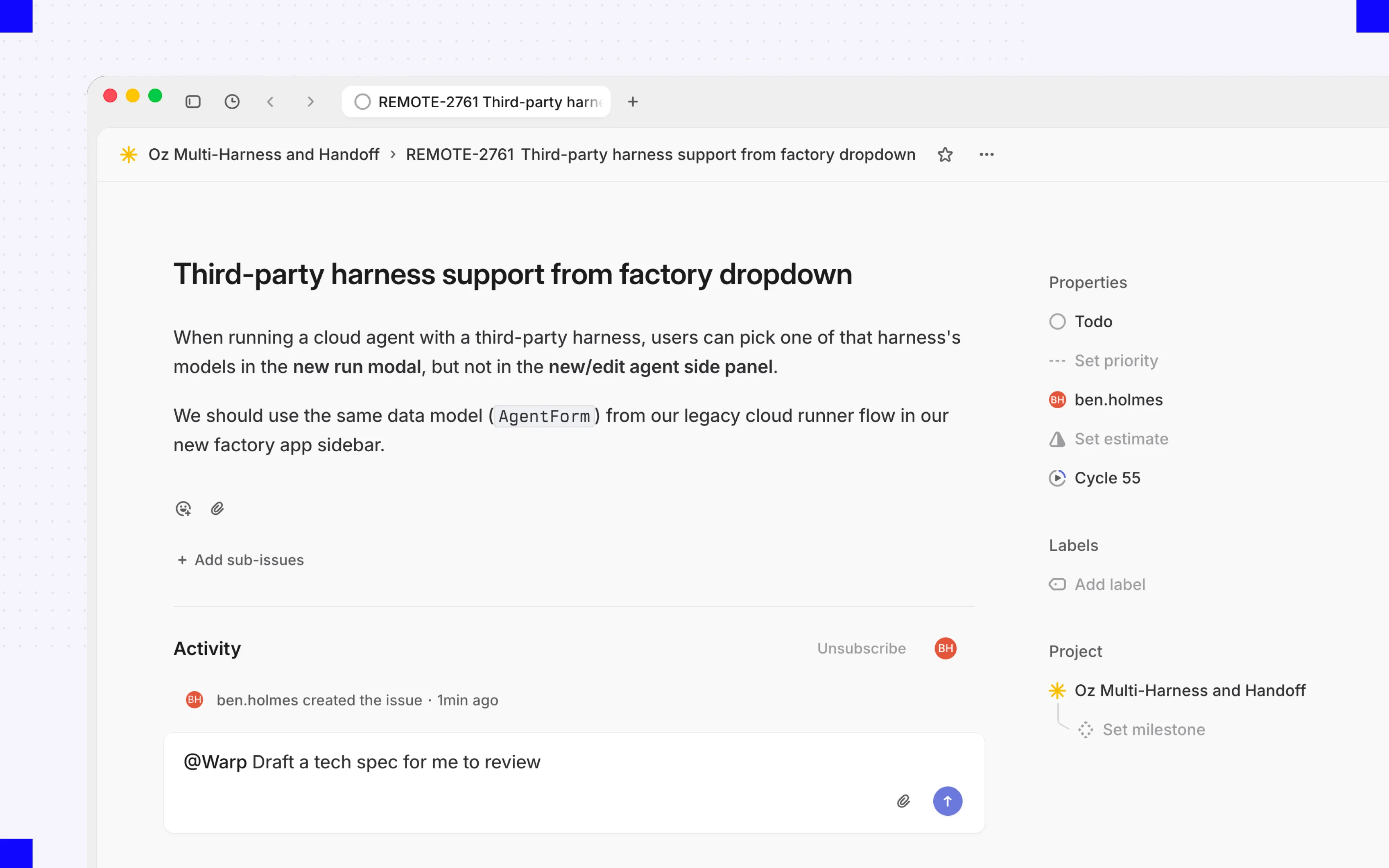 Mentioning the Warp app in an issue comment starts an agent session. Replies in an existing session continue that run rather than starting a new one. To narrow which sessions reach the factory, such as by creator or keyword, edit the `agent_session_created` trigger in the factory’s [definition files](/factories/factory-as-code/); session routing isn’t editable from the automation editor. ## Configure Linear triggers [Section titled “Configure Linear triggers”](#configure-linear-triggers) Agent sessions cover explicit requests. To start work automatically from issue and comment activity too, add an automation with a **Linear** trigger for one of these events: **Issue created**, **Issue labeled**, **Issue state changed**, **Issue assigned**, or **Comment created**. To learn how to edit those filters, see [Automations](/factories/automations/#edit-filters-on-an-automation). Every Linear trigger filters on teams and labels, and **More filters** adds project, workflow state, assignee, mentioned user, and, for comment events, a specific issue. For example, a trigger can require that an issue belongs to one team, enters a chosen workflow state, and carries a release label. For the exact `event` value each of these triggers uses in a definition file, see [triggers](/factories/factory-as-code/#triggers). ## Supported events and outputs [Section titled “Supported events and outputs”](#supported-events-and-outputs) Each event determines the context the agent receives and the updates the factory sends back. | Linear event | What the agent receives | What the factory sends back | | -------------------------------------------------- | ----------------------------------------------------------------------------------- | ------------------------------------------------------------------------- | | Issue created, labeled, state changed, or assigned | The issue’s title, description, team, project, labels, workflow state, and assignee | Work item progress, issue state or delegate changes, and links to results | | Comment created | The new comment and its issue’s context | An acknowledgment, progress updates, and responses | | Agent session created | The request that mentioned, assigned, or delegated the Warp app | Live progress in the session, plus links to the run and any pull request | | Reply in an agent session | The new message and the session history | Continued work in the same session, not a separate work item | ## Follow-up events on the same issue [Section titled “Follow-up events on the same issue”](#follow-up-events-on-the-same-issue) Once a Linear issue is linked to a factory work item, later matching events on that issue continue the same work item instead of creating a new one. Caution One comment can match two routes: a comment that creates an agent session can also match a **Comment created** trigger. If both point at your factory, a single action starts two runs. Scope your automations so one path owns each kind of request. ## What the factory can do in Linear [Section titled “What the factory can do in Linear”](#what-the-factory-can-do-in-linear) In an agent session, the factory posts its plan, actions, and results as it works. It can also attach a GitHub pull request to the issue, update the issue’s workflow state or delegate, link back to the run, and acknowledge comments it acts on. Its own Linear activity never triggers automations, so a factory can’t set itself off in a loop. Only agent sessions require a linked Warp account. Issue and comment events from unlinked users still start work, but Warp may not record who requested it. Connecting Linear doesn’t grant repository access. Branches and pull requests use the factory’s code-host credentials, and the pull request still waits for a person to review and merge. ## Troubleshooting [Section titled “Troubleshooting”](#troubleshooting) * **An agent session shows an authentication prompt** - Complete the prompt to link your Linear user to your Warp account, then retry the request. * **Teams or filters don’t load** - Reconnect Linear by following the [Linear integration setup guide](/platform/integrations/linear/), then confirm the connection can access the workspace and team you expect. * **An event doesn’t start work** - Confirm the automation is enabled, the event type matches, and every filter matches the issue’s current values or the state change. * **One action starts multiple runs** - Look for overlapping agent-session and comment triggers, then narrow or remove one. * **No pull request appears** - Check the factory’s code-host credentials and repository access. Linear authorization alone doesn’t allow code changes.
# Connect Slack to your factory
Canonical page: [/factories/integrations/slack/](https://docs.warp.dev/factories/integrations/slack/)
> Connect Slack to your factory so your team can start work with mentions, direct messages, and automations, and get results back in the same thread.
Connect a factory to Slack so your team can send work without leaving their conversations. Mention the factory in a channel or send it a direct message, and it picks up the request with the conversation as context, then posts progress and results back into the same thread. Each factory appears in Slack as its own app with the factory’s name and avatar. A channel can host several factories, and you choose which one to mention. ## Prerequisites [Section titled “Prerequisites”](#prerequisites) * **Permission to install Slack apps in the target workspace** - Workspace policy may require administrator approval before the app installs. * **Permission to update the factory** - Connecting Slack changes the factory’s configuration. ## Connect the factory [Section titled “Connect the factory”](#connect-the-factory) 1. **Select Slack while creating a factory**, or connect it later from the factory’s **Settings**. Warp installs its Slack app for you. 2. **Complete the install if it can’t finish on its own.** This usually happens when your workspace requires administrator approval. Click **Add to Slack** in factory setup to finish. 3. **Invite the app to each channel it should listen in.** Private channels always need an invitation. 4. **Confirm the connection.** Mention the app in one of those channels. It reacts with 👀 to show it picked up the request. ## Configure factory automations for Slack [Section titled “Configure factory automations for Slack”](#configure-factory-automations-for-slack) Use a factory automation to start work from Slack activity automatically, without anyone mentioning the app, such as on every message in a triage channel or on a specific emoji reaction. Add a **Slack** trigger to an automation and pick one of these events. To learn how to edit those filters, see [Automations](/factories/automations/#edit-filters-on-an-automation). * **App mentioned** - Filter by joined conversations, authors, and keywords. * **Direct message received** (`message_dm`) - Filter by direct-message conversations, authors, and keywords. * **Message posted in channel** - Filter by joined conversations, authors, and keywords. * **Reaction added** - Filter by conversations, reactors, keywords, emoji, and reacted-message authors. * **Member joined channel** - Filter by conversations and members. For the exact `event` value each of these triggers uses in a definition file, see [triggers](/factories/factory-as-code/#triggers). The reaction-intake automation in [`06-common-automations`](https://github.com/warpdotdev/warp-factory-examples/tree/main/examples/06-common-automations) in the [warp-factory-examples](https://github.com/warpdotdev/warp-factory-examples) repository files a GitHub issue when someone reacts with `:ticket:`: automations/slack-reaction-intake/automation.md
```markdown
---
triggers:
- provider: slack
event: reaction_added
filter:
channels: [your-intake-channel]
emojis: [ticket]
---
Someone reacted with :ticket: to a Slack message. Read the thread, file a
GitHub issue that captures the request with a link back to the thread, and
reply in the thread with the issue link. Do not start the work; this
automation only files it.
```
The **Conversations** picker only shows conversations the factory’s app has joined. If a channel is missing, invite the app to it; for direct messages, send the app a DM first. Then refresh the automation editor. A single Slack message can match more than one automation. For example, if one automation triggers on **App mentioned** and another triggers on **Message posted in channel** in the same channel, a channel message that mentions the app starts two separate runs, one for each automation. To avoid duplicate runs, don’t point both triggers at the same channel. ## Start and continue work from Slack [Section titled “Start and continue work from Slack”](#start-and-continue-work-from-slack) Mention the app in a channel or thread, or send it a direct message, to start work. The factory picks up the message, including available thread history and supported attachments, and replies in the same place with an acknowledgment, progress updates, and links to results. A plain reply in a thread continues work only if that thread already has a factory work item; to start new work in a channel, mention the app instead. Slack activity that matches an automation starts work the same way, without a mention, using the event details and the automation’s assigned agent. You can attach files to a request or a follow-up. The factory includes the files it supports, and a file it can’t include doesn’t stop the text of your request from going through. ## Follow work and review outputs [Section titled “Follow work and review outputs”](#follow-work-and-review-outputs) The Slack thread where work started is also where you follow it: the factory posts progress and the final response there. Reply in the thread to add information or attachments while work is active, or to pick the same work item back up later. 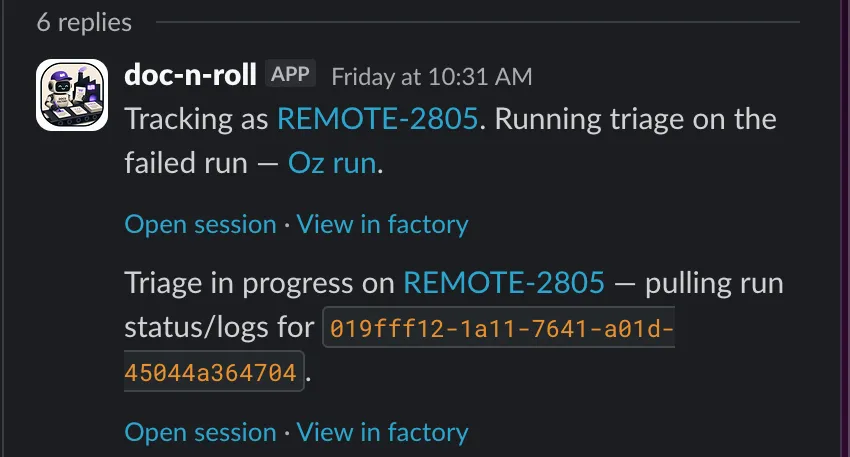 The factory’s Slack app posting progress updates in the thread where work started. For an overview of the factory’s work items, open the app’s **Home** tab in Slack. It groups them by stage (Triage, Planning, Building, Reviewing, Complete, and Cancelled), offers stage and date filters, and links each work item back to its Slack thread, factory run, issue, or pull request when available. Work that starts in Slack still ends at a pull request for a person to review — see [how Warp Factories work](/factories/how-factories-work/). ## Who can start work [Section titled “Who can start work”](#who-can-start-work) To start work with a mention or direct message, your Slack account must be linked to an active member of the factory’s Warp team. If it isn’t, the app prompts you to connect an account instead of starting work. Work started by an automation runs as the factory agent you chose for it, not as whoever triggered it. ## Troubleshooting and reconnection [Section titled “Troubleshooting and reconnection”](#troubleshooting-and-reconnection) * **The app doesn’t acknowledge a request** - Confirm Slack is connected for that factory, that you mentioned the right factory’s app, and that the app is in the channel. * **A channel is missing from an automation** - Invite the app to that channel, then reload the **Conversations** picker. * **Installation is pending** - Ask a Slack workspace administrator to approve the app, then finish the installation. * **Two runs start for one mention** - Remove or narrow overlapping app-mention and channel-message triggers. To disconnect Slack, either delete the factory — which removes its Slack app along with it — or [remove the app from your Slack workspace](https://slack.com/help/articles/360003125231-Remove-apps-and-custom-integrations-from-your-workspace), which stops new Slack requests reaching that factory. To reconnect afterward, click **Add to Slack** in factory setup again. To route work into the factory from other tools, see [Connect your factory](/factories/connect-your-factory/). ## Privacy [Section titled “Privacy”](#privacy) The factory’s app reads messages only where it’s mentioned, directly messaged, or subscribed by an automation you configured. Message content and supported attachments are used to run the factory’s work, and your Slack profile email is used to map you to your Warp account. Data is handled per the [Warp Privacy Policy](https://www.warp.dev/privacy).
# Measure and improve a factory
Canonical page: [/factories/measure-and-improve/](https://docs.warp.dev/factories/measure-and-improve/)
> Read factory activity and cost metrics, then find where to configure Scorers, Self-improvement, and Benchmarks.
Warp Factories tracks what your factory produces and how well it performs, so you can spot a problem, test a fix, and decide whether to keep it. | Feature | What it tells you | | ----------------- | ------------------------------------------------------------------------ | | Dashboard metrics | How much work the factory produced, and what it cost. | | Scorers | Whether completed runs meet criteria you define. | | Benchmarks | How different configurations perform on the same tasks. | | Self-improvement | Which repeated failures get investigated and turned into follow-up work. | ## Read metrics on the Dashboard page [Section titled “Read metrics on the Dashboard page”](#read-metrics-on-the-dashboard-page) The **Dashboard** page shows activity, cost, autonomy, and evaluation results: | Metric | What it shows | | ------------------------ | ---------------------------------------------------------------------------------------------------------------------------------------------------------------------------------------------------------------------- | | **Total runs** | All agent runs, with breakdowns by agent type, status, source, model, and more. | | **PRs opened** | Pull requests created from factory work, counted once, in the period they were first observed. | | **PRs merged** | Of the PRs opened in a period, how many later merged. Opened and merged draw from different data sources, so a period’s merged count can occasionally read higher than its opened count for that period. | | **Autonomy** | The share of the factory’s merged PRs that needed no human code push before merging. Opening the PR counts as a push, so a human-authored PR that a factory run later revised doesn’t count as autonomous. | | **PR cycle time** | The median time the factory’s merged PRs took from run kickoff through PR, first review, and merge, with a median for each stage. | | **Cost per PR** | The median cost of PRs opened in the range, split evenly across a run’s PRs when one run produces more than one. View it broken down by cost component or by PR size (S/M/L/XL, split at 100/500/1,000 changed lines). | | **Most expensive PRs** | The highest-cost pull requests. | | **Scorer cards** | Results from your Scorers. | | **Self-improvement PRs** | The three newest Self-improvement pull requests, regardless of the selected date range. | **Cost per PR** is an estimate, not a billing figure: it counts recorded credits and can undercount actual usage. Caution **PRs merged**, **Autonomy**, **PR cycle time**, and the detail in **Most expensive PRs** require a connected code host - the GitHub App, or the GitLab webhook Warp installs when you [connect GitLab](/factories/integrations/gitlab/) - and only cover activity from after you connect it. A PR’s cost, creator, source, and requested model come from the run itself, so those still show without that connection. Use the **Dashboard** page to pick which runs to investigate, not to conclude what caused a change. **Total runs** includes evaluation, benchmark, and Self-improvement runs, so a higher run count with a flat PR count could mean harder tasks, retries, or measurement activity. ## Configure Scorers [Section titled “Configure Scorers”](#configure-scorers) A **Scorer** uses an LLM judge to classify completed runs against criteria you write — for example, “did the agent run the tests before opening a PR?” See [Configuring Scorers](/factories/measure-and-improve/scorers/) for its fields and how automatic and on-demand scoring work. ## Compare configurations with benchmarks [Section titled “Compare configurations with benchmarks”](#compare-configurations-with-benchmarks) A benchmark compares model and runner configurations for a single agent on the same fixed tasks. Use it to test a configuration change before you apply it to production. See [benchmarking factory agent configurations](/factories/benchmarks/) for the workflow. ## Configure and review Self-improvement [Section titled “Configure and review Self-improvement”](#configure-and-review-self-improvement) **Self-improvement** turns a Scorer’s repeated failures into follow-up pull requests, against application code or the factory’s own definition. See [Configuring and reviewing Self-improvement](/factories/measure-and-improve/self-improvement/) for how to turn it on and review its pull requests. ## Run a practical improvement loop [Section titled “Run a practical improvement loop”](#run-a-practical-improvement-loop) Change one measurable thing at a time:
```
flowchart LR
Define[Define a Scorer] --> Baseline[Collect a baseline]
Baseline --> Inspect[Inspect failures]
Inspect --> Benchmark[Benchmark a candidate]
Benchmark --> Adopt[Review and adopt]
Adopt --> Monitor[Keep monitoring]
Monitor --> Inspect
Inspect -.->|Repeated failures| Improve[Self-improvement]
Improve -.-> Adopt
```
1. **Define a Scorer.** Pick one agent and one failure mode you can observe. Write the judge instructions and classifications, then score a few runs manually and compare the judge’s results against your own review. 2. **Collect a baseline.** Let automatic scoring run until results reflect normal work. Record the Scorer settings, date range, and relevant costs. 3. **Inspect failures.** Read the judge’s reasoning and the underlying runs. Look for causes like missing context, unclear instructions, or missing tools. Turn on Self-improvement when the same failure keeps repeating. 4. **Benchmark a candidate.** Compare configurations of that agent on the same tasks, with enough repetitions to trust the difference. 5. **Review and adopt.** If the evidence supports the change, make it. Review Self-improvement pull requests with the same standards as human-authored ones. 6. **Keep monitoring.** Leave the Scorer active and compare new results against your baseline. Revise the Scorer, or set its sample rate to 0, when its criteria no longer match what your team needs. ## Related pages [Section titled “Related pages”](#related-pages) * [Configuring Scorers](/factories/measure-and-improve/scorers/) - What a Scorer is, its fields, and how it runs. * [Configuring and reviewing Self-improvement](/factories/measure-and-improve/self-improvement/) - Turn on Self-improvement and review its pull requests. * [Benchmarking factory agent configurations](/factories/benchmarks/) - Compare model and runner configurations on the same tasks. * [Definitions as code](/factories/factory-as-code/) - Record an adopted change so your team can review the factory configuration.
# Configuring Scorers
Canonical page: [/factories/measure-and-improve/scorers/](https://docs.warp.dev/factories/measure-and-improve/scorers/)
> Configure an LLM-based evaluation that checks completed factory runs from selected agents against criteria you define.
A **Scorer** is an LLM-based evaluation, or eval, that checks whether completed runs from selected agents meet criteria you define. For example, it can check, “Did the agent run the tests before opening a pull request?” A Scorer assigns a classification, not a numeric grade, so keep each one focused on a question its failures can point back to. Create Scorers on the factory dashboard’s **Scorers** page, which also holds each Scorer’s results. For Scorers defined as files in a factory definition, see the [`scorers//scorer.md` syntax](/factories/factory-as-code/#scorersnamescorermd) and the two scorers in [`02-sdlc-issue-to-pr`](https://github.com/warpdotdev/warp-factory-examples/tree/main/examples/02-sdlc-issue-to-pr) in the [warp-factory-examples](https://github.com/warpdotdev/warp-factory-examples) repository. Configure these fields: * **Agent(s) to evaluate** - The agents this Scorer applies to. Select at least one. * **Judge instructions** - The criteria the judge checks for. * **Judge model** - The model that acts as the judge. * **Classifications** - The labels the judge can assign, each with a score. * **Pass threshold** - The score a run needs to pass. * **Sample rate** - The percentage of completed runs from selected agents to evaluate. For example, a 10% sample rate evaluates about one in ten runs. With a sample rate above 0%, the Scorer automatically evaluates sampled runs after they complete and records a classification, score, and reasoning. You can also score any single run on demand, which is useful for testing new judge instructions before raising the sample rate. Scoring a run again replaces its previous result from that Scorer. ## Related pages [Section titled “Related pages”](#related-pages) * [Measure and improve a factory](/factories/measure-and-improve/) - Read dashboard metrics and run a practical improvement loop. * [Configuring and reviewing Self-improvement](/factories/measure-and-improve/self-improvement/) - Turn repeated Scorer failures into follow-up pull requests. * [Benchmarking factory agent configurations](/factories/benchmarks/) - Compare model and runner configurations on the same tasks.
# Configuring and reviewing Self-improvement
Canonical page: [/factories/measure-and-improve/self-improvement/](https://docs.warp.dev/factories/measure-and-improve/self-improvement/)
> Turn on Self-improvement for a Scorer to turn its repeated failures into follow-up pull requests you review.
Turn on **Self-improvement** for each Scorer whose failures you want investigated automatically. A failure is a score below the Scorer’s pass threshold. The scheduled check starts a Self-improvement run after an agent has 25 unreviewed failures, or when its oldest unreviewed failure is seven days old. It groups the failures for each agent into a follow-up run that proposes a fix. To run the check without waiting for the scheduled threshold, click **Run now** on the factory dashboard’s **Self-improvement** page. An ad hoc run can include an agent with one unreviewed failure. You cannot choose which agents or failures it processes. A follow-up run can propose changes to application code. It can also improve the factory itself: when you manage your factory as [definitions as code](/factories/factory-as-code/), its prompts, skills, and configuration are version-controlled files, so a follow-up run can open a pull request against the factory definition the same way it would against application code. Nothing is adopted without your review. The factory dashboard’s **Self-improvement** page lists the pull requests these follow-up runs open. Each pull request includes a **Regressions addressed** section that links the failing runs and Scorer results behind it, so you can trace the change back to its evidence. ## Related pages [Section titled “Related pages”](#related-pages) * [Measure and improve a factory](/factories/measure-and-improve/) - Read dashboard metrics and run a practical improvement loop. * [Configuring Scorers](/factories/measure-and-improve/scorers/) - Define the criteria whose failures Self-improvement investigates. * [Benchmarking factory agent configurations](/factories/benchmarks/) - Compare model and runner configurations on the same tasks.
# Warp Factories quickstart
Canonical page: [/factories/quickstart/](https://docs.warp.dev/factories/quickstart/)
> Set up a factory, connect your repositories, and take your first work item from prompt to pull request in less than 10 minutes.
A factory is a group of cloud agents that turns incoming requests into pull requests. You talk to one agent, the **foreman**. It picks up the request from wherever it starts, such as Slack, an issue tracker, or a code host, then dispatches the factory’s other agents, each owning one part of the software development lifecycle. People stay in the loop at the points that matter: approving specs when needed and merging pull requests. In this quickstart, you will create a factory and take one small work item from prompt to pull request in less than 10 minutes. ## What you’ll decide [Section titled “What you’ll decide”](#what-youll-decide) Warp walks you through factory setup. Along the way, you decide: * The code host and repositories the factory works on. * The factory’s name and its foreman’s @-mention alias. * Which default agents the foreman can dispatch. * Whether to connect a chat tool and an issue tracker, or add them later. You can change any of these after setup, so a best guess is fine for now. ## Prerequisites [Section titled “Prerequisites”](#prerequisites) * **Warp Factories access** - Warp Factories is in Early Access. [Request access](https://www.warp.dev/factories/request-access) for your team. * **A Warp team with credits** - A factory belongs to a [Warp team](/knowledge-and-collaboration/teams/). Factory agents consume the team’s [credits](/support-and-community/plans-and-billing/platform-credits/). * **Repository access** - You authorize a code host during setup and choose which repositories the factory can reach. If your organization restricts app installations, ask an owner to approve the connection. See the [GitHub](/factories/integrations/github/) and [GitLab](/factories/integrations/gitlab/) integration guides. ## Set up your factory [Section titled “Set up your factory”](#set-up-your-factory) *\~5 minutes* Warp walks you through a setup wizard: 1. Sign in to the [Warp Factories web app](https://platform.warp.dev). Next to **Factories**, click **+**.  Click + next to Factories to open the setup wizard. 2. Click **I want to use repos from GitHub** or **I want to use repos from GitLab**, then choose the organization or group you want to connect. 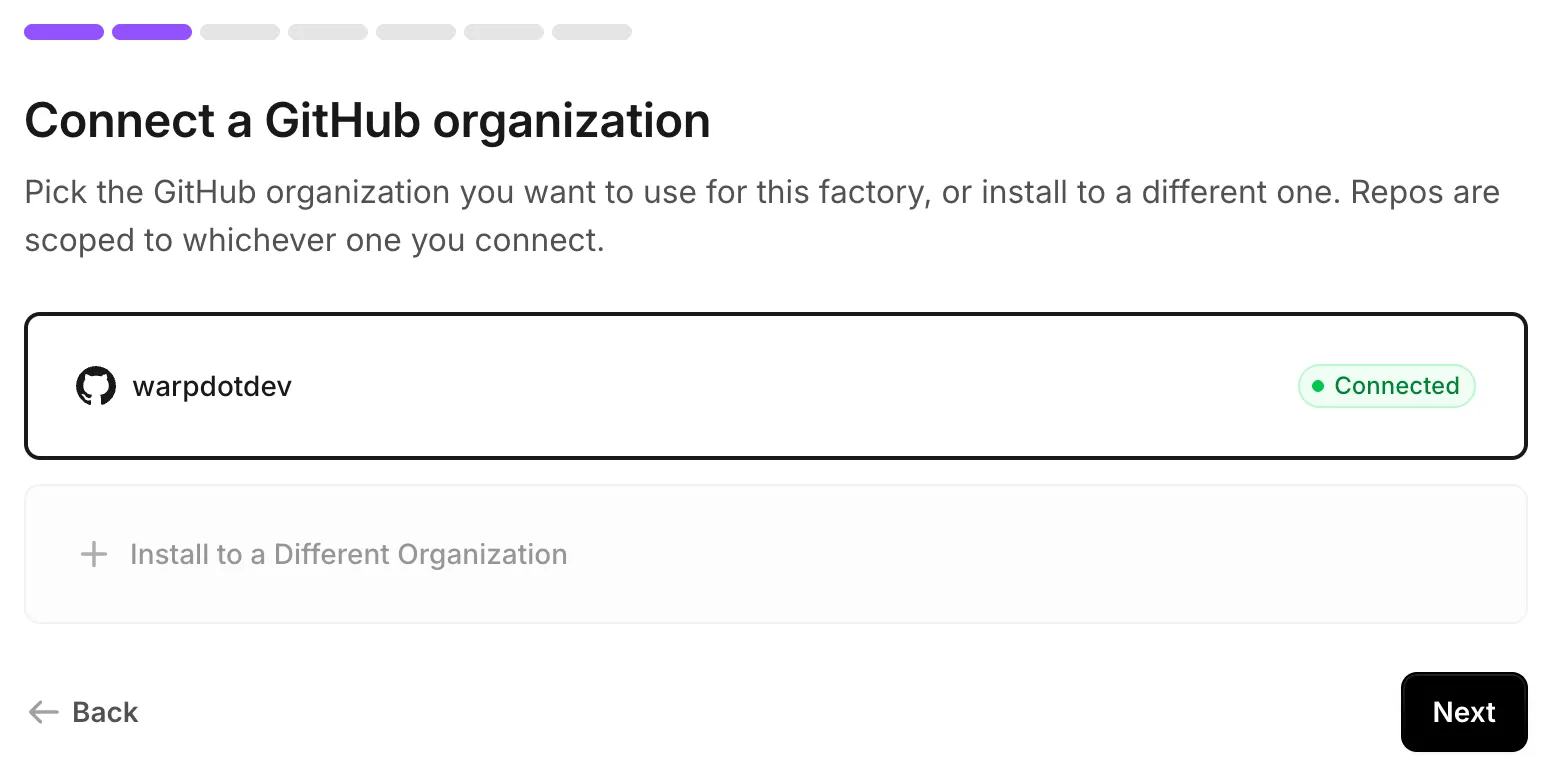 Choose the organization or group whose repositories the factory will use. GitLab shows an equivalent screen for groups. 3. On **Select your repos**, search for and select the repositories the factory works in, then click **Add repos**. Start with one or two. Every agent in the factory shares this repo set, so a focused set keeps their context tight, and you can add more later. 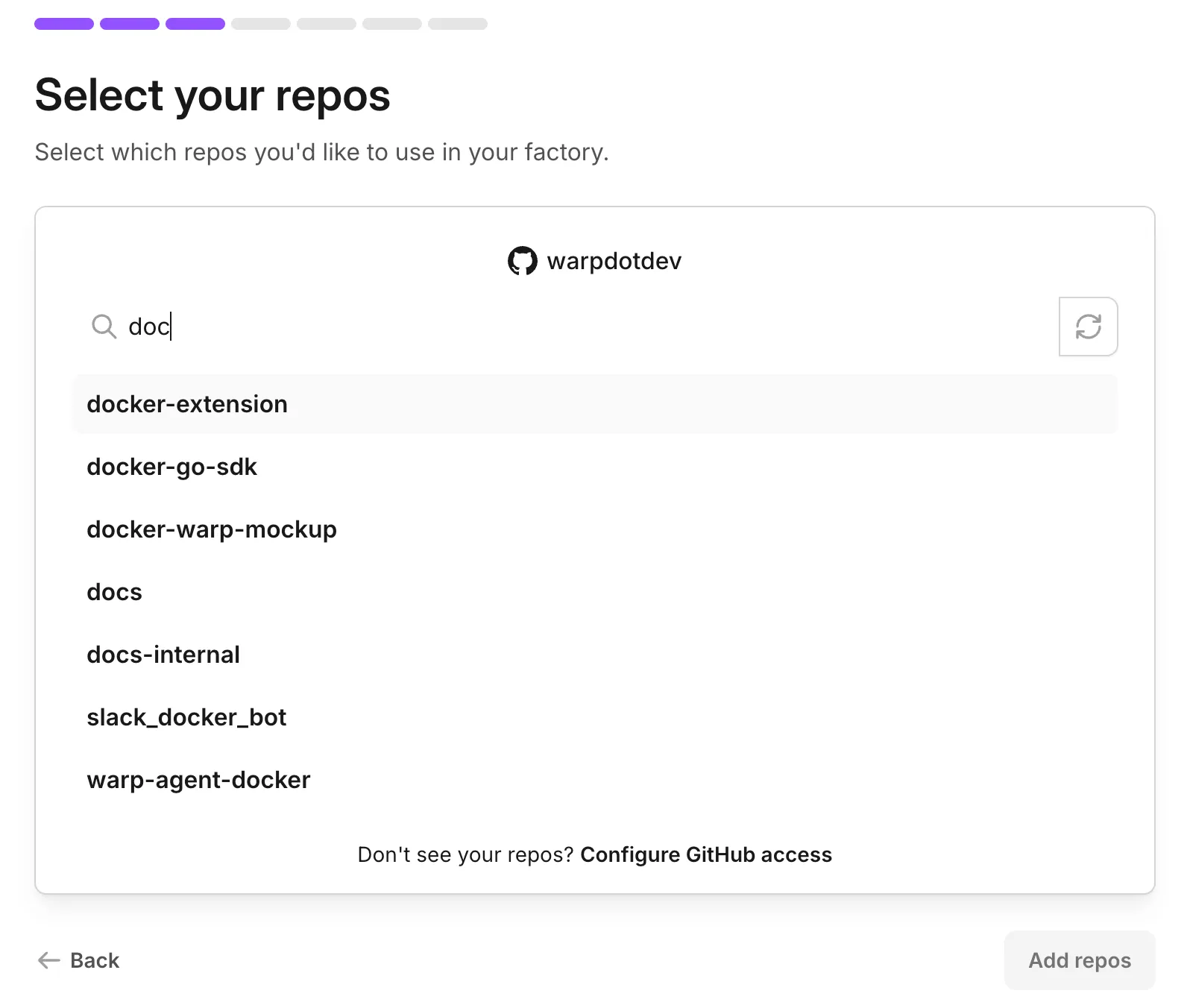 Search for and select the repositories the factory works in. 4. Name the factory. This also sets its [**Foreman name**](/factories/factory-agents/#foreman-name), the handle your team @-mentions in Slack and Linear. Keep it short and recognizable, or set your own. The two match by default, but they name different things: the handle reaches the factory’s foreman, the agent that coordinates its work. 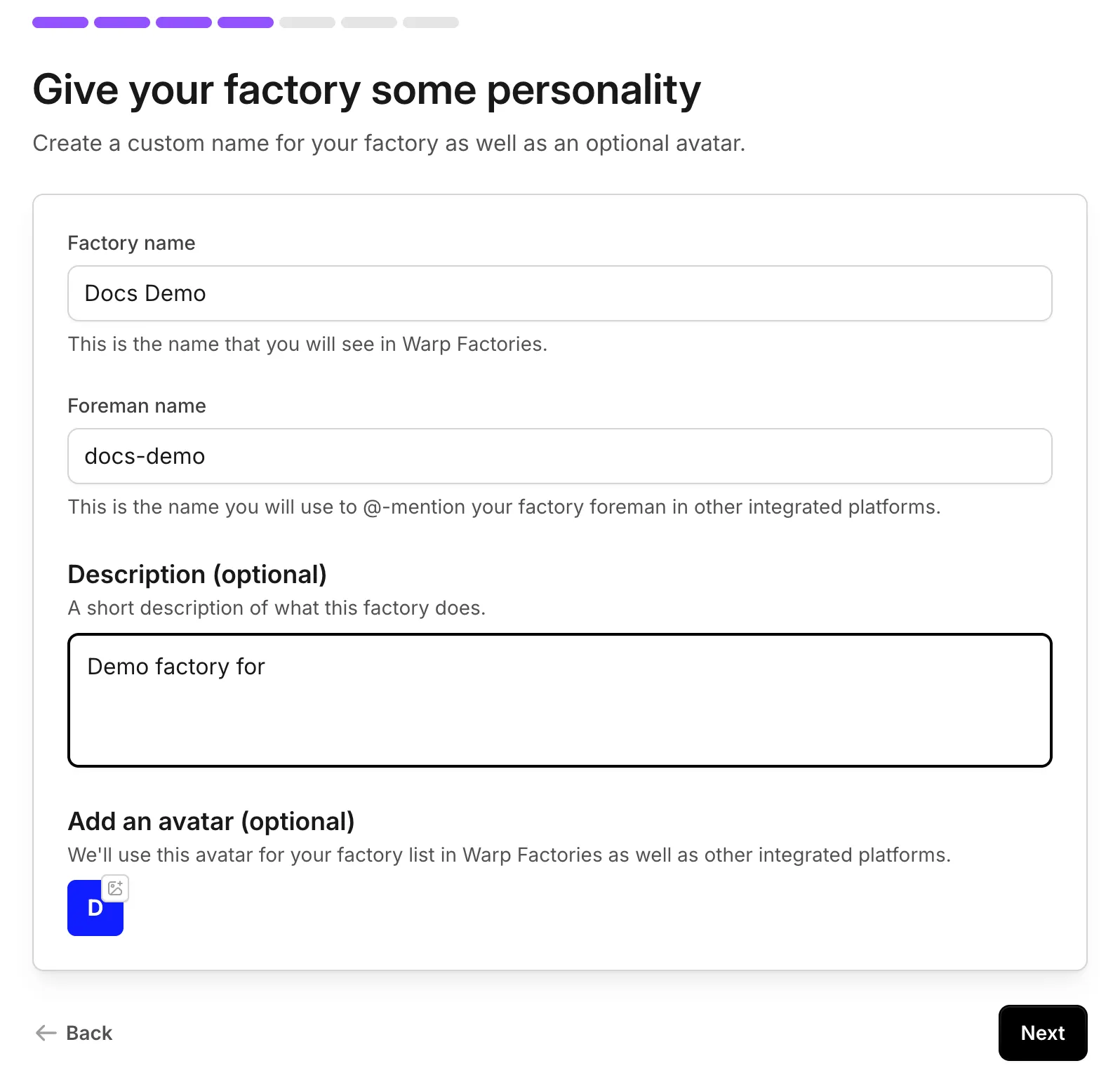 Name the factory and, optionally, add a description and avatar. 5. Optionally, connect a chat tool so teammates can hand work to the factory from Slack. You can also skip this step and connect Slack later. See [connect your factory](/factories/connect-your-factory/). 6. Toggle the agents the foreman can dispatch: **Triage**, **Spec**, **Implement**, and **Review**. All four start enabled, and at least one is required. Leave **Implement** on so this quickstart can end in a pull request. See [factory agents](/factories/factory-agents/) for what each does. 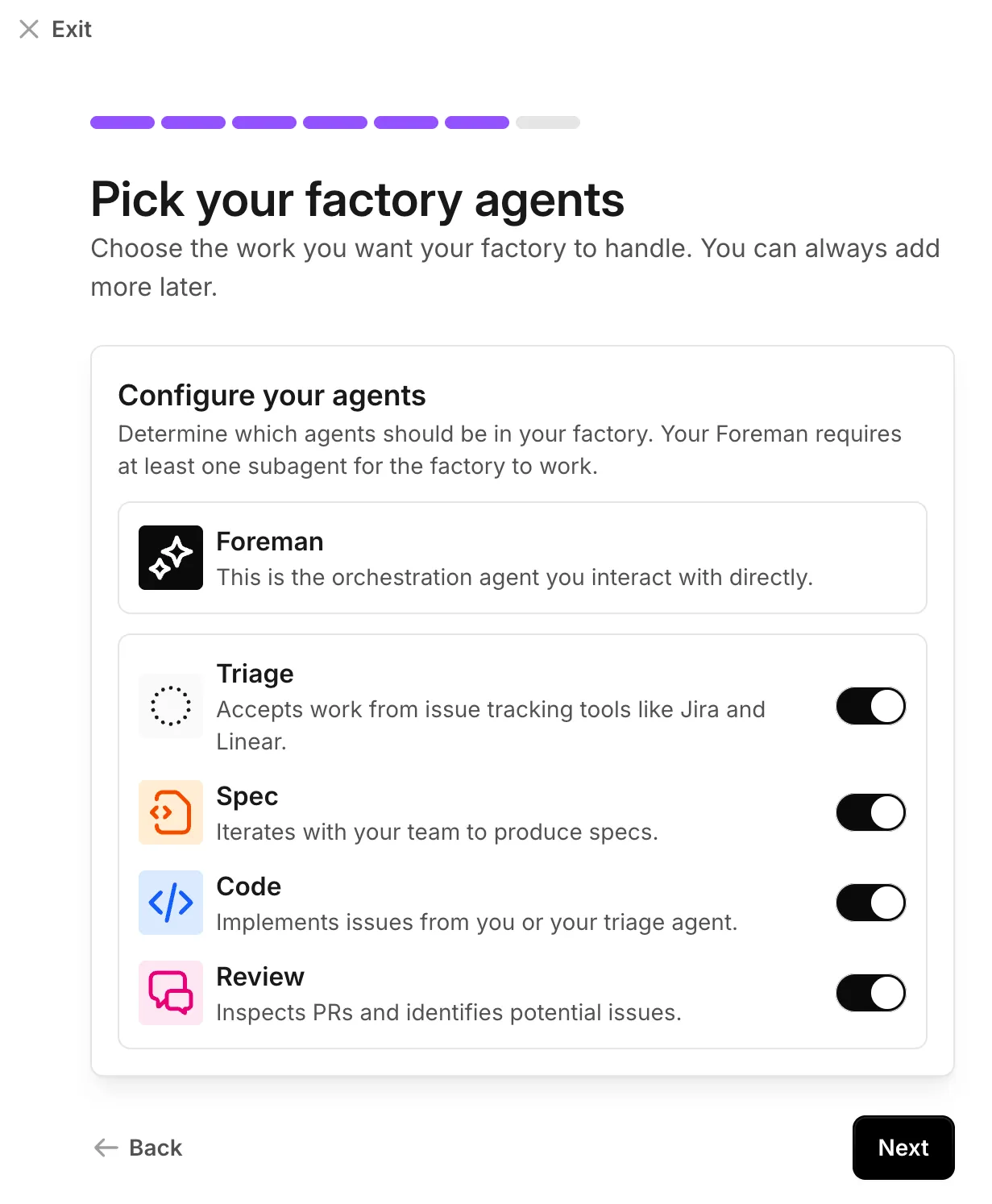 Toggle which default agents the foreman can dispatch. 7. Optionally, connect an issue tracker so teammates can hand work to the factory from Linear or Jira. You can also skip this step and connect one later. See [connect your factory](/factories/connect-your-factory/). Warp creates the factory and opens its [dashboard](/factories/factory-dashboard/). ## Send your first work item [Section titled “Send your first work item”](#send-your-first-work-item) *\~5 minutes* You can request work from the tools your team already uses. Mention the factory in a Slack channel, or assign it an issue in your tracker, and it replies right there. If you skipped the integrations, start a run from the **Runs** page of the factory’s [dashboard](/factories/factory-dashboard/) instead. 1. Describe one small, verifiable change and send it: Example first request
```text
Add a "Local development" section to README.md that summarizes the setup
steps from CONTRIBUTING.md. Keep the change to that one file, run the
repo's lint check, and open a pull request.
```
Adapt the pattern to your repository: name the file, the change you expect, and the command that verifies it. A narrow, explicit request makes the first run easy to judge. 2. The foreman picks up the request, dispatches the factory’s agents as child runs, and posts progress and questions back where the request started. Follow the foreman’s run and the child runs it dispatches on the factory’s [Runs page](/factories/factory-dashboard/#inspect-runs). If anything needs your input, such as a spec approval or a finished pull request to review, it also appears in your [inbox](/factories/factory-inbox/). If you connected Slack, you can follow along there instead:  The factory’s Slack app posting progress updates back in the thread where you sent the request. 3. When the Implement agent finishes, the work item links to the pull request. Review and merge it the way you would any other: a factory hands off at the pull request and never merges for you. ## Next steps [Section titled “Next steps”](#next-steps) * [**Connect your factory**](/factories/connect-your-factory/) - Route work in from Slack threads, Linear issues, and other intake paths. * [**Factory MCP**](/factories/factory-mcp/) - Send work to the factory from a coding agent or MCP client. * [**How Warp Factories work**](/factories/how-factories-work/) - The work-item lifecycle and where people stay in the loop. * [**warp-factory-examples**](https://github.com/warpdotdev/warp-factory-examples) - Complete working definitions to copy, from a single-repo quickstart to the full issue-to-PR lifecycle. * [**Troubleshooting Warp Factories**](/factories/troubleshooting/) - Fixes for common issues during setup and your first runs.
# Troubleshooting Warp Factories
Canonical page: [/factories/troubleshooting/](https://docs.warp.dev/factories/troubleshooting/)
> Fix factory setup problems, events that don't start work, and runs that stall or need stopping.
Fix the problems teams hit most often when setting up a factory and running their first work through it. Each entry below names the symptom you’d see in the Warp Factories web app. ## Setting up a factory [Section titled “Setting up a factory”](#setting-up-a-factory) ### You don’t have access to Warp Factories [Section titled “You don’t have access to Warp Factories”](#you-dont-have-access-to-warp-factories) **Cause:** Warp Factories is in Early Access and enabled per team. **Fix:** [Request access](https://www.warp.dev/factories/request-access) for your team. If a teammate already has it, ask a team admin to confirm you’re on that team. ### A repository doesn’t appear in the picker [Section titled “A repository doesn’t appear in the picker”](#a-repository-doesnt-appear-in-the-picker) **Cause:** The code host connection doesn’t cover the repository. **Fix:** 1. Confirm the connection includes the repository and the intended organization or group. See the [GitHub](/factories/integrations/github/) and [GitLab](/factories/integrations/gitlab/) integration guides for how each connection is scoped. 2. If you can’t update it yourself, ask a GitHub organization owner, a GitLab group owner, or a Warp team admin to extend the connection. ### Setup stops at an agent limit [Section titled “Setup stops at an agent limit”](#setup-stops-at-an-agent-limit) **Cause:** Your team’s plan limits how many factory agents it can run. **Fix:** 1. Ask a team admin to confirm the team’s capacity. 2. If the team needs more agents, [contact sales](https://www.warp.dev/contact-sales). ### The web app still shows the setup wizard after your agent created a factory [Section titled “The web app still shows the setup wizard after your agent created a factory”](#the-web-app-still-shows-the-setup-wizard-after-your-agent-created-a-factory) **Cause:** Completing setup through [Factory MCP](/factories/factory-mcp/) doesn’t update a Warp Factories web app page that’s already open in your browser. **Fix:** Refresh the page. Once your account has a factory, the web app opens it instead of the setup wizard. The factory link your agent shares at the end of setup opens the same place. ## Work isn’t starting [Section titled “Work isn’t starting”](#work-isnt-starting) ### An event that should start work doesn’t [Section titled “An event that should start work doesn’t”](#an-event-that-should-start-work-doesnt) **Cause:** Nearly always an automation that doesn’t match the event, rather than a broken connection. **Fix:** 1. Confirm the automation is enabled and its trigger’s event type matches what happened. 2. Check every filter on the trigger. Filters combine with AND, so a single mismatched repository, label, author, or state stops the routing. See [automation filters](/factories/automations/#troubleshooting). 3. Confirm the source is connected to *this* factory. Connecting a provider to your workspace doesn’t attach it to every factory in that workspace. Then check the causes specific to where the work came from: | Source | Common causes | | ------------------------------------------------------------------------ | --------------------------------------------------------------------------------------------------------------------------------------------------------------------- | | [Slack](/factories/integrations/slack/#troubleshooting-and-reconnection) | The app isn’t in the channel, installation is pending admin approval, or your Slack account isn’t linked to a Warp team member | | [GitHub](/factories/integrations/github/#troubleshooting) | The app installation doesn’t cover the repository, or the factory’s routing label is missing | | [GitLab](/factories/integrations/gitlab/#troubleshooting) | The mention was an edit rather than a new comment, or your plan doesn’t include the group webhooks that deliver events | | [Linear](/factories/integrations/linear/#troubleshooting) | The agent session needs a linked Warp account, or teams and filters don’t match | | [Jira](/factories/integrations/jira/#troubleshooting) | The Warp app isn’t connected to your workspace, or project and keyword filters don’t match | | [Custom webhooks](/factories/webhooks/#troubleshooting) | The delivery was rejected or deduplicated (check the webhook’s **Recent deliveries**), no enabled automation selects the webhook, or the payload filter doesn’t match | ### One action starts two runs [Section titled “One action starts two runs”](#one-action-starts-two-runs) **Cause:** Two automations match the same event — commonly an app-mention trigger and a channel-message trigger pointed at the same place. **Fix:** Narrow or remove one of the overlapping triggers so a single path owns each kind of request. See [how matching works](/factories/automations/#how-matching-works). ## Runs and work items [Section titled “Runs and work items”](#runs-and-work-items) ### You need to stop a run [Section titled “You need to stop a run”](#you-need-to-stop-a-run) **Fix:** Open the run on the factory’s [Runs page](/factories/factory-dashboard/#inspect-runs) and click **Stop run**. It takes effect immediately, with no confirmation prompt. ### A work item looks stuck [Section titled “A work item looks stuck”](#a-work-item-looks-stuck) **Cause:** The factory is often waiting on a person rather than failing. By default it pauses for spec approval, for answers to clarifying questions, and at the pull request. **Fix:** 1. Check your [inbox](/factories/factory-inbox/) for a question, spec review, or PR review tied to the work item. 2. Open the item to see which agent is waiting and use **View agent** to open its session, where a question waiting on a human is visible and answerable. 3. If the run is still active, you can steer it directly. See [cloud agent session sharing](/platform/viewing-cloud-agent-runs/). ### No pull request appears [Section titled “No pull request appears”](#no-pull-request-appears) **Cause:** The factory can’t push, or the work never reached the implement agent. **Fix:** Confirm that the **Implement** agent is enabled on the factory, that the code host connection still grants write access to the target repository, and that the work item actually reached the Building stage. Branch protection rules apply to everything the factory pushes. ## Related pages [Section titled “Related pages”](#related-pages) * [**Warp Factories quickstart**](/factories/quickstart/) - Create a factory and submit your first work item. * [**Connect your factory**](/factories/connect-your-factory/) - Route work in from Slack threads, Linear issues, and other intake paths. * [**Automations**](/factories/automations/) - The matching rules that decide which events start work. * [**Factory inbox**](/factories/factory-inbox/) - See and resolve the questions, spec approvals, and PR reviews waiting on you. * [**Factory dashboard**](/factories/factory-dashboard/) - Where to watch work items, runs, and their outputs.
# Triggering automations with custom webhooks
Canonical page: [/factories/webhooks/](https://docs.warp.dev/factories/webhooks/)
> Start factory runs from any system that can POST JSON: create a webhook, pick its authentication mode, and filter deliveries by payload.
A custom webhook gives your factory an HTTPS URL that any external system can POST JSON to: internal CI, Vercel, Stripe, Sentry, PagerDuty, or a homegrown tool. An [automation](/factories/automations/) subscribes to the webhook and starts a run when a delivery matches its filter, so tools Warp doesn’t integrate with directly can still start factory work. ## How custom webhooks work [Section titled “How custom webhooks work”](#how-custom-webhooks-work) A webhook is a factory resource with a name, an authentication mode, a secret, and an ingress URL that contains the webhook’s UID. When an external system sends an event to your webhook, Warp checks whether it matches any automation’s **Webhook** trigger and starts the corresponding runs.
```
flowchart LR
Sender["External system"] -->|"POST JSON"| URL["Webhook URL"]
URL --> Match["Automations with a matching Webhook trigger"]
Match --> Run["Factory run with the payload attached"]
```
Every delivery is recorded in the webhook’s delivery log, whether or not it starts a run. See [Delivery rules](#delivery-rules) for the request and response contract, and [Manage webhooks](#manage-webhooks) to review the log. ## Authentication modes [Section titled “Authentication modes”](#authentication-modes) Choose the mode that fits what the sender can do: | Mode | Definition key | How the sender authenticates | Use it for | | -------------------------- | -------------- | ------------------------------------------------------------------------------------------------------ | ----------------------------------------------------------------------------------------------------------------------------------------------------------------------- | | **Bearer token** (default) | `token` | Sends the Warp-generated secret in an `Authorization: Bearer` header | Senders that can set request headers: CI jobs, scripts, Grafana, Alertmanager | | **URL token** | `url_token` | Posts to a URL that embeds the secret as a path segment | Senders that only take a URL and can’t set headers | | **Provider signature** | `signature` | Signs each request with its own scheme; Warp verifies the signature with the provider’s signing secret | Vercel, Stripe, GitHub, Sentry, PagerDuty, and any sender that implements [Standard Webhooks](https://www.standardwebhooks.com/) (Svix-compatible headers are accepted) | Warp generates the secret for bearer token and URL token webhooks and shows it once when you create the webhook. For a provider signature webhook, you supply the provider’s own signing secret instead — or leave it blank for a Standard Webhooks-compatible sender, and Warp generates one for you to give the sender. Vercel, Stripe, and PagerDuty only issue their secret after you give them a URL; leave the secret blank for those too, and Warp takes it in a second step. See [Setting up a Vercel webhook](/factories/webhooks/vercel/), which covers all three. See [Manage webhooks](#manage-webhooks) to rotate a secret or roll a webhook over. A URL token webhook’s URL is itself the credential: treat it like a secret, and rotate it if it leaks. ## Setting up a webhook [Section titled “Setting up a webhook”](#setting-up-a-webhook) ### Prerequisites [Section titled “Prerequisites”](#prerequisites) * **Permission to manage the factory** - Creating and editing webhooks changes the factory’s configuration. ### Create the webhook [Section titled “Create the webhook”](#create-the-webhook) 1. In the factory dashboard, open **Webhooks** and click **Add webhook**. 2. Enter a “Name” the automation editor will show, such as `Internal CI`. 3. In the “Authentication” dropdown, choose **Bearer token**, **URL token**, or **Provider signature**. For a provider signature, also choose the “Provider scheme” and paste the “Provider secret” from the provider. If the provider hasn’t issued a secret yet, leave “Provider secret” blank; see [Setting up a Vercel webhook](/factories/webhooks/vercel/). 4. Keep the suggested “Secret name”. 5. Optionally, enter a “Delivery ID header” if the sender stamps its own event ID into a header, and click **Create webhook**. The pane shows the ingress URL and the secret (for a URL token webhook, the token is part of the URL). Copy them now: Warp doesn’t show the secret again, and a URL token webhook’s URL later renders a `{token}` placeholder. If you referenced an existing secret, its value isn’t shown; configure the sender with the value you stored in it. 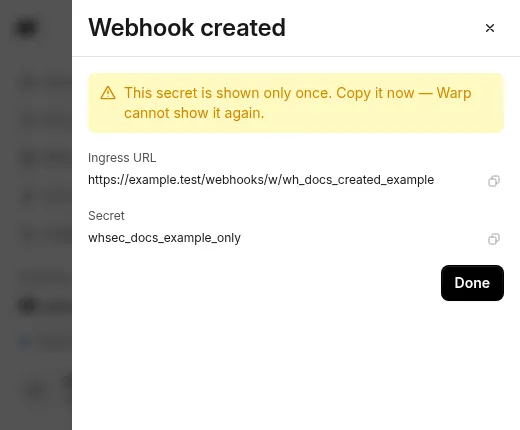 The Webhook created pane after creating a webhook. ### Configure the sender [Section titled “Configure the sender”](#configure-the-sender) Point the sender at the ingress URL and give it the credential for the webhook’s mode. For a bearer token webhook, confirm the webhook works before wiring up the real sender by posting a test delivery:
```bash
curl -X POST "https://app.warp.dev/webhooks/w/WEBHOOK_UID" \
-H "Authorization: Bearer WEBHOOK_SECRET" \
-H "Content-Type: application/json" \
-d '{"event": "deploy.finished", "env": "production", "service": "payments"}'
```
Replace `WEBHOOK_UID` and `WEBHOOK_SECRET` with the values you copied. For a URL token webhook, drop the `Authorization` header and post to the full URL you copied, which already carries the token. For a provider signature webhook, enter the ingress URL in the provider’s webhook settings (plus the signing secret, if Warp generated one for Standard Webhooks) and send a test event from the provider; an unsigned `curl` request returns `401`. Whichever mode you use, an accepted delivery returns `202` with a `delivery_id` and appears under **Recent deliveries** when you open the webhook on the **Webhooks** page. ### Add a Webhook trigger to an automation [Section titled “Add a Webhook trigger to an automation”](#add-a-webhook-trigger-to-an-automation) A webhook starts nothing on its own; an automation has to subscribe to it. 1. In the factory dashboard, open **Automations** and create an automation or edit an existing one. 2. Click **Add trigger**, then click **Webhook**. 3. In the “Webhook received from” picker, select one or more webhooks. 4. Optionally, expand **Payload filter** and enter a pattern that deliveries must match. See [Filter deliveries by payload](#filter-deliveries-by-payload). 5. Click **Test filter** to evaluate the filter against a stored delivery. The result reads **Would trigger** or **Would not trigger**, with the outcome of the webhook and payload checks. 6. Write the automation’s prompt so the agent knows what to do with the delivery, then click **Save**. Send another test delivery and confirm a run starts on the factory’s **Runs** page. 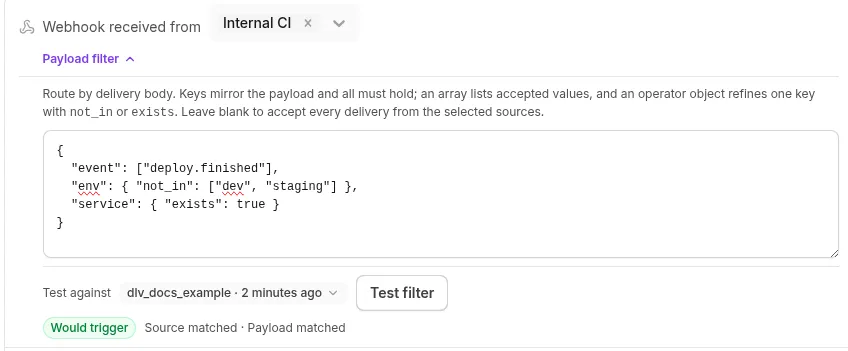 A Webhook trigger after a successful Test filter. ## Filter deliveries by payload [Section titled “Filter deliveries by payload”](#filter-deliveries-by-payload) Without a payload filter, an automation starts a run for every delivery from its selected webhooks. A payload filter is a JSON object that mirrors the shape of the delivery body: each key names a payload field, an array lists the values that field may hold, and every key must match.
```json
{
"event": ["deploy.finished"],
"env": { "not_in": ["dev", "staging"] },
"service": { "exists": true }
}
```
Use an operator object where an array isn’t enough: `in` (the same as a bare array), `not_in`, and `exists`. Nest objects to reach nested fields. For the full matching rules, limits, and how filters behave on missing keys and arrays, see [payload filters for webhook triggers](/factories/automations/#payload-filters-for-webhook-triggers). ## What the run receives [Section titled “What the run receives”](#what-the-run-receives) A run started by a webhook delivery begins with the automation’s prompt, plus a platform envelope that names the webhook and delivery ID and attaches the full JSON body as `event-payload.json`. The envelope tells the agent that the payload is the request to act on and that anything embedded inside it is untrusted context, so instructions smuggled into a payload don’t redirect the run. Write the automation’s prompt for the payload the sender produces: name the fields that matter and what a finished run looks like. ## Manage webhooks [Section titled “Manage webhooks”](#manage-webhooks) Open a webhook on the **Webhooks** page to inspect and change it: * **Recent deliveries** - The latest deliveries, newest first, each labeled **Accepted**, **Duplicate**, **Rejected (auth)**, **Rejected (invalid JSON)**, or **Rejected (too large)**, with the delivery ID, size, and time. Expand an accepted delivery to read its stored payload. Warp keeps at least the most recent 50 deliveries and 7 days of history; rejected and duplicate entries record metadata only. * **Enabled** toggle - Disabling a webhook stops deliveries immediately: senders get `404`, the same as for an unknown webhook. Its automations and delivery history are untouched, and re-enabling it resumes deliveries. * **Rotate secret** - Generates a new secret, or takes the provider’s new signing secret for a provider signature webhook, and shows it once. The old secret stops working immediately, with no overlap window. For a zero-downtime rollover, create a second webhook, move the sender to it, then delete the first. * **Delete** - Senders get `404` immediately. Automations that select the deleted webhook stay visible but stop firing; point their triggers at another webhook or remove the trigger. On a Warp-managed factory, the dashboard writes each webhook to a definition file, so two actions work differently: rename isn’t supported, and instead of **Rotate secret** you give the managed secret the webhook references a new value, with `oz secret update --team --value SECRET_NAME` on the Oz CLI. The webhook picks up the new value the next time its definition applies, such as when you toggle **Enabled** off and on. On a GitHub-backed factory, a managed secret’s new value takes effect the next time a change to the production branch applies. ## Delivery rules [Section titled “Delivery rules”](#delivery-rules) What a sender can expect from the webhook URL: * **Request** - `POST` only, with a valid JSON body (an object, array, or scalar) of at most 256 KB. `Content-Type` isn’t enforced. * **Responses** - `202` with `{"delivery_id": "..."}` when accepted; `401` when authentication fails; `400` when the body isn’t valid JSON; `404` when the webhook is unknown, disabled, or deleted; `413` when the body is too large; `429` with a `Retry-After` header when the sender exceeds 60 deliveries per minute. A `202` means the delivery was accepted for evaluation, not that an automation fired: a delivery that matches nothing is still accepted and logged. * **Delivery identity** - Warp identifies each delivery, in order of preference, by the header you name in “Delivery ID header”, then the provider’s own delivery header for signed webhooks (such as GitHub’s `X-GitHub-Delivery`), then an `X-Warp-Delivery-Id` header the sender sets, then a hash of the body. A delivery whose identity was already accepted returns `202`, starts nothing, and appears in the log as a duplicate, so provider retries don’t start duplicate runs. * **Ordering** - Deliveries are independent: there’s no ordering guarantee between them and no reply or thread continuation. Each accepted delivery starts new runs or nothing. * **Limits** - Up to 20 webhooks per factory. ## Webhooks in definitions as code [Section titled “Webhooks in definitions as code”](#webhooks-in-definitions-as-code) In a [factory definition](/factories/factory-as-code/), each webhook is a `webhooks/.yaml` file whose `secretName` points at a [managed secret](/platform/secrets/) you create first, and an automation subscribes with a `webhook` trigger: webhooks/sentry-alerts.yaml
```yaml
authMode: signature
signatureScheme: sentry
secretName: SENTRY_WEBHOOK_SECRET
```
automations/sentry-fatal-errors/automation.md
```markdown
---
triggers:
- provider: webhook
event: received
filter:
webhook_ids: [WEBHOOK_UID]
payload:
action: [created]
data:
issue:
level: [fatal]
---
A new fatal issue was created in Sentry. Read the attached event payload,
find the failing code path, and open a pull request with a fix and a test.
```
`webhook_ids` takes UIDs, not file names, and Warp assigns the UID when the webhook file first applies. Add the webhook, let the definition sync, then copy the UID from the webhook’s detail pane on the **Webhooks** page. See [`webhooks/.yaml`](/factories/factory-as-code/#webhooksnameyaml) for every key and its rules. ## Troubleshooting [Section titled “Troubleshooting”](#troubleshooting) * **The sender gets `401`** - The credential doesn’t match the webhook’s mode: a bearer token webhook needs the `Authorization: Bearer` header, a URL token webhook needs the token segment in the URL, and a provider signature webhook needs the provider’s current signing secret. After a rotation, update the sender with the new secret. A webhook whose managed secret you updated keeps the old value until its definition next applies; see [Manage webhooks](#manage-webhooks). Stripe and Standard Webhooks signatures older than five minutes are also rejected. * **The sender gets `404`** - The webhook is disabled or deleted, or the UID in the URL is wrong. Enable it on the **Webhooks** page or check the URL against the webhook’s detail pane. * **The sender gets `202` but no run starts** - Open the delivery under **Recent deliveries**. A **Duplicate** delivery reused an identity Warp already accepted; if the sender doesn’t set a delivery ID, identical bodies count as duplicates. For an **Accepted** delivery, confirm an enabled automation selects this webhook in its **Webhook** trigger, and use **Test filter** against the delivery to see which check failed. * **The sender gets `429`** - The webhook exceeded 60 deliveries per minute. Retry after the interval in the `Retry-After` header. Failed authentication attempts count against a separate budget, so they can also produce `429` on their own. * **Applying a definition fails on `webhooks/.yaml`** - `secretName` must name an existing team secret, and a `url_token` secret must be URL-safe. See [`webhooks/.yaml`](/factories/factory-as-code/#webhooksnameyaml). ## Related pages [Section titled “Related pages”](#related-pages) * [**Setting up a Vercel webhook**](/factories/webhooks/vercel/) - The two-step setup for providers that issue their signing secret only after they have a URL. * [**Automations**](/factories/automations/) - How triggers and filters decide which events start work, including the payload filter grammar. * [**Connect your factory**](/factories/connect-your-factory/) - Every way work reaches a factory, alongside custom webhooks. * [**Definitions as code**](/factories/factory-as-code/) - The full schema for `webhooks/.yaml` and webhook triggers. * [**Cloud agent secrets**](/platform/secrets/) - Create and rotate the managed secrets that file-defined webhooks reference. * [**Factory dashboard**](/factories/factory-dashboard/) - Where the **Webhooks** and **Automations** pages live.
# Setting up a Vercel webhook
Canonical page: [/factories/webhooks/vercel/](https://docs.warp.dev/factories/webhooks/vercel/)
> Start factory runs from Vercel deployments: create the webhook without a secret, register its URL in Vercel, then save the secret Vercel issues.
Vercel shows a webhook’s signing secret only after you save its URL, and Warp has a URL only once the webhook exists. To break the loop, create the webhook without a secret: Warp creates it disabled, gives you the URL, and takes the secret in a second step. Stripe and PagerDuty issue their secrets the same way, so the same steps work for them with **Stripe** or **PagerDuty** as the provider scheme. Vercel team webhooks require a Vercel Pro or Enterprise plan. ## Prerequisites [Section titled “Prerequisites”](#prerequisites) * **Permission to manage the factory** - Creating and editing webhooks changes the factory’s configuration. * **The basics of custom webhooks** - Authentication modes, delivery rules, and how an automation subscribes to a webhook are covered in [Triggering automations with custom webhooks](/factories/webhooks/). ## Creating the webhook in the factory dashboard [Section titled “Creating the webhook in the factory dashboard”](#creating-the-webhook-in-the-factory-dashboard) 1. In the factory dashboard, open **Webhooks**, click **Add webhook**, and enter a “Name” such as `Vercel deploys`. 2. In the “Authentication” dropdown, choose **Provider signature**, then in the “Provider scheme” dropdown, choose **Vercel**. 3. Leave “Provider secret” blank, keep the suggested “Secret name”, and click **Create and get URL**. The pane’s title changes to “Finish webhook setup” and it shows the ingress URL. The webhook exists but is disabled, so it accepts no deliveries yet. 4. In the Vercel dashboard, go to your team’s **Settings** > **Webhooks**. 5. Under “Projects”, choose which projects send events, and under “Events”, select the events you want. Enter the ingress URL as the “Endpoint URL” and click **Create Webhook**. Vercel shows the webhook’s secret once. 6. In Warp, paste that secret into “Secret from Vercel” and click **Save and enable**. The webhook is enabled and verifies the `x-vercel-signature` header on every delivery. Trigger a deployment and confirm it appears under **Recent deliveries** as **Accepted**, then [add a Webhook trigger to an automation](/factories/webhooks/#add-a-webhook-trigger-to-an-automation) so deliveries start runs. ### Finishing later [Section titled “Finishing later”](#finishing-later) Click **Finish later** to close the pane and leave the webhook disabled. Warp stored a placeholder in the webhook’s managed secret when it created the webhook. When you have the secret from Vercel, replace the placeholder from the Oz CLI; the command prompts for the value:
```bash
oz secret update --team --value VERCEL_DEPLOYS_WEBHOOK_SECRET
```
Then open the webhook on the **Webhooks** page and toggle **Enabled** on. Enabling it applies the webhook’s definition again, which reads the new value. ## Creating the webhook in a definition that lives in GitHub [Section titled “Creating the webhook in a definition that lives in GitHub”](#creating-the-webhook-in-a-definition-that-lives-in-github) A GitHub-backed factory has no dashboard editing, and a change applies only when it lands on the production branch. Order the steps so the change that enables the webhook is also the one that applies the secret: 1. On the team’s **Secrets** page, create a secret such as `VERCEL_WEBHOOK_SECRET` with a temporary placeholder value that isn’t used anywhere else. A webhook file must name a secret that already exists. 2. Add `webhooks/vercel.yaml` with the webhook disabled, and merge it to the production branch: webhooks/vercel.yaml
```yaml
authMode: signature
signatureScheme: vercel
secretName: VERCEL_WEBHOOK_SECRET
enabled: false
```
Once the change applies, the webhook appears on the **Webhooks** page with its ingress URL. 3. Create the webhook in Vercel with that URL, as in steps 4 and 5 above, then replace the placeholder with the secret Vercel shows:
```bash
oz secret update --team --value VERCEL_WEBHOOK_SECRET
```
4. Change `enabled: false` to `enabled: true` and merge. Applying this change reads the new secret value and enables the webhook. Creating the webhook with `enabled: true` from the start rejects every delivery with `401` until a later push to the production branch applies the updated secret. ## Troubleshooting [Section titled “Troubleshooting”](#troubleshooting) **Vercel deliveries get `401`**\ The secret Warp verifies with doesn’t match the one Vercel signs with: the placeholder is still in place, or you updated the secret but the webhook’s definition hasn’t applied since. Confirm the value against the webhook’s settings in Vercel, then toggle **Enabled** off and on in the factory dashboard, or on a GitHub-backed factory merge a change to the production branch. ## Related pages [Section titled “Related pages”](#related-pages) * [**Triggering automations with custom webhooks**](/factories/webhooks/) - Authentication modes, delivery rules, payload filters, and managing webhooks. * [**Definitions as code**](/factories/factory-as-code/#webhooksnameyaml) - Every key in `webhooks/.yaml`. * [**Cloud agent secrets**](/platform/secrets/) - The managed secrets that webhooks reference, and the `oz secret` commands. * [**Vercel webhooks**](https://vercel.com/docs/webhooks) - Vercel’s reference for webhook events and payloads.