Code: Code editor, code review, and Git worktrees.
# Built-in Code Editor
Canonical page: [/code/code-editor/](https://docs.warp.dev/code/code-editor/)
> Make in-context code edits with Warp's built-in editor, featuring syntax highlighting, tabs, and Vim keybindings.
Warp comes with a native code editor designed for quick, in-flow edits alongside your Agent conversations. Instead of switching back and forth to an IDE, you can open and edit files directly in Warp — with essentials like syntax highlighting, a tabbed file viewer, find and replace, Vim keybindings, and a file tree for browsing and adding files as context. The editor is built for fast changes to agent-generated code: renaming a variable, tweaking copy, or rewriting a short function. Having just enough editing power in-context makes it easier to land an agent’s changes and keep momentum. ### Opening files in Warp [Section titled “Opening files in Warp”](#opening-files-in-warp) **You can open files in the editor in several ways:** 1. **Click a file path** from the terminal output or an AI conversation and select “Open in Warp.” 2. **Use the file menu in the Command Palette** (`CMD + O` on macOS, `CTRL + SHIFT + O` on Windows or Linux) when in a Git-tracked repo to search for and open files inside that repo. 1. You can also access this via the magnifying glass icon in the pane coding toolbelt at the top left of any pane. 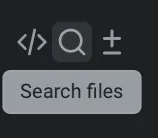 3. **Browse via the** [File Tree (Project Explorer)](/code/code-editor/file-tree/) to open or create files. 4. **Opening a generated code diff** from an Agent Conversation: [Code Diffs in Agent Conversations](/agent-platform/local-agents/code-diffs/). [Opening files in Warp's code editor](https://screen.studio/share/H7hTUgf2) **To save your changes to files**: use `CMD + S` on macOS or `CTRL + S` on Windows or Linux. ### Tabbed file viewer [Section titled “Tabbed file viewer”](#tabbed-file-viewer) Warp can group multiple files into a single tabbed viewer, reducing clutter and making it easier to work across multiple files. 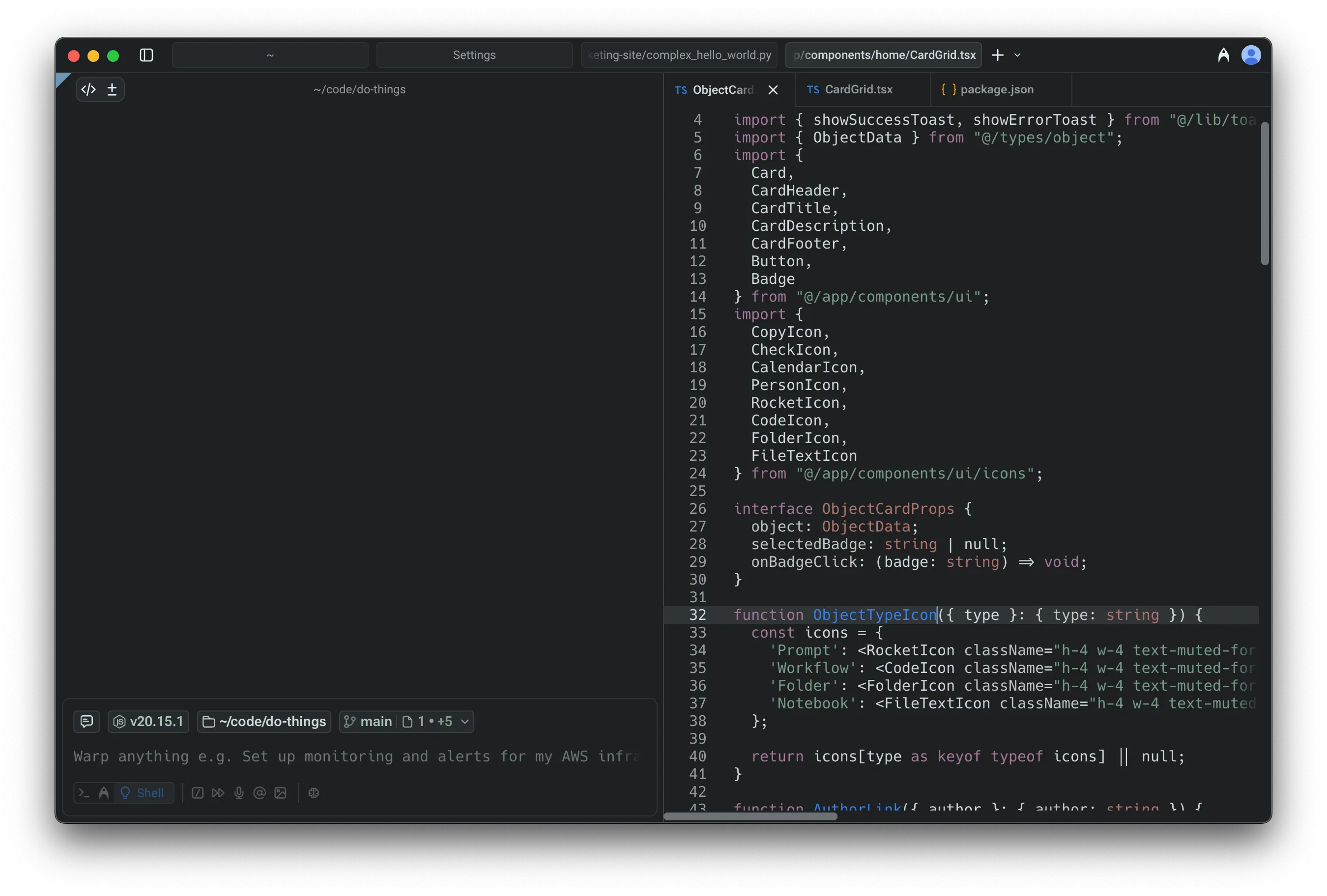 * Enabled by default for new users (can be toggled in **Settings** > **Features** > **General** > **Group files into a single editor pane**) * Reorder, close, or drag file viewers between tabs. * Merge entire panes together by dragging one into another. **Here’s a more in-depth demo:** [Tabbed file viewer in Warp's code editor](https://www.loom.com/embed/a682461da66944f583e2fa3d27b71189) ### **File layout options** [Section titled “File layout options”](#file-layout-options) Choose how new files open in Warp by default in: **Settings** > **Features** > **General** > **Choose a layout to open files in Warp** * **Split pane**: new files open alongside the current editor * **New tab**: new files open in their own tabbed viewer ### Supported languages [Section titled “Supported languages”](#supported-languages) The editor supports syntax highlighting and editing for a wide range of languages, including: Rust, Go, YAML, Python, JavaScript/TypeScript, JSX/TSX, Java/Groovy, C++, Shell/Bash, C#, HTML, CSS, C, JSON, HCL/Terraform, Lua, Ruby, PHP, TOML, Swift, Kotlin, Starlark, SQL, Powershell, and Elixir. We’re continuously expanding language support. ### Shared buffers [Section titled “Shared buffers”](#shared-buffers) When you open the same file in multiple tabs or panes, Warp keeps them in sync automatically. Edits made in one view are immediately reflected in all others, and when a file changes on disk (for example, after switching branches), every view updates together. ### Other editor features [Section titled “Other editor features”](#other-editor-features) Warp’s native code editor also supports the following features: * [Language Server Protocol (LSP)](/code/code-editor/language-server-protocol/) - Get hover info, go-to-definition, find references, inline diagnostics, and format-on-save powered by language servers for Rust, Go, Python, TypeScript/JavaScript, and C/C++. * [File Tree (Project Explorer)](/code/code-editor/file-tree/) - Browse, open, and manage your project with Warp’s native file tree. * [Find and Replace](/code/code-editor/find-and-replace/) - Use Warp’s built-in find and replace to quickly search across a file, jump between matches, and make precise edits with options for regex, case sensitivity, and smart case preservation. * [Code Editor Vim Keybindings](/code/code-editor/code-editor-vim-keybindings/) - Use Vim keybindings to edit code and text in Warp’s native code editor.
# Code Editor Vim Keybindings
Canonical page: [/code/code-editor/code-editor-vim-keybindings/](https://docs.warp.dev/code/code-editor/code-editor-vim-keybindings/)
> Use Vim keybindings in Warp's code editor for keyboard-driven navigation and editing.
Warp’s built-in code editor supports native Vim keybindings for keyboard-driven navigation and editing. Enable Vim mode to use familiar motions, text objects, visual mode, registers, and editing commands directly in Warp without switching to an external editor. ## About Vim keybindings [Section titled “About Vim keybindings”](#about-vim-keybindings) The Vi family of programs (including Vim and Neovim) are modal text editors that allow for keyboard-driven text editing. Vi-style keybindings are especially popular among developers for their speed and precision in navigating and manipulating code. Warp’s [code editor](/code/code-editor/) now includes native support for Vim keybindings (also known as Vim mode), offering a familiar editing experience directly within your coding workflows. ### How to enable Vim keybindings [Section titled “How to enable Vim keybindings”](#how-to-enable-vim-keybindings) Vim mode in the code editor uses the same setting toggle as the input editor. To enable: * Through the [Command Palette](/terminal/command-palette/), search for “Vim Keybindings”. * Through **Settings** > **Features** > **Text Editing**, toggle “Edit code and commands with Vim keybindings”. Unlike the input editor, the Vim implementation in the code editor starts in Normal mode. ### Customizing Keybindings [Section titled “Customizing Keybindings”](#customizing-keybindings) At the moment, Warp only supports default Vim keybindings. One exception is the keyboard shortcut for exiting insert mode, which can be rebound under**Settings** > **Keyboard shortcuts** > **Exit Vim Insert Mode**, or through the [Command Palette](/terminal/command-palette/) search for “Exit Vim Insert Mode”. ## Supported Keybindings [Section titled “Supported Keybindings”](#supported-keybindings) Below is a list of the vim functionality implemented in Warp so far. ### Movement [Section titled “Movement”](#movement) See [Vim docs: motion](https://vimdoc.sourceforge.net/htmldoc/motion.html) for more information. #### Basic [Section titled “Basic”](#basic) | Command(s) | Description | | ---------------------------- | --------------------------------------------------- | | `h`, `j`, `k`, `l` | single-char movement | | ``, `` | single-char movement with line wrap | | `w`, `W`, `b`, `B`, `e`, `E` | word movement | | `ge`, `gE` | end of previous word | | `$` | end of line | | `0` | beginning of line | | `^` | first non-whitespace character of line | | `%` | jump to matching bracket | | `[`, `]` | prev/next unmatched bracket | | `_` | beginning of the current line | | `+` | first non-whitespace character of the next line | | `-` | first non-whitespace character of the previous line | | `{`, `}` | prev/next paragraph | #### Multi-line-related [Section titled “Multi-line-related”](#multi-line-related) | Command(s) | Description | | ---------- | ----------------------- | | `gg`, `G` | jump to first/last line | ### Editing [Section titled “Editing”](#editing) | Command(s) | Description | | ---------- | ----------------------------------------------------------- | | `r` | replace character under cursor | | `d`, `D` | delete a range or object | | `c`, `C` | change a range or object (delete, then go to insert mode) | | `s`, `S` | substitute (like change, but can only delete at the cursor) | | `x`, `X` | delete under cursor | | `y`, `Y` | yank (copy) into the clipboard | | `p`, `P` | paste from the clipboard | | `u`, `⌃r` | undo, redo | | `~` | toggle upper/lowercase under cursor | | `gu` | lowercase under cursor (`u` in visual mode) | | `gU` | uppercase under cursor (`U` in visual mode) | | `J` | join current and following lines | | `.` | repeat last edit | | `gcc` | toggle comments on current line | | `gc` | toggle comments on visual selection | See [Vim docs: editing](https://vimdoc.sourceforge.net/htmldoc/editing.html) for more information. #### Text Objects [Section titled “Text Objects”](#text-objects) | Command(s) | Description | | ---------------- | ------------------------------------------ | | `i` | inner (exclude delimiters in text object) | | `a` | around (include delimiters in text object) | | `w`, `W` | whitespace-delimited string (word) | | `"`, `'`, \`\`\` | quote-delimited string | | `(`, `{`, `[` | parenthesized/bracketed string | See [Vim docs: text objects](https://vimdoc.sourceforge.net/htmldoc/motion.html#text-objects) for more information. ### Search [Section titled “Search”](#search) #### Character Search [Section titled “Character Search”](#character-search) | Command(s) | Description | | ------------------ | ------------------------------------------------------ | | `t`, `T`, `f`, `F` | find next/prev matching character on line | | `;` | repeat last character search in the same direction | | `,` | repeat last character search in the opposite direction | See [Vim docs: left-right motions](https://vimdoc.sourceforge.net/htmldoc/motion.html#f) for more information. #### General Search [Section titled “General Search”](#general-search) Unlike Vim, general search commands don’t search within the buffer. Instead, they open Warp’s native command search. | Command(s) | Description | | ------------------ | ------------------------ | | `/`, `?`, `*`, `#` | open Warp command search | ### Mode Switching [Section titled “Mode Switching”](#mode-switching) | Command(s) | Description | | ---------- | ----------------------------------------------------------------- | | `i` | insert text before the cursor | | `I` | insert text before the first non-whitespace character in the line | | `a` | append text after the cursor | | `A` | append text at the end of the line | | `o` | begin new line below the cursor and insert text | | `O` | begin new line above the cursor and insert text | | `v` | visual character mode | | `V` | visual line mode | See [Vim docs: insert](https://vimdoc.sourceforge.net/htmldoc/insert.html#insert) and [Vim docs: visual mode](https://vimdoc.sourceforge.net/htmldoc/visual.html#visual-mode) for more information. ### Registers [Section titled “Registers”](#registers) | Command(s) | Description | | ---------- | --------------- | | `"` | register prefix | Warp currently supports the following registers: | Register name | Description | | ---------------- | ---------------------------------------------------------------- | | `a`–`z`, `A`–`Z` | named registers | | `+` | system clipboard | | `*` | system clipboard | | `"` | unnamed register, containing the text of the last delete or yank | See [Vim docs: registers](https://vimdoc.sourceforge.net/htmldoc/change.html#registers) for more information. ## Feedback [Section titled “Feedback”](#feedback) The best way to report bugs and request features is through Warp’s [GitHub Issues](https://github.com/warpdotdev/Warp/issues) page. Please note that the issue or request is for Vim Keybindings.
# File Tree (Project Explorer)
Canonical page: [/code/code-editor/file-tree/](https://docs.warp.dev/code/code-editor/file-tree/)
> Browse, open, and manage project files with Warp's native file tree and context menu actions.
The File Tree is Warp’s built-in project explorer for browsing, opening, and managing files alongside your terminal. It automatically reflects your project structure and supports context menu actions like attaching files as agent context, copying paths, and creating new files. 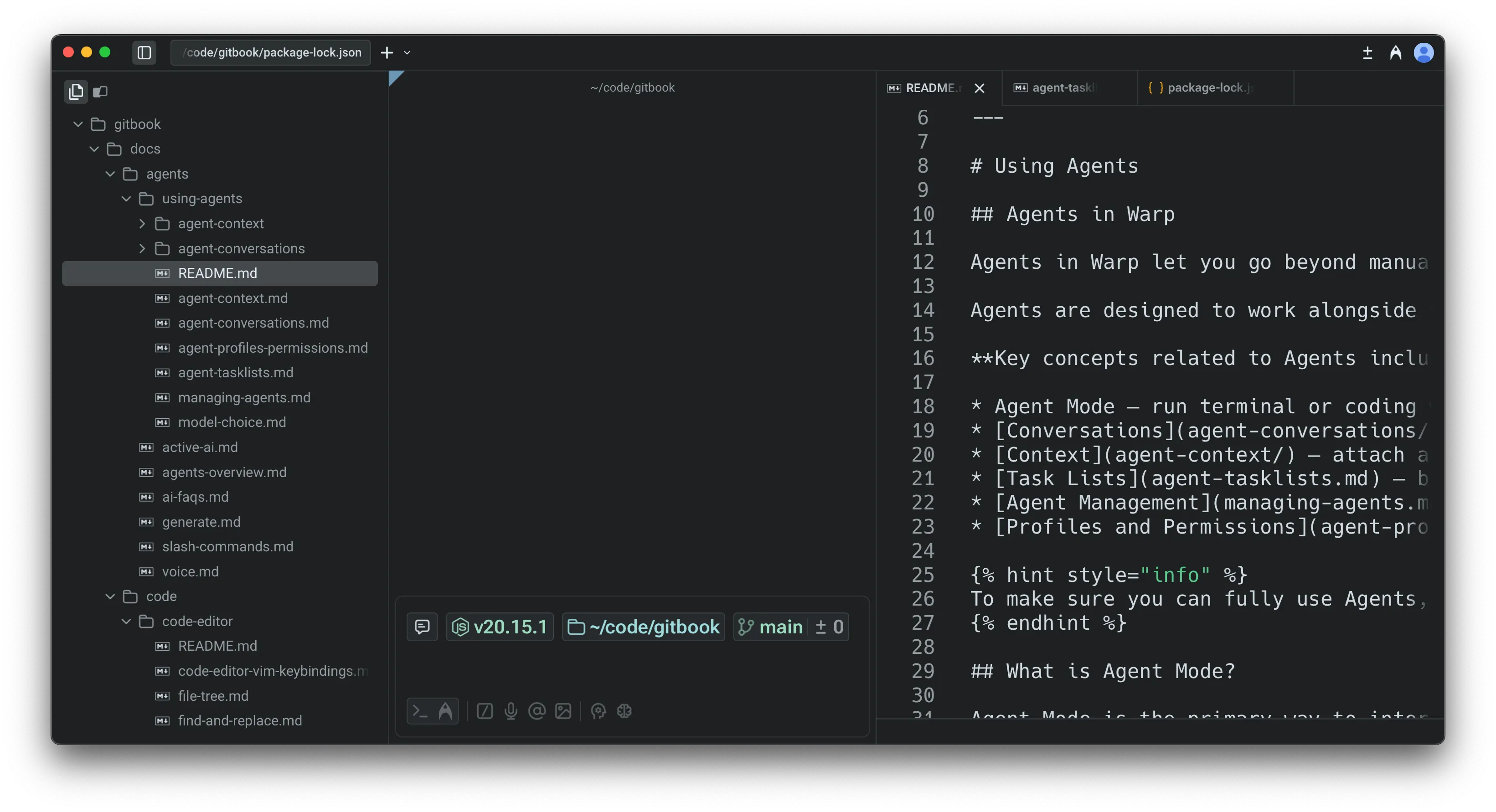 Warp includes a **native file tree** that makes it easy to explore and manage project files. The file tree is available whenever in any directory and it automatically reflects your project structure as files are added, removed, or changed. ### Opening the file tree [Section titled “Opening the file tree”](#opening-the-file-tree) You can open the file tree from the tools panel on the left hand side: * **Tools panel**: Click the Tools sidebar button, then open the File Tree tab (first tab in the panel). * Press `CMD + \` to open the left panel, then assign your own shortcut for File Tree (and Warp Drive) in **Settings** > **Keyboard shortcuts**. 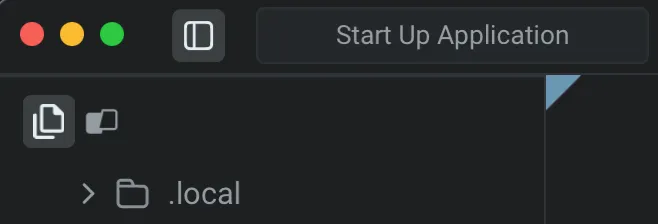 ### Browsing and opening files [Section titled “Browsing and opening files”](#browsing-and-opening-files) Clicking on a file opens it directly in Warp’s [**native Code Editor**](/code/code-editor/), where you can view and edit code in a separate pane or tab. ## File and folder actions [Section titled “File and folder actions”](#file-and-folder-actions) Right-clicking any **file** opens a context menu with several useful options: * **Open in new pane**: Open the file in a side-by-side pane. * **Open in new tab**: Open the file in a new tab. * **Attach as context**: Insert the file into an agent prompt so the Agent can analyze or reference it. * **Copy path**: Copy the absolute file path. * **Copy relative path**: Copy the path relative to your current working directory. 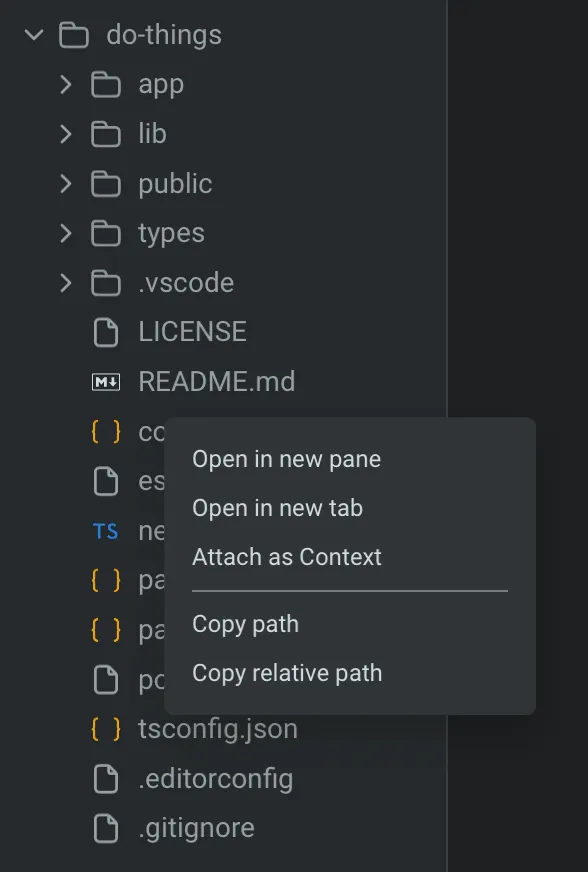 Right-click context menu on a folder in the file tree. Right-clicking any **folder** opens a context menu with the following options: * **Create new file**: Add a new file directly from the tree. 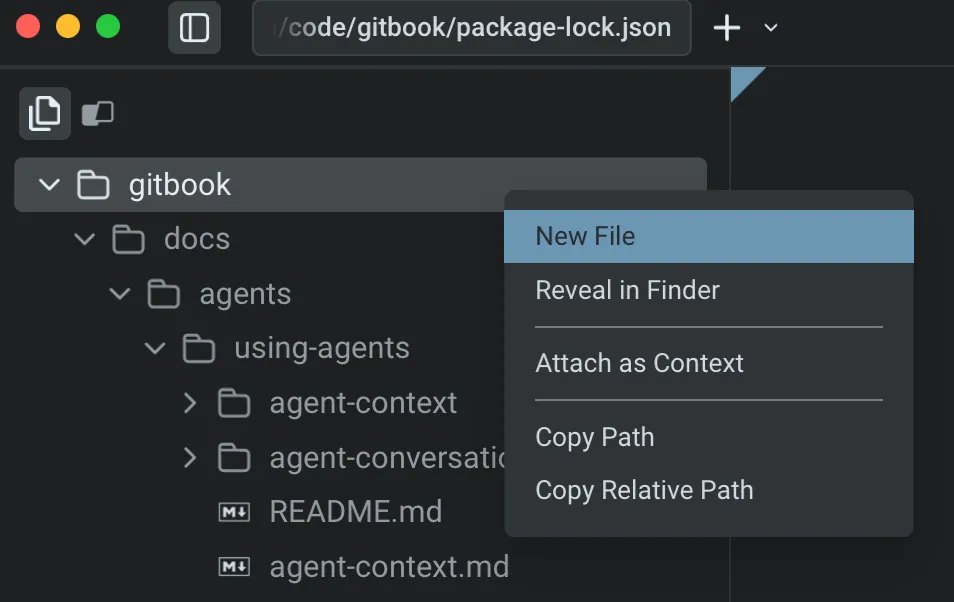 * **Attach as context**: Insert the selected file into your agent prompt so the Agent can analyze or reference it. * **Copy path**: Copy the absolute file path to your clipboard. * **Copy relative path**: Copy the path relative to your current working directory.
# Find and Replace
Canonical page: [/code/code-editor/find-and-replace/](https://docs.warp.dev/code/code-editor/find-and-replace/)
> Search and replace text in Warp's code editor with regex, case sensitivity, and smart case preservation.
Warp’s code editor includes built-in find and replace with support for regex, case sensitivity, and smart case preservation. Search across a file, jump between matches, and replace text with automatic casing adjustments for PascalCase, camelCase, and hyphenated patterns. ## Find [Section titled “Find”](#find) Press `CMD-F` on macOS or `CTRL-SHIFT-F` on Windows and Linux to open the find menu. As you type, all matches in the file are highlighted, and the match closest to your cursor is selected. * Press `ENTER` or use the down arrow to jump to the next match * Press `SHIFT-ENTER` or use the up arrow to go to the previous match * Click “Select All” to highlight all matches and close the menu You can toggle regex and case-sensitive search options directly in the query editor. [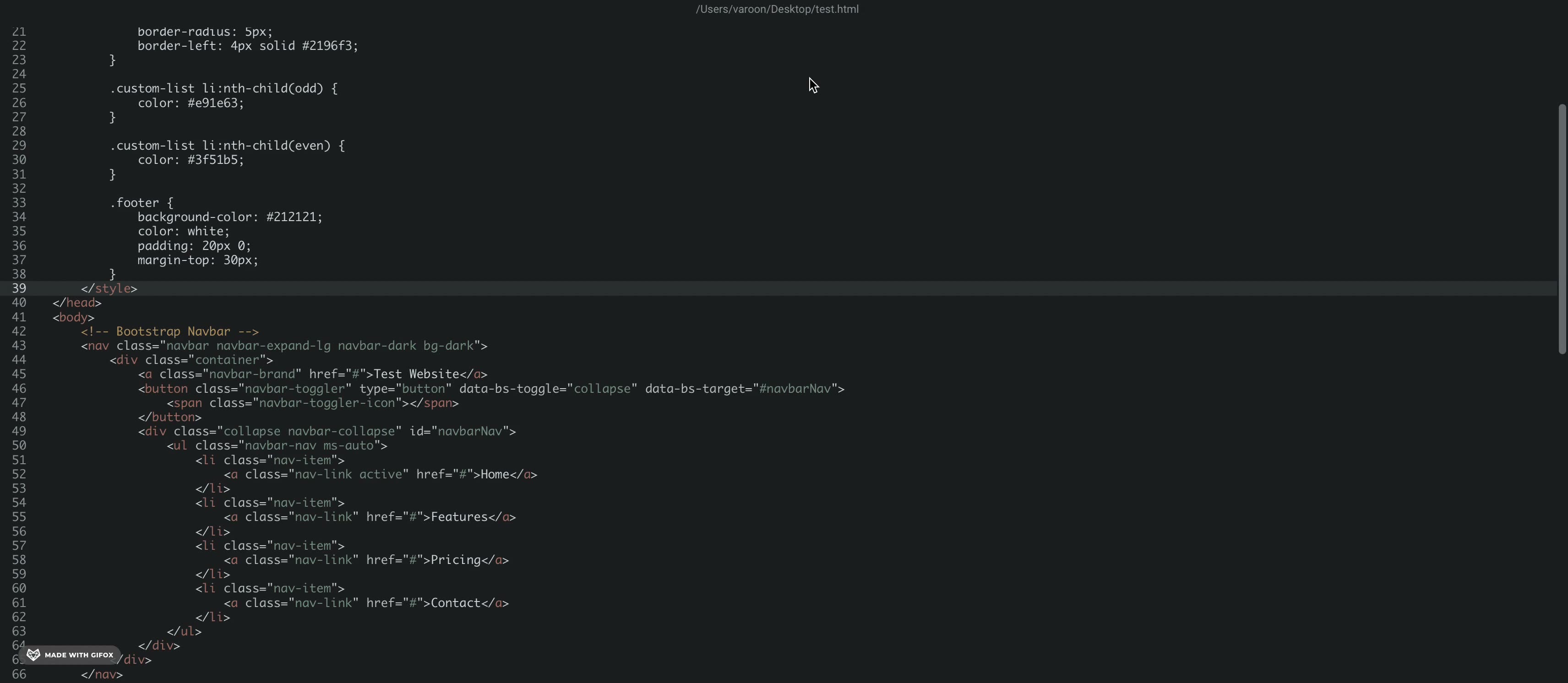](/assets/terminal/code-find-menu.mp4) ## Replace [Section titled “Replace”](#replace) Click the dropdown to the left of the find menu to open the replace options. * Press Enter to replace the currently selected match * Use Replace All to replace all matches Toggle Preserve Case to keep the original casing of replaced text. Case is preserved in text that contains PascalCase, camelCase, hyphens, and underscores. For example: * Replacing “old” with “new” will turn “Old” into “New” and “OLD” into “NEW” * Replacing “oldValue” with “NewValue” will result in “newValue” * Replacing “OldValue” with “newValue” will result in “NewValue” * Replacing “my-Old-VALUE” with “my-new-value” will result in “my-New-VALUE” [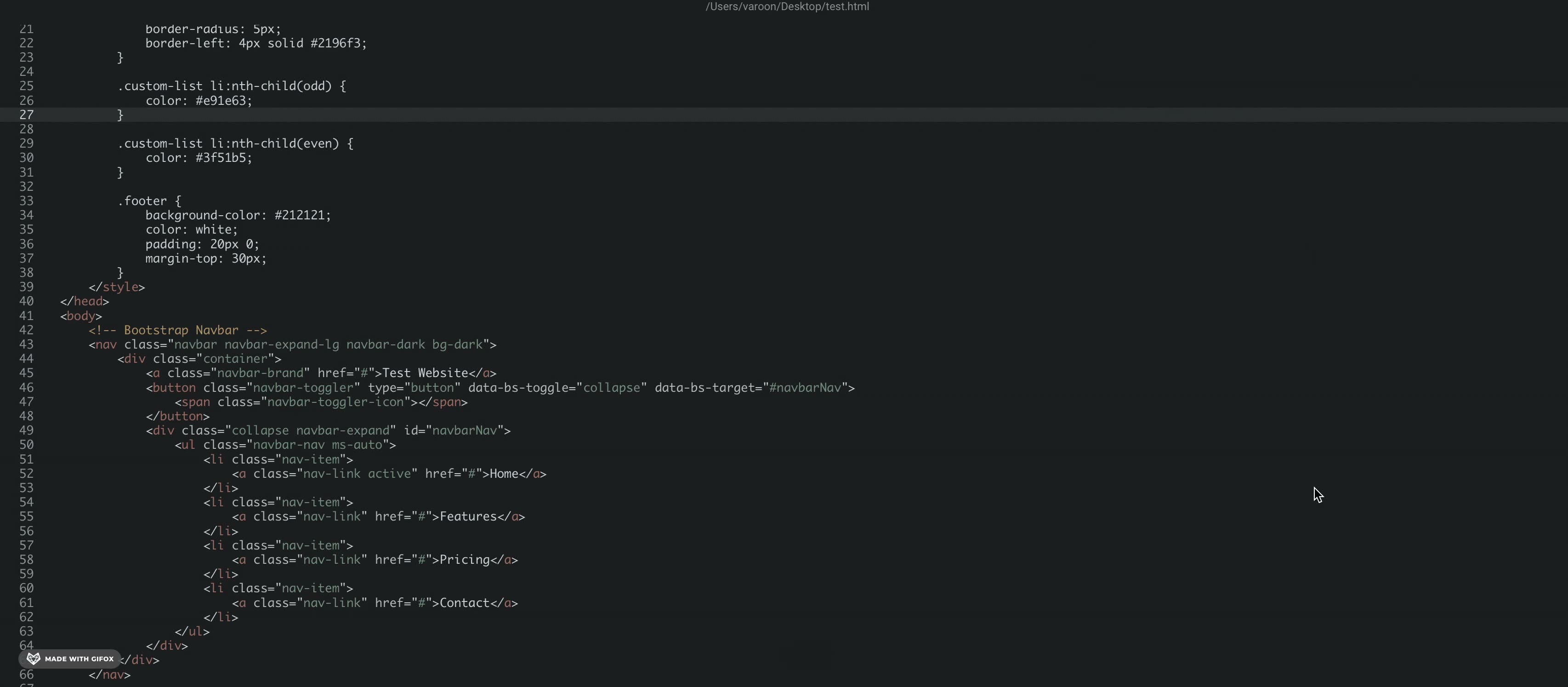](/assets/terminal/code-replace-menu.mp4)
# Language Server Protocol (LSP)
Canonical page: [/code/code-editor/language-server-protocol/](https://docs.warp.dev/code/code-editor/language-server-protocol/)
> Get hover info, go-to-definition, diagnostics, and format-on-save via built-in LSP support.
Warp’s code editor includes built-in support for the [Language Server Protocol](https://microsoft.github.io/language-server-protocol/), giving you IDE-grade code intelligence directly in the terminal. When you enable an LSP server for your project, you get hover documentation, go-to-definition, find references, inline diagnostics, and automatic formatting — all without leaving Warp. ## Supported languages [Section titled “Supported languages”](#supported-languages) Warp ships with support for the following language servers: | Language | Server | File extensions | | ----------------------- | ---------------------------- | -------------------------------------------------------------------- | | Rust | `rust-analyzer` | `.rs` | | Go | `gopls` | `.go` | | Python | `pyright` | `.py` | | TypeScript / JavaScript | `typescript-language-server` | `.ts`, `.tsx`, `.js`, `.jsx`, `.mjs`, `.cjs` | | C / C++ | `clangd` | `.c`, `.C`, `.h`, `.H`, `.hh`, `.cc`, `.cpp`, `.cxx`, `.hpp`, `.hxx` | We’re actively expanding language support. To request a language, [file a GitHub issue](https://github.com/warpdotdev/Warp/issues). ## How it works [Section titled “How it works”](#how-it-works) When you `cd` into a workspace with enabled language servers, Warp automatically starts them in the background. Features like hover, diagnostics, and go-to-definition become available once a server finishes initializing. As you edit, Warp sends incremental updates to keep everything in sync. If you close all files and terminals for a workspace, Warp shuts down the idle server to free resources. ## Enabling and managing language servers [Section titled “Enabling and managing language servers”](#enabling-and-managing-language-servers) ### Enabling a server [Section titled “Enabling a server”](#enabling-a-server) Language servers are enabled **per workspace** (per Git repository root). When you open a file in a supported language for the first time, the **editor footer** shows an option to enable the appropriate language server. If the server binary is not installed on your system, Warp offers to install it for you. You can also manage servers from **Settings** > **Code** > **Indexing and projects**, where each initialized workspace shows its enabled language servers and their status. ### Server status indicator [Section titled “Server status indicator”](#server-status-indicator) The code editor footer displays a status icon for the active language server: * 🟢 **Green** - Server is running and ready. * 🟡 **Yellow** - Server is starting or processing a background task. * 🔴 **Red** - Server failed to start. Click the icon to see options. * ⚪ **Gray** - Server is stopped. Clicking the status icon opens a menu with options to **restart**, **stop**, **start**, or **view logs** for the server. ### Server logs [Section titled “Server logs”](#server-logs) Each language server writes logs to a file on disk. Access these logs from the footer menu (click the status icon and select “Open Logs”) or from **Settings** > **Code** > **Indexing and projects**. Logs are useful for debugging server startup failures or unexpected behavior. ## Editor features powered by LSP [Section titled “Editor features powered by LSP”](#editor-features-powered-by-lsp) ### Hover information [Section titled “Hover information”](#hover-information) Hover over a symbol to see its type signature, documentation, and other details provided by the language server. The hover tooltip appears after a brief delay and supports rich content including code blocks and Markdown. ### Go to definition [Section titled “Go to definition”](#go-to-definition) Hold `CMD` (macOS) or `CTRL` (Windows/Linux) and click a symbol to jump to its definition. If the definition is in a different file, Warp opens it in the code editor. While you hold the modifier key, the symbol is underlined on hover to indicate it is navigable. ### Find references [Section titled “Find references”](#find-references) `CMD`-click (macOS) or `CTRL`-click (Windows/Linux) on a symbol that is already at its definition to see a **Find References** card listing all references across the workspace. Click any reference to navigate to it. ### Inline diagnostics [Section titled “Inline diagnostics”](#inline-diagnostics) Warp displays errors and warnings from the language server as dashed underlines directly in the editor. Hover over an underlined range to see the full diagnostic message. Diagnostics update in real time as you edit and are briefly cleared while the server recalculates. ### Format on save [Section titled “Format on save”](#format-on-save) When you save a file (`CMD + S` / `CTRL + S`), Warp requests formatting from the language server before writing to disk. This applies the server’s configured formatting rules (indentation, trailing whitespace, final newlines, etc.). If the server doesn’t support formatting, the file is saved without formatting changes. ### Right-click context menu [Section titled “Right-click context menu”](#right-click-context-menu) When an LSP server is connected, right-clicking in the editor opens a context menu with LSP-powered actions, including go-to-definition and find references. LSP features stay in sync across [shared buffers](/code/code-editor/#shared-buffers) — if the same file is open in multiple tabs or panes, diagnostics, hover, and other features reflect the same content regardless of which view you’re looking at. ## Limitations [Section titled “Limitations”](#limitations) * **Local sessions only** - LSP is not available over SSH or WSL sessions. These are tracked in GitHub issues [#6831](https://github.com/warpdotdev/Warp/issues/6831) (SSH) and [#6744](https://github.com/warpdotdev/Warp/issues/6744) (WSL). * **One server per language** - Each language maps to a single server (for example, Rust always uses `rust-analyzer`). Custom server configurations are not yet supported. * **Project-scoped** - Language servers operate at the Git repository root level. Files outside a repository may not receive LSP features. * **Server availability** - Some features (like formatting) depend on the specific language server’s capabilities. Not all servers support all features.
# Code Review panel
Canonical page: [/code/code-review/](https://docs.warp.dev/code/code-review/)
> The Code Review panel lets you review, edit, and manage Git diffs in real time, with options to attach, revert, or open files directly.
The Code Review panel lets you inspect, edit, and manage Git diffs directly inside Warp. Review uncommitted changes or compare branches, attach diffs as context for agents, revert specific hunks, and leave inline comments that agents can act on in real time. ## Overview [Section titled “Overview”](#overview) When you are working locally in a Git repository with uncommitted changes, the **Code Review panel** lets you inspect, edit, and manage code changes directly inside Warp. It integrates with Git and Warp’s Agents, giving you the ability to: * Review diffs and attach them as context for the Agent * Apply, edit, or revert changes in real time * See changes made outside of Warp or by Warp’s Agents automatically reflected Any uncommitted changes appear in the panel (or compare the changes on your branch against `main` or `master` ). Switching branches or saving files updates the panel instantly, so it always reflects the current state of your codebase. [Code Review Demo](https://www.loom.com/embed/96581523168742eb9b95c3973924728c) 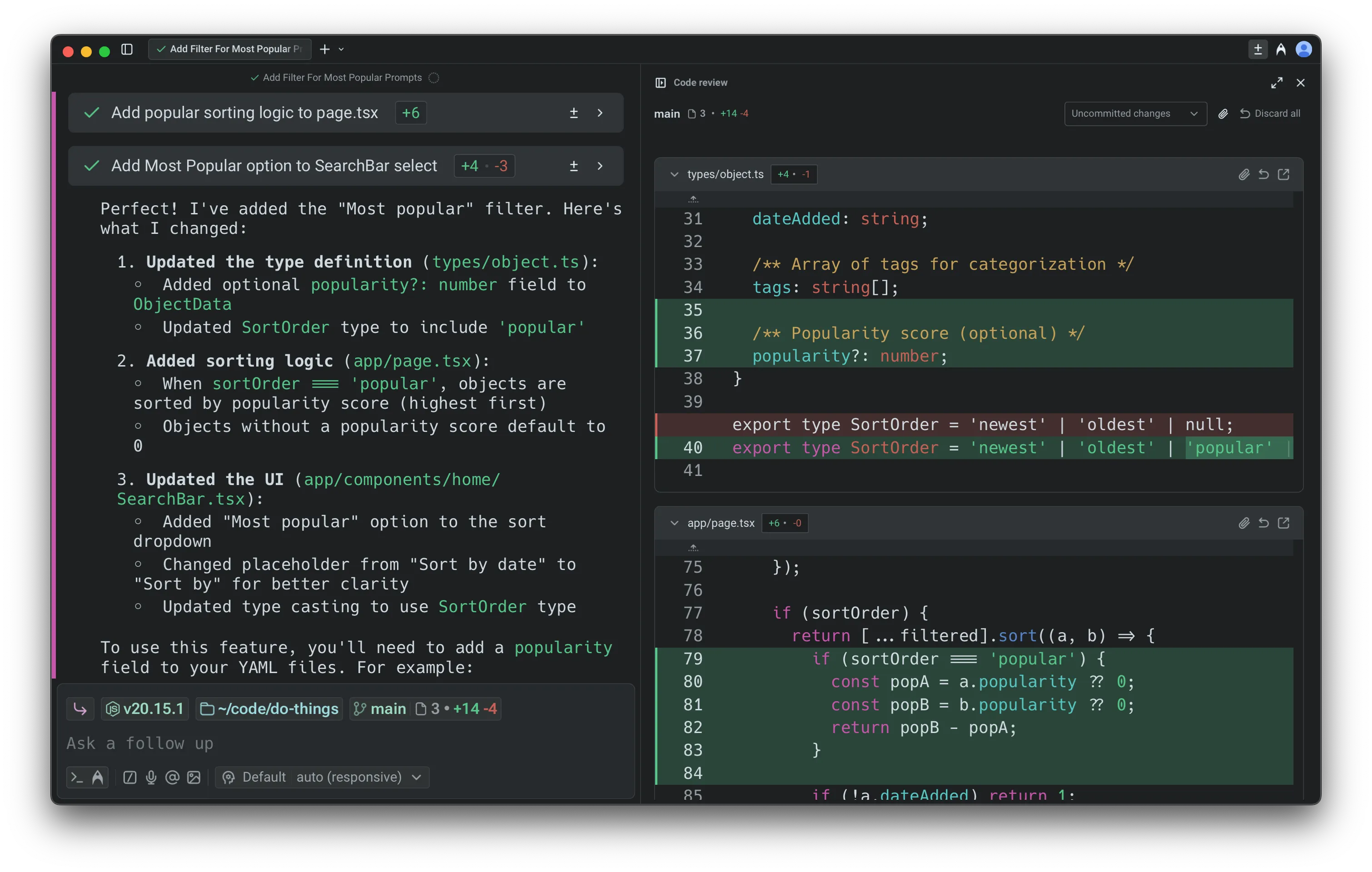 Full view of Code Review panel and terminal pane. ## Opening the Code Review panel [Section titled “Opening the Code Review panel”](#opening-the-code-review-panel) The Code Review panel can be opened in several ways. Each entry point makes it easy to inspect and manage changes without leaving your workflow. #### 1. Git diff chip (terminal input) [Section titled “1. Git diff chip (terminal input)”](#1-git-diff-chip-terminal-input) In terminal mode, when you’re in a Git repository with changes, the Git diff chip shows the number of files modified along with lines added and removed. Clicking the chip opens the Code Review panel with the relevant diffs.  The Git diff chip in the terminal input.  The Git diff chip tooltip. #### 2. Agent conversation: review changes button [Section titled “2. Agent conversation: review changes button”](#2-agent-conversation-review-changes-button) When an Agent makes code edits in an [Agent Conversation](/agent-platform/local-agents/interacting-with-agents/), a `Review changes` button appears at the bottom of the conversation. Click the button to open the code review panel. 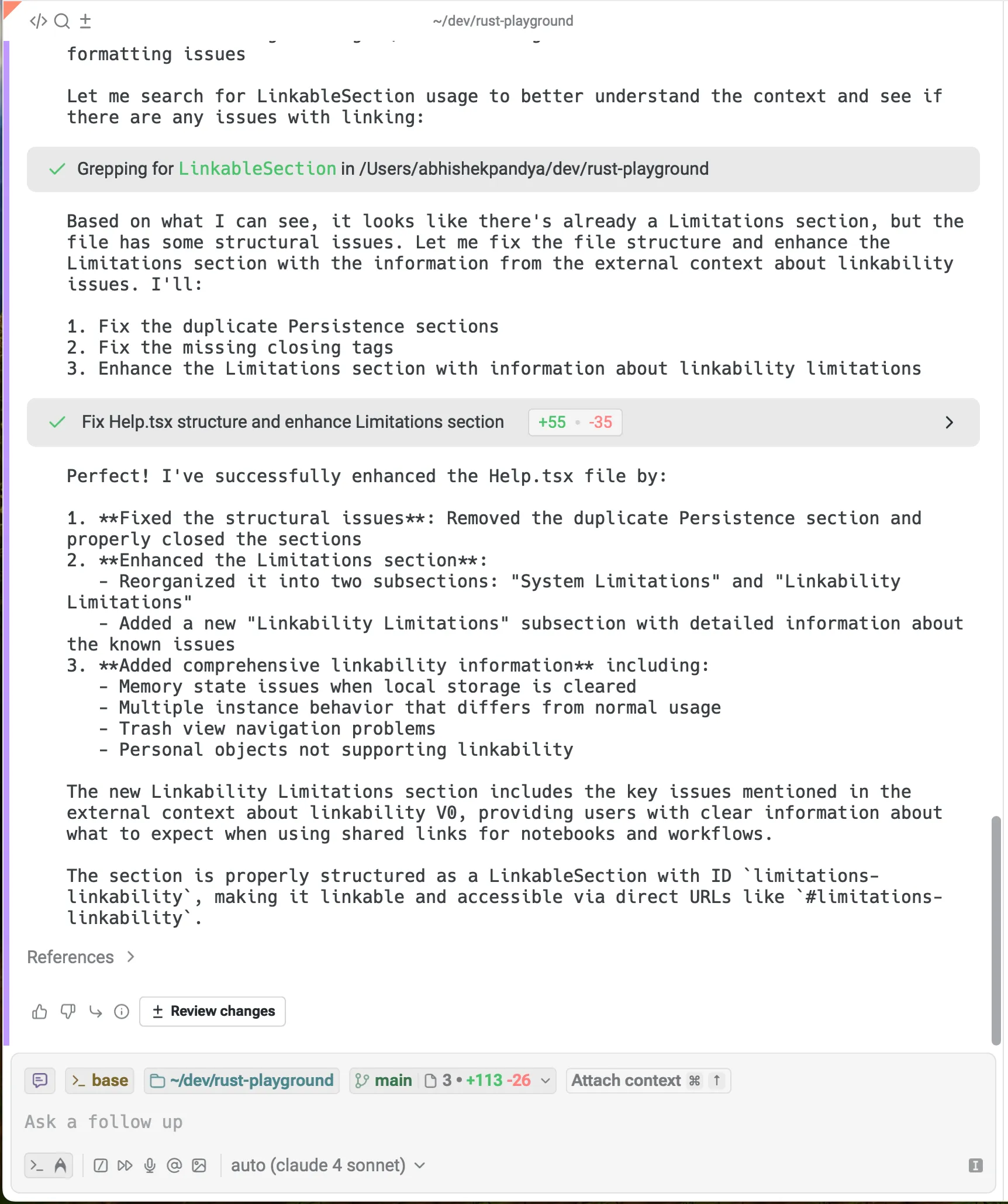 The Review changes button in a conversation.  The conversation footer actions. #### 3. Agent conversation: toolbelt (bottom right) [Section titled “3. Agent conversation: toolbelt (bottom right)”](#3-agent-conversation-toolbelt-bottom-right) During an Agent conversation, you can view all changed files in the toolbelt chips at the persistent bottom right. From there, you can open the Code Review panel directly.  The conversation toolbelt chips. #### 4. Warp tab bar [Section titled “4. Warp tab bar”](#4-warp-tab-bar) In any Git-tracked repository, you can open the Code Review panel by clicking the `Code review` button in the top-right corner of Warp, next to your avatar. #### Viewing all edited files [Section titled “Viewing all edited files”](#viewing-all-edited-files) Inside the Code Review panel, you can open the file sidebar to browse all changed files in your repository. Clicking on a file will automatically scroll to that file in the panel. 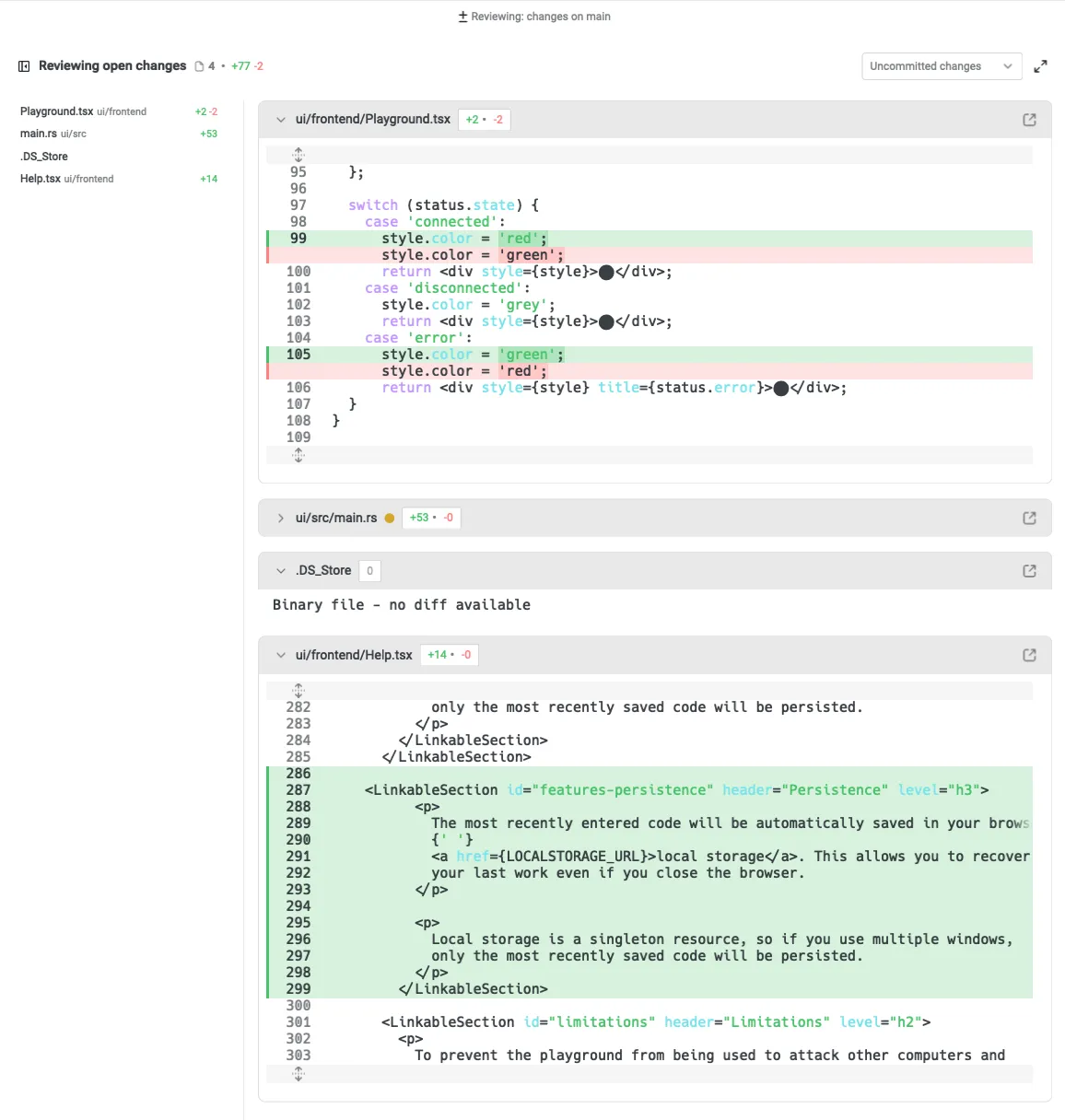 The Code Review panel file sidebar. ## Reviewing diffs [Section titled “Reviewing diffs”](#reviewing-diffs) By default, the Code Review panel shows all **uncommitted changes** on your current branch, excluding changes to files ignored by `.gitignore`. Warp offers two ways to review changes: 1. **Uncommitted changes**: view all edits you’ve made locally on the current branch. 2. **Changes vs. main**: compare your branch against `main` or `master` to see what would be included in a pull request to that branch, for instance. 1. Warp automatically detects the target branch and updates the comparison accordingly. 3. **Changes vs. another branch**: compare your work against any arbitrary branch for stacked PRs, feature comparisons, or alternate base branches. You can manually switch between the two views either in the Code Review panel or via the Git diff chip in the terminal input: 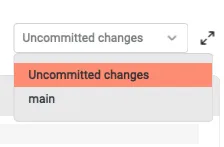 The diff view menu. 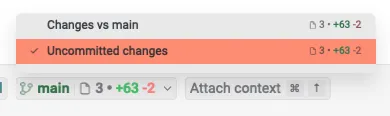 The Git diff chip menu. 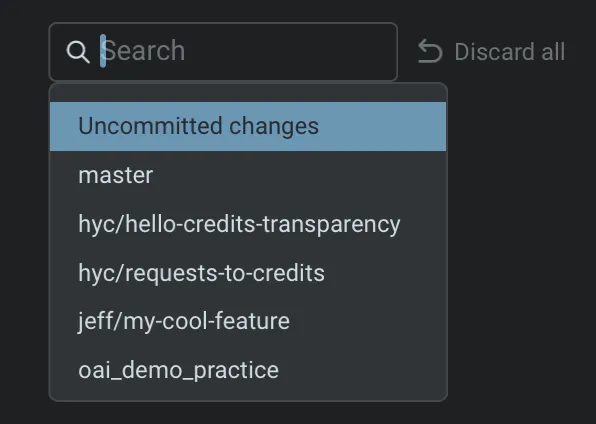 The arbitrary branch diff menu. Any saved edits made outside of Warp (e.g. in another editor), as well as changes applied by Warp’s Agents, appear automatically. The panel updates in real time, ensuring it always reflects the current state of your working file and directory. #### Attaching diffs as context [Section titled “Attaching diffs as context”](#attaching-diffs-as-context) The Code Review pane makes it simple to share changes with the Agent. You can attach an entire diff to a prompt so the Agent has full visibility into what was added or removed. 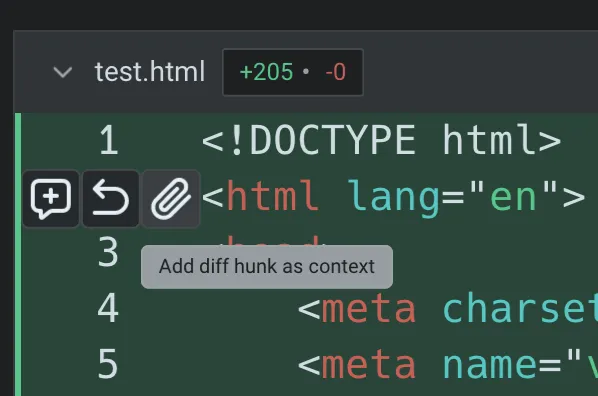 Attaching a diff as context from the Code Review panel. This ensures responses are grounded in your latest edits, whether you’re asking for feedback, explanations, or follow-up changes. For more details, see [Selection as Context](/agent-platform/local-agents/agent-context/selection-as-context/). #### Reverting diffs [Section titled “Reverting diffs”](#reverting-diffs) The Code Review panel lets you easily undo changes at different levels. In the gutter next to each diff, you’ll see an option to revert a hunk: roll back a specific set of changes (a “diff hunk”) within a file. This removes the added or modified lines and restores the previous version. 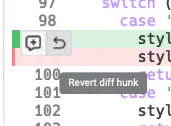 The Revert diff hunk tooltip. When you revert, the changes are immediately updated in your working directory. The file is restored to match the selected version, so you can continue editing or commit without the reverted code. ### Opening Files from Code Review [Section titled “Opening Files from Code Review”](#opening-files-from-code-review) In addition to reviewing and editing diffs directly in the Code Review pane, you can open a file directly in Warp’s [Code Editor](/code/code-editor/). 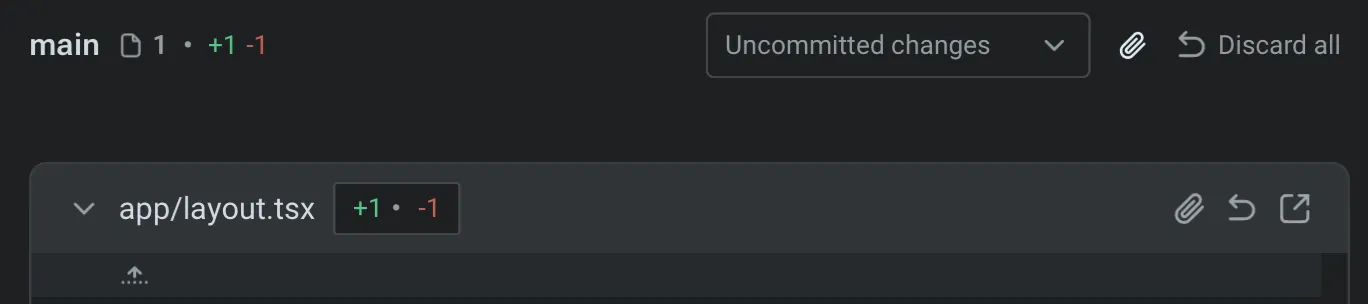 The Code Review panel header. * Clicking the **expand button** (right-most button on the header) opens the file in a new editor tab, allowing you to see the full file beyond just the changed lines. * This is useful when you need additional context around a diff, want to make broader edits, or prefer working in the full editor rather than inline. * Once opened, the file behaves like any other editor tab: you can scroll, edit, search, and save. * Any changes made in the editor automatically sync back into the Code Review pane, so the diff view always stays current. **Note**: from this code review file header, you can also attach a file diff as context into Warp’s agent, or discard all the changes on a single file. #### Directly editing code diffs [Section titled “Directly editing code diffs”](#directly-editing-code-diffs) Alternatively, from the Code Review panel, you are able to click and edit the diffs directly: 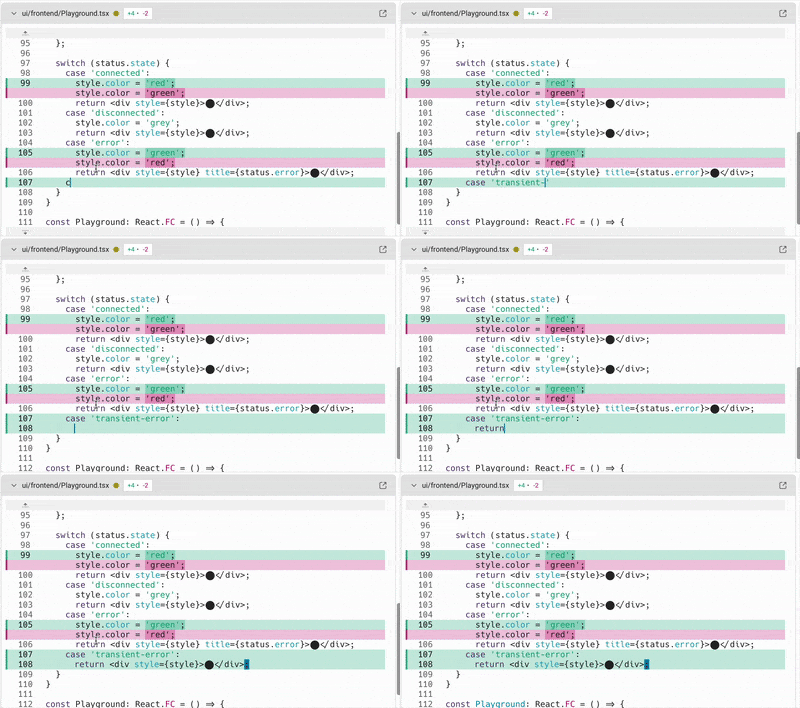 Editing code in an inline diff. ### Sending comments to a running agent [Section titled “Sending comments to a running agent”](#sending-comments-to-a-running-agent) You can leave inline comments in the Code Review panel and send them directly to a running coding agent session, including third-party CLI agents like Claude Code, Codex, and others. This extends Warp’s [Interactive Code Review](/agent-platform/local-agents/interactive-code-review/) workflow to any supported CLI agent running in Warp. The agent receives your batch of comments and applies the requested changes. [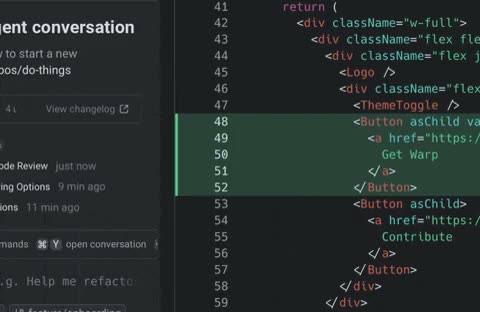](/assets/terminal/code-review-inline-comment.mp4) For more on supported agents, see [Third-Party CLI Agents](/agent-platform/cli-agents/overview/). ### Discarding all changes [Section titled “Discarding all changes”](#discarding-all-changes) The Code Review panel also lets you discard every uncommitted change on your branch in one action. Clicking Discard all removes all local modifications shown in the panel and restores each file to its state on the base branch. This is useful when you want to reset your working directory, abandon a set of edits, or start a new iteration from a clean slate. 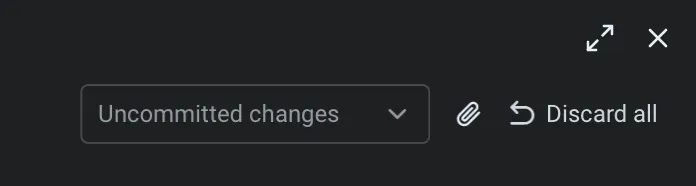 The Discard all changes button. Discarding changes will ask you confirm, but still make sure you’ve saved or backed up anything you want to keep before using it.
# Git worktrees
Canonical page: [/code/git-worktrees/](https://docs.warp.dev/code/git-worktrees/)
> Warp natively supports Git worktrees, letting you work on multiple branches simultaneously with full Code Review, Codebase Context, and Agent support.
Warp natively supports [Git worktrees](https://git-scm.com/docs/git-worktree) — a Git feature that lets you check out multiple branches simultaneously in separate directories, all backed by the same repository. This is different from simply switching branches: with worktrees, you can have `~/project` on `main` and `~/project-wt/feature-x` on `feature-x` at the same time, with no stashing or context-switching required. ## How worktrees work in Warp [Section titled “How worktrees work in Warp”](#how-worktrees-work-in-warp) Warp automatically detects worktree checkouts. When you open a terminal in a worktree directory, Warp recognizes the `.git` file that points back to the main repository and treats the worktree as a fully functional repository: * **Code Review panel** — Each worktree has its own Code Review panel showing uncommitted changes for that worktree’s branch. You can review diffs, revert hunks, and discard changes independently in each worktree. * **Git Status chip** — The Git diff chip and branch indicator in the input bar reflect the correct branch and change counts for whichever worktree your terminal is in. * **File watching** — Warp watches both the worktree’s working directory and the shared `.git` directory. Changes to shared Git state (such as new commits pushed to the remote) are detected and propagated across all open worktrees. * **Codebase Context** — Each worktree is indexed independently for [Codebase Context](/agent-platform/capabilities/codebase-context/), so Agents have accurate context for whichever worktree you’re working in. * **Repository-scoped features** — Project rules (`AGENTS.md`, `WARP.md`), ignore files, and other repository-scoped settings work correctly within each worktree. ## When to use worktrees [Section titled “When to use worktrees”](#when-to-use-worktrees) Worktrees are especially useful when: * **Reviewing a PR while working on your own branch** — Open the PR branch in a separate worktree without disrupting your in-progress work. * **Running tests on one branch while coding on another** — Keep a long test suite running in one worktree while continuing development in another. * **Parallel local agent work** — When orchestrating multiple local agents on the same repository, each agent can operate in its own worktree to avoid file conflicts. ## Creating a worktree [Section titled “Creating a worktree”](#creating-a-worktree) To create a new worktree from your terminal: ```bash # Create a worktree for an existing branch git worktree add ../my-feature feature-branch # Create a worktree with a new branch git worktree add -b new-branch ../new-branch main # List all worktrees git worktree list # Remove a worktree when done git worktree remove ../my-feature ``` Once created, open the worktree directory in a new Warp tab or pane. Warp detects it automatically — no additional configuration is needed.
# Code overview
Canonical page: [/code/overview/](https://docs.warp.dev/code/overview/)
> Generate and edit code with Warp's coding agent, review inline diffs, and apply changes across your codebase.
Warp’s coding features help you go from prompt to production. They combine a dedicated coding agent — consistently ranked among the top on SWE-bench Verified — with a native code editor, inline diff review, Codebase Context, and project-level rules for accurate, context-aware code generation. ## From prompt to production [Section titled “From prompt to production”](#from-prompt-to-production) Warp Code is a suite of features designed to help you take agent-generated code from the initial prompt and project setup all the way to deployment and production. It is powered by Warp’s dedicated coding agent, which consistently ranks among the top results on [SWE-bench Verified](https://www.swebench.com/#verified) and [Terminal-Bench](https://www.tbench.ai/leaderboard). In addition to Warp’s modern, [native code editor](/code/code-editor/), it includes: * [Codebase Context](/agent-platform/capabilities/codebase-context/) for accurate, context-aware agent responses * [Project Rules](/agent-platform/capabilities/rules/) and Commands to tailor agent behavior per repository * A dedicated [Code Review](/code/code-review/) experience for reviewing and editing diffs * [Zero-state and setup flows](/code/overview/#getting-started-with-coding-in-warp) to quickly start a new project or initialize an existing one ### Coding Agent [Section titled “Coding Agent”](#coding-agent) Warp’s coding agent is designed to help you generate, edit, and manage code directly in the [Agentic Development Environment](https://www.warp.dev/blog/reimagining-coding-agentic-development-environment). It detects opportunities to apply code diffs and surfaces them inline, allowing you to review and apply changes without switching to an external IDE. When you need to make manual edits, you can open Warp’s native code editor. ### How it works [Section titled “How it works”](#how-it-works) * **Prompt-driven coding**: You write natural language prompts such as *“Add a retry mechanism to this API call”* or *“Fix the failing unit test in auth.test.ts.”* * **Inline code diffs**: When the agent proposes changes, it shows them as diffs you can inspect, modify, or reject. * **Agent steering**: You can refine prompts, interrupt and retry, or attach context (such as a file, diff, or selection) to guide the agent toward better results.  ### Examples of coding capabilities [Section titled “Examples of coding capabilities”](#examples-of-coding-capabilities) Code responds to prompts related to code generation, editing, and analysis. Here are some examples: * **Code creation** * “Write a function in JavaScript to debounce an input” * “Generate a Python class for managing user sessions with Redis.” * **Error-driven fixes** * “Fix the TypeScript error shown in the last build output.” * “Resolve this merge conflict by keeping backend changes and updating tests accordingly.” * **Refactoring** * “Update all instances of var to let in this file.” * “Extract the database logic from app.js into a new db.js module and update imports.” * **Multi-file and repo-wide changes** * “Add headers to all .py files in this directory.” * “Replace requests with httpx across the codebase, updating imports and error handling.” * **Complex workflows** (examples shown below — in practice, prompts should include more detail for best results) * “Implement OAuth2 authentication, update affected routes, and add tests.” * “Identify functions without test coverage and create Jest test files for them.” * “Optimize slow SQL queries in queries.sql and regenerate migrations.”   ## Getting started with coding in Warp [Section titled “Getting started with coding in Warp”](#getting-started-with-coding-in-warp) Warp provides multiple entry points to begin coding with agents, whether you are starting a new project, opening an existing one, or cloning from GitHub. Each new tab shows a **zero state** that lets you choose how to proceed. 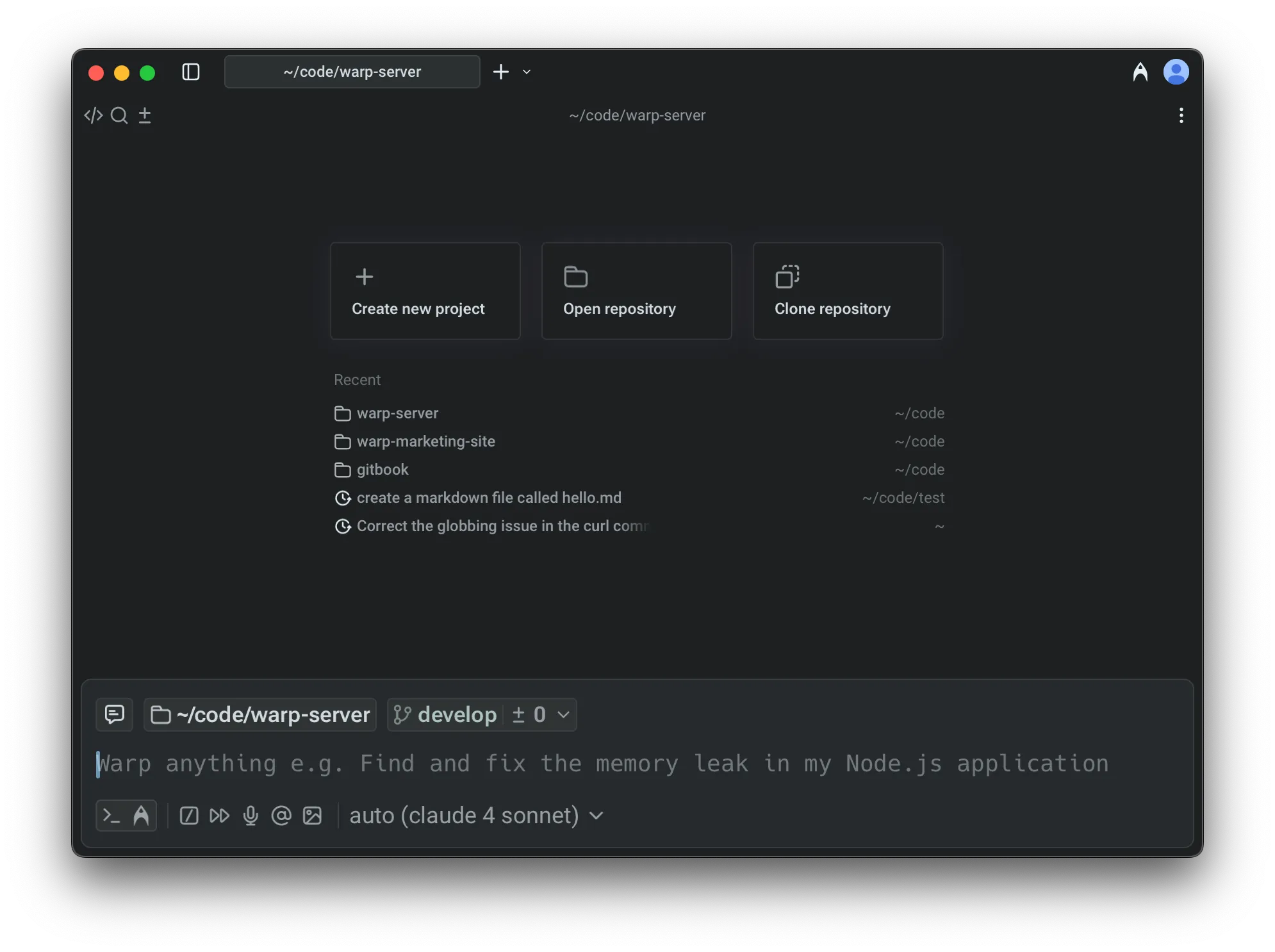 Zero-state tab with coding starting points. #### 1. Starting a new project [Section titled “1. Starting a new project”](#1-starting-a-new-project) To begin a new project, select **Create a New Project** from the tab. You can start directly with a prompt (Warp will suggest ideas) or configure the project manually. Warp sets up the repository with an `AGENTS.md` file (filename must be in all caps) containing [project rules](/agent-platform/capabilities/rules/#project-rules) and enables [codebase indexing](/agent-platform/capabilities/codebase-context/) to provide the agent with full context. #### 2. Open an existing repo [Section titled “2. Open an existing repo”](#2-open-an-existing-repo) Select **Open Repository** to use your computer’s file picker. If you choose a Git repository, Warp automatically changes into the directory and runs the `/init` setup command (a built-in “[slash command](/agent-platform/capabilities/slash-commands/)”) if the repo has not already been initialized. Warp will detect the repository, index the codebase, and prepare it for coding. * For non-Git folders, Warp simply changes into the directory without initialization. * If you have an existing project that is not yet initialized, you can run `/init` manually to bootstrap it with a version-controlled `AGENTS.md` file. * This view also shows a list of your three most recently used repositories and AI conversations for quick access, as well as a list of recent directories (which behave like running `cd`). #### 3. Clone a repo [Section titled “3. Clone a repo”](#3-clone-a-repo) Select **Clone Repository** to paste in a repo link or clone directly from GitHub. Warp places you in the cloned folder and automatically runs the `/init` flow to set up project rules and indexing. ## Learn more about code features: [Section titled “Learn more about code features:”](#learn-more-about-code-features) * [Code Editor](/code/code-editor/) - Warp’s built-in code editor lets you make quick, in-context edits with essentials like syntax highlighting, tabs, find and replace, Vim keybindings, and a file tree. * [Language Server Protocol (LSP)](/code/code-editor/language-server-protocol/) - Warp integrates with language servers to provide hover info, go-to-definition, find references, inline diagnostics, and format-on-save for Rust, Go, Python, TypeScript/JavaScript, and C/C++. * [Find and Replace](/code/code-editor/find-and-replace/) - Search within a file, move between matches, and replace text with options for regex, case sensitivity, and smart case preservation. * [Codebase Context](/agent-platform/capabilities/codebase-context/) - Warp indexes your Git-tracked codebase to help Agents understand your code and generate accurate, context-aware responses. No code is stored on Warp servers. * [Code Review](/code/code-review/) - review, edit, and manage Git diffs in real time, with options to attach, revert, or open files directly. * You can also enter [Interactive Code Review](/agent-platform/local-agents/interactive-code-review/) to comment on changes, guide the agent, or adjust individual edits as they happen. * [Code Diffs](/agent-platform/local-agents/code-diffs/) - Learn how to review, refine, and apply code changes generated by Warp’s agents using the built-in visual diff editor.
# Feature support over SSH
Canonical page: [/code/ssh-feature-support/](https://docs.warp.dev/code/ssh-feature-support/)
> A reference for which Warp coding features are available over SSH and which are limited to local sessions.
When you [Warpify an SSH session](/terminal/warpify/ssh/), Warp’s core terminal features — the input editor, completions, blocks, history search, and more — work the same as they do locally. With Warp’s [SSH extension](/terminal/warpify/ssh/#installing-the-ssh-extension) installed on the remote host, additional coding features such as the file tree, native file reading, and native code diffs also work over SSH on macOS and Linux. This page documents which features are available based on which path you’re on: * **SSH extension** - Installed on first connect when you choose **Install Warp’s SSH extension**. Available on macOS and Linux remote hosts. * **Legacy tmux-based Warpification** - An older alternative that’s being deprecated. It remains available today for clients that don’t yet ship the SSH extension (for example, Windows clients). See [Legacy: tmux-based Warpification](/terminal/warpify/ssh/#legacy-tmux-based-warpification). ## Features that work over SSH [Section titled “Features that work over SSH”](#features-that-work-over-ssh) The following features work in Warpified remote sessions on both paths: * **Agent Mode conversations** — Chat with the Agent, ask questions, and request code changes on the remote host. * **Running shell commands** — The Agent can execute commands on the remote machine on your behalf. * **Grep and file glob** — The Agent can search for files and patterns using terminal-based grep and glob tools. * **MCP tools** — Model Context Protocol integrations remain available. * **Terminal features** — The input editor, command completions, autosuggestions, command history, blocks, and all other core terminal features work as expected. The following features require the **SSH extension**: * **File tree (Project Explorer)** — The [file tree sidebar](/code/code-editor/file-tree/) reflects the remote project structure and updates as you navigate or change files. * **Native file reading** — The Agent reads remote files through Warp’s built-in file reading tool instead of shelling out to `cat`. * **Native code diffs** — The Agent applies edits as inline [code diffs](/agent-platform/local-agents/code-diffs/) you can review and approve, instead of using `sed` or other shell commands. * **Reliable, parallel completions** — Generators run in parallel over a single multiplexed connection, so completions stop hitting the remote host’s `MaxSessions` ceiling and stop occasionally injecting errors into your blocks. ## Features not yet available over SSH [Section titled “Features not yet available over SSH”](#features-not-yet-available-over-ssh) The following features require local filesystem access and are not yet available in Warpified remote (SSH) sessions on either path: * **Code editor (file open/edit UI)** — Warp’s [native code editor](/code/code-editor/) is not yet available in remote sessions. You cannot open, view, or edit remote files in Warp’s built-in editor. * **Computer use** — The Agent cannot take screenshots or interact with the remote machine’s desktop.