Agent Platform: Warp's Agent Platform: capabilities, local agents, CLI agents, cloud agents.
# Agents overview
Canonical page: [/agent-platform/](https://docs.warp.dev/agent-platform/)
> Oz is the orchestration platform for cloud agents, powering both interactive and autonomous agents for development workflows.
Warp includes **Oz**, the orchestration platform that powers all of Warp’s agents. Oz runs interactive agents locally inside Warp for real-time coding assistance and deploys autonomous agents in the cloud for background automation, event-driven workflows, and parallel execution across repos and teams. Warp’s client is open source under [AGPL v3](https://github.com/warpdotdev/warp/blob/master/LICENSE-AGPL), so the editor and terminal that host your agents are fully auditable. See [Contributing to Warp](/support-and-community/community/contributing/) for the source and contribution flow. With Oz, you can: * Run interactive agent conversations in Warp for real-time coding assistance * Deploy autonomous agents that run in the cloud from triggers, schedules, or integrations * Coordinate multiple agents concurrently across machines, repos, and teams * Track, audit, and share agent activity with full visibility into what ran and what it did Oz is fully programmable—launch agents manually or build custom logic around them with triggers, schedules, environments, and your choice of hosting (Warp’s cloud or your own). *** ## Key capabilities [Section titled “Key capabilities”](#key-capabilities) * [**Local Agents**](/agent-platform/local-agents/overview/) - Interactive agents embedded in Warp. Use natural language to write code, debug issues, run commands, and automate development tasks with full terminal access. * [**Third-Party CLI Agents**](/agent-platform/cli-agents/overview/) - Use Claude Code, Codex, OpenCode, and other CLI coding agents in Warp with rich input, notifications, code review, and remote session control. * [**Cloud Agents**](/agent-platform/cloud-agents/overview/) - Autonomous agents that run in the background in response to system events, schedules, or integrations. * [**Integrations**](/agent-platform/cloud-agents/integrations/) - Connect external system events to autonomous agent execution. Use [Slack](/agent-platform/cloud-agents/integrations/slack/), [Linear](/agent-platform/cloud-agents/integrations/linear/), [GitHub Actions](/agent-platform/cloud-agents/integrations/github-actions/), and other integrations to trigger agents in the cloud. * [**Oz Platform**](/agent-platform/cloud-agents/platform/) - The underlying infrastructure that powers Oz, including the CLI, API/SDK, orchestration layer, environments, secrets, and management/observability. *** ## Getting started [Section titled “Getting started”](#getting-started) * [**Agents in Warp**](/agent-platform/getting-started/agents-in-warp/) - Start using agents interactively in Warp * [**Oz web app**](https://oz.warp.dev) - Create runs, manage schedules, browse skills, and configure integrations * [**Oz CLI**](/reference/cli/) - Run agents from the command line, in CI, or on remote machines * [**Oz API & SDK**](/reference/api-and-sdk/) - Programmatically create and monitor agent runs *** ## Learn more [Section titled “Learn more”](#learn-more) * [Warp Agents overview](/agent-platform/local-agents/overview/) - Interactive agents in Warp * [Third-Party CLI Agents](/agent-platform/cli-agents/overview/) - Claude Code, Codex, OpenCode, and more * [Cloud Agents Overview](/agent-platform/cloud-agents/overview/) - Background agents for automation at scale * [Agent Capabilities](/agent-platform/capabilities/) - Skills, planning, MCP, rules, and more * [Oz Platform](/agent-platform/cloud-agents/platform/) - CLI, API/SDK, orchestration, environments, and hosts * [Environments](/agent-platform/cloud-agents/environments/) - Configure execution context for cloud agents * [Integrations](/agent-platform/cloud-agents/integrations/) - Slack, Linear, GitHub Actions, and custom integrations * [Skills as Agents](/agent-platform/cloud-agents/skills-as-agents/) - Run agents from reusable skill definitions * [Managing Cloud Agents](/agent-platform/cloud-agents/managing-cloud-agents/) - Monitor and manage agent activity
# Agent Memory (Research Preview)
Canonical page: [/agent-platform/agent-memory/](https://docs.warp.dev/agent-platform/agent-memory/)
> Agent Memory gives agents in Oz persistent memory across supported harnesses, including the Warp Agent, Claude Code, and Codex.
Caution Agent Memory is in **research preview** and is enabled per team for design partners. [Join the waitlist](https://www.warp.dev/oz/agent-memory#waitlist) to request access for your team. Agent Memory is a persistent memory system that lives on Oz and is shared across every supported agent harness, including the built-in Warp Agent, Claude Code, Codex, and others as they’re added. Agents read from and write to this memory system as they run, so durable facts, decisions, and outcomes from one conversation are available to the next — regardless of which harness, machine, or teammate triggers the work. Memory creation and retrieval are asynchronous and run in the background, so they don’t consume tokens or add latency to the active task. Watch this short preview to see Agent Memory in context.  [Join the Agent Memory waitlist](https://www.warp.dev/oz/agent-memory#waitlist). ## Key features [Section titled “Key features”](#key-features) * **Cross-harness memory** - One memory system is shared across the Warp Agent, Claude Code, Codex, and other harnesses as they’re added. Third-party harnesses are covered when they run as cloud agents. * **Both local and cloud agents** - Supports interactive local agents in Warp and background cloud agents. * **Asynchronous by design** - Memory creation runs after a conversation ends. Retrieval runs in the background during a run. Neither consumes tokens or adds latency to the active task. * **Automatic memory from conversations** - When a conversation ends, Oz extracts durable facts, learnings, and outcomes and writes them as memories. New knowledge merges with existing memories or supersedes them on conflict. * **Agent-scoped, shareable stores** - By default, each agent has its own memory store. Stores can also be shared across multiple agents, or across an entire team, when the same knowledge should travel with the work. * **Per-agent access and instructions** - Attach stores to specific agents with read-only or read-write access. Per-store instructions tell each agent how and when to use the store. * **Fully accessible via API** - Memories and stores can be read, created, updated, and deleted through the [Oz API](/reference/api-and-sdk/). * **Traceability** - Memory retrievals are recorded so teams can inspect which memories contributed to a run’s context. * **Auditability** - Every change to a memory is recorded so teams can inspect how a memory has changed over time. * **Self-hosting support** - Enterprises can run Agent Memory on a [self-hosted Oz](/agent-platform/cloud-agents/self-hosting/) instance to meet security, privacy, and compliance requirements. ## Where Agent Memory runs [Section titled “Where Agent Memory runs”](#where-agent-memory-runs) Agent Memory is part of Oz. Storage, memory creation, and retrieval all run on the same Oz instance that hosts your agents. That instance can be Warp-hosted Oz (the default) or a [self-hosted Oz](/agent-platform/cloud-agents/self-hosting/) instance that your team operates inside its own perimeter. The same memory is accessible from any agent you run on Oz: * The local Warp Agent. * Cloud agents triggered from the CLI, web app, schedules, or integrations. * Third-party harnesses running as cloud agents: Claude Code, Codex, and others as they’re added. (Running third-party harnesses locally isn’t supported during the research preview.) Memory stays bound to its owner (a user or a team), independent of which harness reads or writes. ## Memory stores [Section titled “Memory stores”](#memory-stores) A memory store is a named collection of memories. By default, each agent has its own store that it writes to as it runs. Stores can also be shared across multiple agents when they need the same knowledge, and across teammates when knowledge should travel with the team. * **Personal stores** - Owned by a user. Store memories about preferences, working notes, and individual patterns. * **Team stores** - Owned by a team. Store shared knowledge like deployment runbooks, code review conventions, or on-call procedures. Every team member, and any agent the team authorizes, can read from the same store. Use multiple stores to keep contexts separate, and share stores across agents when needed. For example, a code review agent can have its own store of review patterns, while a repo-specific store of architectural decisions is shared between the code review agent and a Sentry triage agent so both reason about the same codebase. ## Automatic memory from conversations [Section titled “Automatic memory from conversations”](#automatic-memory-from-conversations) When a conversation finishes, Oz extracts durable facts, learnings, and outcomes from the transcript and writes them as memories. Memory creation runs in the background after the conversation ends, so it doesn’t consume tokens or add latency during that run. * **Memories evolve over time** - Agents update and supersede their own memories as new information arrives, including to resolve contradictions with prior memories. You can also explicitly ask an agent to remember something during a conversation. Oz saves that memory to the appropriate store. ## How agents use memory [Section titled “How agents use memory”](#how-agents-use-memory) When an agent starts a task, Oz searches the stores the agent can access for relevant memories and injects them as context. The search runs in the background, so the agent only sees the memories returned. Agents can also retrieve additional memories on demand mid-conversation when they determine it’s relevant, similar to how they consult [Rules](/agent-platform/capabilities/rules/) or [Codebase Context](/agent-platform/capabilities/codebase-context/). You don’t need to write retrieval queries or pre-load memory. ## Attaching memory to your agents [Section titled “Attaching memory to your agents”](#attaching-memory-to-your-agents) Attach stores to agents with read-only or read-write access. Each attachment can include per-store instructions that tell the agent how and when to use the store. For example, use instructions like “Reference this store for team naming conventions” or “Write a new memory after each successful deployment.” Without instructions, the agent can access the store but won’t know when to read from or write to it. ## Join the waitlist [Section titled “Join the waitlist”](#join-the-waitlist) Agent Memory is rolling out to design partner teams during research preview. [Join the waitlist](https://www.warp.dev/oz/agent-memory#waitlist) to request access. ## Related pages [Section titled “Related pages”](#related-pages) * [Codebase Context](/agent-platform/capabilities/codebase-context/) - Let agents understand your codebase through semantic indexing. * [Rules](/agent-platform/capabilities/rules/) - Define global and project-level guidelines that shape agent behavior. * [Skills](/agent-platform/capabilities/skills/) - Reusable, scoped instructions that teach agents how to perform specific tasks. * [Agent profiles and permissions](/agent-platform/capabilities/agent-profiles-permissions/) - Control what permissions and autonomy agents have. * [Cloud agents overview](/agent-platform/cloud-agents/overview/) - Run background agents with team-wide observability. * [Self-hosting overview](/agent-platform/cloud-agents/self-hosting/) - Run Oz, and Agent Memory along with it, on your own infrastructure. * [Oz API and SDK](/reference/api-and-sdk/) - Read, create, update, and delete memories and stores programmatically.
# Capabilities overview
Canonical page: [/agent-platform/capabilities/](https://docs.warp.dev/agent-platform/capabilities/)
> Core capabilities and configuration options that shape how agents behave, what context they have access to, and how they execute tasks.
Agent capabilities are the core building blocks that define how Warp’s agents operate, including the context sources agents can access, the rules that guide their behavior, the tools they can use, and the models they run on. Configure these capabilities to match your workflows and preferences. ## Capabilities in this section [Section titled “Capabilities in this section”](#capabilities-in-this-section) * [Slash Commands](/agent-platform/capabilities/slash-commands/) - Quick actions and saved prompts accessible by typing `/` in Agent Mode. * [Skills](/agent-platform/capabilities/skills/) - Reusable, scoped instructions that teach agents how to perform specific tasks in your codebase. * [Planning](/agent-platform/capabilities/planning/) - Turn agent requests into organized, editable plans that execute step-by-step with full visibility. * [Task Lists](/agent-platform/capabilities/task-lists/) - Track complex workflows with automatic task lists that update progress in real time. * [Rules](/agent-platform/capabilities/rules/) - Define global and project-level guidelines that shape agent behavior and responses. * [Full Terminal Use](/agent-platform/capabilities/full-terminal-use/) - Let the agent drive interactive terminal apps, seeing live output and running commands. * [Computer Use](/agent-platform/capabilities/computer-use/) - Let agents interact with desktop environments by taking screenshots, clicking, typing, and controlling the GUI. * [MCP](/agent-platform/capabilities/mcp/) - Connect external data sources and tools to Warp’s agents via the Model Context Protocol. * [Codebase Context](/agent-platform/capabilities/codebase-context/) - Let agents understand your codebase through semantic indexing of your Git-tracked files. * [Agent Profiles & Permissions](/agent-platform/capabilities/agent-profiles-permissions/) - Control what permissions and autonomy agents have to run commands and apply changes. * [Web Search](/agent-platform/capabilities/web-search/) - Allow agents to search the web for up-to-date information. ## Related [Section titled “Related”](#related) * [Inference & providers](/agent-platform/inference/model-choice/) - Pick the model that powers your agents, bring your own API key, or connect a custom inference endpoint. * [Local Agents](/agent-platform/local-agents/overview/) - Hands-on agent interactions in Warp.
# Agent Notifications
Canonical page: [/agent-platform/capabilities/agent-notifications/](https://docs.warp.dev/agent-platform/capabilities/agent-notifications/)
> Warp surfaces notifications from coding agents, both in-app and via desktop alerts, so you know exactly when an agent needs your attention.
Warp delivers notifications from any supported coding agent so you always know when an agent finishes a task, encounters an error, or needs your input. Notifications work whether you’re in a different tab or a different app.  ## Notification types [Section titled “Notification types”](#notification-types) Warp categorizes agent notifications by what happened: * **Complete** - the agent finished its task successfully. You can review the output and continue working. * **Request** - the agent is blocked and needs your input. This includes command approval, permission requests, and idle prompts where the agent is waiting for you. * **Error** - the agent encountered an error that requires your attention. ## In-app notifications [Section titled “In-app notifications”](#in-app-notifications) When you’re working in Warp but not looking at the agent’s tab, Warp provides several visual signals. ### Toast notifications [Section titled “Toast notifications”](#toast-notifications) Floating toast notifications appear in the corner of the Warp window when an agent in another tab needs attention. Toasts auto-dismiss after a few seconds. Hover over a toast to pause the timer, or click it to jump directly to the agent’s session. Up to two toasts are visible at a time. If additional notifications arrive, the oldest toast is replaced. 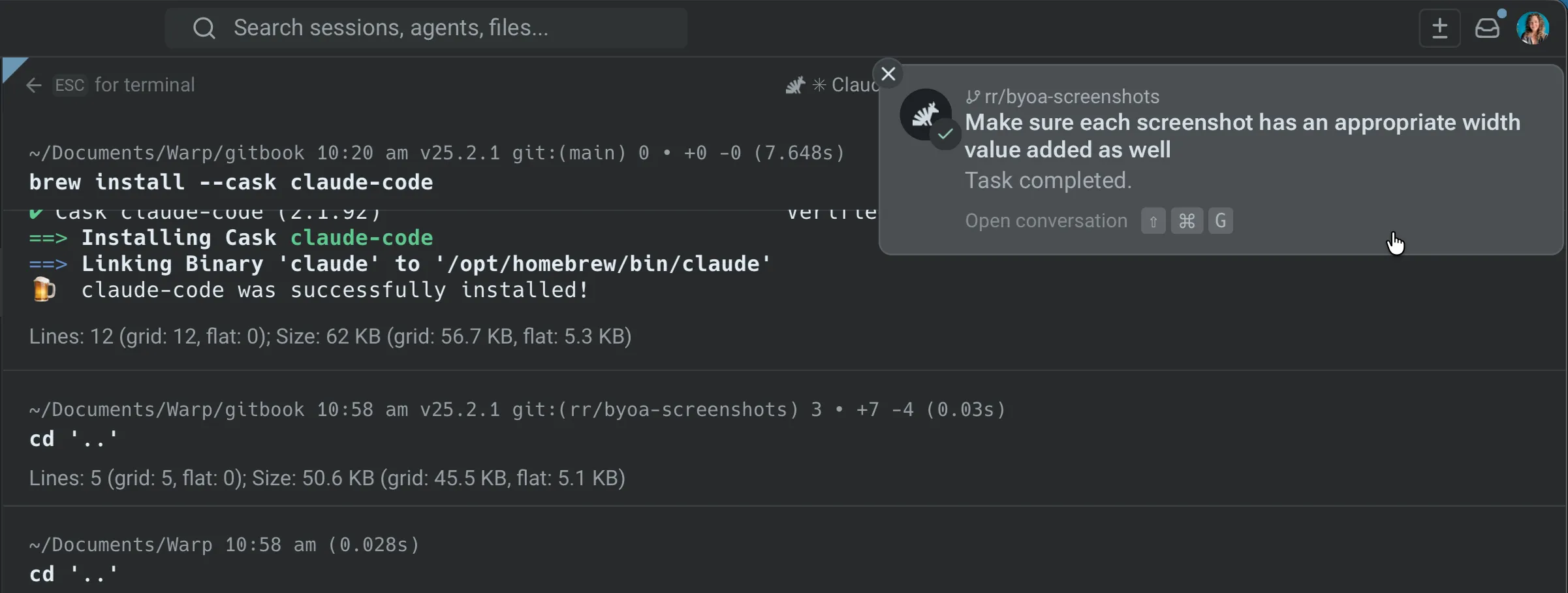 Agent task completion notification. ### Notification mailbox [Section titled “Notification mailbox”](#notification-mailbox) The notification mailbox is a sidebar panel that collects all agent notifications in one place. Open it from the bell icon in the top-right corner of Warp. 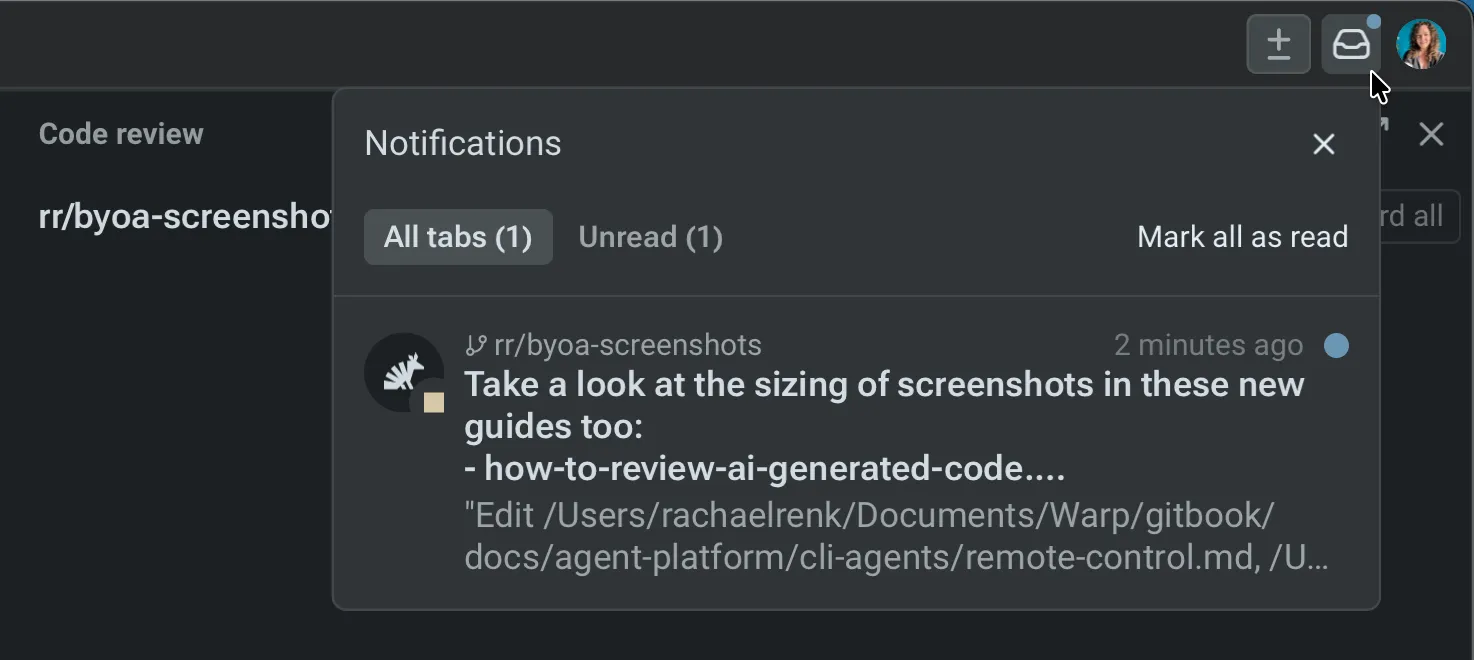 Agent notification mailbox. The mailbox includes: * **Filter tabs** - switch between **All tabs**, **Unread**, and **Errors** to find what needs attention. If there are no unreads or errors, those filters don’t appear. * **Mark all as read** - clear all unread indicators at once * **Click to navigate** - click any notification to jump directly to that agent’s tab **Keyboard shortcuts:** * `↑` / `↓` - select previous / next notification * `Enter` - open the selected notification’s session * `Shift-Tab` - cycle through filter tabs * `Esc` - close the mailbox ### Tab status indicators [Section titled “Tab status indicators”](#tab-status-indicators) Each tab displays an icon reflecting its agent’s current state — working, blocked, completed, or errored. Tabs with unread notifications show an attention badge so you can spot which sessions need action, even with many tabs open. Notifications are automatically marked as read when you navigate to the agent’s tab. ## Desktop notifications [Section titled “Desktop notifications”](#desktop-notifications) When Warp is in the background or minimized, agent notifications are delivered as native system-level desktop alerts. This ensures you’re aware of agent activity even while working in other apps. ## Supported agents [Section titled “Supported agents”](#supported-agents) Agent notifications currently work with: * **Warp Agent** - supported out of the box. No setup required. * **Claude Code** - full support via notification plugin. * **Codex** - full support via native Codex configuration. * **OpenCode** - full support via notification plugin. ## Setting up notifications [Section titled “Setting up notifications”](#setting-up-notifications) For the **Warp Agent**, notifications work out of the box — no setup needed. For **third-party CLI agents**, each agent requires a one-time setup. The process varies by agent: * **Claude Code** - one-click auto-install via a chip in Warp, or manual plugin commands. See [Claude Code setup](/agent-platform/cli-agents/claude-code/#setting-up-notifications). * **Codex** - add `notification_condition = "always"` under `[tui]` in `~/.codex/config.toml`, then restart Codex. See [Codex setup](/agent-platform/cli-agents/codex/#setting-up-notifications). * **OpenCode** - add `"@warp-dot-dev/opencode-warp"` to the `plugin` array in your OpenCode config. See [OpenCode setup](/agent-platform/cli-agents/opencode/#setting-up-notifications). 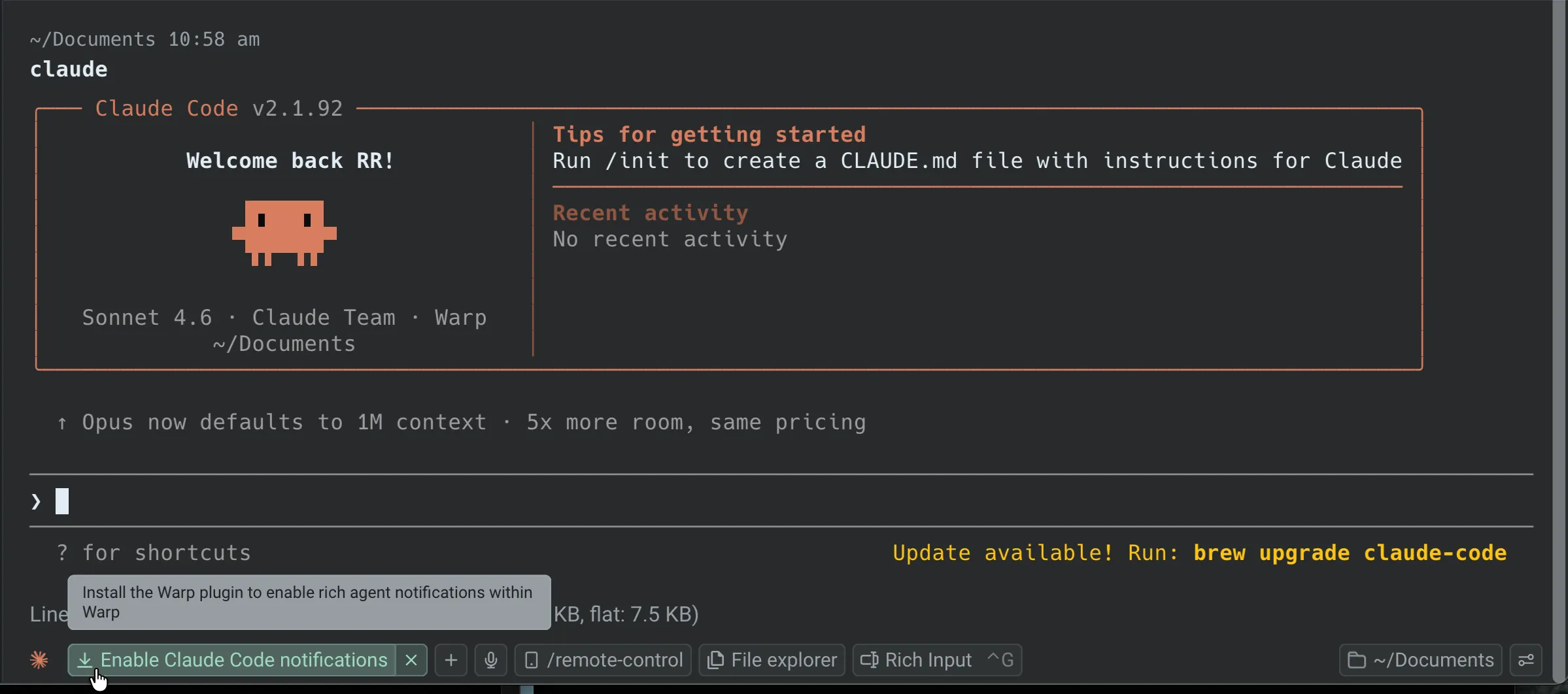 Notification plugin install chip. If auto-install doesn’t work or you’re running an agent over SSH, Warp displays an installation-instructions chip in the terminal with setup steps you can follow directly. ## Notifications in orchestrated runs [Section titled “Notifications in orchestrated runs”](#notifications-in-orchestrated-runs) In a [multi-agent orchestration](/agent-platform/cloud-agents/orchestration/), the parent agent and each child agent are separate conversations. Today, in-app notifications fire on the parent’s conversation only: child agent conversations are excluded from the toast stream and the notification mailbox so the mailbox doesn’t get cluttered with per-child status churn. That means: * **Toasts and the mailbox** - watch the parent’s conversation for `Complete`, `Request`, and `Error` notifications. * **Per-child state** - use the orchestration pill bar above the agent view header (in the Warp app) or the parent’s **Sub-agents** tab on the [Runs page](https://oz.warp.dev/runs) (in the Oz web app) to see each child’s live status. Both surfaces update as children transition through `INPROGRESS`, `SUCCEEDED`, `BLOCKED`, `FAILED`, `ERROR`, and `CANCELLED`. * **Blocked children** - if a child blocks on user input (for example, a command approval request), open that child from the pill bar to resolve the block. The parent’s transcript also reflects the child’s `BLOCKED` state so the parent can wait, send a follow-up, or cancel the child. ## Related pages [Section titled “Related pages”](#related-pages) * [Desktop Notifications](/terminal/more-features/notifications/) - configure system-level notification permissions and troubleshoot delivery * [Managing Agents](/agent-platform/cloud-agents/managing-cloud-agents/) - monitor all agent conversations, filter by status, and inspect sessions * [Multi-agent orchestration](/agent-platform/cloud-agents/orchestration/) - parent/child model, run state transitions, and the orchestration pill bar * [Third-Party CLI Agents](/agent-platform/cli-agents/overview/) - overview of supported CLI agents and Warp features * [Claude Code](/agent-platform/cli-agents/claude-code/) - setup and notification plugin installation * [Codex](/agent-platform/cli-agents/codex/) - setup and notification configuration * [OpenCode](/agent-platform/cli-agents/opencode/) - setup and notification plugin installation
# Profiles & Permissions
Canonical page: [/agent-platform/capabilities/agent-profiles-permissions/](https://docs.warp.dev/agent-platform/capabilities/agent-profiles-permissions/)
> Agent Profiles let you customize how your Agent behaves, from its models and autonomy to the tools and permissions it can use.
Agent Profiles let you configure how Warp’s agents behave in different situations, including autonomy level, base model, tool access, and command permissions. Create multiple profiles for different workflows, control which commands run automatically, and set MCP server access rules per profile. ## Agent Profiles [Section titled “Agent Profiles”](#agent-profiles) Agent Profiles let you configure how your Agent behaves in different situations. Each profile defines the Agent’s autonomy, base models, and tool access. You can create multiple profiles and edit them directly in **Settings** > **Agents** > **Profiles**. * **Default profile**: Every user starts with a default profile, you can edit it at any time, and new profiles will copy its settings as a starting point. * **Other profiles**: Set up different profiles for different workflows (e.g., “Safe & cautious”, “YOLO mode”, etc.). Manage them in the Profiles settings menu. 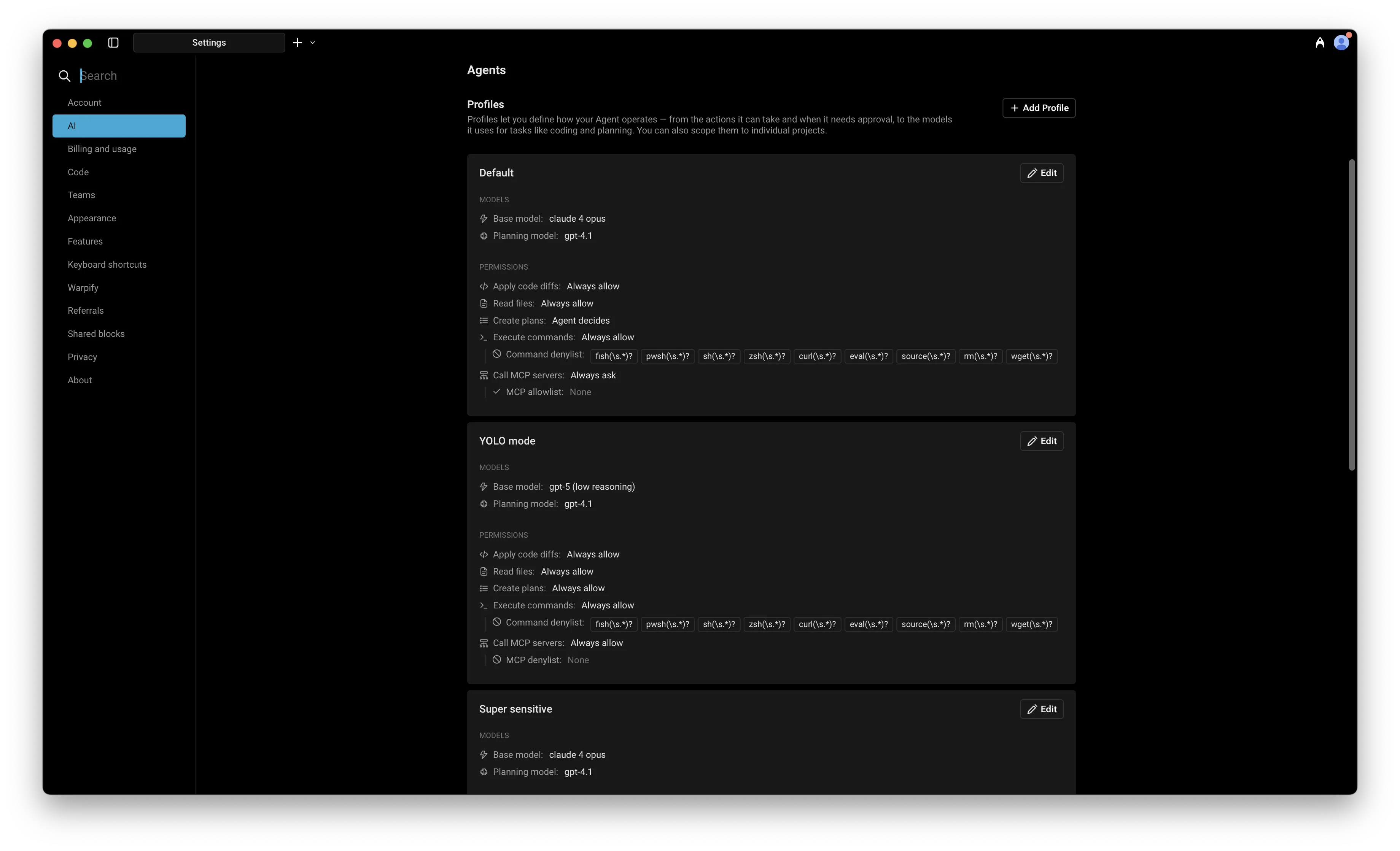 Agent Profile settings. **In each Agent Profile, you can configure:** * The name of the profile * **Base model**: The core engine for your Agent. It handles most interactions and invokes other models when needed (e.g. for code generation). This model is also used for [Planning](/agent-platform/capabilities/planning/) by default, though you can configure a separate planning model. * Agent autonomy and permissions 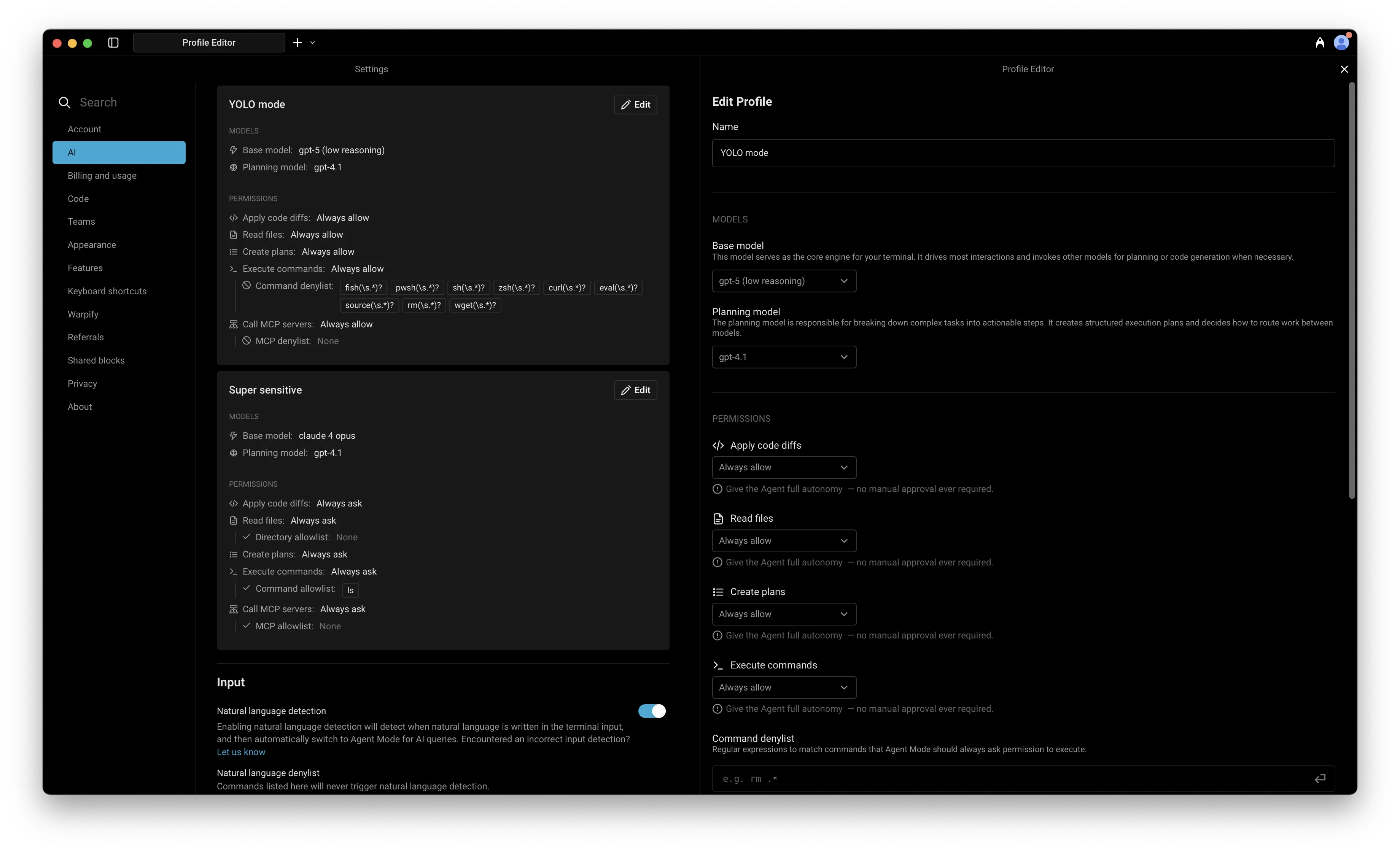 Editing an Agent Profile. ## Agent Permissions [Section titled “Agent Permissions”](#agent-permissions) Agent Permissions let you define how your Agent in a specific Profile operates — control its autonomy, choose what tools or MCP servers it can access, and set when it should act independently or ask for approval. Caution **Still getting approval prompts?** If the Agent keeps asking for permission to run certain commands (like `curl`, `rm`, or `wget`) even though you’ve set permissions to “Always allow,” check your **Command denylist** in **Settings** > **Agents** > **Profiles**. The denylist always takes precedence over other permission settings. Remove commands from the denylist to allow them to auto-execute, or use [Run until completion](#run-until-completion) to bypass the denylist for the current task. You can control how much autonomy the Agent has when performing different types of actions under **Settings** > **Agents** > **Profiles** > **Permissions** . Agent permission types: * Apply code diffs * Read files * Create plans * Execute commands * Interact with running commands (via [Full Terminal Use](/agent-platform/capabilities/full-terminal-use/)) 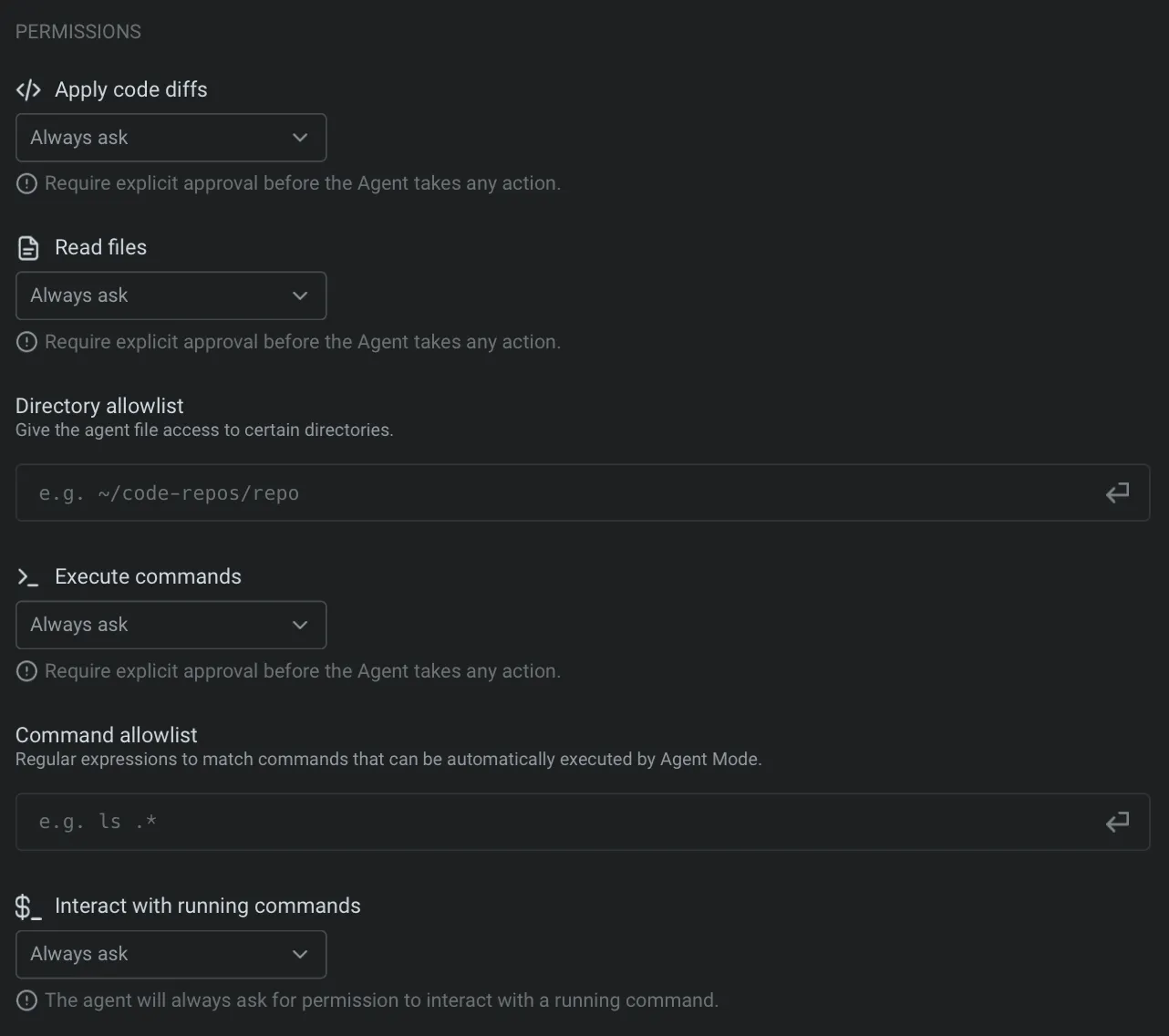 **Each permission has different levels of autonomy:** | Autonomy level | Description | | -------------- | ----------------------------------------------------------------------------------------------------------------------------------------------------------------------------------------------------------------------------------------------------- | | Agent Decides | Agent will act autonomously when it’s confident, but prompt for approval when uncertain. This option balances speed with control, allowing the Agent to go ahead with common workflows while keeping you in the loop for more complex or risky steps. | | Always ask | Agent will request explicit user approval before taking any action. Choose this for sensitive actions. | | Always allow | Agent will perform the action without ever requesting explicit confirmation. Use this for tasks you fully trust the Agent to handle on its own. | | Never | Agent will not ever take the action (i.e. Create plans). | ### Command allowlist [Section titled “Command allowlist”](#command-allowlist) The Agent lets you define an allowlist of commands that run automatically without confirmation. It’s empty by default, but users often add read-only commands such as: * `which .*` - Find executable locations * `ls(\s.*)?` - List directory contents * `grep(\s.*)?` - Search file contents * `find .*` - Search for files * `echo(\s.*)?` - Print text output You can add your own regular expressions to this list in **Settings** > **Agents** > **Profiles** > **Command allowlist**. Commands in the allowlist will always auto-execute, even if they are not read-only operations. 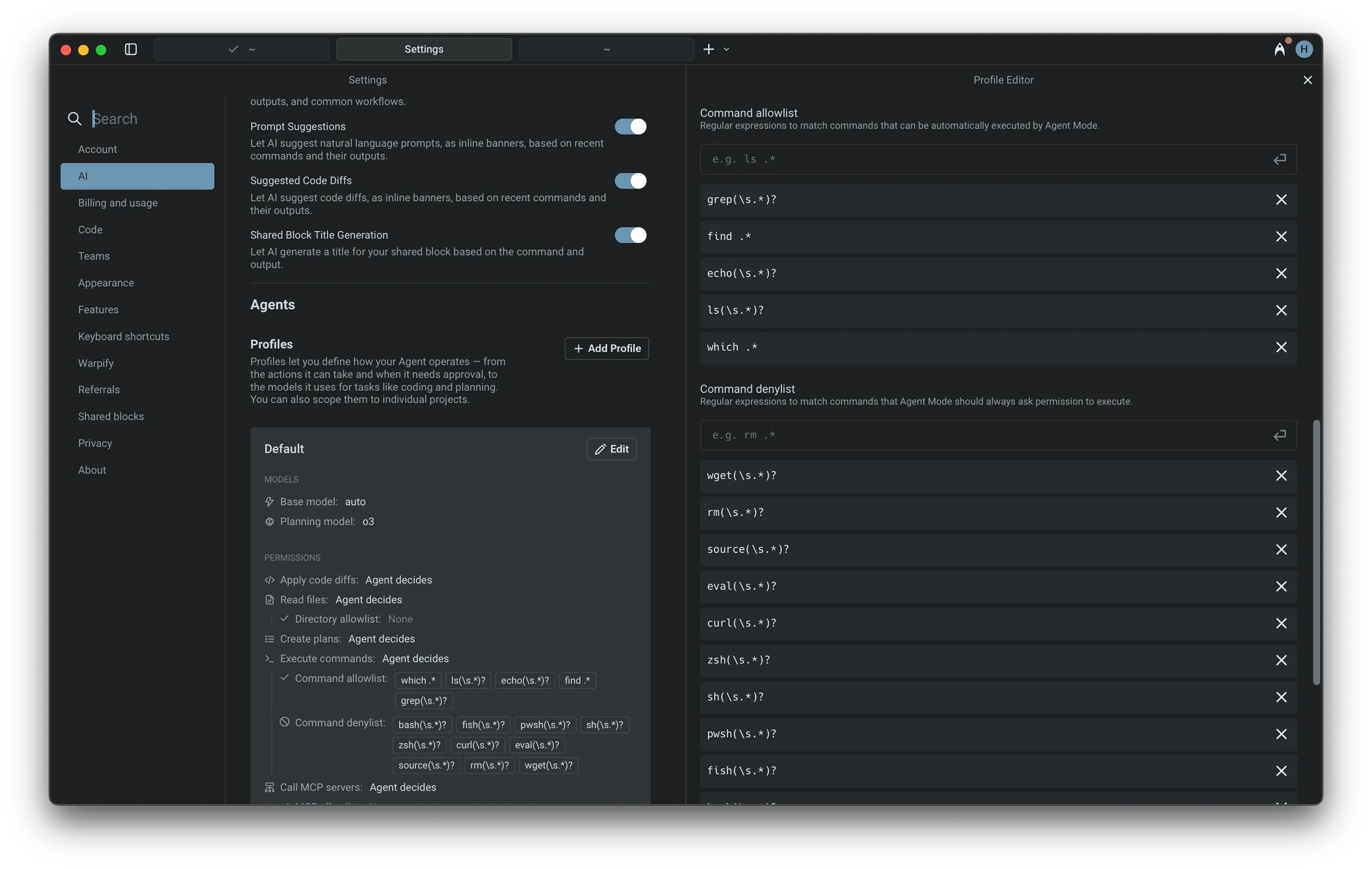 Command allowlist and denylists as part of an Agent Profile. ### Command denylist [Section titled “Command denylist”](#command-denylist) For safety, the Agent always prompts for confirmation before executing potentially risky commands. The default denylist includes several examples, such as: * `wget(\s.*)?` - Network downloads * `curl(\s.*)?` - Network requests * `rm(\s.*)?` - File deletion * `eval(\s.*)?` - Shell code execution The denylist takes precedence over both the allowlist and `Agent decides`. If a command matches the denylist, user permission will always be required, regardless of other settings. You can add your own regular expressions to this list in **Settings** > **Agents** > **Profiles** > **Command denylist**. ### MCP permissions [Section titled “MCP permissions”](#mcp-permissions) MCP servers let you extend the Agent with custom tools and data sources using standardized, plugin-like modules. In this settings menu, you can configure which MCP servers the Agent is allowed to call: * Use the MCP allowlist to give the Agent permission to call specific servers without asking. * Use the MCP denylist to require approval before calling certain servers, even if they’re also in the allowlist. * Or set the Agent to “decide” — it will act autonomously when confident, and ask for confirmation when uncertain. 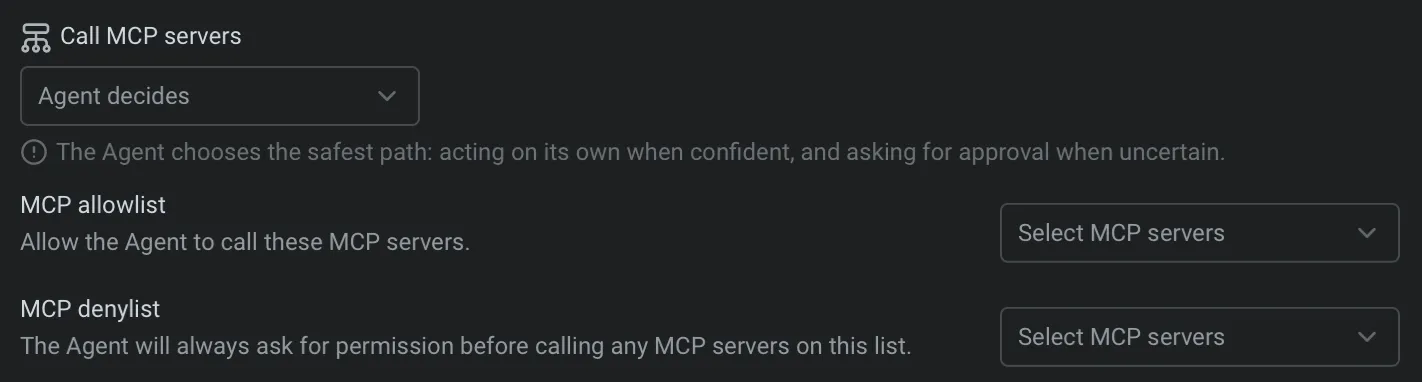 MCP server interaction settings in an Agent Profile. ## Run until completion [Section titled “Run until completion”](#run-until-completion) During an Agent interaction, you can give the Agent full autonomy for the current task. When auto-approve is on, every suggested command runs immediately until the task finishes, or you stop it with `Ctrl + C`. * macOS Auto-approve all Agent actions with: `CMD + SHIFT + I` * Windows Auto-approve all Agent actions with: `CTRL + SHIFT + I` * Linux Auto-approve all Agent actions with: `CTRL + SHIFT + I`  Auto-approve and take-over controls. *** ## Next steps [Section titled “Next steps”](#next-steps) Once you’ve configured how your agent operates, try giving it a larger task to plan and execute. * **[Planning](/agent-platform/capabilities/planning/)** - Break down complex tasks into structured, executable plans that the agent runs step by step. * **[Code diffs](/agent-platform/local-agents/code-diffs/)** - Review, refine, and apply code changes the agent generates. * **[Interactive Code Review](/agent-platform/local-agents/interactive-code-review/)** - Leave inline comments on agent-generated diffs and have the agent address your feedback.
# Codebase Context
Canonical page: [/agent-platform/capabilities/codebase-context/](https://docs.warp.dev/agent-platform/capabilities/codebase-context/)
> Warp indexes your Git-tracked codebase to help Agents understand your code and generate accurate, context-aware responses. No code is stored on Warp servers.
Codebase Context helps Agents understand your project by indexing your local codebase. This allows Agents to generate more accurate completions, suggest context-aware edits, and answer questions using real knowledge of your code. ## Get started [Section titled “Get started”](#get-started) Index a project and see the difference in agent responses in a few minutes. 1. **Open a project folder in Warp.** Navigate to a Git repository using `cd` or open a folder from the file tree. Warp automatically detects the Git repo and begins indexing. 2. **Verify indexing status.** In Warp, go to **Settings** > **Code** > **Indexing and projects** and check the status under “Initialized / indexed folders.” Once the status shows **Synced**, your codebase is ready. 3. **Ask the Agent a question about your code.** Start an Agent conversation (`⌘+Enter` on macOS, `Ctrl+Shift+Enter` on Windows/Linux) and try a prompt like: * “Explain the architecture of this project” * “What are the main entry points?” * “Walk me through the most important modules” 4. **See the difference.** The Agent grounds its responses in actual files, functions, and line numbers from your codebase, producing more accurate and context-aware answers. *** ## Indexing your codebase [Section titled “Indexing your codebase”](#indexing-your-codebase) When you open a directory in Warp, we check if it is part of a Git repository. If it is, Warp begins indexing the source code to provide rich context for Agents. Warp also detects [Git worktree](/code/git-worktrees/) checkouts — each worktree is indexed as its own repository, so Agents always have accurate context for the branch you’re working on. Caution **Codebase Context (semantic indexing and search) is not yet available in SSH or WSL sessions.** Feature requests: * SSH: [GitHub #6831](https://github.com/warpdotdev/Warp/issues/6831) * WSL: [GitHub #6744](https://github.com/warpdotdev/Warp/issues/6744) 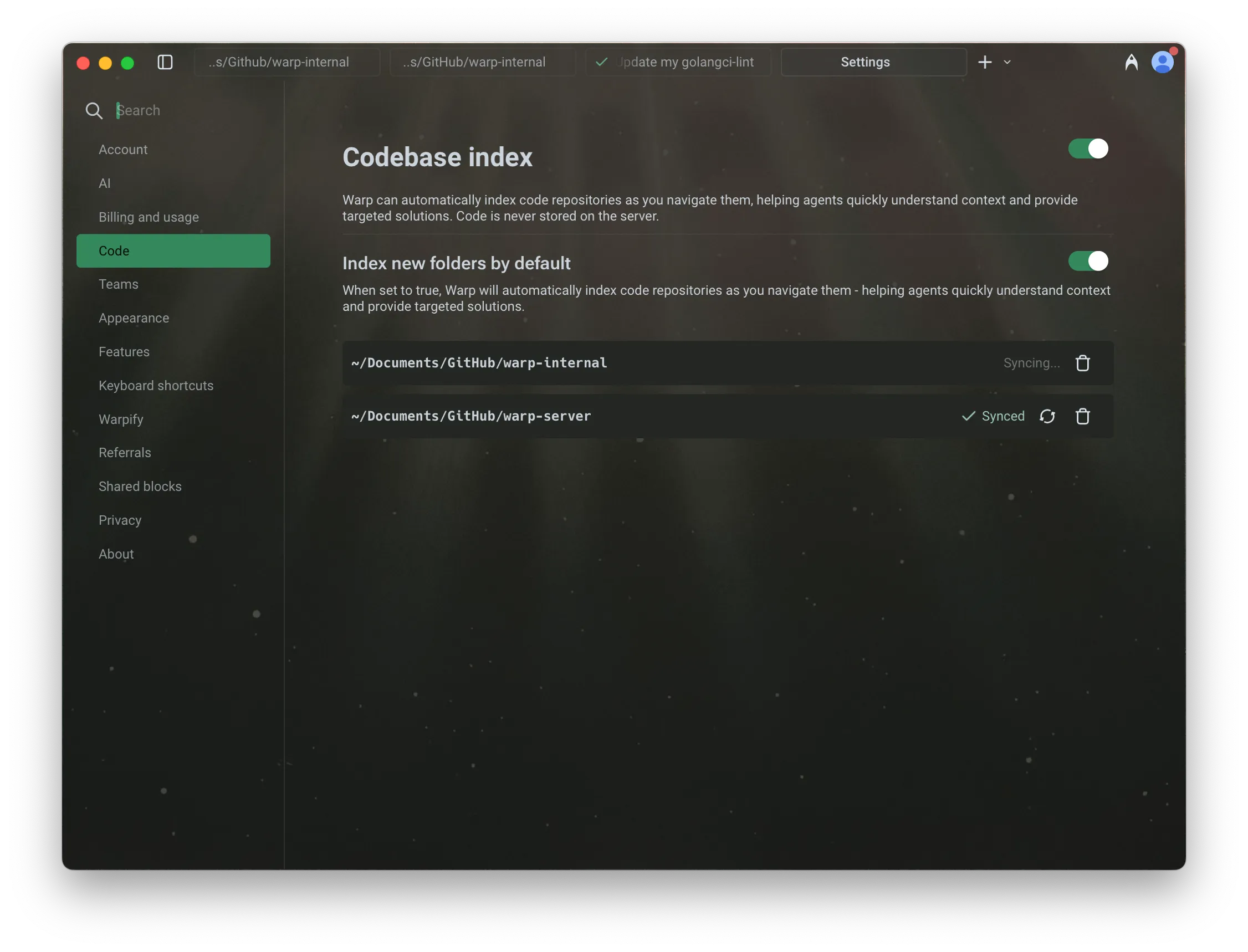 Codebase indexing settings. **Codebase indexing intervals and triggers:** * Initially when you have Codebase Context enabled. * Warp automatically triggers a codebase index periodically. * Whenever a new Agent conversation begins. * When you click on the sync 🔄 button in **Settings** > **Code** > **Indexing and projects**. **This embeddings index helps Agents:** * Understand your project structure and reference relevant code * Generate completions that match your style and patterns * Suggest edits in the correct locations based on real context For large projects, indexing may take a few minutes. Agents will not use Codebase Context until indexing is complete, but **agentic coding features remain fully available in the meantime**.  ### **Codebase indexing states** [Section titled “Codebase indexing states”](#codebase-indexing-states) When viewing indexed codebases in Warp under **Settings** > **Code** > **Indexing and projects**, you may see different status indicators: * **Synced** — Indexing is complete and the codebase is ready to be used as context. * **Discovering files** – Warp is currently scanning and indexing files in the codebase. * **Failed** – Indexing failed. Common reasons include unreadable `.git` directories or corrupted repositories. Try re-cloning the repo and syncing again. * **Codebase too large** – The number of files in the codebase exceeds your current plan’s limit. You can either reduce the number of files being indexed using `.warpindexingignore`, or [contact sales](https://www.warp.dev/contact-sales) for support with larger codebases. 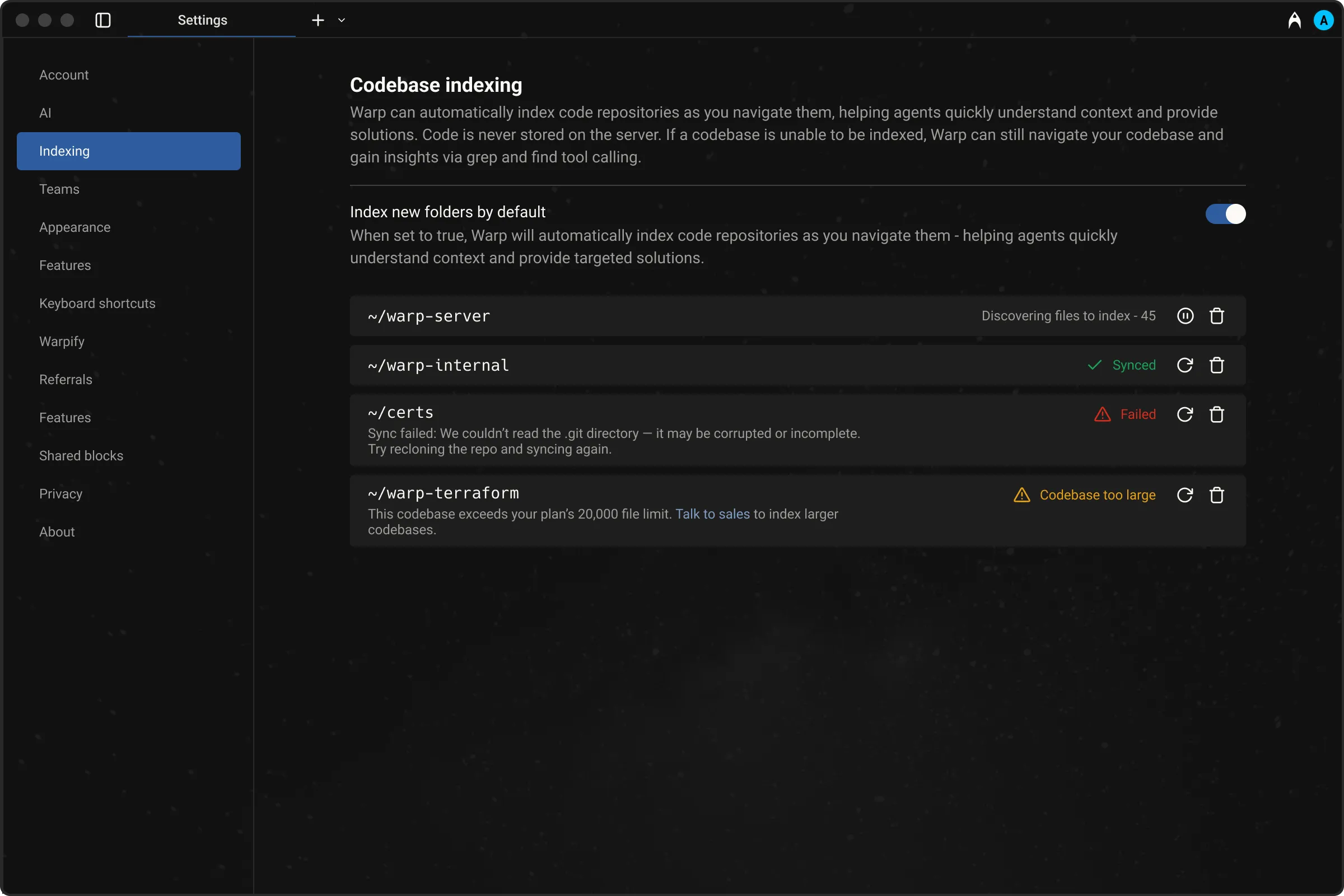 Codebase indexing status overview. ### When does codebase syncing happen? [Section titled “When does codebase syncing happen?”](#when-does-codebase-syncing-happen) Warp automatically triggers a codebase sync initially and periodically, when you click on the sync 🔄 button in **Settings** > **Code** > **Indexing and projects**, or when you start a new Agent conversation. However, if many files have changed or the network is slow, the sync may not complete before the Agent tries to access context. ### File and codebase limits [Section titled “File and codebase limits”](#file-and-codebase-limits) The number of codebases you can index and the maximum number of files per codebase vary by plan. All plans support indexing **at least 5,000 files per codebase**, with higher tiers including support for more files and additional codebases. For full details, visit our [pricing page](https://www.warp.dev/pricing). ### Ignore files [Section titled “Ignore files”](#ignore-files) For large codebases, Warp supports several ignore files to give you control over what gets indexed. This allows each developer to focus context on the parts of the codebase most relevant to their work. Warp respects the following ignore files: * `.gitignore` * `.warpindexingignore` * `.cursorignore` * `.cursorindexingignore` * `.codeiumignore` Use these files to skip indexing of folders, generated files, or any content you don’t want agents to reference. This can improve performance and result quality. ## Codebase Context in cloud agent runs [Section titled “Codebase Context in cloud agent runs”](#codebase-context-in-cloud-agent-runs) Codebase Context is available in all cloud agent runs — including runs triggered from the CLI, API/SDK, integrations (Slack, Linear, GitHub Actions), and schedules — as long as Codebase Context is enabled for your account. **No additional configuration is needed.** If Codebase Context is enabled, cloud agents use it automatically. ## Multi-repo context [Section titled “Multi-repo context”](#multi-repo-context) Warp supports referencing context across multiple indexed repositories. Note that you don’t need to be inside a specific repo for agents to use its context. **This is especially useful when:** * Implementing a feature across multiple repos, such as full-stack work across client and server * Using one repo as a reference while building in another, for example: “copy the implementation from repo A into my repo B” Agents will only reference other repositories if they are already indexed. During cross-repo tasks, Warp’s Agents have access to the file paths of all indexed repos. It is more likely to use cross-repo context when you mention the exact name of the repo in your prompt. ## Demo: Explain my codebase with Warp [Section titled “Demo: Explain my codebase with Warp”](#demo-explain-my-codebase-with-warp) Here’s an example from [Warp Guides](/guides/), where Zach demonstrates how Warp uses Codebase Context to search for and use the relevant files as context:  *** ## Next steps [Section titled “Next steps”](#next-steps) With your codebase indexed, you can browse your project directly in Warp and start letting agents take action on your code. * **[File Tree](/code/code-editor/file-tree/)** - Browse your project structure in Warp’s sidebar and open files directly. * **[Code editor](/code/code-editor/)** - Edit files with syntax highlighting, LSP support, and find-and-replace without leaving Warp. * **[Agent profiles and permissions](/agent-platform/capabilities/agent-profiles-permissions/)** - Configure how much autonomy the agent has when working with your code.
# Computer use for agents
Canonical page: [/agent-platform/capabilities/computer-use/](https://docs.warp.dev/agent-platform/capabilities/computer-use/)
> Let agents interact with desktop GUIs in sandboxed cloud environments for automated UI testing and validation.
Computer Use is an experimental feature that enables Warp’s agents to interact with desktop environments. The agent can see what’s displayed on screen, click and drag, type text, use keyboard shortcuts, and perform other GUI interactions—all within a secure, isolated sandbox. A key use case is **testing UI changes** with a self-contained feedback loop, where the agent can verify that your code changes produce the expected visual and behavioral results without requiring manual testing. ## Overview [Section titled “Overview”](#overview) With Computer Use, agents can: * **Take screenshots** - Capture and analyze the current display * **Interact with applications** - Click buttons, fill forms, navigate interfaces * **Type and control keyboard** - Enter text and use keyboard shortcuts * **Automate testing workflows** - Test UI changes end-to-end without manual intervention * **Work with browser-based interfaces** - Test web apps and navigate the web Computer Use is only available in Warp’s sandboxed cloud environments, not in local interactive terminal sessions. *** ## Enabling Computer Use [Section titled “Enabling Computer Use”](#enabling-computer-use) Computer Use is **opt-in** and disabled by default. You can enable it through several entry points: ### Warp app settings [Section titled “Warp app settings”](#warp-app-settings) To enable Computer Use for [Cloud Agents](/agent-platform/cloud-agents/overview/), navigate to **Settings** > **Agents** > **Warp Agent** > **Experimental** > **Computer use in Cloud Agents** and toggle to enable. ### CLI [Section titled “CLI”](#cli) When running agents in the cloud via the [CLI](/reference/cli/), use flags to control Computer Use per run: ```bash oz agent run-cloud --computer-use --prompt "" oz agent run-cloud --no-computer-use --prompt "" ``` ### API [Section titled “API”](#api) When calling the Warp API to create agent runs, include the `computer_use_enabled` field in your request: ```json { "prompt": "Build a button component that matches this design, then test it in the browser", "computer_use_enabled": true, "environment_id": "optional-environment-id" } ``` For full API documentation, see the [Oz API & SDK](/reference/api-and-sdk/) reference. ### Web App [Section titled “Web App”](#web-app) In the Warp web app, you can enable or disable Computer Use for: * **New agent runs** - Configure Computer Use when starting a new agent run from the web app * **Scheduled agent runs** - Enable Computer Use for scheduled agents managed from the web app * **Integrations** - Configure Computer Use for Slack, Linear, and other integration-triggered agents *** ## How Computer Use works [Section titled “How Computer Use works”](#how-computer-use-works) ### Setup and requirements [Section titled “Setup and requirements”](#setup-and-requirements) Computer Use runs in a containerized sandbox, allowing headless cloud environments to render and interact with graphical applications. The sandbox is fully isolated—it does not have access to your local machine, credentials, or sensitive data outside the sandbox environment. Your cloud environment must include any applications you want the agent to control. For example, to test a web app in a browser, install Chrome or Firefox in your [environment configuration](/agent-platform/cloud-agents/environments/). ### Model selection [Section titled “Model selection”](#model-selection) Computer Use supports multiple Anthropic Claude models, including Claude 4.5 Sonnet, Claude 4.5 Opus, Claude 4.5 Haiku, Claude 4.6 Sonnet, and Claude 4.6 Opus. Warp uses an auto model selector to choose the best-suited model for each Computer Use task. *** ## Security considerations [Section titled “Security considerations”](#security-considerations) Computer Use is an experimental feature with unique security considerations. These risks are heightened when interacting with the internet. To minimize risks when using Computer Use: 1. **Avoid sensitive data** - Do not pass API keys, authentication tokens, or personal information to agents using Computer Use 2. **Limit internet access** - If your environment has internet access, consider restricting to an allowlist of known-safe domains 3. **Require human confirmation** - For tasks with real-world consequences (e.g., financial transactions, accepting legal terms), ask a human to confirm before the agent proceeds 4. **Review agent actions** - Regularly review what agents are doing on your behalf, especially when testing new workflows *** ## Example workflows [Section titled “Example workflows”](#example-workflows) ### Testing UI changes [Section titled “Testing UI changes”](#testing-ui-changes) Verify that code changes produce the expected visual results and behavior: * **Build from mockups** - Receive a Figma design or mockup image, build the UI, and test it matches * **Visual regression testing** - After code changes, verify UI renders correctly * **Form and interaction testing** - Test form submissions, validation, error handling * **Responsive design validation** - Test layout on different screen sizes **Example: Testing a React component** 1. You ask the agent: “Build a React button component that matches this design, then test it” 2. Agent takes a screenshot to see the current state 3. Agent opens your dev server in a browser 4. Agent navigates to the component, verifies it renders correctly 5. Agent tests interactions (hover, click) and reports back **Example: Testing a web form** 1. You provide a form design and ask the agent to build and test it 2. Agent renders your form in the browser 3. Agent fills fields with valid and invalid data 4. Agent verifies validation messages and submission behavior 5. Agent reports which fields worked correctly and which need adjustment **Example: Verifying UI responsiveness** 1. You ask the agent to test your app on different screen sizes 2. Agent resizes the browser window to mobile, tablet, and desktop widths 3. Agent takes screenshots at each size and verifies layout is correct 4. Agent reports any responsive design issues ### Browsing and web interaction [Section titled “Browsing and web interaction”](#browsing-and-web-interaction) Computer Use can also help with general web tasks: * Browse websites and interact with web interfaces * Fill out and submit web forms * Navigate multi-step workflows in web applications *** ## Related capabilities [Section titled “Related capabilities”](#related-capabilities) * [Images as Context](/agent-platform/local-agents/agent-context/images-as-context/) - Pass design mockups and screenshots as context * [Full Terminal Use](/agent-platform/capabilities/full-terminal-use/) - Let agents drive interactive terminal apps, see live output, and run commands
# Full Terminal Use
Canonical page: [/agent-platform/capabilities/full-terminal-use/](https://docs.warp.dev/agent-platform/capabilities/full-terminal-use/)
> Full Terminal Use means Warp's agents can interact with active terminal apps to monitor live output and run commands.
Full Terminal Use lets Warp’s agent operate directly inside interactive terminal applications like database shells, debuggers, text editors, and long-running servers. The agent can see the live terminal buffer, write commands, respond to prompts, and hand control back to you at any time. The agent can see the live terminal buffer (terminal state), write to the PTY to run commands, respond to prompts, and continue working inside the running process while you stay in control.  ## Overview [Section titled “Overview”](#overview) With Full Terminal Use, Warp’s agent can attach to interactive tools like `psql`, `vim`, `python`, `gdb`, `top`, or your dev server, read the terminal output as it changes, and interact with the application as if you were typing. You can either ask the agent to start an interactive program, or you can start it yourself and then tag the agent in once the tool is already running. In both cases, the agent sees the same terminal buffer (and PTY session) you do and can act on it. ## How Full Terminal Use works [Section titled “How Full Terminal Use works”](#how-full-terminal-use-works) #### Start an interactive command [Section titled “Start an interactive command”](#start-an-interactive-command) You can either ask the agent to run an interactive command, or start one manually and then tag the agent in: * **Ask the agent to start an interactive tool** * Example: * “Open a Postgres shell and help me inspect the orders table.” * “Start the dev server and debug this 500 error.” * **Or start the command yourself, then tag the agent in** * Example: * If you’ve already launched an interactive tool (for example `psql` or `npm run dev`), you can bring the agent into the running session using the “Use Agent” button in the terminal footer or via `CMD + I` . 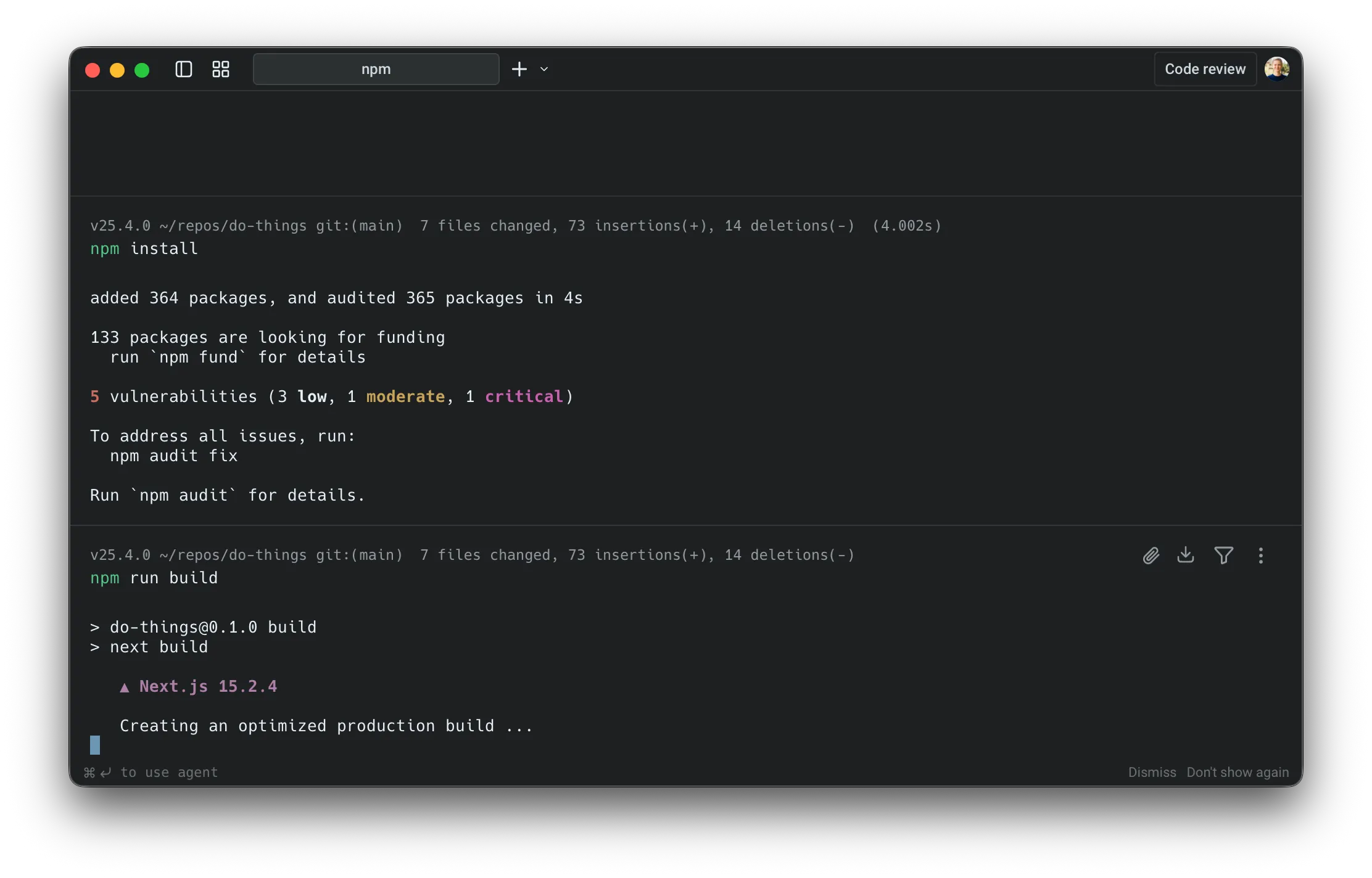 Option to tag the agent into a running command. * Once the agent is tagged in, you can follow up with natural-language requests such as: “Watch this process and help debug the error on the /session endpoint.” * Warp then attaches the agent to the active PTY so it can see the current terminal buffer and propose actions inside the session. [Tagging in the agent.](https://www.loom.com/embed/bcedc521071a4b6a9bbcf74b5156f903) 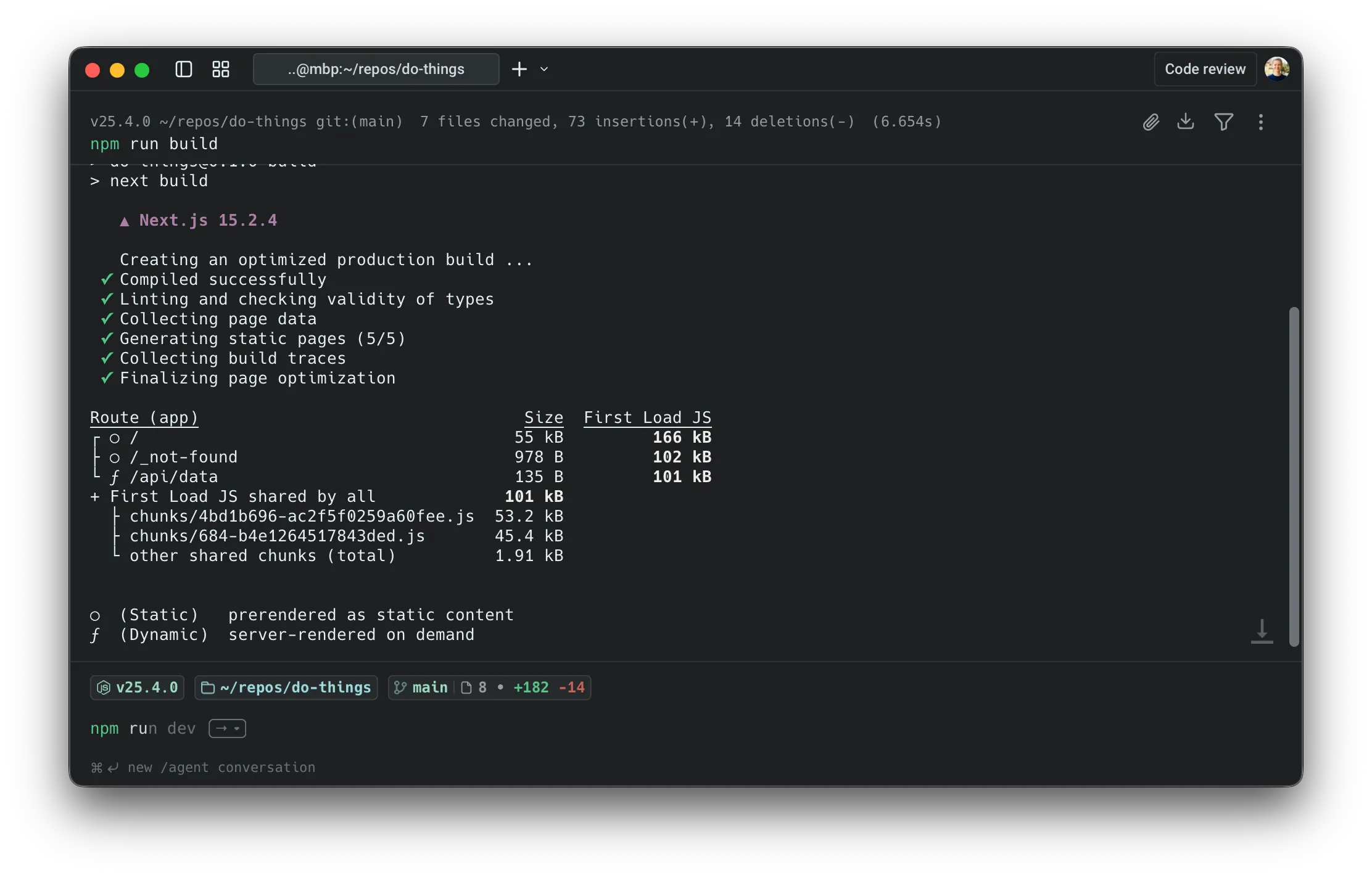 Running a build command. 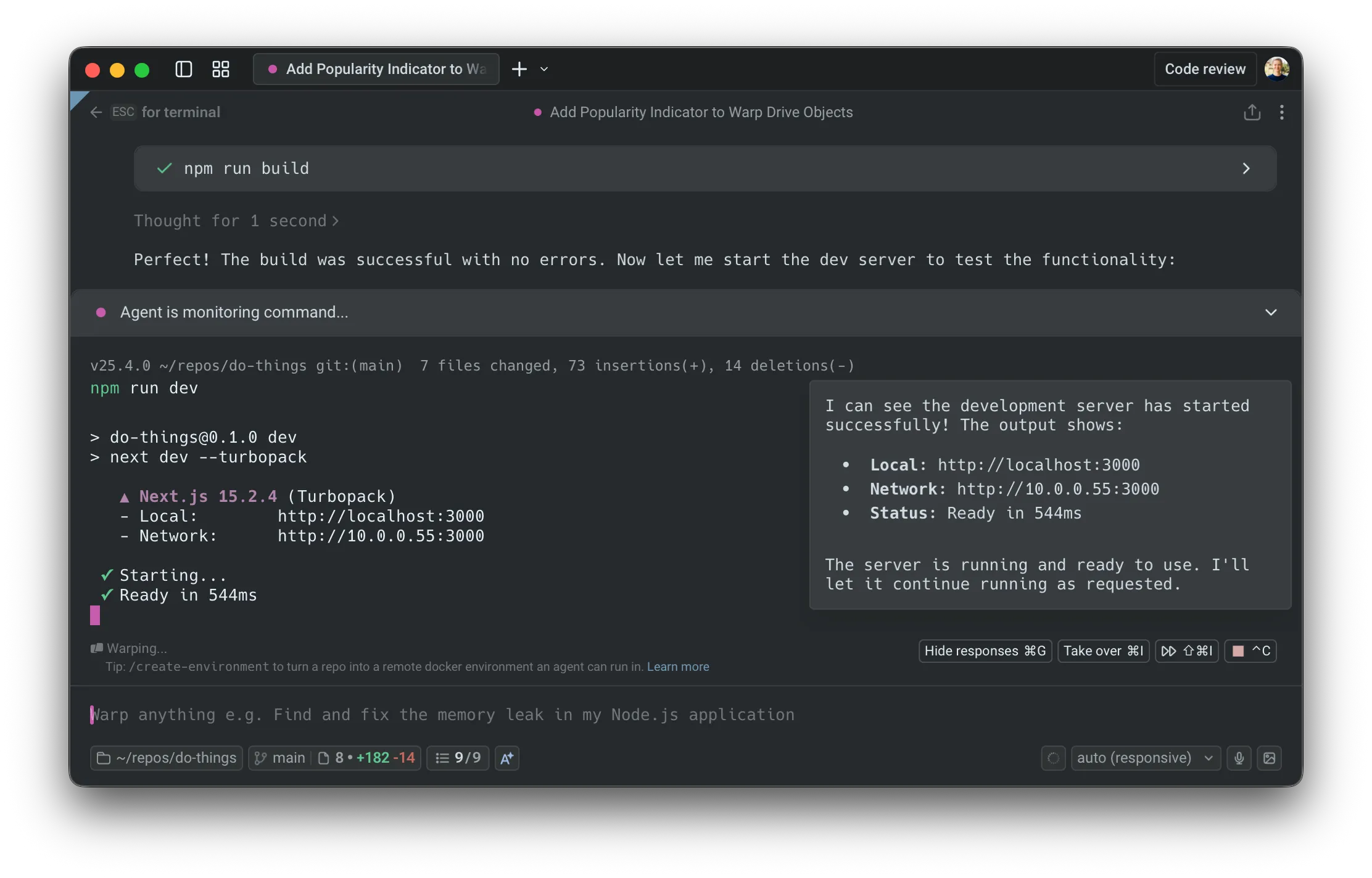 Tagging in the Agent to monitor the dev server. Warp attaches the agent to the running command so it can see and control the terminal buffer. #### Agents propose actions inside the session [Section titled “Agents propose actions inside the session”](#agents-propose-actions-inside-the-session) Once attached, you can continue using natural language and the agent turns your requests into concrete terminal actions. For example, in a Postgres shell: * You: “Show me all the tables and describe the orders table.” * Agent: proposes running commands like: `\dt` —> `\d+ orders` In the UI, you’ll see a request to: * Run a specific command * Optionally enable auto-approval for similar commands in this session #### Switching control between user and the agent [Section titled “Switching control between user and the agent”](#switching-control-between-user-and-the-agent) You can swap control at any time. **Take over** * Use the Takeover control to stop the agent from typing or performing any actions. * The shell stays open, and you can type directly into the same session. 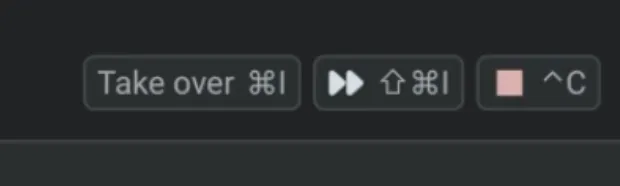 Option to take over from agent in the footer. **Hand back control** * When you’re ready for the agent to continue, click the control again. * The agent resumes where you left off, with full access to the current terminal state. 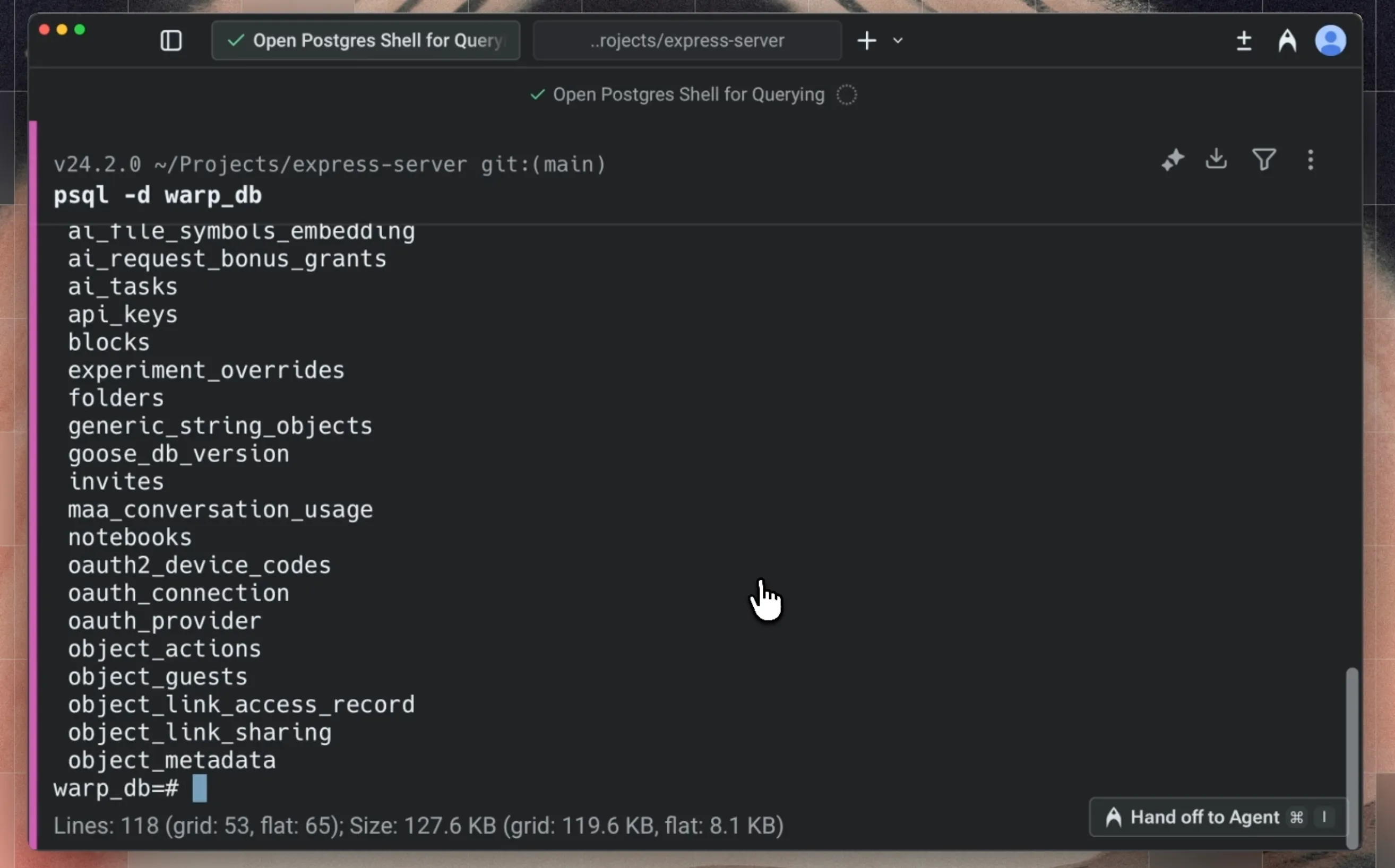 Option to hand-off to the agent in the conversation footer. This makes it easy to: * Let the agent do mechanical work (paging output, trying variants of a command) * Step in for delicate or security-sensitive actions * Then let the agent continue once the critical step is done #### Long-running commands in terminal vs agent view [Section titled “Long-running commands in terminal vs agent view”](#long-running-commands-in-terminal-vs-agent-view) The behavior differs based on where you start the long-running command: * From terminal view 1. Run an interactive command (e.g., `python`, `psql`) 2. Press `⌘↩` (macOS) or `Ctrl+Shift+Enter` (Windows/Linux), or use `⌘I` (macOS) / `Ctrl+I` (Windows/Linux), to tag in the agent 3. The input switches to Agent Mode with full controls 4. When you exit, an agent conversation block appears in your terminal block list 5. Click the block to reopen the full conversation with your LRC interaction context * From agent view 1. The agent runs an interactive command as part of your conversation 2. Use `⌘↩` (macOS) or `Ctrl+Shift+Enter` (Windows/Linux) to tag in if the agent isn’t already interacting 3. The UI stays the same since you’re already in agent view 4. When you exit, the interaction remains part of your conversation. No separate block is created in the terminal block list 5. Commands run in agent view are automatically included as context #### Showing and hiding agent responses [Section titled “Showing and hiding agent responses”](#showing-and-hiding-agent-responses) Warp gives you control over how much agent output appears in Full Terminal Use. **Toggle visibility** Use the `Hide responses` or `Show responses` button or `CMD + G` in the interactive command footer to switch between showing all agent output or hiding it from the terminal view. Note that this only affects the agent’s messages and proposals; your terminal state and command output remain unchanged. **Behavior when hidden** * When agent responses are hidden, your own agent requests automatically dismiss after **4 seconds** to keep the terminal clear. * You can also manually dismiss any user query at any time by hovering over it and clicking the X. [Hiding and showing agent responses in Full Terminal Use demo](https://www.loom.com/embed/c639fb4ab33343a39037b2083c66858a) *** ### Configuring agent permissions and autonomy [Section titled “Configuring agent permissions and autonomy”](#configuring-agent-permissions-and-autonomy) You control how much autonomy the agent has when interacting with the terminal. #### Session-level approvals [Section titled “Session-level approvals”](#session-level-approvals) Each time the agent wants to take an action inside an interactive shell, you’ll see the agent’s reasoning, a brief explanation, and the proposed command. From there you can: * Allow the command once (for example by approving it or pressing `ENTER`). * Turn on auto-approval for similar commands in this session (for example with `CMD + SHIFT + I`). * Refine the request with `CTRL + C`, which clears the proposed action and lets you follow up with a different query. * Take over manually with `CMD + I`, which stops the agent from issuing any further PTY writes until you hand control back. 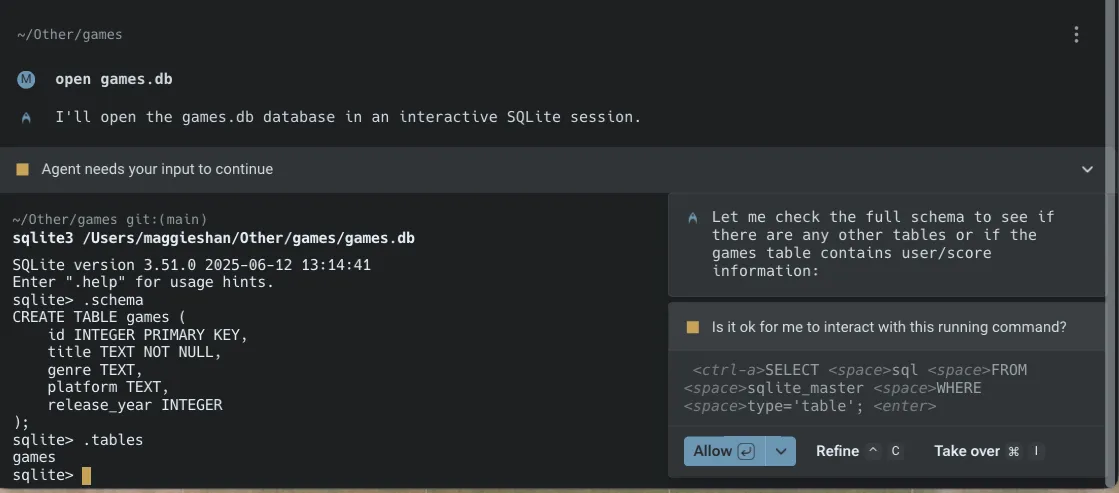 Allow, Refine, or Take over an agent response. 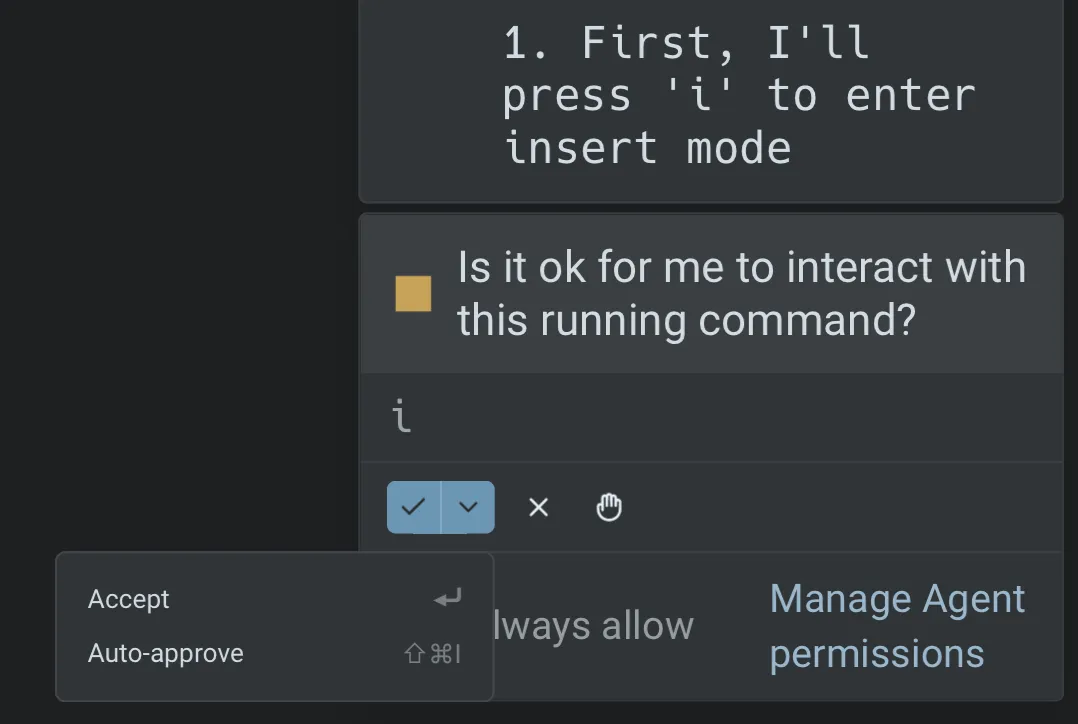 This lets you tighten or loosen control for the current task: * For exploratory work, use **Always allow** to reduce friction. * For production systems or sensitive operations, use **Allow once** and review each step. #### Global permission settings [Section titled “Global permission settings”](#global-permission-settings) You can configure global defaults from your [Agent Profiles & Permissions](/agent-platform/capabilities/agent-profiles-permissions/) settings: * **Ask on first write**: The first write to a shell process requires approval. After that, all subsequent writes for that specific process/command will be approved. * **Always ask**: Every write to the shell process from the agent requires your explicit approval. * **Always allow**: The agent can write to the shell process without prompting you each time. These settings apply to every session that uses Full Terminal Use. You can still override them on a per-session basis when prompted. For example, you can enable **auto-approval** for similar commands in the current session using the fast-forward control, or switch to a **different AI profile** with its own permission settings for that conversation. ### Credits usage [Section titled “Credits usage”](#credits-usage) All AI interactions from Full Terminal Use consume [credits](/support-and-community/plans-and-billing/credits/), including understanding your natural language requests. Credits are consumed in a similar way as other Oz actions that use the same model and a similar context size. **Interactive sessions can consume more credits if:** * The agent runs many commands in an interactive shell on your behalf. * There is a significant amount of terminal output to read and summarize. **To manage credit usage:** * Use tighter scopes: * “Describe just the orders table.” instead of “Explain the entire database.” * Pause autonomy for high-volume tasks with copious terminal output: * Take over manual control when running large batches or long logs. * Use stricter permissions: * Set global permissions to “Ask on first write” or “Always ask”, then approve only what you need. ## Example workflows [Section titled “Example workflows”](#example-workflows) Here’s a demo from one of our engineers, Maggie, that walks through a couple of Full Terminal Use examples. [Full Terminal Use example workflows demo](https://www.loom.com/embed/d47ee09153df417983df65a339a9d6f2) Below are some common interactive tools where Full Terminal Use is particularly useful: database shells (Postgres, MySQL, SQLite), debuggers such as gdb, language-specific REPLs like python or node, text editors and file explorers, and long-running dev servers or monitoring tools such as top and htop. | Tool | Example tasks | Agents can… | | --------------------------------------------------------------------------------------- | ----------------------------------------------------------------------------------------------------------------------------------------------------------------------------------------------------------------------------------------------------------------------- | --------------------------------------------------------------------------------------------------------------------------------------------------------------------------------- | | **Database shells (REPLs)** e.g. `psql`, `mysql`, `sqlite`, etc. | * “List all tables and describe the users and orders tables.” * “Create a new table to store archived user sessions.” * “Show me all rows in orders from the last 30 days, grouped by status.” * “Generate and run a query that finds the top 10 customers by revenue.” | - Navigate `\d`, `\dt`, `DESCRIBE`, etc. - Write and execute SQL queries - Summarize results in plain language | | **Text editors** e.g. `vim`, `nano`, etc. | * “Open this file in vim and add a Markdown header and a boilerplate section.” * “Insert a docstring above this function explaining what it does.” * “Generate a CSS utility class block and insert it in this file.” | - Navigate within the editor using keystrokes - Insert, edit, and delete text - Save and quit when done | | **Python REPLs** e.g. `python`, `ipython` | * “Start a Python REPL and define a function that calculates a moving average.” * “Write a unit test for this function and run it.” * “Plot x from 0 to 10 and y = sin(x).” | - Import modules - Define functions and classes - Run tests and small scripts - Print or summarize results back to you | | **Debuggers** e.g. `gdb`, `lldb`, language-specific debuggers | * “Start gdb for this binary and set a breakpoint on `handle_request`.” * “Run until the breakpoint, then show the stack and local variables.” * “Inspect this pointer and tell me if it looks invalid.” | - Issue debugger commands (break, run, next, continue, bt, etc.) - Walk through execution step by step - Summarize relevant state so you don’t have to remember every command | | **Long-running servers and services** e.g. `npm run dev`, `uvicorn`, Rails servers, etc | * “Run the dev server and debug the internal server error on /session.” * “Send a sample request to this endpoint and explain the failure.” * “Kill the server once you identify the error and propose a code diff.” | - Watch server logs in real time - Notice new errors as they appear - Stop the server when appropriate - Propose code changes (for example, via a diff) based on what it observes | | **Version control workflows** e.g. `git rebase -i`, complex git commands | * “Interactively rebase master onto `feature-branch` to squash these commits into one.” * “Resolve these merge conflicts and ensure tests pass.” | - Navigate interactive rebase prompts - Edit commit messages - Apply conflict resolutions you approve | | **Cloud provider CLIs** e.g. `gcloud`, `aws`, `az`, etc. | * “Use gcloud to create a new Kubernetes cluster with these settings.” * “Provision a new RDS instance for staging and show me the connection details.” | - Walk through multi-step CLI workflows - Handle prompts and confirmations - Summarize the resulting resources |
# Model Context Protocol (MCP)
Canonical page: [/agent-platform/capabilities/mcp/](https://docs.warp.dev/agent-platform/capabilities/mcp/)
> Configure MCP servers in the Warp app to extend local agents with custom tools and data sources through a standardized interface.
MCP servers extend Warp’s [local agents](/agent-platform/local-agents/interacting-with-agents/) in a modular, flexible way by exposing custom tools or data sources through a standardized interface — essentially acting as plugins for Warp. Warp supports a variety of connection protocols, including Streamable HTTPS and SSE, along with custom headers and environment variables. MCP is an open source protocol. Check out the official [MCP documentation](https://modelcontextprotocol.io/introduction) for more detailed information on how this protocol is engineered. ### How to access MCP Server settings [Section titled “How to access MCP Server settings”](#how-to-access-mcp-server-settings) You can navigate to the MCP servers page in any of the following ways: * From the [Settings Page](warp://settings/mcp): **Settings** > **Agents** > **MCP servers** * From [Warp Drive](/knowledge-and-collaboration/warp-drive/): under **Personal** > **MCP Servers** * From the [Command Palette](/terminal/command-palette/): search for `Open MCP Servers` * From the Warp app: **Settings** > **Agents** > **Warp Agent** > **Manage MCP servers** This will show a list of all configured MCP servers, including which are currently running. If you close Warp with an MCP server running, it will run again on next start of Warp. MCP servers that are stopped will remain so on next launch of Warp. 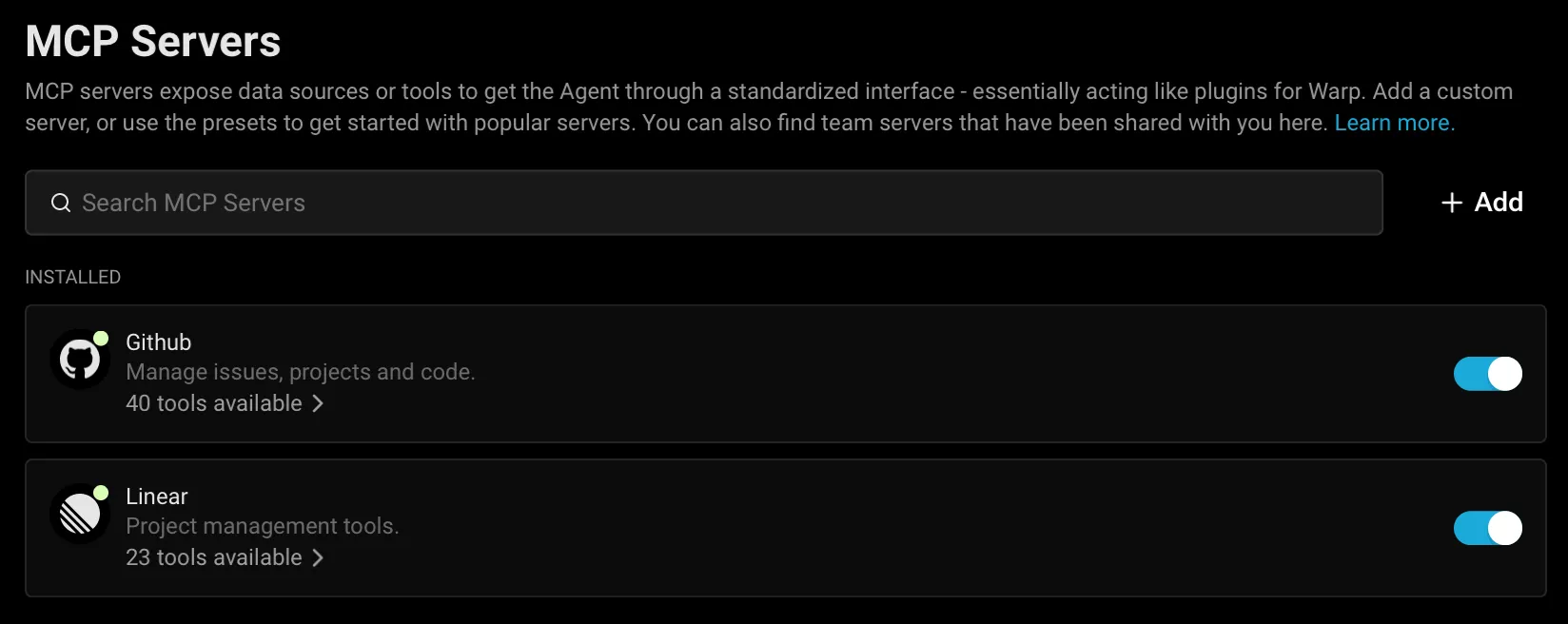 MCP servers page. ### Adding an MCP Server [Section titled “Adding an MCP Server”](#adding-an-mcp-server) To add a new MCP server, you can click the **+ Add** button. Configurations from most MCP Clients can be directly copied and pasted. MCP server types you can add: * CLI Server (Command) Provide a startup command. Warp will launch this command when starting up and shut it down on exit. 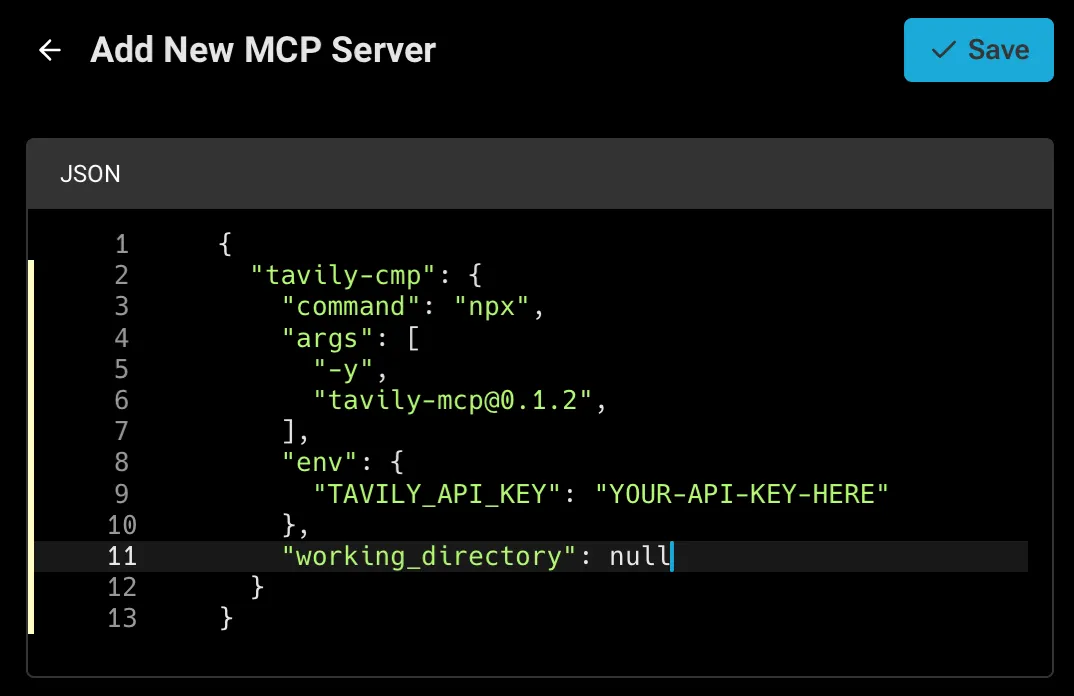 Adding a CLI MCP Server (Command). **CLI Server (Command) MCP Configuration Properties** | Property | Type | Required | Description | | ------------------- | --------- | -------- | ----------------------------------------------------------------------------------- | | `command` | string | Yes | The executable to launch (e.g., `npx`). | | `args` | string\[] | Yes | Array of command-line arguments passed to `command` (e.g., module name, paths). | | `env` | object | No | Key-value object of environment variables (e.g., API Tokens). | | `working_directory` | string | No | Working directory path where the command is run, used for resolving relative paths. | * Streamable HTTP or SSE Server (URL) Provide a URL where Warp can reach an already-running MCP server that supports Server-Sent Events. 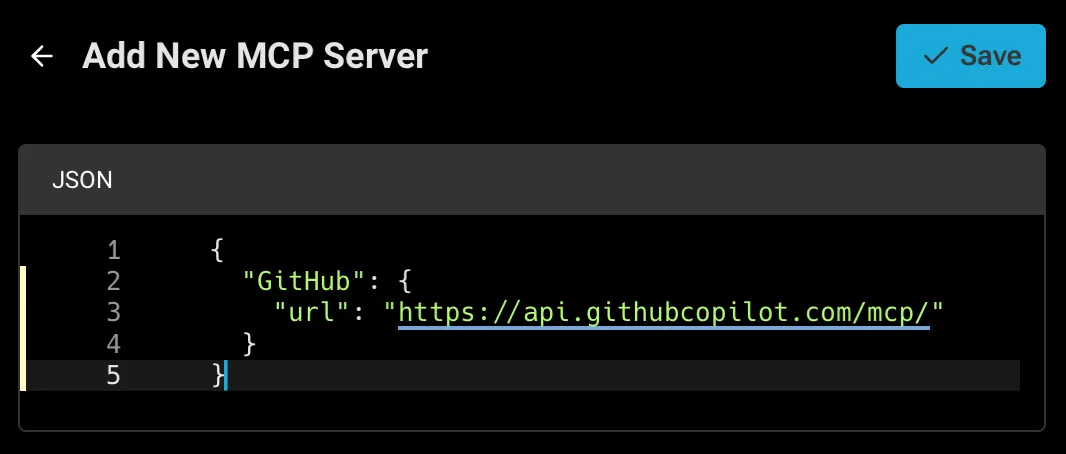 Adding an SSE MCP Server (URL). **Streamable HTTP or SSE Server (URL) MCP Configuration Properties** | Property | Type | Required | Description | | --------- | ------ | -------- | ----------------------------------------------------------------- | | `url` | string | Yes | The HTTP endpoint URL to connect to via Server-Sent Events (SSE). | | `headers` | object | No | Key-value object of header variables (e.g., Authorization). | ### Adding multiple MCP servers [Section titled “Adding multiple MCP servers”](#adding-multiple-mcp-servers) Warp supports configuring **multiple MCP servers** using a JSON snippet. Each entry under `mcpServers` is keyed by a unique name (`filesystem`, `github`, `notes`, etc). All servers defined in the example are added automatically — no manual setup required. To add a multiple MCP servers, you can click the **+ Add** button then paste in a JSON snippet like the example below: ```json { "mcpServers": { "filesystem": { "command": "npx", "args": ["-y", "@modelcontextprotocol/server-filesystem", "/path/to/allowed/files"] }, "notes": { "command": "npx", "args": ["-y", "@modelcontextprotocol/server-notes", "--notes-dir", "/Users/you/Documents/notes"] }, "externalDocs": { "url": "http://localhost:4000/mcp/stream", "headers": { "my-header": "my-header-value" } } } } ``` ### File-based MCP servers [Section titled “File-based MCP servers”](#file-based-mcp-servers) Compared to manually adding a server in the Warp settings, file-based servers are defined in config files that Warp detects and can spawn automatically. They offer a few additional benefits: * **Configurable directly with an agent** - Use the [bundled skill](#using-agent-add-mcp) `/agent-add-mcp` so Warp’s agent can add or update an MCP server without leaving the conversation. * **Inherited across providers and repos** - Warp reads `.warp/.mcp.json` files and also picks up config from third-party agent providers (Claude Code, Codex, and others). The same server definition follows you across tools and repos. #### Supported providers [Section titled “Supported providers”](#supported-providers) Warp reads MCP server definitions from the following providers: | Provider | Global config | Project-scoped config | Auto-spawn | | ------------ | ---------------------- | ------------------------------------ | --------------- | | Warp | `~/.warp/.mcp.json` | `.warp/.mcp.json` at project root | On by default | | Claude Code | `~/.claude.json` | `.mcp.json` at project root | Requires toggle | | Codex | `~/.codex/config.toml` | `.codex/config.toml` at project root | Requires toggle | | Other agents | `~/.agents/.mcp.json` | `.agents/.mcp.json` at project root | Requires toggle | Global Warp servers auto-spawn by default. Global servers from all other providers auto-spawn only when **Auto-spawn servers from third-party agents** is enabled. Project-scoped servers from any provider require explicit approval. For provider-specific setup, see the [Claude Code MCP docs](https://code.claude.com/docs/en/mcp#user-scope) and [Codex MCP docs](https://developers.openai.com/codex/mcp/#connect-codex-to-an-mcp-server). #### Auto-spawn behavior [Section titled “Auto-spawn behavior”](#auto-spawn-behavior) Global Warp servers auto-spawn by default. Third-party agent servers require you to enable auto-spawn first. To auto-spawn global servers from third-party agents: 1. In the Warp app, go to **Settings** > **Agents** > **MCP servers**. 2. Toggle **Auto-spawn servers from third-party agents** on. 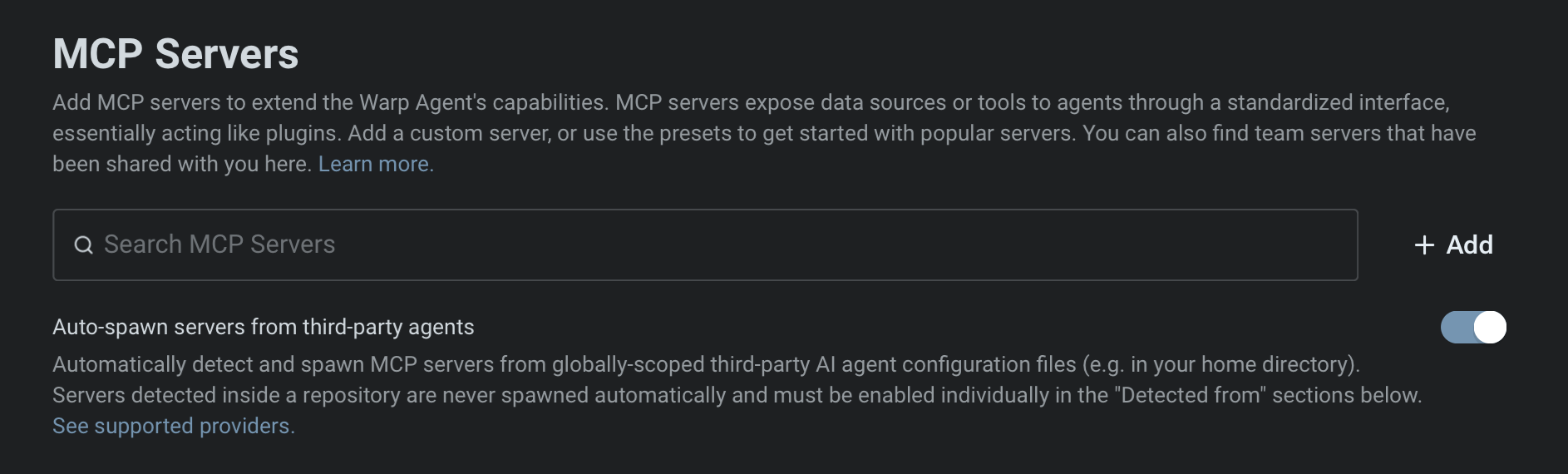 File-based MCP server settings. Project-scoped servers from any provider must be toggled on individually from the MCP servers page. These are session-scoped — after restarting Warp, toggle them on again if you still trust the repo. #### Using `/agent-add-mcp` [Section titled “Using /agent-add-mcp”](#using-agent-add-mcp) The built-in `/agent-add-mcp` skill lets Warp’s agent create or update file-based MCP server definitions. Choose whether to save globally or in the current project — the skill writes the server definition to the matching file: * **Global:** `~/.warp/.mcp.json` * **Project-scoped:** `{repo_root}/.warp/.mcp.json` [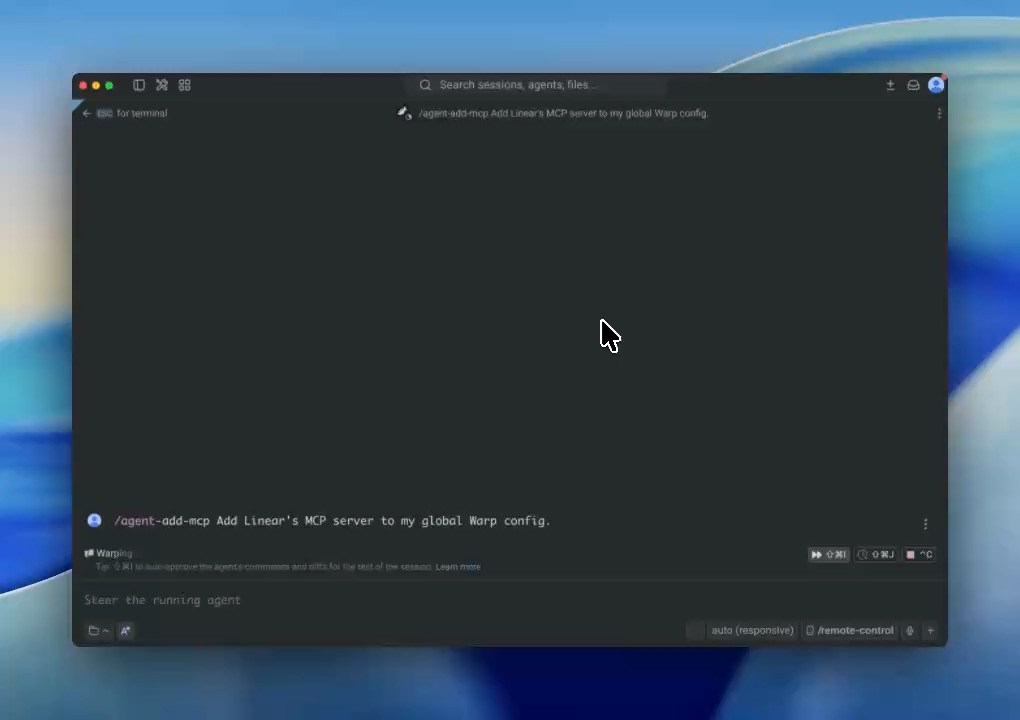](/assets/agent-platform/file-based-mcp-demo.mp4) The demo shows how to use `/agent-add-mcp` to add an MCP server, choose where Warp saves the file-based configuration, and review the generated `.warp/.mcp.json` file before using the server. #### Security mitigations [Section titled “Security mitigations”](#security-mitigations) MCP config files can start local commands and send data to external tools. Warp adds approval gates around file-based MCP servers to reduce the risk of untrusted config changes: * **Config edits require approval** - Warp prevents edits to MCP config files unless you explicitly approve the change. This keeps an agent or automation from silently adding a server that can run commands or access data. * **Project-scoped servers never auto-spawn** - Warp detects project-scoped MCP config files in cloned repos, but requires you to start each server manually. This prevents a cloned repo from automatically starting an MCP server that runs arbitrary local commands. ### Managing MCP servers [Section titled “Managing MCP servers”](#managing-mcp-servers) After MCP servers are registered in Warp, you can **Start** or **Stop** them from the MCP servers page. Each running server will have a list of available tools and resources. You can rename and edit a server’s name, as well as delete the server. If you are a part of a Team, you can also share a MCP with your teammates. ### Sharing MCP servers [Section titled “Sharing MCP servers”](#sharing-mcp-servers) MCP servers can be shared with your teammates by clicking the share icon. When sharing, sensitive values in the `env` configuration will be automatically scrubbed and replaced with variables. 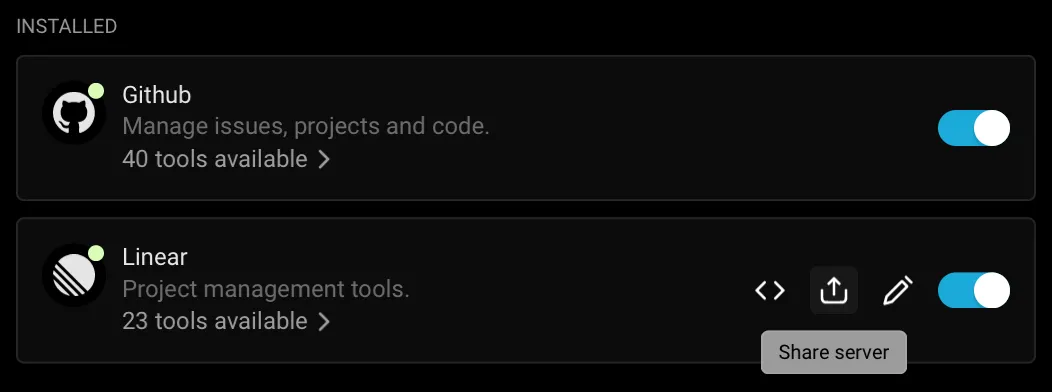 Sharing a MCP Server. Your teammates can find shared MCP servers under the `Shared` section of their MCP settings. When your teammates install your server configuration, they will be prompted to enter any scrubbed `env` values. Warp also provides out-of-the-box MCP servers that can be installed by anyone. These can be found under the `Shared` section of your MCP settings. ### Authentication in MCP servers [Section titled “Authentication in MCP servers”](#authentication-in-mcp-servers) Most MCP servers require authentication to connect to external services. Warp supports the following methods: * **Environment variables**: pass an API key or access token via the server’s environment variables. * **OAuth login (one-click installation)**: simplifies configuration by handling authentication through your browser. Warp stores credentials securely on your device and reuses them for future sessions. Re-authentication is required when opening Warp on a new machine. * Starting a server without existing credentials automatically opens a browser-based authentication flow. * Credentials can be revoked at any time from the MCP Servers pane in Warp. * **Custom Headers**: pass an Authentication Bearer token via the headers variable. ### Debugging MCP [Section titled “Debugging MCP”](#debugging-mcp) If you’re having trouble with an MCP server, you can check the logs for any errors or messages to help you diagnose the problem by clicking the `View Logs` button on a server from the MCP servers page. Caution If you choose to share your MCP server logs with anybody, **make sure to remove any sensitive information before sharing**, as they may contain API keys. Many SSE based MCP servers will state that your URL should be treated like a password, and can be used with no additional authentication. #### Debugging MCP Authentication issues [Section titled “Debugging MCP Authentication issues”](#debugging-mcp-authentication-issues) In some cases you may need to reset the auth token for some MCP servers. To do this delete the local MCP auth files by running the following: `rm -rf ~/.mcp-auth` Caution Note this will delete all your MCP auth tokens stored locally so you will need to login and re-authenticate. If the above doesn’t help and you need to reset or change authentication, you may need to switch to a CLI-based MCP server configuration and provide the token via environment variables. See [Sentry CLI MCP Example](/agent-platform/capabilities/mcp/#sentry). ### Where MCP logs are stored [Section titled “Where MCP logs are stored”](#where-mcp-logs-are-stored) Warp saves the MCP logs locally on your computer. You can open the files directly and inspect the full contents in the following location: * macOS ```bash cd "$HOME/Library/Group Containers/2BBY89MBSN.dev.warp/Library/Application Support/dev.warp.Warp-Stable/mcp" ``` * Windows ```powershell Set-Location $env:LOCALAPPDATA\warp\Warp\data\logs\mcp ``` * Linux ```bash cd "${XDG_STATE_HOME:-$HOME/.local/state}/warp-terminal/mcp" ``` ## MCP server configuration examples [Section titled “MCP server configuration examples”](#mcp-server-configuration-examples) Below are examples for popular Model Context Protocol (MCP) servers. * **CLI Server (Command)** — local `npx` or `docker` command based MCP servers. * **Streamable HTTP or SSE Server (URL)** — remote or locally hosted MCP endpoints. ### **Engineering & Ops** [Section titled “Engineering & Ops”](#engineering--ops) * GitHub [GitHub MCP Docs](https://github.com/github/github-mcp-server) **GitHub CLI Server (Command)** ```json { "GitHub": { "command": "docker", "args": ["run","-i","--rm","-e","GITHUB_PERSONAL_ACCESS_TOKEN","ghcr.io/github/github-mcp-server"], "env": { "GITHUB_PERSONAL_ACCESS_TOKEN": "" } } } ``` **GitHub SSE Server (URL)** ```json { "GitHub": { "url": "https://api.githubcopilot.com/mcp/" } } ``` * Sentry [Sentry MCP Docs](https://docs.sentry.io/product/sentry-mcp/) **Sentry CLI Server (Command)** ```json { "Sentry": { "command": "npx", "args": ["-y","mcp-remote@latest","https://mcp.sentry.dev/mcp"] } } ``` **Sentry SSE Server (URL)** ```json { "Sentry": { "url": "https://mcp.sentry.dev/sse" } } ``` * Grafana [Grafana MCP Docs](https://github.com/grafana/mcp-grafana) **Grafana CLI Server (Command)** ```json { "Grafana": { "command": "docker", "args": ["run","--rm","-i","-e","GRAFANA_URL","-e","GRAFANA_API_KEY","mcp/grafana","-t","stdio","-debug"], "env": { "GRAFANA_URL": "http://localhost:3000", "GRAFANA_API_KEY": "" } } } ``` **Grafana SSE Server (URL)** ```json { "Grafana": { "url": "https://your-mcp-host.com/api/mcp/grafana/sse" } } ``` * Linear [Linear MCP Docs](https://linear.app/docs/mcp) **Linear CLI Server (Command)** ```json { "Linear": { "command": "npx", "args": ["-y","mcp-remote","https://mcp.linear.app/sse"] } } ``` **Linear SSE Server (URL)** ```json { "Linear": { "url": "https://mcp.linear.app/sse" } } ``` * Chroma **Chroma Package Search CLI Server (Command)** 1. Visit Chroma’s [Package Search](http://trychroma.com/package-search) page. 2. Click “Get API Key” to create or log into your Chroma account and issue an API key for Package Search. 3. After issuing your API key, click the “Other” tab and copy your API key. 4. Add the following to your Warp MCP config. Make sure to click “Start” on the server after adding. More info in [Chroma’s Package Search MCP Docs](https://docs.trychroma.com/cloud/package-search/mcp) ```json { "package-search": { "command": "npx", "args": ["mcp-remote", "https://mcp.trychroma.com/package-search/v1", "--header", "x-chroma-token: ${X_CHROMA_TOKEN}"], "env": { "X_CHROMA_TOKEN": "" } } } ``` ### **Design & Collaboration** [Section titled “Design & Collaboration”](#design--collaboration) * Figma **Figma Remote MCP Server (Recommended)** The official Figma remote MCP server supports OAuth for simple, one-click setup. 1. In Warp, go to **Warp Drive** > **MCP Servers** > **+ Add** and paste the configuration below. 2. Warp will open a browser window to authenticate with Figma. 3. After approving access, credentials are stored securely on your device. ```json { "Figma": { "url": "https://mcp.figma.com/mcp" } } ``` **Figma Local MCP Server** 1. Enable the Official Figma MCP Server. [Figma MCP Docs](https://help.figma.com/hc/en-us/articles/32132100833559-Guide-to-the-Figma-MCP-server) 2. Open the [Figma desktop app](https://www.figma.com/downloads/) and make sure you’ve [updated to the latest version](https://help.figma.com/hc/en-us/articles/5601429983767-Guide-to-the-Figma-desktop-app#h_01HE5QD60DG6FEEDTZVJYM82QW). 3. Create or open a Figma Design file. 4. In the upper-left corner, open the Figma menu. 5. Under **Preferences**, select **Enable local MCP Server**. 6. Enter the following configuration into **Warp** > **Warp Drive** > **MCP Servers** > **+ Add**. ```json { "Figma (Local)": { "url": "http://127.0.0.1:3845/mcp" } } ``` * Slack [Slack MCP Docs](https://github.com/korotovsky/slack-mcp-server/) **Slack CLI Server (Command)** Enter the following configuration into **Warp** > **Warp Drive** > **MCP Servers** > **+ Add**. ```json { "Slack": { "command": "npx", "args": ["-y", "@modelcontextprotocol/server-slack"], "env": { "SLACK_BOT_TOKEN": "xoxb-", "SLACK_APP_TOKEN": "xapp-", "SLACK_TEAM_ID": "T", "SLACK_CHANNEL_IDS": ", ", "MCP_MODE": "stdio" } } } ``` **Slack SSE Server (URL)** Enter the following configuration into **Warp** > **Warp Drive** > **MCP Servers** > **+ Add**. ```json { "Slack": { "url": "https://your-mcp-host.com/api/mcp/slack/sse" } } ``` * Atlassian [Atlassian MCP Docs](https://support.atlassian.com/rovo/docs/setting-up-ides/) **Atlassian CLI Server (Command)** Enter the following configuration into **Warp** > **Warp Drive** > **MCP Servers** > **+ Add**. ```json { "Atlassian": { "command": "npx", "args": ["-y", "mcp-remote", "https://mcp.atlassian.com/v1/sse"] } } ``` * Notion [Notion MCP Docs](https://developers.notion.com/docs/mcp) **Notion CLI Server (Command)** Enter the following configuration into **Warp** > **Warp Drive** > **MCP Servers** > **+ Add**. ```json { "Notion": { "command": "npx", "args": ["-y", "mcp-remote", "https://mcp.notion.com/mcp"] } } ``` **Notion SSE Server (URL)** Enter the following configuration into **Warp** > **Warp Drive** > **MCP Servers** > **+ Add**. ```json { "Notion": { "url": "https://mcp.notion.com/sse" } } ``` ### MCP server demos [Section titled “MCP server demos”](#mcp-server-demos) [Warp Guides](/guides/) hosts a collection of demos and walkthroughs showing how MCP servers can extend your workflows. Each example highlights practical use cases you can try today: * [**GitHub**](/guides/external-tools/github-mcp-summarizing-open-prs-and-creating-gh-issues/) — access repositories, issues, and pull requests through MCP. * [**Sentry**](/guides/external-tools/sentry-mcp-fix-sentry-error-in-empower-website/) — surface error monitoring and alerts as agent-usable data. * [**Linear**](/guides/external-tools/linear-mcp-retrieve-issue-data/) — integrate project management tasks and tickets. * [**Puppeteer**](/guides/external-tools/puppeteer-mcp-scraping-amazon-web-reviews/) — run automated browser workflows via MCP. * [**Context7**](/guides/external-tools/context7-mcp-update-astro-project-with-best-practices/) — experiment with external data integrations.
# Agent planning and execution
Canonical page: [/agent-platform/capabilities/planning/](https://docs.warp.dev/agent-platform/capabilities/planning/)
> Turn requests into structured, editable plans that agents execute step-by-step with version control.
Warp has native planning functionality that helps you break down complex engineering tasks into structured, executable steps. Planning is tightly integrated with Warp’s coding agent and provides a persistent plan editor, version history, selective execution, and deep links into your workspace.  *** ### Creating a plan [Section titled “Creating a plan”](#creating-a-plan) You can generate a plan using the `/plan` [slash command](/agent-platform/capabilities/slash-commands/) or by asking the agent in natural language.  Creating a plan with the /plan command. The agent then creates a structured plan inside Warp’s native rich text editor, which is designed for long, multi-step workflows. The editor includes clean formatting, inline code blocks, and clickable file paths so you can open referenced files immediately in Warp (see below) or in your external editor. ### Reviewing and editing [Section titled “Reviewing and editing”](#reviewing-and-editing) Once a plan is generated, you can review it, reorganize steps, or refine details. You can edit the document manually or ask the agent to revise sections for you. 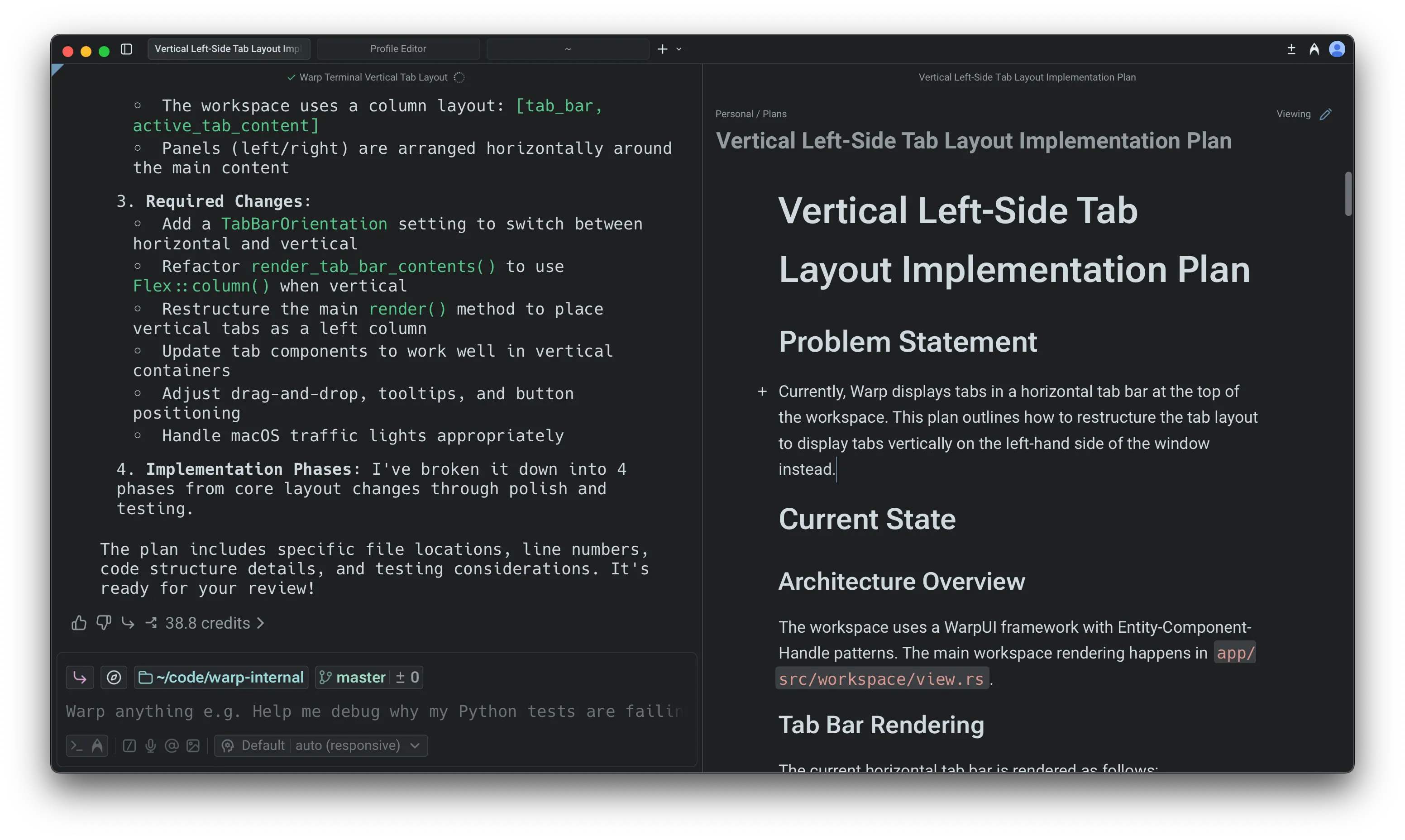 Plan editor in Warp. Any update made by the agent **creates a new version**. Version history lets you compare past iterations and restore an older version if you want to revert your approach, preserving a clear decision trail as the plan evolves. 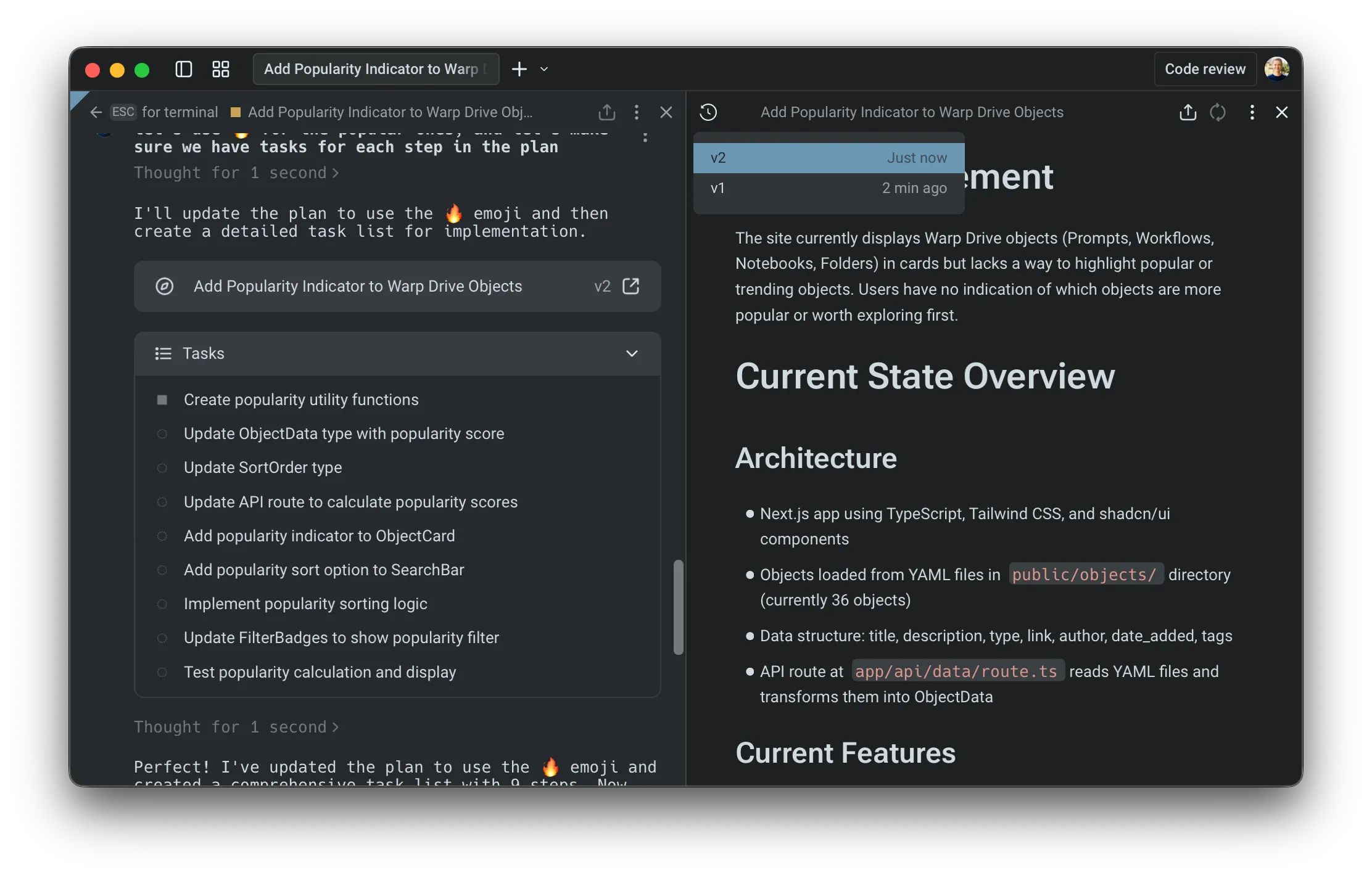 Access previous versions of your plan. ### Executing a plan [Section titled “Executing a plan”](#executing-a-plan) When you’re ready to start implementing, prompt the agent to run the plan. You can ask it to execute the full set of steps or only a specific section, such as “Implement phase 1 of the plan.” 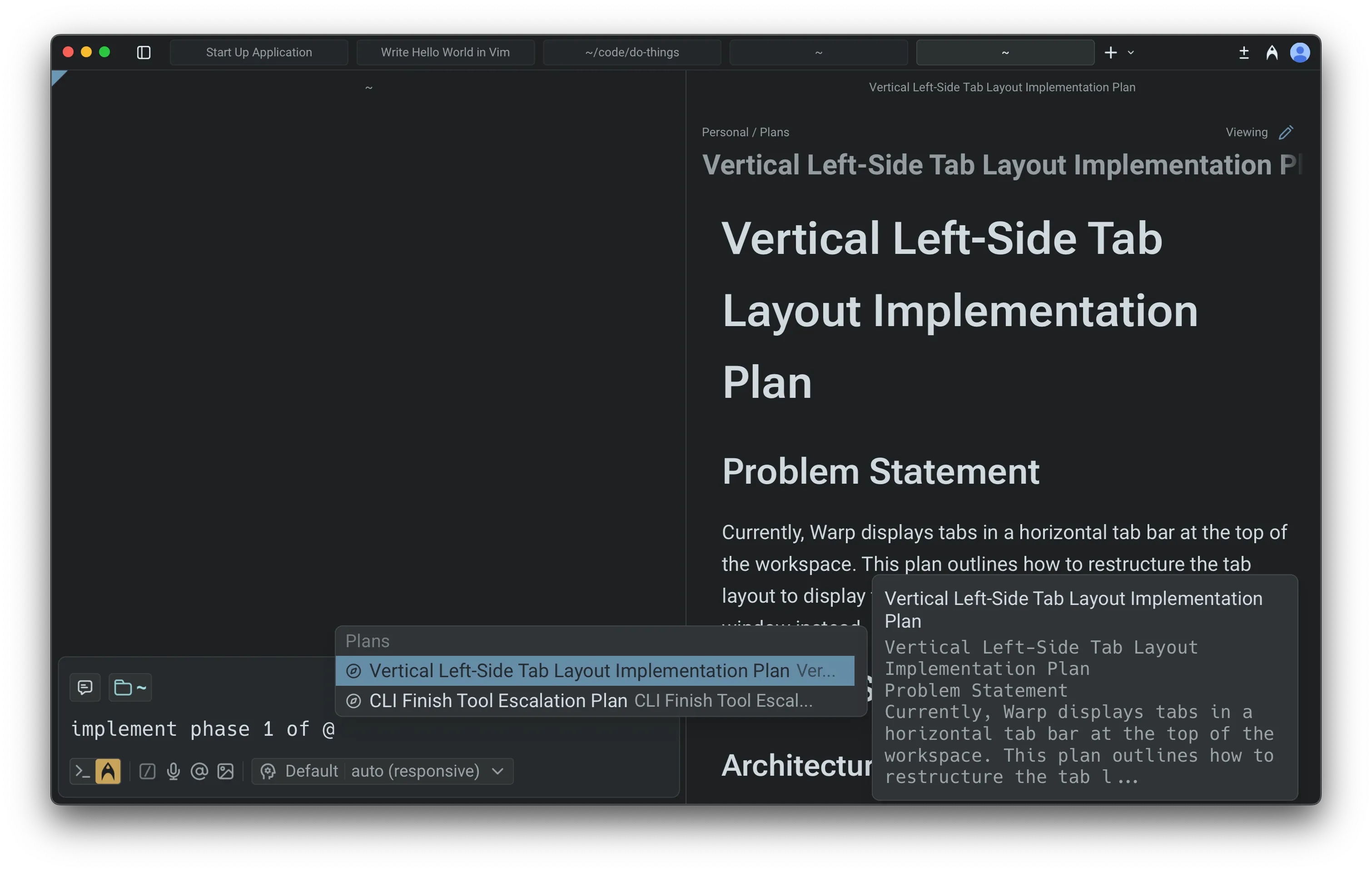 Referencing a plan using @. The agent applies changes incrementally and updates files as it proceeds. This makes it easy to validate early steps before moving forward, adjust the plan mid-run, or try alternative paths without committing to the full workflow. If you revise the plan while the agent is running, you can notify it directly; the agent will adjust its execution based on your updates. 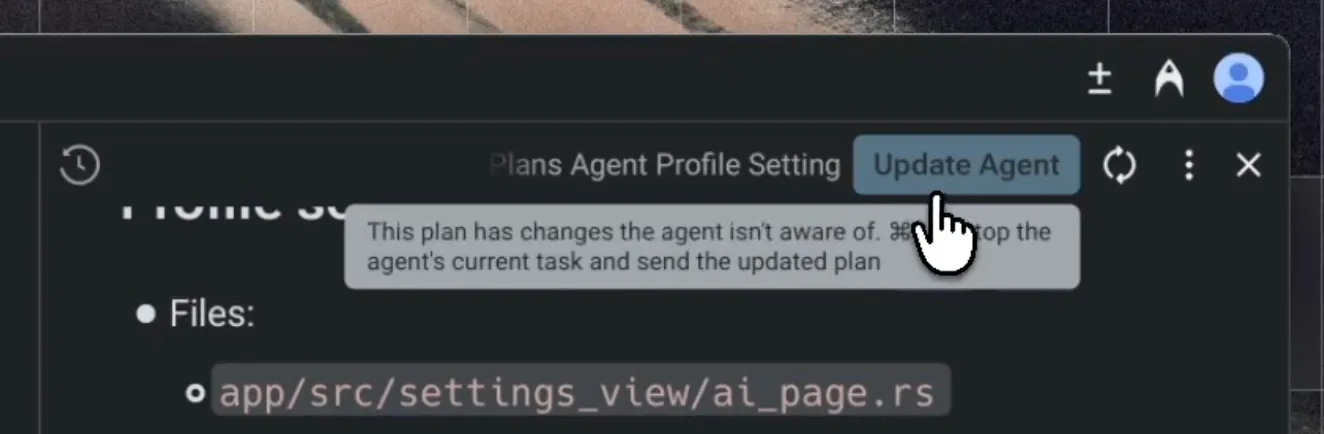 Prompt to update the agent’s plan during execution. ### Monitoring progress [Section titled “Monitoring progress”](#monitoring-progress) While the agent is running, you can reopen the plan at any time by selecting **View plan** in the input. You can also follow each change in real time through the [Code Review](/code/code-review/) panel and add comments or guidance using [Interactive Code Review](/agent-platform/local-agents/interactive-code-review/). 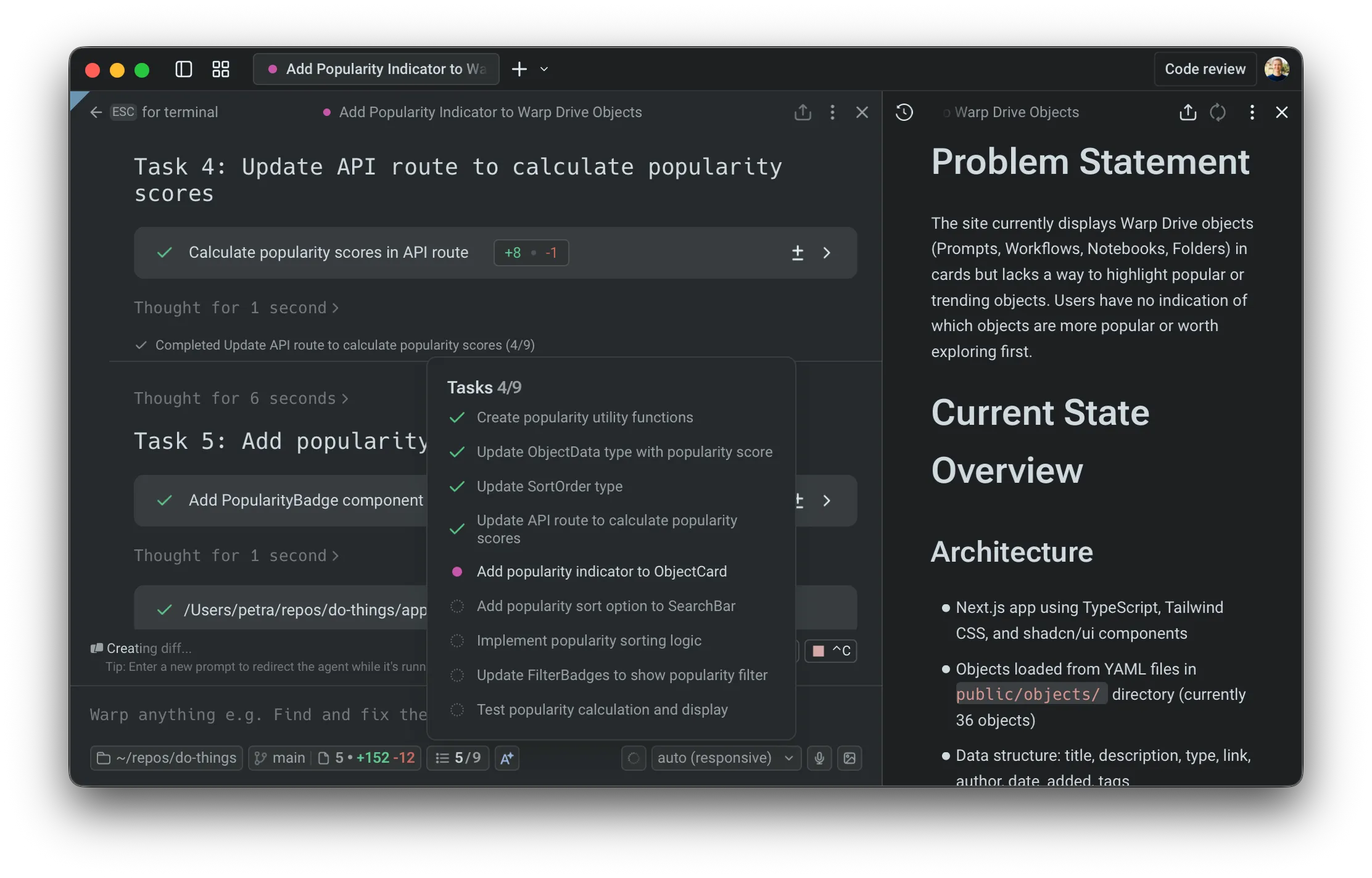 Monitoring progress with the task list and plan view. This gives you clear oversight, helps confirm expected behavior, and lets you intervene quickly if something needs correction. ### Saving and sharing [Section titled “Saving and sharing”](#saving-and-sharing) Warp automatically saves all plans in the *Plans* folder in [Warp Drive](/knowledge-and-collaboration/warp-drive/). You’ll see a confirmation when your plan is synced. 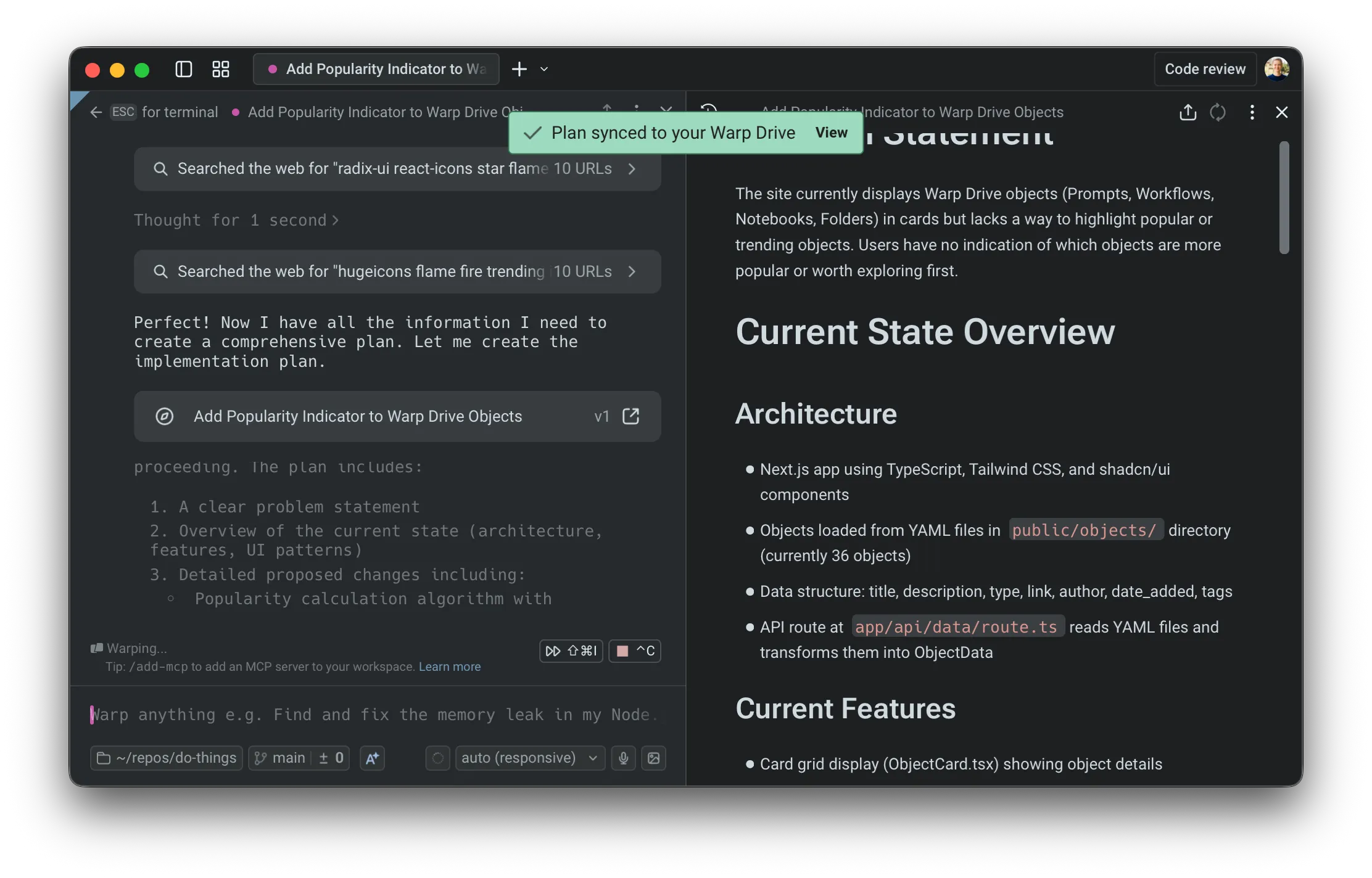 Plans are automatically synced to Warp Drive. You can export any plan as Markdown, check it into your repository, or share a link—useful for GitHub PRs, design reviews, or async collaboration. 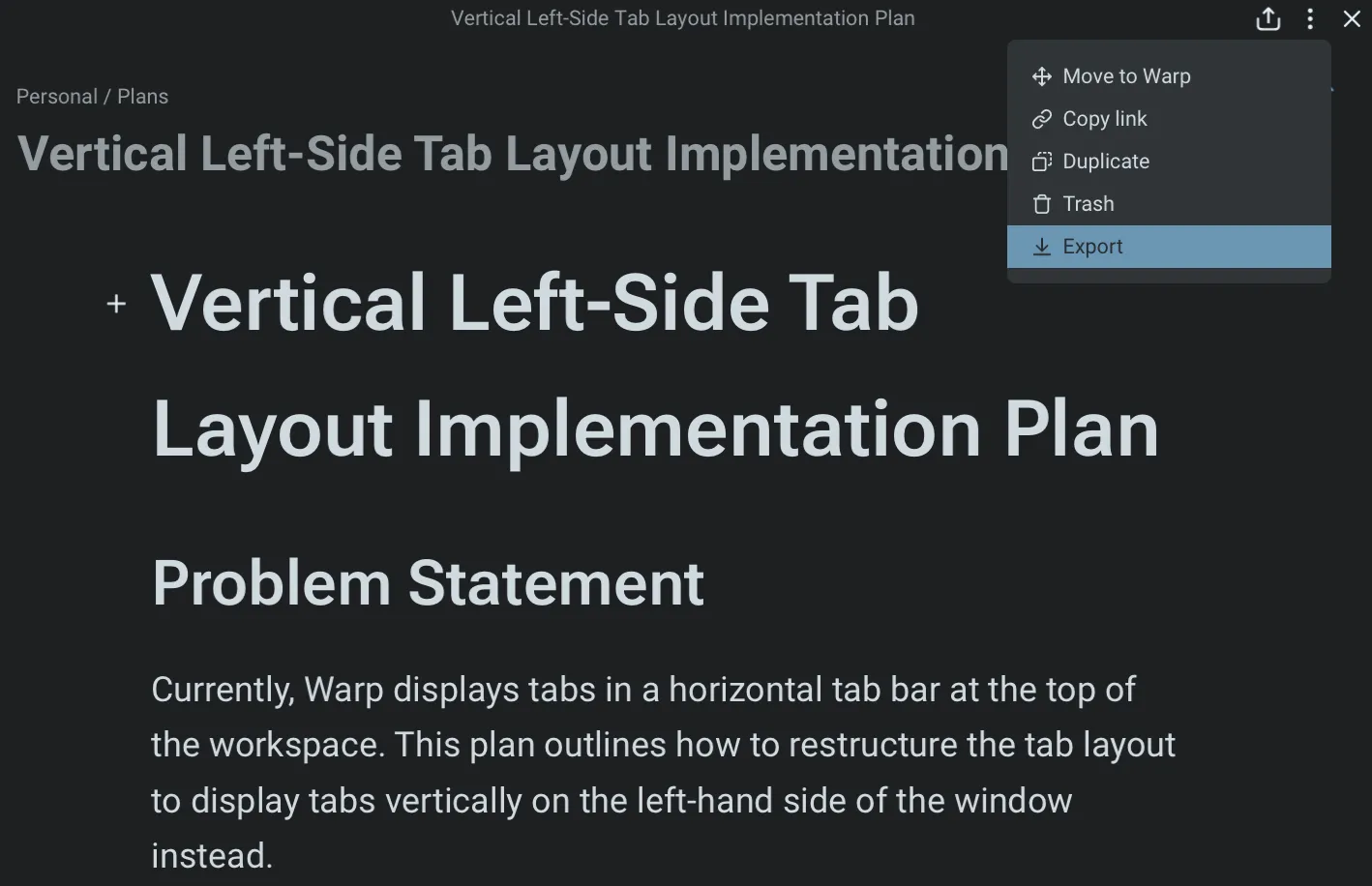 Different ways to share a plan. Because plans persist in Warp Drive, you can return to them later, reuse them for new work, or treat them as documentation for ongoing projects. This is also naturally passed to the agent as context. 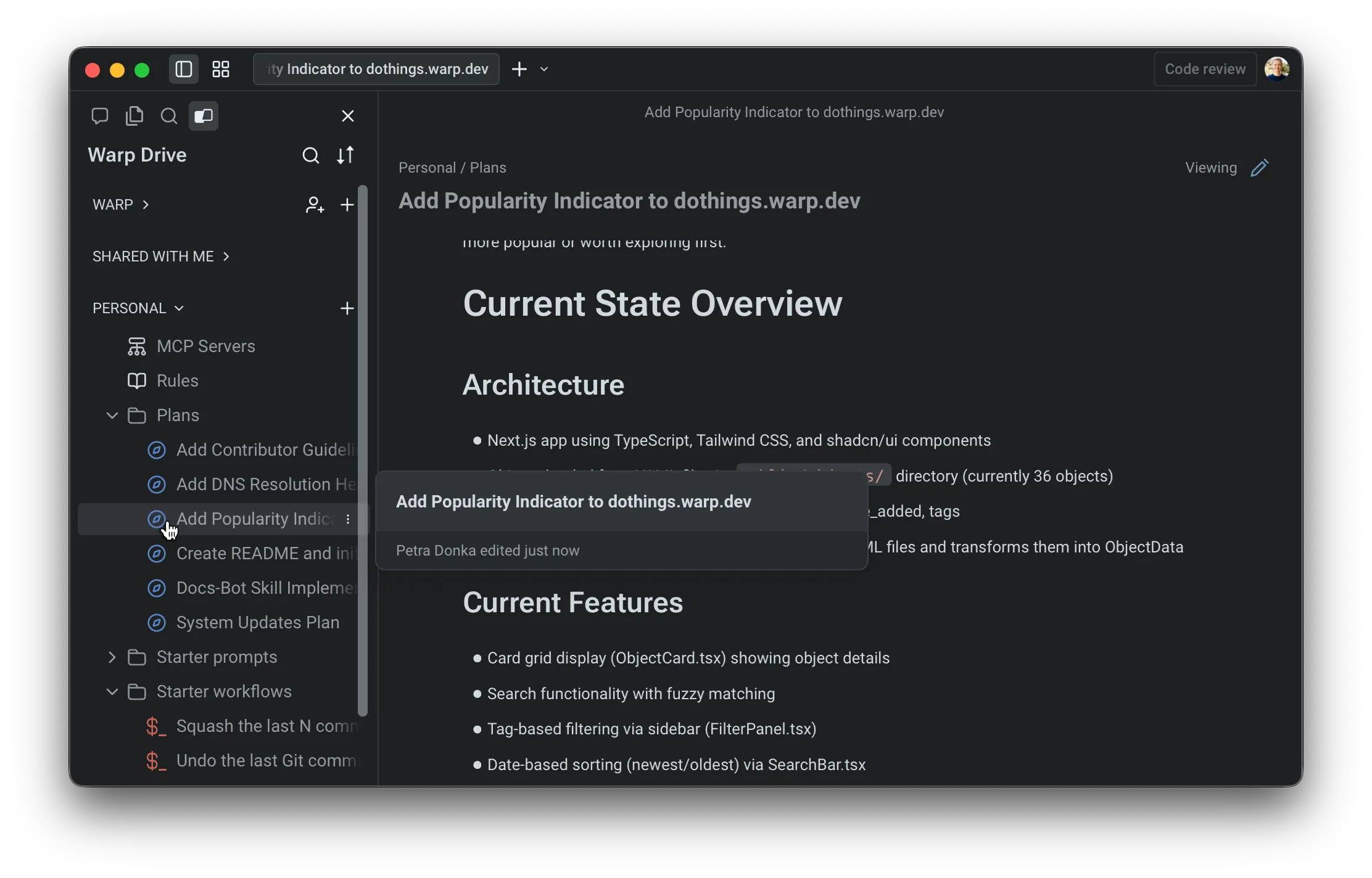 Plans are accessible directly from the Warp Drive side panel. You can configure whether your plans will be automatically added and synced to Warp Drive in your [Agent Profiles & Permissions](/agent-platform/capabilities/agent-profiles-permissions/) under **Settings** > **Agents** > **Profiles**.  ### Using plans across conversations [Section titled “Using plans across conversations”](#using-plans-across-conversations) Plans are reusable across tasks and sessions. You can reference them in future prompts, continue where you left off, or build follow-up plans that rely on earlier work. The **@plans** command helps you quickly search for and reopen previously saved plans, making planning a consistent part of your development workflow rather than a one-off step. See [attaching context with @ references](/agent-platform/local-agents/agent-context/using-to-add-context/) for more ways to add files, folders, diffs, and saved objects to an agent conversation. 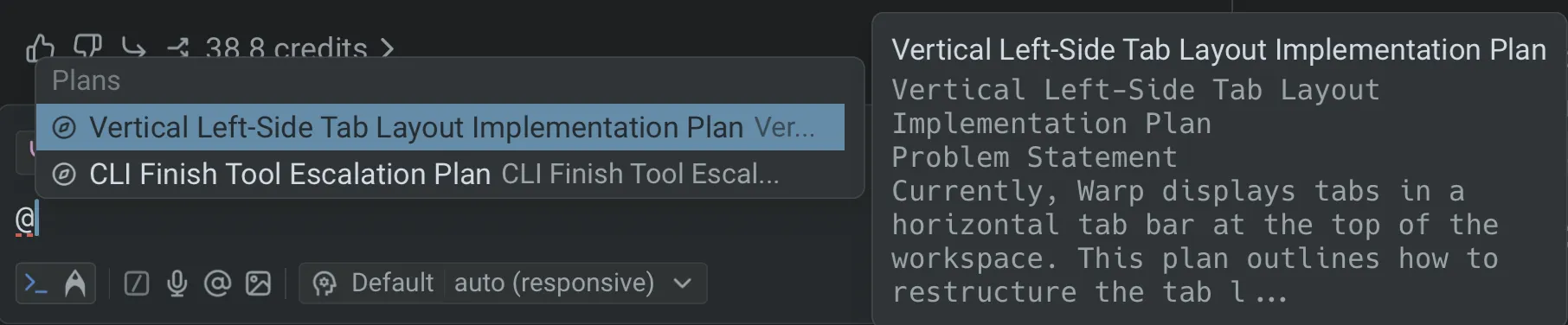 *** ## Next steps [Section titled “Next steps”](#next-steps) As the agent executes your plan, you’ll review code changes and may want to scale work to the cloud. * **[Interactive Code Review](/agent-platform/local-agents/interactive-code-review/)** - Leave inline comments on agent-generated diffs and have the agent revise in one pass. * **[Cloud Agents quickstart](/agent-platform/cloud-agents/quickstart/)** - Run agents in the cloud for longer tasks, background automation, or parallel work across repos.
# Rules for agents
Canonical page: [/agent-platform/capabilities/rules/](https://docs.warp.dev/agent-platform/capabilities/rules/)
> Create reusable Global or Project Rules to ensure Warp’s agents follow your coding standards, project conventions, and personal preferences.
Warp’s **Rules** feature lets you create reusable guidelines that inform how agents respond to your prompts. Rules help tailor responses to match your coding standards, project conventions, and personal preferences, making agent interactions smarter and more consistent. Warp supports two types of rules: **Global Rules** and **Project Rules**.  ## Global Rules [Section titled “Global Rules”](#global-rules) Global Rules apply across all projects and contexts. They’re ideal for: * Coding standards and best practices * Workspace-wide guidelines * Tool configurations or preferences you want applied everywhere Warp may also suggest Global Rules based on your usage patterns to make future interactions smarter and more consistent. ## Project Rules [Section titled “Project Rules”](#project-rules) Project Rules live in your codebase and apply automatically when working within that project. They’re stored in an `AGENTS.md` file (or `WARP.md` for backwards compatibility) and can be: * Placed in the root of your repository * Added in subdirectories for more targeted guidance Caution The filename must be in **all caps** for Warp to recognize it (e.g., `AGENTS.md`, not `agents.md` or `Agents.md`). We recommend creating `AGENTS.md` for new projects. **When you’re in a directory:** * Warp automatically applies the `AGENTS.md` (or `WARP.md`) in the root and in the current directory. * If you edit files in another subdirectory, Warp makes a best-effort attempt to include that subdirectory’s rules file as well. Example project structure: How Warp applies these Project Rules: * **If the current directory is `ui/`** * Automatically applied: `project/AGENTS.md` and `project/ui/AGENTS.md` * Best effort: `project/api/AGENTS.md` if editing files there * **If the current directory is `api/`** * Automatically applied: `project/AGENTS.md` and `project/api/AGENTS.md` * Best effort: `project/ui/AGENTS.md` if editing files there ### **Rules precedence** [Section titled “Rules precedence”](#rules-precedence) When multiple rules apply, Warp follows this order of precedence: 1. Rules in the current subdirectory’s project rules file 2. Rules in the root directory’s project rules file 3. Global Rules This ensures the most specific, project-relevant rules take priority over broader ones. *** ## How to access Rules [Section titled “How to access Rules”](#how-to-access-rules) * From [Warp Drive](/knowledge-and-collaboration/warp-drive/): **Personal** > **Rules** * From the [Command Palette](/terminal/command-palette/): search for “Open AI Rules” * From the Settings panel: **Settings** > **Agents** > **Knowledge** > **Manage Rules** * Here, you can manage both Global as well as Project Rules. * From the macOS Menu: `AI > Open Rules` * From the Slash Commands menu: `/open-project-rules` to open Project Rules directly in Warp’s code editor 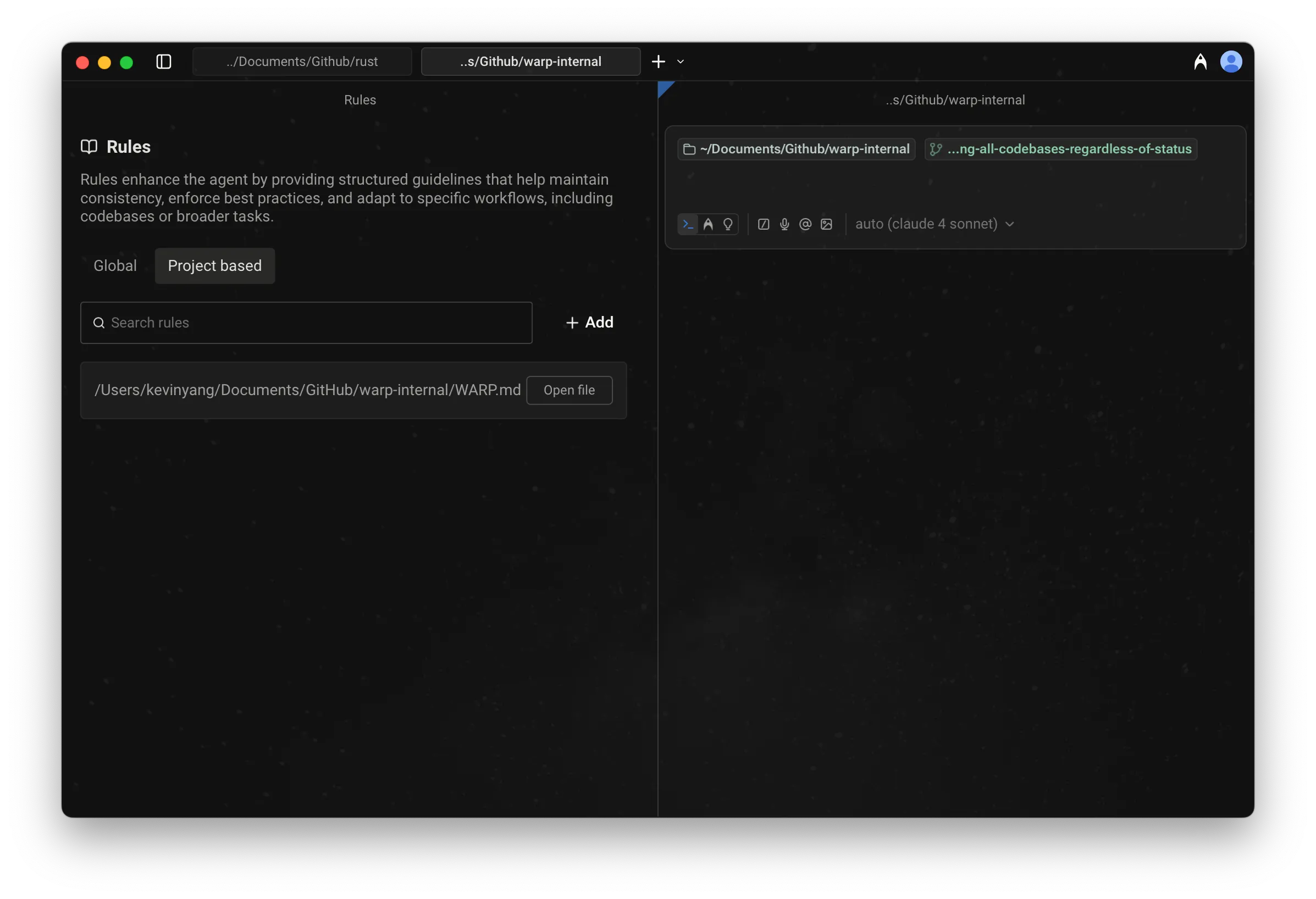 Project Rules UI open in a Rules pane. ## How to create, edit, or delete Rules [Section titled “How to create, edit, or delete Rules”](#how-to-create-edit-or-delete-rules) #### Global Rules [Section titled “Global Rules”](#global-rules-1) * **From Warp Drive Rules pane:** **Personal** > **Rules** > **Global**\ Add, edit, or delete any number of rules. Each rule can include: * Name (optional) * Description (what the rule does and when to apply it) * **From the Slash Commands menu:** `/add-rule` in Auto or Agent input modes to create a new Global Rule (automatically opens the Warp Drive Rules pane). [Rules Demo (legacy) with just Global Rules. Project rules can also be found there.](https://www.loom.com/embed/3a49462c01e149cf9c040130cebe1184) #### Project Rules [Section titled “Project Rules”](#project-rules-1) * **When in a directory, set up Project Rules with a slash command:** Use `/init` in Auto-Detection or Agent Mode to: * Begin indexing your codebase or display indexing status * Generate an `AGENTS.md` file with initial context, or * Link an existing Rules file to `AGENTS.md` * Warp currently supports linking the following external Rules files: `CLAUDE.md`, `.cursorrules`, `AGENT.md`, `GEMINI.md`, `.clinerules`, `.windsurfrules`, `.github/copilot-instructions.md` To view all Project Rules and open them in Warp, access it via the Warp Drive Rules pane: **Personal** > **Rules** > **Project-based** ### Rules as Agent context [Section titled “Rules as Agent context”](#rules-as-agent-context) When relevant, Agents automatically pull in applicable rules to guide their responses. Rules used in an interaction will appear in the conversation under **References** or marked as derived from a specific rule. 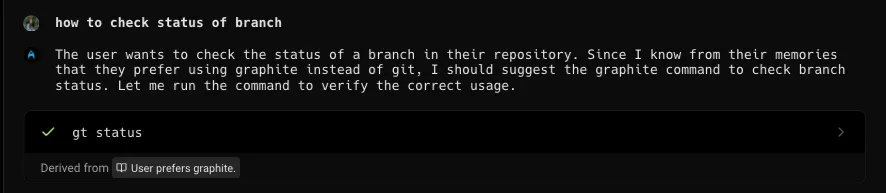 An agent response showing which rules were applied. 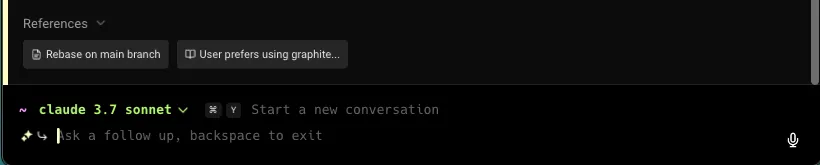 Rules listed as references in an agent conversation. ### Rules privacy [Section titled “Rules privacy”](#rules-privacy) See our [Privacy Page](/support-and-community/privacy-and-security/privacy/) for more information on how we handle data with Rules.
# Skills for agents
Canonical page: [/agent-platform/capabilities/skills/](https://docs.warp.dev/agent-platform/capabilities/skills/)
> Create reusable instruction sets that teach agents specific tasks and share expertise across your team.
Skills allow you to create reusable, shareable instructions that agents can invoke when performing tasks. Instead of repeating detailed prompts, you can encapsulate common workflows, coding patterns, or domain expertise into skill files that agents automatically discover and use. ## Key features [Section titled “Key features”](#key-features) * **Reusable instructions** - Define a task once and let Agents use it whenever relevant * **Project and global scopes** - Create skills specific to a project or available across all projects * **Automatic discovery** - Agents are aware of all available skills and invoke them when appropriate * **Simple markdown format** - Skills are just markdown files with a small amount of metadata * **Supporting files** - Include scripts, templates, or other resources alongside your skill instructions * **Slash command invocation** - Invoke any skill directly with `/{skill-name}` * **Parameterized skills** - Use argument placeholders to create dynamic, reusable skill templates ## How Skills work [Section titled “How Skills work”](#how-skills-work) When you start an [Agent conversation](/agent-platform/local-agents/interacting-with-agents/), the Agent receives a list of all available skills with their names and descriptions. When the Agent determines that a skill would help accomplish your task, it loads the skill’s full instructions and follows them to complete the task. Caution Skill discovery is based on your current working directory. For Git repositories, Warp includes all skills from your current directory up through the repository root. If you’re working in project A, you won’t have access to skills from project B. ### Skill name conflicts [Section titled “Skill name conflicts”](#skill-name-conflicts) If you have skills with the same name in multiple directories, Warp handles the conflict differently depending on how the skill is invoked: * **Natural language** - The Agent receives a list of all in-scope skills including their names, descriptions, and file paths. The Agent can see all available options and chooses the appropriate skill based on its path. * **Slash commands** - When multiple skills share the same name, Warp displays all matching skills in the menu. You select which one to use based on the description. * **Background resolution** - When Warp resolves skill names automatically (without direct user selection), it prioritizes home directory (global) skills first, then skills from higher directories (closer to the repository root). ### Example interactions [Section titled “Example interactions”](#example-interactions) You can invoke skills in two ways: **Using natural language** - Describe what you want to accomplish: * “Use the deploy skill to push to staging” * “Check the docs for broken links” (invokes a link-checking skill) * “Create a DOCX file with my project’s README content” * “Draft documentation for the new API endpoint based on this PR” **Using slash commands** - Invoke a skill directly with `/{skill-name}`: * `/deploy` - Invokes the deploy skill * `/add-feature-flag` - Invokes the add-feature-flag skill The Agent recognizes when your request matches a skill’s purpose, loads the skill instructions, and follows them to complete the task. ## Skill file format [Section titled “Skill file format”](#skill-file-format) Skills are markdown files with YAML frontmatter. Each skill must have: * **name** - A unique identifier for the skill (typically kebab-case) * **description** - A brief explanation of what the skill does and when to use it ### Basic structure [Section titled “Basic structure”](#basic-structure) ```markdown --- name: your-skill-name description: Brief description of what this skill does and when to use it --- # Your Skill Name ## Instructions Provide clear, step-by-step guidance for the agent. You can use argument placeholders like $ARGUMENTS or $0 in the body (see [Skill arguments](#skill-arguments)). ## Examples Show concrete examples of using this skill. ``` ### Example skill file [Section titled “Example skill file”](#example-skill-file) Here’s a complete example of a skill that helps create feature flags: ```markdown --- name: add-feature-flag description: Add a new feature flag to the codebase with proper configuration and documentation --- # Add Feature Flag ## Instructions 1. Ask the user for the feature flag name and default value 2. Add the flag definition to `config/feature_flags.yaml` 3. Create a helper function in `src/utils/flags.ts` 4. Update the feature flags documentation in `docs/FEATURE_FLAGS.md` ## Configuration Format Feature flags should follow this format in the YAML file: feature_name: default: false description: "What this flag controls" owner: "team-name" ## Examples - "Add a feature flag for the new checkout flow" - "Create a flag to enable dark mode for beta users" ``` ## Skill arguments [Section titled “Skill arguments”](#skill-arguments) Skills can include argument placeholders that are automatically substituted with values you provide when invoking the skill. This lets you create reusable, parameterized skill templates. [Using Skill Arguments in Warp](https://www.loom.com/embed/4cb0a80e567c41788816cd9b5acbc7ed) ### Argument syntax [Section titled “Argument syntax”](#argument-syntax) Three placeholder formats are supported: * **`$ARGUMENTS`** — Replaced with the full raw argument string (everything after the skill name). * **`$ARGUMENTS[N]`** — Replaced with the Nth whitespace-separated argument (0-indexed). For example, `$ARGUMENTS[0]` is the first argument, `$ARGUMENTS[1]` is the second, etc. * **`$N`** — Shorthand for `$ARGUMENTS[N]`. For example, `$0` is equivalent to `$ARGUMENTS[0]`. ### How argument substitution works [Section titled “How argument substitution works”](#how-argument-substitution-works) When you invoke a skill, any text you type after the skill name is treated as the argument string. The argument string is split on whitespace to produce individual indexed arguments. **If the skill contains argument placeholders** (`$ARGUMENTS`, `$ARGUMENTS[N]`, or `$N`), the placeholders are replaced with the corresponding argument values before the skill instructions are sent to the agent. **If the skill does not contain any argument placeholders**, the extra text you provide is passed to the agent as a separate user message alongside the skill instructions. This means you can always add context when invoking a skill, whether or not it uses argument placeholders. ### Example: Skill with arguments [Section titled “Example: Skill with arguments”](#example-skill-with-arguments) Here’s a skill that uses arguments to explain a topic for a specific audience: ```markdown --- name: explain-topic description: Explain a topic for a specific audience in a given tone --- # Explain Topic Explain $0 for an audience of $1 professionals. Use a $2 tone. Full request: $ARGUMENTS ``` Invoking this skill with: ```plaintext /explain-topic bears engineering fun ``` Produces the following instructions for the agent: ```plaintext Explain bears for an audience of engineering professionals. Use a fun tone. Full request: bears engineering fun ``` ### Example: Skill without arguments [Section titled “Example: Skill without arguments”](#example-skill-without-arguments) If a skill has no argument placeholders: ```markdown --- name: greet description: Greet the user with an Australian-style hello --- # Greet Greet the user warmly in an Australian style. ``` Invoking with extra text: ```plaintext /greet say it in French ``` The skill instructions are sent first, then “say it in French” is passed as a follow-up user message. The agent sees both and can combine them — in this case, greeting in French with an Australian flair. ## Skill locations [Section titled “Skill locations”](#skill-locations) Skills can be stored at two levels: project-level (accessible only within that project) and user-level (accessible from any project). ### Project skills [Section titled “Project skills”](#project-skills) Project skills live in your repository and are available when you’re working in that project. We recommend storing them at your project root, but skills in subdirectories are also discovered when you’re working within that subdirectory. This is useful for monorepos with separate `./frontend` and `./backend` directories. Store them in any of these directories: * **`.agents/skills/`** (recommended) * **`.warp/skills/`** * **`.claude/skills/`** * **`.codex/skills/`** * **`.cursor/skills/`** * **`.gemini/skills/`** * **`.copilot/skills/`** * **`.factory/skills/`** * **`.github/skills/`** * **`.opencode/skills/`** Each skill must be in its own subdirectory with a `SKILL.md` file. Any supporting files (scripts, templates, configs) should be referenced in `SKILL.md` so the Agent knows they exist: ### Root directory skills (global) [Section titled “Root directory skills (global)”](#root-directory-skills-global) Root directory skills are stored in your home directory and are available across all projects on your machine. These are useful for personal workflows, coding patterns, or procedures you use regardless of the specific project. Store global skills in any of these directories in your home folder: * **`~/.agents/skills/`** (recommended) * **`~/.warp/skills/`** * **`~/.claude/skills/`** * **`~/.codex/skills/`** * **`~/.cursor/skills/`** * **`~/.gemini/skills/`** * **`~/.copilot/skills/`** * **`~/.factory/skills/`** * **`~/.github/skills/`** * **`~/.opencode/skills/`** The directory structure is the same as project skills: ### Project vs Root directory skills [Section titled “Project vs Root directory skills”](#project-vs-root-directory-skills) Understanding when to use each level: **Project skills** are best for: * Project-specific workflows (deployment, testing, migrations) * Team-shared procedures and standards * Repository-specific automation and tooling * Domain-specific patterns for that codebase **Root directory skills** are best for: * Personal coding preferences and patterns * General-purpose workflows used across all projects * Cross-project automation (git workflows, documentation templates) * Professional standards you apply everywhere ## Creating skills [Section titled “Creating skills”](#creating-skills) ### Step 1: Choose a location [Section titled “Step 1: Choose a location”](#step-1-choose-a-location) Decide whether your skill should be: * **Project-specific** - Place it in one of your project’s skill directories (`.agents/skills/`, `.warp/skills/`, `.claude/skills/`, etc.) * **Global** - Place it in one of your home directory’s skill folders (`~/.agents/skills/`, `~/.warp/skills/`, `~/.claude/skills/`, etc.) ### Step 2: Create the directory structure [Section titled “Step 2: Create the directory structure”](#step-2-create-the-directory-structure) Create a subdirectory for your skill with a descriptive name: ```bash mkdir -p .agents/skills/my-new-skill ``` ### Step 3: Write the skill file [Section titled “Step 3: Write the skill file”](#step-3-write-the-skill-file) Create `SKILL.md` in your skill directory: ```bash touch .agents/skills/my-new-skill/SKILL.md ``` ### Step 4: Add content [Section titled “Step 4: Add content”](#step-4-add-content) Write your skill with clear instructions: ```markdown --- name: my-new-skill description: One-line description of what this skill does --- # My New Skill ## When to use Explain the scenarios where this skill is helpful. ## Instructions 1. First step the Agent should take 2. Second step with specific details 3. Continue with clear, actionable steps ## Important notes - Any constraints or requirements - Common pitfalls to avoid ``` ## Skills with supporting files [Section titled “Skills with supporting files”](#skills-with-supporting-files) Skills can include supporting files like scripts, templates, or configuration files. Place these files in the same directory as your `SKILL.md`: In your skill instructions, reference these files using relative paths. For example, in your `SKILL.md`: ```plaintext ## Running the check From the project root: python3 .agents/skills/check-broken-links/check_links.py --internal-only ``` This pattern is useful for: * **Automation scripts** - Python, shell, or Node scripts that perform complex tasks * **Templates** - Boilerplate files the Agent can copy and customize * **Configuration** - Default settings or schemas the skill references ## Managing skills [Section titled “Managing skills”](#managing-skills) ### Viewing available skills [Section titled “Viewing available skills”](#viewing-available-skills) Ask the Agent what skills are available: ```plaintext What skills do I have? ``` The Agent lists all discovered skills with their names and descriptions. This includes skills from all supported directories in both your current project and your home directory. ### Editing skills [Section titled “Editing skills”](#editing-skills) Use the [`/open-skill`](/agent-platform/capabilities/slash-commands/) slash command to modify existing skills: ```plaintext /open-skill ``` This opens an interactive menu where you can: * Browse project and root directory skills * See which directory each skill is located in * Open the skill file in your editor ### Best practices [Section titled “Best practices”](#best-practices) * **Write clear descriptions** - The description is how Agents decide whether to use your skill * **Be specific in instructions** - Include exact file paths, command syntax, and expected formats * **Include examples** - Show concrete use cases to help Agents understand intent * **Keep skills focused** - Each skill should do one thing well * **Use consistent naming** - Follow a naming convention like `verb-noun` (e.g., `add-feature-flag`, `run-migrations`) * **Version control your skills** - Commit project skills to your repo so the whole team benefits ## Pre-built skills [Section titled “Pre-built skills”](#pre-built-skills) Warp maintains a public collection of ready-to-use skills in the [warpdotdev/oz-skills](https://github.com/warpdotdev/oz-skills) repository. You can browse these skills for inspiration, copy them directly into your project’s `.agents/skills/` directory, or adapt them to fit your team’s workflows. These same skills also appear as suggested agents in the [Oz web app](/agent-platform/cloud-agents/oz-web-app/), where you can run them directly in the cloud. ## Suggested skills from Agent Memory [Section titled “Suggested skills from Agent Memory”](#suggested-skills-from-agent-memory) Promoting recurring patterns from [Agent Memory](/agent-platform/agent-memory/) into reviewable skill drafts is in design as part of the research preview. See the Agent Memory page for a current status. ## Invoking skills with a prompt [Section titled “Invoking skills with a prompt”](#invoking-skills-with-a-prompt) You can pass additional context or instructions to a skill when invoking it with a slash command. **Using slash commands with a prompt:** * `/deploy push the latest changes to staging` — Invokes the deploy skill with additional instructions to target staging * `/code-review focus on error handling and edge cases` — Invokes the code-review skill with guidance on what to prioritize This is useful when you want to reuse a skill’s workflow but tailor the execution to a specific situation without modifying the skill itself. ## Running agents from skills [Section titled “Running agents from skills”](#running-agents-from-skills) Skills can be used with both local and [cloud agents](/agent-platform/cloud-agents/overview/) to create reusable, automated workflows. When running an agent via the CLI, web app, or API, you can specify a skill to provide the base instructions for the agent. For a complete guide to running skill-based agents—including CLI usage, the Oz web app, scheduling, skill discovery, and API integration—see [Skills as Agents](/agent-platform/cloud-agents/skills-as-agents/). ## Related features [Section titled “Related features”](#related-features) * [**Rules**](/agent-platform/capabilities/rules/) - Set persistent guidelines and constraints for Agent behavior * [**MCP Servers**](/agent-platform/capabilities/mcp/) - Expose external data sources and tools to Agents * [**Cloud Agents**](/agent-platform/cloud-agents/overview/) - Run Agents in the cloud on schedules or triggers * [**Agent Profiles**](/agent-platform/capabilities/agent-profiles-permissions/) - Control Agent permissions and autonomy *** ## Next steps [Section titled “Next steps”](#next-steps) Skills become even more powerful when you automate and share them. * **[Scheduled Agents quickstart](/agent-platform/cloud-agents/triggers/scheduled-agents-quickstart/)** - Run a skill on a recurring cron schedule for tasks like weekly dependency checks or daily code cleanup. * **[Integrations quickstart](/agent-platform/cloud-agents/integrations/quickstart/)** - Trigger skills from Slack or Linear so your team can invoke agent workflows from the tools they already use.
# Slash Commands
Canonical page: [/agent-platform/capabilities/slash-commands/](https://docs.warp.dev/agent-platform/capabilities/slash-commands/)
> Use Slash Commands in Agent Mode or Auto-Detection Mode to quickly run built-in actions or saved prompts without leaving the input field.
Slash Commands are quick actions and saved prompts you can invoke by typing `/` in Agent Mode or Auto-Detection Mode. They provide instant access to built-in actions like starting conversations, creating environments, switching models, opening static flows, and running saved prompts from Warp Drive. 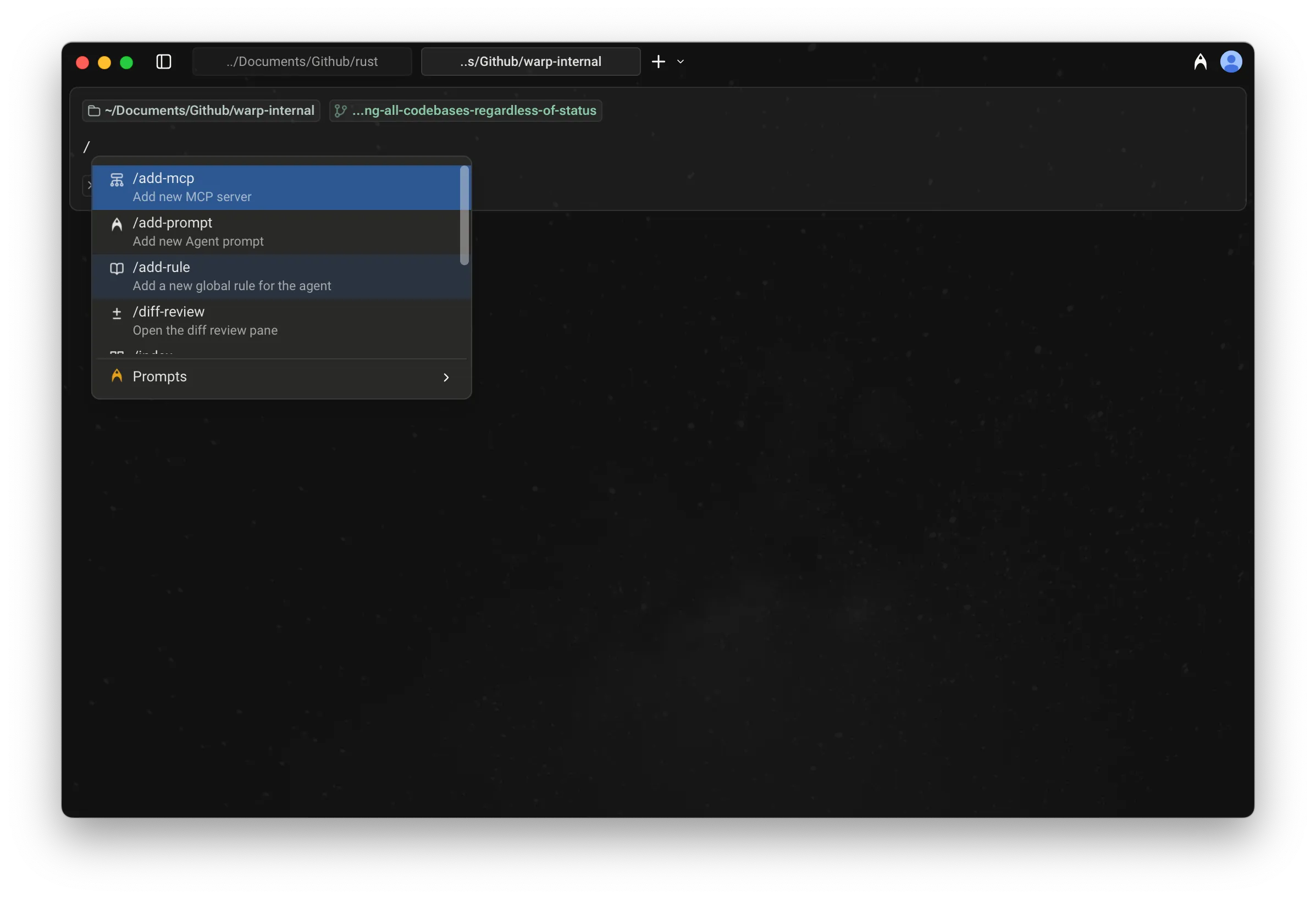 Slash Commands menu. As you type, the menu filters results in real time, making it easy to find and run the command or prompt you need. ## Static slash commands [Section titled “Static slash commands”](#static-slash-commands) Warp currently supports the following built-in Slash Commands: | Slash Command | Description | | ---------------------- | ------------------------------------------------------------------------------------------------------------------------------------------------------------------------------------------------------------------------------------------------------------------------------- | | `/add-mcp` | Add a new [MCP server](/agent-platform/capabilities/mcp/). | | `/add-prompt` | Add a new [Agent Prompt](/knowledge-and-collaboration/warp-drive/prompts/) in Warp Drive. | | `/add-rule` | Add a new [Global Rule](/agent-platform/capabilities/rules/) for the Agent. | | `/agent` | Start a new [agent conversation](/agent-platform/local-agents/interacting-with-agents/). Optionally include a prompt to send immediately. | | `/changelog` | Open the latest Warp [changelog](/changelog/). | | `/cloud-agent` | Start a new [cloud agent conversation](/agent-platform/cloud-agents/overview/). `*` | | `/compact` | Free up context by summarizing conversation history. | | `/compact-and` | Compact the current conversation and then send a follow-up prompt. | | `/conversations` | Open [conversation history](/agent-platform/local-agents/interacting-with-agents/). | | `/cost` | Toggle credit usage details in the current conversation. | | `/create-environment` | Create a [Warp Environment](/agent-platform/cloud-agents/environments/) (Docker image + repos) via guided setup. `*` | | `/create-new-project` | Have the Agent walk you through creating a new coding project. `*` | | `/export-to-clipboard` | Export the current conversation to clipboard in markdown format. | | `/export-to-file` | Export the current conversation to a markdown file. | | `/feedback` | Open the static feedback experience. See [Using `/feedback` in Warp](/support-and-community/troubleshooting-and-support/sending-us-feedback/#using-feedback-in-warp) for details. | | `/fork` | [Forks the current conversation](/agent-platform/local-agents/interacting-with-agents/conversation-forking/) into a new thread with the full context and history of the original. You can optionally include a prompt that will be sent immediately in the forked conversation. | | `/fork-and-compact` | [Forks the current conversation](/agent-platform/local-agents/interacting-with-agents/conversation-forking/) and automatically compacts the forked version. Useful when you want a fresh, summarized starting point that preserves relevant context while trimming the rest. | | `/fork-from` | Open a searchable menu to [fork the conversation](/agent-platform/local-agents/interacting-with-agents/conversation-forking/) from a specific query. Select a query to create a fork that includes everything up to that point. | | `/index` | Index the current codebase using [Codebase Context](/agent-platform/capabilities/codebase-context/). | | `/init` | Index the current codebase and generate an [AGENTS.md file](/agent-platform/capabilities/rules/). `*` | | `/model` | Switch the base agent model for the current conversation. | | `/new` | Start a new [agent conversation](/agent-platform/local-agents/interacting-with-agents/) (alias for `/agent`). | | `/open-code-review` | Open the [code review](/code/code-review/) pane. | | `/open-file` | Open a file for editing in Warp’s [code editor](/code/code-editor/). | | `/open-mcp-servers` | View the status of your [MCP servers](/agent-platform/capabilities/mcp/). | | `/open-project-rules` | Open the [Project Rules](/agent-platform/capabilities/rules/#project-rules) file (`AGENTS`). | | `/open-repo` | Switch to another indexed repository. | | `/open-rules` | View all of your global and project [rules](/agent-platform/capabilities/rules/). | | `/open-settings-file` | Open the Warp [settings file](/terminal/settings/) (`settings.toml`) in Warp’s code editor. | | `/open-skill` | Open an interactive menu to browse and edit project or global [skills](/agent-platform/capabilities/skills/). | | `/orchestrate` | Break a task into subtasks and run them in parallel with multiple agents. `*` | | `/plan` | Prompt the Agent to do some research and create a [plan](/agent-platform/capabilities/planning/) for a task. | | `/pr-comments` | Pull GitHub PR review comments into Warp. `*` | | `/profile` | Switch the active [execution profile](/agent-platform/capabilities/agent-profiles-permissions/). | | `/prompts` | Search saved [prompts](/knowledge-and-collaboration/warp-drive/prompts/). | | `/queue` | Queue a prompt to send after the agent finishes responding. See [Prompt Queueing](/agent-platform/local-agents/interacting-with-agents/prompt-queueing/). | | `/rename-tab` | Rename the current tab. Include the new tab name as an argument (for example, `/rename-tab deploy`). | | `/rewind` | Rewind to a previous point in the conversation. | | `/skills` | Invoke a [skill](/agent-platform/capabilities/skills/) from a searchable menu. | | `/usage` | Open [billing and usage](/support-and-community/plans-and-billing/) settings. | Caution Slash commands marked with a `*` consume credits to complete the task. #### Using Agent Prompts via Slash Commands [Section titled “Using Agent Prompts via Slash Commands”](#using-agent-prompts-via-slash-commands) In addition to static commands, the menu also shows [Agent Prompts](/knowledge-and-collaboration/warp-drive/prompts/) saved in your [Warp Drive](/knowledge-and-collaboration/warp-drive/). * These prompts can be custom ones you’ve created or ones shared with you. * As you type after `/`, prompts are filtered dynamically, so you can quickly run them without leaving the input field. 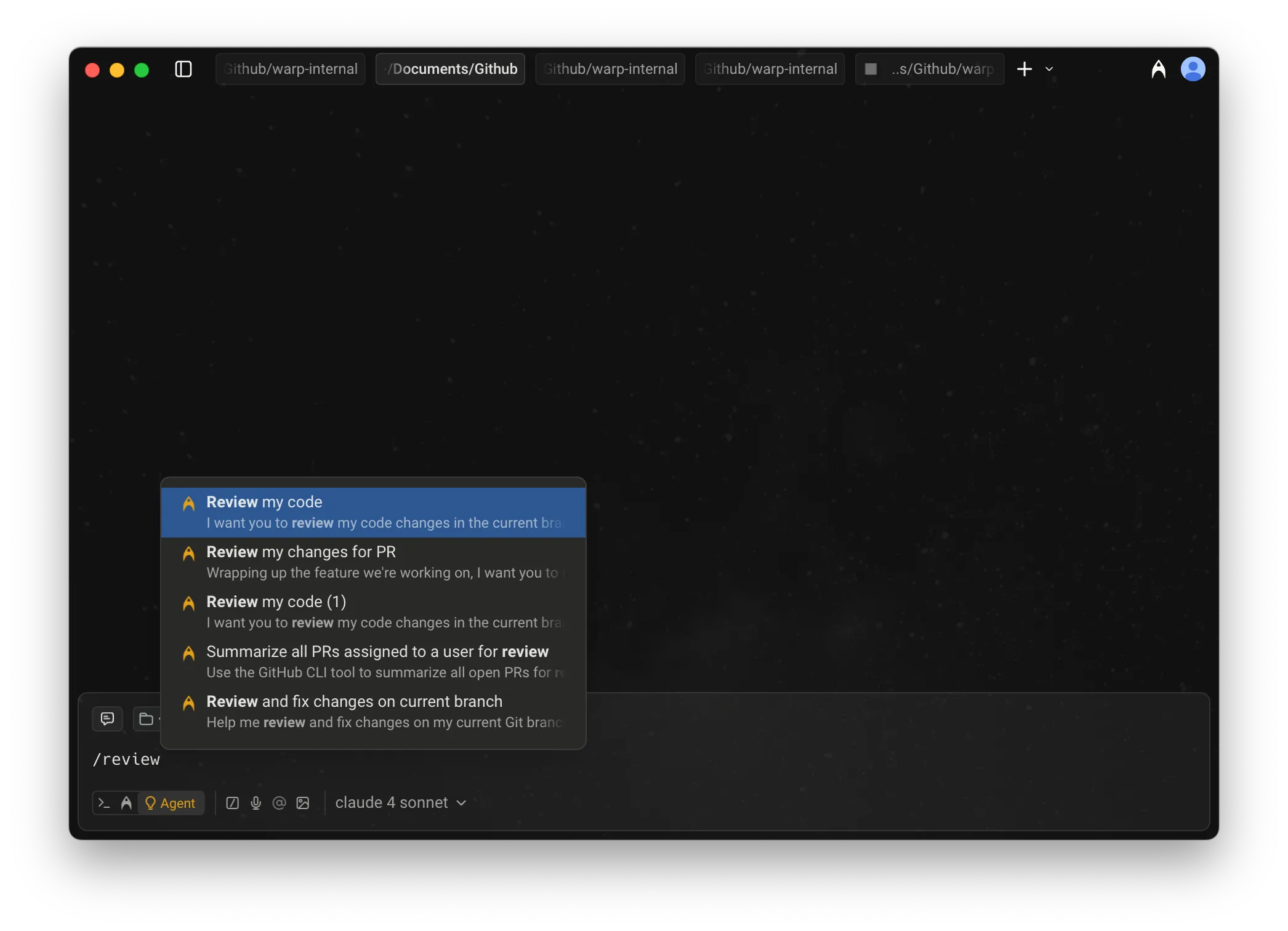 Slash Commands menu with filtered Agent Prompts. ### Tips [Section titled “Tips”](#tips) * **Context-aware:** Many Slash Commands use your current working directory or file selection as context. * **Quick access:** Use `/` from anywhere in Agent Mode or Auto-Detection Mode to avoid navigating through menus. ### Example of using a Slash Command [Section titled “Example of using a Slash Command”](#example-of-using-a-slash-command) Below is an example interaction when `/init` is run: 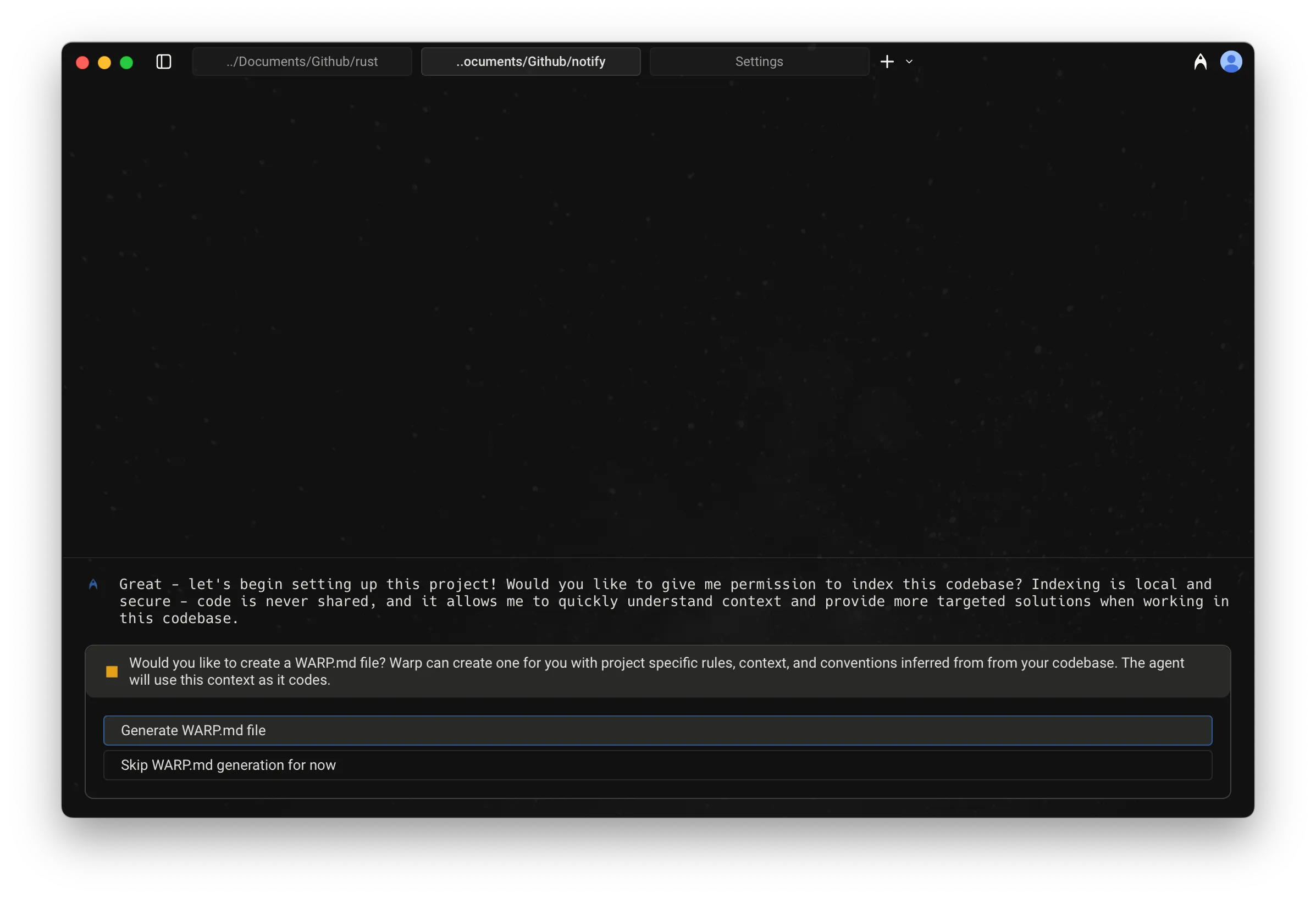 The /init setup flow, step 1 of 2. 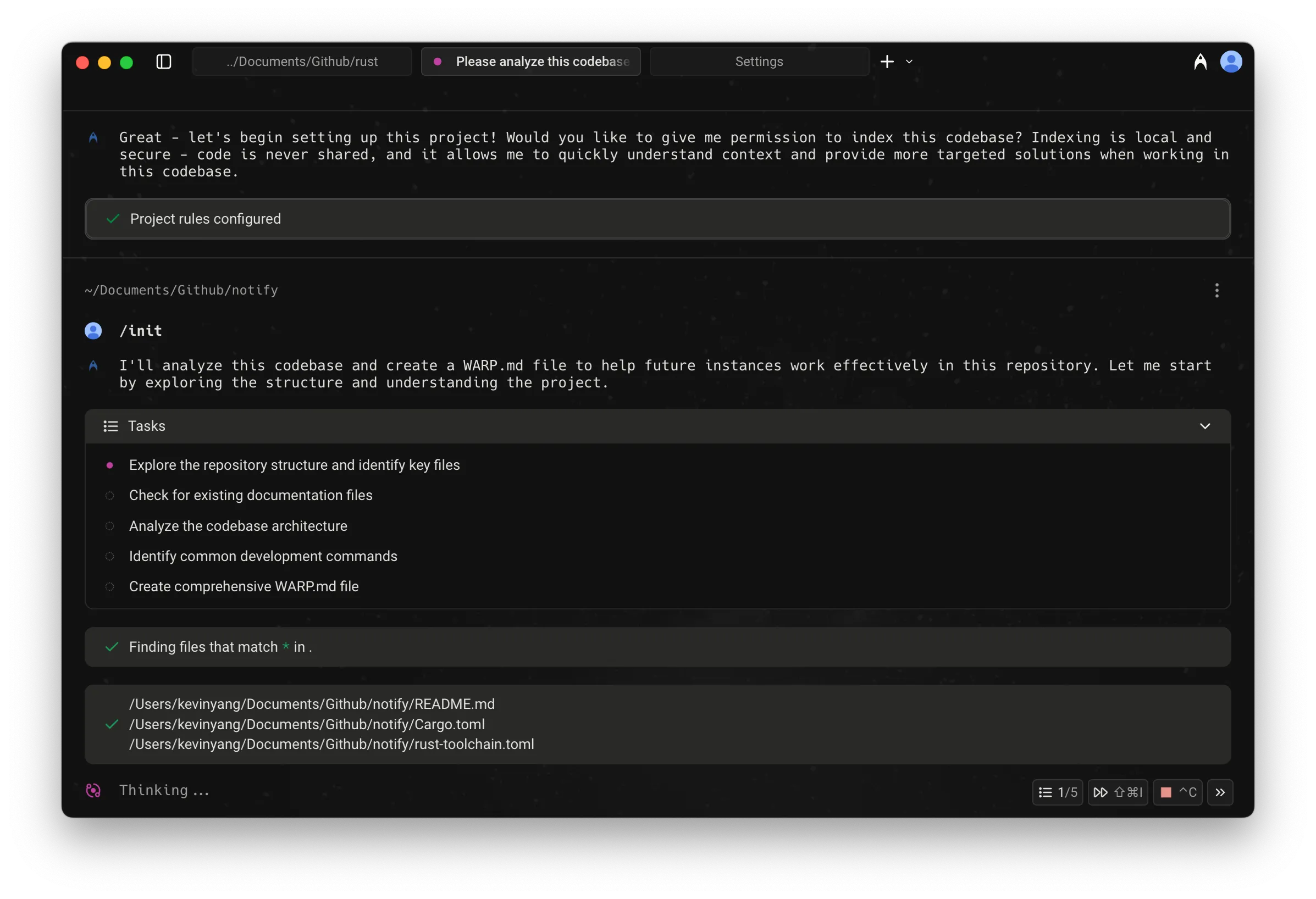 The /init setup flow, step 2 of 2.
# Agent Task Lists
Canonical page: [/agent-platform/capabilities/task-lists/](https://docs.warp.dev/agent-platform/capabilities/task-lists/)
> Track and manage complex Agent workflows with automatic task lists that break requests into clear, actionable steps and update progress in real time.
Task Lists let Warp’s agent automatically break down complex requests into clear, trackable steps. When a request requires multiple actions, the agent creates a structured list, executes each step in order, and tracks progress in real time. No configuration is needed—the agent detects and creates task lists automatically. 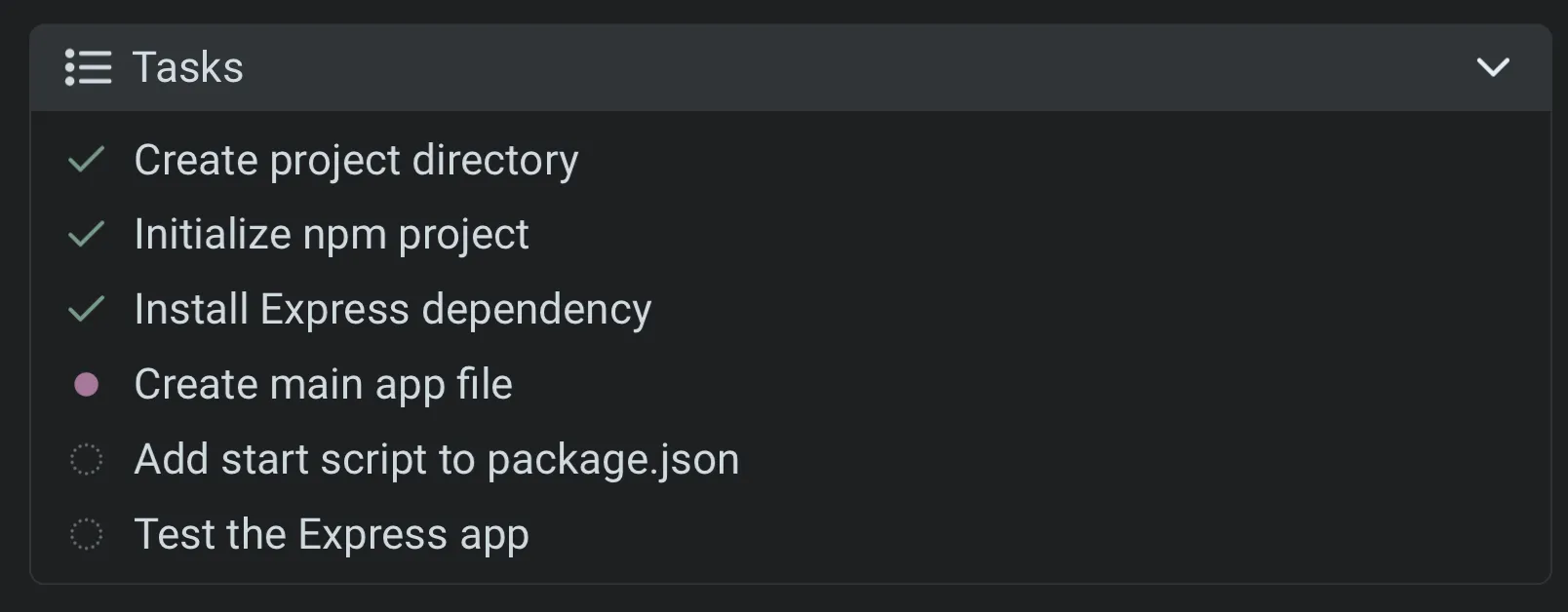 An example of a Task List in progress. ### How task lists work [Section titled “How task lists work”](#how-task-lists-work) 1. **Automatic task creation** — For complex requests, the Agent generates a structured list of tasks to complete. 2. **Step-by-step execution** — The Agent works through each task in sequence, updating statuses in real time. 3. **Summary** — Once all tasks are complete, the Agent provides a concise summary of what was done, including outputs, results, and relevant context. If any tasks were skipped or couldn’t be completed, it explains why. After each step is completed, there is also a completion marker in the Agent conversation. 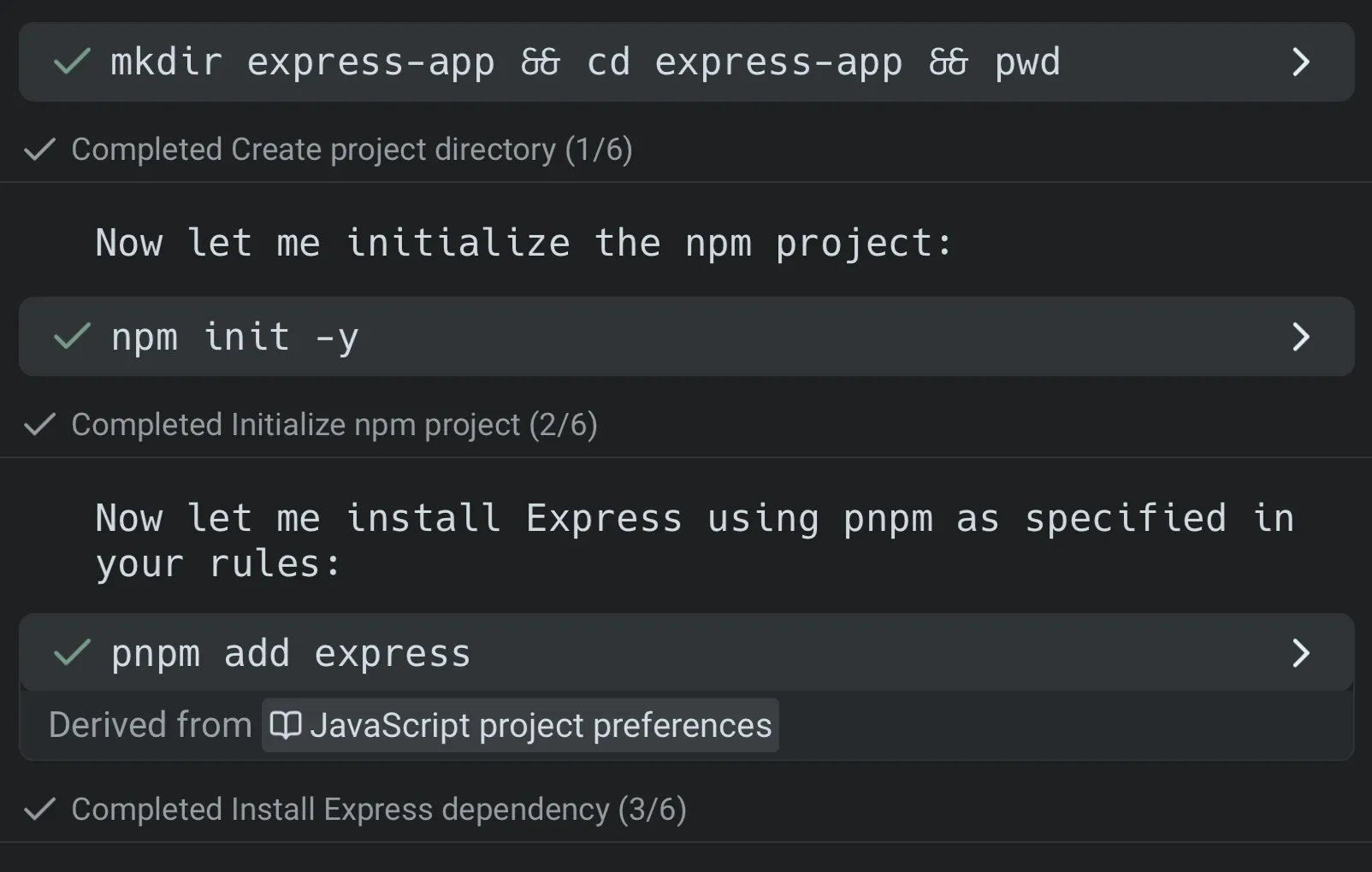 Task completion markers in a conversation. ### Task statuses [Section titled “Task statuses”](#task-statuses) Each task in the list has a visual indicator so you can quickly see its progress. | Status | Icon | Meaning | | ------------ | ----------------- | ----------------------------------------------- | | Current task | ● (filled circle) | The Agent is actively working on this task. | | Completed | ✔︎ | The Agent has finished this task successfully. | | Not started | ○ (empty circle) | The task is in the queue but work hasn’t begun. | | Cancelled | ■ (filled square) | The task was stopped before completion. | 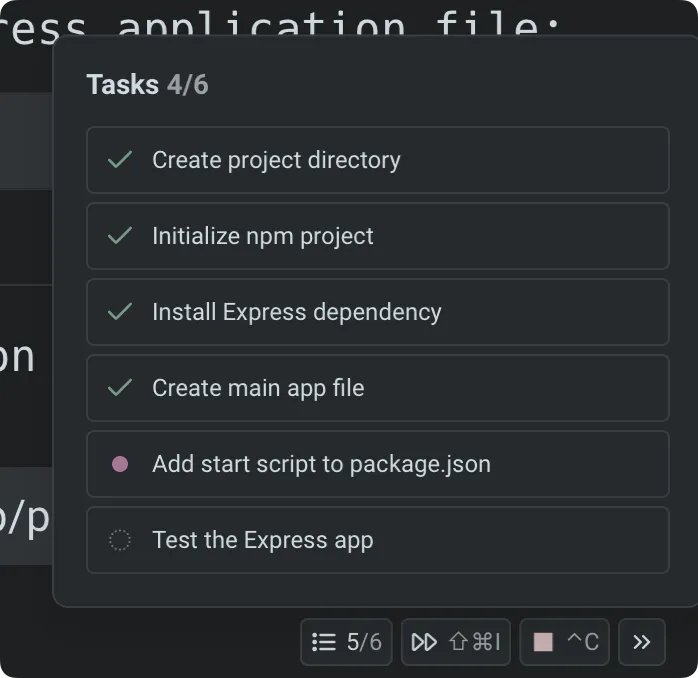 ### Task list access [Section titled “Task list access”](#task-list-access) During any Agent conversation, a task list chip appears at the bottom-right of the screen (when input is pinned to the bottom; otherwise, it may appear along the right side). * Click the chip to open the current task list. * You can collapse or expand the view at any time without interrupting the Agent. 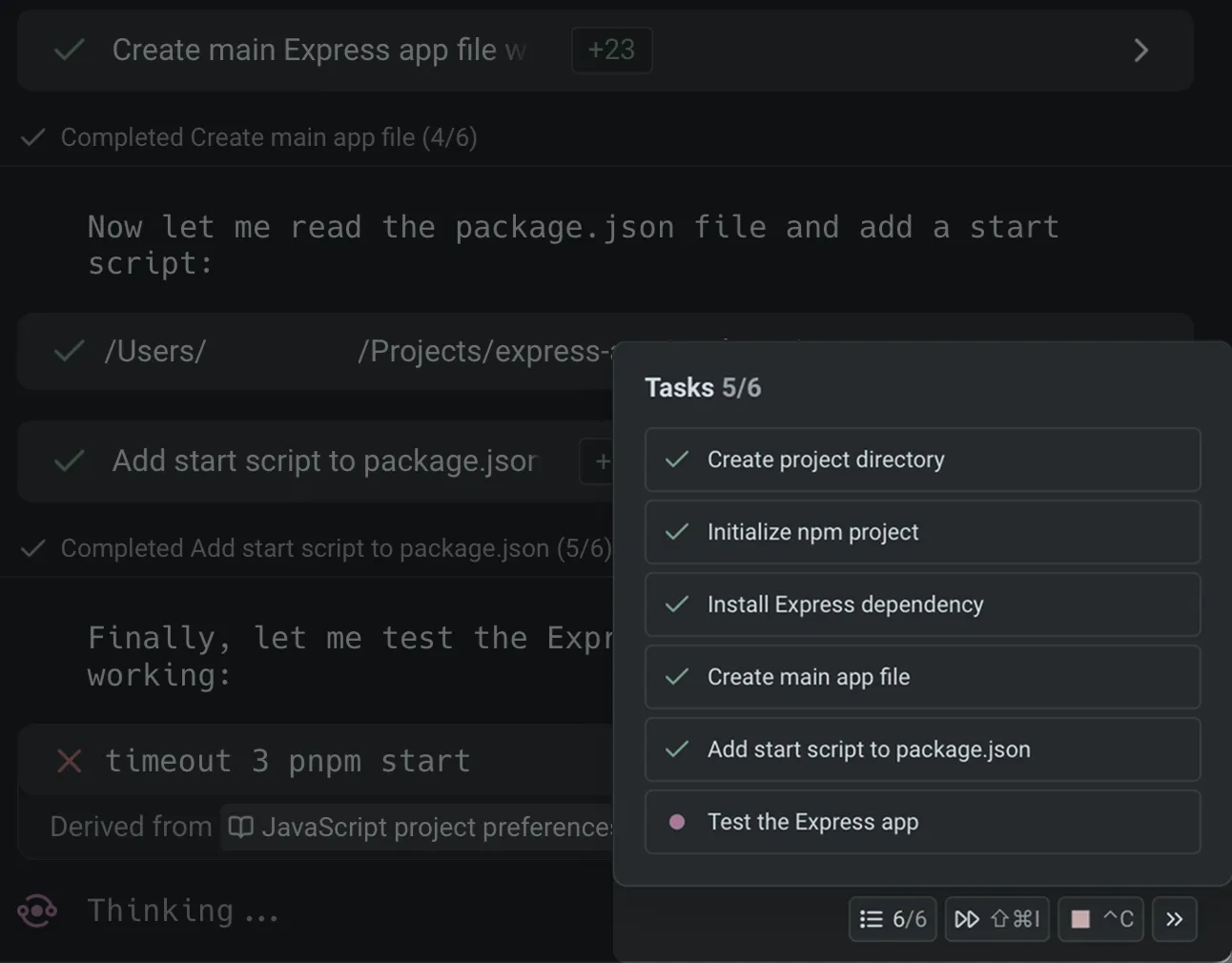 Task List chip in an agent conversation.
# Agent web search
Canonical page: [/agent-platform/capabilities/web-search/](https://docs.warp.dev/agent-platform/capabilities/web-search/)
> Warp’s web search lets agents pull in real-time information, documentation, and cited sources whenever it improves an answer.
Warp includes native web search for models that support first-party search tools. When enabled, agents can look up information in real time, consult documentation, retrieve current version numbers, and cite the sources used to generate responses. [Web search in Warp](https://www.loom.com/embed/06a4ba98f2e0446d80cb37aa4c23848c) This page covers how web search works, supported models, what you can expect inside Warp, configuration options, and how this differs from attaching URLs directly to a prompt. *** ### When the Agent uses web search [Section titled “When the Agent uses web search”](#when-the-agent-uses-web-search) Models initiate a web search when it improves the quality or accuracy of an answer. **Common scenarios include:** * Retrieving official documentation or API references * Getting the latest version of a library or tool * Checking error messages, GitHub issues, or StackOverflow discussions * Looking up ongoing incidents or recent changes * Answering questions where recency matters (e.g., “best approach in 2025 to…”) Web searches are automatically triggered when the model considers them useful. You don’t need special syntax. ### How web search works in Warp [Section titled “How web search works in Warp”](#how-web-search-works-in-warp) **When a search occurs:** 1. Warp shows a “Searching the web…” indicator inside the conversation. 2. You can expand the search result to view: * The query issued * The pages retrieved 3. **The model reads results and produces a grounded response.** * Claude models cite sources in the references footer. * OpenAI models use inline citations and also show references in the footer. ### Supported and unsupported models [Section titled “Supported and unsupported models”](#supported-and-unsupported-models) Web search is available only for models that offer a native web search integration, that works in tandem with other custom tools. **Models that support web search** * Anthropic: `Claude 4.6 Series`, `Claude 4.5 Series`, `Claude 4 Series` * OpenAI: * `GPT-5.4`, `GPT-5.3 Codex`, `GPT-5.2 Codex`, `GPT-5.2` Warp uses each vendor’s official tool: * [Claude web search tool documentation](https://docs.claude.com/en/docs/agents-and-tools/tool-use/web-search-tool) * [OpenAI web search tool documentation](https://developers.openai.com/api/docs/guides/tools-web-search) ### Viewing search results [Section titled “Viewing search results”](#viewing-search-results) You can inspect the web search UI at any time: * Expand the **Web Search** section in the agent response * You can see: * The list of pages fetched * The text used to answer your question * Citations and reference metadata 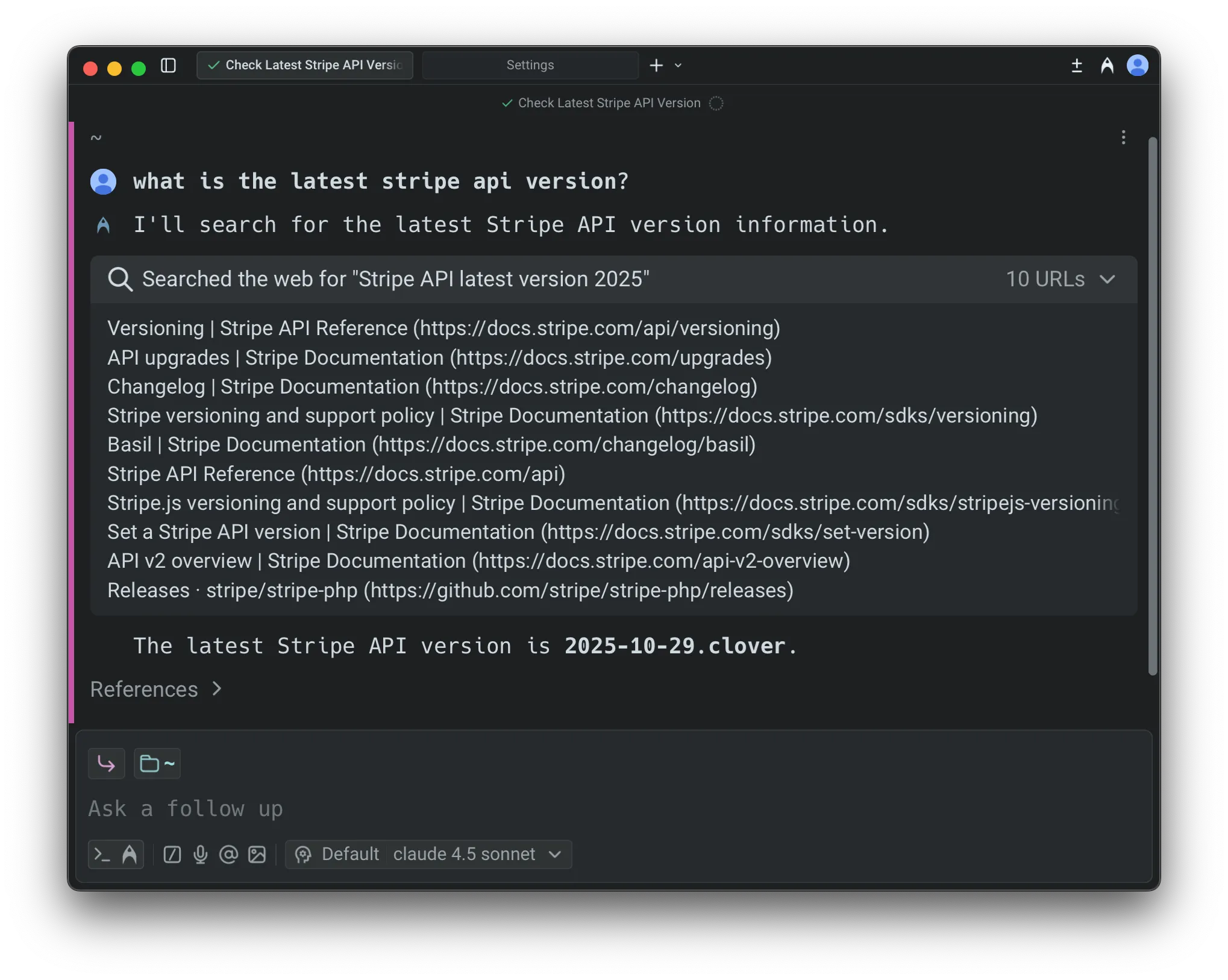 This makes it easy to verify accuracy, audit reasoning, and validate sources. ### Enabling or disabling web search [Section titled “Enabling or disabling web search”](#enabling-or-disabling-web-search) Web search is controlled per [Profiles & Permissions](/agent-platform/capabilities/agent-profiles-permissions/). To configure: 1. In the Warp app, navigate to **Settings** > **Agents** > **Profiles**. 2. Next to the agent profile, click **Edit**. 3. Scroll to **Call web tools** and toggle the setting on or off. 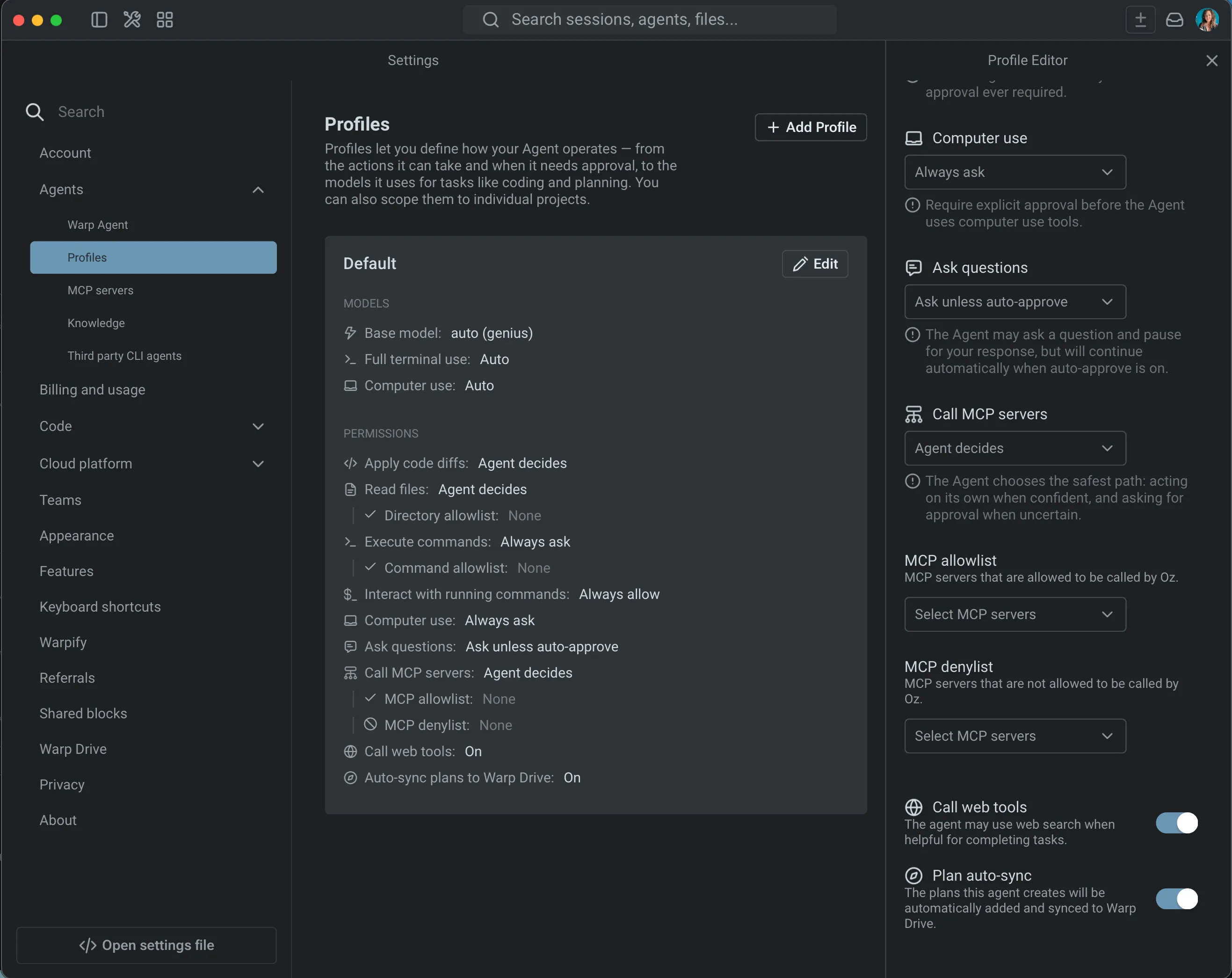 Disabling this prevents the agent from performing searches, even if a model would normally use them. ### Credit usage [Section titled “Credit usage”](#credit-usage) Web search incurs two types of credit usage: 1. A small fixed cost per search invocation 2. Additional cost proportional to retrieved content, since retrieved text is passed to the model You’ll see these contributions itemized in the conversation’s credit usage footer, alongside model calls, planning calls, and other tool usage.
# Claude Code in Warp
Canonical page: [/agent-platform/cli-agents/claude-code/](https://docs.warp.dev/agent-platform/cli-agents/claude-code/)
> Set up Claude Code in Warp with full notification support, rich input, code review, and more.
Claude Code is Anthropic’s agentic coding tool that operates directly in your terminal. It understands your codebase, executes commands, edits files, and manages Git workflows — all through natural language. For full documentation, see the [official Claude Code docs](https://code.claude.com/docs). Warp auto-detects Claude Code when you run it, giving you access to rich input controls, code review, agent notifications, and other integrated features. For a product overview, see [Claude Code in Warp](https://www.warp.dev/agents/claude-code). For installation, authentication, project configuration, and productivity tips, see the [How to set up Claude Code](/guides/external-tools/how-to-set-up-claude-code/) guide. ## Setting up notifications [Section titled “Setting up notifications”](#setting-up-notifications) Warp supports agent notifications for Claude Code through a plugin. Once installed, Warp surfaces in-app and desktop alerts when Claude Code needs your input — such as command approval, code review, or error intervention. ### Auto-install [Section titled “Auto-install”](#auto-install) Each time you run Claude Code in Warp without the notification plugin installed, a notification chip appears offering one-click installation. Click the chip to install the plugin automatically. After installation, Warp immediately starts receiving notifications from Claude Code. ### Manual install [Section titled “Manual install”](#manual-install) If the auto-install chip doesn’t appear or fails to install the plugin, install it manually. From inside Claude Code, run: ```bash /plugin marketplace add warpdotdev/claude-code-warp /plugin install warp@claude-code-warp ``` Or from your terminal (outside of Claude Code): ```bash claude plugin marketplace add warpdotdev/claude-code-warp claude plugin install warp@claude-code-warp ``` After installing, restart Claude Code or run `/reload-plugins` to activate the plugin. ### Installation instructions banner [Section titled “Installation instructions banner”](#installation-instructions-banner) If the auto-install chip doesn’t work, or if you’re running Claude Code over SSH or on a remote machine, Warp displays an installation instructions banner directly in the terminal. The banner shows step-by-step commands that you can run in place — no need to switch between tabs or copy-paste from external documentation. For plugin source and updates, see the [claude-code-warp GitHub repository](https://github.com/warpdotdev/claude-code-warp). ## Supported Warp features [Section titled “Supported Warp features”](#supported-warp-features) Claude Code supports the full set of Warp’s agent integration features: * **Agent notifications** - Receive in-app and desktop alerts when Claude Code needs your attention. The notification UI displays your current git branch alongside agent status. * **Rich input editor** - Press `Ctrl-G` to open an expanded input editor for composing longer prompts. * **Code review** - Send inline review comments directly to the agent from Warp’s code review panel. * **Attach code as context** - Select code and send it to the agent as context. * **Vertical tabs with agent metadata** - Monitor Claude Code sessions with status indicators in Warp’s tab bar. * **Tab Configs** - Save and restore Claude Code session configurations. * **Remote Control** - Share your Claude Code session with teammates via session sharing. ## Related pages [Section titled “Related pages”](#related-pages) * [How to set up Claude Code](/guides/external-tools/how-to-set-up-claude-code/) — step-by-step setup guide * [Claude Code in Warp](https://www.warp.dev/agents/claude-code) — product overview * [Third-Party CLI Agents Overview](/agent-platform/cli-agents/overview/) — supported CLI agent integrations * [Claude Code with Oz](/agent-platform/cloud-agents/harnesses/claude-code/) — Claude Code as a cloud harness * [OpenCode](/agent-platform/cli-agents/opencode/) — OpenCode in Warp * [Codex](/agent-platform/cli-agents/codex/) — Codex in Warp
# Codex CLI in Warp
Canonical page: [/agent-platform/cli-agents/codex/](https://docs.warp.dev/agent-platform/cli-agents/codex/)
> Set up Codex in Warp with notification support, rich input, code review, and more.
Codex is OpenAI’s open-source coding agent that runs in your terminal. It can write and edit code, execute commands, and navigate your codebase through natural language. For full documentation, see the [Codex GitHub repository](https://github.com/openai/codex). Warp auto-detects Codex when you run it, giving you access to rich input controls, code review, and other integrated features. For a product overview, see [Codex in Warp](https://www.warp.dev/agents/codex). For installation, authentication, project configuration, and productivity tips, see the [How to set up Codex CLI](/guides/external-tools/how-to-set-up-codex-cli/) guide. ## Setting up notifications [Section titled “Setting up notifications”](#setting-up-notifications) Codex supports native notifications that Warp surfaces as in-app and desktop alerts — such as when Codex completes a task, encounters an error, or needs your input. First, update Codex to the latest version — support for this setting was recently added. See the [Codex upgrade instructions](https://developers.openai.com/codex/cli#upgrade). Then add the following to `~/.codex/config.toml`: ```toml [tui] notification_condition = "always" ``` Then restart Codex. If this config isn’t set, Warp displays a setup chip in the terminal with instructions you can follow directly. ## Supported Warp features [Section titled “Supported Warp features”](#supported-warp-features) Codex supports the full set of Warp’s agent integration features: * **Agent notifications** - Receive in-app and desktop alerts when Codex needs your attention. Requires a one-time config change (see [Setting up notifications](#setting-up-notifications)). * **Rich input editor** - Press `Ctrl-G` to open an expanded input editor for composing longer prompts. * **Code review** - Send inline review comments directly to the agent from Warp’s code review panel. * **Attach code as context** - Select code and send it to the agent as context. * **Vertical tabs with agent metadata** - Monitor Codex sessions with status indicators in Warp’s tab bar. * **Tab Configs** - Save and restore Codex session configurations. * **Remote Control** - Share your Codex session with teammates via session sharing. ## Related pages [Section titled “Related pages”](#related-pages) * [How to set up Codex CLI](/guides/external-tools/how-to-set-up-codex-cli/) — step-by-step setup guide * [Codex in Warp](https://www.warp.dev/agents/codex) — product overview * [Third-Party CLI Agents Overview](/agent-platform/cli-agents/overview/) — supported CLI agent integrations * [Codex with Oz](/agent-platform/cloud-agents/harnesses/codex/) — Codex as a cloud harness * [Claude Code](/agent-platform/cli-agents/claude-code/) — Claude Code in Warp * [OpenCode](/agent-platform/cli-agents/opencode/) — OpenCode in Warp
# OpenCode in Warp
Canonical page: [/agent-platform/cli-agents/opencode/](https://docs.warp.dev/agent-platform/cli-agents/opencode/)
> Set up OpenCode in Warp with notification support, rich input, code review, and more.
OpenCode is an open-source terminal-based coding agent. It connects to multiple LLM providers and supports tool use, file editing, and command execution from your terminal. For full documentation, see the [OpenCode docs](https://opencode.ai/docs). Warp auto-detects OpenCode when you run it, giving you access to rich input controls, code review, agent notifications, and other integrated features. For a product overview, see [OpenCode in Warp](https://www.warp.dev/agents/opencode). For installation, authentication, project configuration, and productivity tips, see the [How to set up OpenCode](/guides/external-tools/how-to-set-up-opencode/) guide. ## Setting up notifications [Section titled “Setting up notifications”](#setting-up-notifications) Warp supports agent notifications for OpenCode through a plugin. Once installed, Warp surfaces in-app and desktop alerts when OpenCode needs your input. To set up the plugin, add `"@warp-dot-dev/opencode-warp"` to the `plugin` array in your `opencode.json` configuration file: ```json { "plugin": ["@warp-dot-dev/opencode-warp"] } ``` If the plugin isn’t installed, Warp displays an installation chip in the terminal when you run OpenCode, with setup steps you can follow directly. For plugin source and updates, see the [opencode-warp GitHub repository](https://github.com/warpdotdev/opencode-warp). ## Supported Warp features [Section titled “Supported Warp features”](#supported-warp-features) OpenCode supports the full set of Warp’s agent integration features: * **Agent notifications** - Receive in-app and desktop alerts when OpenCode needs your attention. The notification UI displays your current git branch alongside agent status. * **Rich input editor** - Press `Ctrl-G` to open an expanded input editor for composing longer prompts. * **Code review** - Send inline review comments directly to the agent from Warp’s code review panel. * **Attach code as context** - Select code and send it to the agent as context. * **Vertical tabs with agent metadata** - Monitor OpenCode sessions with status indicators in Warp’s tab bar. * **Tab Configs** - Save and restore OpenCode session configurations. * **Remote Control** - Share your OpenCode session with teammates via session sharing. ## Related pages [Section titled “Related pages”](#related-pages) * [How to set up OpenCode](/guides/external-tools/how-to-set-up-opencode/) — step-by-step setup guide * [OpenCode in Warp](https://www.warp.dev/agents/opencode) — product overview * [Third-Party CLI Agents Overview](/agent-platform/cli-agents/overview/) * [Claude Code](/agent-platform/cli-agents/claude-code/) * [Codex](/agent-platform/cli-agents/codex/)
# Third-party CLI agents overview
Canonical page: [/agent-platform/cli-agents/overview/](https://docs.warp.dev/agent-platform/cli-agents/overview/)
> Warp provides first-class support for third-party CLI coding agents with a rich input editor, notifications, code review, and more.
Warp auto-detects supported CLI agents and enhances them with IDE-level features — a rich input editor, agent notifications, inline code review, remote session control, and more. Run your preferred coding agent inside Warp and get a better experience out of the box. This feature set is also known as **universal agent support**. ## Supported agents [Section titled “Supported agents”](#supported-agents) Warp currently supports the following CLI coding agents: * [**Claude Code**](/agent-platform/cli-agents/claude-code/) — Anthropic’s CLI coding agent * [**OpenAI Codex**](/agent-platform/cli-agents/codex/) — OpenAI’s CLI coding agent * [**OpenCode**](/agent-platform/cli-agents/opencode/) — Open-source CLI coding agent * **Amp** — Sourcegraph’s CLI coding agent * **Auggie** — Augment Code’s CLI coding agent * **Copilot CLI** — GitHub’s CLI coding agent * **Cursor CLI** — Cursor’s CLI coding agent * **Gemini CLI** — Google’s CLI coding agent * **Droid** — Factory’s CLI coding agent * **Pi** — Open-source CLI coding agent When you launch a supported agent inside Warp, the **agent toolbelt** appears automatically, giving you quick access to Warp’s enhanced features.  The agent toolbelt for CLI agents. ## Feature support [Section titled “Feature support”](#feature-support) Not every feature is available for every agent. The table below shows current support. | Feature | Claude Code | Codex | OpenCode | Amp | Auggie | Copilot CLI | Cursor | Gemini CLI | Droid | Pi | | ------------------------------------- | ----------- | ----- | -------- | --- | ------ | ----------- | ------ | ---------- | ----- | -- | | Rich input editor (`Ctrl-G`) | ✓ | ✓ | ✓ | ✓ | ✓ | ✓ | ✓ | ✓ | ✓ | ✓ | | Agent notifications | ✓ | ✓ | ✓ | ✗ | ✗ | ✗ | ✗ | ✗ | ✗ | ✗ | | Code review comments | ✓ | ✓ | ✓ | ✓ | ✓ | ✓ | ✓ | ✓ | ✓ | ✓ | | Attach code as context | ✓ | ✓ | ✓ | ✓ | ✓ | ✓ | ✓ | ✓ | ✓ | ✓ | | Vertical tabs + metadata | ✓ | ✓ | ✓ | ✓ | ✓ | ✓ | ✓ | ✓ | ✓ | ✓ | | Tab Configs | ✓ | ✓ | ✓ | ✓ | ✓ | ✓ | ✓ | ✓ | ✓ | ✓ | | Remote Control | ✓ | ✓ | ✓ | ✓ | ✓ | ✓ | ✓ | ✓ | ✓ | ✓ | ## Customizing the toolbelt [Section titled “Customizing the toolbelt”](#customizing-the-toolbelt) The chips and buttons on the CLI agent toolbelt can be reordered, hidden, or moved between the left and right sides. Your layout is saved and persists across app restarts. In the Warp app, open the **Edit CLI agent toolbelt** modal in one of two ways: * Right-click the input area while a supported CLI coding agent is running and select **Edit CLI agent toolbelt**. * Go to **Settings** > **Agents** > **Third party CLI agents**, then click the **Toolbar layout** preview. ## Getting started [Section titled “Getting started”](#getting-started) Run a supported agent inside Warp — that’s it. Warp detects the agent automatically and activates the agent toolbelt with all available features. For **agent notifications**, each agent requires a one-time setup — either a notification plugin or a config change. See the individual agent pages for instructions. *** ## Related pages [Section titled “Related pages”](#related-pages) * [Agent Notifications](/agent-platform/capabilities/agent-notifications/) * [Tabs](/terminal/windows/tabs/) * [Tab Configs](/terminal/windows/tab-configs/)
# Remote Control
Canonical page: [/agent-platform/cli-agents/remote-control/](https://docs.warp.dev/agent-platform/cli-agents/remote-control/)
> Publish any third-party agent session to the cloud so you can monitor progress, steer the agent, and check in from your phone or another computer.
Remote Control lets you publish a running third-party agent session — such as Claude Code, Codex, or OpenCode — to the cloud with a single click. Once published, you can monitor progress, review output, and steer the agent from your phone, a web browser, or another computer without staying at the original machine. See [Third-Party CLI Agents](/agent-platform/cli-agents/overview/) for the full list of supported agents. This is especially useful for long-running agent tasks. Start a coding agent, publish the session, and check back whenever you want.  ## Key capabilities [Section titled “Key capabilities”](#key-capabilities) * **One-click publish** - Click the `/remote-control` chip in the agent utility bar to publish instantly. The shareable link is copied to your clipboard automatically. * **Monitor from anywhere** - Check on agent progress from a phone, tablet, or another computer — no install required for web viewers * **Steer remotely** - Send input, approve commands, or redirect the agent without being at your original machine * **Team access** - Share the link with teammates so they can observe or collaborate on the session * **Persistent cloud access** - The session stays in sync while it’s active. New agent output and terminal activity appear for all viewers in real time. Syncing stops when you close or stop publishing the session. ## How it works [Section titled “How it works”](#how-it-works) When you publish a session through Remote Control, Warp uploads the session state to the cloud and generates a shareable link. The link stays live and in sync — any new agent output, tool use, or terminal activity appears for all connected viewers in real time. You control who can view and who can steer the agent. Remote Control differs from standard [Agent Session Sharing](/agent-platform/local-agents/session-sharing/) in its intent: Session Sharing is designed for live collaborative work (pair-programming, interactive debugging), while Remote Control is designed for async monitoring and steering when you’re away from your machine. ## Publishing a session [Section titled “Publishing a session”](#publishing-a-session) 1. Start or resume a third-party agent session in Warp (for example, Claude Code or Codex). 2. Click the **`/remote-control`** chip in the agent utility bar. Warp publishes the session to the cloud and copies the shareable link to your clipboard.  The /remote-control chip in the agent utility bar. 3. A **Sharing link copied** toast notification confirms the link is on your clipboard, and the pane’s status icon changes to a red broadcast indicator to show that publishing is active. 4. Open the link on another device, or share it with a teammate. To stop publishing, click the **Stop sharing** button in the agent utility bar. The status icon returns to its normal state, confirming the session is no longer accessible remotely. ## Accessing a remote session [Section titled “Accessing a remote session”](#accessing-a-remote-session) Published sessions are accessible from: * **Web browser** - Open the shared link in any browser. No app install required. * **Warp desktop app** - Paste the link into Warp on a different machine for the full desktop experience * **Mobile** - Open the link on your phone or tablet browser to check on progress while away from your desk The web experience mirrors the desktop view, showing complete agent activity including thinking steps, tool use, and terminal output. ## Permissions [Section titled “Permissions”](#permissions) When you publish a session, you control access: * **View access** - Anyone with the link can watch the session, see agent output, and review terminal activity * **Edit access** - You can grant viewers permission to send input, approve commands, or redirect the agent Only you (the publisher) can revoke access or stop publishing the session. ## Related pages [Section titled “Related pages”](#related-pages) * [Agent Session Sharing](/agent-platform/local-agents/session-sharing/) * [Third-Party CLI Agents](/agent-platform/cli-agents/overview/) * [Viewing Cloud Agent Runs](/agent-platform/cloud-agents/viewing-cloud-agent-runs/)
# Rich input editor
Canonical page: [/agent-platform/cli-agents/rich-input/](https://docs.warp.dev/agent-platform/cli-agents/rich-input/)
> Warp's rich input editor gives you IDE-style editing, voice input, context attachment, and slash commands for any supported CLI coding agent.
Warp’s rich input editor lets you write prompts for any CLI coding agent with the same editing experience you’d expect from an IDE — mouse support, context attachment, voice, and more. Press `Ctrl-G` (configurable) or click the **Rich Input** button in the agent utility bar to open it.  ## Key capabilities [Section titled “Key capabilities”](#key-capabilities) * **IDE-style editing** - Click, select, and navigate your prompt with your mouse. Copy, cut, paste, undo, and word-level navigation all work. Write multi-line prompts with line breaks and soft wrapping. Vim keybindings are also supported. See [Modern text editing](/terminal/editor/) for the full list of shortcuts. * **Rich context with @mentions** - Reference files, folders, and code symbols with `@` mentions. Attach images for visual context. Search for specific symbols directly from the editor. See [Agent Context](/agent-platform/local-agents/agent-context/) for details. * **Voice input** - Dictate prompts instead of typing. See [Voice](/agent-platform/local-agents/interacting-with-agents/voice/) for details. * **Slash commands and skills** - Access saved `/prompts`, `/skills`, and [Warp Drive](/knowledge-and-collaboration/warp-drive/) content with `/`. The editor shows skills specific to the running agent’s provider (e.g., Claude-specific skills when running Claude Code). See [Slash Commands](/agent-platform/capabilities/slash-commands/) for details. * **Agent toolbar** - Browse files, view code changes, and manage the agent session from the toolbar. ## How to open [Section titled “How to open”](#how-to-open) There are two ways to open the rich input editor: 1. **Keyboard shortcut** - Press `Ctrl-G` (configurable) while a supported agent is running in the active pane. 2. **Rich Input button** - Click the **Rich Input** button in the agent utility bar at the bottom of the pane.  The Rich Input button in the agent utility bar. The rich input editor also auto-opens when an agent resumes from a blocked state (for example, after you approve a command). This requires the agent’s plugin to be supported and installed. Toggle **Auto show/hide based on agent status** in [Rich input settings](#rich-input-settings) to control this behavior. When the rich input editor is active, Warp hides the cursor inside the CLI agent and moves focus to the editor input. Submit your prompt from here and it goes directly to the running agent.  The rich input editor. ## Rich input settings [Section titled “Rich input settings”](#rich-input-settings) In the Warp app, go to **Settings** > **Agents** > **Third party CLI agents** to configure the following: * **Auto show/hide based on agent status** - Automatically open the rich input editor when the agent needs input, and hide it when the agent is working. Works with agents that have plugin support and the plugin installed (Claude Code and OpenCode). * **Auto open on session start** - Automatically open the rich input editor when a CLI agent session starts. * **Auto dismiss after submission** - Close the editor after you send a prompt. * **Keyboard shortcut** - The default shortcut is `Ctrl-G`. Customize this in **Settings** > **Keyboard shortcuts**. * **Disable the Rich Input button** - Right-click the agent utility bar and remove the **Rich Input** chip, or disable the footer entirely in **Settings** > **Agents** > **Third party CLI agents**. 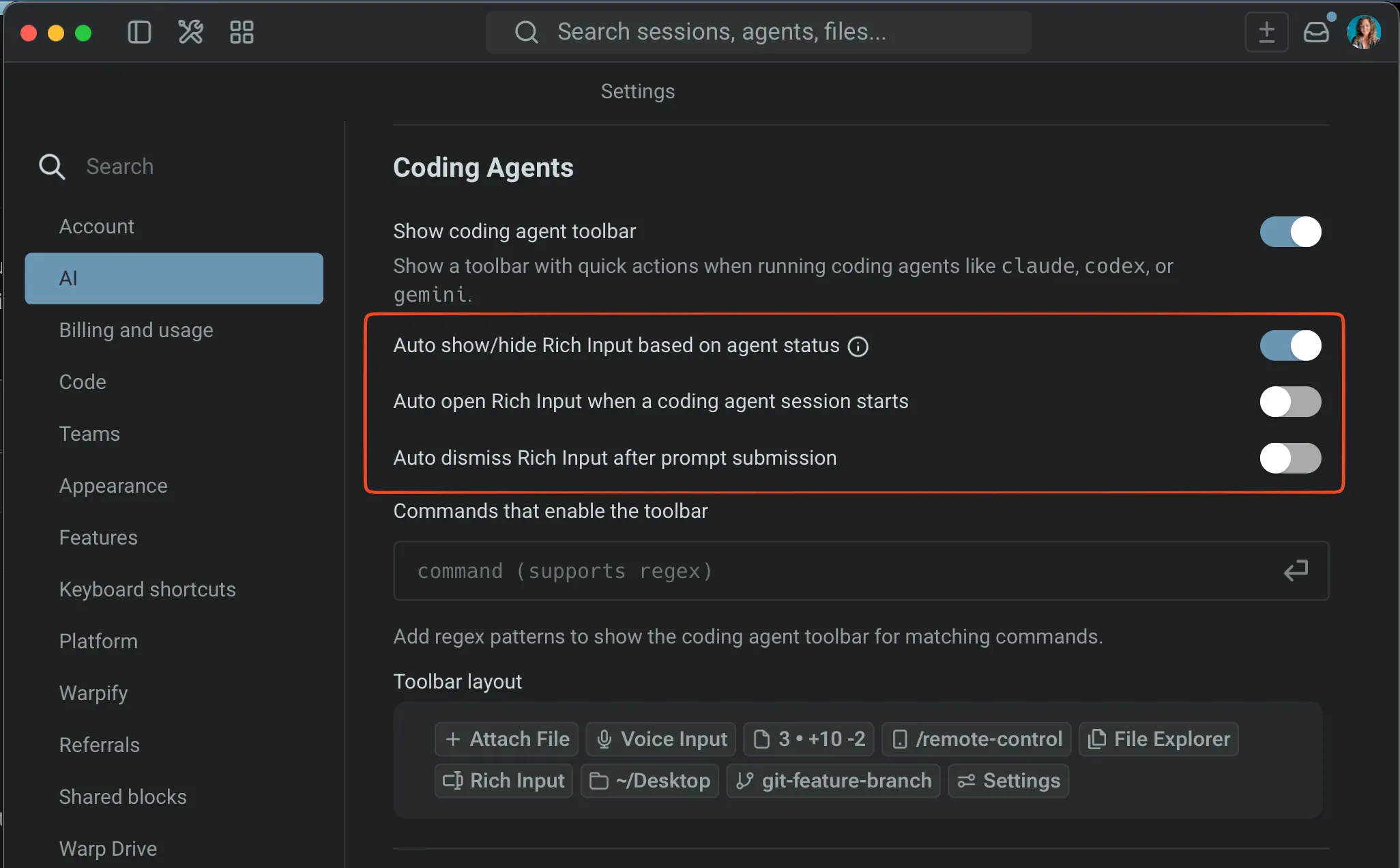 Rich input settings in Warp. ## Related pages [Section titled “Related pages”](#related-pages) * [Third-Party CLI Agents Overview](/agent-platform/cli-agents/overview/) * [Remote Control](/agent-platform/cli-agents/remote-control/) * [Voice](/agent-platform/local-agents/interacting-with-agents/voice/) * [Slash Commands](/agent-platform/capabilities/slash-commands/) * [Agent Context](/agent-platform/local-agents/agent-context/)
# Agents
Canonical page: [/agent-platform/cloud-agents/agents/](https://docs.warp.dev/agent-platform/cloud-agents/agents/)
> Cloud agents are how Warp runs scheduled jobs, integration triggers, CI/CD automation, and API-driven tasks against your team's environments.
A **cloud agent** is an agent that runs in Warp’s cloud (or on a self-hosted worker) instead of on your local machine. Use a cloud agent when you want to give an automation its own settings, secrets, skills, and permissions instead of having it act as a user on your team. Every team starts with a default cloud agent, which is what runs when an automation triggers a task with no other configuration. You can optionally create additional cloud agents through the Oz web app’s **Agents** page or the public API. See [Managing cloud agents](#managing-cloud-agents) below. ## How cloud agents get triggered [Section titled “How cloud agents get triggered”](#how-cloud-agents-get-triggered) A run executes as a cloud agent when it’s authenticated with an [agent API key](/reference/cli/api-keys/) or when an agent is explicitly selected; otherwise it runs as the calling user. The triggers that can run as a cloud agent are: * **Schedules** — Cron-style recurring runs. See [Scheduled agents](/agent-platform/cloud-agents/triggers/scheduled-agents/). * **Integrations** — Slack mentions, Linear issue updates, GitHub Actions workflow steps. See [Integrations](/agent-platform/cloud-agents/integrations/). * **API and SDK** — Programmatic runs from your own backend, scripts, or webhooks via the [Oz API](/reference/api-and-sdk/). * **CLI** — `oz agent run-cloud` from a developer machine, CI pipeline, or self-hosted worker. See the [Oz CLI](/reference/cli/). Each run is tracked in the [Oz dashboard](https://oz.warp.dev/runs) with its trigger source, the environment it ran in, and the full transcript. ## Agent API keys [Section titled “Agent API keys”](#agent-api-keys) Most automation triggers authenticate using an **agent API key** — a credential that runs as a cloud agent on your team rather than as an individual user. See [API keys](/reference/cli/api-keys/) for how personal and agent keys differ, and how to create one. ## Service accounts [Section titled “Service accounts”](#service-accounts) In the CLI and REST API, a cloud agent is represented as a **service account**. `oz whoami` reports `service_account:` when the CLI is authenticated as a service account, and [`oz federate issue-token`](/reference/cli/federate/) emits the same form in OIDC token subjects. ## Managing cloud agents [Section titled “Managing cloud agents”](#managing-cloud-agents) Use the [Oz web app’s Agents page](/agent-platform/cloud-agents/oz-web-app/#agents) for day-to-day management. Use the public API when you need to create or update agents from scripts, CI/CD, or internal tooling. Full request and response formats, including error codes, live on the [API Reference](/api) page under the **agent** tag. | Action | Endpoint | What it does | | ---------- | -------------------------------- | ------------------------------------------------------------------------------------------------------------- | | **Create** | `POST /agent/identities` | Creates a cloud agent with a `name` and optional `description`, `secrets`, and `skills`. | | **List** | `GET /agent/identities` | Returns every cloud agent on the team, including the default, with an `available` flag for plan-limit status. | | **Update** | `PUT /agent/identities/{uid}` | Replaces individual fields. Omitted fields stay unchanged; empty strings or arrays clear the field. | | **Delete** | `DELETE /agent/identities/{uid}` | Soft-deletes the agent and deletes every API key bound to it. The team’s default agent cannot be deleted. | ### Caller requirements [Section titled “Caller requirements”](#caller-requirements) Across all endpoints: * **Human callers only** - Only human users can create, update, or delete a cloud agent. A request authenticated as a cloud agent itself is rejected. * **Availability is enforced on use** - Over-plan-limit agents are returned by the list endpoint but cannot be used to update fields, generate new keys, or start new runs. ## Plan limits [Section titled “Plan limits”](#plan-limits) Every team starts with a default cloud agent. Additional agents are subject to plan-based limits. See [Warp pricing](https://www.warp.dev/pricing) for current limits per plan. When a team is over its plan limit (for example, after downgrading), the extra agents remain visible in the list but are marked as unavailable. Unavailable agents cannot be used to start runs, cannot have new API keys generated for them, and cannot be edited. ## Where cloud agents appear in the product [Section titled “Where cloud agents appear in the product”](#where-cloud-agents-appear-in-the-product) * **Agents page** - The Agents page in the [Oz web app](/agent-platform/cloud-agents/oz-web-app/) is where teams view, create, edit, and delete cloud agents. * **Agent picker** - Forms that start a new run or schedule include an **Agent** dropdown. **Quick run** is the default (runs execute as the calling user); picking a cloud agent runs as the cloud agent instead. * **Run filters and detail** - The Runs view lets you filter by cloud agent, and individual run detail pages show which agent executed the run. * **Admin Panel** - Billing usage in the [Admin Panel](/knowledge-and-collaboration/admin-panel/) attributes credits consumed by cloud agent runs to the team rather than to a person. ## Related pages [Section titled “Related pages”](#related-pages) * [Triggers](/agent-platform/cloud-agents/triggers/) - How schedules, integrations, and API calls invoke cloud agents. * [Environments](/agent-platform/cloud-agents/environments/) - The runtime context (Docker image, repos, setup commands) a cloud agent uses. * [API keys](/reference/cli/api-keys/) - Create personal and agent API keys. * [Oz API & SDK](/reference/api-and-sdk/) - Programmatic access to the cloud agent endpoints. * [Federated identity tokens](/reference/cli/federate/) - Issue OIDC tokens from inside a run. * [Oz web app](/agent-platform/cloud-agents/oz-web-app/) - Manage cloud agents and inspect their runs in the web UI. * [Admin Panel](/knowledge-and-collaboration/admin-panel/) - Team-level billing and access controls.
# Deployment patterns
Canonical page: [/agent-platform/cloud-agents/deployment-patterns/](https://docs.warp.dev/agent-platform/cloud-agents/deployment-patterns/)
> Common architectures for deploying cloud agents, including CLI-only, Oz-hosted, and self-hosted execution patterns.
Teams adopt cloud agents in a few repeatable ways. This page outlines the most common architectures, what they’re good for, and how they fit together. #### Quick mental model [Section titled “Quick mental model”](#quick-mental-model) Cloud agent setups usually have four moving parts: 1. **Trigger**: something happens (CI step, webhook, cron, Slack mention). 2. **Orchestration**: something decides what to run and tracks it (Oz orchestrator, GitHub Actions, your internal system). 3. **Execution**: where the agent actually runs (your runner, Oz-hosted environment, or self-hosted workers). 4. **Visibility**: how the team monitors and intervenes (Oz dashboard, session sharing, APIs). *** ### Pattern 1: CLI-only agents (bring your own orchestrator) [Section titled “Pattern 1: CLI-only agents (bring your own orchestrator)”](#pattern-1-cli-only-agents-bring-your-own-orchestrator) Use this when you already have a system that schedules work (CI, dev boxes, internal orchestrators), and you need a reliable, cloud-connected agent runner. #### What it looks like [Section titled “What it looks like”](#what-it-looks-like) * **Trigger**: GitHub Actions / CI, a script, a dev box action, or an internal orchestrator * **Orchestration**: your existing system * **Execution**: wherever that system runs * **Warp adds**: cloud connectivity, shared context, visibility, session sharing, and tracking #### Why teams choose it [Section titled “Why teams choose it”](#why-teams-choose-it) * You want a **drop-in replacement** for other CLI/SDK-based agents (Claude Code, Codex CLI, Gemini CLI/SDK-style flows). * You want to run agents anywhere without requiring Warp desktop. * You still want **team-level observability** even when execution is “outside Warp.” #### Common examples [Section titled “Common examples”](#common-examples) * **CI PR helper**: run formatting checks, generate review comments, suggest fixes, open PRs. * **Remote dev box agent**: run refactors or debugging tasks inside a pre-provisioned box. * **Internal orchestrator integration**: treat Warp as one agent option alongside other model providers. #### What you still get even without Warp orchestration [Section titled “What you still get even without Warp orchestration”](#what-you-still-get-even-without-warp-orchestration) * Access to your shared Warp context (for example MCP config, Warp Drive context, rules/prompts). * Agent Session Sharing to monitor/steer runs. * Read-only APIs for tracking and reporting. * A path to “handoff” workflows (where a run can be continued or inspected in richer surfaces). #### Minimal setup checklist [Section titled “Minimal setup checklist”](#minimal-setup-checklist) * A Warp team * A [cloud agent](/agent-platform/cloud-agents/agents/) (recommended for automation) * The Oz CLI installed on the runner / box * Any needed credentials (often via secrets + environment variables) *** ### Pattern 2: Oz-hosted agents + Oz orchestration (managed cloud execution) [Section titled “Pattern 2: Oz-hosted agents + Oz orchestration (managed cloud execution)”](#pattern-2-oz-hosted-agents--oz-orchestration-managed-cloud-execution) Use this when you want Oz to run agent workloads on Warp-managed infrastructure, typically inside reproducible Docker environments, with built-in lifecycle management. 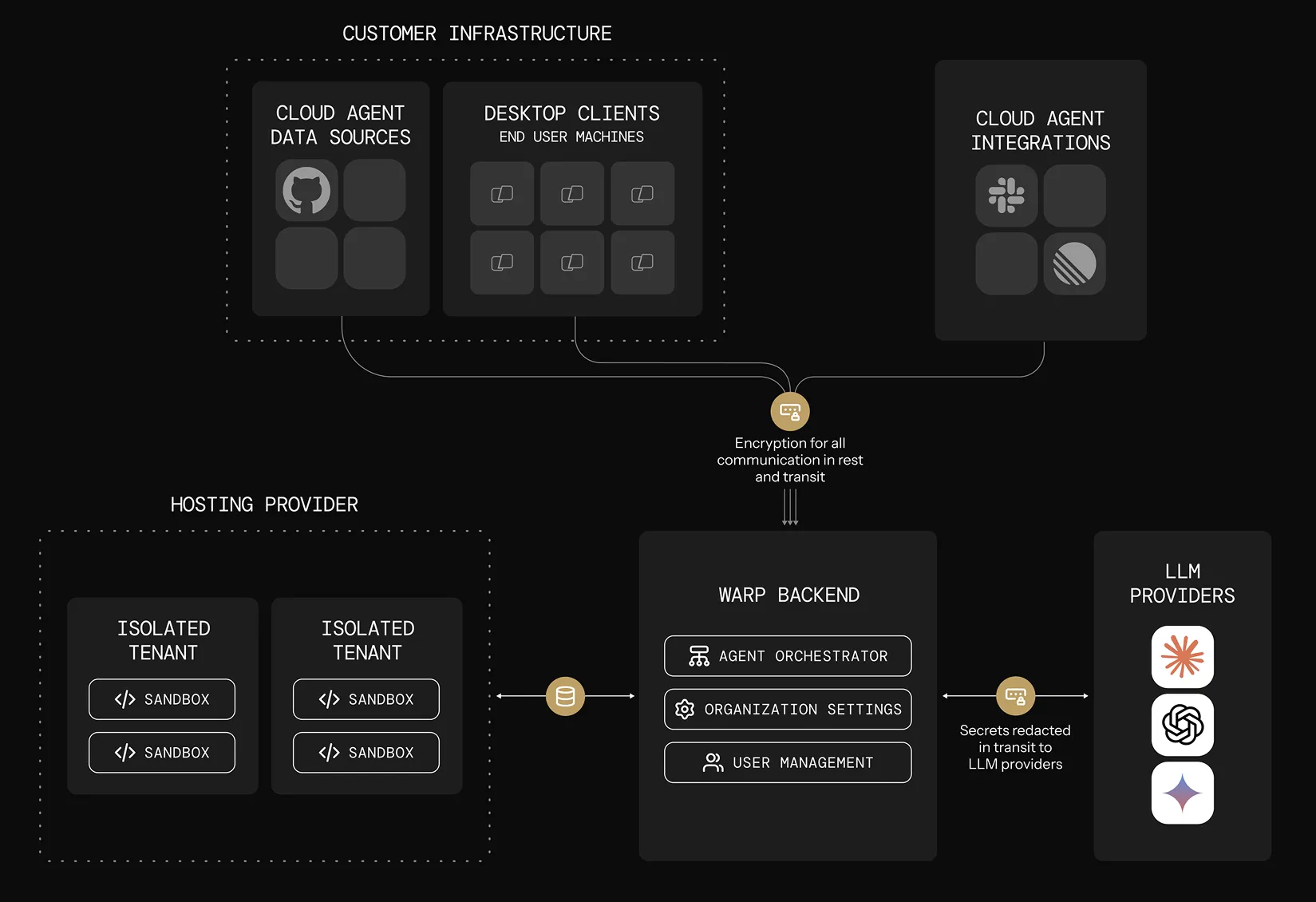 #### What it looks like [Section titled “What it looks like”](#what-it-looks-like-1) * **Trigger**: first-party integrations, cron schedules, API/SDK calls, or on-demand commands * **Orchestration**: Oz orchestrator * **Execution**: Oz-hosted environments (Docker-based) * **Visibility**: Oz dashboard + session sharing + APIs/SDKs #### Why teams choose it [Section titled “Why teams choose it”](#why-teams-choose-it-1) * You want the simplest path to reproducible, scalable cloud execution. * You want to run many tasks in parallel without building your own sandboxing and scaling layer. * You want a consistent “production” setup with standardized environments and centralized configuration. #### Common ways to trigger [Section titled “Common ways to trigger”](#common-ways-to-trigger) * **First-party integrations (Slack, Linear, etc.)** that create tasks automatically from external events. * **Scheduled agents** for recurring work (cron-like automation). * **Custom triggers** from your own systems using Warp’s API/SDK. * **On-demand cloud jobs** using CLI commands like `oz agent run-cloud`. #### Example recipe: daily dead-code cleanup [Section titled “Example recipe: daily dead-code cleanup”](#example-recipe-daily-dead-code-cleanup) 1. Define an Oz Environment with the repo + toolchain. 2. Create a schedule with a fixed prompt for cleanup. 3. Oz runs the agent on the cadence. 4. Your team monitors runs in the Oz dashboard, reviews artifacts (PRs, plans), and intervenes when needed. #### Example recipe: crash triage via Sentry webhook [Section titled “Example recipe: crash triage via Sentry webhook”](#example-recipe-crash-triage-via-sentry-webhook) 1. Define an Oz Environment with the target repo. 2. Register a Sentry webhook to your handler (server, cloud function, Zapier/n8n). 3. Handler extracts crash details, constructs a prompt, and calls the Oz orchestrator API/SDK to start a task. 4. Warp spins up the run in the environment and you monitor progress via UI/API. #### Example recipe: fan-out parallel work (sharding) [Section titled “Example recipe: fan-out parallel work (sharding)”](#example-recipe-fan-out-parallel-work-sharding) When a task is naturally divisible, use [multi-agent orchestration](/agent-platform/cloud-agents/orchestration/) to spawn one child agent per shard from a single parent run. The parent owns coordination and result aggregation; the children execute in parallel, each with their own repo subset, prompt, and (optionally) model. See [Running orchestrated agents](/agent-platform/cloud-agents/orchestration/multi-agent-runs/) for slash command, CLI, web app, and API examples. #### Example recipe: same task across multiple models [Section titled “Example recipe: same task across multiple models”](#example-recipe-same-task-across-multiple-models) * Launch N runs with the same prompt, but different profiles that map to different models. * Compare results and choose the best output (or merge). *** ### Pattern 3: Self-hosted execution [Section titled “Pattern 3: Self-hosted execution”](#pattern-3-self-hosted-execution) Use this when you need to control where agent execution happens while still using Oz orchestration and visibility. Repositories are cloned and stored only on your infrastructure; orchestration metadata, session transcripts, and LLM inference route through Warp’s backend under [ZDR](/enterprise/security-and-compliance/security-overview/#zero-data-retention-zdr). Think of self-hosted execution as **customer-hosted execution with Warp-hosted orchestration**, not as a fully offline agent stack. Code repositories, build artifacts, runtime secrets, and execution workspaces stay on your infrastructure. Code context can still appear in session transcripts and LLM prompts as the agent works. Self-hosting has two architectures that differ on **who orchestrates agent runs** (both keep code and execution on your infrastructure): * **[Managed](/agent-platform/cloud-agents/self-hosting/#managed-architecture)** — Oz orchestrates. You run the `oz-agent-worker` daemon; Oz routes runs to it from Slack, Linear, schedules, the API, or `oz agent run-cloud`. Tasks execute in Docker containers, Kubernetes Jobs, or directly on the host. * **[Unmanaged](/agent-platform/cloud-agents/self-hosting/unmanaged/)** — You orchestrate. Invoke `oz agent run` directly from your CI, Kubernetes, or dev environment. Warp provides session tracking and observability; it does not start or stop agents. Why teams choose self-hosted execution: * Code and execution must stay within your network boundary for compliance or security requirements. * Agents need to access services behind a VPN or self-hosted SCMs like GitLab or Bitbucket. Warp-hosted agents can also access GitLab and Bitbucket over the public internet — see the [GitLab](/agent-platform/cloud-agents/integrations/gitlab/) and [Bitbucket](/agent-platform/cloud-agents/integrations/bitbucket/) setup guides. * Your environments (multi-service stacks, heavy resource requirements) don’t fit in a single Docker container. For setup, decision guides, and a quickstart, start with [Self-hosting](/agent-platform/cloud-agents/self-hosting/).
# Cloud agent environments
Canonical page: [/agent-platform/cloud-agents/environments/](https://docs.warp.dev/agent-platform/cloud-agents/environments/)
> Environments ensure your cloud agents run with consistent toolchains across all triggers. Learn when to use environments and how to configure them.
Environments ensure your [cloud agents](/agent-platform/cloud-agents/overview/) run with the same toolchain and setup every time, regardless of where they’re triggered from. An environment defines the execution context for automated agent runs: the **Docker image**, **repositories to clone**, **setup commands**, and **runtime configuration** Warp uses to prepare the workspace before the agent starts. ## Key features [Section titled “Key features”](#key-features) What environments give you: * **Consistent behavior across triggers** – A workflow triggered from Slack behaves identically to one run from Linear or the CLI, using the same toolchain and setup steps every time. * **One configuration, many uses** – Define your Docker image and setup once, then reuse it across triggers and hosts without duplicating configuration. * **Full visibility into runs** – Inspect the image, repos, and commands used by a run, making it easy to debug failures or reproduce results. ## About environments [Section titled “About environments”](#about-environments) Environments define *how* an agent runs, not *what* it does. They’re required for [Oz Platform](/agent-platform/cloud-agents/platform/) automation (cloud agents, integrations, API runs) but are not required for interactive local usage. An environment typically includes: * **Docker image (required)** – The task/workspace image with the toolchain and dependencies your code needs. For self-hosted Kubernetes workers, a [`default_image`](/agent-platform/cloud-agents/self-hosting/managed-kubernetes/) on the worker lets you skip creating an environment entirely. * **Repository/workspace** – One or more repos the agent can clone and operate on. * **Setup commands** – Commands to prepare the workspace (e.g., dependency install, builds, bootstrapping). Use the Docker image for language runtimes, package managers, system libraries, and scripts needed by your project. Custom images do not need to handle installing the Warp CLI binary; Warp supplies the agent runtime separately. You can start from an official image or one of Warp’s [prebuilt dev images](https://github.com/warpdotdev/oz-dev-environments). What an environment is not: * Host – Hosts determine where execution happens (Warp-hosted vs. self-hosted infrastructure). * [Agent Profile](/agent-platform/capabilities/agent-profiles-permissions/) – Profiles control agent behavior like permissions, model choice, and defaults, not the runtime environment. * [Rules](/agent-platform/capabilities/rules/) – Rules determine agent responses and decisions but don’t define the container or toolchain. * [MCP Servers](/agent-platform/cloud-agents/mcp/) – connect agents to external tools and data via MCP. * Per-run context – Trigger-specific data like Slack threads, PR metadata, or CI logs attach to individual tasks, not the environment configuration. ## How environments fit into the Oz Platform [Section titled “How environments fit into the Oz Platform”](#how-environments-fit-into-the-oz-platform) An environment is the runtime layer for automated Oz Platform runs. It defines the container image, repos, and setup steps used when a trigger kicks off an agent task. Components in the execution flow: 1. **Trigger** – An event starts work (Slack mention, Linear comment, CI event, API call) 2. **Task** – Warp creates a tracked task for the run 3. **Environment** – The task uses an environment to define execution context 4. **Host** – The environment runs on a host (Warp-hosted or self-hosted infrastructure). 5. **Agent execution** – The workflow runs in the prepared environment 6. **Outputs** – The run produces PRs, messages, reports, or transcripts ### Hosts and environments [Section titled “Hosts and environments”](#hosts-and-environments) While environments define *how* an agent runs, hosts determine *where* the environment executes. Host options: * **Warp-hosted (default)** – Warp provides the infrastructure. Best for most users who want hands-off execution. * **[Self-hosted](/agent-platform/cloud-agents/self-hosting/)** – You provide the infrastructure (runners in your cloud or network). Best for compliance requirements, on-premise execution, or custom hardware needs. * Local (coming soon) – Run environments on your local machine for sandbox development and testing. The same environment can run on different hosts with identical behavior. For more details on hosting options, see [Deployment Patterns](/agent-platform/cloud-agents/deployment-patterns/) and [execution hosts](/agent-platform/cloud-agents/platform/#execution-hosts). ### What happens at runtime [Section titled “What happens at runtime”](#what-happens-at-runtime) When you trigger an agent, Warp follows this process: 1. **Warp receives the trigger.** Warp captures the message content (Slack thread, Linear issue) and any linked context. 2. **Warp creates an execution environment.** Warp spins up an isolated execution context from the Docker image defined in your environment. 3. **Repositories are cloned.** GitHub repositories associated with the environment are cloned into the container. 4. **Setup commands run.** Configured setup commands execute (installing dependencies, running builds, etc.) 5. **The agent workflow runs.** The agent executes the task using the provided context, tools, and permissions. 6. **Results are posted back.** Progress updates, summaries, and results post to the trigger source (Slack, Linear, etc.), or are available in the task transcript. 7. **The container is destroyed.** After completion, the container is torn down. Each run starts from a clean, isolated environment. This process ensures every run starts from the same baseline, making results reproducible and debugging straightforward. *** ## When to use environments [Section titled “When to use environments”](#when-to-use-environments) Use an environment when your run needs a predictable toolchain and repeatable setup, regardless of where it’s triggered from. * **Integrations and schedules** – Use an environment when runs start from Slack, Linear, GitHub Actions, schedules, or other integrations, and you need consistent behavior each time. * **CI and remote automation** – Use an environment when the host isn’t consistent (e.g., different runners, varying base images). * **Team standardization** – Use an environment when you want everyone’s automation runs to use the same image, repos, and setup steps. * **Toolchain-specific workflows** – Use an environment when the workflow depends on specific language versions, linters, build tools, or system packages. **When you can skip an environment** You often don’t need an environment for interactive local runs where you’re already in a working checkout and relying on your existing machine setup. **Decision checklist** Choose an environment if any of the following apply: * Runs must be consistent across triggers/hosts. The workflow should behave the same regardless of where it is triggered from. * The toolchain must be fixed. You need a known image and deterministic setup steps to avoid “it works on my machine” drift. * The workflow is shared across a team. Multiple people, or systems, will run the workflow and expect repeatable results. **Example:** If your team tags @Oz in Slack to fix a failing CI job, an environment ensures every run uses the same Docker image, clones the same repos, and runs the same setup commands. The fix the agent applies matches what runs in CI and what your teammates see when they review the PR. ### Where to configure environments [Section titled “Where to configure environments”](#where-to-configure-environments) You can create and configure environments with Warp’s guided setup, or through the CLI. Use the guided flow when you’re first getting started, and use the CLI when you want full control or need to automate environment creation. **Before you begin** Make sure you have: * One or more GitHub repositories that the agent should clone and work in. * **GitHub authorization configured** so the agent can access your repos. For user-triggered runs, each user authorizes GitHub individually. For automated workflows using an agent API key, configure [team GitHub authorization](/agent-platform/cloud-agents/team-access-billing-and-identity/#team-github-authorization) in the Admin Panel. * A publicly-accessible Docker image that can build and run your code. Official images like [node](https://hub.docker.com/_/node), [python](https://hub.docker.com/_/python), or [rust](https://hub.docker.com/_/rust) work for many projects. You can also use one of [Warp’s prebuilt dev images](https://github.com/warpdotdev/oz-dev-environments). Caution Musl-based Docker images (such as Alpine Linux) are not supported. The agent runtime requires glibc. Use glibc-based images like Debian, Ubuntu, or the default (non-Alpine) variants of official Docker Hub images. 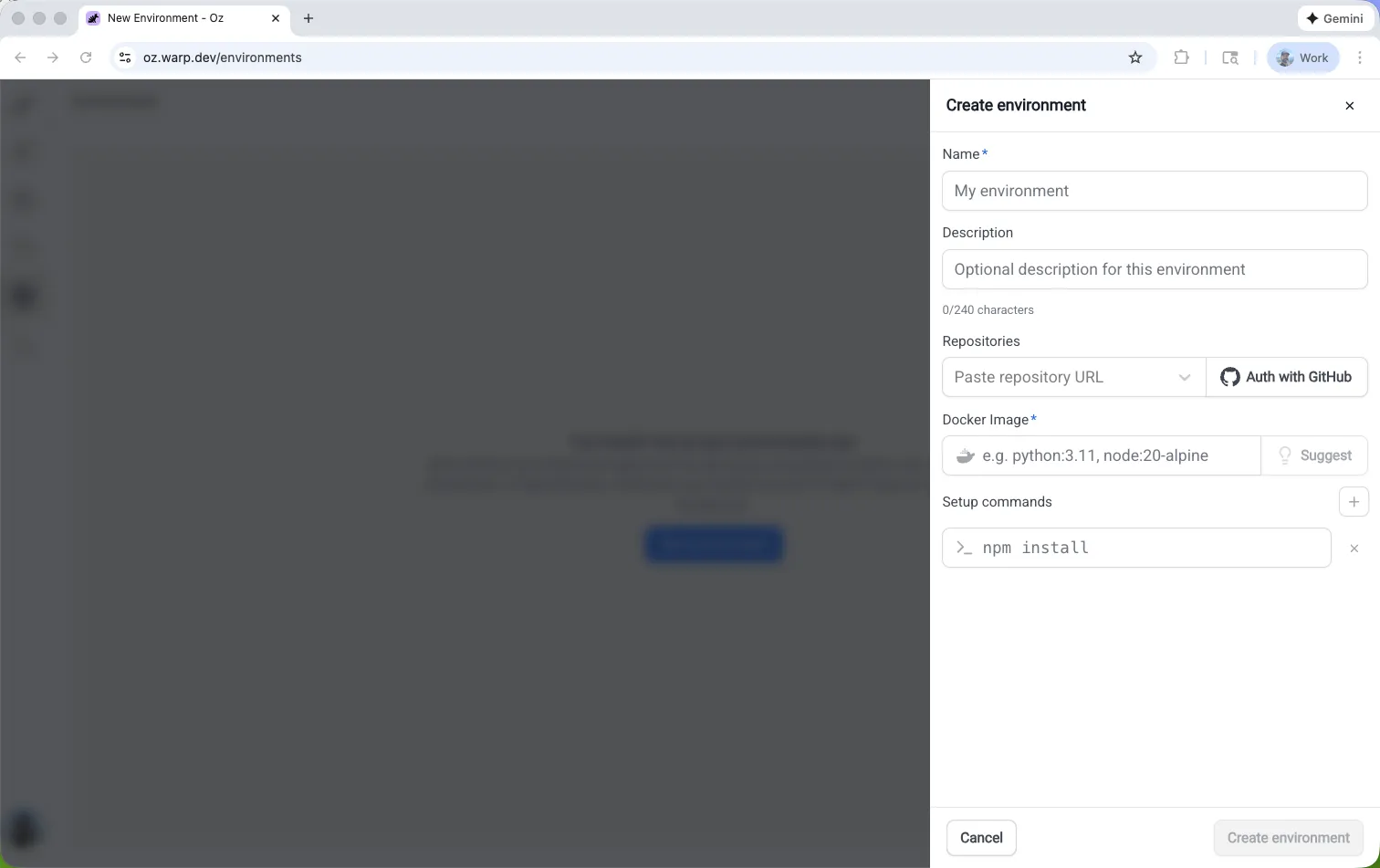 Creating a new environment in the Oz web app. ### Create an environment with guided setup (recommended) [Section titled “Create an environment with guided setup (recommended)”](#create-an-environment-with-guided-setup-recommended) Use [`/create-environment`](warp://action/create_environment) when you want Warp to inspect your repos and recommend an environment configuration automatically. This is the fastest way to get started: Warp detects your languages, frameworks, and tools, then suggests appropriate images and setup commands. You can run the command inside a Git repo directory with no argument, or with one or more repo paths or URLs. owner/repo ```shellscript # Local file paths /create-environment ./warp-internal ./warp-server /create-environment warpdotdev/warp-internal warpdotdev/warp-server # GitHub URLs /create-environment https://github.com/warpdotdev/warp-internal.git ``` Warp will: * Detect the repositories you want the agent to work with and identify languages, frameworks, and tools * Look for an existing Dockerfile, recommend an official base image, or help build a custom image (if needed) * Suggest setup commands based on your scripts and package managers * Create the environment through the CLI and return an `environment ID` This produces a ready-to-use environment that can immediately be connected to integrations and cloud agents. ### Create an environment with the CLI [Section titled “Create an environment with the CLI”](#create-an-environment-with-the-cli) Use the CLI when you already know how you want to configure your environment, you have a custom Docker image you want to use, or when you’re automating environment creation. ```sh oz environment create \ --name \ --docker-image \ --repo \ --repo \ --setup-command "" \ --setup-command "" \ --description "Optional description" ``` Key flags: * `--name` (`-n`) — human-readable label for the environment. * `--docker-image` (`-d`) — image name on Docker Hub. If not specified, you’ll be prompted to select from available images (see `oz environment image list`). * `--repo` (`-r`) — repo to clone (repeatable). * `--setup-command` (`-c`) — commands run in the order provided (repeatable). * `--description` — optional description (max 240 characters). *** ## Managing environments [Section titled “Managing environments”](#managing-environments) Once created, you can use the [Oz CLI](/reference/cli/) to inspect and update environments. **List environments** ```sh oz environment list ``` **View an environment’s configuration.** Replace \ with the ID of the environment you want to view. ```sh oz environment get ``` **Update an environment** Add/remove repos, setup commands, and other properties without recreating the environment. Replace \ with the ID of the environment you want to modify. ```sh # Add a repo oz environment update --repo owner/repo # Remove a repo oz environment update --remove-repo owner/repo # Add a setup command oz environment update --setup-command "your command" # Remove a setup command (must match exactly) oz environment update --remove-setup-command "exact command" # Update the name, description, or Docker image oz environment update --name "new name" oz environment update --description "Updated description" oz environment update --docker-image node:22 ``` Additional flags: * `--remove-description` — clear the description. * `--force` — skip confirmation checks for environments used by integrations. **Delete an environment.** Replace \ with the ID of the environment you want to delete. ```sh oz environment delete ``` Add `--force` to skip confirmation checks for environments used by integrations. *** ## Environment design and best practices [Section titled “Environment design and best practices”](#environment-design-and-best-practices) A well-designed environment removes guesswork by giving every run the same starting conditions. When an agent opens a PR from Slack or fixes a failed CI job, the result matches what your team can reproduce locally and in CI. **Design guidelines** * **Keep setup repeatable** – Write setup steps that are safe to rerun and that produce the same toolchain and workspace state for a given repo revision. This keeps agent runs reliable across triggers and hosts. * **Pin versions in the toolchain** – Prefer a Docker or base image that pins language runtimes and core tools, then use lockfiles (\`package-lock.json\`, etc.) for dependencies. * **Define a clear workspace boundary** – In multi-repo environments, explicitly state which repos are cloned and where setup commands run so the agent doesn’t “guess” the working directory. * **Make prerequisites explicit** – If the agent must run a build step, generate code, or install system packages before it can do meaningful work, encode that as setup. **Example setup commands** ```sh # Safer patterns (repeatable and stable) mkdir -p .cache npm ci # Less safe patterns (can fail on rerun or drift over time) mkdir .cache npm install ``` ### Common issues [Section titled “Common issues”](#common-issues) * **Setup assumes previous state** – Steps that rely on leftover caches, existing directories, or already-cloned repos can make runs unreliable. Setup failures can surface as [`environment_setup_failed`](/reference/api-and-sdk/troubleshooting/errors/environment-setup-failed/). * Solution: Write idempotent setup commands that work on a fresh container. * **Missing credentials or secrets** – Builds fail when private repos, package registries, or external services require authorization. * Solution: Configure credentials with [Agent Secrets](/agent-platform/cloud-agents/secrets/). * **Repo access and GitHub authorization issues** – Runs fail when GitHub doesn’t have repo access or the triggering user lacks permissions. Missing external authorization can surface as [`external_authentication_required`](/reference/api-and-sdk/troubleshooting/errors/external-authentication-required/). * Solution: See [Integration setup](/reference/cli/integration-setup/#how-github-authorization-works) for GitHub authorization setup. * **Docker image incompatibility** – You see the error: “VM failed before the agent could run. This is likely an issue with your Docker image.” * Possible cause: Alpine Linux and other musl-based images are not compatible with the agent runtime, which requires glibc. This can surface as [`environment_setup_failed`](/reference/api-and-sdk/troubleshooting/errors/environment-setup-failed/). * Solution: Switch to a glibc-based image such as Debian, Ubuntu, or the default (non-Alpine) variants of official Docker Hub images (e.g. `node`, `python`, `rust`).
# Cloud Agent FAQs
Canonical page: [/agent-platform/cloud-agents/faqs/](https://docs.warp.dev/agent-platform/cloud-agents/faqs/)
> Frequently asked questions about cloud agents, including where agents run, how runs work, supported models, security, and common workflows.
This page answers common questions about cloud agents, including where they run, how they’re configured, and how teams use cloud agents for day-to-day engineering work. ## Architecture and execution [Section titled “Architecture and execution”](#architecture-and-execution) ### Where do cloud agents run? What’s the architecture? [Section titled “Where do cloud agents run? What’s the architecture?”](#where-do-cloud-agents-run-whats-the-architecture) Agents run either **locally** (inside your Warp session) or **in the cloud** as a **cloud agent run**, inside an **environment** (see [Environments](/agent-platform/cloud-agents/environments/)). The cloud agents platform is built around modular, observable execution: * A **trigger** starts work (manual, schedule/cron, webhook, or an integration like Slack/GitHub). * The **agent** executes inside an **environment** (either a Warp-hosted cloud sandbox, or a **self-hosted sandbox** on your infrastructure, depending on plan/support). * Every step is recorded: **transcripts, tool calls, logs, and outputs**, so work is auditable and debuggable instead of a black box. The same agent can be invoked consistently across entry points (Warp conversation, cloud agent web app, the CLI, API/SDK, Slack/GitHub triggers) without rewriting the underlying instructions. ### What exactly are cloud agents in Warp? [Section titled “What exactly are cloud agents in Warp?”](#what-exactly-are-cloud-agents-in-warp) A **cloud agent** is a packaged automation unit made up of: * **Instructions** — A reusable skill/prompt (what it should do). * **Profile** — Model selection + tools + permissions (how it operates). * **Trigger** — Manual, cron/schedule, webhook, or integration event (when it starts). * **Environment** — Repo access, dependencies (Docker image), secrets, setup commands, and runtime config (where it runs). * **Host** — Local (interactive) or cloud (run), and optionally self-hosted execution (where supported). Because the agent definition is modular, the same cloud agent can be started from different surfaces (terminal, web app, CLI, integrations) with a consistent interface. ### Can we intervene mid-run? [Section titled “Can we intervene mid-run?”](#can-we-intervene-mid-run) Yes. For **cloud agent runs**, you can: * Inspect **run state**, tool calls, and logs. * **Steer** the agent while it’s running. * Unblock it with additional instructions or context. If you’re not happy with where it landed, you can take over to finish the task. That human handoff is a core part of making agents reliable beyond demos. ### Do cloud agents have access to Codebase Context and indexing? [Section titled “Do cloud agents have access to Codebase Context and indexing?”](#do-cloud-agents-have-access-to-codebase-context-and-indexing) Yes. [Codebase Context](/agent-platform/capabilities/codebase-context/) is enabled for all cloud agent runs, as long as Codebase Context is enabled for your account. This includes runs triggered from the CLI, API/SDK, integrations (Slack, Linear, GitHub Actions), and schedules. No additional configuration is needed — if Codebase Context is enabled, cloud agents use it automatically. ### Can I access a shell inside a cloud agent environment? Are there limitations (Docker, Playwright, etc.)? [Section titled “Can I access a shell inside a cloud agent environment? Are there limitations (Docker, Playwright, etc.)?”](#can-i-access-a-shell-inside-a-cloud-agent-environment-are-there-limitations-docker-playwright-etc) Yes. Cloud agent runs execute in a full Linux environment and behave like a local development session. You can install dependencies, run Docker, and use headless tools like Playwright, subject to standard sandbox resource limits. ### Do cloud agents support a fully self-hosted, on-prem, or offline mode? [Section titled “Do cloud agents support a fully self-hosted, on-prem, or offline mode?”](#do-cloud-agents-support-a-fully-self-hosted-on-prem-or-offline-mode) The cloud agents platform supports self-hosting the **agent sandbox** (the execution environment) on your own infrastructure. The **control plane**—which handles orchestration, tracking, and auditability—remains Warp-managed and is not self-hosted. Self-hosted execution is available on **Enterprise** plans. See [Self-hosting](/agent-platform/cloud-agents/self-hosting/) and [Deployment patterns](/agent-platform/cloud-agents/deployment-patterns/) for details. ## Models [Section titled “Models”](#models) ### Which models are supported? [Section titled “Which models are supported?”](#which-models-are-supported) Cloud agents are **multi-model by design**. You can choose models based on cost, latency, and capability, and teams commonly mix models by workflow: * Faster/cheaper models for triage and routine tasks. * Stronger models for complex changes (refactors, multi-file work, deeper reasoning). Model choice is configurable per **agent** (and often per environment/workflow), depending on how you set up your profiles. ### Can I choose which model cloud agents use? [Section titled “Can I choose which model cloud agents use?”](#can-i-choose-which-model-cloud-agents-use) Yes. Cloud agents support the same set of models available in Warp. Model selection is configurable per agent or environment. ### Can I authenticate cloud agents with my own ChatGPT or Claude Pro / Max plan? [Section titled “Can I authenticate cloud agents with my own ChatGPT or Claude Pro / Max plan?”](#can-i-authenticate-cloud-agents-with-my-own-chatgpt-or-claude-pro--max-plan) We’re strong proponents of this, but it ultimately depends on model provider policies. We’re actively working with providers to explore whether direct third-party authentication is possible. ### Do you support local or private LLMs for compliance or air-gapped environments? [Section titled “Do you support local or private LLMs for compliance or air-gapped environments?”](#do-you-support-local-or-private-llms-for-compliance-or-air-gapped-environments) Enterprise plans can route inference through your own cloud-provider account via [Bring Your Own LLM (BYOLLM)](/enterprise/enterprise-features/bring-your-own-llm/), so prompts stay within your cloud environment. Fully local, offline LLM execution is difficult given the current cloud agents orchestration and runtime architecture, but private-model support via enterprise cloud providers is available through BYOLLM. ### Will cloud agents support Agent-to-Agent Protocols (A2A)? [Section titled “Will cloud agents support Agent-to-Agent Protocols (A2A)?”](#will-cloud-agents-support-agent-to-agent-protocols-a2a) It’s something we’re actively exploring. Our focus is on building durable orchestration primitives—runs, environments, observability, steering, and coordination—that can support A2A and other emerging standards over time. ## Security and billing [Section titled “Security and billing”](#security-and-billing) ### Will cloud storage for agent definitions, runs, and conversations be secure and encrypted? [Section titled “Will cloud storage for agent definitions, runs, and conversations be secure and encrypted?”](#will-cloud-storage-for-agent-definitions-runs-and-conversations-be-secure-and-encrypted) Yes. All cloud agent data stored in the cloud is encrypted at rest and in transit, and protected by Warp account–level access controls. Cloud agent environments are sandboxed by default, with scoped access to repos, secrets, and compute. Security and isolation are first-class design constraints for the cloud agent runtime. ### Are cloud agents included in the Build plan, or is it a separate add-on? [Section titled “Are cloud agents included in the Build plan, or is it a separate add-on?”](#are-cloud-agents-included-in-the-build-plan-or-is-it-a-separate-add-on) Cloud agents are included in the Build plan. Usage is metered via credits, with pricing based on agent runs and resource consumption. Concurrency limits and credit allocation details are still being finalized. ### How do cloud agents handle API keys and secrets for agents? [Section titled “How do cloud agents handle API keys and secrets for agents?”](#how-do-cloud-agents-handle-api-keys-and-secrets-for-agents) Secrets are managed via the cloud agents CLI. Secrets are encrypted at rest, scoped to your Warp account, and injected into the agent environment at runtime. They are never hard-coded into agent instructions or logs. To learn more about how secrets work in practice, see [Cloud Agent Secrets](/agent-platform/cloud-agents/secrets/). ## Workflows [Section titled “Workflows”](#workflows) ### How do agents handle branching, merge conflicts, and multi-agent coordination with cloud agents? [Section titled “How do agents handle branching, merge conflicts, and multi-agent coordination with cloud agents?”](#how-do-agents-handle-branching-merge-conflicts-and-multi-agent-coordination-with-cloud-agents) The cloud agents platform is intentionally flexible. As the developer, you decide how agents should branch, coordinate, and resolve conflicts. Interactive agents can plan work and spawn subagents to parallelize tasks. Cloud agents provide the building blocks for running and coordinating multiple concurrent agents, rather than enforcing a fixed workflow. ### Why focus on orchestration primitives instead of immediately adopting new agent standards? [Section titled “Why focus on orchestration primitives instead of immediately adopting new agent standards?”](#why-focus-on-orchestration-primitives-instead-of-immediately-adopting-new-agent-standards) We believe durable infrastructure matters more than transient standards. The cloud agents platform is designed to provide stable building blocks—agent runs, environments, auditability, steering, and coordination—that orchestration frameworks and emerging standards can plug into over time. ### Can cloud agents integrate with external tools, APIs, or services (like n8n connectors)? [Section titled “Can cloud agents integrate with external tools, APIs, or services (like n8n connectors)?”](#can-cloud-agents-integrate-with-external-tools-apis-or-services-like-n8n-connectors) Yes, and cloud agents do not rely on rigid, predefined workflows. Agents can install CLIs, call external APIs, use MCP servers, and access the internet directly. The intent is to delegate flexibility to agents rather than constrain them with fixed connectors. ### Can I export agent conversations and runs from cloud agents? [Section titled “Can I export agent conversations and runs from cloud agents?”](#can-i-export-agent-conversations-and-runs-from-cloud-agents) Yes. Conversations can be copied directly from the UI. The cloud agent CLI and API also provide access to full conversation text, logs, and outputs programmatically. ### How do cloud agents handle environment access, files, and security compared to SSH-based setups? [Section titled “How do cloud agents handle environment access, files, and security compared to SSH-based setups?”](#how-do-cloud-agents-handle-environment-access-files-and-security-compared-to-ssh-based-setups) Access is handled through Warp session sharing rather than SSH keys. Authentication is tied to Warp accounts and access controls, enabling secure person-to-person sharing. Configuration files and credentials can be managed using encrypted .env workflows (for example, dotenv-style encryption), avoiding repeated manual decrypt/encrypt cycles. ### Can cloud agents review PRs like a teammate? [Section titled “Can cloud agents review PRs like a teammate?”](#can-cloud-agents-review-prs-like-a-teammate) Yes. Common patterns for a **cloud agent** in PR review: * Summarize changes and intent. * Flag risky diffs and edge cases. * Suggest tests and missing coverage. * Propose refactors for maintainability. A typical workflow is: the agent leaves structured review comments and optionally opens a follow-up PR for mechanical fixes (or commits to the branch, if you choose to allow that). ### Can cloud agents write unit tests? [Section titled “Can cloud agents write unit tests?”](#can-cloud-agents-write-unit-tests) Yes, especially when: * The repo has a consistent test framework. * The **environment** is reproducible (dependencies and setup are reliable). The strongest loop is: a cloud agent generates tests, runs them in the environment, iterates until green, then opens a PR with the tests plus a short explanation of coverage and assumptions. ### Can cloud agents do big refactors? [Section titled “Can cloud agents do big refactors?”](#can-cloud-agents-do-big-refactors) It can help, but the best practice is to scope into smaller, reviewable chunks. Agents are strongest when they can continuously validate progress (tests, lint, typecheck). For large refactors, a staged approach with checkpoints (and possibly multiple subagents for parallel exploration) tends to work better than one giant prompt. ### Can cloud agents triage issues / tickets automatically? [Section titled “Can cloud agents triage issues / tickets automatically?”](#can-cloud-agents-triage-issues--tickets-automatically) Yes. A common cloud agent workflow: * When a ticket/issue is created (via integration trigger), a cloud agent gathers context (recent changes, logs/metrics links, ownership). * Proposes labels/priority and likely causes. * Drafts next steps or a response. * Asks clarifying questions back to the reporter when needed. ### Can cloud agents do dependency upgrades? [Section titled “Can cloud agents do dependency upgrades?”](#can-cloud-agents-do-dependency-upgrades) Yes. Scheduled dependency bumps are a classic cloud agent use case: * Open a PR. * Run tests. * Resolve simple conflicts. * Attach a risk summary (optional). This is usually implemented as a scheduled **cloud agent** producing recurring **runs**. ### Can cloud agents keep docs up to date? [Section titled “Can cloud agents keep docs up to date?”](#can-cloud-agents-keep-docs-up-to-date) Yes. With cloud agents, agents can: * Scan for drift (commands that no longer work, onboarding steps that changed). * Run validations in a docs/test environment. * Propose doc updates as PRs. This is most successful with “docs as code” workflows (GitBook/Mintlify/Docusaurus style), where updates go through normal review. ## Self-hosting [Section titled “Self-hosting”](#self-hosting) ### Where does my source code go with self-hosted agents? [Section titled “Where does my source code go with self-hosted agents?”](#where-does-my-source-code-go-with-self-hosted-agents) With self-hosting, repositories are cloned and stored only on your infrastructure — Warp never hosts your codebase. Warp uses a split architecture: * **Execution plane (your infrastructure)** — Repository clones, build artifacts, runtime secrets, and container filesystem state stay on the machines you control. * **Control plane (Warp-hosted)** — Session transcripts (which include code context from agent interactions), orchestration metadata, and LLM inference route through Warp’s backend under [Zero Data Retention (ZDR)](/enterprise/security-and-compliance/security-overview/#zero-data-retention-zdr) agreements. Warp does not persistently store your source code or use it for model training. See [Self-hosting](/agent-platform/cloud-agents/self-hosting/) for deployment options and [Security Overview](/enterprise/security-and-compliance/security-overview/) for full details. ### Can I use `oz agent run` in CI or existing runners? [Section titled “Can I use oz agent run in CI or existing runners?”](#can-i-use-oz-agent-run-in-ci-or-existing-runners) Yes. The [unmanaged architecture](/agent-platform/cloud-agents/self-hosting/unmanaged/) is designed exactly for this. Run `oz agent run` in any environment where you can execute a CLI command — GitHub Actions, Jenkins, Buildkite, Kubernetes pods, or custom orchestrators. This is how the [`warpdotdev/oz-agent-action`](https://github.com/warpdotdev/oz-agent-action) GitHub Action works. The agent runs locally on the runner and its session is tracked on Warp’s backend for observability. ### Can self-hosted agents access services behind a VPN? [Section titled “Can self-hosted agents access services behind a VPN?”](#can-self-hosted-agents-access-services-behind-a-vpn) Yes. Since self-hosted agents run on your infrastructure, they inherit your network access. This means agents can reach self-hosted GitLab/Bitbucket instances, internal APIs, databases, and any other services behind your VPN. This is one of the primary reasons teams choose self-hosting. ### Does self-hosting work with GitLab or other non-GitHub SCMs? [Section titled “Does self-hosting work with GitLab or other non-GitHub SCMs?”](#does-self-hosting-work-with-gitlab-or-other-non-github-scms) Self-hosted agents can use any SCM accessible from your infrastructure. With the [unmanaged architecture](/agent-platform/cloud-agents/self-hosting/unmanaged/), agents run directly on your host and use whatever Git configuration and SCM access is already available. With the [managed architecture](/agent-platform/cloud-agents/self-hosting/#managed-architecture), automatic environment setup currently focuses on GitHub, but you can configure access to other SCMs via volume mounts, environment variables, setup commands, or Kubernetes Secrets (when using the [Kubernetes backend](/agent-platform/cloud-agents/self-hosting/managed-kubernetes/)). See the [GitLab](/agent-platform/cloud-agents/integrations/gitlab/) and [Bitbucket](/agent-platform/cloud-agents/integrations/bitbucket/) setup guides for step-by-step instructions. ### Do LLM requests still go through Warp with self-hosting? [Section titled “Do LLM requests still go through Warp with self-hosting?”](#do-llm-requests-still-go-through-warp-with-self-hosting) Yes. LLM inference routes through Warp’s backend, which has [Zero Data Retention (ZDR)](/enterprise/security-and-compliance/security-overview/#zero-data-retention-zdr) agreements with all contracted model providers. Enterprise teams that need full control over inference routing can use [Bring Your Own LLM (BYOLLM)](/enterprise/enterprise-features/bring-your-own-llm/) to route inference through their own cloud provider accounts. BYOLLM currently applies to interactive (local) agents; cloud agent support is coming. ### What about large monorepos with long environment setup times? [Section titled “What about large monorepos with long environment setup times?”](#what-about-large-monorepos-with-long-environment-setup-times) The [unmanaged architecture](/agent-platform/cloud-agents/self-hosting/unmanaged/) is well-suited for large monorepos because agents run directly in your pre-provisioned environment — there is no Docker image build or repo cloning step. For the [managed architecture](/agent-platform/cloud-agents/self-hosting/#managed-architecture), the Docker backend supports volume mounts (`-v` flag) to mount a pre-existing repo checkout from the host into task containers. With the Kubernetes backend, use `pod_template` to configure persistent volume claims or pre-populated storage for the same purpose. ### Do Kubernetes pods provide enough sandboxing for self-hosted agents? [Section titled “Do Kubernetes pods provide enough sandboxing for self-hosted agents?”](#do-kubernetes-pods-provide-enough-sandboxing-for-self-hosted-agents) This depends on your cluster configuration and risk profile. Evaluate your pod security policies, network policies, and RBAC settings based on your organization’s security requirements. ## Current limitations [Section titled “Current limitations”](#current-limitations) ### Do cloud agents support image attachments? [Section titled “Do cloud agents support image attachments?”](#do-cloud-agents-support-image-attachments) Cloud agent conversations do not currently support image attachments. Image attachment (via the toolbar button, clipboard paste, or drag-and-drop) is only available in [local agent conversations](/agent-platform/local-agents/interacting-with-agents/terminal-and-agent-modes/). If you need to provide visual context to a cloud agent, you can describe the image contents in your prompt or reference image file paths within the agent’s [environment](/agent-platform/cloud-agents/environments/).
# Handoff between local and cloud agents
Canonical page: [/agent-platform/cloud-agents/handoff/](https://docs.warp.dev/agent-platform/cloud-agents/handoff/)
> Understand how agent handoff moves work between local Warp sessions and cloud agent runs, including what context carries over in each direction.
Handoff moves agent work between local Warp sessions and cloud agent runs without making you restart the task. Depending on the direction, Warp carries over conversation history, workspace changes, and attachments so the receiving agent can continue from the prior session instead of starting from scratch. 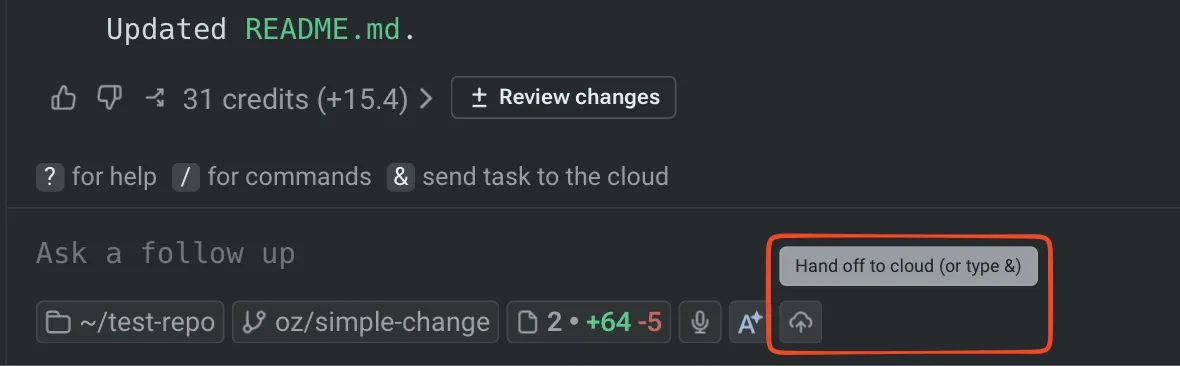 The Handoff control in a local conversation. ## Directions of handoff [Section titled “Directions of handoff”](#directions-of-handoff) Handoff supports three directions: * **Local to cloud** - Promote a local Warp Agent conversation to a cloud agent run when you need more compute, longer-running work, or parallel variants of the same task. The cloud agent starts from your conversation history and a snapshot of your uncommitted workspace changes. See [Handoff from local to cloud](/agent-platform/cloud-agents/handoff/local-to-cloud/). * **Cloud to cloud** - Send a follow-up to a cloud run after its session has ended. The run continues in the same conversation, with the prior session’s workspace state restored. See [Handoff from cloud to cloud](/agent-platform/cloud-agents/handoff/cloud-to-cloud/). * **Cloud to local** - Fork a cloud conversation into a local Warp session with **Continue locally** or `/continue-locally`. See [Viewing cloud agent runs](/agent-platform/cloud-agents/viewing-cloud-agent-runs/#5-fork-the-session-to-your-local-warp). ### Third-party agent runtime coverage [Section titled “Third-party agent runtime coverage”](#third-party-agent-runtime-coverage) Handoff coverage depends on which agent is running the conversation: * **Cloud to cloud** works for the Warp Agent and the [third-party cloud harnesses currently supported in Oz](/agent-platform/cloud-agents/harnesses/): Claude Code and Codex. For Claude Code and Codex runs, click **Continue**, then enter your follow-up prompt. Warp Agent runs use the streamlined follow-up input. * **Local to cloud** works for the Warp Agent. It isn’t available for third-party CLI agent sessions. ## What carries over [Section titled “What carries over”](#what-carries-over) Handoff preserves enough state that the receiving agent can resume the work, not only read about it. * **Conversation history** - The receiving agent sees the full transcript of the prior session. Local-to-cloud forks the conversation so the source isn’t modified; cloud-to-cloud continues in the same conversation. * **Workspace state** - Local-to-cloud and cloud-to-cloud capture the prior session’s repository changes (tracked and untracked) and apply them in the receiving run before the agent answers the next prompt. The cloud-to-local direction doesn’t currently apply workspace patches to your local checkout; review the cloud agent’s branch or pull request artifact to inspect those changes. * **Conversation attachments** - Files attached during the prior session remain available to the receiving agent. Handoff is best-effort. When the receiving agent can apply the prior session’s changes cleanly, it picks up where the prior agent left off. When it can’t, the agent reports which changes failed to apply and continues with the changes that applied cleanly. ## When to use handoff [Section titled “When to use handoff”](#when-to-use-handoff) Each direction has a clear motivating workflow. * **Local to cloud** - Use when a local conversation has grown into work that’s better done in the cloud: long-running tasks you don’t want to keep your laptop awake for, parallel variants of the same task, or steering work from another device once it’s running. * **Cloud to cloud** - Use when a cloud agent finished and you want to send a follow-up without losing the prior workspace state. Also useful when a Slack-triggered or scheduled run completes and someone on the team wants to push it further. * **Cloud to local** - Use when a cloud agent has done the heavy lifting and you want to take over locally to verify, iterate, or polish before shipping. ## Related pages [Section titled “Related pages”](#related-pages) * [Cloud agents overview](/agent-platform/cloud-agents/overview/) - What cloud agents are, when to use them, and how they fit into the Oz Platform. * [Managing cloud agents](/agent-platform/cloud-agents/managing-cloud-agents/) - Inspect handoff runs from the Agent Management Panel in the Warp app or the Runs page in the Oz web app alongside local conversations. * [Viewing cloud agent runs](/agent-platform/cloud-agents/viewing-cloud-agent-runs/) - Open and continue a cloud run locally with **Continue locally** or `/continue-locally`. * [Cloud-synced conversations](/agent-platform/local-agents/cloud-conversations/) - How conversations sync between local and cloud so handoff can find them. * [Environments](/agent-platform/cloud-agents/environments/) - The runtime context a cloud agent runs in after a handoff.
# Handoff from cloud to cloud
Canonical page: [/agent-platform/cloud-agents/handoff/cloud-to-cloud/](https://docs.warp.dev/agent-platform/cloud-agents/handoff/cloud-to-cloud/)
> Send follow-up instructions to a finished cloud agent run. The run continues with restored workspace state, so the agent picks up where it left off.
Cloud-to-cloud handoff in Warp lets you send follow-up instructions to a finished cloud agent run and continue it in a fresh cloud session. The run keeps the same conversation and restores the prior workspace state, so the agent can pick up where it left off instead of starting over. Watch this walkthrough to see how cloud-to-cloud handoff continues a cloud agent run without losing the prior session context.  Use this handoff direction when: * You want to send a follow-up to a cloud agent after its session has ended. * You want to continue a background cloud agent run, such as a scheduled or integration-triggered run, while preserving it as a single unit of work in the [Agent Management Panel](/agent-platform/cloud-agents/managing-cloud-agents/) in the Warp app and the [Runs page in the Oz web app](/agent-platform/cloud-agents/oz-web-app/#runs). ## What carries over [Section titled “What carries over”](#what-carries-over) When you send a follow-up to a run whose session has ended, the run continues with: * **The same conversation** - The follow-up is appended to the same conversation. From your perspective, the run is one continuous conversation across sessions. * **The prior workspace state** - The prior session’s repository changes (tracked and untracked) are restored before the agent answers your follow-up. For Git-managed sessions, the new session continues on the same Git branch. You can [customize which repositories and files get snapshotted](/agent-platform/cloud-agents/handoff/snapshots/) when running outside the bundled cloud agent image. * **Stable run identity** - The run’s ID, task, creator, environment, schedule trigger, and integration source are preserved. Compute usage is recorded per session but rolls up to the same run. If any changes fail to apply, the agent reports which changes failed and continues with the changes that applied cleanly. ## Prerequisites [Section titled “Prerequisites”](#prerequisites) * **An ended cloud agent run** - The run must be in a terminal state, such as succeeded, failed, or canceled, and have an associated agent conversation. Blocked runs that are waiting on user input or approval can’t be continued via cloud-to-cloud handoff; respond to the prompt on the original run instead. Very old runs that predate the agent conversation model can’t be continued via handoff. * **A snapshot from the prior session** - Cloud agent runs capture a workspace snapshot at the end of each session. If the prior session couldn’t capture one (for example, due to a transient storage error), the run still continues but without restored workspace state. * **Access to the run** - You need permission to submit follow-ups for the run. For team runs, this is typically any team member. Cloud runs that originated from a local-to-cloud handoff can be continued only by the user who created them, not by other team members. Caution Cloud-to-cloud handoff relies on a snapshot from the prior session. Older cloud runs that don’t have a snapshot on file can’t be handed off; start a new run instead. ## Sending a follow-up [Section titled “Sending a follow-up”](#sending-a-follow-up) To continue an ended cloud run, open the run in Warp and send the next message in the conversation. When the original session has ended, Warp automatically starts a fresh cloud session and restores the prior workspace state. 1. **Open the ended cloud run.** Find it on the [Runs page](https://oz.warp.dev/runs) in the Oz web app or in the conversation panel in the Warp app. 2. **Send your follow-up.** Enter the next message in the conversation’s input and submit it. The run picks up where it left off, with workspace state restored. ### Third-party agent runtimes [Section titled “Third-party agent runtimes”](#third-party-agent-runtimes) Cloud-to-cloud handoff also works for supported third-party agent runtimes, but the flow is slightly different from Warp Agent runs: 1. Open the ended run from the conversation panel in the Warp app, or from the artifacts shown after the run completes. 2. Click **Continue**. 3. Type your follow-up prompt and submit it. ## Inspecting a run that’s been handed off [Section titled “Inspecting a run that’s been handed off”](#inspecting-a-run-thats-been-handed-off) The [Agent Management Panel](/agent-platform/cloud-agents/managing-cloud-agents/) in the Warp app and the [Runs page in the Oz web app](/agent-platform/cloud-agents/oz-web-app/#runs) show one row per run, even when the run spans multiple sessions. 1. Open the [Agent Management Panel](/agent-platform/cloud-agents/managing-cloud-agents/) in the Warp app or the [Runs page in the Oz web app](/agent-platform/cloud-agents/oz-web-app/#runs). 2. Select the handed-off run. 3. Review the transcript. Each session appears in order, so you can see where one session ended and the next began. Per-session timestamps aren’t currently exposed in the API; the transcript is the source of truth. ## Troubleshooting [Section titled “Troubleshooting”](#troubleshooting) **The run continued but no workspace state was restored.** The prior session didn’t capture a snapshot. This is rare but possible because snapshot capture is best-effort. The run still continues with the same conversation, so the agent has the full transcript context even without the workspace state. **The run is in a terminal state with no conversation and follow-ups are rejected.** Very old runs predate the agent conversation model and can’t be continued via handoff. Start a new cloud agent run with the prompt you want, referencing the prior run if needed. ## Related pages [Section titled “Related pages”](#related-pages) * [Handoff overview](/agent-platform/cloud-agents/handoff/) - What handoff is, the directions it supports, and what carries over. * [Handoff from local to cloud](/agent-platform/cloud-agents/handoff/local-to-cloud/) - Promote a local conversation to a cloud run. * [Managing cloud agents](/agent-platform/cloud-agents/managing-cloud-agents/) - Find runs to send follow-ups to.
# Handoff from local to cloud
Canonical page: [/agent-platform/cloud-agents/handoff/local-to-cloud/](https://docs.warp.dev/agent-platform/cloud-agents/handoff/local-to-cloud/)
> Move an in-progress local Warp Agent conversation into a cloud agent run for longer-running work, parallel exploration, or remote follow-up.
Local-to-cloud handoff in Warp promotes an active local Warp Agent conversation into a cloud agent run. Warp forks the conversation, snapshots your uncommitted workspace changes, and sends both to the cloud so the agent can continue the same task with the context and files it needs. Watch this walkthrough to see how to move a local Warp Agent conversation into a cloud agent run.  Use this handoff direction when: * You have a long-running task and don’t want to keep your laptop awake. * You want to fan out variants of the same task across multiple cloud agents in parallel. * You want to walk away and check on the agent from a different device. * You want the agent to keep working while you start a new conversation locally. ## What the cloud agent receives [Section titled “What the cloud agent receives”](#what-the-cloud-agent-receives) When you hand off from local to cloud, the receiving cloud agent inherits: * **A forked conversation** - Warp forks your local conversation so the cloud agent inherits the full transcript without modifying the source. See [Cloud-synced conversations](/agent-platform/local-agents/cloud-conversations/) for related sync behavior. * **A workspace snapshot** - Warp captures your uncommitted repository changes, including both tracked modifications and untracked files, and packages them for the cloud agent. The cloud agent applies them before answering your follow-up. * **Conversation attachments** - Files attached to the local conversation remain available in the cloud run. If any changes fail to apply in the cloud run, the cloud agent reports which changes failed and continues with the changes that applied cleanly. ## Prerequisites [Section titled “Prerequisites”](#prerequisites) * **An active local conversation** - Have a [Warp Agent](/agent-platform/local-agents/overview/) conversation open in Warp with the work you want to hand off. * **A configured environment** - The cloud agent needs an [environment](/agent-platform/cloud-agents/environments/) that includes the same repositories you’re working in locally. The environment’s repos must match your local checkout so the workspace snapshot applies cleanly. * **Cloud conversation storage enabled** - In the Warp app, go to **Settings** > **Privacy** and turn on **Store AI conversations in the cloud** so the conversation can be forked. See [Cloud-synced conversations](/agent-platform/local-agents/cloud-conversations/). * **Sufficient credits** - Cloud agent runs consume credits. See [Credits](/support-and-community/plans-and-billing/credits/) for how credit usage works, and [Access, billing, and identity](/agent-platform/cloud-agents/team-access-billing-and-identity/) for team-specific credit requirements. ## Handing off a conversation to the cloud [Section titled “Handing off a conversation to the cloud”](#handing-off-a-conversation-to-the-cloud) 1. **Open the handoff flow from your active conversation.** With the local conversation focused, press `&` or run the `/handoff` slash command. Either entry point opens the handoff flow scoped to the current conversation. The `/cloud-agent` slash command always starts a fresh cloud conversation and isn’t an entry point for handoff. 2. **Choose the environment for the cloud run.** Pick the one whose repositories match the directories your local conversation has been editing. If you don’t have a matching environment yet, create one and add the repos you’ve been working in. 3. **Add a follow-up prompt and submit.** Enter the next message you want the cloud agent to act on. The `&` entry point and `/handoff` slash command both open the same handoff flow.  The ampersand handoff entry point. 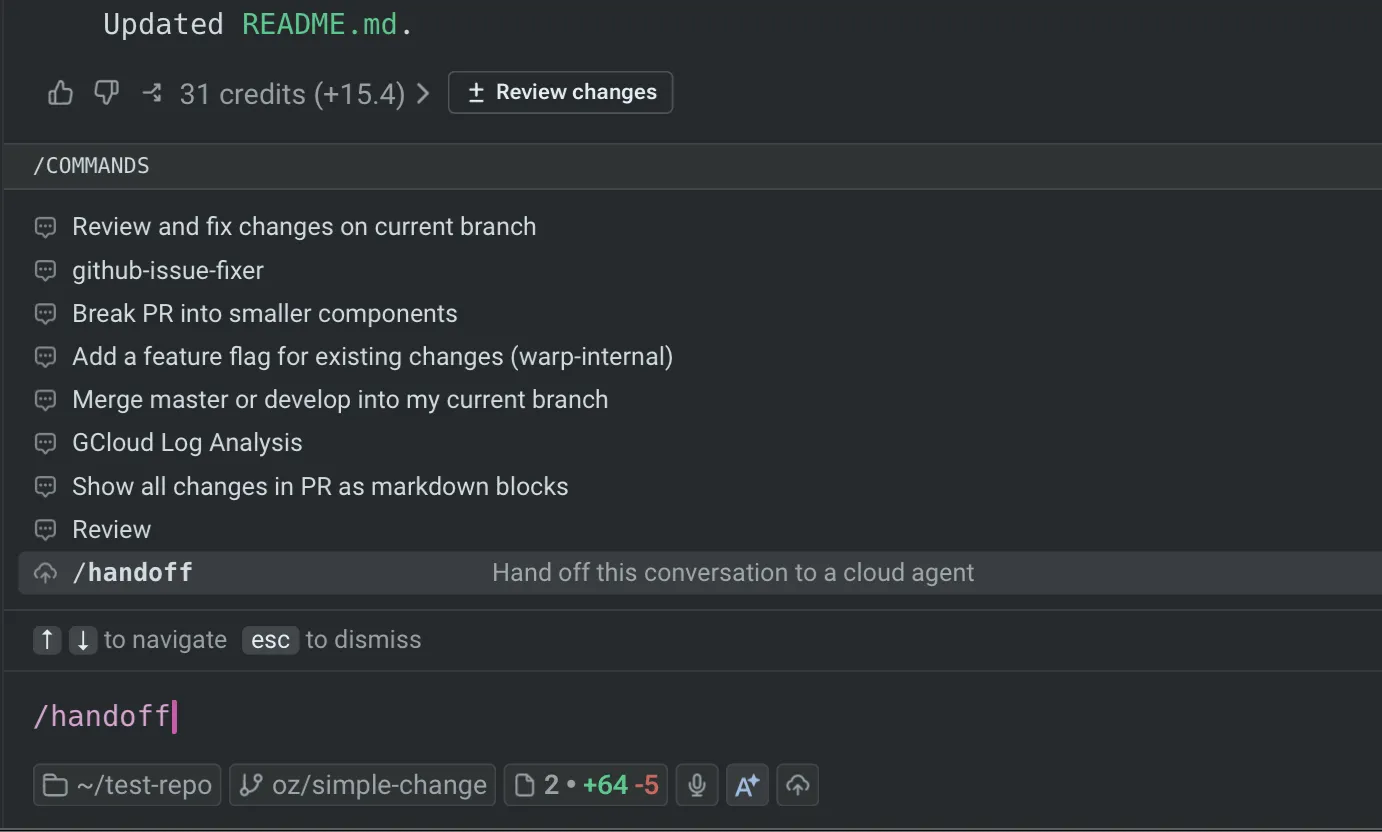 The `/handoff` slash command. After the flow opens, choose the cloud environment and add the follow-up prompt the cloud agent should act on. 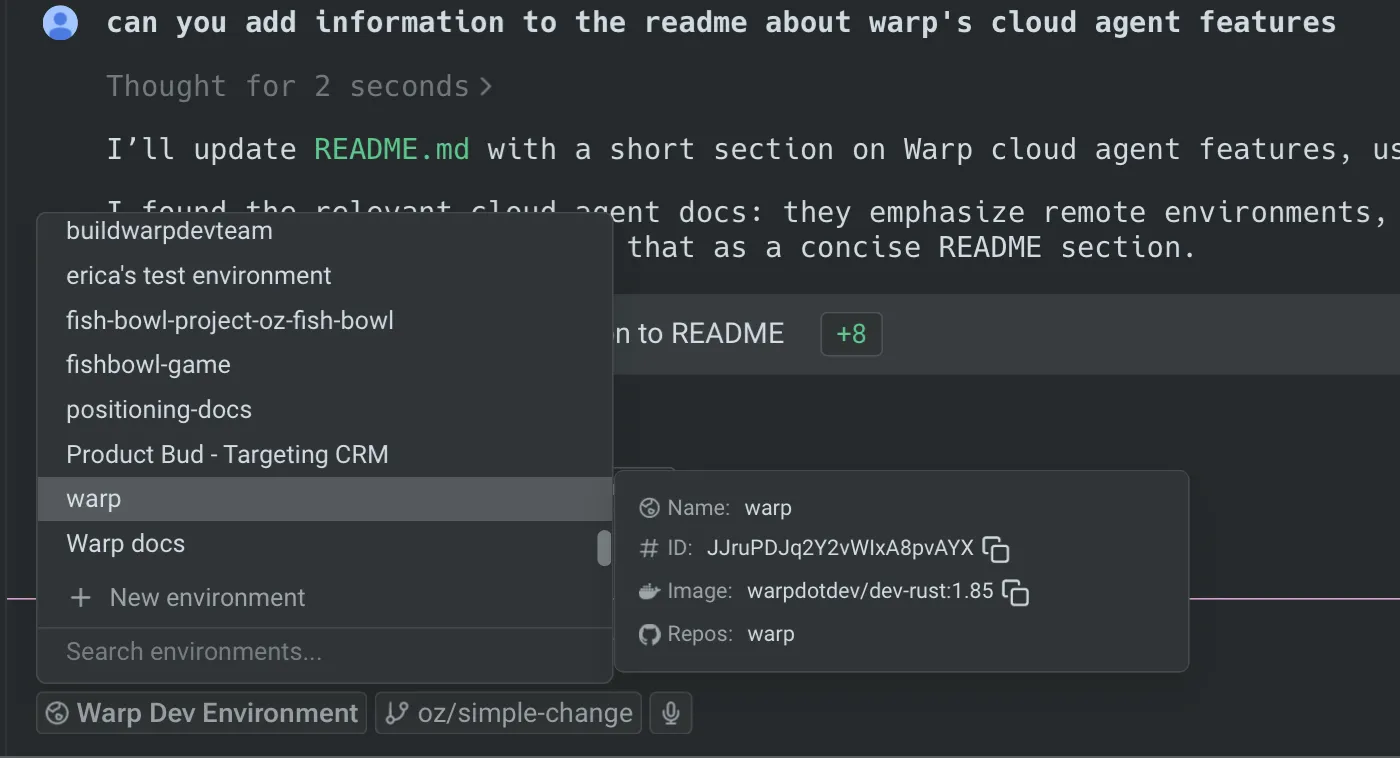 The environment selector in the handoff flow.  A follow-up prompt before handoff. After you submit, the cloud agent applies your workspace snapshot and responds to your follow-up. The local conversation is not modified, so you can keep working in it locally or close it. To check on the new run, open it from the [Runs page](https://oz.warp.dev/runs) in the Oz web app or the conversation panel in the Warp app. ## Troubleshooting [Section titled “Troubleshooting”](#troubleshooting) **The cloud agent reports that some changes couldn’t be applied.** The most common cause is a repository mismatch between your local checkout and the environment. The workspace snapshot is generated against your local repo’s current state; the environment must be on a compatible branch and commit for the changes to apply cleanly. Switch the environment’s repo to the branch you were on locally and retry the handoff. **The cloud agent doesn’t see my uncommitted changes.** Cloud conversation storage must be enabled for handoff to work. In the Warp app, open **Settings** > **Privacy** and confirm **Store AI conversations in the cloud** is on. Otherwise, the conversation can’t be forked and the run falls back to starting over. **The conversation doesn’t appear in the cloud run.** The source conversation may not have finished syncing to the cloud when you triggered the handoff. Wait a moment and retry. If the problem persists, check the conversation panel in the Warp app to confirm the conversation has a cloud-synced indicator. ## Related pages [Section titled “Related pages”](#related-pages) * [Handoff overview](/agent-platform/cloud-agents/handoff/) - What handoff is, the directions it supports, and what carries over. * [Handoff from cloud to cloud](/agent-platform/cloud-agents/handoff/cloud-to-cloud/) - Continue a finished cloud run with workspace state restored. * [Environments](/agent-platform/cloud-agents/environments/) - Configure the repos, image, and setup commands the cloud agent starts in. * [Cloud agents quickstart](/agent-platform/cloud-agents/quickstart/) - Run your first cloud agent from scratch.
# Customizing workspace snapshots
Canonical page: [/agent-platform/cloud-agents/handoff/snapshots/](https://docs.warp.dev/agent-platform/cloud-agents/handoff/snapshots/)
> Customize which repositories and files Warp snapshots at the end of a cloud agent run, so handoff continues to work outside the bundled cloud agent image.
Workspace snapshots are how [handoff](/agent-platform/cloud-agents/handoff/) carries repository changes and other workspace state across cloud agent runs. At the end of every cloud agent run, Warp asks a small declarations script which repositories and files to snapshot, then uploads the resulting git diffs and file contents so the next cloud agent run can apply them. Warp’s bundled cloud agent image ships with a declarations script that snapshots every git repository under the agent’s workspace, so most cloud agent runs need no configuration. This page is for the cases where you need to customize what gets snapshotted — for example, when running cloud agents in a custom Docker image, on a self-hosted [Direct backend](/agent-platform/cloud-agents/self-hosting/managed-direct/), or as an [unmanaged](/agent-platform/cloud-agents/self-hosting/unmanaged/) `oz agent run` in CI. ## When to customize snapshots [Section titled “When to customize snapshots”](#when-to-customize-snapshots) The default snapshotting behavior covers the most common case: snapshot every git repository the agent worked on, inside the bundled cloud agent image. Customize snapshots when you need different behavior: * **You’re running outside the bundled image** — for example, a custom Docker base image, a self-hosted Direct backend, or unmanaged `oz agent run` invocations — where Warp’s default `snapshot-declarations.sh` isn’t on disk. * **You want to snapshot repos or files outside the agent’s workspace** — for example, a sibling repo the agent reads but doesn’t `cd` into, or a log file the agent writes to `/tmp`. * **You want dynamic snapshotting behavior** — because the declarations file is generated by a script that Warp runs, you can script any logic you want (filter by git status, dedupe against a baseline, emit a fixed list, etc.) rather than being limited to a static set of paths. If you don’t customize snapshots in any of these cases, the run still completes — Warp just uploads nothing, and handoff into the next run starts without the prior session’s uncommitted changes. ## How snapshotting works [Section titled “How snapshotting works”](#how-snapshotting-works) There are two ways to tell Warp what to snapshot at the end of a cloud agent run: * **Script-driven** (default in the bundled image) - Warp invokes a declarations script (configured via the `OZ_SNAPSHOT_DECLARATIONS_SCRIPT` environment variable) that emits one JSON line per repository or file to snapshot. Use this when the set of repos isn’t fixed ahead of time (for example, the agent may `git init` a new directory during its work) or when you want any other dynamic logic to decide what to snapshot. * **Static** - You pre-populate the declarations file yourself (at the path given by `OZ_SNAPSHOT_DECLARATIONS_FILE`) and skip the script. Use this when the same set of repos and files should be snapshotted on every run. ### Script-driven flow [Section titled “Script-driven flow”](#script-driven-flow) 1. **Warp invokes your declarations script.** The script path comes from the `OZ_SNAPSHOT_DECLARATIONS_SCRIPT` environment variable. Warp runs it with the agent’s workspace as the current directory. 2. **Warp passes a per-run output file.** Warp sets `OZ_SNAPSHOT_DECLARATIONS_FILE` to an absolute path the script must write to. Each run gets its own file so concurrent runs don’t clobber each other. 3. **Warp reads the declarations file.** Warp parses the JSONL output (described below) and uploads the listed repositories and files. See [Write a custom declarations script](#write-a-custom-declarations-script) for the full pattern. ### Static flow [Section titled “Static flow”](#static-flow) Set `OZ_SNAPSHOT_DECLARATIONS_FILE` to a path you’ve already populated and leave `OZ_SNAPSHOT_DECLARATIONS_SCRIPT` unset. Warp reads the file directly with no script invocation. See [Use a static declarations file](#use-a-static-declarations-file) for the full pattern. In both flows, snapshotting is automatically enabled for cloud agent runs when cloud conversations are enabled, and can be turned off per run with `--no-snapshot`. See [Disable snapshots](#disable-snapshots) below. ## Environment variables [Section titled “Environment variables”](#environment-variables) * **`OZ_SNAPSHOT_DECLARATIONS_SCRIPT`** - Absolute path to the script Warp invokes at the end of each cloud agent run. The bundled cloud agent image sets this automatically. Set it yourself when running outside the bundled image. * **`OZ_SNAPSHOT_DECLARATIONS_FILE`** - Absolute path to the JSONL file the script writes to (and Warp reads from). When `OZ_SNAPSHOT_DECLARATIONS_SCRIPT` is set, Warp picks a per-run path by default and exports it to the script. Set or override this variable yourself when you want Warp to read from a static, pre-populated declarations file instead of running a script, or whenever you want both Warp and the script to use a specific path you control. ## Declarations file format [Section titled “Declarations file format”](#declarations-file-format) The declarations file is UTF-8 JSONL — one JSON object per non-empty line: snapshot-declarations.jsonl ```json {"version":1,"kind":"repo","path":"/workspace/my-repo"} {"version":1,"kind":"file","path":"/tmp/agent-output.log"} ``` Each line has exactly these fields: * **`version`** - Always `1`. Reserved for future schema versions. * **`kind`** - Either `"repo"` or `"file"`. * **`path`** - A non-empty absolute path. A few rules to follow when writing declarations: * **Paths must be absolute.** Relative paths are rejected and logged as malformed. * **Prefer `repo` over `file` for paths inside a repository.** Warp generates a git diff for each `repo` entry (tracked changes plus untracked, non-gitignored files), so individual `file` entries inside that repo are redundant and dropped before upload. Including a `repo` entry is also more extensible than enumerating files. * **Repos are diffed, not copied wholesale.** Only changed files are uploaded for each `repo` entry, so listing a large repository is cheap when the agent’s changes are small. * **`file` entries are for paths outside any declared repo** — for example, logs the agent wrote to `/tmp` or scratch files in `$HOME`. Malformed lines (invalid JSON, missing fields, unknown `kind`, non-absolute path) are logged as warnings and skipped; they never abort the upload. Caution **Declared paths are uploaded to Warp.** `file` entries upload the file’s contents verbatim, and `repo` entries upload the repo’s git diff (tracked changes plus untracked, non-gitignored files). Before declaring logs, scratch files, or other agent outputs as `file` entries, make sure they don’t contain secrets, credentials, API tokens, or other sensitive data. ## Write a custom declarations script [Section titled “Write a custom declarations script”](#write-a-custom-declarations-script) A custom script writes one JSON line per repository or file it wants Warp to snapshot, then exits. The minimal pattern looks like this: snapshot-declarations.sh ```bash #!/bin/bash set -euo pipefail # Warp sets this to a per-run output path. Fail loudly if it's missing, # so a misconfigured runner doesn't silently overwrite a shared file. if [ -z "${OZ_SNAPSHOT_DECLARATIONS_FILE:-}" ]; then echo "OZ_SNAPSHOT_DECLARATIONS_FILE must be set" >&2 exit 1 fi mkdir -p "$(dirname "$OZ_SNAPSHOT_DECLARATIONS_FILE")" # Find every git repo under the agent's workspace and emit a JSONL # repo declaration for each one. Escape backslashes and double quotes in # the path before writing so paths containing those characters don't # produce malformed JSON (which Warp skips with a warning). find "$PWD" -type d -name .git -prune -print 2>/dev/null \ | while IFS= read -r git_dir; do repo_root="$(cd "$(dirname "$git_dir")" && pwd)" repo_json="$(printf '%s' "$repo_root" | sed 's/\\/\\\\/g; s/"/\\"/g')" printf '{"version":1,"kind":"repo","path":"%s"}\n' "$repo_json" \ >> "$OZ_SNAPSHOT_DECLARATIONS_FILE" done ``` Then point Warp at it by exporting `OZ_SNAPSHOT_DECLARATIONS_SCRIPT` in the environment your cloud agent runs in: ```bash export OZ_SNAPSHOT_DECLARATIONS_SCRIPT=/path/to/snapshot-declarations.sh ``` For a managed [Direct backend](/agent-platform/cloud-agents/self-hosting/managed-direct/) worker, set it via the worker’s `environment` config so it’s present when the agent process starts. ### The full bundled script [Section titled “The full bundled script”](#the-full-bundled-script) For reference, this is the canonical declarations script Warp invokes inside the bundled cloud agent image. It’s a richer version of the minimal example above: it honors a colon-separated `OZ_SNAPSHOT_SCAN_ROOTS` override for operators who need to scan repos outside the default workspace, uses `jq` for canonical JSON encoding (which handles `"` and `\` escaping for you), and dedupes against repo declarations already written in the same run so repeated invocations stay additive. snapshot-declarations.sh ```bash #!/bin/bash # Generates the declarations file consumed by the end-of-run snapshot upload pipeline. # # Scans one or more roots for `.git` directories and appends one JSON object per # newly-discovered repository to the declarations file. # # Scan root selection (in order of precedence): # - OZ_SNAPSHOT_SCAN_ROOTS: colon-separated list of absolute paths. Operators can use this # to target repos outside the default workspace. # - $PWD: the Rust driver sets this to the agent's workspace via `Command::current_dir` # before invoking the script, so the default scan root is always the assigned workspace. # # Output file: # - OZ_SNAPSHOT_DECLARATIONS_FILE must be set. The Rust driver sets this to a per-run path # so concurrent runs don't clobber each other. # - The file is created if missing, and appended to if it already exists. Existing lines are # never rewritten, so operator-authored declarations are preserved. # - Repeated invocations within a single run skip already-emitted repo declarations so the # upload pipeline can stay additive without duplicating identical generated entries. set -euo pipefail SCAN_ROOTS_RAW="${OZ_SNAPSHOT_SCAN_ROOTS:-$PWD}" IFS=':' read -r -a SCAN_ROOTS <<< "$SCAN_ROOTS_RAW" if [ -z "${OZ_SNAPSHOT_DECLARATIONS_FILE:-}" ]; then echo "OZ_SNAPSHOT_DECLARATIONS_FILE must be set" >&2 exit 1 fi DECL_FILE="$OZ_SNAPSHOT_DECLARATIONS_FILE" JQ="${OZ_SNAPSHOT_JQ:-/agent/tools/jq}" mkdir -p "$(dirname "$DECL_FILE")" touch "$DECL_FILE" # Dedup set. Seed from repo declarations already emitted by this script so a repeated # invocation within the same run doesn't re-emit repos it already discovered earlier. # Keep the full canonical JSON line as the key; this lets us preserve unrelated JSONL entries # verbatim while ensuring identical generated declarations are emitted at most once. SEEN_FILE="$(mktemp)" trap 'rm -f "$SEEN_FILE"' EXIT "$JQ" --raw-input --compact-output ' fromjson? | select( type == "object" and (. | keys_unsorted | sort == ["kind", "path", "version"]) and .version == 1 and .kind == "repo" and (.path | type == "string") ) | { version: 1, kind: "repo", path: .path } ' "$DECL_FILE" > "$SEEN_FILE" repo_declaration_for_path() { "$JQ" --compact-output --null-input \ --arg path "$1" \ '{ version: 1, kind: "repo", path: $path }' } for root in "${SCAN_ROOTS[@]}"; do [ -d "$root" ] || continue while IFS= read -r git_dir; do repo_root="$(cd "$(dirname "$git_dir")" && pwd)" repo_declaration="$(repo_declaration_for_path "$repo_root")" if grep -Fxq -- "$repo_declaration" "$SEEN_FILE"; then continue fi printf '%s\n' "$repo_declaration" >> "$SEEN_FILE" printf '%s\n' "$repo_declaration" >> "$DECL_FILE" done < <(find "$root" -type d -name .git -prune -print 2>/dev/null) done ``` ## Use a static declarations file [Section titled “Use a static declarations file”](#use-a-static-declarations-file) If the same set of repositories or files should be snapshotted on every run (for example, an unmanaged GitHub Actions job operating on a known checkout), you can skip the script entirely and pre-populate a JSONL file: /etc/oz/snapshot-declarations.jsonl ```json {"version":1,"kind":"repo","path":"/workspace/my-repo"} {"version":1,"kind":"repo","path":"/workspace/shared-libs"} ``` Then point Warp at the file directly: ```bash export OZ_SNAPSHOT_DECLARATIONS_FILE=/etc/oz/snapshot-declarations.jsonl # Do not set OZ_SNAPSHOT_DECLARATIONS_SCRIPT in this mode. ``` Warp reads the file at end-of-run and uploads the listed repos and files. Because the file is the same on every run, this is best for environments where the workspace layout is fixed. ## Disable snapshots [Section titled “Disable snapshots”](#disable-snapshots) To opt out of snapshotting for a single run, pass `--no-snapshot` to the CLI: ```bash oz agent run-cloud --prompt "Fix the failing test" --no-snapshot ``` Snapshotting is also skipped automatically when cloud conversations are disabled for the team. ## Related pages [Section titled “Related pages”](#related-pages) * [Handoff from local to cloud](/agent-platform/cloud-agents/handoff/local-to-cloud/) - Promote a local conversation to a cloud run; the workspace snapshot is what carries your uncommitted changes across. * [Handoff from cloud to cloud](/agent-platform/cloud-agents/handoff/cloud-to-cloud/) - Continue a finished cloud run; the prior session’s workspace snapshot is what gets restored. * [Self-hosting overview](/agent-platform/cloud-agents/self-hosting/) - Architecture decision guide for self-hosted workers, where customizing snapshots is most often needed. * [Unmanaged architecture](/agent-platform/cloud-agents/self-hosting/unmanaged/) - Run `oz agent run` in CI, Kubernetes, or your dev environment outside the bundled image. * [Oz CLI](/reference/cli/) - Full reference for `oz agent run` and `oz agent run-cloud`.
# Harnesses in Oz
Canonical page: [/agent-platform/cloud-agents/harnesses/](https://docs.warp.dev/agent-platform/cloud-agents/harnesses/)
> Run third-party harnesses such as Claude Code or Codex as cloud agents. They inherit the same triggers, environments, secrets, and observability as Warp Agent.
Oz can run third-party agent harnesses as cloud agents alongside Warp Agent, including [Claude Code](/agent-platform/cloud-agents/harnesses/claude-code/) and [Codex](/agent-platform/cloud-agents/harnesses/codex/). You choose the harness (agent runtime) that fits the task; the platform around the run stays the same. Watch this walkthrough to see how to run Warp Agent, Claude Code, or Codex as a cloud agent.  ## What stays the same [Section titled “What stays the same”](#what-stays-the-same) Third-party harnesses inherit the same Oz platform features as Warp Agent: * **Triggers** — Slack, Linear, schedules, CI, and API [triggers](/agent-platform/cloud-agents/triggers/) launch any harness. * **Environments and secrets** — Reuse the same [environments](/agent-platform/cloud-agents/environments/) and [agent secrets](/agent-platform/cloud-agents/secrets/). * **Skills and Rules** — Saved [Skills](/agent-platform/capabilities/skills/) and [Rules](/agent-platform/capabilities/rules/) apply across harnesses. * **Observability** — Every run produces a transcript and shareable session in the [Oz dashboard](/agent-platform/cloud-agents/managing-cloud-agents/). ## Billing [Section titled “Billing”](#billing) Claude Code and Codex each call their provider directly using credentials you supply, and the provider bills your account for inference. Warp meters [compute credits](/support-and-community/plans-and-billing/credits/#compute-credits) for the run’s sandbox and [platform credits](/support-and-community/plans-and-billing/platform-credits/) for the orchestration layer. ## How to switch harnesses [Section titled “How to switch harnesses”](#how-to-switch-harnesses) ### Warp app [Section titled “Warp app”](#warp-app) In Cloud Mode, choose a harness from the **Agent harness** dropdown above the input. 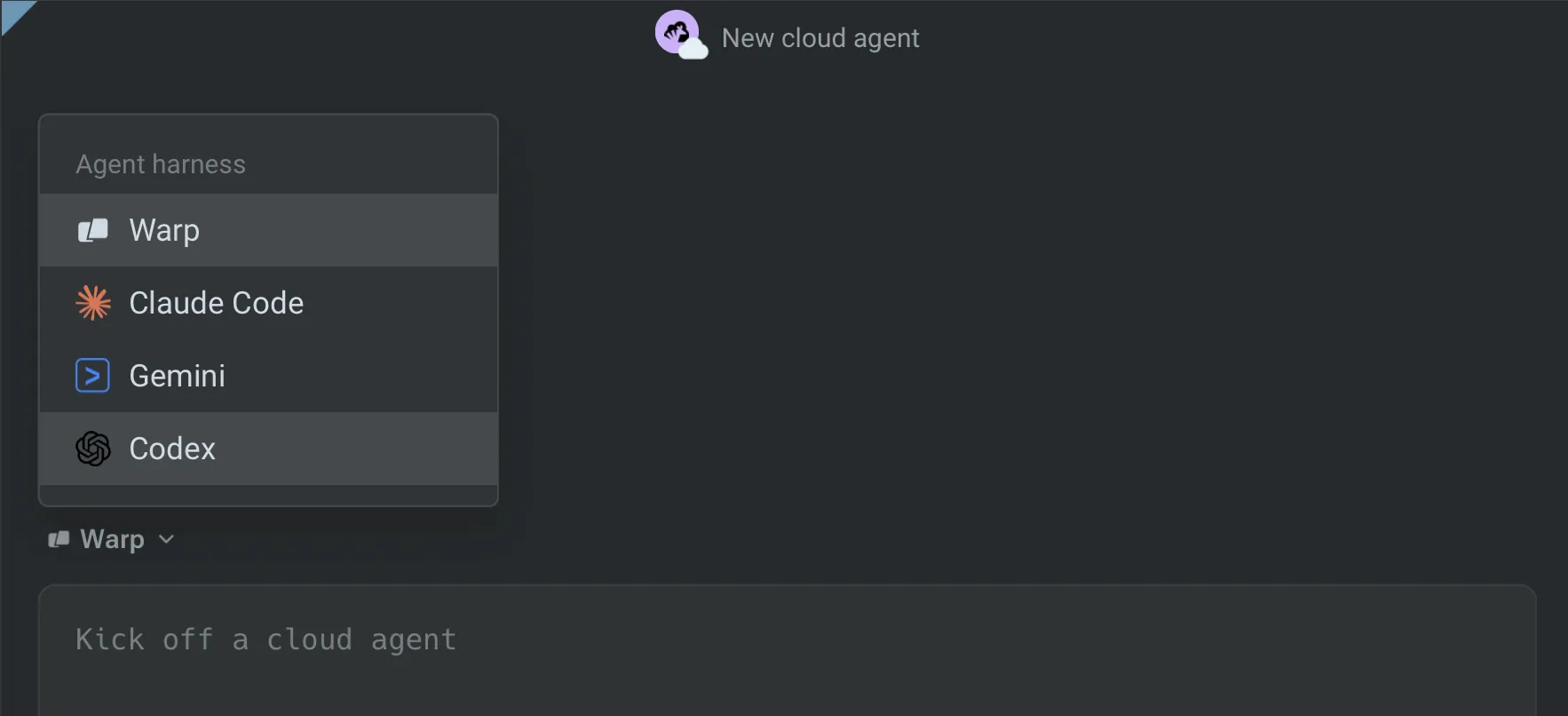 The Agent harness selector. ### Oz web app [Section titled “Oz web app”](#oz-web-app) On the new run or new schedule pane, choose the harness in the **Harness** field. ### API and SDK [Section titled “API and SDK”](#api-and-sdk) Set the `harness` field on the agent config. See the [API reference](/reference/api-and-sdk/) for the exact field names. ## Related pages [Section titled “Related pages”](#related-pages) * [Warp Agent with Oz](/agent-platform/cloud-agents/harnesses/warp-agent/) — Oz’s default first-party harness. * [Claude Code with Oz](/agent-platform/cloud-agents/harnesses/claude-code/) — Claude Code as a cloud harness. * [Codex with Oz](/agent-platform/cloud-agents/harnesses/codex/) — Codex as a cloud harness. * [Authentication](/agent-platform/cloud-agents/harnesses/authentication/) — connect credentials and launch Claude Code or Codex. * [Third-party CLI agents in the Warp terminal](/agent-platform/cli-agents/overview/) — run Claude Code, Codex, and other CLI agents locally.
# Third-party cloud agent authentication
Canonical page: [/agent-platform/cloud-agents/harnesses/authentication/](https://docs.warp.dev/agent-platform/cloud-agents/harnesses/authentication/)
> Connect your Anthropic or OpenAI credentials to Oz, then launch Claude Code or Codex as cloud agents from the desktop app, Oz web app, or API.
Third-party cloud agent authentication in Oz stores provider credentials for cloud runs as Warp-managed secrets. Third-party cloud agents, like [Claude Code](#connecting-claude-code-credentials) and [Codex](#connecting-codex-credentials), call their providers directly, so set up an Anthropic or OpenAI credential once before launching a third-party harness. Auth secrets can be scoped to a **team** (available to all teammates’ runs) or **personal** (only your own runs), like any other Warp-managed secret. ## Connecting Claude Code credentials [Section titled “Connecting Claude Code credentials”](#connecting-claude-code-credentials) Claude Code is Anthropic’s agentic coding tool. For more on Claude Code authentication, see [Anthropic’s Claude Code auth docs](https://code.claude.com/docs/en/authentication). ### Create an Anthropic API key [Section titled “Create an Anthropic API key”](#create-an-anthropic-api-key) 1. Go to the [Anthropic Console](https://platform.claude.com/login?returnTo=/?) and sign in or create an account. 2. Confirm your account has API credits. Claude Code runs are billed against your Anthropic API balance. 3. Navigate to the API keys section, then click **Get API key**. 4. Create a new API key and copy the value. Oz also supports Bedrock-routed credentials (**Anthropic Bedrock API key** and **Anthropic Bedrock access key**) if your team consumes Anthropic models through AWS. ### Store API key in Oz [Section titled “Store API key in Oz”](#store-api-key-in-oz) #### Warp desktop app [Section titled “Warp desktop app”](#warp-desktop-app) Start a new cloud agent run and choose **Claude Code** from the **Agent harness** dropdown. In the harness auth secret field, add or select your Anthropic credential. #### Oz web app [Section titled “Oz web app”](#oz-web-app) Start a [new run](https://oz.warp.dev/runs/new), choose **Claude Code** as the harness, and add a new key in the Claude Code auth secret dialog. 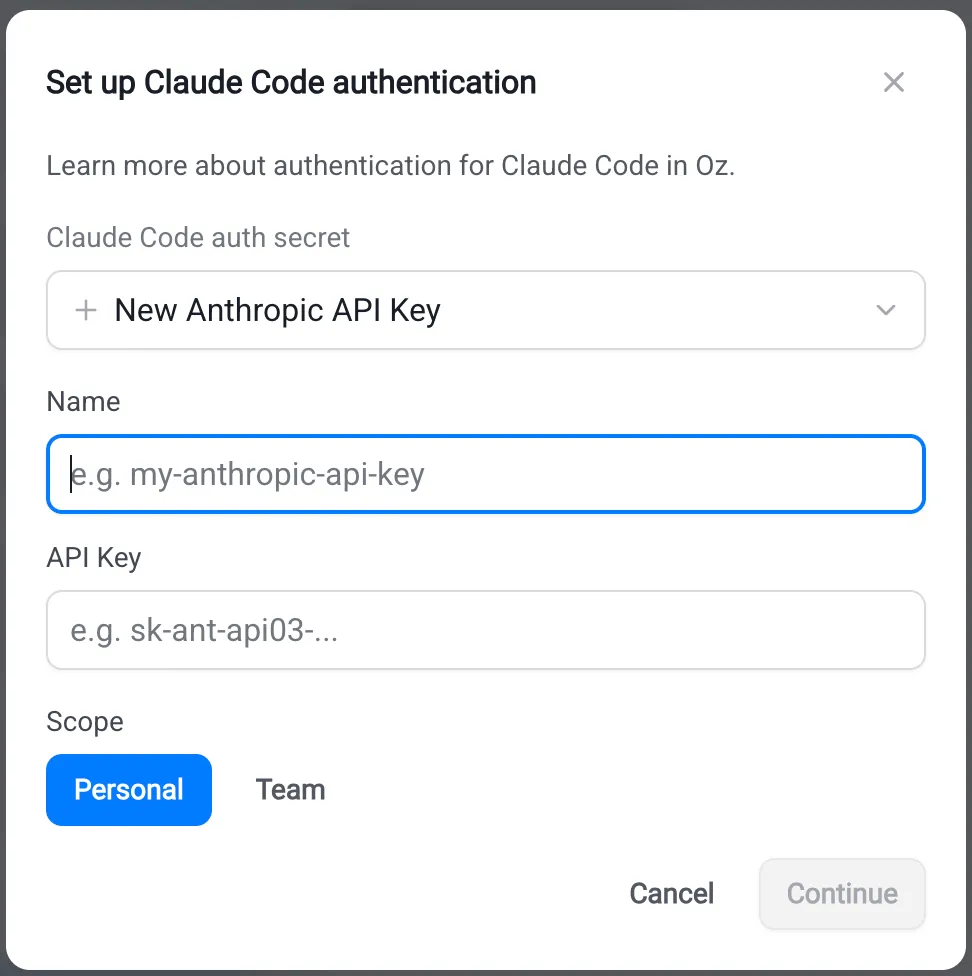 The Claude Code auth secret dialog. #### Oz CLI [Section titled “Oz CLI”](#oz-cli) ```bash oz secret create claude api-key --team ``` Add `--description "..."` to record rotation notes or owner info. Replace `--team` with `--personal` to make the secret available only to your own runs. **Expected outcome.** `oz secret list` shows the new secret with the matching Anthropic credential type. The value is never displayed. ## Connecting Codex credentials [Section titled “Connecting Codex credentials”](#connecting-codex-credentials) Codex is OpenAI’s coding agent. For more on Codex authentication, see [OpenAI’s Codex auth docs](https://developers.openai.com/codex/auth). Caution A ChatGPT subscription (Plus, Pro, Team) does not include API access. You need a separate OpenAI API key with API credits. ### Create an OpenAI API key [Section titled “Create an OpenAI API key”](#create-an-openai-api-key) 1. Go to the [OpenAI Platform](https://platform.openai.com/) and sign in (or create an account). 2. Confirm your account has API credits. Codex runs are billed against your OpenAI API balance, not a ChatGPT subscription. 3. Navigate to the API keys section, then click **Create API key**. 4. In the **Create new secret key** dialog, choose the owner, project, and permissions for the key. 5. Click **Create secret key**, then copy the value. ### Store API key in Oz [Section titled “Store API key in Oz”](#store-api-key-in-oz-1) #### Warp desktop app [Section titled “Warp desktop app”](#warp-desktop-app-1) Start a new cloud agent run and choose **Codex** from the **Agent harness** dropdown. In the harness auth secret field, add or select your OpenAI credential. #### Oz web app [Section titled “Oz web app”](#oz-web-app-1) Start a [new run](https://oz.warp.dev/runs/new), choose **Codex** as the harness, and add a new key in the Codex auth secret dialog. #### Oz CLI [Section titled “Oz CLI”](#oz-cli-1) ```bash oz secret create codex api-key --team ``` Add `--description "..."` to record rotation notes or owner info. Replace `--team` with `--personal` to make the secret available only to your own runs. **Expected outcome.** `oz secret list` shows the new secret with the matching OpenAI credential type. The value is never displayed. ## Managing harness auth secrets [Section titled “Managing harness auth secrets”](#managing-harness-auth-secrets) Auth secrets follow the same management commands as any other Warp-managed secret. See [Cloud agent secrets](/agent-platform/cloud-agents/secrets/) for the full reference. Common tasks: ```bash # List secrets you can see oz secret list # Rotate a secret value (prompts for the new value) oz secret update --team --value ANTHROPIC_API_KEY # Update the description oz secret update --team --description "Rotated 2026-05-12; owned by platform team" ANTHROPIC_API_KEY # Delete a secret (irreversible) oz secret delete --team ANTHROPIC_API_KEY ``` Caution Deleting an auth secret breaks any scheduled or integration-triggered run that references it by name. Update the schedules and integrations to point at a new secret first. ## Troubleshooting [Section titled “Troubleshooting”](#troubleshooting) **Claude Code or Codex run fails with an authentication error.**\ Confirm the run was started with a harness auth secret selected. From the Oz web app’s run detail pane, the **Harness auth secret** field shows which secret (if any) was used. Re-launch the run with the correct secret selected, or create one if your team doesn’t have one yet. **The harness auth secret dropdown is empty.**\ The dropdown only lists secrets whose type matches the selected harness — Anthropic types for Claude Code, OpenAI for Codex. If you stored the credential as a raw value, recreate it using the typed flow above. **The selected harness is disabled.**\ Your team admin has disabled the harness for your workspace. Contact your admin or pick a different harness for the run. ## Related pages [Section titled “Related pages”](#related-pages) * [Harnesses in Oz](/agent-platform/cloud-agents/harnesses/) — overview of third-party harnesses in Oz. * [Claude Code in Warp](/agent-platform/cli-agents/claude-code/) — run Claude Code locally in the Warp terminal. * [Codex CLI in Warp](/agent-platform/cli-agents/codex/) — run Codex locally in the Warp terminal. * [Cloud agent secrets](/agent-platform/cloud-agents/secrets/) — the full Warp-managed secrets reference.
# Claude Code with Oz
Canonical page: [/agent-platform/cloud-agents/harnesses/claude-code/](https://docs.warp.dev/agent-platform/cloud-agents/harnesses/claude-code/)
> Run Claude Code with Oz. Strong at code review, deep bug investigation, large feature planning, and frontend or UI work.
Claude Code is Anthropic’s agentic coding tool. Running it with Oz puts Claude Code inside a Warp-managed environment and connects it to the rest of the Oz platform — including triggers, environments, secrets, observability, and governance — while still behaving like the Claude Code your team already uses. ## Key features [Section titled “Key features”](#key-features) * **Cloud orchestration** - Launch Claude Code from any Oz trigger: the Warp app, the Oz web app, the Oz CLI, the REST API, schedules, Slack mentions, Linear issues, or GitHub Actions. * **Claude model picker** - Choose the Claude model the harness uses, including the latest pinned Opus, Sonnet, and Haiku releases, the `best`/`opus`/`sonnet`/`haiku` aliases, and 1M-context variants. * **First-class subagent** - A Warp Agent parent can dispatch Claude Code subagents to handle steps that require code review or nuanced judgment within a larger orchestration. ## Available models [Section titled “Available models”](#available-models) The Claude Code harness exposes Anthropic’s coding-tuned model lineup. Common choices include: * `best` - Resolves to the current top-of-line Claude model. * `opus`, `sonnet`, `haiku` - Aliases that resolve to the current default for that family. For the full list — including 1M-context variants for very large codebases and planning-tuned models — open the model picker in the Warp app’s Cloud Mode or the **Model** field on the Oz web app’s new-run pane. ## Credentials and billing [Section titled “Credentials and billing”](#credentials-and-billing) Claude Code calls Anthropic directly using credentials your team provides. Oz supports three Anthropic credential types, stored as [Warp-managed secrets](/agent-platform/cloud-agents/secrets/): * **Anthropic API key** - For direct Anthropic API access. * **Anthropic Bedrock API key** - For Bedrock-routed inference using an API key. * **Anthropic Bedrock access key** - For Bedrock-routed inference using AWS access credentials. Anthropic bills your account directly for inference. Warp still meters [compute credits](/support-and-community/plans-and-billing/credits/#compute-credits) for the run’s sandbox and [platform credits](/support-and-community/plans-and-billing/platform-credits/) for the orchestration layer. For setup steps, see [Connecting Claude Code credentials](/agent-platform/cloud-agents/harnesses/authentication/#connecting-claude-code-credentials). ## Starting a Claude Code run [Section titled “Starting a Claude Code run”](#starting-a-claude-code-run) * **Warp app** - In Cloud Mode, click the **Agent harness** dropdown above the input and choose **Claude Code**. * **Oz web app** - On the new run or new schedule pane, choose **Claude Code** in the **Harness** field. A **Claude Code auth secret** field appears below it; pick one of your stored Anthropic secrets. * **API and SDK** - Set the agent config `harness` to `claude` and the Anthropic secret name on the matching auth-secret field. See the [API reference](/reference/api-and-sdk/). ## Related pages [Section titled “Related pages”](#related-pages) * [Harnesses in Oz](/agent-platform/cloud-agents/harnesses/) — choose between Warp Agent, Claude Code, and Codex. * [Authentication](/agent-platform/cloud-agents/harnesses/authentication/) — store Anthropic credentials as Warp-managed secrets. * [Warp Agent with Oz](/agent-platform/cloud-agents/harnesses/warp-agent/) — Oz’s default harness, the only one that can orchestrate Claude Code subagents. * [Codex with Oz](/agent-platform/cloud-agents/harnesses/codex/) — Codex as a cloud harness. * [Claude Code in Warp](/agent-platform/cli-agents/claude-code/) — Claude Code in your local Warp terminal.
# Codex with Oz
Canonical page: [/agent-platform/cloud-agents/harnesses/codex/](https://docs.warp.dev/agent-platform/cloud-agents/harnesses/codex/)
> Run Codex with Oz for codebase migrations, release coordination, batch test generation, and backend or DevOps automation.
Codex is OpenAI’s coding agent. Running it with Oz puts Codex inside a Warp-managed environment and connects it to the rest of the Oz platform — including triggers, environments, secrets, observability, and governance — while still behaving like the Codex CLI your team already uses. ## Key features [Section titled “Key features”](#key-features) * **Cloud orchestration** - Launch Codex from any Oz trigger: the Warp app, the Oz web app, the Oz CLI, the REST API, schedules, Slack mentions, Linear issues, or GitHub Actions. * **Codex model picker** - Choose the OpenAI model Codex uses, including the GPT-5 lineup, Codex-tuned variants, and a `default` option that lets Codex pick its own recommended model. * **First-class subagent** - A Warp Agent parent can dispatch Codex subagents to handle high-volume or well-defined coding steps inside a larger orchestration. ## Available models [Section titled “Available models”](#available-models) The Codex harness exposes OpenAI’s Codex-tuned and general coding models. Common choices include: * `default` - Lets Codex pick its own recommended model based on your OpenAI account access. * `gpt-5.5`, `gpt-5.4` - Recent strong coding models from OpenAI with a configurable reasoning level. * `gpt-5.4-mini` - A faster, lower-cost option for lighter coding tasks or subagents. For the full list, including Codex-tuned and general models, open the model picker on the Oz web app’s new-run pane. For details on each model, see [OpenAI’s Codex model docs](https://developers.openai.com/codex/models). ## Credentials and billing [Section titled “Credentials and billing”](#credentials-and-billing) Codex calls OpenAI directly using credentials your team provides. Oz supports one credential type today, stored as a [Warp-managed secret](/agent-platform/cloud-agents/secrets/): * **OpenAI API key** - The Codex harness authenticates to OpenAI using this key for every run. OpenAI bills your account directly for inference. Warp still meters [compute credits](/support-and-community/plans-and-billing/credits/#compute-credits) for the run’s sandbox and [platform credits](/support-and-community/plans-and-billing/platform-credits/) for the orchestration layer. For setup steps, see [Connecting Codex credentials](/agent-platform/cloud-agents/harnesses/authentication/#connecting-codex-credentials). ## Starting a Codex run [Section titled “Starting a Codex run”](#starting-a-codex-run) * **Warp app** - In Cloud Mode, click the **Agent harness** dropdown above the input and choose **Codex**. * **Oz web app** - On the new run or new schedule pane, choose **Codex** in the **Harness** field. A **Codex auth secret** field appears below it; pick the OpenAI secret your team has stored. * **API and SDK** - Set the agent config `harness` to `codex` and the OpenAI secret name on the matching auth-secret field. See the [API reference](/reference/api-and-sdk/). ## Related pages [Section titled “Related pages”](#related-pages) * [Harnesses in Oz](/agent-platform/cloud-agents/harnesses/) — choose between Warp Agent, Claude Code, and Codex. * [Authentication](/agent-platform/cloud-agents/harnesses/authentication/) — store OpenAI credentials as Warp-managed secrets. * [Warp Agent with Oz](/agent-platform/cloud-agents/harnesses/warp-agent/) — Oz’s default harness, the only one that can orchestrate Codex subagents. * [Claude Code with Oz](/agent-platform/cloud-agents/harnesses/claude-code/) — Claude Code as a cloud harness. * [Codex CLI in Warp](/agent-platform/cli-agents/codex/) — Codex in your local Warp terminal.
# Warp Agent with Oz
Canonical page: [/agent-platform/cloud-agents/harnesses/warp-agent/](https://docs.warp.dev/agent-platform/cloud-agents/harnesses/warp-agent/)
> Warp Agent is Oz's default harness. It routes across leading models, has full terminal access, and is the only harness that can orchestrate subagents.
Warp Agent is the harness Warp builds and ships with Oz. It’s the default for every cloud agent run unless you pick another harness, and it’s the only harness that can spawn cross-harness subagents (for example, a Warp Agent parent dispatching a Claude Code or Codex child). Warp Agent is the same agent runtime that powers Agent Mode in the Warp terminal. Running it as a cloud harness gives you the same behavior — model routing, tool access, Skills, Rules, Memory — without tying execution to a single laptop. ## Key features [Section titled “Key features”](#key-features) * **Multi-model auto-routing** - Routes between Anthropic, OpenAI, Google, and Fireworks-hosted models. Choose a specific model, or let Warp pick via `auto`, `auto-efficient`, `auto-genius`, or `auto-open`. See [Model choice](/agent-platform/inference/model-choice/) for the full catalog. * **Full terminal and tool access** - Runs commands, edits files, reads logs, executes tests, navigates repos, and calls MCP servers, giving cloud runs the same toolbelt Warp Agent uses locally. * **Platform-native context** - Reads [Codebase Context](/agent-platform/capabilities/codebase-context/), applies [Rules](/agent-platform/capabilities/rules/), reuses saved [Skills](/agent-platform/capabilities/skills/), and respects Memory and Warp Drive context with no extra setup. * **Multi-repo execution** - Clones every repo configured on the [environment](/agent-platform/cloud-agents/environments/) and works across them in a single run. * **Cross-harness orchestration parent** - A Warp Agent parent run can spawn Claude Code or Codex [subagents](/agent-platform/cloud-agents/overview/) and coordinate their outputs. Other harnesses cannot act as parents in a multi-harness orchestration. * **No extra credentials** - Warp Agent uses your existing Warp account and credits. There’s no separate API key to configure. ## How it works [Section titled “How it works”](#how-it-works) Warp Agent is the same agent runtime as Agent Mode in the Warp terminal: it plans, calls tools, edits code, runs tests, and reports progress. The cloud platform adds the [environment](/agent-platform/cloud-agents/environments/), triggers, observability, and team governance around the run, and the transcript is inspectable in real time and replayable afterward from the [Oz dashboard](/agent-platform/cloud-agents/managing-cloud-agents/). Team admins can disable any harness for their workspace. Users on that team can only start runs with the harnesses that remain enabled. ### Available models [Section titled “Available models”](#available-models) Warp Agent supports the full Warp model catalog. Configure the model per [Agent Profile](/agent-platform/capabilities/agent-profiles-permissions/), or pick one at run time. See [Model choice](/agent-platform/inference/model-choice/) for the supported model IDs, including the `auto`, `auto-efficient`, `auto-genius`, and `auto-open` routing options. ### Cross-harness orchestration [Section titled “Cross-harness orchestration”](#cross-harness-orchestration) Warp Agent is the orchestration host for multi-harness runs. A typical pattern looks like: 1. A Warp Agent parent run analyzes a task and breaks it into subtasks. 2. The parent dispatches Claude Code subagents for steps that need careful review and Codex subagents for high-volume edits. 3. The parent collects results, resolves conflicts, and returns a single final output (a PR, a report, a Slack reply). Subagents run in the same environment as the parent and share the same secrets, MCP servers, and integrations. The transcript shows the full tree, so reviewers can see exactly which subagent did what. ## When to choose Warp Agent [Section titled “When to choose Warp Agent”](#when-to-choose-warp-agent) * The task spans multiple repos, languages, or domains. * You want model auto-routing instead of pinning one provider. * The run needs to orchestrate other harnesses as subagents. * You want the deepest integration with Warp’s platform features (Skills, Rules, Memory, Codebase Context). * You’re not sure which harness fits — Warp Agent is the safe default and can delegate to other harnesses when it decides that’s the better fit. ## Starting a Warp Agent run [Section titled “Starting a Warp Agent run”](#starting-a-warp-agent-run) Warp Agent is the default, so there’s nothing extra to configure. * **Warp app** - Start a cloud agent run from the input. The **Agent harness** dropdown defaults to **Warp Agent**. * **Oz web app** - On a new run or new schedule pane, leave the **Harness** field set to **Warp Agent**. * **Oz CLI** - Run `oz agent run-cloud --prompt "..."` with no `--harness` flag, or pass `--harness oz` explicitly. * **API and SDK** - Omit the `harness` field on the agent config, or set it to `oz`. See the [API reference](/reference/api-and-sdk/). For a complete walkthrough, see the [Cloud agents quickstart](/agent-platform/cloud-agents/quickstart/). ## Related pages [Section titled “Related pages”](#related-pages) * [Harnesses in Oz](/agent-platform/cloud-agents/harnesses/) — choose between Warp Agent, Claude Code, and Codex. * [Claude Code with Oz](/agent-platform/cloud-agents/harnesses/claude-code/) — Claude Code as a cloud harness. * [Codex with Oz](/agent-platform/cloud-agents/harnesses/codex/) — Codex as a cloud harness. * [Model choice](/agent-platform/inference/model-choice/) — the model catalog Warp Agent routes across. * [Agent Profiles and permissions](/agent-platform/capabilities/agent-profiles-permissions/) — configure the default model, autonomy, and tool access for Warp Agent. * [Skills as agents](/agent-platform/cloud-agents/skills-as-agents/) — turn a saved skill into a reusable Warp Agent run.
# Integrations Overview
Canonical page: [/agent-platform/cloud-agents/integrations/](https://docs.warp.dev/agent-platform/cloud-agents/integrations/)
> Configure Warp's first-party integrations by creating environments, connecting GitHub, and enabling agents to run your code and automate development workflows.
Warp integrations let your team trigger agents directly from the terminal, or from tools like [Slack](/agent-platform/cloud-agents/integrations/slack/) and [Linear](/agent-platform/cloud-agents/integrations/linear/). Once set up, agents can: * Read conversation or issue context * Run code inside your codebase in a remote environment * Open pull requests and perform other multi-step agent workflows on your behalf If you’re deciding whether an agent should run from a schedule, Slack, Linear, GitHub Actions, the Oz CLI, or the API, see [Run agents unattended with schedules and triggers](/guides/agent-workflows/how-to-run-unattended-agents/). All of this is powered by the [Oz CLI](/reference/cli/). *** ## Get started [Section titled “Get started”](#get-started) Use the setup walkthrough below for a quick look at how environments connect to integrations, then choose the guide that matches what you want to do next.  * [Integrations quickstart](/agent-platform/cloud-agents/integrations/quickstart/) - Trigger your first agent from Slack and watch the run from start to finish. * [Integration setup](/reference/cli/integration-setup/) - Configure environments, GitHub authorization, CLI flags, and integrations in more detail. * [Slack](/agent-platform/cloud-agents/integrations/slack/) and [Linear](/agent-platform/cloud-agents/integrations/linear/) - Trigger agents from team conversations, issues, and comments. * [GitHub Actions](/agent-platform/cloud-agents/integrations/github-actions/) - Run agents from CI workflows and repository events. * [GitLab](/agent-platform/cloud-agents/integrations/gitlab/), [Bitbucket](/agent-platform/cloud-agents/integrations/bitbucket/), and [Azure DevOps](/agent-platform/cloud-agents/integrations/azure-devops/) - Connect non-GitHub repositories with tokens and Warp-managed secrets. * [AWS, GCP, and other cloud providers](/agent-platform/cloud-agents/integrations/cloud-providers/) - Give cloud agents short-lived access to cloud services.
# Azure DevOps integration
Canonical page: [/agent-platform/cloud-agents/integrations/azure-devops/](https://docs.warp.dev/agent-platform/cloud-agents/integrations/azure-devops/)
> Connect cloud agents to Azure DevOps repos using personal access tokens and Warp-managed secrets.
Cloud agents work with any Git repository, including those hosted on Azure DevOps. A native Azure DevOps integration is not yet available, but you can grant agents access to your repositories using a personal access token and Warp-managed secrets. Once configured, your environment works with any Oz trigger—Slack, Linear, schedules, or the CLI. This page explains how to generate an Azure DevOps personal access token, store it securely, and configure a cloud agent environment that clones your repository at runtime. *** ## Prerequisites [Section titled “Prerequisites”](#prerequisites) * A Warp account ([create an account at oz.warp.dev](https://oz.warp.dev)) * A repository hosted on Azure DevOps (cloud or self-hosted) * The [Oz CLI](/reference/cli/) installed and authenticated *** ## Step 1: Generate a personal access token [Section titled “Step 1: Generate a personal access token”](#step-1-generate-a-personal-access-token) 1. Sign in to your Azure DevOps organization at `dev.azure.com/{your-org}`. 2. Click the user settings icon (gear) in the top-right corner, then click **Personal access tokens**. 3. Click **+ New Token**. 4. Enter a descriptive name for the token (e.g. `warp-oz-agent`), choose the organization it applies to, and set an expiration date that matches your team’s rotation policy. 5. Under **Scopes**, select **Custom defined**, then select **Code** > **Read**. 6. Click **Create**. 7. Copy the token value immediately. Azure DevOps will not show it again. *** ## Step 2: Store the token as a Warp-managed secret [Section titled “Step 2: Store the token as a Warp-managed secret”](#step-2-store-the-token-as-a-warp-managed-secret) Warp injects managed secrets as environment variables at runtime and never exposes them in logs or configuration files. See the [Secrets](/agent-platform/cloud-agents/secrets/) documentation for full details on scoping and managing secrets. 1. Run the following command: ```bash oz secret create --team AZURE_DEVOPS_TOKEN ``` 2. When prompted, paste the token. The value is stored and encrypted, and cannot be retrieved after creation. If you need to update a secret value, run: ```bash oz secret update --team --value AZURE_DEVOPS_TOKEN ``` *** ## Step 3: Create an environment with a clone setup command [Section titled “Step 3: Create an environment with a clone setup command”](#step-3-create-an-environment-with-a-clone-setup-command) Create an environment that uses your token to clone the repository at the start of each agent run. Because the `--repo` flag in `oz environment create` is designed for GitHub repositories, you clone your Azure DevOps repo via a setup command instead. 1. Run the following command: ```bash oz environment create \ --name "my-azure-devops-env" \ --docker-image \ --setup-command 'git clone https://$AZURE_DEVOPS_TOKEN@dev.azure.com/your-org/your-project/_git/your-repo' \ --setup-command 'cd your-repo && ' ``` Caution Use single quotes around setup commands that reference secrets. Double quotes cause your shell to expand `$AZURE_DEVOPS_TOKEN` immediately (to nothing), rather than letting Warp inject the secret at runtime inside the container. 2. Replace the following placeholders: * `` with your Docker image (for example, `node:22`, `python:3.12`, or a [Warp prebuilt dev image](https://github.com/warpdotdev/oz-dev-environments)) * `your-org` with your Azure DevOps organization name * `your-project` with your Azure DevOps project name * `your-repo` with your repository name * For Azure DevOps Server (self-hosted), replace `dev.azure.com` with your server’s hostname. * The second `--setup-command` with any dependency install or build steps your project requires. For example, `npm ci` or `pip install -r requirements.txt`. Caution Setup commands run on a fresh container for every agent run. Write them to be idempotent — commands that assume existing state (such as a partially cloned repo or a pre-built cache) can fail unpredictably. See [Environment design and best practices](/agent-platform/cloud-agents/environments/#environment-design-and-best-practices) for guidance. 3. Note the environment ID returned. You will need it in the next step. *** ## Step 4: Test your environment [Section titled “Step 4: Test your environment”](#step-4-test-your-environment) Before connecting to integrations, verify the environment works by running a one-off agent. 1. Run the following command, replacing `` with the environment ID from Step 3: ```bash oz agent run-cloud --environment --prompt "Your task here" ``` *** ## Next steps [Section titled “Next steps”](#next-steps) With your environment configured, you can connect it to any Warp trigger exactly as you would with a GitHub-backed environment: * **Slack** — Tag **@Oz** in a message to start an agent run against your Azure DevOps repo. See [Slack](/agent-platform/cloud-agents/integrations/slack/). * **Linear** — Tag **@Oz** on an issue to kick off a workflow. See [Linear](/agent-platform/cloud-agents/integrations/linear/). * **Scheduled agents** — Run agents on a recurring schedule. See [Scheduled Agents](/agent-platform/cloud-agents/triggers/scheduled-agents/).
# Bitbucket integration
Canonical page: [/agent-platform/cloud-agents/integrations/bitbucket/](https://docs.warp.dev/agent-platform/cloud-agents/integrations/bitbucket/)
> Connect cloud agents to Bitbucket repos using access tokens and Warp-managed secrets.
Cloud agents work with any Git repository, including those hosted on Bitbucket. Unlike GitHub, Bitbucket does not have a native Warp integration, but you can grant agents access to your Bitbucket repositories using an access token and Warp-managed secrets. Once configured, your environment works with any Oz trigger—Slack, Linear, schedules, or the CLI. This page explains how to generate a Bitbucket access token, store it securely, and configure a cloud agent environment that clones your repository at runtime. Bitbucket Cloud and Bitbucket Data Center/Server use different token types: * **Bitbucket Cloud** uses **API tokens**, created through your Atlassian Account settings. * **Bitbucket Data Center/Server** uses **HTTP access tokens**, created through your Bitbucket profile settings. Follow the section that matches your setup. *** ## Prerequisites [Section titled “Prerequisites”](#prerequisites) * A Warp account ([create an account at oz.warp.dev](https://oz.warp.dev)) * A repository hosted on Bitbucket (Cloud or Data Center/Server) * The [Oz CLI](/reference/cli/) installed and authenticated *** ## Bitbucket Cloud [Section titled “Bitbucket Cloud”](#bitbucket-cloud) ### Step 1: Generate an API token [Section titled “Step 1: Generate an API token”](#step-1-generate-an-api-token) 1. Click your avatar in the upper-right corner of Bitbucket, then click **Account settings**. 2. On the Atlassian Account page that opens, click the **Security** tab. 3. Click **Create and manage API tokens**, then click **Create API token with scopes**. 4. Enter a name for the token (e.g. `warp-oz-agent`) and choose an expiration date. 5. Click **Next**. 6. Select **Bitbucket** as the app and click **Next**. 7. Search for `repository` in the **Select Bitbucket scopes** search box, then select **read:repository:bitbucket** (View your repositories). 8. Click **Next**. 9. Click **Create token**. 10. Copy the token value immediately. It is only shown once and cannot be retrieved later. *** ### Step 2: Store the token as a Warp-managed secret [Section titled “Step 2: Store the token as a Warp-managed secret”](#step-2-store-the-token-as-a-warp-managed-secret) Warp injects managed secrets as environment variables at runtime and never exposes them in logs or configuration files. See the [Secrets](/agent-platform/cloud-agents/secrets/) documentation for full details on scoping and managing secrets. 1. Run the following command: ```bash oz secret create --team BITBUCKET_API_TOKEN ``` 2. When prompted, paste the token. The value is stored and encrypted, and cannot be retrieved after creation. If you need to update a secret value, run: ```bash oz secret update --value BITBUCKET_API_TOKEN ``` *** ### Step 3: Create an environment with a clone setup command [Section titled “Step 3: Create an environment with a clone setup command”](#step-3-create-an-environment-with-a-clone-setup-command) Create an environment that uses your token to clone the repository at the start of each agent run. Use the static username `x-bitbucket-api-token-auth` in the clone URL — this is a Bitbucket-specific placeholder that works with API tokens and means you don’t need to store your Bitbucket username separately. 1. Run the following command: ```bash oz environment create \ --name "my-bitbucket-cloud-env" \ --docker-image \ --setup-command 'git clone https://x-bitbucket-api-token-auth:$BITBUCKET_API_TOKEN@bitbucket.org/your-workspace/your-repo.git' \ --setup-command 'cd your-repo && ' ``` Caution Use single quotes around setup commands that reference secrets. Double quotes cause your shell to expand `$BITBUCKET_API_TOKEN` immediately (to nothing), rather than letting Warp inject the secret at runtime inside the container. 2. Replace the following placeholders: * `` with your Docker image (for example, `node:22`, `python:3.12`, or a [Warp prebuilt dev image](https://github.com/warpdotdev/oz-dev-environments)) * `bitbucket.org/your-workspace/your-repo.git` with your actual repository URL * The second `--setup-command` with any dependency install or build steps your project requires (for example, `npm ci` or `pip install -r requirements.txt`) Caution Setup commands run on a fresh container for every agent run. Write them to be idempotent — commands that assume existing state (such as a partially cloned repo or a pre-built cache) can fail unpredictably. See [Environment design and best practices](/agent-platform/cloud-agents/environments/#environment-design-and-best-practices) for guidance. 3. Note the environment ID returned. You will need it in the next step. *** ## Bitbucket Data Center / Server [Section titled “Bitbucket Data Center / Server”](#bitbucket-data-center--server) ### Step 1: Generate an HTTP access token [Section titled “Step 1: Generate an HTTP access token”](#step-1-generate-an-http-access-token) 1. Click your profile avatar in Bitbucket, then click **Manage account**. 2. In the left sidebar, click **HTTP access tokens**. 3. Click **Create token**. 4. Enter a name for the token (e.g. `warp-oz-agent`) and choose an expiration date if required by your administrator. 5. Under **Permissions**, choose **Read** for the **Repository** permission. 6. Click **Create token**. 7. Copy the token value immediately. It is only shown once and cannot be retrieved later. *** ### Step 2: Store the token as a Warp-managed secret [Section titled “Step 2: Store the token as a Warp-managed secret”](#step-2-store-the-token-as-a-warp-managed-secret-1) Warp injects managed secrets as environment variables at runtime and never exposes them in logs or configuration files. See the [Secrets](/agent-platform/cloud-agents/secrets/) documentation for full details on scoping and managing secrets. 1. Run the following command: ```bash oz secret create --team BITBUCKET_TOKEN ``` 2. When prompted, paste the token. The value is stored and encrypted, and cannot be retrieved after creation. If you need to update a secret value, run: ```bash oz secret update --value BITBUCKET_TOKEN ``` *** ### Step 3: Create an environment with a clone setup command [Section titled “Step 3: Create an environment with a clone setup command”](#step-3-create-an-environment-with-a-clone-setup-command-1) Create an environment that uses your token to clone the repository at the start of each agent run. 1. Run the following command: ```bash oz environment create \ --name "my-bitbucket-dc-env" \ --docker-image \ --setup-command 'git clone -c "http.extraHeader=Authorization: Bearer $BITBUCKET_TOKEN" https://your-server.com/scm/your-project/your-repo.git' \ --setup-command 'cd your-repo && ' ``` Caution Use single quotes around setup commands that reference secrets, so `$BITBUCKET_TOKEN` is expanded at runtime inside the container rather than in your current shell. 2. Replace the following placeholders: * `` with your Docker image (for example, `node:22`, `python:3.12`, or a [Warp prebuilt dev image](https://github.com/warpdotdev/oz-dev-environments)) * `your-server.com/scm/your-project/your-repo.git` with your Bitbucket Data Center/Server repository URL. The `/scm/` path segment is standard for Bitbucket Data Center/Server. * The second `--setup-command` with any dependency install or build steps your project requires (for example, `npm ci` or `pip install -r requirements.txt`) Caution Setup commands run on a fresh container for every agent run. Write them to be idempotent — commands that assume existing state (such as a partially cloned repo or a pre-built cache) can fail unpredictably. See [Environment design and best practices](/agent-platform/cloud-agents/environments/#environment-design-and-best-practices) for guidance. 3. Note the environment ID returned. You will need it in the next step. *** ## Step 4: Test your environment [Section titled “Step 4: Test your environment”](#step-4-test-your-environment) Before connecting to integrations, verify the environment works by running a one-off agent. 1. Run the following command, replacing `` with the environment ID from Step 3: ```bash oz agent run-cloud --environment --prompt "Your task here" ``` *** ## Next steps [Section titled “Next steps”](#next-steps) With your environment configured, you can connect it to any Warp trigger exactly as you would with a GitHub-backed environment: * **Slack** — Tag **@Oz** in a message to start an agent run against your Bitbucket repo. See [Slack](/agent-platform/cloud-agents/integrations/slack/). * **Linear** — Tag **@Oz** on an issue to kick off a workflow. See [Linear](/agent-platform/cloud-agents/integrations/linear/). * **Scheduled agents** — Run agents on a recurring schedule. See [Scheduled Agents](/agent-platform/cloud-agents/triggers/scheduled-agents/).
# Cloud Providers (Preview)
Canonical page: [/agent-platform/cloud-agents/integrations/cloud-providers/](https://docs.warp.dev/agent-platform/cloud-agents/integrations/cloud-providers/)
> Connect cloud agents to your AWS and GCP services.
Cloud agents can securely access AWS, GCP, and other cloud providers using short-lived OpenID Connect (OIDC) credentials. Configure your cloud agent environment to automatically authenticate to your cloud provider without storing long-lived keys, using Warp’s built-in OIDC federation support. *** ## Prerequisites [Section titled “Prerequisites”](#prerequisites) * A Warp account. You can [create an account in the Oz web app](https://oz.warp.dev). * A cloud provider account Follow the section for your cloud provider. *** ## AWS [Section titled “AWS”](#aws) ### Step 1: Create an OIDC identity provider [Section titled “Step 1: Create an OIDC identity provider”](#step-1-create-an-oidc-identity-provider) The first step is to configure your AWS account to trust OIDC tokens produced by Oz. 1. Open the [AWS IAM console](https://console.aws.amazon.com/iam). 2. Click **Identity Providers**, then click **Add provider**. 3. Set the provider type to **OpenID Connect**. 4. Set the **Provider URL** to `https://app.warp.dev`. 5. Set the **Audience** to `sts.amazonaws.com`. 6. Copy the ARN of the new identity provider, which will look like: `arn:aws:iam:::oidc-provider/app.warp.dev`. *** ### Step 2: Configure an IAM role [Section titled “Step 2: Configure an IAM role”](#step-2-configure-an-iam-role) Next, you will need to set up an AWS IAM role with a trust policy that links it to the OIDC provider. 1. Open the [AWS IAM console](https://console.aws.amazon.com/iam). 2. Click **Roles**, then click **Create role**. 3. Select **Custom trust policy**, and fill in the following JSON trust policy: ```json { "Version": "2012-10-17", "Statement": [ { "Sid": "AllowOzFederation", "Effect": "Allow", "Principal": { "Federated": "" }, "Action": "sts:AssumeRoleWithWebIdentity", "Condition": { "StringEquals": { "app.warp.dev:aud": "sts.amazonaws.com" }, "StringLike": { "app.warp.dev:sub": "scoped_principal:/*" } } } ] } ``` You will need to replace: * `` with the ARN of the OIDC provider added in Step 1. * `` with your Warp team UID. This is the last component of your [Admin Panel](/enterprise/team-management/admin-panel/) URL. For example, if the Admin Panel URL is `https://app.warp.dev/admin/abc123def456`, your team UID would be `abc123def456`. You can also get your team UID from the `oz whoami` command. The example above uses `StringLike` with the `scoped_principal:/*` pattern to allow any user or automation on your team to assume the role. See [the subject claim](#subject-sub) for the full format of `app.warp.dev:sub`. To restrict the role to a specific user, use `StringEquals` with the fully qualified subject: ```json ... "Condition": { "StringEquals": { "app.warp.dev:aud": "sts.amazonaws.com", "app.warp.dev:sub": "scoped_principal:/user:" } } ... ``` To allow multiple specific principals, use a list of subjects: ```json ... "Condition": { "StringEquals": { "app.warp.dev:aud": "sts.amazonaws.com", "app.warp.dev:sub": [ "scoped_principal:/user:", "scoped_principal:/user:", "scoped_principal:/service_account:" ] } } ... ``` 4. Click **Next** and add permissions policies. These policies determine what agents can access in your AWS account. 5. Click **Next** and enter a role name and optional description. 6. Click **Create role**, then open the role and note down the role ARN. This will be of the form `arn:aws:iam:::role/`. *** ### Step 3: Enable AWS federation in your cloud agent environment [Section titled “Step 3: Enable AWS federation in your cloud agent environment”](#step-3-enable-aws-federation-in-your-cloud-agent-environment) Finally, configure the cloud agent environment to use your new AWS role. 1. Open the [Oz web app](https://oz.warp.dev). 2. Create or edit an environment. See [Environments](/agent-platform/cloud-agents/oz-web-app/#environments) for instructions. 3. Expand the **AWS** section and enter the AWS role ARN from Step 2. 4. Save the environment. Caution Currently, AWS federation can only be configured in the Oz web app, not the CLI. Agents running in this environment will now automatically assume the configured role when using the `aws` CLI or a compatible SDK. *** ## GCP [Section titled “GCP”](#gcp) ### Step 1: Create a Workload Identity Pool and Provider [Section titled “Step 1: Create a Workload Identity Pool and Provider”](#step-1-create-a-workload-identity-pool-and-provider) The Oz GCP integration uses [Workload Identity Federation](https://docs.cloud.google.com/iam/docs/workload-identity-federation). You will need to configure a pool and provider to trust OIDC tokens produced by Oz. These instructions use the `gcloud` tool. You may also follow the OIDC instructions in [Configure Workload Identity Federation with other identity providers](https://docs.cloud.google.com/iam/docs/workload-identity-federation-with-other-providers) to use the GCP console or Terraform. 1. Create a Workload Identity Pool using the `gcloud` CLI: ```bash gcloud iam workload-identity-pools create "" --location=global ``` Replace `` with the desired identifier for your pool, such as `oz-agent-pool`. 2. Create a Provider within the pool: ```bash gcloud iam workload-identity-pools providers create-oidc \ "" \ --location=global \ "--workload-identity-pool=" \ --issuer-uri="https://app.warp.dev" \ "--attribute-mapping=google.subject=assertion.sub,google.groups=assertion.teams,attribute.environment=assertion.environment" \ "--attribute-condition='' in assertion.teams" ``` Replace `` with the ID you used above, and `` with the desired identifier for your provider, such as `oz-oidc-provider`. Replace `` with the UID of your Warp team. This is the last component of your [Admin Panel](/enterprise/team-management/admin-panel/) URL. For example, if the admin panel URL is `https://app.warp.dev/admin/abc123def456`, your team UID would be `abc123def456`. Caution If you do not set an attribute condition, then *any cloud agent* will be able to use your Workload Identity Federation provider, even if it does not belong to your team. ### Step 2: Configure IAM policies [Section titled “Step 2: Configure IAM policies”](#step-2-configure-iam-policies) You will need to configure IAM policies in GCP that allow agents in the Workload Identity Federation pool access to resources. To give all agents on your team read-only access to all Compute Engine resources in a project, for example, you would run: ```bash gcloud projects add-iam-policy-binding \ --member "principalSet://iam.googleapis.com/projects//locations/global/workloadIdentityPools//attribute.teams/" \ --role "roles/compute.viewer" ``` See [Workload Identity Federation principal types](https://docs.cloud.google.com/iam/docs/workload-identity-federation#principal-types) for the full syntax supported. ### Step 3: Enable Workload Identity Federation in your cloud agent environment [Section titled “Step 3: Enable Workload Identity Federation in your cloud agent environment”](#step-3-enable-workload-identity-federation-in-your-cloud-agent-environment) Finally, configure the cloud agent environment to use your Workload Identity Federation provider. 1. Open the [Oz web app](https://oz.warp.dev). 2. Create or edit an environment. See [Environments](/agent-platform/cloud-agents/oz-web-app/#environments) for instructions. 3. Expand the **GCP** section and enter the project number, pool ID, and provider ID from Step 1. 4. Save the environment. Caution Currently, Workload Identity Federation can only be configured in the Oz web app, not the CLI. Agents running in this environment will now automatically configure [Application Default Credentials](https://docs.cloud.google.com/docs/authentication/application-default-credentials) to use the configured pool. Both the `GOOGLE_APPLICATION_CREDENTIALS` and `CLOUDSDK_AUTH_CREDENTIAL_FILE_OVERRIDE` environment variables are set, so both the `gcloud` CLI and official Google SDKs will use the Oz federated credentials. Oz uses [**executable-sourced credentials**](https://docs.cloud.google.com/iam/docs/workload-identity-federation-with-other-providers#create-credential-config) to configure ADC for automatic token rotation. ## Other providers [Section titled “Other providers”](#other-providers) To authenticate from Oz to another provider that supports OIDC federation, you can issue tokens directly. Within the agent environment, use the `oz federate issue-token` command to produce an OIDC token with your provider as the audience: ```bash oz federate issue-token --audience your-provider.com --output-format json ``` Optionally, add `--duration ` to customize the token validity. This cannot exceed the maximum runtime of an agent. You may then exchange this token for provider-specific credentials. ## OIDC token claims [Section titled “OIDC token claims”](#oidc-token-claims) All Oz OIDC tokens include standard claims like `iss` (issuer) and `iat` (issued at). ### Audience [Section titled “Audience”](#audience) The `aud` claim will reflect the default for your cloud provider. For AWS, this is always `sts.amazonaws.com`. For GCP, it is derived from the Workload Identity Federation provider, such as `https://iam.googleapis.com/projects//locations/global/workloadIdentityPools//providers/`. ### Subject (`sub`) [Section titled “Subject (sub)”](#subject-sub) The `sub` claim is set to the identity that an agent is executing as. This will either be a Warp user ID or an autogenerated account ID for team-scoped agent runs. By default, the `sub` claim uses the format `:`: * `user:abc123def456`: Identifies a user with ID `abc123def456` * `service_account:abc123def456`: Identifies your autogenerated team account When authenticating to AWS, Oz will use a different `sub` claim format, because AWS trust policies cannot match on custom OIDC claims. The format above will be prefixed with your team UID: * `scoped_principal:xyz789/user:abc123def456`: Identifies the user `abc123def456`, who is a member of team `xyz789`. * `scoped_principal:user:abc123def456`: Identifies the user `abc123def456`, who is not on any team. * `scoped_principal:xyz789/service_account:abc123def456`: Identifies the autogenerated account for team `xyz789`. In addition, user OIDC tokens include an `email` claim with the user’s email address. To get possible user ID values, use the `oz whoami` command: ```bash oz whoami User ID: abc123 Email: user@warp.dev Team ID: xyz789 Team Name: My Team ``` You can also check the user IDs from past runs using the Oz API: ```bash curl https://app.warp.dev/api/v1/agent/runs -H "Authorization: Bearer $WARP_API_KEY" { "runs": [ { ... "creator": { "type": "user", "uid": "", "display_name": "User Name", "email": "user@warp.dev" } } ] } ``` ### Team [Section titled “Team”](#team) Every token includes a `teams` claim. The value will be a list with your team UID - currently, this list only ever contains a single value. ### Oz run [Section titled “Oz run”](#oz-run) The following claims are derived from an agent run: * `run_id`: the unique identifier for the individual run. This is not suitable for configuring access, but is useful to log for debugging. * `environment`: the unique identifier for the agent’s [Environment](/agent-platform/cloud-agents/environments/). * `agent_name`: the name of the [Skill](/agent-platform/cloud-agents/skills-as-agents/) that the agent was invoked with. * `skill_spec`: the canonical identifier for the skill, such as `github-org/github-repo:.warp/skills/skill-name/SKILL.md`. * `host`: the execution host. This will either be `warp`, for Warp-hosted agents, or the worker ID if [self-hosting](/agent-platform/cloud-agents/self-hosting/). ### Example token [Section titled “Example token”](#example-token) The following OIDC token references an agent running as a specific Warp user: ```json // JWT Header { "typ": "JWT", "alg": "ES256", "kid": "" } // JWT Payload { "aud": ["sts.amazonaws.com"], "sub": "user:", "email": "user@warp.dev", "teams": [""], "run_id": "", "environment": "", "agent_name": "", "skill_spec": "", "host": "warp", "iss": "https://app.warp.dev", "jti": "", "exp": 1775210175, "iat": 1775206575, "nbf": 1775206575 } ```
# GitHub Actions
Canonical page: [/agent-platform/cloud-agents/integrations/github-actions/](https://docs.warp.dev/agent-platform/cloud-agents/integrations/github-actions/)
> Run agents in GitHub Actions to automate code review, issue triage, and CI fixes.
Run agents directly in your GitHub Actions workflows using `oz-agent-action`. The agent integrates seamlessly into your CI pipeline, automating tasks like code review, issue triage, bug fixing, and maintenance using your repository context and GitHub permissions. This page covers how the integration works, how to set it up, and common automation patterns for development teams. If you’re comparing GitHub Actions with schedules, Slack, Linear, the Oz CLI, or API-triggered runs, see [Run agents unattended with schedules and triggers](/guides/agent-workflows/how-to-run-unattended-agents/). Watch this demo to see the integration in action: [Warp x GitHub Actions integration video](https://www.loom.com/embed/534f88b6a98e43ca9769ca09de6424b5) In this demo * Automated PR reviews with both summary feedback and inline suggestions * One-click batching and committing of agent suggestions directly from the GitHub UI * Automatically fixing failing CI checks by opening a suggested PR * Suggesting fixes for small review comments (“nits”) without checking out code locally *** ### What the GitHub Actions integration does [Section titled “What the GitHub Actions integration does”](#what-the-github-actions-integration-does) The `oz-agent-action` is a GitHub Action that wraps the Oz CLI and: * Runs an agent inside an Actions job * Caches package installation for faster builds * Captures the agent’s output for use in subsequent workflow steps * Lets you pass workflow context, event data, and previous step outputs into the agent prompt * Allows the agent to comment on PRs, post results, or open branches via the GitHub CLI * Supports inline code suggestions that can be batched and committed directly from the GitHub pull request UI * Enables using pre-built skills or custom skills for specialized tasks ### Requirements [Section titled “Requirements”](#requirements) To use agents in GitHub Actions, you need: * A [**Warp API Key**](/reference/cli/api-keys/) stored as a [GitHub secret](https://docs.github.com/en/actions/security-for-github-actions/security-guides/using-secrets-in-github-actions) — this authenticates the agent with Warp. Pick a personal key if you want commits attributed to you, or an agent key to run as a [cloud agent](/agent-platform/cloud-agents/agents/) on your team. See [API keys](/reference/cli/api-keys/) for when to pick each. * Workflow permissions that match your intended actions (for example, `pull-requests: write` if the agent should commit or comment on PRs) — the agent performs actions on your behalf using the GitHub token available to the workflow * The `oz-agent-action` step added to your workflow * **For private repositories using `@oz-agent` mention workflows**: The [`oz-agent`](https://github.com/oz-agent) GitHub user must be [invited as a member](https://docs.github.com/en/organizations/managing-membership-in-your-organization/inviting-users-to-join-your-organization) of your GitHub organization (see [Responding to comments with @ mentions](#1-responding-to-comments-with--mentions) for details) * Familiarity with GitHub Actions concepts — see the official docs for [GitHub Actions](https://docs.github.com/en/actions) ### Using Skills [Section titled “Using Skills”](#using-skills) Skills provide reusable instructions for agents. You can use pre-built skills from the [oz-skills repository](https://github.com/warpdotdev/oz-skills) or create custom [skills](/agent-platform/capabilities/skills/) for your specific workflows. Skills can also be deployed as [standalone agents](/agent-platform/capabilities/skills/#skills-as-agents) to run on a schedule or in response to events. #### How to use skills [Section titled “How to use skills”](#how-to-use-skills) You can specify a skill using the `skill` input parameter, either instead of or in combination with prompts: ```yaml - name: Run agent with a skill uses: warpdotdev/oz-agent-action@v1 with: skill: 'code-review' warp_api_key: ${{ secrets.WARP_API_KEY }} ``` #### Skill format options [Section titled “Skill format options”](#skill-format-options) The `skill` parameter supports multiple formats for referencing skills: * **`skill_name`** - Searches for the skill in your repository’s skill directories * **`repo:skill_name`** - Uses a skill from a specific repository * **`org/repo:skill_name`** - Uses a skill from a specific organization’s repository #### Combining skills with prompts [Section titled “Combining skills with prompts”](#combining-skills-with-prompts) You can combine skills with prompts to provide specialized context while customizing the specific task: ```yaml with: skill: 'code-review' prompt: 'Focus on security vulnerabilities in authentication code' warp_api_key: ${{ secrets.WARP_API_KEY }} ``` In this example, the `code-review` skill provides the base context and approach for code review, while the prompt narrows the focus to security concerns in authentication code. *** ## Common use cases [Section titled “Common use cases”](#common-use-cases) The `oz-agent-action` supports several automation patterns commonly used in CI. ### 1. Responding to comments with @ mentions [Section titled “1. Responding to comments with @ mentions”](#1-responding-to-comments-with--mentions) * **File**: [`examples/respond-to-comment.yml`](https://github.com/warpdotdev/oz-agent-action/blob/main/examples/respond-to-comment.yml) * **Use case**: Add “@oz-agent fix this typo” or similar comments to a PR or Issue. What it does: * Listens for comments containing a trigger phrase * Sends the comment and thread context into the agent * Agent replies directly to the comment * If code changes are requested, the agent commits fixes to the PR branch **When to use:** * Interactive coding assistance during review or issue triage. ### 2. Automated pull request review [Section titled “2. Automated pull request review”](#2-automated-pull-request-review) * **File**: [`examples/review-pr.yml`](https://github.com/warpdotdev/oz-agent-action/blob/main/examples/review-pr.yml) * **Use case**: Provide automated agent feedback when a PR is opened or marked ready for review. What it does: * Automatically runs when PRs open or switch to “ready for review” * Agent inspects changed files, analyzes the diff, and comments inline * Optionally posts a summary comment **When to use:** * Fast initial review before human reviewers step in. ### 3. Automatically fix issues [Section titled “3. Automatically fix issues”](#3-automatically-fix-issues) * **File**: [`examples/auto-fix-issue.yml`](https://github.com/warpdotdev/oz-agent-action/blob/main/examples/auto-fix-issue.yml) * **Use case**: Apply the `oz-agent` label on an Issue to trigger automated fixes. What it does: * Detects when the label is added * Agent analyzes the issue description and repo context * Creates a PR with a fix (fix/issue-NUMBER) * Or comments explaining why automation wasn’t possible **When to use:** * Automating bug fixes, small features, or maintenance tasks. ### 4. Daily issue summaries [Section titled “4. Daily issue summaries”](#4-daily-issue-summaries) * **File**: [`examples/daily-issue-summary.yml`](https://github.com/warpdotdev/oz-agent-action/blob/main/examples/daily-issue-summary.yml) * **Use case**: Scheduled summaries of newly opened issues. What it does: * Runs daily at 09:00 UTC * Fetches issues created in the past 24 hours * Generates a categorized summary * Sends the summary to Slack via webhook **When to use:** * Daily visibility into new work across your repositories. ### 5. Fixing failing CI checks [Section titled “5. Fixing failing CI checks”](#5-fixing-failing-ci-checks) * **File**: [`examples/fix-failing-checks.yml`](https://github.com/warpdotdev/oz-agent-action/blob/main/examples/fix-failing-checks.yml) * **Use case**: Automatically attempt fixes when a workflow or test suite fails. What it does: * Triggers when specified CI workflows fail * Pulls failure logs * Attempts to diagnose and fix the root cause * Opens a PR with the fix and comments with a link **When to use:** * Reducing downtime from failing builds or flaky tests. ### 6. Suggest fixes for review comments [Section titled “6. Suggest fixes for review comments”](#6-suggest-fixes-for-review-comments) * **File**: [`examples/suggest-review-fixes.yml`](https://github.com/warpdotdev/oz-agent-action/blob/main/examples/suggest-review-fixes.yml) * **Use case**: Automatically propose code suggestions for small, actionable review comments such as typos, naming tweaks, and minor refactors. **What it does:** * Triggers when a pull request review is submitted * Fetches review comments and stores them in review\_comments.json * Sends comments and context to an agent to decide which ones are simple, actionable fixes * Generates `responses.json` with explanations and suggestion blocks for each fixable comment * Replies inline to the original review comments with the generated suggestions **When to use:** * Quickly addressing straightforward review feedback such as typos, naming tweaks, style nits, and small refactors. *** ## Troubleshooting [Section titled “Troubleshooting”](#troubleshooting) ### `@oz-agent` mention doesn’t trigger the workflow [Section titled “@oz-agent mention doesn’t trigger the workflow”](#oz-agent-mention-doesnt-trigger-the-workflow) If you’re tagging `@oz-agent` in a PR or issue comment and the workflow doesn’t run: 1. **Check org membership (private repos only)**: In private organizations, the `oz-agent` GitHub user must be a [member of your organization](https://docs.github.com/en/organizations/managing-membership-in-your-organization/inviting-users-to-join-your-organization). Without this, GitHub won’t recognize the mention and the `issue_comment` event won’t match the workflow trigger. Ask an org admin to invite [`oz-agent`](https://github.com/oz-agent) via **Settings > People > Invite member**. 2. **Verify the workflow file**: Ensure your workflow is on the default branch and the trigger condition matches `@oz-agent` (e.g. `contains(github.event.comment.body, '@oz-agent')`). 3. **Check workflow permissions**: The workflow must have the appropriate permissions (e.g. `issues: read`, `pull-requests: write`) to respond. ### `@oz-agent` doesn’t appear in GitHub autocomplete [Section titled “@oz-agent doesn’t appear in GitHub autocomplete”](#oz-agent-doesnt-appear-in-github-autocomplete) GitHub only suggests users who are members of the organization when typing `@` in comments on private repositories. [Invite `oz-agent`](https://docs.github.com/en/organizations/managing-membership-in-your-organization/inviting-users-to-join-your-organization) to your organization to make it appear in autocomplete. Note: Even if `@oz-agent` doesn’t autocomplete, you can still type the mention manually — but the workflow will only trigger if the user is an org member (for private repos).
# GitLab integration
Canonical page: [/agent-platform/cloud-agents/integrations/gitlab/](https://docs.warp.dev/agent-platform/cloud-agents/integrations/gitlab/)
> Connect cloud agents to GitLab repos using personal access tokens and Warp-managed secrets.
Cloud agents work with any Git repository, including those hosted on GitLab. Unlike GitHub, GitLab does not have a native Warp integration, but you can grant agents access to your GitLab repositories using a personal access token and Warp-managed secrets. Once configured, your environment works with any Oz trigger—Slack, Linear, schedules, or the CLI. This page explains how to generate a GitLab personal access token, store it securely, and configure a cloud agent environment that clones your repository at runtime. *** ## Prerequisites [Section titled “Prerequisites”](#prerequisites) * A Warp account ([create an account at oz.warp.dev](https://oz.warp.dev)) * A repository hosted on GitLab (cloud or self-hosted) * The [Oz CLI](/reference/cli/) installed and authenticated *** ## Step 1: Generate a personal access token [Section titled “Step 1: Generate a personal access token”](#step-1-generate-a-personal-access-token) 1. Sign in to GitLab. 2. Click your avatar in the top-right corner, then click **Edit profile**. 3. In the left sidebar, click **Access**, then click **Personal access tokens**. 4. Click **Add new token**. 5. Enter a descriptive name for the token (e.g. `warp-oz-agent`), and choose an expiration date that matches your team’s rotation policy. 6. Under **Select scopes**, select **read\_repository**. 7. Click **Generate token**. 8. Copy the token value immediately. GitLab will not show it again. *** ## Step 2: Store the token as a Warp-managed secret [Section titled “Step 2: Store the token as a Warp-managed secret”](#step-2-store-the-token-as-a-warp-managed-secret) Warp injects managed secrets as environment variables at runtime and never exposes them in logs or configuration files. See the [Secrets](/agent-platform/cloud-agents/secrets/) documentation for full details on scoping and managing secrets. 1. Run the following command: ```bash oz secret create --team GITLAB_TOKEN ``` 2. When prompted, paste the token. The value is stored and encrypted, and cannot be retrieved after creation. If you need to update a secret value, run: ```bash oz secret update --value GITLAB_TOKEN ``` *** ## Step 3: Create an environment with a clone setup command [Section titled “Step 3: Create an environment with a clone setup command”](#step-3-create-an-environment-with-a-clone-setup-command) Create an environment that uses your token to clone the repository at the start of each agent run. Because the `--repo` flag in `oz environment create` is designed for GitHub repositories, you clone your GitLab repo via a setup command instead. 1. Run the following command: ```bash oz environment create \ --name "my-gitlab-env" \ --docker-image \ --setup-command 'git clone https://oauth2:$GITLAB_TOKEN@gitlab.com/your-group/your-repo.git' \ --setup-command 'cd your-repo && ' ``` Caution Use single quotes around setup commands that reference secrets. Double quotes cause your shell to expand `$GITLAB_TOKEN` immediately (to nothing), rather than letting Warp inject the secret at runtime inside the container. 2. Replace the following placeholders: * `` with your Docker image (for example, `node:22`, `python:3.12`, or a [Warp prebuilt dev image](https://github.com/warpdotdev/oz-dev-environments)) * `gitlab.com/your-group/your-repo.git` with your actual repository URL * For a self-hosted GitLab instance, replace `gitlab.com` with your server’s hostname. * The second `--setup-command` with any dependency install or build steps your project requires. For example, `npm ci` or `pip install -r requirements.txt`. Caution Setup commands run on a fresh container for every agent run. Write them to be idempotent — commands that assume existing state (such as a partially cloned repo or a pre-built cache) can fail unpredictably. See [Environment design and best practices](/agent-platform/cloud-agents/environments/#environment-design-and-best-practices) for guidance. 3. Note the environment ID returned. You will need it in the next step. *** ## Step 4: Test your environment [Section titled “Step 4: Test your environment”](#step-4-test-your-environment) Before connecting to integrations, verify the environment works by running a one-off agent. 1. Run the following command, replacing `` with the environment ID from Step 3: ```bash oz agent run-cloud --environment --prompt "Your task here" ``` *** ## Next steps [Section titled “Next steps”](#next-steps) With your environment configured, you can connect it to any Warp trigger exactly as you would with a GitHub-backed environment: * **Slack** — Tag **@Oz** in a message to start an agent run against your GitLab repo. See [Slack](/agent-platform/cloud-agents/integrations/slack/). * **Linear** — Tag **@Oz** on an issue to kick off a workflow. See [Linear](/agent-platform/cloud-agents/integrations/linear/). * **Scheduled agents** — Run agents on a recurring schedule. See [Scheduled Agents](/agent-platform/cloud-agents/triggers/scheduled-agents/).
# Linear integration
Canonical page: [/agent-platform/cloud-agents/integrations/linear/](https://docs.warp.dev/agent-platform/cloud-agents/integrations/linear/)
> Automate Linear issues with agents that run code in the cloud and create pull requests on your behalf.
The Linear integration lets your team delegate development work directly to agents from inside Linear. When you tag @Oz on an issue or comment, an agent will spin up in the cloud, clone the repos defined in your environment, and begin working through the task. Agents keep you updated inside Linear, generate pull requests using your GitHub account, and provide a link to join a live remote session so you can watch or steer the workflow in real time.  This guide explains what the integration does, how it works end-to-end, and how to configure it for your Warp team. *** ### Using Oz inside Linear [Section titled “Using Oz inside Linear”](#using-oz-inside-linear) Tagging @Oz on an issue or in a Linear comment starts an agent run. Oz clones the repositories defined in your environment, sets up your development environment using your Docker image and setup commands, and begins working through the task with full context from your codebase and the Linear issue. Agents post updates as they progress, including a task list, elapsed time, and checkpoints, so you can follow along without leaving Linear. Agents also share a link to an interactive remote session using Warp’s [cloud agent session sharing](/agent-platform/cloud-agents/viewing-cloud-agent-runs/). Opening this link lets you view the live terminal output for the running agent in Warp or in the browser. From there, you can interrupt or guide the agent with additional instructions when needed. Once the agent finishes, it will create a pull request on your behalf — using your GitHub permissions — and post a summary of its work and the PR link back into Linear. You can start an agent in two ways: * **Tag @Oz in a comment** and describe what you want done. * **Assign the issue to Oz** as if it were a teammate. Oz will acknowledge the request directly in the Linear issue and begin working. Agents keep you informed through: * **Activity updates** inside Linear * A **running task list** and timeline showing what the agent is working on * A **shared session link** that opens a live view of the agent’s cloud environment Session sharing works in Warp or in a browser view and allows multiple teammates to watch the session. 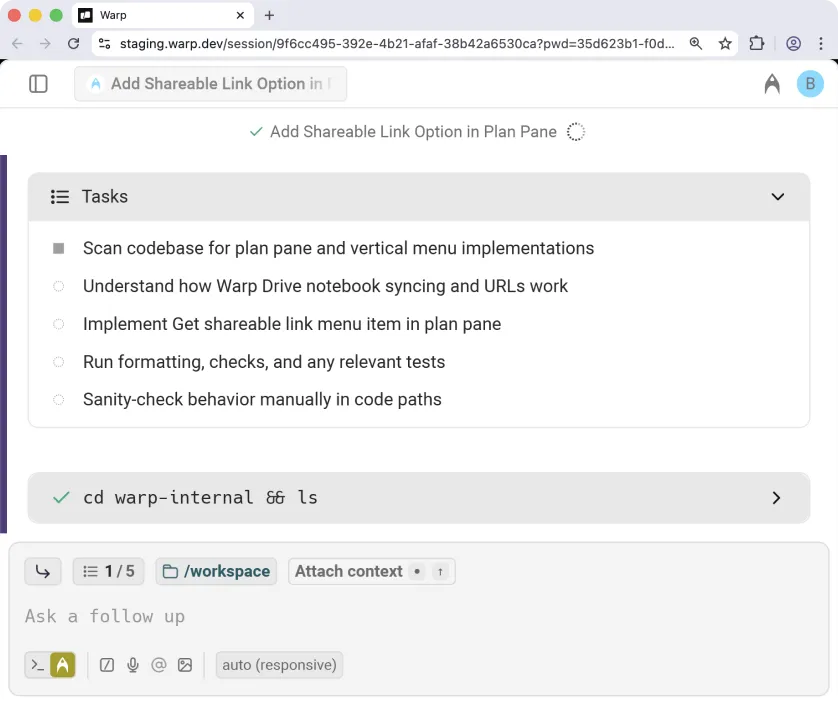 #### Joining the remote session [Section titled “Joining the remote session”](#joining-the-remote-session) Selecting [**Open in Warp**](/agent-platform/cloud-agents/viewing-cloud-agent-runs/) (or the web option) opens the active session. You’ll see: * The agent’s full execution log * The plan pane with the task list * An input box to add clarifying instructions * A real-time view identical to a local Warp task Any instructions you give will interrupt the agent, feed the new context, and resume work. When the task is complete: * Warp commits the changes using your GitHub identity * A pull request is created through the GitHub CLI * The PR includes a clean title and description based on the Linear issue and the agent’s work * A summary and link to the PR appear in the Linear issue Because PRs are created as *you*, this makes code review, auditing, and team collaboration straightforward. *** ### Requirements [Section titled “Requirements”](#requirements) * **Team membership** - The Linear integration requires you to be part of a [Warp team](/knowledge-and-collaboration/teams/). Teams can be created on any plan, including Free. * **Plan and credits** - Your team must be on a plan that supports integrations (Build, Max, or Business) and have at least 20 credits available. See [Access, Billing, and Identity](/agent-platform/cloud-agents/team-access-billing-and-identity/) for details. * **Infrastructure** - By default, agents run on Warp-hosted infrastructure. Enterprise teams can [self-host agents](/agent-platform/cloud-agents/self-hosting/) on their own infrastructure. * **Identity** - You must be logged into Warp with the same email as your Linear workspace. * **GitHub authorization** - You must authorize the Warp GitHub app the first time you trigger an agent. * The repositories involved must be included in your environment and accessible to the Warp GitHub app. * You must have write access to the repo if you want Warp to create PRs on your behalf. *** ### How to configure the integration [Section titled “How to configure the integration”](#how-to-configure-the-integration) Setup involves two steps powered by the [Oz CLI](/reference/cli/). For more instructions, see [Integrations Overview](/agent-platform/cloud-agents/integrations/). #### 1. Create an environment [Section titled “1. Create an environment”](#1-create-an-environment) An environment defines everything the agent needs to run your code: * A **Docker image** (public on Docker Hub) * A set of **GitHub repos** the agent should clone * Optional **setup commands** that run before the agent starts You can create an environment via: * The CLI * The guided flow using `/create-environment` ([Slash Commands](/agent-platform/capabilities/slash-commands/)) For full instructions, see our [Environment Setup](/agent-platform/cloud-agents/integrations/) docs. #### 2. Create the Linear integration [Section titled “2. Create the Linear integration”](#2-create-the-linear-integration) Once your environment exists, create the integration. Alternatively, you can use the CLI: ```plaintext oz integration create linear --environment ``` The CLI will open a browser window prompting you to install the Oz app into your Linear workspace. After installation, the integration becomes available to all members of your Warp team. *** ### Uninstallation instructions [Section titled “Uninstallation instructions”](#uninstallation-instructions) To remove the Oz integration from Linear: 1. Only a Linear team admin can manage app permissions. 2. In Linear, go to **Settings**. 3. Navigate to Agents under the Features section. 4. Select Oz from the list of installed agents. 5. Click **Revoke access** to remove the integration for your workspace. [Uninstalling the Warp Linear integration video](https://www.loom.com/embed/2f1648586d8148dc80561c00a09ca334) After revoking access, Warp will no longer be able to read issues, receive triggers, or create updates in Linear. If you reinstall later, you’ll need to authorize Warp again during setup. Events for a disabled integration can return [`integration_disabled`](/reference/api-and-sdk/troubleshooting/errors/integration-disabled/). ### Troubleshooting [Section titled “Troubleshooting”](#troubleshooting) If something isn’t working as expected—missing repos, PR failures, Linear not detecting Oz, or environment issues—see our [Integrations Troubleshooting](/agent-platform/cloud-agents/integrations/#troubleshooting) page for detailed guidance on GitHub permissions, environment configuration, and common setup problems.
# Integrations quickstart
Canonical page: [/agent-platform/cloud-agents/integrations/quickstart/](https://docs.warp.dev/agent-platform/cloud-agents/integrations/quickstart/)
> Trigger your first agent from Slack in ~15 minutes and get results in-thread.
Oz integrations let you trigger cloud agents directly from the tools your team already uses. This guide walks you through connecting Oz to Slack. Once set up, anyone on your team can tag @Oz in a message or thread to kick off a cloud agent that runs the task and posts results back to the conversation. *** ## Prerequisites [Section titled “Prerequisites”](#prerequisites) * **Eligible plan** - The Slack integration requires a Warp team on Build, Max, or Business plan with at least 20 credits available. See [Access, Billing, and Identity](/agent-platform/cloud-agents/team-access-billing-and-identity/). * **A cloud environment** - Agents run inside a configured environment that includes repos and other dependencies. If you don’t have one yet, follow the [Cloud Agents Quickstart](/agent-platform/cloud-agents/quickstart/) or run `/create-environment` in Warp. * **GitHub authorization** - Warp needs access to your repos to clone code and open PRs. You’ll be prompted to authorize the Warp GitHub app when you first create the integration. *** ## 1. Connect the Slack integration [Section titled “1. Connect the Slack integration”](#1-connect-the-slack-integration) The simplest way to set up the integration is **using the Oz web app**: 1. Navigate to the [Integrations page in the Oz web app](https://oz.warp.dev/integrations). 2. Click **Slack**. 3. Follow the guided flow to select your environment and authorize Oz in your Slack workspace. All members of your Warp team can now use the integration. **Using the Oz CLI instead:** Run `oz integration create` to connect the Slack integration: ```bash oz integration create slack --environment ``` Replace `` with your environment ID (see [Environments](/agent-platform/cloud-agents/environments/) if you need to create one). Find it with `oz environment list` on the Oz CLI or in the [Oz web app](https://oz.warp.dev). The CLI opens a browser window to authorize the Oz app in your workspace. To attach a default prompt that applies to every agent run triggered from this integration, add the `--prompt` flag: ```bash oz integration create slack \ --environment \ --prompt "Always open a draft PR and request review from the team-leads group." ``` ## 2. Tag @Oz in Slack [Section titled “2. Tag @Oz in Slack”](#2-tag-oz-in-slack) In any channel or thread in your Slack workspace, tag @Oz with a task: > @Oz scan the authentication module for security issues and summarize what you find Oz acknowledges the request immediately and starts an agent run in the cloud. You’ll see progress updates appear in the thread as the agent works. You can also tag @Oz inside an existing thread. Oz picks up the full thread history as context automatically, so you can tag it mid-discussion without repeating background. ## 3. Watch the run [Section titled “3. Watch the run”](#3-watch-the-run) While the agent works, progress updates appear directly in the Slack thread. To inspect the run in more detail: * **Click the session link** - Oz posts a link in the thread to open a live terminal view of the agent. Watch in real time, add follow-up instructions, or let it run to completion. * **Go to the [Runs page in the Oz web app](https://oz.warp.dev/runs)** - See the full run transcript: status, commands executed, files changed, and agent output. See [Viewing Cloud Agent Runs](/agent-platform/cloud-agents/viewing-cloud-agent-runs/) for a complete walkthrough. When the task is complete, Oz posts a summary back to the original Slack thread. **Breaking it down:** Oz reads the Slack thread as context, runs the agent inside the environment you configured — with your repos cloned and Docker image running — and returns results where the conversation started, in Slack, without anyone leaving the thread. *** ## Next steps [Section titled “Next steps”](#next-steps) * **Customize agent behavior** - Use a [skill](/agent-platform/cloud-agents/skills-as-agents/) as the base prompt for your integration to give Oz consistent, reusable instructions across every run. * **Trigger agents programmatically** - Use the [API & SDK](/reference/api-and-sdk/) to build custom automations and integrations on top of agents. * **Read the full Slack reference** - [Slack](/agent-platform/cloud-agents/integrations/slack/) covers identity mapping, team access, monitoring runs, troubleshooting, and uninstall instructions.
# GitHub Actions quickstart
Canonical page: [/agent-platform/cloud-agents/integrations/quickstart-github-actions/](https://docs.warp.dev/agent-platform/cloud-agents/integrations/quickstart-github-actions/)
> Set up your first agent in GitHub Actions in ~10 minutes. Run agents as workflow steps to automate code review and issue triage.
Add agents to your GitHub Actions workflows with [`oz-agent-action`](https://github.com/warpdotdev/oz-agent-action). This quickstart walks you through setting up your first GitHub Actions integration: a PR review workflow that automatically analyzes pull requests and posts inline review comments. *** ## Prerequisites [Section titled “Prerequisites”](#prerequisites) * **Warp API key** - Create one in the [Oz web app](https://oz.warp.dev/settings). Use a personal key if the agent should commit as you, or an agent key (which runs as a [cloud agent](/agent-platform/cloud-agents/agents/) on your team) with [team GitHub authorization](/agent-platform/cloud-agents/team-access-billing-and-identity/#team-github-authorization). See [API Keys](/reference/cli/api-keys/) for the full creation flow. * **A GitHub repository with Actions enabled** - The workflow file will live in `.github/workflows/` in your repo. *** ## 1. Add your API key as a GitHub Actions secret [Section titled “1. Add your API key as a GitHub Actions secret”](#1-add-your-api-key-as-a-github-actions-secret) Store your Warp API key as a GitHub Actions secret so workflows can authenticate without exposing the key in your code. 1. In your repository on GitHub, go to **Settings** > **Secrets and variables** > **Actions**. 2. Click **New repository secret**. 3. Set the name to `WARP_API_KEY`. 4. Paste your API key into the **Secret** field. 5. Click **Add secret**. ## 2. Create the workflow file [Section titled “2. Create the workflow file”](#2-create-the-workflow-file) This workflow triggers an agent whenever a PR is opened or marked ready for review. The agent reviews the diff and posts inline comments. Create `.github/workflows/oz-pr-review.yml` in your repository with the following content: ```yaml name: Oz PR review on: pull_request: types: [opened, ready_for_review] permissions: contents: read pull-requests: write jobs: review: runs-on: ubuntu-latest steps: - uses: actions/checkout@v4 - name: Review PR with Oz uses: warpdotdev/oz-agent-action@v1 with: prompt: | Review the code changes on this pull request: 1. Use `git diff origin/${{ github.base_ref }}...HEAD` to identify changes. 2. Analyze the diff for style, security, or correctness issues. 3. Use `gh pr review --comment` to post inline suggestions. warp_api_key: ${{ secrets.WARP_API_KEY }} ``` This workflow listens for pull request events and runs the `oz-agent-action` step, which executes the prompt to review code changes. Commit and push this file to your default branch to activate the workflow. ## 3. Open a pull request [Section titled “3. Open a pull request”](#3-open-a-pull-request) Create a new pull request in your repository to trigger the workflow. To verify the workflow ran: 1. Go to the **Actions** tab in your repository. 2. Click **Oz PR review** in the list of workflows. 3. Select the most recent run to see the agent’s output in the job logs. ## 4. View the run [Section titled “4. View the run”](#4-view-the-run) Each `oz-agent-action` step creates a cloud agent run you can inspect from the Oz dashboard: * **Oz web app** - Go to the [Runs page in the Oz web app](https://oz.warp.dev/runs) to see the full run transcript: status, commands executed, files changed, and agent output. See [Viewing Cloud Agent Runs](/agent-platform/cloud-agents/viewing-cloud-agent-runs/) for a complete walkthrough. * **Warp app** - Open the conversations panel to see the run alongside your other agent activity. When the run completes, the agent posts feedback as inline review comments on the PR. **Breaking it down:** The agent runs in Warp’s cloud infrastructure — not on GitHub’s runners — using the workflow’s GitHub token for repository access. Each run is isolated, tracked, and auditable, just like any manually triggered cloud agent run. *** ## Next steps [Section titled “Next steps”](#next-steps) * **Explore more workflow patterns** - The [oz-agent-action repository](https://github.com/warpdotdev/oz-agent-action) includes ready-to-use consumer workflow templates for responding to `@oz-agent` comments, auto-fixing labeled issues, daily issue summaries, fixing failing CI checks, and suggesting review fixes. Copy any template from `consumer-workflows/` into `.github/workflows/` in your repo. * **Use skills for reusable behavior** - Replace the inline `prompt` with a `skill` parameter to apply consistent, version-controlled instructions across all your CI workflows. See [Skills](/agent-platform/capabilities/skills/). * **Read the full reference** - [GitHub Actions](/agent-platform/cloud-agents/integrations/github-actions/) covers all action inputs, output handling, session sharing for debugging, and troubleshooting.
# Slack integration
Canonical page: [/agent-platform/cloud-agents/integrations/slack/](https://docs.warp.dev/agent-platform/cloud-agents/integrations/slack/)
> Trigger agents from Slack to run cloud tasks, track progress, and create pull requests.
The Slack integration lets your team trigger cloud agents directly from Slack conversations. Tag @Oz in a message or DM the bot to start a cloud agent that clones your repos, works through the task, posts progress updates, and opens pull requests back into the same thread. ### Overview [Section titled “Overview”](#overview) The Slack integration lets your team trigger agents directly from conversations in Slack. When you tag **@Oz** in a message or DM the bot, Warp will start an agent in the cloud, clone the repositories defined in your environment, and begin working through the task with full context from your codebase and the Slack thread. Agents keep you updated as they work, generate pull requests using your GitHub account, and share a link to a live remote session so you can watch or guide the workflow in real time. This page explains what the integration does, how it behaves inside Slack, and how to configure it for your Warp team. *** ### Using Oz inside Slack [Section titled “Using Oz inside Slack”](#using-oz-inside-slack) Tagging @Oz in a message or thread starts an agent run. The agent clones the repositories in your environment, sets up your development environment using your Docker image and setup commands, and begins working with the context from the Slack conversation. Oz posts updates back into the thread as it progresses so you can follow along without opening your terminal. Agents also share a link to an interactive remote session using Warp’s [cloud agent session sharing](/agent-platform/cloud-agents/viewing-cloud-agent-runs/). Opening this link gives you a live terminal view of the cloud agent running your code. You can interrupt or steer the agent by providing additional instructions, and the agent will pick up where it left off with the new context. When the work is complete, Warp will create a pull request on your behalf using your GitHub permissions and send a summary and PR link back to the original Slack thread. ### Triggering an agent [Section titled “Triggering an agent”](#triggering-an-agent) You can start an agent in three ways: * **Tag @Oz in a channel message** Describe the task, and Oz will begin working with full context from the thread. * **Tag @Oz inside a thread** Oz will automatically collect the thread’s prior messages and use them as context. * **DM Oz directly** Useful for private tasks or experimentation. Oz will acknowledge the request in Slack and start running the task immediately. ### Monitoring agent progress [Section titled “Monitoring agent progress”](#monitoring-agent-progress) Agents keep you informed directly in Slack via: * Activity updates showing progress throughout the run * An evolving task list and timeline * Checkpoints indicating major steps completed * A direct link to the Oz run in the [Oz web app](/agent-platform/cloud-agents/oz-web-app/), where you can view the full run transcript and metadata * A session-sharing link that opens a live terminal view of the remote agent [Cloud agent session sharing](/agent-platform/cloud-agents/viewing-cloud-agent-runs/) works in Warp or in your browser and supports multiple teammates joining the same live session. ### Joining the live remote session [Section titled “Joining the live remote session”](#joining-the-live-remote-session) Selecting `View agent` opens the active agent session. Inside the session you’ll see: * The agent’s full execution log * The plan/task list * Real-time output just like a local Warp task * An input box for follow-up instructions Any instruction you type will interrupt the agent, incorporate the new guidance, and then resume execution. This is the best way to debug or steer multi-step tasks. ### Pull requests and output [Section titled “Pull requests and output”](#pull-requests-and-output) Once the agent finishes, it will: * Commit changes using your GitHub account * Create a pull request via the GitHub CLI * Generate a clean title and description referencing your Slack request * Post the summary and PR link directly into the Slack thread Because PRs are created as you, the workflow slots seamlessly into your team’s existing review process. *** ### Requirements [Section titled “Requirements”](#requirements) * **Team membership** - The Slack integration requires you to be part of a [Warp team](/knowledge-and-collaboration/teams/). Teams can be created on any plan, including Free. * **Plan and credits** - Your team must be on a plan that supports integrations (Build, Max, or Business) and have at least 20 credits available. See [Access, Billing, and Identity](/agent-platform/cloud-agents/team-access-billing-and-identity/) for details. * **Infrastructure** - By default, agents run on Warp-hosted infrastructure. Enterprise teams can [self-host agents](/agent-platform/cloud-agents/self-hosting/) on their own infrastructure. * **Identity** - You must be logged into Warp with the same email used in your Slack workspace. * **GitHub authorization** - You must authorize the **Warp GitHub app** the first time you trigger a Slack integration request. * The repositories involved must be included in your environment and accessible to the Warp GitHub app. * You must have write access for Warp to open PRs on your behalf. ### How to configure the Slack integration [Section titled “How to configure the Slack integration”](#how-to-configure-the-slack-integration) Setup involves two steps, powered by the [Oz CLI](/reference/cli/). #### 1. Create an environment [Section titled “1. Create an environment”](#1-create-an-environment) An environment defines everything the agent needs to run your code in the cloud: * A Docker image (public on Docker Hub) * The GitHub repos the agent should clone * Optional setup commands that run before the agent starts Create an environment via: * **Oz CLI** ```bash oz environment create \ --name \ --docker-image \ --repo \ --setup-command "" ``` * **Guided setup using `/create-environment`** ( [Slash Commands](/agent-platform/capabilities/slash-commands/)) This flow analyzes your repos, recommends a Docker image, suggests setup commands, and can build + push a custom image if needed. See the [Environment Setup](/agent-platform/cloud-agents/integrations/) docs for detailed instructions. #### 2. Create the Slack integration [Section titled “2. Create the Slack integration”](#2-create-the-slack-integration) Once your environment is ready, create the integration. Alternatively, use the CLI: ```plaintext oz integration create slack --environment ``` The CLI will open a browser window to install the Oz app into your Slack workspace. After installation, the integration becomes available to all members of your Warp team. You can optionally attach a custom prompt that is applied to every agent run: ```plaintext oz integration create slack \ --environment \ --prompt "Always prefix PR titles with '[WARP]' and include detailed test steps." ``` ### Identity mapping and team access [Section titled “Identity mapping and team access”](#identity-mapping-and-team-access) * Integrations are scoped to your Warp team. * Any teammate in the same Slack workspace and Warp team can use the integration. * Warp maps Slack users to Warp accounts by email address. * Teammates must individually authorize GitHub on their first run. *** ### Uninstallation instructions [Section titled “Uninstallation instructions”](#uninstallation-instructions) To remove the Oz app from your Slack workspace: 1. Open Slack and go to **Apps** in the left sidebar. 2. Search for Oz. 3. Select the app, then open the **About** tab. 4. Click **Configuration**. This will open your workspace’s app configuration page in the browser. 5. Scroll to the bottom and select **Remove App**. 6. Confirm the removal.  The Oz Slackbot in Slack.  Once removed, Slack will immediately disable the integration for all teammates. Events for a disabled integration can return [`integration_disabled`](/reference/api-and-sdk/troubleshooting/errors/integration-disabled/). ### Troubleshooting [Section titled “Troubleshooting”](#troubleshooting) If something isn’t working—missing repos, Slack not detecting @Oz, PR failures, or environment configuration issues—see the [Integrations Troubleshooting](/agent-platform/cloud-agents/integrations/#troubleshooting) page. It covers: * GitHub authorization and repo access * Docker image pull errors * Environment visibility * Email and identity mismatches * Integration installation issues
# Managing cloud agents
Canonical page: [/agent-platform/cloud-agents/managing-cloud-agents/](https://docs.warp.dev/agent-platform/cloud-agents/managing-cloud-agents/)
> Monitor and manage agent activity across your team with Warp's Agent Management Panel and the Oz web app's Runs page.
Warp provides two management surfaces for tracking and observing agent activity across your account and, where applicable, your team: the **Agent Management Panel** in the Warp app and the [**Runs** page in the Oz web app](/agent-platform/cloud-agents/oz-web-app/#runs), which also works on mobile devices. Use these surfaces as the starting point for real-time agent observability in Warp. They help you see which agents are active, which runs are blocked or failed, where each run started, and which session link opens the prompt, plan, commands, logs, outputs, and follow-up messages behind the work. The Agent Management Panel and Oz web app Runs page are designed to answer, at a glance: * Which agents are active or have been running recently. * Which runs are working, blocked, failed, succeeded, or canceled. * Where an agent run was triggered from, such as a local agent conversation, the Oz CLI, Slack, Linear, a schedule, or the API. * How parent and child runs relate in orchestrated workflows. * Which session to open when you need prompt, plan, command, log, output, or follow-up context. * How many credits those runs consumed. Warp’s agent observability is run- and session-oriented. It is not a replacement for full APM, OpenTelemetry, or Datadog-style tracing across arbitrary agent frameworks. Use Warp to track agent run status, trigger/source, owner, parent-child relationships, transcripts, commands, logs, outputs, and replayable session links. [Managing cloud agent runs video](https://www.loom.com/embed/679c267ddd2d44519abf79edcb1122c7) These management surfaces include your **local (interactive) agents** and [cloud agent](/agent-platform/cloud-agents/overview/) runs. 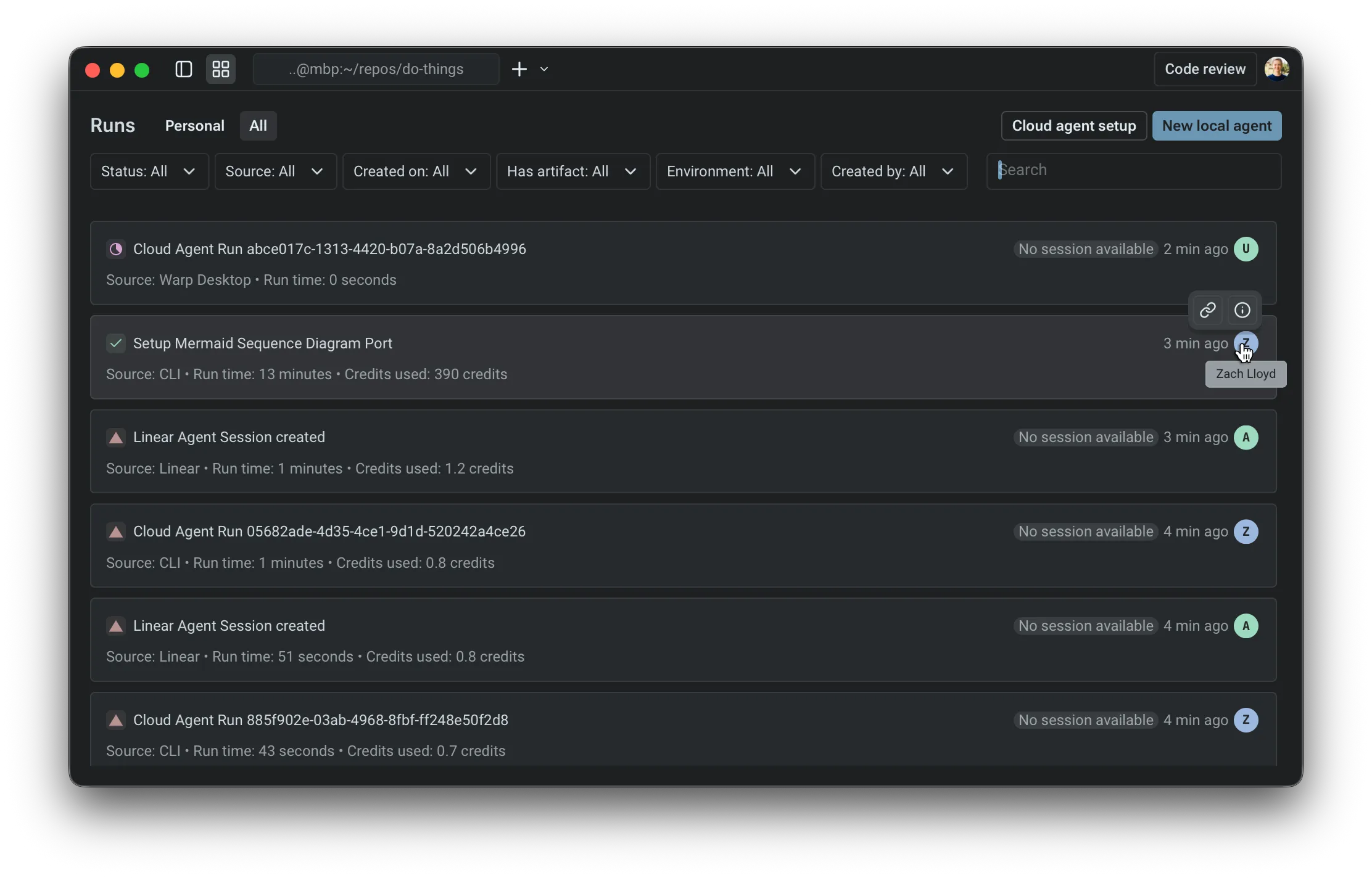 Warp’s Agent Management Panel showing interactive and cloud agent runs. ### What appears in the agent management surfaces [Section titled “What appears in the agent management surfaces”](#what-appears-in-the-agent-management-surfaces) The Agent Management Panel and Oz web app Runs page include two categories of agent activity. #### Interactive agents [Section titled “Interactive agents”](#interactive-agents) * Initiated from the Warp app. * The conversation is owned by you. It opens locally in Warp, and can be shared via a link when needed. * Credit usage reflects inference. #### Cloud agent runs [Section titled “Cloud agent runs”](#cloud-agent-runs) * Background executions initiated by triggers such as integrations and automations (for example: Slack, Linear, schedules, GitHub Actions, or API/CLI invocations). * Each run produces a shared session that can be inspected after completion (including logs, messages, and outputs). * Credit usage reflects inference + compute, shown as a single combined value in this view. Caution All usage rolls up into Warp’s standard [**credit**](/support-and-community/plans-and-billing/credits/) system. In the **Personal** tab, you can view all of the interactive and cloud agent conversations that you own. In the **All** tab, you can see everything from the personal tab, as well as any cloud agent sessions that are shared with you by your teammates; right now, this only includes things triggered from integrations. *** ### Inspect or review an agent run [Section titled “Inspect or review an agent run”](#inspect-or-review-an-agent-run) Use the Agent Management Panel or Oz web app Runs page as the starting point when a teammate asks, “What did the agent do?” 1. In the agents list, use the filter menu to filter by source, day, creator, or status. 2. Select the matching row to open the shared session or local conversation. 3. Inspect the prompt, plan, commands, logs, outputs, and follow-up messages where available. 4. Share the session link with teammates if they need to review the same context. 5. For PR-producing workflows, include the session link alongside the PR link so reviewers can inspect both the code diff and the agent’s execution context. For cloud agent runs, the session opens in [Cloud agent session sharing](/agent-platform/cloud-agents/viewing-cloud-agent-runs/). For local interactive agents, the conversation opens in Warp and can be shared with [Agent Session Sharing](/agent-platform/local-agents/session-sharing/). *** ### The agents list [Section titled “The agents list”](#the-agents-list) Each row represents a single item in the agents list (either an interactive conversation or a cloud agent run). The list is intended to be scannable: you should be able to understand “what happened” without opening anything. #### Fields you’ll see [Section titled “Fields you’ll see”](#fields-youll-see) **Source** Where the agent was launched from. Common sources include: * **Interactive:** an [agent conversation](/agent-platform/local-agents/overview/) started in the Warp app * **CLI**: a local run triggered by the [Oz CLI](/reference/cli/) * **API**: a run triggered by [Warp’s API](/reference/api-and-sdk/) * **Slack / Linear**: runs triggered by [integrations](/agent-platform/cloud-agents/integrations/) * **Scheduled**: runs triggered on a [cron schedule](/agent-platform/cloud-agents/triggers/scheduled-agents/) **Status** Warp uses a small set of statuses to help you quickly identify what needs attention: | Status | Icon | Description | | -------------------------------------------------------------------- | ---- | -------------------------------------------------------------------------------- | | `Working` | N/A | in progress (may include queued / running states) | | `Blocked` | 🟨 | *(interactive only)*the conversation is waiting on user input or a required step | | `Canceled` | ⬜️ | (interactive only) the interactive conversation was canceled before completion | | [`Failed / Errored`](/reference/api-and-sdk/troubleshooting/errors/) | 🔺 | something went wrong (applies to both interactive and cloud agent runs) | | `Success` | ✅ | completed successfully (applies to both interactive and cloud agent runs) | **Duration (for cloud agent tasks)** * Shown for cloud agent runs to indicate how long the task executed. * Note: Interactive conversations generally don’t map cleanly to a single “run duration,” so this is currently omitted. *** ### Inspecting an agent [Section titled “Inspecting an agent”](#inspecting-an-agent) **The primary interaction is simple:** * Clicking a cloud agent row opens the [shared session](/agent-platform/cloud-agents/viewing-cloud-agent-runs/) for that run (prompt, plan, commands, logs, messages, and output where available). * Clicking an interactive row opens the conversation locally in the Warp app. This makes the agents list a navigation surface: find the thing you care about, click once, and you’re in the right context to inspect or continue work. ### Filtering [Section titled “Filtering”](#filtering) In both *Personal* and *All* views, you can open the filter menu and filter by: * Source (interactive, API, CLI, Slack/Linear, scheduled) * Day of creation * Creator * Status This is the fastest way to isolate “everything that failed today,” “runs from Slack,” or “what a specific teammate triggered via integrations.” *** ### Orchestrated runs (parent and child) [Section titled “Orchestrated runs (parent and child)”](#orchestrated-runs-parent-and-child) When a parent agent spawns one or more child agents through [multi-agent orchestration](/agent-platform/cloud-agents/orchestration/), the parent and each child are tracked as separate runs. Where you see them depends on the surface: * **Local children in the Warp app** - while you’re viewing the parent agent, an orchestration pill bar above the agent view header shows one pill per child with a live status badge. Click a child pill to switch the pane to that child’s conversation in place; click the parent pill - or the breadcrumb that replaces the pill bar while you’re viewing a child - to return. Local children don’t appear as separate rows in the Agent Management Panel list. * **Cloud children in the Warp app** - appear in the Agent Management Panel list as their own rows alongside the parent and other runs. Filter by source, status, or creator to isolate them. * **Cloud children in the [Oz web app](/agent-platform/cloud-agents/oz-web-app/)** - grouped under the parent’s row on the Runs page, and surfaced together inside the parent’s detail pane on a **Sub-agents** tab. The parent’s own status reflects only its work - a parent can finish successfully while a child is still running or has failed. To verify that an orchestration completed, check each child individually from the pill bar (in the Warp app) or the **Sub-agents** tab (in the Oz web app). ## Related pages [Section titled “Related pages”](#related-pages) * [Cloud agents overview](/agent-platform/cloud-agents/overview/) — What cloud agents are and when to use them. * [Multi-agent orchestration](/agent-platform/cloud-agents/orchestration/) — Parent/child model, run state transitions, and common orchestration patterns. * [Viewing cloud agent runs](/agent-platform/cloud-agents/viewing-cloud-agent-runs/) — Open and inspect a remote cloud agent run. * [Handoff between local and cloud agents](/agent-platform/cloud-agents/handoff/) — Move agent work between local and cloud, or continue a finished cloud run. * [Oz web app](/agent-platform/cloud-agents/oz-web-app/) — Manage runs and schedules from any browser.
# MCP Servers for cloud agents
Canonical page: [/agent-platform/cloud-agents/mcp/](https://docs.warp.dev/agent-platform/cloud-agents/mcp/)
> Connect cloud agents to external tools, APIs, and internal services using MCP servers.
Cloud agents can call external tools through [Model Context Protocol (MCP) servers](/agent-platform/capabilities/mcp/). This lets agents reach beyond the terminal to automatically interact with systems like GitHub, dbt, Sentry, or any custom internal service, whenever the workflow requires it. ## When to use MCP servers [Section titled “When to use MCP servers”](#when-to-use-mcp-servers) Add MCP servers to a cloud agent when it needs to: * Read from or write to an external API (issue trackers, monitoring tools, cloud services) * Call local processes that expose MCP endpoints * Use internal developer tools that you’ve wrapped in an MCP interface The agent calls MCP tools automatically based on what the task requires, without the need for explicit instruction. ## How MCP configuration works [Section titled “How MCP configuration works”](#how-mcp-configuration-works) You can supply MCP configuration in two ways: * **At run time** — pass `--mcp` when calling `oz agent run` or `oz agent run-cloud`. See [MCP Servers](/reference/cli/mcp-servers/) in the CLI reference for the full syntax. * **In an agent config file** — define `mcp_servers` directly in a YAML or JSON agent config file (passed with `-f / --file`). This is the recommended approach for repeatable workflows. ## Configuration schema [Section titled “Configuration schema”](#configuration-schema) Each MCP server entry is keyed by a name you choose. A server config must have **exactly one** transport type: | Transport | Field(s) | When to use | | --------------------- | ----------------- | -------------------------------------------------------------- | | Warp-shared server | `warp_id` | Reference an MCP server already configured in Warp by its UUID | | Stdio (local process) | `command`, `args` | Launch a local executable as an MCP server | | Streamable HTTP / SSE | `url` | Connect to a remote or locally hosted MCP endpoint | ### Supported fields [Section titled “Supported fields”](#supported-fields) * **`warp_id`** — UUID of a Warp-shared MCP server (find UUIDs with `oz mcp list` or from **Settings** > **Agents** > **MCP servers**) * **`command`** — Executable to launch (stdio transport) * **`args`** — Arguments passed to `command` (only valid with `command`) * **`env`** — Environment variables passed to the process (only valid with `command`) * **`url`** — HTTP or HTTPS endpoint URL (streamable HTTP or SSE transport) * **`headers`** — HTTP headers sent with requests (only valid with `url`) You may define any number of MCP servers in a single config. ### Example configuration [Section titled “Example configuration”](#example-configuration) ```json { "github": { "url": "https://mcp.example.com/github" }, "dbt": { "command": "uvx", "args": ["dbt-mcp"], "env": { "DBT_HOST": "https://example.us1.dbt.com", "DBT_SERVICE_TOKEN": "{{DBT_SERVICE_TOKEN}}" } } } ``` ## Using MCP servers in an agent config file [Section titled “Using MCP servers in an agent config file”](#using-mcp-servers-in-an-agent-config-file) For repeatable cloud agent workflows, declare your MCP servers inside the agent config file passed to `-f / --file`: ```json { "name": "my-production-agent", "model_id": "claude-sonnet-4", "system_prompt": "You are a helpful assistant focused on backend development.", "environment_id": "SVhg783GBFQHk1OfdPfFU9", "mcp_servers": { "github": { "url": "https://mcp.example.com/github" }, "dbt": { "command": "uvx", "args": ["dbt-mcp"], "env": { "DBT_HOST": "https://example.us1.dbt.com", "DBT_SERVICE_TOKEN": "{{DBT_SERVICE_TOKEN}}" } } } } ``` Pass this file when running a cloud agent: ```sh oz agent run-cloud --environment -f my-agent-config.json --prompt "Check for regressions in the last deploy" ``` ## Requirements and defaults [Section titled “Requirements and defaults”](#requirements-and-defaults) * MCP configuration must be valid JSON, or YAML when embedded in a broader agent config file. * If `mcp_servers` is omitted, the agent runs with no MCP servers enabled. * Each server name must be unique and non-empty. * The `warp_id` transport is validated against your Warp account. Referenced servers must be accessible to you. ## Limitations [Section titled “Limitations”](#limitations) Caution Warp does not currently support OAuth-based MCP servers for cloud agents. This means MCP servers that require browser-based authentication, like some hosted Figma configurations, cannot be used directly. As a workaround, you can pass Figma mockups as **image context** to the agent, which can then build and test UI against those images. ## Learn more [Section titled “Learn more”](#learn-more) * [Connect developer tools to agents with MCP workflows](/guides/external-tools/using-mcp-servers-with-warp/) — choose between local, cloud, and shared MCP setup paths * [MCP Servers (CLI reference)](/reference/cli/mcp-servers/) — how to pass MCP configuration using the `--mcp` flag * [Model Context Protocol (MCP)](/agent-platform/capabilities/mcp/) — configuring MCP servers in Warp for local agents * [Environments](/agent-platform/cloud-agents/environments/) — set up the runtime context (repo, image, startup commands) for cloud agent tasks * [Secrets](/agent-platform/cloud-agents/secrets/) — store and inject credentials into agent runs safely
# Multi-agent orchestration
Canonical page: [/agent-platform/cloud-agents/orchestration/](https://docs.warp.dev/agent-platform/cloud-agents/orchestration/)
> Coordinate parent and child agents across local and cloud runs to build supervisor/worker, fan-out, critic, DAG, and swarm workflows on the Oz Platform.
Multi-agent orchestration lets one agent spawn and coordinate other agents to parallelize work, delegate specialized tasks, or verify another agent’s output. The parent/child model works from the Warp app, the [Oz CLI](/reference/cli/), and the [Oz API](/reference/api-and-sdk/), and supports local, cloud, and mixed execution. Watch this walkthrough to see how a cloud agent can coordinate a team of agents in the cloud.  This page covers the orchestration model and the patterns it supports. To learn how to start an orchestrated run, see [Running orchestrated agents](/agent-platform/cloud-agents/orchestration/multi-agent-runs/). ## The parent/child model [Section titled “The parent/child model”](#the-parentchild-model) An orchestrated workflow always has one **parent agent** and one or more **child agents**. * **Parent agent** - the agent that decides what work needs to be done, spawns child agents, and (optionally) merges their results. Any agent can become a parent the first time it spawns a child. * **Child agent** - an agent spawned by a parent with its own prompt, environment, and (optionally) a different model or agent runtime. A child runs its own work and reports back; it does not spawn its own children. Orchestrations today are exactly one level deep: a parent and its direct children. The Warp app, the [Oz web app](/agent-platform/cloud-agents/oz-web-app/), and the [Oz API](/reference/api-and-sdk/) render that single level. The parent and each child each have an independent **run** with its own lifecycle, transcript, conversation, and credit usage. ### Where parent and child agents can run [Section titled “Where parent and child agents can run”](#where-parent-and-child-agents-can-run) The parent and child don’t have to run in the same place. Orchestration supports four combinations: * **Local → local** - a [Warp Agent](/agent-platform/local-agents/overview/) conversation in the Warp app spawns child Warp Agent conversations on the same machine. Useful for trying orchestration patterns without spinning up cloud infrastructure. * **Local → cloud** - a local parent spawns one or more cloud children that run in [environments](/agent-platform/cloud-agents/environments/) on Warp-hosted or self-hosted infrastructure. The parent keeps working while children execute in parallel. * **Cloud → cloud** - a cloud parent spawns cloud children that each run in their own environment. This is the canonical pattern for review swarms, large fan-outs, and any orchestration triggered from Slack, Linear, a schedule, or the API. * **Cloud → cloud-local** - a cloud parent spawns children that run inside the parent’s own cloud environment, rather than each child getting its own environment. Useful when children need to share state with the parent (a filesystem, a long-running process, a shell session) or when spinning up an environment per child would be wasteful. Children can also run with a different agent runtime than the parent. A parent running with the default Warp Agent can spawn children that run with [Claude Code](/agent-platform/cli-agents/claude-code/) or [Codex](/agent-platform/cli-agents/codex/), and vice versa. ## Run state transitions [Section titled “Run state transitions”](#run-state-transitions) Each run progresses through a small set of states. The parent observes these transitions to decide what to do next - keep waiting, send a follow-up, spawn a replacement, or finish. The main user-visible states a child run can reach are: * **`INPROGRESS`** - the run is actively executing (or has restarted after being blocked). * **`SUCCEEDED`** - the run completed successfully. * **`FAILED`** - the run hit a terminal failure. * **`BLOCKED`** - the run is waiting on a user action (for example, command approval or a permission request). * **`ERROR`** - the run encountered an error during startup or execution. * **`CANCELLED`** - the run was cancelled before reaching a terminal state. Track run state transitions in these places: * **The parent’s transcript** - the parent agent receives child state transitions as it runs and reflects them in its own conversation. * **The orchestration pill bar** - in the Warp app, while you’re viewing the parent agent, a horizontal pill bar above the agent view header shows the parent on the left and one pill per child. Each pill displays the child’s name and a status badge that updates live. Click a pill to switch the pane to that child’s conversation in place; click the parent pill to switch back. * **The Oz web app** - cloud children appear under the parent on the [Runs page](https://oz.warp.dev/runs) and in the parent’s **Sub-agents** tab, with their status updating live. * **The Oz API** - `GET /agent/runs/{runId}` returns the latest state of any run, and `GET /agent/runs?ancestor_run_id=PARENT_RUN_ID` lists every descendant in one call. ## Messaging between agents [Section titled “Messaging between agents”](#messaging-between-agents) Orchestration is built on a durable, server-backed message bus. Every agent in an orchestration - parent and children - has its own inbox addressed by its agent ID, and the parent and children send each other short, structured messages to coordinate, hand off work, and stay in sync as they run. This is how parallel agents stay consistent without sharing mutable state. Each run owns its own conversation, working directory or environment, and credit usage; agents don’t read each other’s transcripts or live working trees. Instead, they exchange explicit messages whenever they need to communicate a decision, a result, or a question. Messages and run state transitions share a global sequence number so the parent never observes a child’s `SUCCEEDED` state before the message that produced the result. The same messaging infrastructure works across every combination of agent runtimes and execution locations: * **Harness-agnostic** - the mailbox is the same whether the recipient runs the default Warp Agent, [Claude Code](/agent-platform/cli-agents/claude-code/), [Codex](/agent-platform/cli-agents/codex/), or another agent runtime. A parent running with one harness can message a child running with another, in either direction. * **Cross-location** - the agent ID is the only address that matters. A local parent can message a cloud child, a cloud parent can message a local-to-cloud child running inside its own environment, and cloud parents can fan out messages to cloud children running in different environments. * **Resumable** - a child whose current run has reached a terminal state (`SUCCEEDED`, `FAILED`, `CANCELLED`, or `ERROR`) is not gone. It is still addressable by its agent ID and will wake up to handle follow-up instructions when the parent sends a new message. Alongside messages, every run emits **lifecycle events** on the same infrastructure when its state changes - the six states listed in [Run state transitions](#run-state-transitions). The parent observes these events to decide what to do next (keep waiting, send a follow-up, spawn a replacement, finish) without polling any child. Use messages for coordination signals - handoffs, decisions, blocked-on-input requests, status updates, and final results - rather than for piping full transcripts around. The parent’s prompt to a child and the child’s final output carry the substance of the work; messages are how the agents talk *about* the work as it happens. ## Common patterns [Section titled “Common patterns”](#common-patterns) The following patterns show common ways to structure parent and child agents, depending on whether you need parallel execution, review, dependency ordering, or loose coordination. ### Supervisor / worker [Section titled “Supervisor / worker”](#supervisor--worker) A parent supervisor agent breaks the task into a queue of work items, spawns worker children to claim and complete each item, and writes a summary when the queue is empty. Use this when the task is naturally divisible and you want a single agent to own coordination. ### Fan-out / fan-in [Section titled “Fan-out / fan-in”](#fan-out--fan-in) The parent spawns N children in parallel, each with a sharded prompt (one module, one file set, one test target, one model), then waits for all of them to complete and merges their results. Use this for large refactors, repo-wide migrations, or running the same task across multiple targets. ### Critic / verifier [Section titled “Critic / verifier”](#critic--verifier) The parent (the “writer”) proposes a solution, then spawns a critic child to review it. The critic returns notes; the writer revises; the cycle repeats until the critic approves or a budget is exhausted. Useful when correctness matters more than throughput. ### Review swarm (cloud → cloud) [Section titled “Review swarm (cloud → cloud)”](#review-swarm-cloud--cloud) A [scheduled](/agent-platform/cloud-agents/triggers/scheduled-agents/) or webhook-triggered parent spawns one cloud child per open pull request to run reviews in parallel. Each child posts its findings as a comment and exits. The parent fans in the results and posts a summary back to the triggering system. ### DAG [Section titled “DAG”](#dag) The parent encodes a directed acyclic graph of subtasks where some nodes depend on the outputs of others. It spawns ready nodes, waits on their state transitions, and spawns dependents as upstream nodes complete. Use this when the workflow has explicit ordering constraints (build → test → deploy, for example). ### Swarm [Section titled “Swarm”](#swarm) A flat group of peer agents discover each other through messaging and coordinate without a strict hierarchy. The parent acts more like a coordinator than a supervisor. Use sparingly - swarms are powerful but harder to debug than hierarchical patterns. ## Approval mode [Section titled “Approval mode”](#approval-mode) Two slash commands surface orchestration in the Warp app, and both require explicit user approval before any children launch: * **`/orchestrate`** asks the agent to apply orchestration to the task. The agent proposes a breakdown - number of children, prompts, environments, parallelism - and waits for approval. The API equivalent is setting `mode: orchestrate` on `POST /agent/runs`. * **`/plan`** asks the agent to research and produce a plan for a complex task. The agent always considers orchestration while planning, and proposes it as part of the plan when the work would benefit. When orchestration is part of the plan, the plan card surfaces an inline **orchestration config** block above the plan with model, harness, environment, host, and parallelism pickers; you can adjust the config and then approve the plan to start spawning children. The API equivalent is `mode: plan`. In both cases, approval is required before the parent launches children. Approving an orchestration also approves the run-wide config (model, harness, environment, host) that every child inherits unless the parent overrides it per child. ## Observability [Section titled “Observability”](#observability) Because every parent and child is tracked as its own conversation or run, the existing observability surfaces work without changes: * **[Managing cloud agents](/agent-platform/cloud-agents/managing-cloud-agents/)** - in the Warp app, the orchestration pill bar above the agent view header lets you switch between the parent and each child while you’re viewing the parent. Cloud children also appear as their own rows in the Agent Management Panel list. * **[Oz web app](/agent-platform/cloud-agents/oz-web-app/)** - the Runs page groups cloud children under the parent’s row, and the parent’s detail pane adds a **Sub-agents** tab. * **[Oz API](/reference/api-and-sdk/)** - list every descendant of a parent in one call and fetch any run with its conversation, transcript, and artifacts. See [Running orchestrated agents](/agent-platform/cloud-agents/orchestration/multi-agent-runs/#retrieving-conversations-and-artifacts). * **[Agent notifications](/agent-platform/capabilities/agent-notifications/)** - in-app notifications fire on the parent agent’s conversation only. Use the pill bar or the **Sub-agents** tab to drill into a specific child. ## Related pages [Section titled “Related pages”](#related-pages) * [Running orchestrated agents](/agent-platform/cloud-agents/orchestration/multi-agent-runs/) - how to start an orchestrated run from the CLI, slash command, web app, or API. * [How to run multiple AI coding agents](/guides/agent-workflows/how-to-run-multiple-ai-coding-agents/) - practical guidance for splitting tasks, assigning worktrees, validating child output, and handing work off for review. * [Oz API and SDK](/reference/api-and-sdk/) - REST endpoints for runs, conversations, and artifacts. * [Cloud agents overview](/agent-platform/cloud-agents/overview/) - what a cloud agent run is and how it fits into the Oz Platform. * [Deployment patterns](/agent-platform/cloud-agents/deployment-patterns/) - higher-level deployment models that orchestration composes with.
# Running orchestrated agents
Canonical page: [/agent-platform/cloud-agents/orchestration/multi-agent-runs/](https://docs.warp.dev/agent-platform/cloud-agents/orchestration/multi-agent-runs/)
> Start multi-agent orchestrations from the Warp app, the Oz CLI, the Oz web app, or the Oz API, and inspect parent and child conversations and artifacts.
An orchestrated run starts with a parent agent that spawns one or more child agents. You can start a parent from the Warp app, the Oz CLI, the Oz web app, or the Oz API. Use orchestrated runs to review a plan before fan-out, execute children locally or in the cloud, and inspect parent and child conversations as they work. Watch this walkthrough to see how to start and inspect an orchestrated agent run from Warp.  ## Before you start [Section titled “Before you start”](#before-you-start) Pick where the parent will run. Every orchestration starts with a single parent that spawns children: * **Parent in the Warp app** - use the `/orchestrate` or `/plan` slash command. This is the fastest way to try orchestration. * **Parent in the cloud** - trigger the parent through the Oz CLI (`oz agent run-cloud`), the [Oz API](/reference/api-and-sdk/), or any integration (Slack, Linear, schedule). The parent runs in an environment and spawns children from there. Cloud parents that spawn cloud children need access to one or more [environments](/agent-platform/cloud-agents/environments/) the children can run in. ## Starting an orchestrated run from Warp [Section titled “Starting an orchestrated run from Warp”](#starting-an-orchestrated-run-from-warp) In the Warp app, open the agent input and type `/orchestrate` followed by your task. The agent enters `orchestrate` mode and proposes a breakdown before spawning any children. ```text /orchestrate Migrate every test file in this repo from Jest to Vitest. Spawn one child per top-level directory under packages/. ``` The agent responds with a proposal that describes: * How many children it intends to spawn. * Each child’s prompt and environment. * What it expects each child to return. Approve the proposal to start spawning children. The parent’s transcript renders each child as it spawns, and an **orchestration pill bar** appears above the agent view header showing the parent on the left and one pill per child. Each pill displays the child’s name and a live status badge. Click a child pill to switch the pane to that child’s conversation in place; click the parent pill - or the breadcrumb that replaces the pill bar while you’re viewing a child - to return to the parent. ### Letting the agent propose orchestration during /plan [Section titled “Letting the agent propose orchestration during /plan”](#letting-the-agent-propose-orchestration-during-plan) You can also reach the same approval flow from `/plan`. When you ask the agent to plan a complex task, it considers orchestration as part of planning and proposes it whenever the work would benefit. When that happens, the plan card includes an inline **orchestration config** block above the plan content with model, harness, environment, host, parallelism, and auth pickers. Edit the config as needed, review the plan’s orchestration section (number of children, what each child owns), and approve the plan to start spawning children with the configured run-wide settings. ### Spawning cloud children from a local parent [Section titled “Spawning cloud children from a local parent”](#spawning-cloud-children-from-a-local-parent) A local parent - a Warp Agent conversation in the Warp app - can spawn cloud children by specifying an environment for each child. The parent asks for the environment if it isn’t already clear from context. You can select any environment from your account or team. Cloud children inherit the parent’s authentication; the same credit and credentials rules from the [Cloud agents overview](/agent-platform/cloud-agents/overview/) apply. ## Starting an orchestrated run from the CLI [Section titled “Starting an orchestrated run from the CLI”](#starting-an-orchestrated-run-from-the-cli) Use `oz agent run-cloud` to start a parent and let the agent itself spawn children as it works. ```bash oz agent run-cloud \ --prompt "Review the open pull requests in this repo and post a summary on each. Spawn one child agent per PR." \ --environment YOUR_ENVIRONMENT_ID ``` This is the recommended way to fan work out from the CLI: the parent decides how many children to spawn, links them to itself automatically, and you get a single parent run ID back to follow. ## Starting an orchestrated run from the Oz web app [Section titled “Starting an orchestrated run from the Oz web app”](#starting-an-orchestrated-run-from-the-oz-web-app) In the Oz web app’s [**Runs** page](https://oz.warp.dev/runs): 1. Click **New run** in the header. 2. Select an environment and, optionally, a skill that performs orchestration. 3. Enter the parent’s prompt. Describe both the high-level task and the orchestration shape you want (number of children, parallelism, success criteria). 4. Click **Run**. The parent run starts and children appear in the Runs list as the parent spawns them, nested under the parent row. ## Starting an orchestrated run from the API [Section titled “Starting an orchestrated run from the API”](#starting-an-orchestrated-run-from-the-api) Spawn the parent with `POST /agent/runs`. Children can either be spawned by the parent agent at runtime, or you can spawn each child explicitly from your code and link it to the parent with `parent_run_id`. Once they’re running, coordination between the parent and its children flows through Warp’s durable agent-to-agent messaging - see [Messaging between agents](/agent-platform/cloud-agents/orchestration/#messaging-between-agents) for the model. ### Agent-driven orchestration [Section titled “Agent-driven orchestration”](#agent-driven-orchestration) Start a single parent run with `mode: orchestrate`: ```http POST /api/v1/agent/runs Authorization: Bearer YOUR_API_KEY Content-Type: application/json { "prompt": "Coordinate a code review across every open PR in the repo. Spawn one child per PR.", "mode": "orchestrate", "config": { "environment_id": "YOUR_ENVIRONMENT_ID" }, "title": "PR review swarm" } ``` The parent decides how many children to spawn. Children inherit the parent’s authentication and bill to the same account. ### Caller-driven orchestration [Section titled “Caller-driven orchestration”](#caller-driven-orchestration) Spawn each child explicitly with `parent_run_id` set to the parent’s `run_id`: ```http POST /api/v1/agent/runs Authorization: Bearer YOUR_API_KEY Content-Type: application/json { "prompt": "Review PR #123", "config": { "environment_id": "YOUR_ENVIRONMENT_ID" }, "parent_run_id": "YOUR_PARENT_RUN_ID", "title": "Review PR #123" } ``` Setting `parent_run_id` is what links the child to its parent across the Agent Management Panel in the Warp app, the Oz web app Runs page, and the descendants query (`?ancestor_run_id=`). A scripted fan-out, including parent linking, looks like this: ```bash PARENT_RUN_ID=$(curl -sS -X POST https://app.warp.dev/api/v1/agent/runs \ -H "Authorization: Bearer $WARP_API_KEY" \ -H "Content-Type: application/json" \ -d '{ "prompt": "Coordinate the migration", "mode": "orchestrate", "config": {"environment_id": "YOUR_ENVIRONMENT_ID"}, "title": "Jest to Vitest migration" }' | jq -r .run_id) for shard in pkg-a pkg-b pkg-c; do curl -sS -X POST https://app.warp.dev/api/v1/agent/runs \ -H "Authorization: Bearer $WARP_API_KEY" \ -H "Content-Type: application/json" \ -d "{ \"prompt\": \"Migrate $shard from Jest to Vitest\", \"config\": {\"environment_id\": \"YOUR_ENVIRONMENT_ID\"}, \"parent_run_id\": \"$PARENT_RUN_ID\", \"title\": \"Migrate $shard\" }" done ``` ## Retrieving conversations and artifacts [Section titled “Retrieving conversations and artifacts”](#retrieving-conversations-and-artifacts) Every parent and child started through the Oz API is tracked as an Oz run. Run responses include the run’s `state`, `parent_run_id` (set on children only), `conversation_id`, `session_link`, and an `artifacts` array of any pull requests, plans, screenshots, or files the run produced. Use the same endpoints you’d use for any other run: * **List every descendant of a parent** - `GET /api/v1/agent/runs?ancestor_run_id=YOUR_PARENT_RUN_ID`. From the CLI: `oz run list --ancestor-run YOUR_PARENT_RUN_ID`. * **Get one run’s details and artifacts** - `GET /api/v1/agent/runs/YOUR_RUN_ID`. * **Read the normalized conversation** - `GET /api/v1/agent/runs/YOUR_RUN_ID/conversation` returns a structured sequence of messages, tool calls, and events. * **Download the raw transcript** - `GET /api/v1/agent/runs/YOUR_RUN_ID/transcript` returns a redirect to a time-limited download URL. All four endpoints work the same for the parent and any child. ## Cancelling a fleet [Section titled “Cancelling a fleet”](#cancelling-a-fleet) Cancel any run with `POST /agent/runs/{runId}/cancel`: ```http POST /api/v1/agent/runs/YOUR_RUN_ID/cancel Authorization: Bearer YOUR_API_KEY ``` Cancelling the parent does **not** automatically cancel its children. This is intentional: in many orchestrations, you want children to finish even after the parent ends. To cancel everything, list the descendants and cancel each one, then cancel the parent: ```bash # List every descendant of the parent, then cancel each. oz --output-format json run list --ancestor-run "$PARENT_RUN_ID" \ | jq -r '.runs[].run_id' \ | xargs -I{} curl -sS -X POST \ https://app.warp.dev/api/v1/agent/runs/{}/cancel \ -H "Authorization: Bearer $WARP_API_KEY" # Finally cancel the parent. curl -sS -X POST \ "https://app.warp.dev/api/v1/agent/runs/$PARENT_RUN_ID/cancel" \ -H "Authorization: Bearer $WARP_API_KEY" ``` Caution Self-hosted, local, and GitHub Action runs cannot be cancelled through this endpoint and return a `422`. Stop them through your own infrastructure. ## Related pages [Section titled “Related pages”](#related-pages) * [Multi-agent orchestration](/agent-platform/cloud-agents/orchestration/) - parent/child model, run state transitions, and common patterns. * [How to run multiple AI coding agents](/guides/agent-workflows/how-to-run-multiple-ai-coding-agents/) - practical task decomposition, worktree ownership, validation, and review handoff guidance. * [Oz CLI](/reference/cli/) - command reference for `oz agent run-cloud` and `oz run`. * [Oz API and SDK](/reference/api-and-sdk/) - full HTTP reference and typed SDKs. * [Managing cloud agents](/agent-platform/cloud-agents/managing-cloud-agents/) - how parent and child runs appear in the Agent Management Panel in the Warp app and the Runs page in the Oz web app. * [Environments](/agent-platform/cloud-agents/environments/) - configure the runtime context cloud children execute in.
# Cloud agents overview
Canonical page: [/agent-platform/cloud-agents/overview/](https://docs.warp.dev/agent-platform/cloud-agents/overview/)
> Run background agents in the cloud from events, schedules, or integrations with team-wide observability.
Cloud agents are autonomous, background agents that run on Warp’s cloud infrastructure or your own, triggered by system events, schedules, or integrations like Slack and GitHub. They execute tasks with full observability — every run is tracked, inspectable, and shareable across your team. **New to cloud agents?** Start with the [Cloud agents quickstart](/agent-platform/cloud-agents/quickstart/) to run your first cloud agent in \~10 minutes. ### Monitor, inspect, and share cloud agent runs [Section titled “Monitor, inspect, and share cloud agent runs”](#monitor-inspect-and-share-cloud-agent-runs) To understand what a cloud agent did, start from the [Agent Management Panel](/agent-platform/cloud-agents/managing-cloud-agents/) in the Warp app or the [Runs page in the Oz web app](/agent-platform/cloud-agents/oz-web-app/#runs). From there, you can find a run by source, status, trigger, or owner; open the run transcript; inspect the prompt, plan, commands, logs, and output; and share the session link with teammates for review. For a full walkthrough, see [Viewing cloud agent runs](/agent-platform/cloud-agents/viewing-cloud-agent-runs/). If the run came from Slack, Linear, GitHub Actions, a schedule, the CLI, or the API, it still produces a reviewable cloud agent run record.  ### What cloud agents are designed for [Section titled “What cloud agents are designed for”](#what-cloud-agents-are-designed-for) Cloud agents are designed for situations where: * **You need agents to react to system events.** * Examples include crashes, bug reports, [Slack interactions](/agent-platform/cloud-agents/integrations/slack/), cron timers, or CI steps. * **You want observability into agent activity across a team or system.** * This includes being able to see what ran, when it ran, what triggered it, what the agent did, and how teammates can review or share the result. * **You need more parallelism than local execution typically allows.** * For example, running many agent tasks concurrently in the cloud, sharding a repo-wide task into multiple runs, or fanning out the same task across multiple targets. * **You want agents to operate continuously as part of engineering infrastructure.** * This includes [scheduled maintenance tasks](/agent-platform/cloud-agents/triggers/scheduled-agents/) and integration-driven automation. 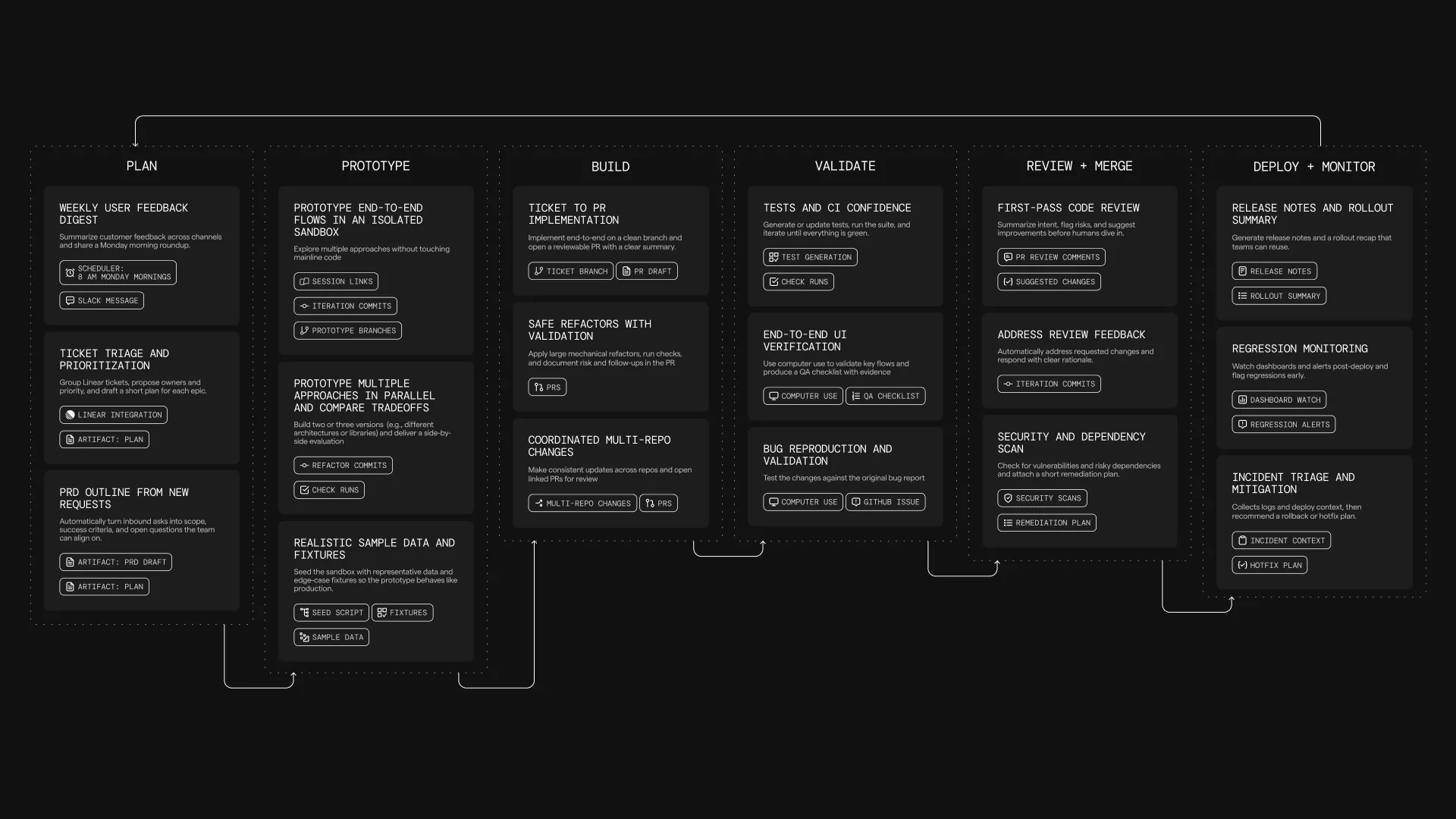 *** ### What is a cloud agent run? [Section titled “What is a cloud agent run?”](#what-is-a-cloud-agent-run) A cloud agent run is represented as an agent task. A task is created when a trigger fires (for example a webhook event or schedule) or when a user starts a run explicitly. Each task includes: * **Inputs**: a prompt, and often additional context from the triggering system (for example a Slack message, PR metadata, or CI logs). * **Execution context (optional)**: an [Environment](/agent-platform/cloud-agents/environments/) that defines the repo, image, and startup commands the agent should run with. * **Lifecycle state**: created → running → completed / failed. * **Persistent record**: status, metadata, and a session transcript that can be reviewed after the task completes, including the prompt, plan, commands, logs, outputs, and follow-up messages where available. ### How cloud agents work [Section titled “How cloud agents work”](#how-cloud-agents-work) Cloud agents run on the [Oz Platform](/agent-platform/cloud-agents/platform/), which provides the primitives for triggering work, orchestrating tasks, executing agents (optionally in environments), injecting secrets, and inspecting results. * Something **triggers** an agent task. * The **orchestrator creates** and tracks the task. * The agent **executes** on a host, optionally inside an [environment](/agent-platform/cloud-agents/environments/), with whatever [secrets](/agent-platform/cloud-agents/secrets/) and credentials it needs. The exact way tasks are triggered and executed depends on your deployment model (for example CLI-only, Warp-hosted orchestration, or self-hosted execution). Those options are covered in the [Deployment Patterns](/agent-platform/cloud-agents/deployment-patterns/) pages. For teams that need execution to stay within their network boundary, self-hosting supports two architectures: a **managed** worker daemon that lets Oz orchestrate agents in Docker containers on your machines, and an **unmanaged** mode where you run `oz agent run` directly in your CI, Kubernetes, or dev environment. See [Self-hosting](/agent-platform/cloud-agents/self-hosting/) for details. ### What you get by default [Section titled “What you get by default”](#what-you-get-by-default) Because cloud agents run on the [Oz Platform](/agent-platform/cloud-agents/platform/), each run is tracked and produces a persistent record that can be observed, shared, and reviewed (even if execution happens outside the Warp app). #### Codebase Context [Section titled “Codebase Context”](#codebase-context) Cloud agent runs automatically benefit from [Codebase Context](/agent-platform/capabilities/codebase-context/) for semantic code understanding and search, as long as Codebase Context is enabled for your account. See [Codebase Context in cloud agent runs](/agent-platform/capabilities/codebase-context/#codebase-context-in-cloud-agent-runs) for details. #### Observability and steerability [Section titled “Observability and steerability”](#observability-and-steerability) Cloud agent tasks are designed to be inspectable by the team: * The [Agent Management Panel](/agent-platform/cloud-agents/managing-cloud-agents/) in the Warp app and the [Runs page in the Oz web app](/agent-platform/cloud-agents/oz-web-app/#runs) surface task status, source, trigger, creator, history, and credit usage. * [Cloud agent session sharing](/agent-platform/cloud-agents/viewing-cloud-agent-runs/) opens the run transcript so teammates can inspect the prompt, plan, commands, logs, files changed, outputs, and follow-up messages where available. * [Agent Session Sharing](/agent-platform/local-agents/session-sharing/) lets authorized teammates share, monitor, and steer live local or third-party agent sessions. #### Centralized configuration [Section titled “Centralized configuration”](#centralized-configuration) Cloud agent workflows often rely on shared configuration such as [MCP servers](/agent-platform/cloud-agents/mcp/), rules, saved prompts, environment variables, and [secrets](/agent-platform/cloud-agents/secrets/). Warp supports centralized configuration so the same workflow behaves consistently across triggers (for example Slack + CI + schedules), without duplicating setup in every system. For details on configuring MCP servers for cloud agents, see [MCP Servers](/agent-platform/cloud-agents/mcp/). #### API access to tasks [Section titled “API access to tasks”](#api-access-to-tasks) The Oz Platform exposes task visibility via the [**Oz API and SDKs**](/reference/api-and-sdk/), so teams can: * Query which tasks are running or have run. * Fetch task metadata and outcomes. * Build internal dashboards or monitoring (for example success rates, runtime, failure reasons). ### Using cloud agents with or without the Warp app [Section titled “Using cloud agents with or without the Warp app”](#using-cloud-agents-with-or-without-the-warp-app) Cloud agents do not require the Warp app. Teams can deploy and operate them through the [Oz Platform](/agent-platform/cloud-agents/platform/) using: * [Oz CLI](/reference/cli/) — run agents from scripts, CI, or the terminal * [Oz web app](/agent-platform/cloud-agents/oz-web-app/) — visual interface for managing runs, schedules, environments, and integrations (works on mobile) * [Agent Session Sharing](/agent-platform/local-agents/session-sharing/) — attach to running tasks to monitor or steer * [Agent Management Panel](/agent-platform/cloud-agents/managing-cloud-agents/) — view agent activity and run history in the Warp app * [APIs and SDKs](/reference/api-and-sdk/) — programmatic access for custom integrations If your team also uses Warp’s terminal, you get an additional workflow: tasks launched via the CLI can be handed off into an interactive session for review, edits, or continuation. *** ### Billing and plan requirements [Section titled “Billing and plan requirements”](#billing-and-plan-requirements) Cloud agents and [integrations](/agent-platform/cloud-agents/integrations/) run on the [Oz Platform](/agent-platform/cloud-agents/platform/) control plane, and usage is billed using credits. #### For cloud agents via CLI/API [Section titled “For cloud agents via CLI/API”](#for-cloud-agents-via-cliapi) Individual users can run cloud agents without being on a team. Requirements: * You need at least 20 credits available * Cloud agents run on Warp-hosted infrastructure * Self-hosted agents require a team subscription #### For integrations (Slack/Linear) [Section titled “For integrations (Slack/Linear)”](#for-integrations-slacklinear) Integrations require you to be part of a [Warp team](/knowledge-and-collaboration/teams/) and additional requirements: * **Plan requirements** * **Supported plans**: Build, Max, Business * Your plan must support add-on credits. * **Credit requirements** * Your team must have at least 20 credits available to run cloud agents and integrations. For more details, see [Access, Billing, and Identity Permissions](/agent-platform/cloud-agents/team-access-billing-and-identity/). Caution If your credit balance reaches zero, cloud agent runs will not be able to execute until credits are replenished. *** ### Learn more [Section titled “Learn more”](#learn-more) * [Cloud agents quickstart](/agent-platform/cloud-agents/quickstart/) — run your first cloud agent with an environment in \~10 minutes. * [Oz Platform](/agent-platform/cloud-agents/platform/) — CLI, Oz API/SDK, orchestration, tasks, environments, hosts, integrations, and more. * [Harnesses](/agent-platform/cloud-agents/harnesses/) — pick between Warp Agent, Claude Code, and Codex for any cloud agent run. * [Agents](/agent-platform/cloud-agents/agents/) — cloud agents that own and execute runs on your team. * [Multi-agent orchestration](/agent-platform/cloud-agents/orchestration/) — coordinate a parent agent and its child agents across local and cloud runs to build supervisor/worker, fan-out, critic, DAG, and swarm workflows. * [Skills as Agents](/agent-platform/cloud-agents/skills-as-agents/) — run agents based on reusable skill definitions from the CLI, web app, API, or on a schedule. * [Oz CLI](/reference/cli/) — shows how to run agents in non-interactive mode from CI, scripts, or remote machines, including auth and common commands. * [Environments](/agent-platform/cloud-agents/environments/) — explains how environments provide the runtime context (repo, image, startup commands) for agent tasks. * [Oz API and SDK](/reference/api-and-sdk/) — documents the REST API for creating, querying, and monitoring agent tasks programmatically. * [Agent Secrets](/agent-platform/cloud-agents/secrets/) — covers how to store, scope, and inject credentials into agent runs safely. * [MCP Servers](/agent-platform/cloud-agents/mcp/) — how to configure MCP servers for agent tool access and how MCP configuration is applied across runs. * [Deployment Patterns](/agent-platform/cloud-agents/deployment-patterns/) (beta) — compares common ways to deploy cloud agents and when to use each. * [Access, Billing, and Identity Permissions](/agent-platform/cloud-agents/team-access-billing-and-identity/) — explains individual and team-level requirements, credit billing behavior, and the permission model for who can run, view, and steer cloud agent tasks.
# Oz web app for cloud agents
Canonical page: [/agent-platform/cloud-agents/oz-web-app/](https://docs.warp.dev/agent-platform/cloud-agents/oz-web-app/)
> Use the Oz web app to manage cloud agents, view runs, create schedules, and configure environments and integrations from any browser or mobile device.
The [Oz web app](https://oz.warp.dev) provides a visual interface for managing cloud agents. You can start runs, browse agents and skills, create schedules, configure environments, and set up integrations—all without installing Warp or using the CLI. Watch this short demo to create an environment and run an agent using the Oz web app:  ## Quick reference [Section titled “Quick reference”](#quick-reference) | Page | Path | What you can do | | ---------------- | --------------- | ----------------------------------------------------------------------------------------------------- | | **Runs** | `/runs` | View all runs, filter by status/source/creator, start new runs, inspect transcripts | | **Agents** | `/agents` | Browse saved agents, create agents, configure defaults, and start runs | | **Skills** | `/skills` | Browse skills from your environments, view suggested skills, create skills for agents, and start runs | | **Schedules** | `/schedules` | Create scheduled agents, pause/enable schedules, view run history | | **Environments** | `/environments` | Create and manage environments with repos, Docker images, and setup commands | | **Secrets** | `/secrets` | Create and manage Warp-managed secrets for cloud agent runs | | **Integrations** | `/integrations` | Connect Slack and Linear to trigger agents from external tools | 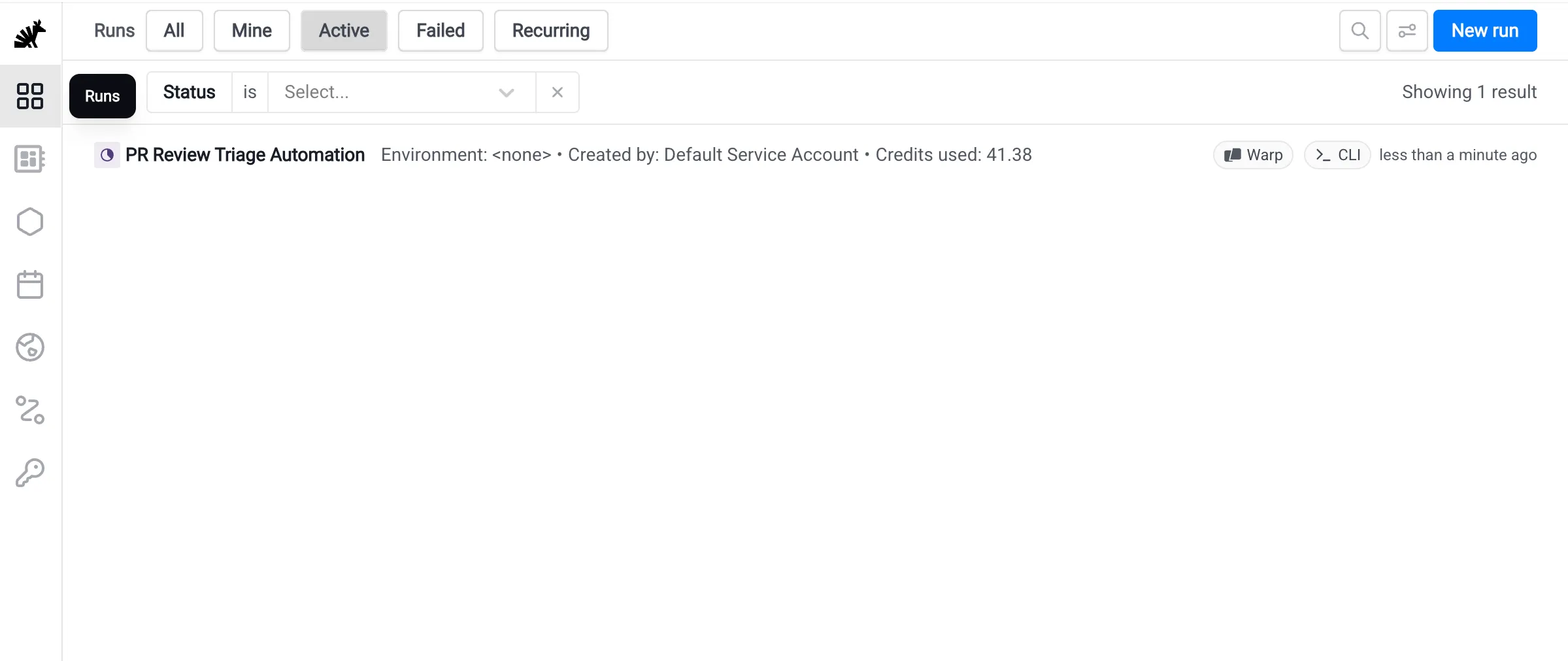 The Oz web app Runs page. ## When to use the web app [Section titled “When to use the web app”](#when-to-use-the-web-app) The Oz web app is ideal when you want to: * **Monitor agent activity** — View runs, check status, and inspect outputs from any device * **Start quick runs** — Dispatch agents without opening a terminal * **Manage agents and skills** — Create saved agents, browse skills from connected repositories, and start runs from either configuration * **Manage schedules visually** — Create and edit scheduled agents with a guided interface * **Configure environments** — Set up repos, Docker images, and setup commands through a form-based flow * **Set up integrations** — Connect Slack and Linear with a guided setup flow For scripting, automation, and CI/CD workflows, use the [Oz CLI](/reference/cli/) or [API](/reference/api-and-sdk/). ## Getting started [Section titled “Getting started”](#getting-started) When you first sign in to the Oz web app, you’ll see a guided onboarding flow that helps you get started based on your goals. The onboarding asks “What brings you to Oz?” and offers three paths: * **Create an agent automation** — Walks you through setting up a scheduled agent, integration-triggered agent, or other automation * **Run Cloud Agents in Warp** — Opens the Warp app (or takes you to the download page) to run cloud agents interactively * **Build an app that uses agents** — Links to the [Oz Platform](/agent-platform/cloud-agents/platform/) docs for using the CLI, SDK, or API You can skip onboarding at any time to go directly to the Runs page. ## Runs [Section titled “Runs”](#runs) The **Runs** page (`/runs`) is your central view for monitoring cloud agent activity. It shows runs across your account and team, where applicable, including those triggered from the CLI, API, integrations, and schedules. ### Run details [Section titled “Run details”](#run-details) Each run displays the following information: | Field | Description | | --------------- | --------------------------------------------------------------------- | | **Status** | Working, succeeded, failed, canceled, errored, or blocked | | **Title** | The run’s title or prompt summary | | **Environment** | Which environment the agent ran in | | **Creator** | Who started the run | | **Source** | Where the run was triggered from (CLI, API, Slack, Linear, scheduled) | | **Artifacts** | Any outputs like PRs or files created | | **Credits** | How many credits the run consumed | Click any run to open the detail pane, where you can view the full transcript, artifacts, and metadata. ### Filtering and search [Section titled “Filtering and search”](#filtering-and-search) | Quick filter | Shows | | ------------- | --------------------------- | | **All** | All runs | | **Mine** | Only runs you created | | **Active** | Runs currently in progress | | **Failed** | Runs that failed | | **Recurring** | Runs triggered by schedules | You can also search by title, prompt, or agent name, and add advanced filters for source, status, creator, and date range. ### Starting a new run [Section titled “Starting a new run”](#starting-a-new-run) To start a new run: 1. Click **New run** in the header to start a cloud agent. 2. Select an agent, if needed. Choose **Quick run** to run as yourself, or choose a saved agent from the **Agent** dropdown. 3. Select the environment where the agent should run. 4. Add a prompt with context and instructions for this specific run. **Quick run** runs as your own user. A saved agent uses its saved defaults, and your prompt adds context for this particular execution. ### Inspecting orchestrated runs [Section titled “Inspecting orchestrated runs”](#inspecting-orchestrated-runs) The Oz web app renders [multi-agent orchestrations](/agent-platform/cloud-agents/orchestration/) as nested rows on the **Runs** page, so you can follow parent and child execution together. Open a parent run from the Runs page. When the run has children, the detail pane adds a **Sub-agents** tab next to **Details**: * Each child agent row shows the child’s current status and title. Click a row to open that child’s detail pane; closing it returns you to the parent’s **Sub-agents** tab. * The parent’s own status badge at the top of the detail pane reflects the parent’s work, not its children. Open a child to inspect its state directly. ## Agents [Section titled “Agents”](#agents) The **Agents** page (`/agents`) is where you browse, create, and run saved agents. Agents are reusable cloud agent configurations that can include a prompt, skills, harness, model, environment, and secrets. Skills are reusable instruction sets stored in repositories. You can attach existing skills to an agent through the **Skills** field; for more details, see [Skills as Agents](/agent-platform/cloud-agents/skills-as-agents/). Saved agents use Warp’s team-scoped identity model, which lets a reusable agent own runs and carry default configuration for teammates. You manage saved agents from the Agents page. For plan limits, API endpoints, and API key binding behavior, see [Agents](/agent-platform/cloud-agents/agents/).  The Agents page in the Oz web app. Open an agent to review its prompt, skills, harness, model, environment, and attached secrets. From the detail pane, you can inspect activity, create schedules, edit configuration, or start a run from the saved agent. ### Running an agent [Section titled “Running an agent”](#running-an-agent) Click any agent to view its details, then click **New run** to start a run from that saved configuration. You can also click **New run** from the header to start a run with optional agent selection. ### Creating a new agent [Section titled “Creating a new agent”](#creating-a-new-agent) To create a saved agent: 1. Click **New agent** to open the guided creation flow. 2. Define the instructions and defaults. Add a name, description, prompt, optional skills, harness, model, environment, and secrets. 3. Click **Create agent**. The saved agent appears on the Agents page and is available for runs. For deeper guidance on reusable skills and team-scoped identities, see [Skills as Agents](/agent-platform/cloud-agents/skills-as-agents/) and [Agents](/agent-platform/cloud-agents/agents/). 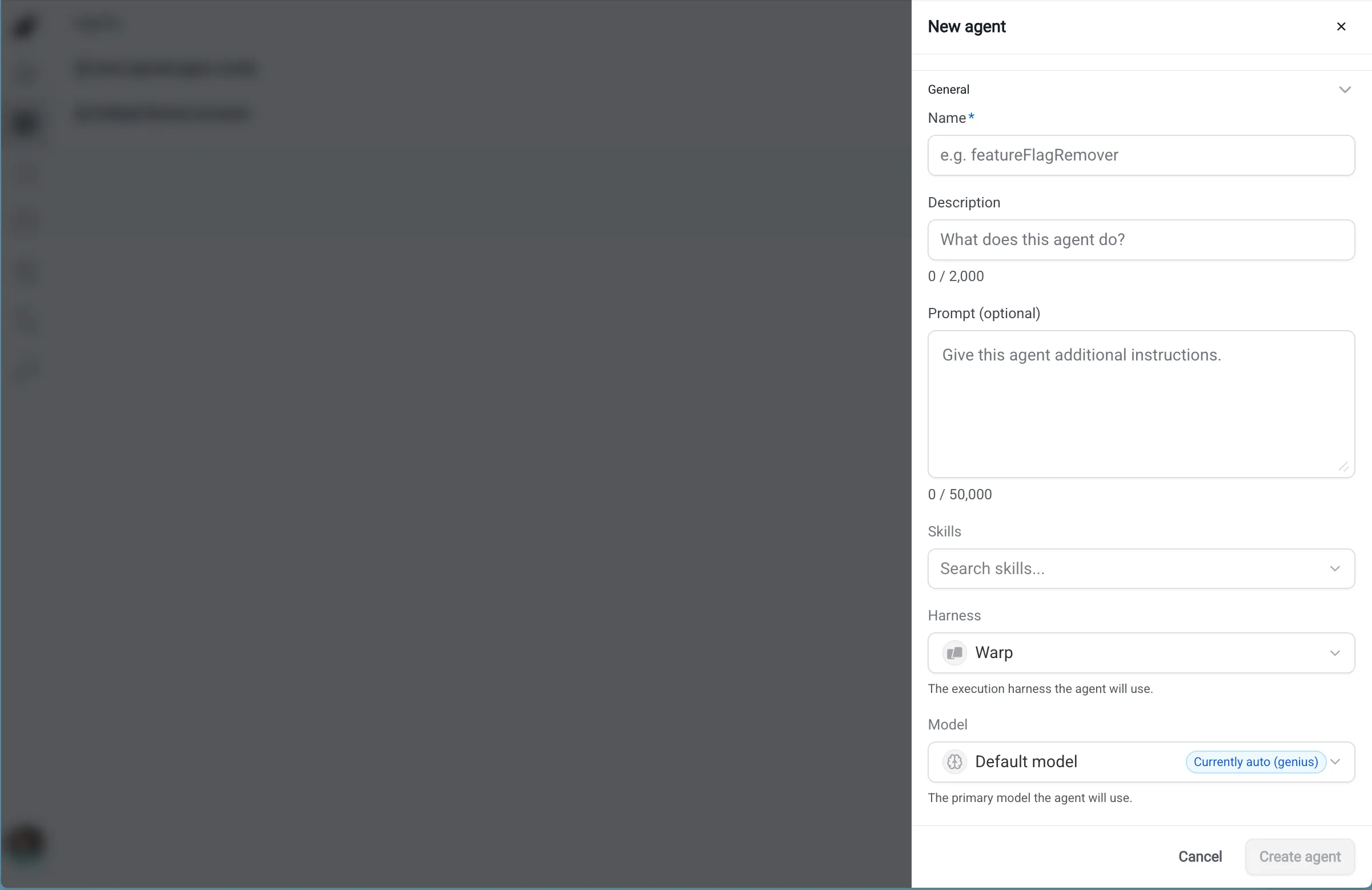 Creating a new agent in the Oz web app. ## Skills [Section titled “Skills”](#skills) The **Skills** page (`/skills`) is where you browse and run skills. Skills are reusable instruction sets stored in repositories, and agents can include one or more skills as part of their default configuration. Use the **From your Environments** filter to view skills from repositories connected to your environments, or switch to **Suggested** to view recommended skills. Open a skill to view its activity, schedules, and `SKILL.md` configuration. ### Running a skill [Section titled “Running a skill”](#running-a-skill) Click any skill to view its details, then click **New run** to start a run with that skill attached. You can also click **New run** from the page header to start a run with optional skill selection. ### Creating a skill for agents [Section titled “Creating a skill for agents”](#creating-a-skill-for-agents) To create a skill for agents: 1. Click **New agent** on the Skills page to open the skill creation flow. 2. Choose a repository from an existing environment with GitHub access. 3. Define the skill. Add a skill name, description, and instructions. 4. Click **Open Skill PR** to create a pull request that adds the skill to the selected repository. 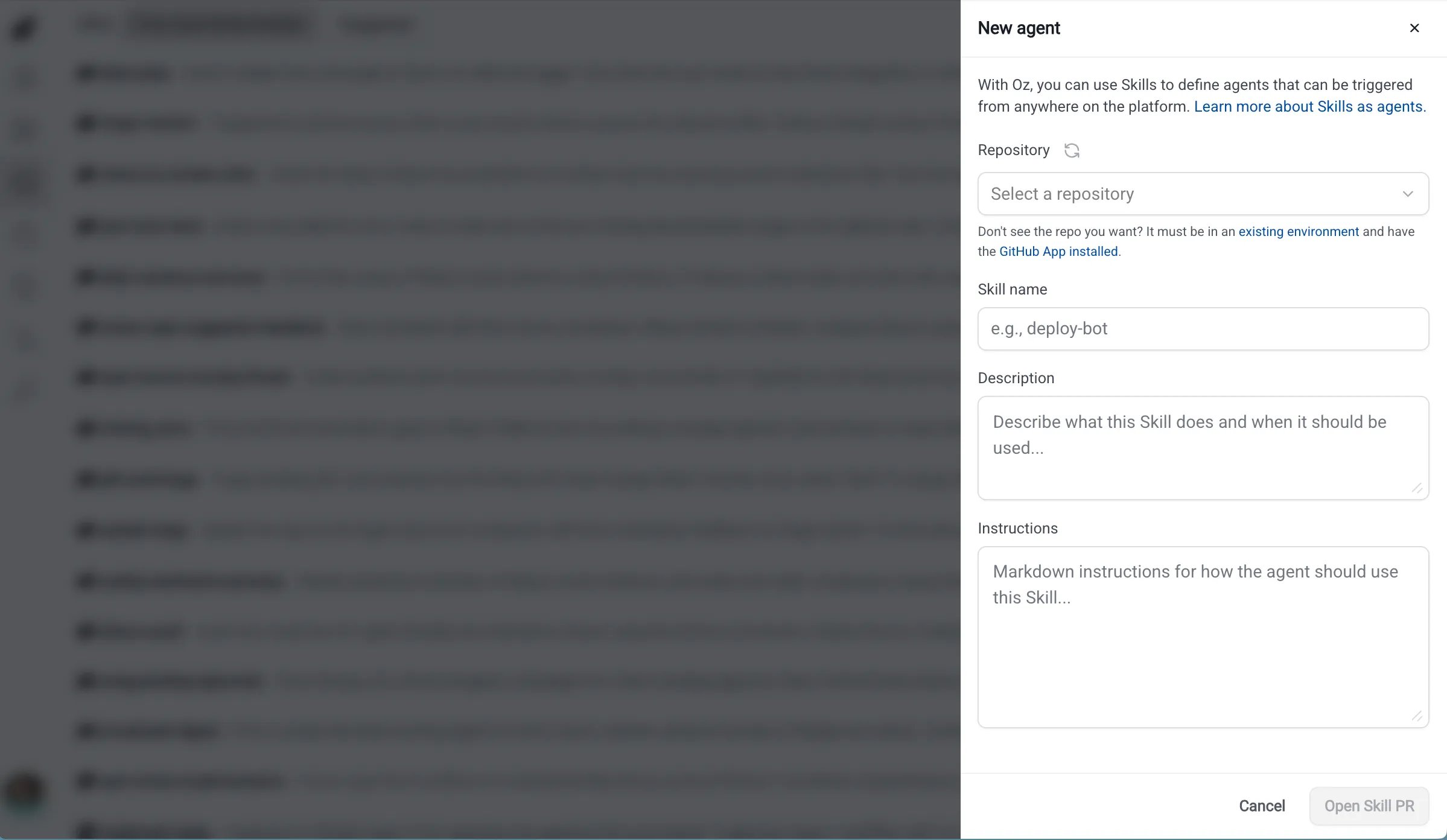 Creating a skill in the Oz web app. After the PR is merged, refresh skills so the new skill appears in the Oz web app. ## Schedules [Section titled “Schedules”](#schedules) The **Schedules** page (`/schedules`) lets you create and manage scheduled agents that run automatically on a cron schedule. ### Schedule details [Section titled “Schedule details”](#schedule-details) Each schedule displays: | Field | Description | | --------------- | ------------------------------------------------------------------------------ | | **Name** | A descriptive name for the scheduled task | | **Frequency** | Human-readable description of the cron schedule (e.g., “Every Monday at 10am”) | | **Next run** | When the schedule will next execute | | **Environment** | Which environment the scheduled agent runs in | | **Agent** | Which saved agent the schedule uses (if any) | | **Status** | Whether the schedule is active or paused |  The Schedules page in the Oz web app. ### Creating a schedule [Section titled “Creating a schedule”](#creating-a-schedule) To create a scheduled agent: 1. Click **New schedule** in the header. 2. Name the schedule. Use a descriptive name that explains what the scheduled agent does. 3. Set the frequency. Choose a preset or enter a cron schedule. 4. Select the environment where the scheduled agent should run. 5. Choose a saved agent, if needed. 6. Add the prompt that the agent should follow each time it runs. 7. Click **Create schedule**. The schedule appears on the Schedules page. ### Managing schedules [Section titled “Managing schedules”](#managing-schedules) Click any schedule to view its details and recent run history. From the detail pane, you can: * **Edit** the schedule configuration * **Pause** or **enable** the schedule * **Delete** the schedule * **View past runs** triggered by this schedule ## Environments [Section titled “Environments”](#environments) The **Environments** page (`/environments`) shows all environments configured for your account. Environments define the execution context for cloud agents, including repos, Docker images, and setup commands. ### Environment details [Section titled “Environment details”](#environment-details) Each environment displays: | Field | Description | | ------------------ | -------------------------------------- | | **Name** | The environment’s identifier | | **Docker image** | The container image used for execution | | **Repositories** | Which repos the agent can access | | **Setup commands** | Commands run before the agent starts |  The Environments page in the Oz web app. ### Creating an environment [Section titled “Creating an environment”](#creating-an-environment) To create a new environment: 1. Click **New environment** in the header. 2. Name the environment. Use a descriptive name that explains the runtime context. 3. Select the repositories the agent should be able to access. 4. Choose a Docker image. Warp provides prebuilt dev images, or you can use your own. 5. Add any setup commands that should run when the environment starts, such as `npm install`. 6. Click **Create environment**. The environment appears on the Environments page. ## Integrations [Section titled “Integrations”](#integrations) The **Integrations** page (`/integrations`) lets you configure first-party integrations with Slack and Linear. ### Available integrations [Section titled “Available integrations”](#available-integrations) | Integration | Description | | ----------- | ---------------------------------------------------------------------------------- | | **Slack** | Tag @Oz in messages or threads to trigger agents directly from Slack conversations | | **Linear** | Tag @Oz on issues to trigger agents from your issue tracker | 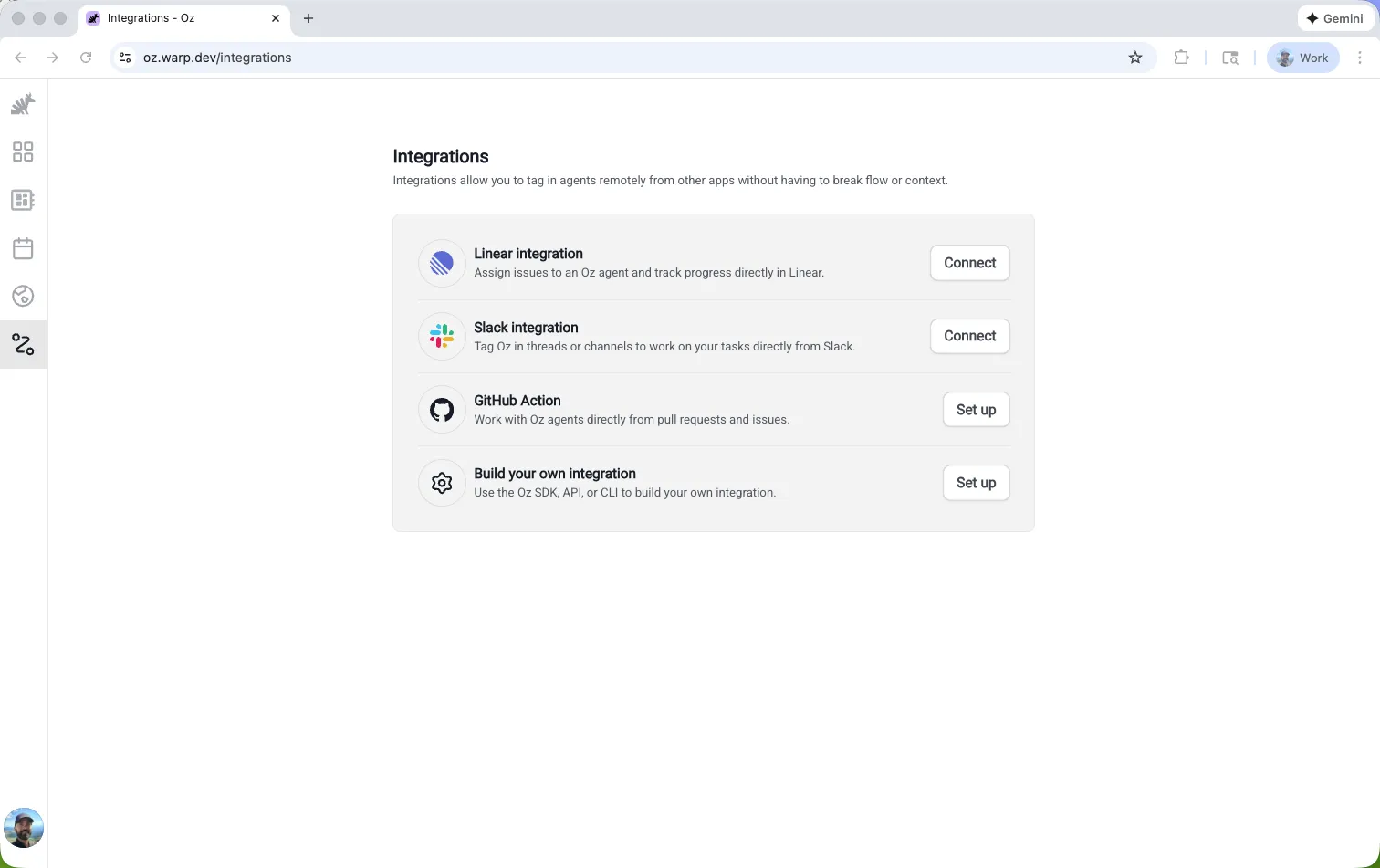 The Integrations page in the Oz web app. ### Setting up an integration [Section titled “Setting up an integration”](#setting-up-an-integration) Click an integration to start the guided setup flow. You’ll authorize Warp to connect with the external service, select an environment, and configure any integration-specific settings. ## Related resources [Section titled “Related resources”](#related-resources) * [Cloud Agents Overview](/agent-platform/cloud-agents/overview/) — Learn about cloud agents and when to use them * [Multi-agent orchestration](/agent-platform/cloud-agents/orchestration/) — Parent/child model and common orchestration patterns * [Skills as Agents](/agent-platform/cloud-agents/skills-as-agents/) — Run agents based on reusable skill definitions * [Scheduled Agents](/agent-platform/cloud-agents/triggers/scheduled-agents/) — Run agents automatically on a cron schedule * [Environments](/agent-platform/cloud-agents/environments/) — Configure runtime context for cloud agents * [Managing Cloud Agents](/agent-platform/cloud-agents/managing-cloud-agents/) — Monitor agent activity and inspect runs * [Oz CLI](/reference/cli/) — Command-line interface for running agents * [Oz API & SDK](/reference/api-and-sdk/) — Programmatic access to cloud agents
# Oz Platform overview
Canonical page: [/agent-platform/cloud-agents/platform/](https://docs.warp.dev/agent-platform/cloud-agents/platform/)
> The Oz Platform provides the CLI, API/SDK, orchestration, environments, and observability for cloud agents.
Cloud agents run on the **Oz Platform**. The platform gives you a consistent way to **trigger work**, **orchestrate and track tasks**, **execute agents** (in an optional [environment](/reference/cli/integration-setup/), on a host), and inspect outcomes with team visibility. First-party [integrations](/agent-platform/cloud-agents/integrations/) connect external events — like Slack messages, GitHub PRs, or CI failures — to cloud agents automatically.  **Most production setups follow the same flow:** 1. A **trigger** fires (schedule, integration event, CI step, webhook, API call, or manual run). 2. Warp’s **orchestration layer** creates a cloud agent task and tracks its lifecycle. 3. The agent executes on a **host**, optionally inside an environment, using the required configuration and credentials. 4. The task produces a **persistent record** (status, metadata, transcript, outputs) your team can review and manage. 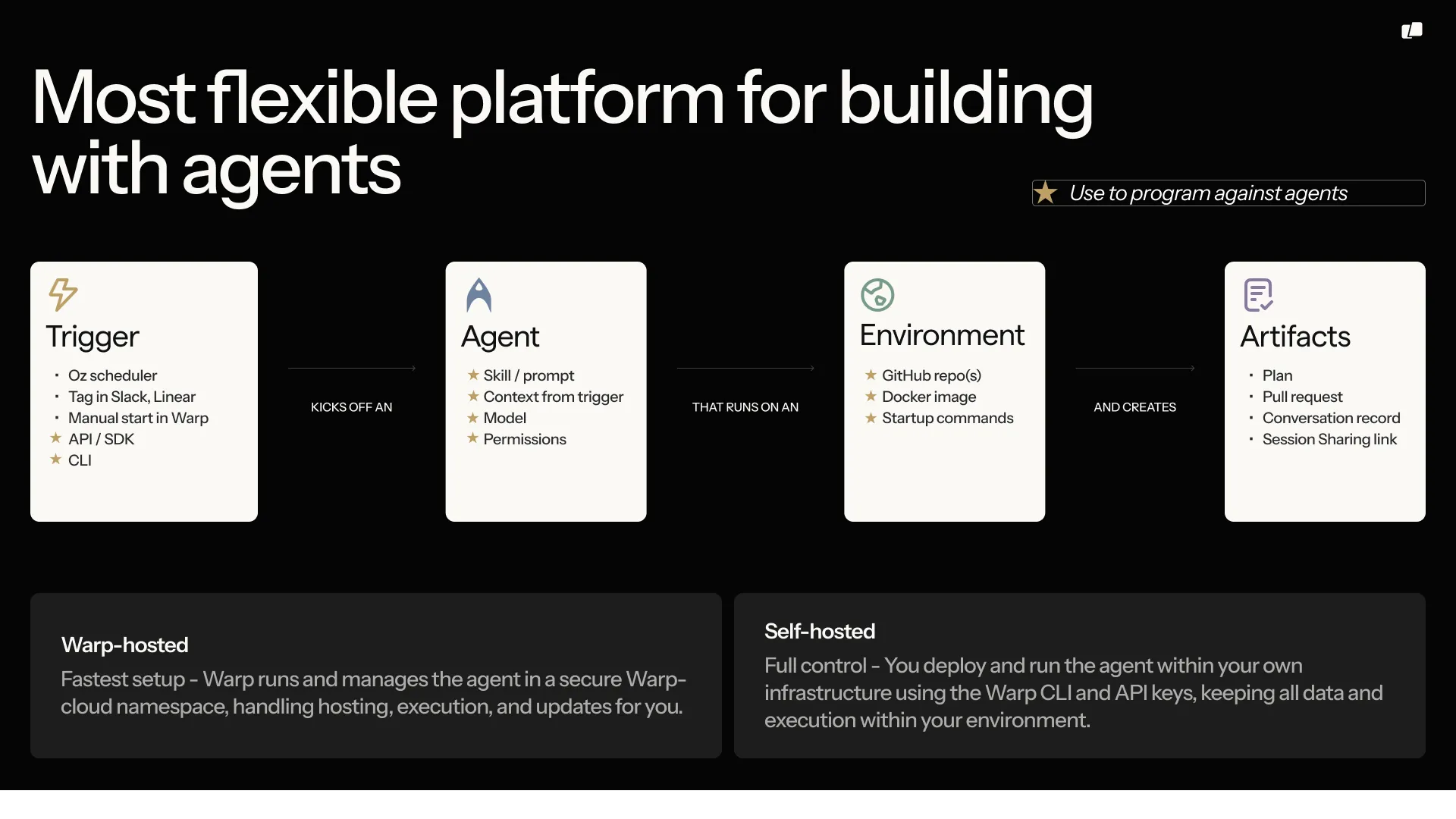 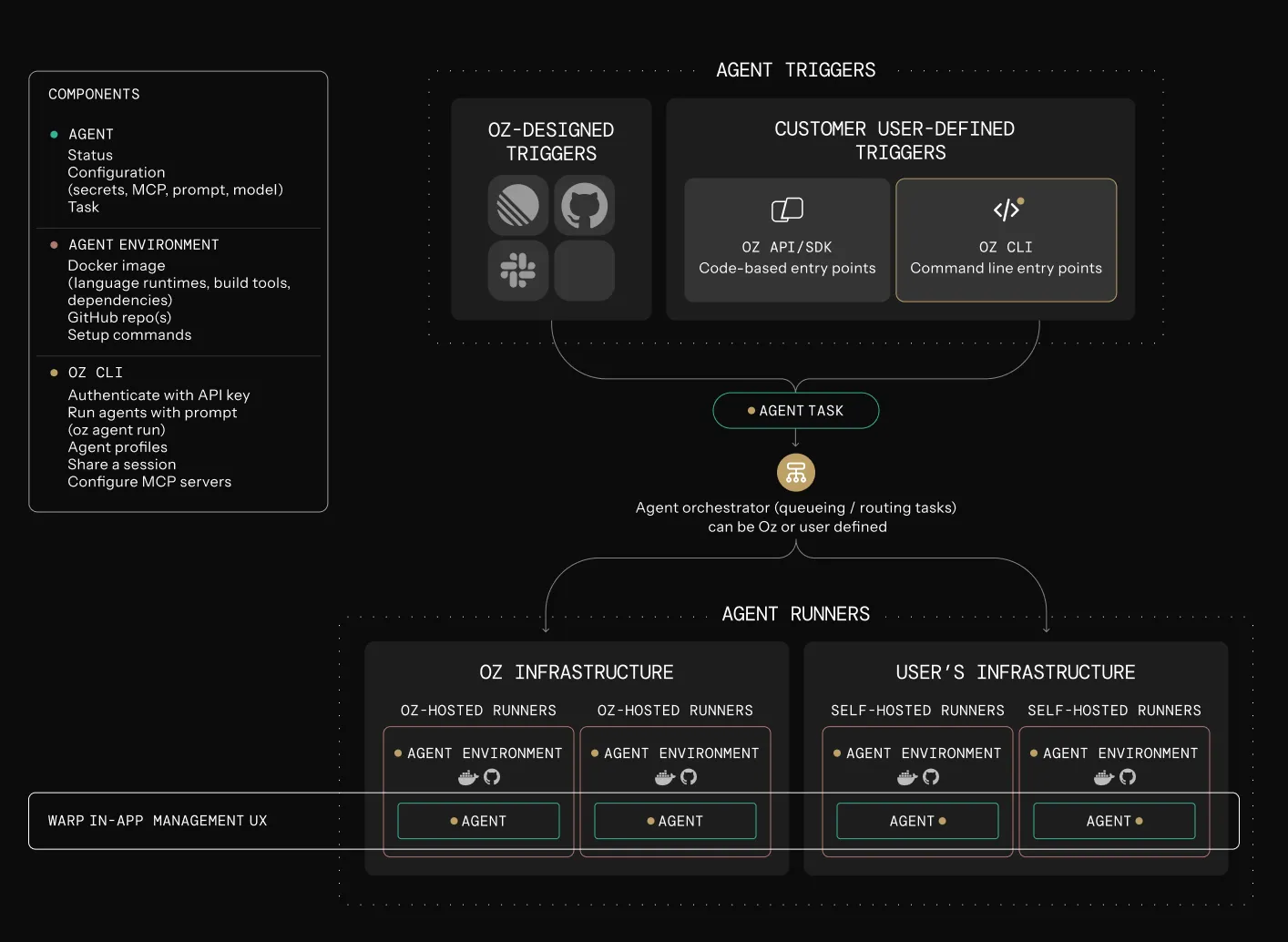 The sections below describe the Oz Platform primitives that power this flow, and how they compose. *** ### Key concepts [Section titled “Key concepts”](#key-concepts) Before diving into the components, it helps to align on a few terms: * **Trigger**: The event that starts work (for example: cron, Slack mention, PR opened, CI failure, “run now”). * **Task:** The unit of work Warp tracks. A task includes inputs, state, metadata, and an execution record (where it ran, what it did, and what it produced). * **Context**: Additional inputs attached to a task (for example: a Slack message, PR metadata, CI logs, repository diffs). * **Outputs:** What the task produced (for example: created a PR, posted a Slack reply, emitted a report, or just a transcript + summary). In practice: **triggers create tasks; tasks execute on a host (optionally in an environment); tasks produce outputs.** *** ### Oz CLI [Section titled “Oz CLI”](#oz-cli) The [Oz CLI](/reference/cli/) is the **headless interface** for running agents in non-interactive mode. It’s commonly used in CI, scripts, and server environments where there is no interactive UI. For interactive workflows, use the [agent](/agent-platform/local-agents/overview/) embedded in Warp’s desktop app. A key property of the CLI is that it is **cloud-connected**. Even when an agent is started on a local machine or in CI, it reports progress to Warp’s servers. This enables team visibility, session sharing (where supported), and programmatic tracking through the API. #### When to use the CLI [Section titled “When to use the CLI”](#when-to-use-the-cli) Use the CLI when: * You want to run an agent anywhere (local machine, CI runner, remote dev box, server). * An external system is orchestrating runs (for example GitHub Actions, custom automation, incident tooling). * You want task observability and auditing without requiring Warp desktop. #### How it fits in the Oz Platform [Section titled “How it fits in the Oz Platform”](#how-it-fits-in-the-oz-platform) Depending on the command, the CLI typically: * Authenticates as you (or as a member of your team, if applicable). * Starts work by creating a task in the orchestrator (either directly via CLI commands, or indirectly via an integration/schedule). * Streams progress back to Warp for live observability and a persistent record. * Optionally attaches an environment and other configuration. #### Example (no environment) [Section titled “Example (no environment)”](#example-no-environment) You can also run an agent locally without an environment using a command like: ```bash oz agent run ... ``` *** ### Warp Orchestrator [Section titled “Warp Orchestrator”](#warp-orchestrator) The orchestration layer manages the lifecycle of cloud agent tasks. It creates tasks, tracks state transitions, and is the system of record for what’s running and what ran. #### What the orchestrator does [Section titled “What the orchestrator does”](#what-the-orchestrator-does) The orchestrator: * Runs on Warp’s servers (cloud control plane). * Creates tasks when triggers fire (integrations, schedules, API calls, or explicit starts). * Tracks lifecycle state (created → running → completed/failed) and associated metadata. * Exposes task lifecycle operations via the [Oz CLI](/reference/cli/) and a [REST API](/reference/api-and-sdk/) (create tasks, query history, and inspect status/outputs). * Powers SDKs (TypeScript/Python) for programmatic usage on top of the orchestrator API. * Supports [multi-agent orchestration](/agent-platform/cloud-agents/orchestration/) for parent/child workflows, fan-out, and review swarms. #### When teams use the API/SDK [Section titled “When teams use the API/SDK”](#when-teams-use-the-apisdk) Teams typically use the API/SDK when: * Triggering agents from custom internal systems (incident tools, bots, internal automation). * Building internal dashboards or monitoring (success rates, runtime, failure reasons). * Coordinating many runs (fanout, sharding, queueing, retries, rate limiting at the app layer). * Creating higher-level workflows that treat tasks as building blocks. *** ### Environments [Section titled “Environments”](#environments) [Environments](/agent-platform/cloud-agents/environments/) define the execution context an agent should run in. **An Environment typically includes:** * A Docker image (toolchain and runtime). * One or more repositories (or a workspace definition). * Startup commands and configuration (setup steps, dependency install, bootstrapping). * Optional environment variables and other runtime settings. #### Environments are optional [Section titled “Environments are optional”](#environments-are-optional) Agents can run without an environment (for example, against an existing local checkout or a CI workspace). Teams usually move to environments when they want stronger reproducibility, isolation, and standardization. #### When to use environments [Section titled “When to use environments”](#when-to-use-environments) Environments are recommended when: * The agent needs a consistent toolchain (linters, build tools, language runtimes). * You want repeatable execution across CI and cloud execution. * You want standard execution across a team (same repo state rules, same setup steps). * You want to reduce “works on my machine” variability across tasks. *** ### Oz API and SDK [Section titled “Oz API and SDK”](#oz-api-and-sdk) The Oz [Agent API](/reference/api-and-sdk/) is the HTTP interface to the Oz Platform. It lets you create and inspect cloud agent tasks from any system (CI, cron, backend services, internal tools), without requiring the Warp desktop app. **What you can do with the API** * Run an agent by submitting a prompt plus optional configuration (model, environment, MCP servers, base prompt, etc.). * Monitor execution by listing tasks and tracking state transitions over time (for example: `QUEUED` → `INPROGRESS` → `SUCCEEDED/FAILED`). * Inspect results and provenance by fetching a task’s full details, including the original prompt, creator/source metadata, session link, and resolved agent configuration. **Oz SDKs** Oz provides official [Python](https://github.com/warpdotdev/oz-sdk-python) and [TypeScript SDKs](https://github.com/warpdotdev/oz-sdk-typescript) that wrap the Oz API with: * Typed requests/responses (autocomplete, fewer schema mistakes) * Built-in retries and timeouts (with per-request overrides) * Consistent error types mapped to API status codes * Helpers for raw responses when you need headers/status/custom parsing If you’re building an integration (CI, Slack bots, internal tooling, orchestrators), the [SDKs](/reference/api-and-sdk/) are typically the quickest and safest starting point. **SDK vs raw REST** * Use the SDK when you want strong typing, standardized error handling, and easy concurrency patterns. * Use raw REST when you want minimal dependencies or full control over your HTTP client. *** ### Execution hosts [Section titled “Execution hosts”](#execution-hosts) A host describes where the agent actually executes. Warp supports multiple execution models depending on your security, compliance, and operational requirements. #### Warp-hosted execution [Section titled “Warp-hosted execution”](#warp-hosted-execution) With Warp hosting: * Warp runs the environment on Warp-managed infrastructure. * This is the default model for teams that want the simplest setup and do not need execution to occur inside their network boundary. * For more details, see [Warp-hosted execution](/agent-platform/cloud-agents/warp-hosting/). #### Self-hosted execution [Section titled “Self-hosted execution”](#self-hosted-execution) With self-hosting: * The agent runs on customer-managed infrastructure. * Oz orchestrator still manages lifecycle and observability. * This is used when teams want code and execution to remain on their own systems rather than being cloned or executed in Warp’s cloud. *** ### Integrations [Section titled “Integrations”](#integrations) [Integrations](/agent-platform/cloud-agents/integrations/) connect external events to cloud agent tasks. When an event occurs in a third-party system, Warp creates a task with the relevant context and starts it automatically. Warp supports two integration models: * **First-party integrations** — Warp manages the event subscription and context extraction end to end. * **Custom integrations** — you handle event ingestion and filtering, then call the API or SDK to create tasks. #### First-party integrations [Section titled “First-party integrations”](#first-party-integrations) First-party integrations can be configured with a simple setup flow (for example via CLI): ```bash oz integration create … ``` Warp registers webhooks with the third-party system, receives events, extracts context (payload, metadata, links, logs), and creates a task — optionally in an [Environment](/agent-platform/cloud-agents/environments/). Examples of context extracted by first-party integrations: * [Slack](/agent-platform/cloud-agents/integrations/slack/): message text, channel, thread, and user identity * [GitHub](/agent-platform/cloud-agents/integrations/github-actions/): PR metadata, diffs, labels, and check results * CI: logs, job metadata, and artifacts #### Custom integrations [Section titled “Custom integrations”](#custom-integrations) With custom integrations, you own the webhook and event-handling logic. Your system receives an event, applies any filtering or enrichment you need, and then calls the Oz API (directly or via an SDK) to create a task. The resulting task is still a full cloud agent run — observable, manageable, and auditable like any other. Custom integrations are a good fit when: * You have internal event sources (custom tooling, proprietary systems). * You need custom filtering, routing, or enrichment before triggering an agent. * You want to implement your own permissioning, queueing, or governance around triggers. *** ### Secrets [Section titled “Secrets”](#secrets) Cloud agents often need credentials to access external systems (APIs, cloud providers, databases, internal tools, MCP servers). Warp provides a [secrets store](/agent-platform/cloud-agents/secrets/) that can inject secrets at runtime so agents can use authenticated tools without exposing secret values in logs or UI. #### What secrets are for [Section titled “What secrets are for”](#what-secrets-are-for) In most deployments, secrets power: * API keys and tokens (GitHub, Slack, Linear, internal APIs). * Shared team credentials (cloud providers, CI identities). * Database credentials (read-only query bots, reporting). * Credentials required by MCP servers (static tokens/keys). #### Scoping and control [Section titled “Scoping and control”](#scoping-and-control) Today, secrets support two scopes: * **Team secrets:** shared credentials available to the team (useful for shared infrastructure). * **Personal secrets**: credentials tied to an individual (useful when actions must be attributable to a specific person). *** ### Management and observability [Section titled “Management and observability”](#management-and-observability) Cloud agents are designed so task execution is visible to the team. While a task is executing, the agent reports progress and status back to Warp. After completion, the task retains a persistent record for review and debugging. Warp provides multiple surfaces for observability: * [Management UI](/agent-platform/cloud-agents/managing-cloud-agents/): lists tasks, status, timing, metadata, and history. * [Agent Session Sharing](/agent-platform/local-agents/session-sharing/): authorized teammates can attach to a running task to monitor and, where supported, steer it. * [APIs](/reference/api-and-sdk/) and SDKs: query task history, build monitoring, and generate reports. #### Access control [Section titled “Access control”](#access-control) **Access control is part of the model:** * Teams can restrict who can run, view, or intervene in agent tasks. * At the same time, organizations can enable system-wide visibility where appropriate for auditing and operations. ### Centralized configuration [Section titled “Centralized configuration”](#centralized-configuration) Cloud agent setups often include shared configuration such as: * [MCP Servers](/agent-platform/cloud-agents/mcp/) * [rules / guardrails](/agent-platform/capabilities/rules/) * [saved prompts](/knowledge-and-collaboration/warp-drive/prompts/) * [environment variables](/knowledge-and-collaboration/warp-drive/environment-variables/) * [secrets](/agent-platform/cloud-agents/secrets/) Warp supports centralized configuration so these settings apply consistently regardless of where a task is launched. This is especially useful when the same workflow can be triggered from multiple places (for example Slack, CI, and schedules). Instead of duplicating setup across systems, teams can keep configuration in one place and reuse it across triggers. ### Using the Oz Platform with or without the Warp app [Section titled “Using the Oz Platform with or without the Warp app”](#using-the-oz-platform-with-or-without-the-warp-app) [Cloud agents](/agent-platform/cloud-agents/overview/) do not require Warp’s desktop terminal. Teams can operate cloud agent workflows using: * [Oz CLI](/reference/cli/) — run agents from scripts, CI, or the terminal * [Oz web app](/agent-platform/cloud-agents/oz-web-app/) — visual interface for managing runs, schedules, environments, and integrations from any browser, including mobile * [Session sharing](/agent-platform/local-agents/session-sharing/) — attach to running tasks to monitor or steer * [Management UI](/agent-platform/cloud-agents/managing-cloud-agents/) — view agent activity and run history * [APIs and SDKs](/reference/api-and-sdk/) — programmatic access for custom integrations **If your team also uses Warp’s terminal, you gain an additional workflow:** * Tasks launched via the CLI can be handed off into an interactive session for review, edits, or continuation. * This is useful when you want a human checkpoint (final edits, validation, merge decisions) without losing the audit trail from the cloud agent run.
# Cloud agents quickstart
Canonical page: [/agent-platform/cloud-agents/quickstart/](https://docs.warp.dev/agent-platform/cloud-agents/quickstart/)
> Learn how to run your first cloud agent in ~10 minutes. Cloud agents run in remote environments, enabling automation, scheduling, and team collaboration.
**Cloud agents** run in a remote environment and can be triggered from events, schedules, integrations, or manually. This enables scaling agents off your laptop, automating development tasks, and building apps on top of agents. Oz handles the orchestration, execution, and observability. Cloud agents can run interactively (where you steer them in real-time) or autonomously (as background tasks). Each run creates a persistent session that your team can inspect, share, and query through the Warp app, the CLI, web app, or API. This guide walks you through running your first cloud agent with an environment in about 10 minutes. You’ll create an environment, if needed, and launch a cloud agent to help with a development task. **Common use cases for cloud agents:** * Launch parallel cloud coding agents to multithread complex development tasks * Automate repetitive development tasks (e.g., feature-flag cleanup, documentation updates, fixing server crashes) * Build apps on top of agents, like bug triage and incident response systems *** ## Prerequisites [Section titled “Prerequisites”](#prerequisites) Before you begin, make sure you have: * **Warp desktop app** - Download from the [Warp website](https://www.warp.dev) * **Warp account** - Create an account from the [Oz web app](https://oz.warp.dev) *** ## Running your first cloud agent [Section titled “Running your first cloud agent”](#running-your-first-cloud-agent) *\~10 minutes • Recommended for all users* ### 1. Open Warp [Section titled “1. Open Warp”](#1-open-warp) If you don’t have Warp yet, download it from the [Warp website](https://www.warp.dev) and sign in to your account. When you open the Warp desktop app, you’re automatically authenticated to Warp’s services. ### 2. Run the `/cloud-agent` command [Section titled “2. Run the /cloud-agent command”](#2-run-the-cloud-agent-command) In Warp’s terminal input, type: ```bash /cloud-agent ``` This launches a new cloud agent for you. **How this works:** The `/cloud-agent` command is your entry point to cloud agents. It checks if you have an environment set up, and if not, it guides you through creating one. ### 3. Create your environment [Section titled “3. Create your environment”](#3-create-your-environment) If you don’t have an environment yet, the `/cloud-agent` setup flow will guide you through creating one. You will need: * **Name**: A label to identify this environment (required) * **Repo(s)**: Type repo in `owner/repo` format or select from the dropdown. Click **Auth with GitHub** if you need to connect your repos. * **Docker image**: Your runtime environment (e.g., `python:3.11`, `node:20`). Not sure? Click **Suggest image** and Warp will recommend one based on your repos. * **Setup command(s)**: Commands to prepare your workspace, like `pip install -r requirements.txt` or `npm ci`. Add each command separately by pressing Enter. * **Description**: Optional notes about what this environment is for. **How this works:** Environments are composed of Docker containers + Git repos + startup commands. They give your cloud agent a consistent workspace with your code and tools. Warp detects your project automatically and suggests the right setup. Environments can be shared with your team so everyone uses the same configuration. ### 4. Describe what you want the agent to do [Section titled “4. Describe what you want the agent to do”](#4-describe-what-you-want-the-agent-to-do) Enter your prompt (e.g., “analyze test coverage and suggest improvements”). The agent executes in the cloud with full access to your environment. You can continue conversing with the agent in real-time, watch its progress, and provide additional guidance as it works autonomously on your task. **How this works:** Your cloud agent is now running in Warp’s infrastructure (not on your machine). It clones your repos, runs your setup commands, and starts working on your prompt. The agent has full access to your code and can run tests, make changes, and create artifacts like PRs. ### 5. View run details [Section titled “5. View run details”](#5-view-run-details) You can view details of your agent’s run, including commands executed, files changed, and environment used, several different ways: * In the Warp app, open the [conversations panel](/agent-platform/local-agents/interacting-with-agents/#conversation-panel) to see all your agent runs. * Click the session link in your terminal output. * Go to the [Oz web app](https://oz.warp.dev) and navigate to the `Runs` tab. * Access from mobile via the [Oz web app](/agent-platform/cloud-agents/oz-web-app/). **Breaking it down:** Every cloud agent run is auto-tracked. You get a shareable link, a run record, and full visibility into what the agent did. You or your teammates can watch the agent’s progress in real-time and even steer it if needed. The run record persists after completion so you can review it later. ### 6. Make it reusable with a skill (optional) [Section titled “6. Make it reusable with a skill (optional)”](#6-make-it-reusable-with-a-skill-optional) Turn your successful run into a skill that you can reuse: ```bash /create-skill ``` Follow the prompts to save your task definition. Once created, you can run it again, schedule it, trigger it from Slack/Linear, or share it with your team. **How this works:** Skills capture successful agent workflows as reusable building blocks. Instead of typing the same prompt repeatedly, you define it once. You can use it yourself, share it with teammates, schedule it to run automatically, or trigger it from integrations. Learn more about [Skills as Agents](/agent-platform/cloud-agents/skills-as-agents/). **Prefer using the CLI?** See the [Oz CLI quickstart](/reference/cli/quickstart/) for CLI-based workflows. *** ## Next steps [Section titled “Next steps”](#next-steps) Now that you’ve run your first cloud agent, here are some next steps: ### Automate recurring tasks [Section titled “Automate recurring tasks”](#automate-recurring-tasks) [Schedule agents](/agent-platform/cloud-agents/triggers/scheduled-agents/) to run on cron schedules for maintenance tasks like weekly dependency checks or daily dead code cleanup. ```bash oz schedule create \ --name "weekly-dependency-check" \ --cron "0 10 * * 1" \ --environment \ --prompt "check for dependency updates and open PR" ``` ### Trigger agents from integrations [Section titled “Trigger agents from integrations”](#trigger-agents-from-integrations) **Slack integration** - Tag @Oz in any Slack channel to get immediate help with code reviews, debugging, or incident response. Your team can discuss problems in Slack while Oz analyzes code, opens PRs, or investigates issues in the background. Results post directly back to the thread. See [Slack integration setup](/agent-platform/cloud-agents/integrations/slack/). **Linear integration** - Connect Oz to Linear to automate bug triage and fixes. Tag @Oz on an issue to reproduce the bug, identify root causes, and open a PR with a fix—closing the loop from bug report to resolution without leaving Linear. See [Linear integration setup](/agent-platform/cloud-agents/integrations/linear/). **GitHub Actions** - Run agents in CI/CD pipelines to automate tasks like generating release notes, running security audits, or validating migrations. Trigger agents on PRs, commits, or releases to keep workflows moving without manual intervention. See [GitHub Actions integration setup](/agent-platform/cloud-agents/integrations/github-actions/). ### Build automations and apps on top of agents [Section titled “Build automations and apps on top of agents”](#build-automations-and-apps-on-top-of-agents) Use the [Oz API & SDK](/reference/api-and-sdk/) to trigger agents programmatically from your own systems and workflows. *** ## Troubleshooting [Section titled “Troubleshooting”](#troubleshooting) **Environment creation fails**\ Use official Docker Hub images like `node`, `python`, or `rust` for best compatibility. Ensure your GitHub repos are accessible. If using a custom image, avoid Alpine/musl-based images—the agent runtime requires glibc. See [Environments](/agent-platform/cloud-agents/environments/) for more guidance on choosing Docker images and [`environment_setup_failed`](/reference/api-and-sdk/troubleshooting/errors/environment-setup-failed/) for the related API error. **Agent can’t access repos**\ Warp prompts you to authorize GitHub when you create an environment or trigger your first agent. If authorization fails or needs updating, see [How GitHub Authorization works](/reference/cli/integration-setup/#how-github-authorization-works) and [`external_authentication_required`](/reference/api-and-sdk/troubleshooting/errors/external-authentication-required/). For automated workflows using an agent API key, make sure [team GitHub authorization](/agent-platform/cloud-agents/team-access-billing-and-identity/#team-github-authorization) is configured in the Admin Panel. Also verify that repos are correctly configured in your environment with `oz environment get `; permission mismatches can surface as [`not_authorized`](/reference/api-and-sdk/troubleshooting/errors/not-authorized/). **Not enough credits to run cloud agents**\ Your team needs at least 20 credits available. Check your credit balance in Settings or see [Access, Billing, and Identity](/agent-platform/cloud-agents/team-access-billing-and-identity/) for details on credit requirements and which plans support cloud agents. If a run is blocked because the billed principal has no remaining credits, see [`insufficient_credits`](/reference/api-and-sdk/troubleshooting/errors/insufficient-credits/). **More resources** * [Environments deep dive](/agent-platform/cloud-agents/environments/) * [Cloud Agents FAQs](/agent-platform/cloud-agents/faqs/) * [Managing Cloud Agents](/agent-platform/cloud-agents/managing-cloud-agents/) *** ## What to explore next [Section titled “What to explore next”](#what-to-explore-next) Now that you’ve run your first cloud agent, automate recurring work or connect agents to your team’s tools. * **[Scheduled Agents quickstart](/agent-platform/cloud-agents/triggers/scheduled-agents-quickstart/)** - Set up an agent to run on a cron schedule for recurring tasks like weekly dependency checks. * **[Integrations quickstart](/agent-platform/cloud-agents/integrations/quickstart/)** - Connect Oz to Slack and Linear so your team can trigger agents from mentions and issues. * **[Skills](/agent-platform/capabilities/skills/)** - Turn successful agent workflows into reusable instructions you can schedule, trigger, or share.
# Cloud agent secrets
Canonical page: [/agent-platform/cloud-agents/secrets/](https://docs.warp.dev/agent-platform/cloud-agents/secrets/)
> Securely store, scope, and inject credentials for Warp cloud agents across CLI, Slack, Linear, and scheduled runs—without ever exposing secret values.
Cloud agents often need to interact with external systems such as APIs, databases, cloud providers, or internal tooling. To do this safely, Warp provides Warp-managed **agent secrets**, a secure way to store, scope, and inject credentials into cloud agent runs without exposing secret values to users or logs. Warp-managed secrets are designed to work across [cloud agent](/agent-platform/cloud-agents/overview/) and [integration](/agent-platform/cloud-agents/integrations/) triggers (CLI, Slack, Linear, and schedules), support both team-wide and personal credentials, and give engineering and security teams visibility into what agents can access. **Warp-managed secrets are useful when:** * A cloud agent needs to call an API or CLI that does not support OAuth * You are using [MCP servers](/agent-platform/cloud-agents/mcp/) that expect static tokens or keys * An agent needs credentials for tools like cloud CLIs, databases, monitoring systems, or internal services * You want centralized auditing and control over what credentials agents can access ### Common use cases [Section titled “Common use cases”](#common-use-cases) * Run SQL queries against BigQuery or Metabase to answer questions like “what changed in last night’s pipeline run” or “how many users hit this error today,” using a read-only service account or API token. * Call cloud or infrastructure CLIs to take small, predefined remediation steps when an alert fires, such as restarting a service, scaling a deployment, or clearing a stuck job, using tightly scoped credentials. * List and review all API keys, service accounts, and tokens that cloud agents can access to verify scopes, rotation policies, and ownership match internal security requirements. *** ### How Warp-managed secrets work [Section titled “How Warp-managed secrets work”](#how-warp-managed-secrets-work) Warp provides a set of CLI commands for creating, updating, and listing secrets. Secret values are stored securely and cannot be retrieved once created. At runtime, **Warp sets the relevant secrets as environment variables** for each cloud agent run, based on who triggered the agent and how it was triggered. Key properties of secrets: * **Scoped** to either a team or an individual user * Secret values are **never readable after creation** (only metadata is visible) * **Automatically set** for cloud agent runs when in scope ### Secret scopes [Section titled “Secret scopes”](#secret-scopes) Each secret has a scope that determines who can use it. #### Team secrets [Section titled “Team secrets”](#team-secrets) Team secrets are shared across the entire team and are available to all cloud agents running on behalf of the team. **Key characteristics:** * Always injected into cloud agent runs, regardless of how the agent is triggered (CLI, Slack, Linear, or scheduled runs) * Available to agents running with or without a specific user context * Ideal for shared infrastructure credentials, service accounts, and read-only API keys **For example:** * Use a Metabase service account or read-only API token, not a personal Metabase API key * Use cloud provider service accounts with minimal required permissions * Use integration-specific tokens created for automation This ensures credentials remain valid as team membership changes, permissions are tightly scoped, and ownership and rotation align with internal security policies. #### Personal secrets [Section titled “Personal secrets”](#personal-secrets) Personal secrets belong to an **individual user**. * Only available to cloud agents triggered by that user * Not accessible to teammates or user-less triggers * Useful for personal API keys or credentials tied to an individual account *** ## Creating secrets in the Oz web app [Section titled “Creating secrets in the Oz web app”](#creating-secrets-in-the-oz-web-app) The [Oz web app](/agent-platform/cloud-agents/oz-web-app/) provides a guided side pane for creating Warp-managed secrets. Use it when you want a point-and-click flow without leaving the browser; the CLI flow below remains available for scripting and automation. To create a secret in the web app: 1. In the Oz web app (oz.warp.dev), open the **Secrets** page. 2. Click **Add secret** to open the **Add secret** side pane. 3. Enter a **Name** (for example, `OPENAI_API_KEY`). This becomes the environment variable name injected into runs. 4. Enter the **Value**. The value is encrypted in your browser before it is sent to the server; Warp never sees the plaintext. 5. Optionally, enter a **Description** to help teammates identify the secret later. 6. Choose a **Scope** — **Team** to share the secret with everyone on the team, or **Personal** to keep it scoped to your user. 7. Click **Create secret**. The new secret appears in the Secrets list immediately. Its value is never readable from the UI after creation; to rotate the value, edit the secret and submit a new one. *** ## Managing agent secrets with the Oz CLI [Section titled “Managing agent secrets with the Oz CLI”](#managing-agent-secrets-with-the-oz-cli) Secrets are managed using the `oz secret` command family. You can create secrets interactively or from a file. **Create a team secret interactively** ```bash oz secret create --team METABASE_API_KEY ``` You will be prompted to enter the value securely in the terminal. **Create a personal secret from a file** ```bash oz secret create --personal --value-file api_key.txt METABASE_API_KEY ``` This is useful for long values such as JSON blobs or private keys. #### Adding descriptions [Section titled “Adding descriptions”](#adding-descriptions) Descriptions help with auditing and rotation tracking. ```bash oz secret create --team \ --description "Rotate every 2 weeks; owned by platform team" \ MY_SECRET ``` Descriptions are visible in listings but never expose the secret value. #### Updating a secret [Section titled “Updating a secret”](#updating-a-secret) Updating a secret replaces its value and/or description while keeping the same name and scope. **Update a secret value interactively** ```bash oz secret update --team --value METABASE_API_KEY ``` You will be prompted to enter the new value securely in the terminal. **Update a secret value from a file** ```bash oz secret update --team \ --value-file new_api_key.txt \ METABASE_API_KEY ``` This is the recommended way to rotate credentials. **Update a secret’s description (`-d`)** ```bash oz secret update --team \ --description "Rotated 2026-02-26; owned by platform team" \ METABASE_API_KEY ``` #### Deleting a secret [Section titled “Deleting a secret”](#deleting-a-secret) To permanently remove a secret, use `oz secret delete`: ```bash oz secret delete --team METABASE_API_KEY ``` You will be prompted for confirmation before the secret is deleted. Add `--force` to skip the confirmation prompt. Replace `--team` with `--personal` to delete a personal secret. ```bash oz secret delete --team --force METABASE_API_KEY ``` Caution Deleting a secret is permanent. Any cloud agent runs that depend on the deleted secret will no longer receive it as an environment variable. #### Listing secrets [Section titled “Listing secrets”](#listing-secrets) You can list all secrets you have access to. ```bash oz secret list ``` Example output: ```bash NAME SCOPE LAST UPDATED METABASE_API_KEY team 1 week ago GCP_SERVICE_ACCOUNT_JSON team yesterday MY_MCP_SERVER_TOKEN personal 10:00am ``` **Secret values are never displayed.** ### How secrets are made available to cloud agents [Section titled “How secrets are made available to cloud agents”](#how-secrets-are-made-available-to-cloud-agents) When a cloud agent starts, Warp determines which secrets are in scope and sets them as environment variables in the agent’s execution environment. Today, secrets are provided as environment variables using the secret name as the variable name. For example: ```bash METABASE_API_KEY=******** ``` *** ### Secret availability by trigger type [Section titled “Secret availability by trigger type”](#secret-availability-by-trigger-type) Which secrets an agent receives depends on how the agent was triggered. #### User-initiated triggers [Section titled “User-initiated triggers”](#user-initiated-triggers) When an agent is triggered by a specific user, such as: * Oz CLI * Slack mentions * Linear updates **The agent receives:** * All team-level secrets * The triggering user’s personal secrets It **does not receive personal secrets** belonging to other team members. When an agent is triggered without a user context, such as: * [Scheduled (cron) agents](/agent-platform/cloud-agents/triggers/scheduled-agents/) * Fully automated [integrations](/agent-platform/cloud-agents/integrations/) The agent receives: * Team-level secrets only Caution Personal secrets are never injected in these cases. *** ## Scoping secrets to environments and runs [Section titled “Scoping secrets to environments and runs”](#scoping-secrets-to-environments-and-runs) Owner scoping (team versus personal) controls **which secrets exist** for a caller. Two additional layers — environments and individual runs — let you narrow **which of those secrets are actually injected** for a given execution. Together with [cloud agents](/agent-platform/cloud-agents/agents/), these layers form a broader access-scoping model where each layer contributes the secrets a run ends up with at execution time. ### Environment-level scoping [Section titled “Environment-level scoping”](#environment-level-scoping) A [cloud environment](/agent-platform/cloud-agents/environments/) can declare its own list of secrets. When a run uses that environment, the environment’s attached secrets are added to the run’s allowlist by default. The run can still narrow the allowlist further by passing its own `secrets` list, which then takes precedence. Use this when a workflow’s runtime needs a known, fixed set of credentials — for example, an `ops-tools` environment that only needs `DEPLOY_TOKEN` and `PAGERDUTY_API_KEY`. #### Attach secrets to an environment [Section titled “Attach secrets to an environment”](#attach-secrets-to-an-environment) Use the environment form in the [Oz web app](/agent-platform/cloud-agents/oz-web-app/) to attach secrets to an environment: 1. In the Oz web app (oz.warp.dev), open the **Environments** page. 2. Click an existing environment to edit it, or click **New environment** to create one. 3. In the environment form, open the **Secrets** section. 4. Select the team and personal secrets the environment should contribute to each run. Only secret names already in your scope are selectable; values are never displayed. 5. Click **Save**. #### Attachment semantics [Section titled “Attachment semantics”](#attachment-semantics) Environment-attached secrets behave as follows at run time: * **Secret names, not values** - The environment stores references by name. Underlying values stay in the team or personal secret scope, so rotating a value takes effect on the next run without re-attaching the secret. * **Owner scope still applies** - A run only receives an attached secret if the trigger’s owner scope already allows it. Personal secrets are still skipped for triggers without a user context, as described under [Secret availability by trigger type](#secret-availability-by-trigger-type). * **Resolved at run start** - Warp resolves the environment’s attached secrets when the run starts. If a referenced secret has been deleted or renamed since attachment, the run continues and the missing reference is surfaced in the run detail view. ### Run-level scoping [Section titled “Run-level scoping”](#run-level-scoping) Individual runs can override which secrets the run receives by listing them on the run’s config: * **Default (no list provided)** - The run inherits every secret the creator or team has access to that is in scope for the trigger, exactly as described under [Secret availability by trigger type](#secret-availability-by-trigger-type). * **Explicit list of secret names** - Only the listed secrets are injected. Any other secrets the caller can access are skipped for this run. * **Empty list** - The run opts out of all secret injection. No managed secrets are injected, even for triggers that would otherwise receive them. Run-level scoping is exposed through the public REST API on the run config. See the [Oz API & SDK reference](/reference/api-and-sdk/) for the exact field and shape. *** ### Auditing and security considerations [Section titled “Auditing and security considerations”](#auditing-and-security-considerations) Warp is designed to make secret usage auditable and predictable: * Secret values cannot be read or exported after creation * All secrets are explicitly scoped to a team or user * Engineering and security leads can list all secrets available to them * Rotation is handled by updating secrets in place * Cloud agents only receive secrets that are in scope for the trigger **Teams remain responsible for:** * Choosing appropriate scopes for each secret * Limiting permissions on external systems (for example, read-only API keys) * Rotating credentials according to internal policies * Managing which agents and triggers exist within their environment
# Self-hosting overview
Canonical page: [/agent-platform/cloud-agents/self-hosting/](https://docs.warp.dev/agent-platform/cloud-agents/self-hosting/)
> Run cloud agents on your own infrastructure. Choose between a managed worker daemon orchestrated by Oz or unmanaged CLI-based execution you control.
Self-hosting lets your team run cloud agent workloads on your own infrastructure instead of Warp-managed servers. You control the execution environment, compute resources, and network access. Repository clones, source files, build artifacts, runtime secrets, and agent execution workspaces stay on your infrastructure, and agents can reach services behind your VPN or firewall. **New to self-hosting?** Start with the [Self-hosting quickstart](/agent-platform/cloud-agents/self-hosting/quickstart/) to get a managed worker running on Docker in under 10 minutes. **Want a CLI-only path with no Docker requirement?** Jump straight to the [Unmanaged quickstart](/agent-platform/cloud-agents/self-hosting/unmanaged/#unmanaged-quickstart) to run `oz agent run` directly on any host. ## Managed vs unmanaged [Section titled “Managed vs unmanaged”](#managed-vs-unmanaged) Self-hosting has two architectures. The core distinction is **who orchestrates agent runs** — not who owns the compute. Both models keep code and execution on your infrastructure. * **Managed** — Oz orchestrates agent runs. You run the `oz-agent-worker` daemon on your infrastructure; it connects to Oz and waits for work. Slack mentions, Linear comments, schedules, API calls, and `oz agent run-cloud` commands all route tasks to your worker, which executes them in isolated Docker containers, Kubernetes Jobs, or directly on the host. Similar to a [GitHub self-hosted runner](https://docs.github.com/en/actions/hosting-your-own-runners). * **Unmanaged** — You orchestrate agent runs. You invoke `oz agent run` directly from your existing CI pipeline, Kubernetes pod, VM, or dev box. Oz provides session tracking and observability for each run, but does not start or stop agents for you. ### At a glance [Section titled “At a glance”](#at-a-glance) | Aspect | **Managed** | **Unmanaged** | | --------------------------------- | ------------------------------------------------------------------------- | ----------------------------------- | | **Who triggers runs** | Oz (Slack, Linear, schedules, API, `run-cloud`) | Your system (CI, cron, scripts) | | **What runs on your infra** | Long-lived `oz-agent-worker` daemon | One-shot `oz agent run` invocations | | **OS support** | Linux (macOS/Windows coming) | Linux, macOS, Windows | | **Execution isolation** | Docker container, Kubernetes Job, or direct host | Whatever your host provides | | **Automatic environment setup** | Yes (via Warp [environments](/agent-platform/cloud-agents/environments/)) | No (you manage it) | | **Session tracking and steering** | Yes | Yes | The two architectures are not mutually exclusive. Some teams run managed workers for integration-triggered work and unmanaged agents in CI pipelines. ## How self-hosting works [Section titled “How self-hosting works”](#how-self-hosting-works) Warp uses a split-plane architecture: **execution happens on your infrastructure**, while **orchestration, session management, and LLM inference route through Warp’s backend**. Agent interactions — including code context in session transcripts and LLM prompts — transit Warp’s control plane under [Zero Data Retention (ZDR)](/enterprise/security-and-compliance/security-overview/#zero-data-retention-zdr) agreements. Warp does not persistently store your source code or train on it. If your security requirement is “repository clones and execution must stay on our infrastructure,” self-hosting is designed for that. If your requirement is “no code context can ever route through Warp or an external LLM provider,” review [Security and networking](/agent-platform/cloud-agents/self-hosting/security-and-networking/) with your Warp account team before deploying. 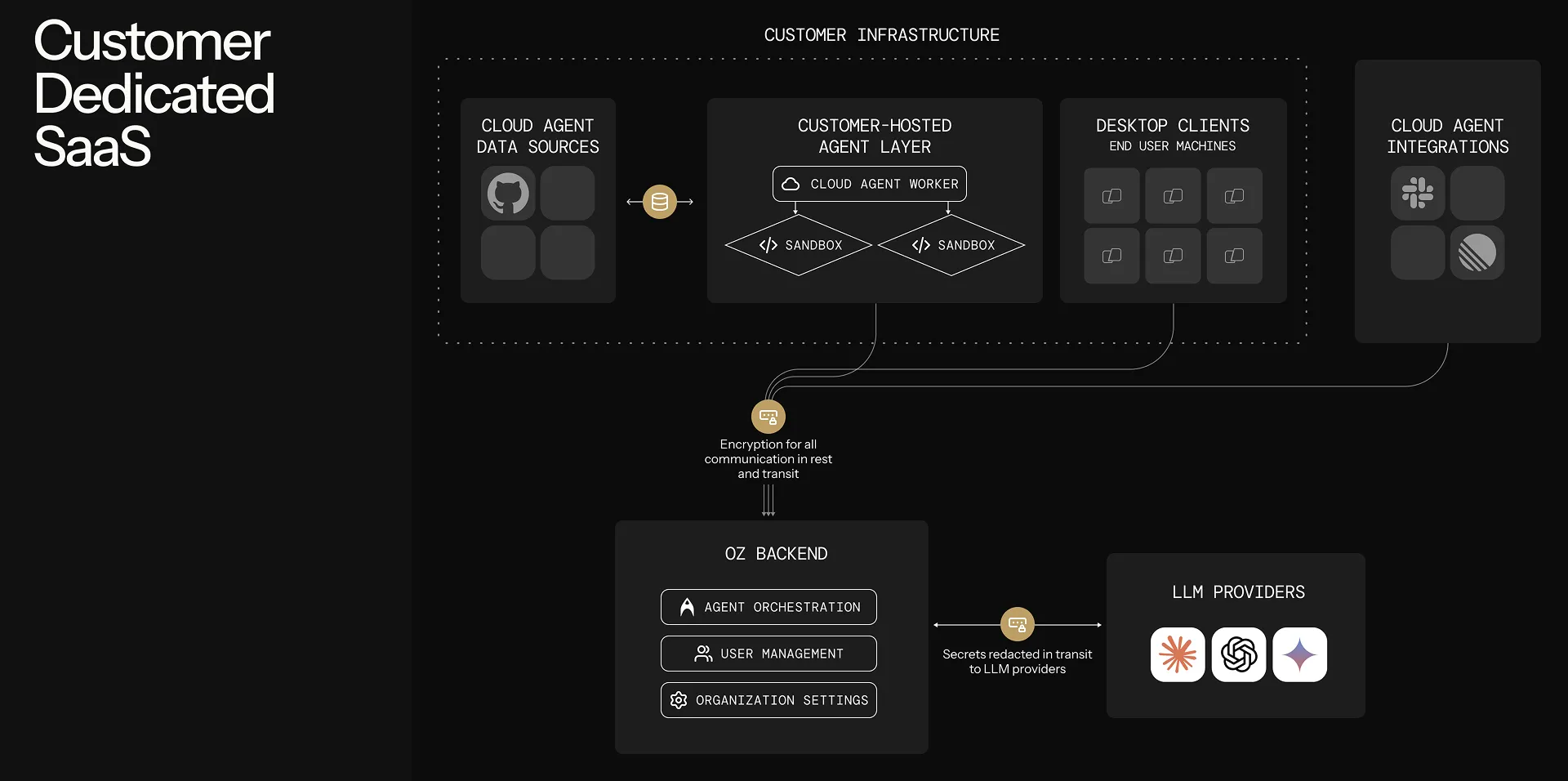 With any self-hosted architecture: * **Agent runs are tracked and steerable** — View status, metadata, and session transcripts in the [Oz dashboard](https://oz.warp.dev), the Warp app, or via the [API/SDK](/reference/api-and-sdk/). Authorized teammates can attach to running sessions to monitor or steer agents. * **Connectivity to Warp’s backend is required** — Agents need outbound access to Warp for orchestration, session storage, and LLM inference. No inbound ports need to be opened. * **Resource limits are controlled by your infrastructure** — Concurrency and compute are only limited by the machines you provision, not by Warp. *** ## Choosing an architecture [Section titled “Choosing an architecture”](#choosing-an-architecture) Caution **OS support:** The managed architecture is **Linux-only** today (macOS and Windows support is coming). If you need agents to run on macOS or Windows, use the [unmanaged](/agent-platform/cloud-agents/self-hosting/unmanaged/) architecture, which works on any platform Warp supports. Use these questions to decide between managed and unmanaged: 1. **Do you need agents to run on Windows or macOS?** * Yes → Use the [unmanaged](/agent-platform/cloud-agents/self-hosting/unmanaged/) architecture. Managed is Linux-only today. * No, Linux works → Continue to the next question. 2. **Do you want Oz to handle starting and stopping agents** (from Slack, the web interface, the Warp app, schedules, or the API)? * Yes → Use the [managed](#managed-architecture) architecture. * No, you have your own triggering mechanism → Use the [unmanaged](/agent-platform/cloud-agents/self-hosting/unmanaged/) architecture. 3. **Can your development environment run in a Docker container or Kubernetes pod?** * Yes, Docker → [Managed: Docker](/agent-platform/cloud-agents/self-hosting/managed-docker/) backend. * Yes, Kubernetes → [Managed: Kubernetes](/agent-platform/cloud-agents/self-hosting/managed-kubernetes/) backend. * No (multi-service stacks that don’t fit a single container, or environments where container runtimes aren’t available) → [Unmanaged](/agent-platform/cloud-agents/self-hosting/unmanaged/) or [Managed: Direct](/agent-platform/cloud-agents/self-hosting/managed-direct/). 4. **Do you have your own orchestrator** (CI/CD, Kubernetes, internal job scheduler) **that starts agents on demand?** * Yes → [Unmanaged](/agent-platform/cloud-agents/self-hosting/unmanaged/), using `oz agent run` as a drop-in. * No → [Managed](#managed-architecture). ### Choosing a managed backend [Section titled “Choosing a managed backend”](#choosing-a-managed-backend) The managed architecture supports three backends for task execution: 1. **Are you deploying the worker into a Kubernetes cluster?** * Yes → Use the [Kubernetes backend](/agent-platform/cloud-agents/self-hosting/managed-kubernetes/). Each task runs as a Kubernetes Job in your cluster; install with the included Helm chart. * No → Continue. 2. **Is Docker available on your worker host?** * Yes → Use the [Docker backend](/agent-platform/cloud-agents/self-hosting/managed-docker/) (default). Tasks run in isolated containers. * No → Use the [Direct backend](/agent-platform/cloud-agents/self-hosting/managed-direct/). Tasks run directly on the host. 3. **Do you need container-level isolation between tasks?** * Yes → [Docker](/agent-platform/cloud-agents/self-hosting/managed-docker/) or [Kubernetes](/agent-platform/cloud-agents/self-hosting/managed-kubernetes/) backend. * No → Any backend works. 4. **Do you need Kubernetes-native scheduling, resource management, or policy enforcement?** * Yes → [Kubernetes backend](/agent-platform/cloud-agents/self-hosting/managed-kubernetes/). * No → [Docker](/agent-platform/cloud-agents/self-hosting/managed-docker/) or [Direct](/agent-platform/cloud-agents/self-hosting/managed-direct/) is simpler to set up. *** ## Managed architecture [Section titled “Managed architecture”](#managed-architecture) With the managed architecture, you run the `oz-agent-worker` daemon on your infrastructure. The daemon connects to Oz’s backend, waits for tasks to be assigned to it, and executes those tasks on its host using one of three backends: * **[Docker backend](/agent-platform/cloud-agents/self-hosting/managed-docker/)** (default) — Runs each task in an isolated Docker container. * **[Kubernetes backend](/agent-platform/cloud-agents/self-hosting/managed-kubernetes/)** — Runs each task as a Kubernetes Job in your cluster. * **[Direct backend](/agent-platform/cloud-agents/self-hosting/managed-direct/)** — Runs each task directly on the host without a container runtime. The managed architecture enables full orchestration by Oz — it can remotely start agents via Slack, Linear, the [Oz web app](https://oz.warp.dev), the API/SDK, and the `oz agent run-cloud` command. Agents can access host resources through volume mounts (Docker), Kubernetes-native configuration (Kubernetes), and injected environment variables. ## Unmanaged architecture [Section titled “Unmanaged architecture”](#unmanaged-architecture) With the [unmanaged architecture](/agent-platform/cloud-agents/self-hosting/unmanaged/), you run `oz agent run` inside your own orchestrator or dev environment. This works on any platform Warp supports (Linux, macOS, Windows), with no dependency on Docker or any other sandboxing platform. You’re responsible for executing `oz agent run` on your infrastructure — similar to how you’d integrate Claude Code or Codex CLI. The agent runs directly on the host, which could itself be a Kubernetes pod, VM, container, or CI runner. *** ## Routing runs to self-hosted workers [Section titled “Routing runs to self-hosted workers”](#routing-runs-to-self-hosted-workers) This section applies to **all managed backends** (Docker, Kubernetes, and Direct). Once a worker is connected, route cloud agent runs to it by specifying the `--host` flag (or equivalent) with your worker ID. The `--host` value must match the `--worker-id` of a connected worker exactly. ### From the CLI [Section titled “From the CLI”](#from-the-cli) ```bash oz agent run-cloud --prompt "Refactor the authentication module" --host "my-worker" ``` You can combine `--host` with any other `run-cloud` flags, such as `--environment`, `--model`, `--mcp`, `--skill`, `--computer-use`, and `--attach`. ### From scheduled agents [Section titled “From scheduled agents”](#from-scheduled-agents) When creating or updating a schedule, specify the host: ```bash oz schedule create --name "daily-cleanup" \ --cron "0 9 * * *" \ --prompt "Run dead code cleanup" \ --environment ENV_ID \ --host "my-worker" oz schedule update SCHEDULE_ID --host "my-worker" ``` ### From integrations [Section titled “From integrations”](#from-integrations) When creating or updating an integration, specify the host: ```bash oz integration create slack --host "my-worker" ... oz integration update linear --host "my-worker" ... ``` All tasks created through that integration route to your self-hosted worker. ### From the API and SDKs [Section titled “From the API and SDKs”](#from-the-api-and-sdks) When creating a run via the [Oz API](/reference/api-and-sdk/), include `worker_host` in the config: ```bash curl -X POST https://app.warp.dev/api/v1/agent/run \ --header 'Authorization: Bearer YOUR_API_KEY' \ --header 'Content-Type: application/json' \ --data '{ "prompt": "Refactor the authentication module", "config": { "environment_id": "ENV_ID", "worker_host": "my-worker" } }' ``` ### From the web UI [Section titled “From the web UI”](#from-the-web-ui) When creating a run, schedule, or integration in the [Oz web app](https://oz.warp.dev), select your self-hosted worker from the host dropdown. *** ## Environments with self-hosted workers [Section titled “Environments with self-hosted workers”](#environments-with-self-hosted-workers) Self-hosted workers fully support [environments](/agent-platform/cloud-agents/environments/). When a task specifies an environment, the worker resolves the Docker image, clones the repositories, runs setup commands, and executes the agent inside the prepared container or Kubernetes Job. The same environment can be used for both Warp-hosted and self-hosted runs without modification. If your agents need custom tools, binaries, scripts, or system packages, add them to the environment’s Docker image. See [Environments](/agent-platform/cloud-agents/environments/) for details on creating and configuring custom images. Caution Musl-based Docker images (such as Alpine Linux) are not supported as task images. The agent runtime requires glibc. Use glibc-based images like Debian, Ubuntu, or the default (non-Alpine) variants of official Docker Hub images. ## Monitoring runs [Section titled “Monitoring runs”](#monitoring-runs) Self-hosted runs have the same observability as Warp-hosted runs: * **Oz dashboard** — View task status, history, and metadata from the [Oz web app](https://oz.warp.dev). * **Session sharing** — Authorized teammates can attach to running tasks to monitor progress. * **APIs and SDKs** — Query task history and build monitoring using the [Oz API](/reference/api-and-sdk/). For infrastructure-level observability, the `oz-agent-worker` daemon can export OpenTelemetry metrics (worker health, task throughput, capacity saturation) to Prometheus, an OTLP collector, or the console. See [Monitoring](/agent-platform/cloud-agents/self-hosting/monitoring/) for setup, the full metric catalog, and sample PromQL queries. *** ## Related pages [Section titled “Related pages”](#related-pages) * [Self-hosting quickstart](/agent-platform/cloud-agents/self-hosting/quickstart/) — Get a managed worker running in \~10 minutes. * [Unmanaged](/agent-platform/cloud-agents/self-hosting/unmanaged/) — Run `oz agent run` in your CI, K8s, or dev environment. * [Managed: Docker](/agent-platform/cloud-agents/self-hosting/managed-docker/) — Default managed setup with the Docker backend. * [Managed: Kubernetes](/agent-platform/cloud-agents/self-hosting/managed-kubernetes/) — Managed setup with the Kubernetes backend and Helm chart. * [Managed: Direct](/agent-platform/cloud-agents/self-hosting/managed-direct/) — Managed setup with no container runtime. * [Self-hosted worker reference](/agent-platform/cloud-agents/self-hosting/reference/) — CLI flags and config file schema. * [Monitoring](/agent-platform/cloud-agents/self-hosting/monitoring/) — OpenTelemetry metrics for worker health, task throughput, and capacity. * [Security and networking](/agent-platform/cloud-agents/self-hosting/security-and-networking/) — Data boundaries, network egress, and security considerations. * [Troubleshooting](/agent-platform/cloud-agents/self-hosting/troubleshooting/) — Worker won’t start, tasks not picked up, and other common issues. * [Deployment patterns](/agent-platform/cloud-agents/deployment-patterns/) — How self-hosting compares to CLI-only and Warp-hosted deployment. * [Environments](/agent-platform/cloud-agents/environments/) — Define the runtime context for agent tasks. * [Customizing workspace snapshots](/agent-platform/cloud-agents/handoff/snapshots/) — Configure end-of-run snapshots so handoff works when running outside the bundled cloud agent image.
# Managed: Direct backend
Canonical page: [/agent-platform/cloud-agents/self-hosting/managed-direct/](https://docs.warp.dev/agent-platform/cloud-agents/self-hosting/managed-direct/)
> Run the Oz managed worker with the Direct backend to execute cloud agent tasks directly on the host, without Docker or Kubernetes.
Run the `oz-agent-worker` daemon with the **Direct backend** — tasks execute directly on the worker host without Docker or Kubernetes. Oz still orchestrates runs end to end (Slack, Linear, schedules, API, `oz agent run-cloud`); the worker just runs the agent in a per-task workspace on its own filesystem. ## When to use the Direct backend [Section titled “When to use the Direct backend”](#when-to-use-the-direct-backend) * Neither Docker nor Kubernetes is available on the worker host. * Tasks need direct access to host resources that are hard to expose through a container. * You want managed orchestration (triggering from Slack, Linear, schedules, API) without the operational overhead of a container runtime. Caution The Direct backend does not provide per-task container isolation. Each task runs in an isolated workspace directory, but shares the host OS and kernel. Evaluate whether this fits your security requirements before using it in production. *** ## How it works [Section titled “How it works”](#how-it-works) 1. The worker creates a per-task workspace directory under `workspace_root`. 2. If a `setup_command` is configured, it runs before the task with environment variables pointing to the workspace. 3. The `oz` CLI runs the agent task inside the workspace directory. 4. After the task completes, the optional `teardown_command` runs and the workspace is cleaned up. *** ## Prerequisites [Section titled “Prerequisites”](#prerequisites) * **Enterprise plan with self-hosting enabled** — [Contact sales](https://www.warp.dev/contact-sales) if self-hosting is not yet enabled for your team. * **A worker host** with write access to `workspace_root` (defaults to `/var/lib/oz/workspaces`). * **The Oz CLI** installed and available in `PATH` on the worker host (or specify `oz_path` in the config file). See [Installing the CLI](/reference/cli/#installing-the-cli). * **An agent API key** — Create one in the [Oz web app](https://oz.warp.dev/settings) so the worker can authenticate to Oz. You can bind the key to any cloud agent — that choice doesn’t restrict which agents can run on the worker. See [API Keys](/reference/cli/api-keys/) for the full creation flow. *** ## Setup [Section titled “Setup”](#setup) ### 1. Set your API key [Section titled “1. Set your API key”](#1-set-your-api-key) Export the API key so the worker can authenticate to Oz: ```bash export WARP_API_KEY="your_agent_api_key" ``` ### 2. Start the worker with the Direct backend [Section titled “2. Start the worker with the Direct backend”](#2-start-the-worker-with-the-direct-backend) Pass `--backend direct`: ```bash oz-agent-worker --api-key "$WARP_API_KEY" --worker-id "my-worker" --backend direct ``` Or with a [config file](/agent-platform/cloud-agents/self-hosting/reference/#config-file): ```yaml worker_id: "my-worker" backend: direct: workspace_root: "/var/lib/oz/workspaces" ``` **Expected outcome:** The worker connects to Oz and begins listening for tasks. Each assigned task runs in a freshly-created subdirectory of `workspace_root`. *** ## Workspace model [Section titled “Workspace model”](#workspace-model) Each task gets its own directory under `workspace_root`. The default is `/var/lib/oz/workspaces`; override it with the `workspace_root` config option shown above. After the task completes, the workspace is deleted (unless `--no-cleanup` is set, which keeps the directory around for debugging). *** ## Setup and teardown commands [Section titled “Setup and teardown commands”](#setup-and-teardown-commands) The `setup_command` runs before each task and receives the following environment variables: * `OZ_WORKSPACE_ROOT` — The workspace directory for the task. * `OZ_RUN_ID` — The unique task ID. * `OZ_ENVIRONMENT_FILE` — Path to a file where the setup script can write additional `KEY=VALUE` environment variables to inject into the task. * `OZ_WORKER_BACKEND` — Always set to `direct`. The `teardown_command` runs after each task and receives `OZ_WORKSPACE_ROOT`, `OZ_RUN_ID`, and `OZ_WORKER_BACKEND`. Use the setup command to clone repos, install dependencies, or write task-specific env vars into `OZ_ENVIRONMENT_FILE`. Use the teardown command for cleanup or reporting. *** ## Environment variables for Direct tasks [Section titled “Environment variables for Direct tasks”](#environment-variables-for-direct-tasks) Config file example: ```yaml worker_id: "direct-worker" max_concurrent_tasks: 2 backend: direct: workspace_root: "/var/lib/oz/workspaces" oz_path: "/usr/local/bin/oz" setup_command: "/opt/scripts/setup.sh" teardown_command: "/opt/scripts/teardown.sh" environment: - name: MY_VAR value: "hello" ``` *** ## Related pages [Section titled “Related pages”](#related-pages) * [Self-hosted worker reference](/agent-platform/cloud-agents/self-hosting/reference/#direct-backend-config) — Full config schema for the Direct backend. * [Self-hosting overview](/agent-platform/cloud-agents/self-hosting/) — Managed vs unmanaged and the backend decision guide. * [Routing runs to self-hosted workers](/agent-platform/cloud-agents/self-hosting/#routing-runs-to-self-hosted-workers) — How to send tasks to your connected worker from the CLI, schedules, integrations, the API, and the web UI. * [Security and networking](/agent-platform/cloud-agents/self-hosting/security-and-networking/) — Data boundaries and security considerations for the Direct backend. * [Troubleshooting](/agent-platform/cloud-agents/self-hosting/troubleshooting/#direct-backend) — Common Direct-backend issues.
# Managed: Docker backend
Canonical page: [/agent-platform/cloud-agents/self-hosting/managed-docker/](https://docs.warp.dev/agent-platform/cloud-agents/self-hosting/managed-docker/)
> Run the Oz managed worker daemon with the Docker backend to execute cloud agent tasks in isolated containers on your infrastructure.
Run the `oz-agent-worker` daemon with the **Docker backend** — the default managed path. Each agent task runs in an isolated Docker container spawned from the worker, with full orchestration by Oz (Slack, Linear, schedules, API, `oz agent run-cloud`). ## When to use the Docker backend [Section titled “When to use the Docker backend”](#when-to-use-the-docker-backend) * You want the simplest managed setup and have Docker available on the worker host. * You want per-task isolation without running a Kubernetes cluster. * You’re not already deploying workloads into Kubernetes. *** ## Prerequisites [Section titled “Prerequisites”](#prerequisites) * **Enterprise plan with self-hosting enabled** — [Contact sales](https://www.warp.dev/contact-sales) if self-hosting is not yet enabled for your team. * **A machine to run the worker** — A VM, server, or local machine running Linux (recommended for production). For testing, macOS and Windows hosts running Docker Desktop work. * **Docker installed** — The worker uses Docker to spawn task containers. The Docker daemon must run Linux containers (Windows containers are not supported). Verify with `docker info`. * **An agent API key** — Create one in the [Oz web app](https://oz.warp.dev/settings) so the worker can authenticate to Oz. You can bind the key to any cloud agent — that choice doesn’t restrict which agents can run on the worker. See [API Keys](/reference/cli/api-keys/) for the full creation flow. Caution Task containers require a **linux/amd64** or **linux/arm64** Docker daemon. The worker host itself can be any OS — Docker Desktop on macOS and Windows runs a Linux VM that satisfies this requirement. ### Install Docker [Section titled “Install Docker”](#install-docker) If Docker is not already installed, follow the [official Docker installation guide](https://docs.docker.com/get-docker/) for your platform. Verify Docker is running: ```bash docker info ``` **Expected outcome:** `docker info` prints daemon details without errors. *** ## Set your API key [Section titled “Set your API key”](#set-your-api-key) Export your agent API key so the worker can authenticate to Oz: ```bash export WARP_API_KEY="your_agent_api_key" ``` ## Install and run the worker [Section titled “Install and run the worker”](#install-and-run-the-worker) The `oz-agent-worker` is open source. See the [oz-agent-worker repository](https://github.com/warpdotdev/oz-agent-worker) for source code, issues, and contribution guidelines. There are three ways to install and run the worker with the Docker backend. Docker is recommended for production; `go install` and building from source are primarily useful for contributors and one-off testing. The worker can be configured entirely via CLI flags, or via a YAML [config file](/agent-platform/cloud-agents/self-hosting/reference/#config-file) for more complex setups. ### Option 1: Docker (recommended) [Section titled “Option 1: Docker (recommended)”](#option-1-docker-recommended) The worker needs access to the Docker daemon to spawn task containers. Mount the host’s Docker socket into the worker container: ```bash docker run -v /var/run/docker.sock:/var/run/docker.sock \ -e WARP_API_KEY="$WARP_API_KEY" \ warpdotdev/oz-agent-worker --worker-id "my-worker" ``` **Expected outcome:** The worker connects to Oz and logs that it’s listening for tasks. ### Option 2: Go install [Section titled “Option 2: Go install”](#option-2-go-install) ```bash go install github.com/warpdotdev/oz-agent-worker@latest oz-agent-worker --api-key "$WARP_API_KEY" --worker-id "my-worker" ``` ### Option 3: Build from source [Section titled “Option 3: Build from source”](#option-3-build-from-source) ```bash git clone https://github.com/warpdotdev/oz-agent-worker.git cd oz-agent-worker go build -o oz-agent-worker ./oz-agent-worker --api-key "$WARP_API_KEY" --worker-id "my-worker" ``` Once started, the worker connects to Oz, waits for tasks routed to its `--worker-id`, runs each task in an isolated Docker container, and reports status and results back. The worker automatically reconnects if the connection drops. You can run multiple workers with the same `--worker-id` for redundancy — Oz distributes tasks across connected workers. *** ## Docker backend configuration [Section titled “Docker backend configuration”](#docker-backend-configuration) The worker can take configuration either via CLI flags or via a YAML [config file](/agent-platform/cloud-agents/self-hosting/reference/#config-file). CLI flags take precedence over config file values. **Common CLI flags:** ```bash docker run -v /var/run/docker.sock:/var/run/docker.sock \ -e WARP_API_KEY="$WARP_API_KEY" \ warpdotdev/oz-agent-worker \ --worker-id "prod-runner-1" \ --log-level debug \ --max-concurrent-tasks 4 \ --idle-on-complete 10m \ -v /opt/shared-cache:/cache:ro \ -e NPM_TOKEN=your_token \ -e GITHUB_TOKEN ``` Caution When running the worker via Docker, there are two levels of `-e` flags. Docker’s `-e` passes env vars to the **worker container** (e.g., `WARP_API_KEY`). The worker’s `-e` / `--env` flags pass env vars into the **task containers** the worker spawns. Keep these distinct: ```bash # Docker -e: passes WARP_API_KEY to the worker container # Worker -e: passes MY_SECRET to task containers docker run \ -e WARP_API_KEY="$WARP_API_KEY" \ warpdotdev/oz-agent-worker \ --worker-id "my-worker" \ -e MY_SECRET=hunter2 ``` **Equivalent config file** (`config.yaml`): ```yaml worker_id: "prod-runner-1" log_level: "debug" max_concurrent_tasks: 4 idle_on_complete: "10m" backend: docker: volumes: - "/opt/shared-cache:/cache:ro" environment: - name: NPM_TOKEN value: "your_token" - name: GITHUB_TOKEN # inherits from host environment ``` Pass it with `--config-file config.yaml`. See the [self-hosted worker reference](/agent-platform/cloud-agents/self-hosting/reference/) for the full flag and config schema. *** ## Docker connectivity [Section titled “Docker connectivity”](#docker-connectivity) The worker uses the standard Docker client discovery mechanism to find the Docker daemon: 1. **`DOCKER_HOST`** environment variable (e.g., `unix:///var/run/docker.sock`, `tcp://localhost:2375`). 2. **Default socket** (`/var/run/docker.sock` on Linux, `~/.docker/run/docker.sock` for rootless Docker). 3. **Docker context** via `DOCKER_CONTEXT` environment variable. 4. **Config file** (`~/.docker/config.json`) for context settings. Additional Docker environment variables the worker respects: * `DOCKER_API_VERSION` — Specify Docker API version. * `DOCKER_CERT_PATH` — Path to TLS certificates. * `DOCKER_TLS_VERIFY` — Enable TLS verification. **Example: Connecting to a remote Docker daemon** ```bash export DOCKER_HOST="tcp://remote-host:2376" export DOCKER_TLS_VERIFY=1 export DOCKER_CERT_PATH="/path/to/certs" oz-agent-worker --api-key "$WARP_API_KEY" --worker-id "my-worker" ``` *** ## Private Docker registries [Section titled “Private Docker registries”](#private-docker-registries) The worker automatically uses credentials from your Docker config (`~/.docker/config.json`) when pulling task images. If your [environments](/agent-platform/cloud-agents/environments/) use images from a private registry, authenticate the worker’s host first: ```bash docker login your-registry.example.com ``` When running the worker via Docker, mount the Docker config into the container: ```bash docker run \ -v /var/run/docker.sock:/var/run/docker.sock \ -v ~/.docker/config.json:/root/.docker/config.json:ro \ -e WARP_API_KEY="$WARP_API_KEY" \ warpdotdev/oz-agent-worker --worker-id "my-worker" ``` *** ## Routing runs to this worker [Section titled “Routing runs to this worker”](#routing-runs-to-this-worker) Once your Docker worker is connected, route tasks to it with `--host ""`. Routing is the same across all managed backends — see [Routing runs to self-hosted workers](/agent-platform/cloud-agents/self-hosting/#routing-runs-to-self-hosted-workers) for CLI, scheduled, integration, API, and web UI examples. *** ## Related pages [Section titled “Related pages”](#related-pages) * [Self-hosting quickstart](/agent-platform/cloud-agents/self-hosting/quickstart/) — \~10-minute path to a running Docker worker. * [Self-hosted worker reference](/agent-platform/cloud-agents/self-hosting/reference/) — Full CLI flag and config file schema. * [Environments](/agent-platform/cloud-agents/environments/) — Define the Docker image, repos, and setup commands for tasks. * [Security and networking](/agent-platform/cloud-agents/self-hosting/security-and-networking/) — Data boundaries, egress, and Docker socket considerations. * [Troubleshooting](/agent-platform/cloud-agents/self-hosting/troubleshooting/) — Common issues with the Docker backend.
# Managed: Kubernetes backend
Canonical page: [/agent-platform/cloud-agents/self-hosting/managed-kubernetes/](https://docs.warp.dev/agent-platform/cloud-agents/self-hosting/managed-kubernetes/)
> Deploy the Oz managed worker into a Kubernetes cluster with the included Helm chart. Each agent task runs as a Kubernetes Job in your cluster.
Deploy the `oz-agent-worker` daemon into a Kubernetes cluster using the included Helm chart. Each agent task runs as a **Kubernetes Job** in your cluster. Oz orchestrates runs end to end (Slack, Linear, schedules, API, `oz agent run-cloud`); your cluster provides the compute, scheduling, and policy enforcement. ## When to use the Kubernetes backend [Section titled “When to use the Kubernetes backend”](#when-to-use-the-kubernetes-backend) * You already operate a Kubernetes cluster and want agents to run there. * You need Kubernetes-native scheduling, resource management, or policy enforcement. * You want to use Kubernetes Secrets, ServiceAccounts, and admission policies to control task behavior. *** ## How it works [Section titled “How it works”](#how-it-works) 1. The worker connects to the Kubernetes API server (using in-cluster auth by default, or an explicit kubeconfig). 2. On startup, the worker runs a short-lived **preflight Job** to verify that cluster permissions, admission policies, and Pod Security Standards are compatible. If the preflight fails, the worker exits with a diagnostic error before accepting any tasks. 3. For each assigned task, the worker creates a Kubernetes Job in the configured namespace. 4. The worker monitors the Job and Pod status via Kubernetes Watch (with a 30-second safety-net poll for watch disconnects). 5. After the task completes, the Job is cleaned up (unless `--no-cleanup` is set). *** ## Prerequisites [Section titled “Prerequisites”](#prerequisites) * **Enterprise plan with self-hosting enabled** — [Contact sales](https://www.warp.dev/contact-sales) if self-hosting is not yet enabled for your team. * **A Kubernetes cluster** with the worker process able to reach the API server. The cluster must: * Allow the worker’s namespace to create Jobs with a **root init container** (sidecar materialization depends on this pattern). * Grant the worker these namespace-scoped permissions: `create`, `get`, `list`, `watch`, `delete` on `jobs`; `get`, `list`, `watch` on `pods`; `get` on `pods/log`; `list` on `events`. * **[Helm](https://helm.sh/docs/intro/install/)** installed locally, plus `kubectl` authenticated against the target cluster. * **An agent API key** — Create one in the [Oz web app](https://oz.warp.dev/settings) so the worker can authenticate to Oz. You can bind the key to any cloud agent — that choice doesn’t restrict which agents can run on the worker. See [API Keys](/reference/cli/api-keys/) for the full creation flow. *** ## Install with the Helm chart [Section titled “Install with the Helm chart”](#install-with-the-helm-chart) The `oz-agent-worker` repository includes a namespace-scoped Helm chart at `charts/oz-agent-worker`. This is the recommended way to deploy the worker into a cluster. ### What the chart deploys [Section titled “What the chart deploys”](#what-the-chart-deploys) * A long-lived `Deployment` running `oz-agent-worker` with the Kubernetes backend. * A namespaced `ServiceAccount` for the worker. * A namespaced `Role` / `RoleBinding` with the minimum permissions needed to manage task Jobs and Pods. * A `ConfigMap` containing the worker config YAML. * An optional `Secret` for `WARP_API_KEY` (or a reference to an existing Secret). The chart does not create CRDs or cluster-scoped RBAC resources. ### 1. Set your API key and namespace [Section titled “1. Set your API key and namespace”](#1-set-your-api-key-and-namespace) ```bash export WARP_API_KEY="your_agent_api_key" ``` Create the namespace if it doesn’t exist: ```bash kubectl create namespace warp-oz ``` ### 2. Create the API key Secret [Section titled “2. Create the API key Secret”](#2-create-the-api-key-secret) If you’re not using an existing Secret, create one with the API key: ```bash kubectl create secret generic oz-agent-worker \ --from-literal=WARP_API_KEY="$WARP_API_KEY" \ --namespace warp-oz ``` **Expected outcome:** `kubectl get secret -n warp-oz oz-agent-worker` shows the Secret. ### 3. Install the chart [Section titled “3. Install the chart”](#3-install-the-chart) Clone the worker repo and install the chart: ```bash git clone https://github.com/warpdotdev/oz-agent-worker.git helm install oz-agent-worker ./oz-agent-worker/charts/oz-agent-worker \ --namespace warp-oz \ --set worker.workerId=oz-k8s-worker \ --set image.tag= ``` Caution Set `image.tag` explicitly to pin the worker image. Check the [oz-agent-worker releases](https://github.com/warpdotdev/oz-agent-worker/releases) for the latest version. Do not rely on `latest`. **Expected outcome:** `kubectl get pods -n warp-oz` shows the worker Deployment pod as `Running`, and the worker logs show `Connected to Oz` / `Listening for tasks`. To scale horizontally, deploy multiple Helm releases with distinct worker IDs rather than increasing replicas on a single release. *** ## Key chart values [Section titled “Key chart values”](#key-chart-values) **Required:** * `worker.workerId` — The worker ID (same as `--worker-id`). * `image.tag` — The worker image tag to deploy. **Worker configuration:** * `worker.logLevel` — Log verbosity (`debug`, `info`, `warn`, `error`). Defaults to `info`. * `worker.cleanup` — Whether to clean up task Jobs after execution. Defaults to `true`. * `worker.maxConcurrentTasks` — Maximum concurrent tasks. Defaults to `0` (unlimited). * `worker.idleOnComplete` — Duration to keep the oz process alive after task completion. * `worker.resources` — Resource requests/limits for the worker Deployment. Defaults to `100m` CPU and `128Mi` memory. * `worker.livenessProbe` — Liveness probe for the worker Deployment. Defaults to an `exec` probe (`kill -0 1`). Override with a custom probe or set to `null` to disable. * `worker.nodeSelector`, `worker.tolerations`, `worker.affinity` — Scheduling constraints for the worker Deployment pod. **Kubernetes backend:** * `kubernetesBackend.namespace` — Namespace for task Jobs. Defaults to the release namespace. * `kubernetesBackend.defaultImage` — Default Docker image for task pods when no [Warp environment](/agent-platform/cloud-agents/environments/) has been supplied. Leave empty (default) to fall back to `ubuntu:22.04`. * `kubernetesBackend.imagePullPolicy` — Image pull policy for task pods. Defaults to `IfNotPresent`. * `kubernetesBackend.preflightImage` — Image for the startup preflight Job. Set this if your cluster restricts allowed registries. * `kubernetesBackend.unschedulableTimeout` — How long a pod may remain unschedulable before failing. Defaults to `30s`. * `kubernetesBackend.setupCommand` — Shell command to run before each task. * `kubernetesBackend.teardownCommand` — Shell command to run after each task. * `kubernetesBackend.extraLabels` — Additional labels for task Jobs and Pods. * `kubernetesBackend.extraAnnotations` — Additional annotations for task Jobs and Pods. * `kubernetesBackend.activeDeadlineSeconds` — Maximum task Job lifetime. * `kubernetesBackend.workspaceSizeLimit` — Size limit for workspace `emptyDir` volume. * `kubernetesBackend.podTemplate` — Raw PodSpec YAML for task Jobs (same as `backend.kubernetes.pod_template` in the [config file](/agent-platform/cloud-agents/self-hosting/reference/#config-file)). **API key Secret:** * `warp.apiKeySecret.create` — Set to `true` to have the chart create a Secret from `warp.apiKeySecret.value`. Defaults to `false` (expects a pre-existing Secret). * `warp.apiKeySecret.value` — The API key value to store in the chart-managed Secret. Only used when `warp.apiKeySecret.create` is `true`. * `warp.apiKeySecret.name` — Name of the Secret containing `WARP_API_KEY`. Defaults to `oz-agent-worker`. * `warp.apiKeySecret.key` — Key within the Secret. Defaults to `WARP_API_KEY`. See the [self-hosted worker reference](/agent-platform/cloud-agents/self-hosting/reference/#kubernetes-backend-config) for the full config file schema. *** ## Cluster selection [Section titled “Cluster selection”](#cluster-selection) Cluster selection follows Kubernetes client config conventions: * Set `backend.kubernetes.kubeconfig` to use an explicit kubeconfig file. * If `kubeconfig` is omitted and the worker runs inside a Kubernetes pod, the worker uses in-cluster config automatically. * Otherwise, the worker falls back to the default kubeconfig loading rules and uses the current context. `namespace` selects the namespace inside the chosen cluster. It defaults to `default` when omitted. *** ## Pod template [Section titled “Pod template”](#pod-template) The `pod_template` field accepts standard Kubernetes PodSpec YAML and is the declarative way to configure task pod scheduling, service accounts, image pull secrets, resources, and environment variables. When using `pod_template`, define a container named `task` to customize the main task container directly. Otherwise, the worker appends its own `task` container to the PodSpec. Use `valueFrom.secretKeyRef` to inject Kubernetes Secret values into task container environment variables: ```yaml pod_template: serviceAccountName: agent-task-sa imagePullSecrets: - name: my-registry-creds containers: - name: task resources: requests: cpu: "2" memory: 4Gi limits: memory: 8Gi env: - name: GITHUB_TOKEN valueFrom: secretKeyRef: name: my-k8s-secret key: github-token tolerations: - key: "dedicated" operator: "Equal" value: "agents" effect: "NoSchedule" ``` *** ## Preflight check [Section titled “Preflight check”](#preflight-check) On startup, the worker creates a short-lived preflight Job to verify that: * The worker has sufficient RBAC permissions in the target namespace. * Cluster admission policies (Pod Security Standards, OPA Gatekeeper, Kyverno, etc.) allow the worker’s task pod shape. * The preflight image can be pulled. If the preflight fails, the worker logs a diagnostic error and exits before accepting any tasks. This surfaces policy and configuration issues at deploy time rather than at task execution time. The preflight image defaults to `busybox:1.36`. If your cluster restricts allowed registries or images, set `preflight_image` to an allowlisted image. When `imagePullSecrets` is configured in `pod_template`, those secrets apply to the preflight Job as well, so you can point `preflight_image` at an image in your private registry. *** ## Environment variables for Kubernetes tasks [Section titled “Environment variables for Kubernetes tasks”](#environment-variables-for-kubernetes-tasks) There are two ways to pass environment variables to Kubernetes task containers: 1. **`pod_template`** (recommended for Kubernetes-native config) — Use standard Kubernetes `env` syntax in the `task` container, including `valueFrom.secretKeyRef` for Kubernetes Secrets. 2. **`-e` / `--env` flags** — Backend-agnostic runtime overrides that work across all managed backends. When configuring the Kubernetes backend via YAML or Helm, declarative task-container env belongs in `pod_template` rather than a separate top-level list. *** ## Setup and teardown commands [Section titled “Setup and teardown commands”](#setup-and-teardown-commands) Use `kubernetesBackend.setupCommand` (Helm value) or `backend.kubernetes.setup_command` ([config file](/agent-platform/cloud-agents/self-hosting/reference/#kubernetes-backend-config)) to run a shell command before each task. Use `teardownCommand` / `teardown_command` for cleanup after the task finishes. These run inside the task Pod and are useful for workspace bootstrapping or post-run reporting. *** ## Metrics [Section titled “Metrics”](#metrics) The Helm chart includes built-in support for exporting OpenTelemetry metrics from the worker. Enable metrics by setting `metrics.enabled=true`: ```bash helm install oz-agent-worker ./charts/oz-agent-worker \ --namespace warp-oz \ --set worker.workerId=oz-k8s-worker \ --set image.tag=VERSION \ --set metrics.enabled=true ``` With the default `metrics.exporter=prometheus`, the chart creates a `Service` with Prometheus scrape annotations and exposes port `9464`. For clusters using the Prometheus Operator, set `metrics.podMonitor.create=true` to create a `PodMonitor`. To push metrics to an OTLP collector instead, set `metrics.exporter=otlp` and configure the endpoint via `metrics.extraEnv`. See [Monitoring](/agent-platform/cloud-agents/self-hosting/monitoring/) for the full list of Helm values, the metric catalog, and sample PromQL queries. *** ## Operational notes [Section titled “Operational notes”](#operational-notes) * **Scaling** — The chart always deploys a single replica for a given `worker.workerId`. To run multiple workers, deploy multiple Helm releases with distinct worker IDs rather than scaling a single release horizontally. * **Security context** — The Deployment defaults to a non-root security context (`runAsUser: 10001`) with `allowPrivilegeEscalation: false` and all capabilities dropped. * **Liveness probe** — The Deployment includes a default `exec` liveness probe (`kill -0 1`). Override `worker.livenessProbe` for a custom probe, or set it to `null` to disable. * **In-cluster auth** — The chart assumes the worker runs inside the target cluster and uses in-cluster Kubernetes auth by default. * **Root init containers** — The worker Deployment itself is non-root, but task Jobs require a root init container for sidecar materialization. Ensure the task namespace’s Pod Security Standards allow this. *** ## Related pages [Section titled “Related pages”](#related-pages) * [Self-hosted worker reference](/agent-platform/cloud-agents/self-hosting/reference/) — Full CLI flag and config file schema, including every Kubernetes backend field. * [Self-hosting overview](/agent-platform/cloud-agents/self-hosting/) — Managed vs unmanaged and the backend decision guide. * [Routing runs to self-hosted workers](/agent-platform/cloud-agents/self-hosting/#routing-runs-to-self-hosted-workers) — How to send tasks to your connected worker from the CLI, schedules, integrations, the API, and the web UI. * [Environments](/agent-platform/cloud-agents/environments/) — Define the task image, repos, and setup commands. * [Monitoring](/agent-platform/cloud-agents/self-hosting/monitoring/) — OpenTelemetry metrics, including Helm chart metrics values. * [Security and networking](/agent-platform/cloud-agents/self-hosting/security-and-networking/) — RBAC, admission policies, and data boundaries. * [Troubleshooting](/agent-platform/cloud-agents/self-hosting/troubleshooting/#kubernetes-backend) — Common Kubernetes-backend issues.
# Self-hosted worker monitoring
Canonical page: [/agent-platform/cloud-agents/self-hosting/monitoring/](https://docs.warp.dev/agent-platform/cloud-agents/self-hosting/monitoring/)
> Monitor self-hosted Oz workers with OpenTelemetry metrics. Export to Prometheus, OTLP, or console to track worker health, task throughput, and saturation.
The `oz-agent-worker` daemon exports infrastructure-level metrics over [OpenTelemetry](https://opentelemetry.io/), giving your team real-time visibility into worker health, task throughput, and capacity. Combine these metrics with the [Oz dashboard](https://oz.warp.dev) for full observability across both the orchestration plane and your self-hosted compute. ## Key features [Section titled “Key features”](#key-features) * **Prometheus scrape** — Expose a `/metrics` endpoint for Prometheus to scrape, with optional `PodMonitor` support for the Prometheus Operator. * **OTLP push** — Push metrics to any OpenTelemetry-compatible collector (Grafana Alloy, Datadog Agent, New Relic, etc.). * **Standard configuration** — Exporter selection uses the standard [OpenTelemetry environment variables](https://opentelemetry.io/docs/specs/otel/configuration/sdk-environment-variables/), so the worker integrates with your existing observability stack without custom configuration. * **Pre-seeded series** — All metric series appear at startup (before any tasks run), so dashboards and alerts can reference them immediately. ## How it works [Section titled “How it works”](#how-it-works) The worker uses the [`go.opentelemetry.io/contrib/exporters/autoexport`](https://github.com/open-telemetry/opentelemetry-go-contrib/tree/main/exporters/autoexport) package to select an exporter at runtime based on the `OTEL_METRICS_EXPORTER` environment variable. Supported values: * `prometheus` — Starts an in-process HTTP server serving `/metrics`. * `otlp` — Pushes metrics over OTLP (HTTP/protobuf by default). * `console` — Writes metrics to stdout (useful for debugging). * `none` — Disables metrics export entirely. When `OTEL_METRICS_EXPORTER` is unset, the worker defaults to OTLP push targeting `OTEL_EXPORTER_OTLP_ENDPOINT` (which itself defaults to `http://localhost:4318` for `http/protobuf` or `http://localhost:4317` for `grpc`). All metrics carry resource attributes (`service.name=oz-agent-worker`, `service.version`, `worker.id`, `worker.backend`) so each worker process shows up as a distinct series in your monitoring system. *** ## Enable Prometheus scrape [Section titled “Enable Prometheus scrape”](#enable-prometheus-scrape) Set these environment variables before starting the worker to expose a Prometheus-compatible `/metrics` endpoint: ```bash export OTEL_METRICS_EXPORTER=prometheus export OTEL_EXPORTER_PROMETHEUS_HOST=0.0.0.0 export OTEL_EXPORTER_PROMETHEUS_PORT=9464 oz-agent-worker --api-key "$WARP_API_KEY" --worker-id "my-worker" ``` Verify the endpoint is serving metrics: ```bash curl -s localhost:9464/metrics | grep oz_worker_ ``` **Expected outcome:** You see `oz_worker_connected`, `oz_worker_tasks_active`, and other `oz_worker_*` metric families in the output. *** ## Enable OTLP push [Section titled “Enable OTLP push”](#enable-otlp-push) Set these environment variables to push metrics to an OpenTelemetry collector: ```bash export OTEL_METRICS_EXPORTER=otlp export OTEL_EXPORTER_OTLP_PROTOCOL=http/protobuf export OTEL_EXPORTER_OTLP_ENDPOINT=http://otel-collector.observability.svc:4318 oz-agent-worker --api-key "$WARP_API_KEY" --worker-id "my-worker" ``` The worker pushes metrics at the SDK’s default interval. Configure the collector endpoint, protocol, and headers using standard [OTLP exporter environment variables](https://opentelemetry.io/docs/specs/otel/protocol/exporter/). *** ## Helm chart configuration [Section titled “Helm chart configuration”](#helm-chart-configuration) The [Helm chart](/agent-platform/cloud-agents/self-hosting/managed-kubernetes/) includes built-in support for metrics. Enable metrics with `metrics.enabled=true`: ```bash helm install oz-agent-worker ./charts/oz-agent-worker \ --namespace warp-oz \ --set worker.workerId=my-worker \ --set image.tag=VERSION \ --set metrics.enabled=true ``` With `metrics.enabled=true` and the default `metrics.exporter=prometheus`, the chart adds: * A `containerPort: metrics` (default 9464) on the worker Deployment. * The `OTEL_METRICS_EXPORTER`, `OTEL_EXPORTER_PROMETHEUS_HOST`, and `OTEL_EXPORTER_PROMETHEUS_PORT` environment variables. * A namespace-scoped `Service` named `-oz-agent-worker-metrics` with `prometheus.io/scrape` annotations. * Optionally, a `PodMonitor` (`metrics.podMonitor.create=true`) for clusters using the Prometheus Operator. ### Helm values [Section titled “Helm values”](#helm-values) **Core:** * `metrics.enabled` — Enable metrics export. Defaults to `false`. * `metrics.exporter` — Exporter type: `prometheus` (default), `otlp`, `console`, or `none`. * `metrics.port` — Port for the Prometheus exporter. Defaults to `9464`. Ignored for `otlp`/`console`. * `metrics.extraEnv` — Extra environment variables for the worker container (e.g., `OTEL_EXPORTER_OTLP_ENDPOINT`). **Service (Prometheus scrape):** * `metrics.service.create` — Create a metrics `Service`. Defaults to `true`. * `metrics.service.type` — Service type. Defaults to `ClusterIP`. * `metrics.service.annotations` — Annotations on the Service. Defaults include `prometheus.io/scrape: "true"`. **PodMonitor (Prometheus Operator):** * `metrics.podMonitor.create` — Create a `PodMonitor`. Defaults to `false` (avoids requiring `monitoring.coreos.com` CRDs). * `metrics.podMonitor.interval` — Scrape interval. Defaults to `30s`. * `metrics.podMonitor.scrapeTimeout` — Scrape timeout. Defaults to `10s`. * `metrics.podMonitor.additionalLabels` — Extra labels on the `PodMonitor` resource. ### OTLP push via Helm [Section titled “OTLP push via Helm”](#otlp-push-via-helm) To push metrics to an OTLP collector instead of exposing a Prometheus endpoint, set `metrics.exporter=otlp` and forward the endpoint via `metrics.extraEnv`: ```yaml metrics: enabled: true exporter: otlp extraEnv: - name: OTEL_EXPORTER_OTLP_ENDPOINT value: http://otel-collector.observability.svc:4318 ``` *** ## Metric catalog [Section titled “Metric catalog”](#metric-catalog) All metrics use the `oz_worker_` prefix. Each worker process emits a distinct set of series, identified by the resource attributes `service.name`, `service.version`, `worker.id`, and `worker.backend`. * **`oz_worker_connected`** (gauge) — `1` while the worker has an active WebSocket connection to Oz’s backend, `0` otherwise. * **`oz_worker_tasks_active`** (gauge / UpDownCounter) — Tasks currently executing on this worker. * **`oz_worker_tasks_max_concurrent`** (gauge) — Configured concurrency limit (`0` means unlimited). * **`oz_worker_tasks_claimed_total`** (counter) — Total tasks accepted since process start. * **`oz_worker_tasks_rejected_total{reason}`** (counter) — Tasks the worker declined (e.g., `reason="at_capacity"`). * **`oz_worker_tasks_completed_total{result}`** (counter) — Completed tasks labeled `result="succeeded"` or `result="failed"`. * **`oz_worker_task_duration_seconds{result}`** (histogram) — Wall-clock task duration on the worker, labeled by result. * **`oz_worker_websocket_reconnects_total{reason}`** (counter) — WebSocket reconnect attempts (e.g., `reason="dial_failed"`, `reason="remote_close"`). Spikes indicate flapping workers. * **`oz_worker_info{version,backend,worker_id}`** (gauge, constant `1`) — Build and runtime metadata. Useful for joining other series by labels. *** ## Sample PromQL queries [Section titled “Sample PromQL queries”](#sample-promql-queries) Direct mappings for common operational questions: * **Workers available:** ```promql sum(oz_worker_connected) ``` * **Workers active (running at least one task):** ```promql count(oz_worker_tasks_active > 0) ``` * **Fleet saturation:** ```promql sum(oz_worker_tasks_active) / sum(oz_worker_tasks_max_concurrent > 0) ``` This ratio is only meaningful when every worker has a non-zero `oz_worker_tasks_max_concurrent`. Workers configured with `0` (unlimited) are excluded from the denominator, which can make the saturation result look misleadingly high or undefined for fleets that mix bounded and unlimited workers. * **Task success rate (5-minute window):** ```promql sum(rate(oz_worker_tasks_completed_total{result="succeeded"}[5m])) / sum(rate(oz_worker_tasks_completed_total[5m])) ``` * **Task duration p95:** ```promql histogram_quantile(0.95, sum by (le) (rate(oz_worker_task_duration_seconds_bucket[5m]))) ``` * **Failure rate:** ```promql sum(rate(oz_worker_tasks_completed_total{result="failed"}[5m])) ``` * **Reconnect storms (alert threshold):** ```promql sum(rate(oz_worker_websocket_reconnects_total[5m])) > 0.1 ``` *** ## Disabling metrics [Section titled “Disabling metrics”](#disabling-metrics) To fully disable metrics export, set `OTEL_METRICS_EXPORTER=none`: ```bash export OTEL_METRICS_EXPORTER=none oz-agent-worker --api-key "$WARP_API_KEY" --worker-id "my-worker" ``` Or in the Helm chart: ```yaml metrics: enabled: false ``` *** ## Related pages [Section titled “Related pages”](#related-pages) * [Self-hosting overview](/agent-platform/cloud-agents/self-hosting/) — Architecture, decision guide, and Enterprise requirements. * [Self-hosted worker reference](/agent-platform/cloud-agents/self-hosting/reference/) — CLI flags, config file schema, and metrics environment variables. * [Managed: Kubernetes](/agent-platform/cloud-agents/self-hosting/managed-kubernetes/) — Helm chart deployment, including metrics values. * [Troubleshooting](/agent-platform/cloud-agents/self-hosting/troubleshooting/) — Diagnostics for metrics issues and other common problems. * [Security and networking](/agent-platform/cloud-agents/self-hosting/security-and-networking/) — Network egress and data boundaries.
# Self-hosting quickstart
Canonical page: [/agent-platform/cloud-agents/self-hosting/quickstart/](https://docs.warp.dev/agent-platform/cloud-agents/self-hosting/quickstart/)
> Get a managed self-hosted Oz worker running on Docker and route your first cloud agent run to it in under 10 minutes.
Run your first cloud agent on your own infrastructure in \~10 minutes using the managed architecture with the Docker backend — the default and fastest path to self-hosting. *** ## Prerequisites [Section titled “Prerequisites”](#prerequisites) * **Enterprise plan with self-hosting enabled** — [Contact sales](https://www.warp.dev/contact-sales) if self-hosting is not yet enabled for your team. * **A Linux machine with Docker** — A VM, server, or local machine with the Docker daemon running Linux containers. Verify with `docker info`. Docker Desktop on macOS or Windows works for testing. * **An agent API key** — Create one in the [Oz web app](https://oz.warp.dev/settings) so the worker can authenticate to Oz. You can bind the key to any cloud agent — that choice doesn’t restrict which agents can run on the worker. See [API Keys](/reference/cli/api-keys/) for the full creation flow. * **The Oz CLI** (for routing a test run) — See [Installing the CLI](/reference/cli/#installing-the-cli). *** ## Run your first self-hosted agent [Section titled “Run your first self-hosted agent”](#run-your-first-self-hosted-agent) *\~10 minutes* ### 1. Export your API key [Section titled “1. Export your API key”](#1-export-your-api-key) Export the agent API key so the worker container can authenticate to Oz automatically: ```bash export WARP_API_KEY="your_agent_api_key" ``` ### 2. Start the worker [Section titled “2. Start the worker”](#2-start-the-worker) Run the `oz-agent-worker` container, mounting the host’s Docker socket so the worker can spawn task containers. Choose any `--worker-id` meaningful for your team — you’ll use this value to route tasks to this worker. ```bash docker run -v /var/run/docker.sock:/var/run/docker.sock \ -e WARP_API_KEY="$WARP_API_KEY" \ warpdotdev/oz-agent-worker --worker-id "my-worker" ``` **Expected outcome:** The worker connects to Oz and begins listening for tasks. You should see log output confirming the connection (something like `Connected to Oz` / `Waiting for tasks`). Caution For production deployments, pin to a specific image digest (e.g., `warpdotdev/oz-agent-worker@sha256:...`) instead of the `latest` tag. ### 3. Route a run to your worker [Section titled “3. Route a run to your worker”](#3-route-a-run-to-your-worker) In a separate terminal on any machine with the Oz CLI, route a cloud agent run to your worker by passing `--host` with the worker ID you chose: ```bash oz agent run-cloud --prompt "List the files in the current directory" --host "my-worker" ``` **Expected outcome:** Oz accepts the task, routes it to your worker, and the worker spawns a Docker container to execute the agent. You’ll see the run appear in the [Oz dashboard](https://oz.warp.dev) with status moving from `QUEUED` → `INPROGRESS` → `SUCCEEDED`. ### 4. Verify the run [Section titled “4. Verify the run”](#4-verify-the-run) Open the [Oz dashboard](https://oz.warp.dev), find the new task, and confirm the session transcript shows the agent running against your worker. You can attach to the session at any time via [Agent Session Sharing](/agent-platform/local-agents/session-sharing/) to monitor or steer it. *** ## Next steps [Section titled “Next steps”](#next-steps) * [Unmanaged quickstart](/agent-platform/cloud-agents/self-hosting/unmanaged/#unmanaged-quickstart) — \~5-minute CLI-only path: run `oz agent run` in your CI, Kubernetes pod, or dev box with no worker daemon and no Docker requirement. * [Managed: Docker](/agent-platform/cloud-agents/self-hosting/managed-docker/) — Full Docker backend setup, including private registries, volume mounts, and runtime configuration. * [Environments](/agent-platform/cloud-agents/environments/) — Define a repository, Docker image, and setup commands so agents have a reproducible workspace for every run. * [Routing runs to self-hosted workers](/agent-platform/cloud-agents/self-hosting/#routing-runs-to-self-hosted-workers) — How to route tasks from schedules, integrations (Slack, Linear), the API, and the Oz web app. * [Managed: Kubernetes](/agent-platform/cloud-agents/self-hosting/managed-kubernetes/) — Deploy workers into a Kubernetes cluster with Helm. * [Self-hosted worker reference](/agent-platform/cloud-agents/self-hosting/reference/) — All CLI flags and config file options. ## Troubleshooting [Section titled “Troubleshooting”](#troubleshooting) **Worker won’t start**\ Verify Docker is running (`docker info`) and that the daemon platform is `linux/amd64` or `linux/arm64`. Musl-based (Alpine) worker hosts are not supported. **Worker won’t connect**\ Verify your API key has team scope. Ensure the machine has outbound internet access to `oz.warp.dev:443`. Increase log verbosity with `--log-level debug` to see connection details. **Task stays queued and never runs**\ Confirm the `--host` value you passed to `oz agent run-cloud` matches your `--worker-id` exactly (case-sensitive). Check that the worker’s team matches the team creating the task. For more, see [Troubleshooting](/agent-platform/cloud-agents/self-hosting/troubleshooting/).
# Self-hosted worker reference
Canonical page: [/agent-platform/cloud-agents/self-hosting/reference/](https://docs.warp.dev/agent-platform/cloud-agents/self-hosting/reference/)
> Complete reference for the oz-agent-worker daemon — CLI flags and config file schema for the Docker, Kubernetes, and Direct backends.
Reference for the `oz-agent-worker` daemon: CLI flags and the full YAML config-file schema for all three [managed backends](/agent-platform/cloud-agents/self-hosting/#managed-architecture) — Docker, Kubernetes, and Direct. *** ## Worker flags [Section titled “Worker flags”](#worker-flags) The following flags are available when starting the worker. ### Required [Section titled “Required”](#required) * `--worker-id` — A string identifying this worker. This is the value you pass to `--host` when routing tasks. Choose something meaningful for your team (e.g., `prod-runner-1` or `ci-worker`). Multiple workers can share the same ID for load balancing. * `--api-key` or `WARP_API_KEY` env var — Your agent API key for authentication. You can bind the key to any cloud agent — that choice doesn’t restrict which agents can run on the worker. When running via Docker, pass it as `-e WARP_API_KEY="..."`. When running the binary directly, use `--api-key` or the environment variable. ### Optional [Section titled “Optional”](#optional) * `--config-file` — Path to a YAML [config file](#config-file). CLI flags take precedence over config file values. * `--backend` — Backend type: `docker` (default), `kubernetes`, or `direct`. See [Managed: Kubernetes](/agent-platform/cloud-agents/self-hosting/managed-kubernetes/) and [Managed: Direct](/agent-platform/cloud-agents/self-hosting/managed-direct/) for backend-specific setup. * `--log-level` — Log verbosity. One of `debug`, `info`, `warn`, `error`. Defaults to `info`. * `--no-cleanup` — Keep task containers, Kubernetes Jobs, or workspace directories after execution instead of removing them. Useful for debugging failed tasks. * `-v` / `--volumes` — Mount host directories into task containers (Docker backend only). Format: `HOST_PATH:CONTAINER_PATH` or `HOST_PATH:CONTAINER_PATH:MODE` (where MODE is `ro` or `rw`). Can be specified multiple times. * `-e` / `--env` — Set environment variables for tasks. Format: `KEY=VALUE` (explicit value) or `KEY` (pass through from host environment). Can be specified multiple times. * `--max-concurrent-tasks` — Maximum number of tasks to run concurrently. Defaults to `0` (unlimited). When set, additional tasks wait until a slot is available. * `--idle-on-complete` — How long to keep the `oz` process alive after a task’s conversation finishes, allowing follow-up interactions via session sharing. Uses duration format (e.g. `45m`, `10m`, `0s`). Defaults to `45m` when not set. Set to `0s` to disable. ### Example with all flags [Section titled “Example with all flags”](#example-with-all-flags) ```bash docker run -v /var/run/docker.sock:/var/run/docker.sock \ -e WARP_API_KEY="$WARP_API_KEY" \ warpdotdev/oz-agent-worker \ --worker-id "prod-runner-1" \ --log-level debug \ --no-cleanup \ --max-concurrent-tasks 4 \ --idle-on-complete 10m \ -v /opt/shared-cache:/cache:ro \ -e NPM_TOKEN=your_token \ -e GITHUB_TOKEN ``` Caution When running the worker via Docker, there are two levels of `-e` flags. Docker’s `-e` passes env vars to the **worker container** (e.g., `WARP_API_KEY`). The worker’s `-e` / `--env` flags pass env vars into the **task containers** the worker spawns. Keep these distinct. *** ## Config file [Section titled “Config file”](#config-file) For complex setups, use a YAML config file instead of (or in addition to) CLI flags. Pass it with `--config-file`: ```bash oz-agent-worker --api-key "$WARP_API_KEY" --config-file config.yaml ``` CLI flags always take precedence over config file values. ### Docker backend config [Section titled “Docker backend config”](#docker-backend-config) ```yaml worker_id: "my-worker" cleanup: true max_concurrent_tasks: 4 idle_on_complete: "10m" backend: docker: volumes: - "/data:/data:ro" - "/cache:/cache" environment: - name: NPM_TOKEN value: "your_token" - name: GITHUB_TOKEN # inherits from host environment ``` ### Kubernetes backend config [Section titled “Kubernetes backend config”](#kubernetes-backend-config) ```yaml worker_id: "k8s-worker" max_concurrent_tasks: 4 backend: kubernetes: namespace: "warp-oz" default_image: "my-registry.io/dev-image:latest" unschedulable_timeout: "2m" pod_template: nodeSelector: kubernetes.io/os: linux containers: - name: task resources: requests: cpu: "2" memory: 4Gi env: - name: GITHUB_TOKEN valueFrom: secretKeyRef: name: my-k8s-secret key: github-token ``` ### Direct backend config [Section titled “Direct backend config”](#direct-backend-config) ```yaml worker_id: "direct-worker" max_concurrent_tasks: 2 backend: direct: workspace_root: "/var/lib/oz/workspaces" oz_path: "/usr/local/bin/oz" setup_command: "/opt/scripts/setup.sh" teardown_command: "/opt/scripts/teardown.sh" environment: - name: MY_VAR value: "hello" ``` ### Config file fields [Section titled “Config file fields”](#config-file-fields) **Top-level:** * `worker_id` — Worker identifier (same as `--worker-id` flag). * `cleanup` — Whether to clean up after tasks. Defaults to `true`. Set to `false` to keep containers/workspaces for debugging (equivalent to `--no-cleanup`). * `max_concurrent_tasks` — Maximum concurrent tasks. Defaults to unlimited. * `idle_on_complete` — Duration to keep the `oz` process alive after task completion (e.g. `"45m"`, `"0s"`). * `backend` — Backend configuration block. Only one backend (`docker`, `kubernetes`, or `direct`) may be specified. **`backend.docker`:** * `volumes` — List of volume mounts (same format as `-v` flag). * `environment` — List of environment variables with `name` and optional `value`. If `value` is omitted, the variable is inherited from the host. **`backend.kubernetes`:** * `namespace` — Kubernetes namespace for task Jobs. Defaults to `default`. Selects the namespace inside the chosen cluster; does not choose the cluster. * `kubeconfig` — Path to an explicit kubeconfig file. If omitted, the worker uses in-cluster config when running inside Kubernetes, or falls back to the default kubeconfig loading rules. * `default_image` — Default Docker image for task Jobs when the run has no Warp environment image. Precedence: Warp environment image > `default_image` > `ubuntu:22.04`. Set this to skip creating a Warp environment when all your tasks use the same base image. * `image_pull_policy` — One of `Always`, `Never`, or `IfNotPresent`. Defaults to `IfNotPresent`. * `preflight_image` — Image used for the startup preflight Job. Defaults to `busybox:1.36`. Override this if your cluster only allows pulling from an internal or allowlisted registry. * `setup_command` — Shell command to run before each task. * `teardown_command` — Shell command to run after each task completes. * `extra_labels` — Map of additional labels to add to task Jobs and Pods. * `extra_annotations` — Map of additional annotations to add to task Jobs and Pods. * `active_deadline_seconds` — Maximum lifetime for a task Job (Kubernetes `activeDeadlineSeconds`). * `workspace_size_limit` — Size limit for the workspace `emptyDir` volume (e.g., `10Gi`). * `unschedulable_timeout` — How long a pod may remain unschedulable before the task is failed early. Defaults to `30s`. Set to `0s` to disable the fail-fast behavior. * `pod_template` — Raw Kubernetes PodSpec YAML merged with the worker’s required fields at runtime. Use this to configure task pod scheduling, `serviceAccountName`, `imagePullSecrets`, `nodeSelector`, `tolerations`, resources, and environment variables (including `valueFrom.secretKeyRef` for Kubernetes Secrets). Define a container named `task` to customize the main task container directly; otherwise the worker appends its own. **`backend.direct`:** * `workspace_root` — Directory where per-task workspaces are created. Defaults to `/var/lib/oz/workspaces`. * `oz_path` — Path to the oz CLI binary. If omitted, the worker looks up `oz` in `PATH`. * `setup_command` — Shell command to run before each task. Receives `OZ_WORKSPACE_ROOT`, `OZ_RUN_ID`, `OZ_ENVIRONMENT_FILE`, and `OZ_WORKER_BACKEND` as environment variables. * `teardown_command` — Shell command to run after each task completes. * `environment` — List of environment variables (same format as the Docker backend). *** ## Metrics configuration [Section titled “Metrics configuration”](#metrics-configuration) The worker exports metrics over OpenTelemetry. Exporter selection is controlled by standard environment variables, not CLI flags or config file fields. Set these variables on the worker process (or the worker container via Docker `-e` / Kubernetes `env`). * `OTEL_METRICS_EXPORTER` — Exporter to use: `prometheus`, `otlp`, `console`, or `none`. When unset, defaults to `otlp`. * `OTEL_EXPORTER_PROMETHEUS_HOST` — Bind address for the Prometheus exporter. Defaults to `localhost`. Set to `0.0.0.0` when running in Docker or Kubernetes. * `OTEL_EXPORTER_PROMETHEUS_PORT` — Port for the Prometheus exporter. Defaults to `9464`. * `OTEL_EXPORTER_OTLP_ENDPOINT` — OTLP collector endpoint (e.g., `http://otel-collector.observability.svc:4318`). * `OTEL_EXPORTER_OTLP_PROTOCOL` — OTLP protocol: `http/protobuf` (default) or `grpc`. When deploying with the Helm chart, use the `metrics.*` values instead of setting these variables manually. See [Monitoring](/agent-platform/cloud-agents/self-hosting/monitoring/) for the full setup guide, metric catalog, Helm values, and sample PromQL queries. *** ## Routing runs to self-hosted workers [Section titled “Routing runs to self-hosted workers”](#routing-runs-to-self-hosted-workers) Once a worker is running, route cloud agent runs to it with the `--host` flag or its equivalents. See [Routing runs to self-hosted workers](/agent-platform/cloud-agents/self-hosting/#routing-runs-to-self-hosted-workers) for examples across the CLI, schedules, integrations, the API, and the web UI. *** ## Related pages [Section titled “Related pages”](#related-pages) * [Managed: Docker](/agent-platform/cloud-agents/self-hosting/managed-docker/) — Docker backend setup, connectivity, and private registries. * [Managed: Kubernetes](/agent-platform/cloud-agents/self-hosting/managed-kubernetes/) — Kubernetes backend setup, Helm chart, pod template, and operational notes. * [Managed: Direct](/agent-platform/cloud-agents/self-hosting/managed-direct/) — Direct backend setup and workspace model. * [Self-hosting overview](/agent-platform/cloud-agents/self-hosting/) — Architecture, decision guide, and Enterprise requirements. * [Environments](/agent-platform/cloud-agents/environments/) — Define the Docker image, repos, and setup commands used by task containers. * [Monitoring](/agent-platform/cloud-agents/self-hosting/monitoring/) — OpenTelemetry metrics for worker health, task throughput, and capacity. * [Troubleshooting](/agent-platform/cloud-agents/self-hosting/troubleshooting/) — Worker and task failure diagnostics.
# Security and networking
Canonical page: [/agent-platform/cloud-agents/self-hosting/security-and-networking/](https://docs.warp.dev/agent-platform/cloud-agents/self-hosting/security-and-networking/)
> Security model, data boundaries, and network requirements for self-hosted Oz cloud agents — including per-backend considerations and BYOLLM.
Self-hosting uses a split-plane architecture. Understanding which data stays on your infrastructure and which data routes through Warp is critical for security evaluation. This page summarizes the data model, network egress requirements, and backend-specific security considerations for self-hosted workers. ## Data boundaries [Section titled “Data boundaries”](#data-boundaries) Self-hosted execution keeps repository clones, source files, build artifacts, runtime secrets, environment variables, and agent workspaces on infrastructure you control. Agents can also reach internal systems that your host can reach, such as VPN-only services, private databases, or self-hosted source control. **Stored and executed only on your infrastructure:** * Repository clones and source files. * Build artifacts and compiled outputs. * Runtime secrets and environment variables. * Container filesystem state (managed architecture) or host workspace (Direct backend / unmanaged). **Routes through Warp’s backend** (under [Zero Data Retention (ZDR)](/enterprise/security-and-compliance/security-overview/#zero-data-retention-zdr)): * Orchestration metadata (task status, lifecycle events). * Session transcripts, which include agent-generated summaries of code context, file contents the agent reads, and command output. * LLM inference requests and responses, which include code context from the agent’s interactions. *** ## Network requirements [Section titled “Network requirements”](#network-requirements) Self-hosted agents **do not require any network ingress**. They require outbound (egress) access to the following services: **Warp’s backend (all architectures):** * `app.warp.dev` — port 443 * `rtc.app.warp.dev` — port 443 * `sessions.app.warp.dev` — port 443 * `oz.warp.dev` — port 443 (managed architecture only) **Docker Hub** — for pulling task images (managed architecture only). Tasks use the following Docker images: * [`warpdotdev/warp-agent:latest`](https://hub.docker.com/r/warpdotdev/warp-agent) * [`warpdotdev/warp-xvfb-sidecar:latest`](https://hub.docker.com/r/warpdotdev/warp-xvfb-sidecar) (only if [computer use](/agent-platform/capabilities/computer-use/) is enabled) * [`warpdotdev/warp-claude-cli-sidecar:latest`](https://hub.docker.com/r/warpdotdev/warp-claude-cli-sidecar) (only if using Claude Code) * [`warpdotdev/warp-codex-cli-sidecar:latest`](https://hub.docker.com/r/warpdotdev/warp-codex-cli-sidecar) (only if using Codex) * The base image specified by your [environment](/agent-platform/cloud-agents/environments/) **GitHub (`github.com`)** — only with the managed architecture, when using a Warp [environment](/agent-platform/cloud-agents/environments/) with configured GitHub repositories. **Linux distribution-specific package repositories** — only with the managed architecture, when using a Warp environment whose base image does not have Git pre-installed. The exact repositories depend on the package manager configuration in the environment’s base image. *** ## Backend-specific security considerations [Section titled “Backend-specific security considerations”](#backend-specific-security-considerations) ### Docker backend [Section titled “Docker backend”](#docker-backend) * **Docker socket access** — The worker requires access to the Docker daemon to create task containers. When running the worker via Docker, this means mounting `/var/run/docker.sock`. Ensure appropriate access controls on the host. * **Volume mounts** — If using `-v` / `--volumes`, be mindful of what host paths you expose to task containers. * **Task isolation** — Each task runs in its own container. Containers are removed after execution by default (disable with `--no-cleanup` for debugging). ### Kubernetes backend [Section titled “Kubernetes backend”](#kubernetes-backend) * **Kubernetes RBAC** — The worker needs namespaced permissions to create, get, list, watch, and delete Jobs and Pods. The Helm chart creates a minimal Role/RoleBinding scoped to a single namespace. The task namespace must allow creating Jobs with a root init container, as sidecar materialization currently depends on that pattern. Review your Pod Security Standards and admission policies accordingly. * **Kubernetes service accounts** — The worker Deployment’s ServiceAccount (used by the long-lived worker process) is separate from the optional task Job `serviceAccountName` you may configure in `pod_template`. Scope each appropriately. * **API key management** — Store `WARP_API_KEY` in a Kubernetes Secret. Avoid hardcoding it in scripts or config files. If your organization uses an external secrets manager (HashiCorp Vault, AWS Secrets Manager, GCP Secret Manager, etc.), you can inject secrets into task pods via the CSI Secrets Store Driver or a similar operator — configure the required `volumes`, `volumeMounts`, and annotations in `pod_template`. * **Task isolation** — Each task runs as a separate Kubernetes Job/Pod. Jobs are removed after execution by default (disable with `--no-cleanup` for debugging). ### Direct backend [Section titled “Direct backend”](#direct-backend) * **Shared host kernel** — The Direct backend does not provide container-level isolation. Each task runs in an isolated workspace directory but shares the host OS and kernel. * **Minimal environment by default** — The Direct backend intentionally starts tasks with a minimal environment (`HOME`, `TMPDIR`, `PATH` only). Sensitive worker credentials like `WARP_API_KEY` are not passed to tasks unless explicitly configured. * **Workspace cleanup** — Workspaces under `workspace_root` are removed after execution by default (disable with `--no-cleanup` for debugging). ### Unmanaged [Section titled “Unmanaged”](#unmanaged) * **Host inheritance** — Agents inherit the host’s network access, tools, and credentials. If the host has access to a VPN or internal services, the agent will too. Evaluate accordingly. * **Kubernetes pod isolation** — Whether Kubernetes pods provide sufficient sandboxing for agents depends on your cluster configuration and risk profile. Evaluate your pod security policies, network policies, and RBAC settings based on your organization’s security requirements. *** ## VPN and on-premises access [Section titled “VPN and on-premises access”](#vpn-and-on-premises-access) Since self-hosted agents run on your infrastructure, they inherit your network access. Self-hosted agents can reach services behind VPNs, self-hosted GitLab/Bitbucket instances, databases, and any other internal resources your host can reach. This is one of the primary reasons teams choose self-hosting. See [GitLab](/agent-platform/cloud-agents/integrations/gitlab/) and [Bitbucket](/agent-platform/cloud-agents/integrations/bitbucket/) setup guides for SCM integration details. *** ## LLM inference and BYOLLM [Section titled “LLM inference and BYOLLM”](#llm-inference-and-byollm) LLM inference routes through Warp’s backend, which has [ZDR](/enterprise/security-and-compliance/security-overview/#zero-data-retention-zdr) agreements with all contracted model providers. Enterprise teams that need full control over inference routing can use [Bring Your Own LLM (BYOLLM)](/enterprise/enterprise-features/bring-your-own-llm/) to route inference through their own cloud provider accounts. BYOLLM currently applies to interactive (local) agents; cloud agent BYOLLM support is coming. *** ## Related pages [Section titled “Related pages”](#related-pages) * [Self-hosting overview](/agent-platform/cloud-agents/self-hosting/) — Managed vs unmanaged and architecture decision guide. * [Security overview](/enterprise/security-and-compliance/security-overview/) — Warp’s broader security model, including ZDR. * [Bring Your Own LLM (BYOLLM)](/enterprise/enterprise-features/bring-your-own-llm/) — Route inference through your own cloud provider accounts. * [Self-hosted worker reference](/agent-platform/cloud-agents/self-hosting/reference/) — CLI flags and config schema, including every security-relevant option.
# Self-hosting troubleshooting
Canonical page: [/agent-platform/cloud-agents/self-hosting/troubleshooting/](https://docs.warp.dev/agent-platform/cloud-agents/self-hosting/troubleshooting/)
> Diagnose and fix common problems with self-hosted Oz worker daemons across Docker, Kubernetes, and Direct backends.
Diagnostic guides for the `oz-agent-worker` daemon and its task execution. Use this page when a worker won’t start, won’t connect, tasks stay queued, or tasks fail. *** ## Worker won’t start [Section titled “Worker won’t start”](#worker-wont-start) ### Docker backend [Section titled “Docker backend”](#docker-backend) **Cause:** Docker isn’t running, or the daemon platform isn’t supported. **Fix:** 1. Verify Docker is running: `docker info`. 2. Confirm the daemon platform is `linux/amd64` or `linux/arm64`. Windows containers are not supported. 3. If the worker runs inside Docker, confirm the `/var/run/docker.sock` mount is correct and the mounting user has permission to the socket. ### Kubernetes backend [Section titled “Kubernetes backend”](#kubernetes-backend) **Cause:** The startup preflight Job failed. Common reasons include insufficient RBAC, restrictive Pod Security policies, or an unreachable Kubernetes API server. **Fix:** 1. Check the worker logs for the preflight diagnostic message. 2. Confirm the worker’s namespace has these permissions: `create`, `get`, `list`, `watch`, `delete` on `jobs`; `get`, `list`, `watch` on `pods`; `get` on `pods/log`; `list` on `events`. 3. Confirm the task namespace allows pods with a **root init container** (required for sidecar materialization). 4. If your cluster restricts image sources, set `preflight_image` in the worker config to an allowlisted image (default is `busybox:1.36`). 5. To pull the preflight image from a private registry, configure `imagePullSecrets` in `pod_template` — these secrets also apply to the preflight Job. ### Direct backend [Section titled “Direct backend”](#direct-backend) **Cause:** The `oz` CLI isn’t installed or isn’t on the worker’s `PATH`. **Fix:** 1. Install the Oz CLI on the worker host. See [Installing the CLI](/reference/cli/#installing-the-cli). 2. If the CLI isn’t on `PATH`, set `oz_path` in the config file to the absolute path of the `oz` binary. *** ## Worker won’t connect [Section titled “Worker won’t connect”](#worker-wont-connect) **Cause:** The API key is invalid, expired, or the host cannot reach Oz’s backend. **Fix:** 1. Confirm your API key is correct, not expired, and has team scope. 2. Regenerate the API key in **Settings** > **Cloud platform** > **Oz Cloud API Keys** if you suspect it’s invalid. 3. Ensure the host has outbound internet access to `oz.warp.dev:443`. 4. Check that no firewall rules are blocking WebSocket connections to `wss://oz.warp.dev`. 5. Increase log verbosity with `--log-level debug` to see connection details. See [Security and networking](/agent-platform/cloud-agents/self-hosting/security-and-networking/#network-requirements) for the full list of outbound endpoints the worker needs. *** ## Tasks not being picked up [Section titled “Tasks not being picked up”](#tasks-not-being-picked-up) **Cause:** The worker isn’t running, the `--host` value doesn’t match the worker’s `--worker-id`, or the worker and task belong to different teams. **Fix:** 1. Confirm the worker is running and connected. Check the worker logs for `Listening for tasks` or similar. 2. Verify the `--host` (or `worker_host`) value you passed matches your `--worker-id` exactly. Case-sensitive. 3. Ensure the worker’s team matches the team creating the task. *** ## Metrics not appearing [Section titled “Metrics not appearing”](#metrics-not-appearing) **Cause:** The worker is running but metrics aren’t showing up in Prometheus or your collector. **Fix:** 1. Verify `OTEL_METRICS_EXPORTER` is set correctly on the worker process. Run `curl -s localhost:9464/metrics` from the worker host (for `prometheus` mode) to confirm the endpoint is serving. 2. For Prometheus scrape mode, confirm the bind address is `0.0.0.0` (not `localhost`) when running in Docker or Kubernetes. `localhost` is only reachable from inside the container. 3. Confirm no firewall or network policy blocks the metrics port (default `9464`). 4. For OTLP push mode, verify `OTEL_EXPORTER_OTLP_ENDPOINT` points to a reachable collector and that the protocol matches (`http/protobuf` vs `grpc`). 5. When using the Helm chart, confirm `metrics.enabled=true` is set. Check that the `Service` and (optionally) `PodMonitor` were created: `kubectl get svc,podmonitor -n `. 6. If using `metrics.podMonitor.create=true`, verify the `monitoring.coreos.com` CRDs are installed in the cluster. The `PodMonitor` resource requires the Prometheus Operator. 7. Restart the worker with `--log-level debug` and look for metrics-related error messages at startup. See [Monitoring](/agent-platform/cloud-agents/self-hosting/monitoring/) for the full setup guide. *** ## Task failures [Section titled “Task failures”](#task-failures) **Cause:** A variety of reasons depending on backend. Start with the diagnostic steps common to all backends, then follow the backend-specific checks. **Fix (all backends):** 1. Review task logs in the [Oz dashboard](https://oz.warp.dev) or via [session sharing](/agent-platform/local-agents/session-sharing/). 2. Use `--no-cleanup` to keep the container, Job, or workspace around for inspection after failure. 3. Use `--log-level debug` to see detailed execution logs. 4. Ensure the worker machine or cluster has sufficient resources (CPU, memory, disk). ### Docker backend (task failures) [Section titled “Docker backend (task failures)”](#docker-backend-task-failures) 1. Verify Docker is running (`docker info`). 2. If using a custom image, confirm it is **glibc-based** (not Alpine/musl) and that its architecture matches the worker’s Docker daemon platform. ### Kubernetes backend (task failures) [Section titled “Kubernetes backend (task failures)”](#kubernetes-backend-task-failures) 1. Check task Job and Pod status: `kubectl get jobs,pods -n `. 2. Common issues: * **Unschedulable pods** — Check node selectors, tolerations, and resource requests in `pod_template`. * **Image pull failures** — Check `imagePullSecrets` in `pod_template`. * **Admission policy rejections** — Review Pod Security Standards, OPA Gatekeeper, Kyverno, or similar admission controllers. 3. The worker fails a task early if its pod remains unschedulable beyond `unschedulable_timeout` (default `30s`). Raise the timeout or fix the scheduling issue. ### Direct backend (task failures) [Section titled “Direct backend (task failures)”](#direct-backend-task-failures) 1. Verify the Oz CLI is accessible. 2. Verify the workspace root directory has write permissions for the user running the worker. *** ## Image pull failures [Section titled “Image pull failures”](#image-pull-failures) ### Docker backend (image pull) [Section titled “Docker backend (image pull)”](#docker-backend-image-pull) 1. If using a private registry, ensure Docker credentials are available to the worker. See [Private Docker registries](/agent-platform/cloud-agents/self-hosting/managed-docker/#private-docker-registries). 2. Try pulling the image manually on the worker host: `docker pull `. ### Kubernetes backend (image pull) [Section titled “Kubernetes backend (image pull)”](#kubernetes-backend-image-pull) 1. Configure `imagePullSecrets` in the `pod_template` section of your worker config. 2. Verify the Secret exists in the task namespace and contains valid credentials. ### Both backends (image pull) [Section titled “Both backends (image pull)”](#both-backends-image-pull) * Verify the image exists and the tag is correct. * Check network connectivity from the worker/cluster to the registry. *** ## Related pages [Section titled “Related pages”](#related-pages) * [Self-hosting overview](/agent-platform/cloud-agents/self-hosting/) — Architecture and decision guide. * [Self-hosted worker reference](/agent-platform/cloud-agents/self-hosting/reference/) — CLI flags and config schema, including every flag mentioned here. * [Security and networking](/agent-platform/cloud-agents/self-hosting/security-and-networking/) — Outbound endpoints the worker needs. * [Agent Session Sharing](/agent-platform/local-agents/session-sharing/) — Attach to running tasks to debug interactively.
# Unmanaged architecture
Canonical page: [/agent-platform/cloud-agents/self-hosting/unmanaged/](https://docs.warp.dev/agent-platform/cloud-agents/self-hosting/unmanaged/)
> Run agents in your existing CI, Kubernetes, or dev environments using the `oz agent run` CLI with Warp tracking and observability.
With the unmanaged architecture, **you orchestrate agent runs** by invoking `oz agent run` directly from your existing CI pipelines, Kubernetes pods, VMs, or dev boxes. The agent runs on whatever host the command is executed from; Warp tracks the session for you but does not start or stop agents. ## When to use unmanaged [Section titled “When to use unmanaged”](#when-to-use-unmanaged) * **CI/CD pipelines** — Run agents as part of a build or deployment workflow. This is how the [`warpdotdev/oz-agent-action`](https://github.com/warpdotdev/oz-agent-action) GitHub Action works. * **Kubernetes pods** — Run agents inside pods with access to your cluster’s network and services. * **Dev boxes and VMs** — Run agents in pre-provisioned development environments. Especially useful for large monorepos with long setup times. * **Existing orchestrators** — Drop `oz agent run` into any system that schedules work (Jenkins, Buildkite, internal job schedulers). Unmanaged works on any platform Warp supports (Linux, macOS, Windows) with no dependency on Docker or any other sandboxing platform. *** ## Unmanaged quickstart [Section titled “Unmanaged quickstart”](#unmanaged-quickstart) *\~5 minutes* No Docker, no worker daemon, no environment required — just the Oz CLI on any host that can reach the internet. ### Prerequisites [Section titled “Prerequisites”](#prerequisites) * **The Oz CLI** installed on the machine where agents will run. See [Installing the CLI](/reference/cli/#installing-the-cli) for platform-specific instructions. * **A Warp API key** — For automation, create an agent API key in the [Oz web app](https://oz.warp.dev/settings). See [API Keys](/reference/cli/api-keys/) for personal vs. agent guidance. ### 1. Authenticate [Section titled “1. Authenticate”](#1-authenticate) Export your API key so the CLI can authenticate requests automatically: ```bash export WARP_API_KEY="your_agent_api_key" ``` ### 2. Run an agent [Section titled “2. Run an agent”](#2-run-an-agent) Invoke `oz agent run` in the directory where you want the agent to operate. The agent has access to whatever tools, network resources, and credentials the host provides. ```bash oz agent run --prompt "Refactor the authentication module" --share team ``` **Expected outcome:** The agent starts immediately in the current working directory, and a tracked session appears in the [Oz dashboard](https://oz.warp.dev). ### 3. Control sharing [Section titled “3. Control sharing”](#3-control-sharing) Use `--share` to control who can attach to the session and steer the agent: * `--share` — Share the session with yourself (accessible on other devices or in a browser). * `--share team` or `--share team:view` — Give all team members read-only access. * `--share team:edit` — Give all team members read/write access. * `--share user@example.com` — Give a specific user read-only access. * `--share user@example.com:edit` — Give a specific user read/write access. The `--share` flag can be repeated to combine multiple sharing targets. If you authenticate with an agent API key, runs are automatically team-scoped. *** ## Example: GitHub Actions [Section titled “Example: GitHub Actions”](#example-github-actions) Warp maintains the [`warpdotdev/oz-agent-action`](https://github.com/warpdotdev/oz-agent-action) action for running agents in GitHub Actions. The action wraps `oz agent run` and is a drop-in for CI workflows: ```yaml - name: Run agent uses: warpdotdev/oz-agent-action@v1 # wraps `oz agent run` under the hood with: prompt: "Review the code changes on this branch" warp_api_key: ${{ secrets.WARP_API_KEY }} ``` See [GitHub Actions integration](/agent-platform/cloud-agents/integrations/github-actions/) for full details. ## Example: Kubernetes [Section titled “Example: Kubernetes”](#example-kubernetes) Run an agent inside a Kubernetes pod with access to your cluster’s services: ```yaml apiVersion: batch/v1 kind: Job metadata: name: oz-agent-task spec: template: spec: containers: - name: oz-agent image: warpdotdev/warp-agent:latest command: ["agent", "run", "--prompt", "Run the test suite and report failures"] env: - name: WARP_API_KEY valueFrom: secretKeyRef: name: warp-credentials key: api-key restartPolicy: Never ``` Caution For production deployments, pin to a specific Docker image digest (e.g., `warpdotdev/warp-agent@sha256:...`) instead of `latest` to ensure reproducible builds. *** ## Tracking and observability [Section titled “Tracking and observability”](#tracking-and-observability) Unmanaged agents are tracked on Warp’s backend. Each run creates a persistent session that your team can: * **View** in the [Oz dashboard](https://oz.warp.dev). * **Attach to** via [Agent Session Sharing](/agent-platform/local-agents/session-sharing/) to monitor or steer. * **Query** through the [Oz API/SDK](/reference/api-and-sdk/) for custom dashboards or monitoring. Unmanaged sessions benefit from the same shared configuration as other cloud agent runs — [MCP servers](/agent-platform/cloud-agents/mcp/), [secrets](/agent-platform/cloud-agents/secrets/), Warp Drive context, and saved prompts all apply. Unmanaged runs don’t ship with the bundled declarations script, so end-of-run workspace snapshots are a no-op by default. To enable [handoff](/agent-platform/cloud-agents/handoff/) into a follow-up run, see [Customizing workspace snapshots](/agent-platform/cloud-agents/handoff/snapshots/). *** ## Related pages [Section titled “Related pages”](#related-pages) * [Self-hosting overview](/agent-platform/cloud-agents/self-hosting/) — Compare managed and unmanaged, plus the architecture decision guide. * [GitHub Actions integration](/agent-platform/cloud-agents/integrations/github-actions/) — Run agents in CI with the official action. * [Deployment patterns](/agent-platform/cloud-agents/deployment-patterns/) — Pattern 1 (CLI-only) explains the unmanaged model conceptually. * [Oz CLI](/reference/cli/) — Full CLI reference for `oz agent run` and related commands. * [Agent Session Sharing](/agent-platform/local-agents/session-sharing/) — Attach to running sessions to monitor or steer them.
# Skills as Agents
Canonical page: [/agent-platform/cloud-agents/skills-as-agents/](https://docs.warp.dev/agent-platform/cloud-agents/skills-as-agents/)
> Run agents based on skills for consistent, repeatable workflows. Use skills with local or cloud agents from the CLI, Oz web app, API, or on a schedule.
You can start an agent from a [skill](/agent-platform/capabilities/skills/)—a reusable set of instructions that defines what the agent should do. When you run an agent based on a skill, the skill provides the base prompt and behavior, while you supply additional context for that specific run. Skills work with both **local agents** (running on your machine) and **cloud agents** (running in Warp’s infrastructure). This is useful when you want: * **Consistent behavior** — The same skill produces the same workflow every time, regardless of who triggers it or where it runs. * **Repeatable automation** — Run skills on schedules for maintenance tasks like code cleanup, dependency updates, or issue triage. * **Shareable workflows** — Skills live in repositories, so your team can version, review, and collaborate on agent behavior. *** ## How Skills become available [Section titled “How Skills become available”](#how-skills-become-available) Skill discovery depends on whether you’re running a local or cloud agent. ### Local agents [Section titled “Local agents”](#local-agents) For local agent runs (`oz agent run`), skills are automatically discovered from your current repository. Warp scans these directories in order of precedence: * **`.warp/skills/`** * **`.agents/skills/`** * **`.claude/skills/`** * **`.codex/skills/`** * **`.cursor/skills/`** * **`.gemini/skills/`** * **`.copilot/skills/`** * **`.factory/skills/`** * **`.github/skills/`** * **`.opencode/skills/`** You can also specify a skill from any accessible repository using the fully qualified format: `owner/repo:skill-name`. ### Cloud agents [Section titled “Cloud agents”](#cloud-agents) For cloud agent runs (`oz agent run-cloud`), skills are discovered from repositories configured in your [environments](/agent-platform/cloud-agents/environments/). **Discovery workflow:** 1. **Create a skill** in your repository (see [Creating skills](/agent-platform/capabilities/skills/#creating-skills)) 2. **Add the repository** to an environment 3. **The skill appears** in the Agents list in the Oz web app *** ## Running skill-based agents [Section titled “Running skill-based agents”](#running-skill-based-agents) You can start an agent from a skill using multiple entry points. ### Oz web app [Section titled “Oz web app”](#oz-web-app) Use the [Oz web app](/agent-platform/cloud-agents/oz-web-app/) to run skill-based agents from a visual interface. From the web app, you can: * Browse all skills available from your environments on the **Agents** page * View suggested agents from Warp’s public [oz-skills repository](https://github.com/warpdotdev/oz-skills) * Start a new run by selecting a skill, environment, and prompt * Create scheduled agents that run skills on a cron schedule For a complete walkthrough of the web app interface, see [Oz Web App](/agent-platform/cloud-agents/oz-web-app/). ### CLI [Section titled “CLI”](#cli) Use the `--skill` flag with the Oz CLI: ```sh # Run locally with a skill oz agent run --skill "owner/repo:skill-name" --prompt "additional context" # Run in the cloud with a skill oz agent run-cloud \ --environment \ --skill "owner/repo:skill-name" \ --prompt "additional context" ``` For full CLI documentation, see [Using skills](/reference/cli/#using-skills) in the CLI reference. ### API & SDK [Section titled “API & SDK”](#api--sdk) Use the `skill_spec` parameter when creating a run: ```json { "prompt": "additional context for this run", "config": { "environment_id": "", "skill_spec": "owner/repo:skill-name" } } ``` For full API documentation, see [Agent configuration](/reference/api-and-sdk/#agent-configuration) in the API reference. *** ## Running skills on a schedule [Section titled “Running skills on a schedule”](#running-skills-on-a-schedule) One of the most powerful uses for skill-based agents is running them on a schedule. [Scheduled agents](/agent-platform/cloud-agents/triggers/scheduled-agents/) execute automatically at specified times, making them ideal for: * **Dead code cleanup** — Weekly scans for unused code or stale feature flags * **Dependency updates** — Daily or weekly checks for security updates * **Issue triage** — Regular categorization and prioritization of open issues * **Documentation refresh** — Periodic updates to keep docs in sync with code **Creating a scheduled skill-based agent:** ```sh oz schedule create \ --name "Weekly Code Cleanup" \ --cron "0 10 * * 1" \ --environment \ --prompt "Scan for dead code and unused feature flags. Open a PR with removals." ``` You can also create schedules from the [Oz web app](/agent-platform/cloud-agents/oz-web-app/) using the **New schedule** action. For full scheduling documentation, see [Scheduled Agents](/agent-platform/cloud-agents/triggers/scheduled-agents/). *** ## Suggested Skills [Section titled “Suggested Skills”](#suggested-skills) The [Oz web app](/agent-platform/cloud-agents/oz-web-app/) displays suggested agents from the public [warpdotdev/oz-skills](https://github.com/warpdotdev/oz-skills) repository. These are pre-built skills that demonstrate common use cases and can be used as starting points for your own workflows. Suggested skills appear on the Agents page under the **Suggested** filter. *** ## Related resources [Section titled “Related resources”](#related-resources) * [Skills](/agent-platform/capabilities/skills/) — How to create skills and skill file format * [Environments](/agent-platform/cloud-agents/environments/) — Configure repositories and runtime context for cloud agents * [Scheduled Agents](/agent-platform/cloud-agents/triggers/scheduled-agents/) — Run agents automatically on a cron schedule * [Oz Web App](/agent-platform/cloud-agents/oz-web-app/) — Visual interface for managing cloud agents * [Oz CLI](/reference/cli/) — Command-line interface for running agents * [Oz API & SDK](/reference/api-and-sdk/) — Programmatic access to cloud agents
# Access, billing, and identity permissions
Canonical page: [/agent-platform/cloud-agents/team-access-billing-and-identity/](https://docs.warp.dev/agent-platform/cloud-agents/team-access-billing-and-identity/)
> Understand how access to cloud agents works for individuals and teams, how billing and credits apply, and how Warp maps user identities across integrations.
This page explains how access to cloud agents works for both individual users and teams, how billing and credits apply, and how Warp maps user identities across integrations. *** ## Overview: individual vs team access [Section titled “Overview: individual vs team access”](#overview-individual-vs-team-access) Cloud agents can be used in two ways: **Individual users** (without a team): * Can run cloud agents via CLI or API * Can use Warp credits, including [cloud agent credits](/support-and-community/plans-and-billing/credits/#compute-credits) * Agents run on Warp-hosted infrastructure * Cannot use integrations (Slack, Linear) or self-hosted agents **Teams** (users who are part of a [Warp team](/knowledge-and-collaboration/teams/)): * All individual capabilities, plus: * Can use integrations (Slack, Linear) to trigger agents * Can self-host agents on their own infrastructure (Enterprise only) * Share team-level configuration (environments, secrets, integrations) * Team must be on Build, Max, or Business plan with at least 20 credits for cloud agents and integrations *** ## Individual access [Section titled “Individual access”](#individual-access) Individual users can run cloud agents via the CLI or API without being part of a team. **How it works:** * Run agents using `oz agent run-cloud` or the Oz API * Credits are drawn from your Warp credits (including cloud agent credits, when applicable) * Agents execute on Warp-hosted infrastructure **What you can do:** * Run cloud agents from CI/CD pipelines * Trigger agents programmatically via API * Use personal secrets for authentication **What requires a team:** * Integrations (Slack, Linear) * Self-hosted agent execution * Team secrets and shared configuration *** ## Team access [Section titled “Team access”](#team-access) A [Warp team](/knowledge-and-collaboration/teams/) is a group of users who share configuration and collaborate on cloud agents. Teams can be created on any plan, including Free. **What teams enable:** * **Integrations** - Create Slack and Linear integrations that all team members can use * **Shared configuration** - Team-level environments, secrets, and settings * **Self-hosting** - Run agents on your own infrastructure (Enterprise only) * **Team visibility** - Shared observability into agent runs and history Integrations are created at the team level, not per-user. Once a Slack or Linear integration is installed, everyone on your Warp team can use **@Oz** in the connected workspace. The integration behaves the same way for all teammates, and everyone shares the same underlying environment configuration. When someone triggers a cloud agent for the first time, Warp may prompt them to grant GitHub authorization so the agent can open pull requests or push branches under their identity. This allows each run to use the correct permissions without requiring additional setup from an admin. #### Requirements for integrations [Section titled “Requirements for integrations”](#requirements-for-integrations) Integrations and [cloud agents](/agent-platform/cloud-agents/overview/) run inside Warp’s cloud, which means usage is billed based on [credits](/support-and-community/plans-and-billing/credits/). Your team must meet the following requirements to run integrations: * You must be on a **Build, Max, or Business** plan with [add-on credits](/support-and-community/plans-and-billing/add-on-credits/) enabled, or on an **Enterprise** plan with a team credit pool per your contract. * Your team needs at least **20 credits** available to run cloud agents and integrations When a user triggers an agent through an integration (like Slack or Linear), the run draws from credits based on who the run is billed to: * **User-triggered runs on Build, Max, or Business** - Warp draws from any [cloud agent credits](/support-and-community/plans-and-billing/credits/#compute-credits) the user has, then the user’s plan-included credits, then the user’s add-on credits. Add-on credits are scoped to the individual user and are not shared across the team. * **Agent API key or scheduled cloud agent runs on Build, Max, or Business** - Warp bills the team owner. The waterfall is: the owner’s plan-included credits, then the owner’s add-on credits. With auto-reload off, the request is blocked when both pools are depleted. With auto-reload on, usage can trigger a reload on the owner’s pool subject to the team-wide monthly spend cap; once the cap is reached, runs are blocked until the cap resets or increases. * **Enterprise plans** - Runs draw from the team-scoped credit pool, per your Enterprise contract terms. If all applicable credit sources are exhausted and no auto-reload is configured, integrations and cloud agents will not run until credits are added. See [add-on credits](/support-and-community/plans-and-billing/add-on-credits/) for the full self-serve waterfall and [platform credits](/support-and-community/plans-and-billing/platform-credits/) for the third bucket that applies to every cloud agent run. ### Identity mapping [Section titled “Identity mapping”](#identity-mapping) Warp needs a reliable way to know which person a cloud agent run is acting for, across Warp, Slack, Linear, and GitHub. * Slack uses a dedicated account-linking flow to map a Slack user to their Warp account. This is the recommended path for Slack-triggered agents, since it doesn’t rely on email matching. * Linear currently maps identities using email address matching. Your Linear email must match your Warp account email for Warp to correctly attribute and scope agent runs. * Each teammate must authorize GitHub before an agent can write PRs or push branches on their behalf * Agents always operate using the GitHub permissions of the triggering user This ensures runs are scoped to what the user is allowed to see and modify, and that ownership of PRs remains clear across teams and repositories. *** ## Team GitHub authorization [Section titled “Team GitHub authorization”](#team-github-authorization) By default, cloud agents authenticate with GitHub using the personal token of the user who triggered the run. Team GitHub authorization gives you an alternative: authenticate with the **Oz by Warp** GitHub App instead, so agents can clone repositories and open pull requests without relying on any individual’s token. This is useful for fully automated workflows that use an [agent API key](/reference/cli/api-keys/), like CI/CD pipelines, scheduled agents, and SDK-triggered runs, where you want code changes attributed to the GitHub App rather than a specific person. ### How it works [Section titled “How it works”](#how-it-works) When an agent task is initiated with an agent API key, there is no individual user to authenticate on behalf of. Instead, Warp uses tokens issued by the **Oz by Warp** GitHub App installation to authenticate directly with GitHub. The GitHub App token gives the agent access to the repositories included in the app installation — it can clone repos, create branches, push commits, and open pull requests. During installation, you choose whether the app can access **all repositories** or only **selected repositories** in your GitHub organization, and this controls what agent API key runs can access. ### Setting up team GitHub authorization [Section titled “Setting up team GitHub authorization”](#setting-up-team-github-authorization) 1. **Install the Oz by Warp GitHub App.** A user with admin permissions on the GitHub organization installs the [Oz by Warp](https://github.com/apps/oz-by-warp) GitHub App. During installation, grant the app access to **all repositories** or **selected repositories** in your org. There are two places you may encounter this installation flow: * During the first-time experience for Oz, when you connect your GitHub account. * When you click **Configure access on GitHub** in the repository selector while creating an environment. Each installation is scoped to a single GitHub organization or personal account — you can install the app to multiple orgs separately. :::  Installing the Oz by Warp GitHub App. 2. **Enable the GitHub org for your Warp team.** A Warp team admin opens the Admin Panel in the Warp app (**Settings** > **Admin Panel** > **Platform**) and adds the GitHub organization under **Enabled GitHub Orgs**. This associates the GitHub App installation with your Warp team.  Enabled GitHub Orgs setting in the Admin Panel. 3. **Use an agent API key.** Tasks initiated with an agent API key on the team now use tokens from the GitHub App installation to clone repos and push changes. No individual GitHub authorization is needed. On GitHub, commits and pull requests are opened by the Oz by Warp GitHub App rather than any individual user; in the Oz dashboard, the run is attributed to the bound [cloud agent](/agent-platform/cloud-agents/agents/). ### How this relates to environments [Section titled “How this relates to environments”](#how-this-relates-to-environments) An [environment](/agent-platform/cloud-agents/environments/) is a template for a cloud agent’s sandbox — it defines the Docker image, repos, and setup commands, but it does not carry its own GitHub permissions. The same environment can be used by different users or by agent API key runs, and each will authenticate to GitHub independently. The environment configuration and the **Enabled GitHub Orgs** setting in the Admin Panel serve different purposes: * **Environment repo list** - “This agent needs repos A, B, and C.” * **Enabled GitHub Orgs** - “This team can use the Oz by Warp GitHub App to access repos in this GitHub organization.” ### Personal tokens vs. GitHub App tokens [Section titled “Personal tokens vs. GitHub App tokens”](#personal-tokens-vs-github-app-tokens) Team GitHub authorization is complementary to the existing personal token flow: * **User-triggered runs** (personal API key, Slack, Linear, Warp app) - The agent authenticates as Oz acting on the triggering user’s behalf. PRs and commits are attributed to that user. * **Agent API key runs with GitHub App authorization** - The agent authenticates as the GitHub App installation. On GitHub, PRs and commits are attributed to the Oz by Warp GitHub App rather than any individual user. In the Oz dashboard, the run is attributed to the bound [cloud agent](/agent-platform/cloud-agents/agents/), which controls run filtering and audit attribution on the Warp side. Both flows can coexist on the same team. Personal tokens are still used for user-triggered runs, and the GitHub App installation token is used when a task is initiated with an agent API key. Caution GitHub App installation tokens are scoped to a single GitHub organization at a time. If your team works across repos in multiple GitHub organizations, the agent can only use the installation token for the organization enabled in the Admin Panel. Repos in other organizations require user-triggered runs with a personal API key. *** ## Data and permissions [Section titled “Data and permissions”](#data-and-permissions) #### Slack / Linear [Section titled “Slack / Linear”](#slack--linear) Installing the Oz app gives Warp access to the Slack channels or Linear teams where the app is installed. **When a run is triggered, Warp receives:** * The content of the tagged thread or issue * Relevant surrounding context used to build the agent prompt Warp stores only the content required for the agent to complete its task. You can message @Oz directly, mention it in channels, or tag it on specific issues depending on the integration. #### GitHub [Section titled “GitHub”](#github) Warp’s behavior in GitHub is defined by two layers of control: 1. **The Warp GitHub App installation scope** * Determines which organizations and repositories Warp can read and write to * Can be edited at any time in GitHub settings 2. **Permissions of the triggering user** * Agents inherit the user’s read/write privileges * Agents cannot elevate permissions, see additional repos, or write to repos the user cannot access **In practice, agents can only operate on repositories that:** * Are included in the environment configuration * Are accessible to both the GitHub app and the triggering user. *** ## Additional notes: how cloud agents use credits [Section titled “Additional notes: how cloud agents use credits”](#additional-notes-how-cloud-agents-use-credits) Cloud agents can run automatically in the background when activated by a trigger such as a Slack mention, a Linear update, or a scheduled task. These runs require compute and model usage, which translates to credit consumption. **Typical credit usage:** Cloud agent runs consume credits based on the complexity of the task and whether an environment is used. The exact amount varies by run. #### How credit usage works [Section titled “How credit usage works”](#how-credit-usage-works) How credits are consumed depends on how the agent run is triggered and authenticated: **User-triggered runs** (CLI with personal API key, Slack, Linear, or the Warp app): * Runs are tied to the triggering user’s identity. * On Build, Max, and Business plans, credits are consumed starting with any [cloud agent credits](/support-and-community/plans-and-billing/credits/#compute-credits) allocated to the user, then the user’s plan-included credits, then the user’s add-on credits. Add-on credits are scoped to the individual user. * On Enterprise plans, runs draw from the team-scoped credit pool, per your Enterprise contract terms. **Agent API key and scheduled cloud agent runs** (fully automated workflows): * Runs are not tied to any individual user. * On Build, Max, and Business plans, Warp bills the team owner: the owner’s plan-included credits, then the owner’s add-on credits. With auto-reload off, the request is blocked when both pools are depleted. With auto-reload on, usage can trigger a reload on the owner’s add-on credit pool subject to the team-wide monthly spend cap. * On Enterprise plans, these runs draw from the team-scoped credit pool, per your Enterprise contract terms. * Ideal for CI/CD pipelines, scheduled tasks, and other automated workflows. * For workflows that require code changes (opening pull requests, pushing branches, or writing to a repository), configure [team GitHub authorization](#team-github-authorization) so the agent can authenticate with the Oz by Warp GitHub App. Alternatively, use a [personal API key](/reference/cli/api-keys/) to authenticate as an individual user. For more details on creating and using API keys, see [API Keys](/reference/cli/api-keys/). #### Who configures triggers and workflows [Section titled “Who configures triggers and workflows”](#who-configures-triggers-and-workflows) All triggers and instructions used by cloud agents are defined and controlled by your team’s authorized users. * Admins or other authorized users decide which triggers exist, when they fire, and what the agent should do in response. * Trigger behavior and the agent’s instructions (system prompts, workflow steps, repo access, etc.) are fully managed by your admins or other designated users. #### Staying aware of usage [Section titled “Staying aware of usage”](#staying-aware-of-usage) Because triggers and instructions are configured by your team, the credits consumed when an agent runs are billed according to the model above: * **Build, Max, Business** - User-triggered runs draw from the triggering user’s pools (plan-included credits, then their add-on credits). Agent API key runs and scheduled cloud agent runs are billed to the team owner (the owner’s plan-included credits, then the owner’s add-on credits, subject to the team-wide spend cap when auto-reload is on). * **Enterprise** - All runs draw from the team-scoped credit pool, per your Enterprise contract terms. It’s the team’s responsibility to manage triggers, confirm they behave as intended, and monitor usage. Reviewing triggers, prompts, and agent behavior periodically helps ensure that credit usage aligns with expectations. *** ## Troubleshooting [Section titled “Troubleshooting”](#troubleshooting) If a cloud agent or integration run fails with an error code, use the error reference to narrow the fix: * **Missing GitHub or external authorization** - See [`external_authentication_required`](/reference/api-and-sdk/troubleshooting/errors/external-authentication-required/) when a user needs to authorize GitHub, Slack, or Linear before a run can continue. * **Insufficient repo permissions** - See [`not_authorized`](/reference/api-and-sdk/troubleshooting/errors/not-authorized/) when the triggering user or GitHub App lacks access to the repo the agent needs. * **Credits or spend caps block a run** - See [`insufficient_credits`](/reference/api-and-sdk/troubleshooting/errors/insufficient-credits/) or [`budget_exceeded`](/reference/api-and-sdk/troubleshooting/errors/budget-exceeded/) when the billed account has depleted credits or reached a configured spend cap. *** ## Related resources [Section titled “Related resources”](#related-resources) * [Add-on credits](/support-and-community/plans-and-billing/add-on-credits/) - How user-scoped add-on credits, auto-reload, and the team-wide spend cap work on self-serve plans. * [Platform credits](/support-and-community/plans-and-billing/platform-credits/) - The third credit bucket that applies to every cloud agent run, alongside AI credits and compute credits. * [Credits overview](/support-and-community/plans-and-billing/credits/) - The full credit model across plans.
# Triggers overview
Canonical page: [/agent-platform/cloud-agents/triggers/](https://docs.warp.dev/agent-platform/cloud-agents/triggers/)
> Configure triggers to run cloud agents automatically based on schedules or events.
Triggers allow you to run cloud agents automatically without manual intervention. You can set up agents to run on schedules, in response to webhooks, or through other automation patterns. To set up your first recurring agent, follow the [Scheduled Agents Quickstart](/agent-platform/cloud-agents/triggers/scheduled-agents-quickstart/). If you’re choosing between schedules, Slack, Linear, GitHub Actions, the Oz CLI, or the API, start with [Run agents unattended with schedules and triggers](/guides/agent-workflows/how-to-run-unattended-agents/). ## Available trigger types [Section titled “Available trigger types”](#available-trigger-types) * **[Scheduled Agents](/agent-platform/cloud-agents/triggers/scheduled-agents/)** - Run agents on a recurring schedule using cron expressions. * **[CLI](/reference/cli/)** - Trigger cloud agents directly from your terminal using the Oz CLI. * **[API & SDK](/reference/api-and-sdk/)** - Programmatically trigger agents via the Warp API or SDK. * **[Integrations](/agent-platform/cloud-agents/integrations/)** - Trigger agents from external services like Slack, Linear, or GitHub Actions.
# Scheduled Agents
Canonical page: [/agent-platform/cloud-agents/triggers/scheduled-agents/](https://docs.warp.dev/agent-platform/cloud-agents/triggers/scheduled-agents/)
> Run cloud agents on a cron schedule for automated maintenance and recurring tasks.
Warp’s Scheduled Agents let you run cloud agents automatically on a **recurring schedule**. They are designed for routine, repeatable tasks that should happen without manual intervention, such as dead code cleanup, dependency maintenance, issue triage, or periodic refactors.  Scheduled Agents run in the background on Warp’s infrastructure. Each run starts from a clean session, executes a fixed prompt, and produces its own task and session history that can be inspected after the fact. If you’re deciding whether to use a schedule, Slack or Linear trigger, GitHub Actions, the Oz CLI, or the API, see [Run agents unattended with schedules and triggers](/guides/agent-workflows/how-to-run-unattended-agents/). *** ### What are Scheduled Agents? [Section titled “What are Scheduled Agents?”](#what-are-scheduled-agents) A Scheduled Agent is a [cloud agent](/agent-platform/cloud-agents/overview/) that runs on a cron-based schedule. **Key characteristics:** * Runs automatically based on a cron expression. * Uses a fixed prompt defined at schedule creation time. * Starts a fresh agent session for every run. * Executes in a specific Warp Environment, if provided. * Consumes credits when it runs. * Can be paused, updated, or deleted at any time. Scheduled Agents are ideal for work that should happen regularly and predictably, without needing a human to trigger the agent manually. ### Common use cases [Section titled “Common use cases”](#common-use-cases) Scheduled Agents are best suited for maintenance-style workflows, including skills that automate recurring tasks. For more on running skill-based agents on schedules, see [Skills as Agents](/agent-platform/cloud-agents/skills-as-agents/). Common use cases include: * Dead code or unused feature flag cleanup. * Dependency updates or security scans. * Issue or PR triage on a recurring cadence. * Periodic documentation refreshes. * Repository hygiene tasks like formatting or lint checks. * Scheduled reporting or audits. Because each run is isolated, Scheduled Agents are safe to use for tasks that benefit from a clean, repeatable execution environment. *** ### Scheduling agents with the Oz CLI [Section titled “Scheduling agents with the Oz CLI”](#scheduling-agents-with-the-oz-cli) Oz scheduled agents are managed through the Oz `schedule` family of CLI commands. All scheduling operations require the Oz CLI and an authenticated session #### Creating a schedule [Section titled “Creating a schedule”](#creating-a-schedule) Use `oz schedule create` (with required flags) to define a new Scheduled Agent. **Each schedule requires:** * A name, for identification. * A cron schedule. * A prompt or skill that the agent will execute. * An optional environment in which the agent will run. * An optional [model selection](/reference/cli/#using-agent-profiles). * [Optional MCP server configuration](/agent-platform/cloud-agents/mcp/). ```bash oz schedule create \ --name=NAME \ --cron=SCHEDULE \ --prompt=PROMPT \ [--environment=ENVIRONMENT_ID] \ [--skill=SPEC] \ [--host=WORKER_ID] \ [--mcp=SPEC] \ [--model=MODEL_ID] \ [--file=PATH] ``` **Optional flags:** * `--skill ` — use a skill as the base prompt (format: `repo:skill_name` or `org/repo:skill_name`). See [Skills as Agents](/agent-platform/cloud-agents/skills-as-agents/). * `--host ` — run on a specific self-hosted worker instead of Warp-hosted infrastructure. * `--mcp ` — attach MCP servers (inline JSON, file path, or UUID). Can be repeated. * `--model ` — override the default model. * `--file ` — load schedule configuration from a YAML or JSON file. **Example** The following command schedules an agent to clean up old feature flags every four days: ```bash oz schedule create \ --name "Feature Flag Cleanup" \ --cron "0 10 */4 * *" \ --prompt "Scan the repository for stale feature flags and remove any that are no longer referenced. Open a PR with the changes and include a summary." \ --environment "KB1ndNMQAs5kjPdX2jatA8" ``` Once created, the agent will automatically run at the specified times without further action. Scheduled Agents support the same [model selection](/reference/cli/) and [MCP server configuration](/agent-platform/cloud-agents/mcp/) as other cloud agent triggers. #### Cron schedule format [Section titled “Cron schedule format”](#cron-schedule-format) Warp uses standard cron syntax to define schedules. A cron expression consists of five fields: ```plaintext minute hour day-of-month month day-of-week ``` For example: * `0 10 * * *` runs every day at 10:00 AM. * `0 10 */4 * *` runs every four days at 10:00 AM. * `0 8 1 * *` runs at 8:00 AM on the first day of every month. Make sure your cron expression reflects the cadence you want, as Scheduled Agents will run exactly according to this schedule. ### Listing Scheduled Agents [Section titled “Listing Scheduled Agents”](#listing-scheduled-agents) To view all Scheduled Agents for your team, use: ```bash oz schedule list ``` This command prints a table with details about each schedule, including: * Schedule ID * Name * Cron schedule * Paused * Last run time * Next scheduled run * Scope | ID | Name | Schedule | Paused | Last Ran | Next Run | Scope | | ------ | -------------------- | -------------- | ------ | -------------------------------------------- | --------------------- | ----- | | abc123 | Feature Flag Cleanup | `0 10 */4 * *` | No | `2025-11-24 10:00 AM` | `2025-11-28 10:00 AM` | Team | | def456 | Issue Triage | `0 8 1 * *` | Yes | `2025-11-24 08:00 AM` | Paused | - | Each completed run also includes links to: * The task created by the agent. * The full agent session, including logs and outputs. This makes it easy to review what ran, when it ran, and what the agent did. #### Viewing a specific Scheduled Agent [Section titled “Viewing a specific Scheduled Agent”](#viewing-a-specific-scheduled-agent) Use `oz schedule get` to view detailed information about a single Scheduled Agent. ```bash oz schedule get SCHEDULE_ID ``` This command returns additional details not shown in the list view, including: * Full schedule configuration * Prompt and model configuration * Environment and MCP settings * Recent runs and execution metadata * Links to related tasks and agent sessions This is useful when reviewing behavior, debugging failures, or inspecting how a Scheduled Agent is configured. ### Pausing and unpausing schedules [Section titled “Pausing and unpausing schedules”](#pausing-and-unpausing-schedules) Scheduled Agents can be temporarily disabled without deleting them. ```bash oz schedule pause SCHEDULE_ID ``` When paused, the agent will not run at its scheduled times. **Example** ```bash oz schedule pause abc123 ``` #### Unpausing a schedule [Section titled “Unpausing a schedule”](#unpausing-a-schedule) ```bash oz schedule unpause SCHEDULE_ID ``` Once unpaused, the agent resumes running according to its original cron schedule. ### Editing Scheduled Agents [Section titled “Editing Scheduled Agents”](#editing-scheduled-agents) You can modify an existing schedule using `oz schedule update`. You may update one or more properties at a time, including: * The schedule name. * The cron schedule. * The prompt used for future runs. * The skill used as the base prompt. * The environment used for execution. * The model, MCP, and host configuration used for future runs. #### Command [Section titled “Command”](#command) ```bash oz schedule update SCHEDULE_ID \ [--name=NAME] \ [--cron=SCHEDULE] \ [--prompt=PROMPT] \ [--environment=ENVIRONMENT_ID] \ [--skill=SPEC] \ [--remove-skill] \ [--host=WORKER_ID] \ [--mcp=SPEC] \ [--remove-mcp=SERVER_NAME] \ [--model=MODEL_ID] ``` **Additional update flags:** * `--skill ` — update the skill used as the base prompt. * `--remove-skill` — remove the skill from this scheduled agent. * `--host ` — update the execution host. * `--mcp ` — add MCP servers to this schedule. * `--remove-mcp ` — remove an MCP server by name. * `--remove-environment` — remove the environment from this schedule. #### Examples [Section titled “Examples”](#examples) Change when a scheduled agent runs, leaving everything else unchanged: ```bash oz schedule update abc123 --cron "0 9 */4 * *" ``` Update the environment used for future runs: ```bash oz schedule update abc123 --environment=jkl789 ``` Changes apply only to future runs. Past runs and their session history remain unchanged. ### Deleting a Scheduled Agent [Section titled “Deleting a Scheduled Agent”](#deleting-a-scheduled-agent) To permanently remove a schedule, use: ```bash oz schedule delete SCHEDULE_ID ``` **Example** ```bash oz schedule delete abc123 ``` Deleting a schedule immediately stops all future runs. Previous runs and their session history remain accessible for inspection and review. *** ### Execution model and behavior [Section titled “Execution model and behavior”](#execution-model-and-behavior) Each scheduled run behaves like a standard cloud agent run, with a few important guarantees: * Every run starts a fresh session. * No state is carried over between runs unless your environment explicitly persists data. * Runs execute automatically without human intervention. * All usage is billed to the team’s shared credit balance. If a scheduled run fails, it does not block future runs. Each execution is independent. Use the [API error reference](/reference/api-and-sdk/troubleshooting/errors/) to interpret any returned error code. ### Permissions and responsibility [Section titled “Permissions and responsibility”](#permissions-and-responsibility) Scheduled Agents are created and managed by authorized users on a Warp team. By creating a Scheduled Agent, you are responsible for: * The cron schedule and how often the agent runs. * The instructions provided in the prompt. * The environment and integrations the agent has access to. * The credits consumed by scheduled executions. Carefully review prompts and schedules before deploying them broadly, especially for agents that can modify production code or infrastructure. ### When to use Scheduled Agents vs triggers [Section titled “When to use Scheduled Agents vs triggers”](#when-to-use-scheduled-agents-vs-triggers) Scheduled Agents are best when work should happen on a predictable cadence. If you want an agent to run in response to an event, such as a Slack mention, PR update, or issue change, use [integrations](/agent-platform/cloud-agents/integrations/) to trigger cloud agents instead. Many teams use both together: [triggers](/agent-platform/cloud-agents/triggers/) for reactive workflows, and Scheduled Agents for proactive maintenance.
# Scheduled Agents quickstart
Canonical page: [/agent-platform/cloud-agents/triggers/scheduled-agents-quickstart/](https://docs.warp.dev/agent-platform/cloud-agents/triggers/scheduled-agents-quickstart/)
> Schedule a cloud agent to run recurring tasks automatically — issue triage, dependency checks, code cleanup, and more.
Scheduled agents are cloud agents that run on a recurring cron schedule, handling recurring tasks automatically without manual triggers. This guide walks you through setting up an agent that triages your GitHub bug reports every week, checks whether each issue has enough detail to investigate, and posts follow-up comments when information is missing. You’ll use a prebundled skill and the Oz web app; no CLI or custom code required. Watch this short demo of creating and testing a scheduled agent:  *** ## Prerequisites [Section titled “Prerequisites”](#prerequisites) * **A Warp account on an eligible plan** - Build, Max, or Business, with credits available. See [Access, Billing, and Identity](/agent-platform/cloud-agents/team-access-billing-and-identity/). * **A cloud environment** - Agents run inside a configured environment that includes repos and other dependencies. If you don’t have one, follow the [Cloud Agents Quickstart](/agent-platform/cloud-agents/quickstart/) to create one first. *** ## 1. Set up a scheduled agent [Section titled “1. Set up a scheduled agent”](#1-set-up-a-scheduled-agent) 1. From the [Schedules page](https://oz.warp.dev/schedules) in the Oz web app, click **New schedule**. 2. Enter a name, e.g. `Weekly bug report triage`. 3. Under **Agent**, select **github-bug-report-triage** from the suggested skills. 4. Choose your environment. 5. Under **Frequency**, choose a preset or enter a custom cron expression (e.g., `0 9 * * 1` for every Monday at 9 AM). 6. Click **Create schedule**. **Breaking it down:** The schedule lives in Oz’s cloud infrastructure. Unlike a local cron job, it fires even when your machine is off. Each run starts a fresh, isolated session with no state carried over from previous executions, and every run is tracked and reviewable in the [Oz web app](/agent-platform/cloud-agents/oz-web-app/). *** ## 2. Watch your first run [Section titled “2. Watch your first run”](#2-watch-your-first-run) To verify your setup without waiting for the schedule to fire, trigger a test run now: 1. From the [Schedules page](https://oz.warp.dev/schedules) in the Oz web app, click the schedule you just created. 2. Click ⋮ and select **Run now**, then click **Run** to confirm. Your test run will appear under **All** on the [Runs page](https://oz.warp.dev/runs). Once the schedule fires on its cron, those runs will appear under **Recurring**. Runs are also accessible from the conversation panel view in the Warp app and on mobile via the Oz web app. *** ## Next steps [Section titled “Next steps”](#next-steps) * **Choose the right unattended trigger** - Compare schedules, Slack, Linear, GitHub Actions, CLI, and API workflows in [Run agents unattended with schedules and triggers](/guides/agent-workflows/how-to-run-unattended-agents/). * **Trigger agents from your tools** - Connect Oz to Slack or Linear to trigger agents from mentions or issue updates. See [Integrations Quickstart](/agent-platform/cloud-agents/integrations/quickstart/). * **Manage and refine your schedule** - Change the frequency, swap skills, or pause and resume the schedule. See [Scheduled Agents](/agent-platform/cloud-agents/triggers/scheduled-agents/) for the full reference. * **Share with your team** - Schedules and environments are shared across your Warp team, so everyone benefits automatically.
# Cloud agent session sharing
Canonical page: [/agent-platform/cloud-agents/viewing-cloud-agent-runs/](https://docs.warp.dev/agent-platform/cloud-agents/viewing-cloud-agent-runs/)
> Open, inspect, and steer remote cloud agent runs in real time from Warp or the web.
Cloud agent session sharing lets you open, inspect, and continue interacting with agent tasks that are running on remote virtual machines. Whether a cloud agent was triggered from [integrations](/agent-platform/cloud-agents/integrations/) like Slack, Linear, GitHub Actions, or the [Oz CLI](/reference/cli/), you can view its full session, follow along in real time, ask follow-up questions, and even “fork” the work into your local Warp environment. Use cloud agent session sharing when you need to inspect a cloud agent run, debug a failed automation, or give teammates a shared record of what the agent did. The shared session is the review surface for the run: it shows the prompt, plan, commands, logs, outputs, and follow-up messages where available. [Cloud agent run sharing walkthrough](https://www.loom.com/embed/edd662da8de345ae979c4d39eb19c513) This makes cloud agent runs observable, steerable, and collaborative — even if they weren’t initiated from your machine. *** ### What it enables [Section titled “What it enables”](#what-it-enables) With cloud agent session sharing, you can view the full remote session for a cloud agent run and: * See every command the agent executed in the virtual environment * Inspect context, logs, and outputs directly in Warp or the web viewer * Review the prompt, plan, task list, and decisions that led to the result * Ask follow-up questions or give additional instructions after the task completes * Bring the conversation into your local Warp session with Fork to local * Continue working on remote-generated code locally * Share links so teammates can view or collaborate on the session Everything is accessible whether or not Warp is installed on the viewer’s machine. ## How it works [Section titled “How it works”](#how-it-works) #### 1. Open a remote cloud agent run [Section titled “1. Open a remote cloud agent run”](#1-open-a-remote-cloud-agent-run) When a cloud agent starts working — for example, from a Slack mention, a Linear issue, or a [CLI](/reference/cli/) trigger — Warp attaches a shareable link to the run. * From [Slack](/agent-platform/cloud-agents/integrations/slack/), click **View Agent** in the agent response to open the session. * From [Linear](/agent-platform/cloud-agents/integrations/linear/), click the ↗ **Warp** button (“Open in Warp”) on the ticket to open the session. You can also open the session directly in your browser without installing Warp. Here, you’ll see the complete agent session running on a cloud VM, including all steps, logs, and context. #### 2. Inspect the session like it’s your own [Section titled “2. Inspect the session like it’s your own”](#2-inspect-the-session-like-its-your-own) Once the session loads, you can: * Scroll through the cloud agent’s actions * See the prompt, plan, and decisions it made * Review commands, logs, terminal output, and generated artifacts * Review the code or config changes it produced * Understand what environment it executed in * Copy the session link into a PR, issue, incident review, or team thread when teammates need the same execution context You’re viewing a remote VM, but the UI behaves like a local Warp session. #### 3. Keep chatting with the remote agent [Section titled “3. Keep chatting with the remote agent”](#3-keep-chatting-with-the-remote-agent) Even if the cloud agent has completed its task, you can still ask follow-up questions or request more work. Warp sends your message back to the remote VM and continues the conversation. Examples: * “Can you explain which flag you changed?” * “Give me a summary of what you modified.” * “Show me the reasoning behind your last step.” This works as long as the remote environment is still active. #### 4. Handle inactive or shut-down sessions [Section titled “4. Handle inactive or shut-down sessions”](#4-handle-inactive-or-shut-down-sessions) Cloud agent environments automatically shut down after a period of inactivity. When that happens, you’ll see a notice that the virtual machine has been stopped. If you still want to continue the conversation or work on the code, you can click **Fork to local**. #### 5. Fork the session to your local Warp [Section titled “5. Fork the session to your local Warp”](#5-fork-the-session-to-your-local-warp) Forking is the cloud-to-local direction of [Handoff between local and cloud agents](/agent-platform/cloud-agents/handoff/) — see that page for the other directions (local-to-cloud and cloud-to-cloud). Forking brings the cloud agent conversation into your local machine, so you can pick up where the agent left off. Once forked: * The session appears as a normal conversation in your local Warp * You can keep prompting the agent using all your local tools * You can continue inspecting or modifying the generated code * The agent responds using your local environment instead of the remote VM **Note:** If the cloud agent created a new git branch or repository in the remote VM, you’ll need to clone that branch locally first so the agent can keep working on the same code. Warp will streamline this workflow in a future release. ### Viewing sessions across devices [Section titled “Viewing sessions across devices”](#viewing-sessions-across-devices) Cloud agent sessions can be viewed from: * The Warp app * A browser via the web viewer * Remote teammates using the shared link * Local Warp sessions after forking You get consistent visibility into the work regardless of where you open it. ### Related pages [Section titled “Related pages”](#related-pages) * [Managing cloud agents](/agent-platform/cloud-agents/managing-cloud-agents/) — Find cloud agent runs by source, status, trigger, or owner. * [Attach agent session context to GitHub PRs](/guides/agent-workflows/how-to-attach-agent-session-context-to-github-prs/) — Share a run link with a PR so reviewers can inspect the agent’s execution context. * [Agent Session Sharing](/agent-platform/local-agents/session-sharing/) — Share local Warp agent or third-party CLI agent sessions.
# Warp-hosted agents
Canonical page: [/agent-platform/cloud-agents/warp-hosting/](https://docs.warp.dev/agent-platform/cloud-agents/warp-hosting/)
> Run cloud agents on Warp's infrastructure. Warp handles scaling, isolation, and performance for agent execution.
Warp’s managed infrastructure lets your team run cloud agent workloads in fast, secure sandboxes. Use Warp-hosted agents to quickly get started with Oz, without needing to configure compute resources or maintain services. ## Sandbox environment [Section titled “Sandbox environment”](#sandbox-environment) All Warp-hosted agents run in fully-isolated sandboxes. Warp uses a mix of infrastructure providers to ensure reliable sandbox startup. ### OS and architecture [Section titled “OS and architecture”](#os-and-architecture) Warp-hosted agents use the container image specified in your [environment](/agent-platform/cloud-agents/environments). They are compatible with any Linux x86-64 image that includes a `bash` shell and core utilities like `ls` and `mkdir`. ### Resources [Section titled “Resources”](#resources) The resources available to Warp-hosted agents depend on your [plan](https://www.warp.dev/pricing) - see the latest details there. On [Enterprise](/enterprise) plans, resources are configurable up to 32 vCPUs and 64 GiB of memory. If additional resources are required, reach out to Warp support about custom provisioning. ### Concurrency [Section titled “Concurrency”](#concurrency) To fairly allocate resources across all Warp users, concurrency of Warp-hosted agents is limited on a per-team basis. If an agent is started while at your concurrency limit, it is automatically queued and will start as soon as another agent completes. ### Networking [Section titled “Networking”](#networking) Warp’s hosted agents have network egress enabled by default. Outgoing requests may come from the following IP addresses: * `64.6.38.192/26` * `64.6.39.192/26` * `104.128.70.192/26` * `104.128.71.192/26` * `216.176.224.192/26` * `185.212.186.0/24` * `50.31.178.128/26` * `50.31.146.192/26` * `75.102.37.208/28` * `44.253.165.189/32` * `16.145.188.113/32` * `16.145.133.251/32` *** ## Related pages [Section titled “Related pages”](#related-pages) * [Oz Platform](/agent-platform/cloud-agents/platform/) - Learn how Warp-hosted agents fit into the Oz Platform. * [Self-hosting](/agent-platform/cloud-agents/self-hosting/) - Run agents on infrastructure you manage when execution must stay inside your network.
# Agents in Warp
Canonical page: [/agent-platform/getting-started/agents-in-warp/](https://docs.warp.dev/agent-platform/getting-started/agents-in-warp/)
> Warp's agents are capable collaborators that help you write code, debug issues, and complete terminal workflows, all from natural language prompts.
Warp’s agents help you write code, debug issues, and complete terminal workflows from natural language prompts. They operate with full context from your codebase, Warp Drive, and connected tools while you control their autonomy, permissions, and model choices.  Warp includes powerful coding agents designed to help you build, test, deploy, and debug while keeping you in control. Describe what you want to do in natural language (*you can even use your voice*), and the agent will take action using your environment, codebase, and saved context. ## What agents can do [Section titled “What agents can do”](#what-agents-can-do) Agents understand your codebase and can execute tasks autonomously while keeping you in control: * **Write and edit code** - Create new files, refactor existing code, or make changes across multiple files in your codebase * **Debug and fix errors** - Analyze stack traces, interpret error output, and apply fixes * **Run commands** - Execute shell commands and use the output to guide next steps * **Recover from errors** - Automatically retry failed operations with adjustments * **Learn tools** - Integrate with any CLI tool by reading its `--help` or public documentation * **Use your context** - Leverage [Warp Drive](/knowledge-and-collaboration/warp-drive/), [MCP servers](/agent-platform/capabilities/mcp/), [Rules](/agent-platform/capabilities/rules/), and [codebase indexing](/agent-platform/capabilities/codebase-context/) for tailored responses **Try this prompt** — [*open in Warp*](https://app.warp.dev/drive/prompt/Clone-and-install-Warps-themes-repository-PkK9Zw16SCD3JKzOUoGuj4) ```text Detect my current operating system. Based on that, navigate to the appropriate Warp themes directory (e.g. ~/.warp/ on macOS). Then, clone the official Warp themes repository using SSH (git@github.com:warpdotdev/themes.git) into that directory, following the structure and instructions provided in the repo's README. If SSH does not work, try HTTPS (https://github.com/warpdotdev/themes.git) or via the GitHub CLI (gh repo clone warpdotdev/themes). ``` *** ## Agent autonomy [Section titled “Agent autonomy”](#agent-autonomy) Under **Settings** > **Agents** > **Profiles** > **Permissions**, you can control how much autonomy the agent has when performing different types of actions: * Reading files * Creating plans * Executing commands * Calling MCP servers For each action, set the autonomy level to: * **Let the agent decide** - The agent chooses when to ask for confirmation * **Always prompt for confirmation** - Require approval before each action * **Always allow** - Execute without prompting * **Never** - Disable this action entirely You can also configure an **allowlist** and **denylist** for specific commands you always want to run—either with or without confirmation. *** ## Agent profiles [Section titled “Agent profiles”](#agent-profiles) Profiles let you define different permission and model configurations for different contexts. Create and manage profiles in **Settings** > **Agents** > **Warp Agent**, then switch between them by clicking the profile icon in Warp’s input area. Common profile patterns: * **Default** - Balanced permissions for everyday use * **YOLO mode** - Loose permissions for personal projects where you want the agent to move fast * **Prod mode** - Restrictive permissions (“Always Ask”) for high-risk environments like production servers For more details, see [Agent Profiles & Permissions](/agent-platform/capabilities/agent-profiles-permissions/). *** ## Managing agents [Section titled “Managing agents”](#managing-agents) You can run multiple agents simultaneously in Warp. All active agents—both local conversations and cloud agent runs—are tracked in the [management view](/agent-platform/cloud-agents/managing-cloud-agents/). Agents notify you when they need input, such as permission to run a command or approval to apply a code diff. This lets you focus on other work, knowing you’ll be alerted when your attention is required. To access conversations across devices, share them with teammates, or restore past conversations, enable [cloud-synced conversations](/agent-platform/local-agents/cloud-conversations/). *** ## Context and knowledge [Section titled “Context and knowledge”](#context-and-knowledge) Agents work best when they understand your codebase and workflows. Warp provides several ways to give agents the context they need: * [**Codebase Context**](/agent-platform/capabilities/codebase-context/) - Warp indexes your Git-tracked files so agents can search and understand your code * [**Rules**](/agent-platform/capabilities/rules/) - Define global and project-level guidelines that shape agent behavior * [**Skills**](/agent-platform/capabilities/skills/) - Reusable instructions that teach agents how to perform specific tasks * [**MCP Servers**](/agent-platform/capabilities/mcp/) - Connect external tools and data sources (GitHub, Linear, databases) to your agents * [**Warp Drive**](/knowledge-and-collaboration/warp-drive/) - Save prompts, workflows, and notebooks that agents can reference *** ## Third-Party CLI Agents [Section titled “Third-Party CLI Agents”](#third-party-cli-agents) In addition to Warp’s built-in agent, Warp provides first-class support for third-party CLI coding agents like Claude Code, Codex, and OpenCode. Run any supported agent inside Warp and get rich input, code review, agent notifications, vertical tabs with agent metadata, and more. → [Learn about Third-Party CLI Agents](/agent-platform/cli-agents/overview/) *** ## From local to cloud [Section titled “From local to cloud”](#from-local-to-cloud) The same agent capabilities that power interactive conversations in Warp also run in the cloud. Cloud agents can: * React to events from Slack, Linear, or GitHub * Run on schedules for recurring tasks like dependency updates * Execute in parallel across repos or tasks * Produce tracked, auditable, shareable runs Cloud agents are ideal for work that doesn’t need your immediate attention—PR reviews, issue triage, routine maintenance, and integration-driven workflows. → [Learn about Cloud Agents](/agent-platform/cloud-agents/overview/) *** ## Resources [Section titled “Resources”](#resources) * [**Oz web app**](https://oz.warp.dev) - Create runs, manage schedules, browse skills, and configure integrations * [**Warp Agents overview**](/agent-platform/local-agents/overview/) - Detailed guide to working with agents in Warp * [**Capabilities**](/agent-platform/capabilities/) - All agent capabilities: planning, task lists, model choice, and more * [**Oz CLI**](/reference/cli/) - Run agents from the command line * [**Oz API & SDK**](/reference/api-and-sdk/) - Programmatic access to agent runs
# Agent platform FAQs
Canonical page: [/agent-platform/getting-started/faqs/](https://docs.warp.dev/agent-platform/getting-started/faqs/)
> Frequently asked questions about Warp's AI features, including supported models, privacy practices, credit limits, billing, and usage guidelines.
Answers to frequently asked questions about Warp’s agents, including supported models, data privacy, credit limits, billing, and common error messages. For billing-specific questions, see the pricing FAQs. ## General [Section titled “General”](#general) ### What data is sent and/or stored when using Agents in Warp? [Section titled “What data is sent and/or stored when using Agents in Warp?”](#what-data-is-sent-andor-stored-when-using-agents-in-warp) See our [Privacy Page](/support-and-community/privacy-and-security/privacy/) for more information on how we handle data used by Agents in Warp. ### What happened to the old Warp AI chat panel? [Section titled “What happened to the old Warp AI chat panel?”](#what-happened-to-the-old-warp-ai-chat-panel) Agent Mode has replaced the previous AI chat panel. Agent Mode is more powerful in all of the chat panel’s use cases. Not only can Agent Mode run commands for you, it can also gather context without you needing to copy and paste. To start a similar chat panel, click the AI button in the menu bar to open a new AI pane. ### Is my data used for model training? [Section titled “Is my data used for model training?”](#is-my-data-used-for-model-training) Warp reserves the right to use data collected to train models and improve Warp. Warp has Zero Data Retention with all its model providers (e.g. Anthropic, OpenAI, etc.). Please learn more about telemetry in our [Privacy Page](/support-and-community/privacy-and-security/privacy/). ### What model are you using for Agent Mode? [Section titled “What model are you using for Agent Mode?”](#what-model-are-you-using-for-agent-mode) Warp supports a curated list of LLMs from providers like OpenAI, Anthropic, and Gemini. To view the full list of supported models and learn how to switch between them, visit the [Model Choice](/agent-platform/inference/model-choice/) page. ### Can I use my own LLM API key? [Section titled “Can I use my own LLM API key?”](#can-i-use-my-own-llm-api-key) Warp supports [Bring Your Own Key (BYOK)](/agent-platform/inference/bring-your-own-api-key/) for users on paid plans (starting with Build). You can connect your own Anthropic, OpenAI, or Google API keys to route requests directly through your account. Organizations on the Enterprise plan can additionally enable managed “Bring Your Own LLM” configurations to meet strict security or compliance requirements. ## Billing [Section titled “Billing”](#billing) Every Warp plan includes a set number of credits per user per month. See [pricing](https://www.warp.dev/pricing) to compare plans. Credit limits apply to Agent Mode, Generate (Legacy), and [AI autofill in Workflows](/knowledge-and-collaboration/warp-drive/workflows/#ai-autofill). For questions about what counts as a credit, what counts as a token, and how often credits refresh, see [Credits](/support-and-community/plans-and-billing/credits/) and the [Plans & Pricing](/support-and-community/plans-and-billing/plans-pricing-refunds/) page. ## Common AI error messages [Section titled “Common AI error messages”](#common-ai-error-messages) #### **”Message token limit exceeded” error** [Section titled “”Message token limit exceeded” error”](#message-token-limit-exceeded-error) This error means your input (plus attached context) exceeds the maximum context window of the model you’re using. If you exceed the limit for your selected model, you may receive no output. To fix this, try: * Starting a new conversation * Reducing the number of blocks or lines attached to your query #### ”Monthly request limit exceeded” or “Monthly credit limit exceeded” errors [Section titled “”Monthly request limit exceeded” or “Monthly credit limit exceeded” errors”](#monthly-request-limit-exceeded-or-monthly-credit-limit-exceeded-errors) Once you exceed your monthly credit limit (see [pricing](https://www.warp.dev/pricing) for current limits), premium models will be disabled until your quota resets at the start of your next billing cycle. On paid plans with add-on credits, you can continue using AI with usage-based billing. **Request failed with error: QuotaLimit** Once you exceed your AI token limits, all models will be disabled. Note that credits and tokens are calculated separately, and even though the plans may have a set number of credits, they also have a limited number of tokens. **Request failed with error: ErrorStatus (403, “Your account has been blocked from using AI features”)** This message means your account has been blocked from using AI features, typically due to a violation of our [Terms of Service](https://www.warp.dev/legal/terms-of-service) or suspected abuse (e.g. attempting to bypass credit or token limits). To resolve or clarify this, please contact our team at if you believe this was an error. We’ll review your case and respond as soon as possible. Caution Note that any error that does not mention isn’t related to being blocked and should be reported as feedback or a bug. See [Sending Us Feedback](/support-and-community/troubleshooting-and-support/sending-us-feedback/) for more. ## Gathering AI conversation ID [Section titled “Gathering AI conversation ID”](#gathering-ai-conversation-id) In cases where you have issues with the Agent, we may ask for the AI conversation ID to troubleshoot the specific conversation. To gather the conversation ID, see [Gathering AI conversation ID](/support-and-community/troubleshooting-and-support/sending-us-feedback/#gathering-ai-conversation-id) for detailed steps.
# Bring Your Own API Key
Canonical page: [/agent-platform/inference/bring-your-own-api-key/](https://docs.warp.dev/agent-platform/inference/bring-your-own-api-key/)
> Warp lets you bring your own API keys (BYOK) for OpenAI, Anthropic, and Google AI models.
Warp supports **Bring Your Own API Key (BYOK)** for users who want to connect Warp’s agents to their own Anthropic, OpenAI, or Google API accounts. This lets you use your own API keys for model access, giving you control over model selection, billing, and data routing. See [Model Choice](/agent-platform/inference/model-choice/) for a list of supported models. BYOK provides greater flexibility in model access and ensures Warp **never consumes your** [AI credits](/support-and-community/plans-and-billing/credits/) for requests routed through your own keys. ## How BYOK differs from custom inference endpoints and BYOLLM [Section titled “How BYOK differs from custom inference endpoints and BYOLLM”](#how-byok-differs-from-custom-inference-endpoints-and-byollm) Warp offers three ways to bring your own AI infrastructure. Use this table to pick the right one, and follow the links for full details. | Name | Meaning | Plans | | -------------------------------------------------------------------------------------- | ---------------------------------------------------------------------------------------------------------------------------------------------------------------------------------------------------- | -------------------------------- | | **Bring Your Own API Key** (BYOK) | Use your own API key for OpenAI, Anthropic, or Google models. Keys are stored locally on your device. | Free and all eligible paid plans | | **[Custom inference endpoint](/agent-platform/inference/custom-inference-endpoint/)** | Connect Warp to an OpenAI-compatible endpoint such as OpenRouter, LiteLLM, z.ai, or an internal gateway. | Free and all eligible paid plans | | **[Bring Your Own LLM](/enterprise/enterprise-features/bring-your-own-llm/)** (BYOLLM) | Enterprise-managed inference through your cloud provider (AWS Bedrock today; Azure Foundry and Google Vertex coming soon), with Warp handling routing, orchestration, governance, and observability. | Enterprise only | See [Warp pricing](https://www.warp.dev/pricing) for current plan availability. Platform credits apply to every cloud agent run on any plan, and to local agent runs on Business and Enterprise when using BYOK, a custom inference endpoint, or BYOLLM. See [platform credits](/support-and-community/plans-and-billing/platform-credits/) for the full breakdown. ## How BYOK works [Section titled “How BYOK works”](#how-byok-works) When you add your own model API keys in Warp, those keys are stored **only on your device** (in your OS keychain or equivalent secure storage), never on Warp’s servers. They’re used to make requests to your chosen model provider. When you send a prompt using a model with the **key icon**: 1. Your local Warp client pulls your API key from your device’s secure storage and sends it up to Warp’s backend along with your prompt. 2. Warp’s agent harness, which runs on Warp’s backend, assembles the full request (system instructions, conversation context, tools) and uses your key in-flight to call your chosen model provider (Anthropic, OpenAI, or Google). 3. The provider’s response streams back through Warp’s backend to your client. Your API key passes through Warp’s servers each time you send a request, but Warp never stores it there — it’s used only in-flight to call the provider, then discarded. Caution BYOK does not apply to [Cloud Agents](/agent-platform/cloud-agents/overview/). Because your API keys are stored locally on your device, they are not available to cloud-hosted agent runs. Cloud agent runs always consume [Warp credits](/support-and-community/plans-and-billing/credits/). When a model is selected using your own key: * Warp **does not consume** any of your [credits](/support-and-community/plans-and-billing/credits/). * Costs are billed directly through your model provider account. * Warp does not retain or store your API key on any of its servers. 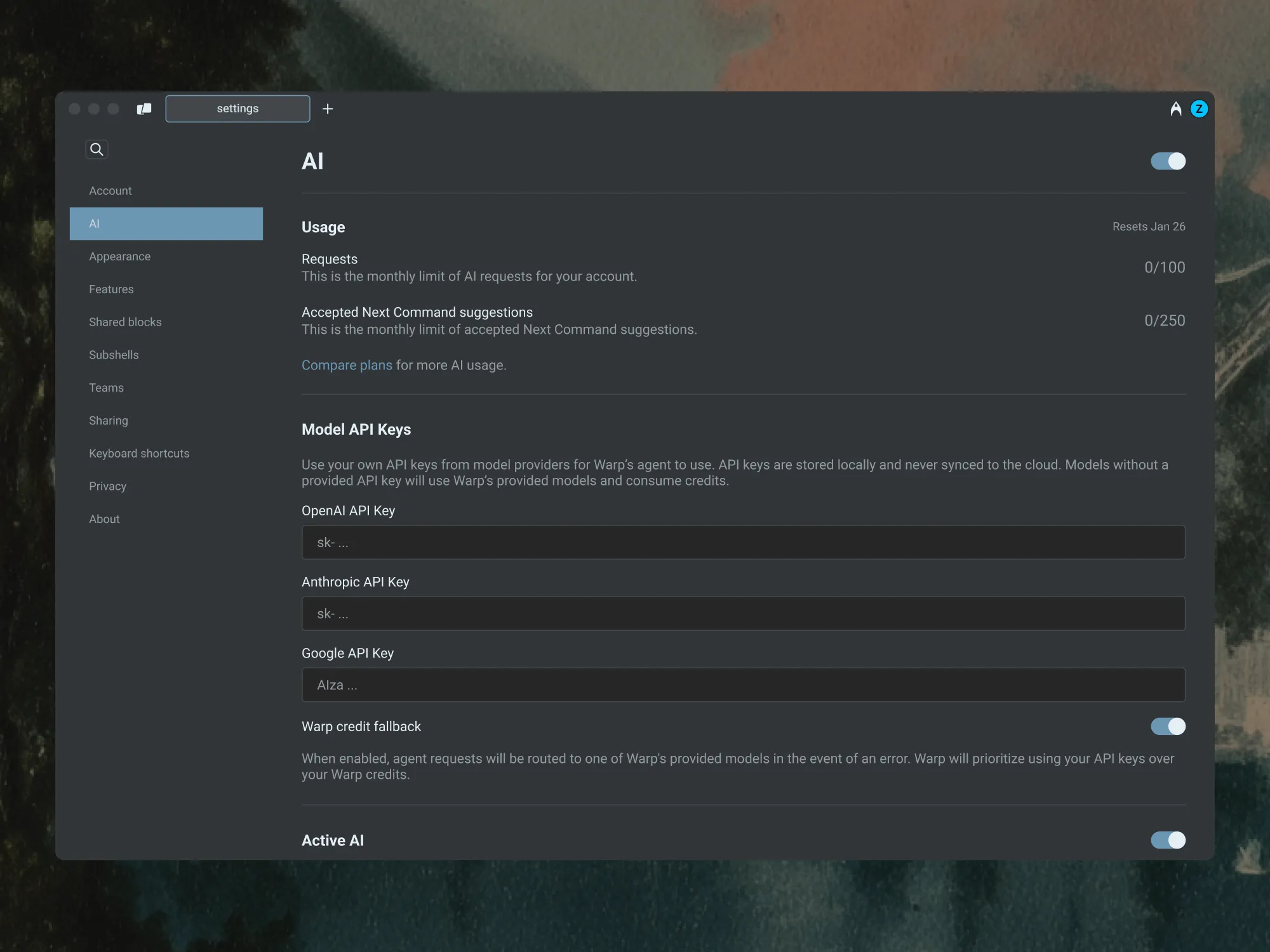 ## Enabling BYOK [Section titled “Enabling BYOK”](#enabling-byok) To enable and configure your API keys: 1. Open **Settings** and search for `API keys` to jump to the BYOK configuration. 2. Add your API key(s) for Anthropic, OpenAI, or Google. 3. Once added, you’ll see a **key icon** next to supported models in the model picker. 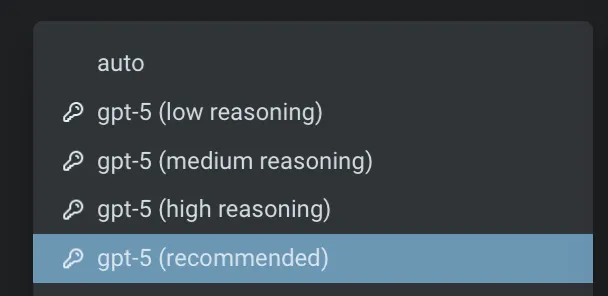 When you explicitly select a model with a key icon, Warp routes requests through your own API key instead of consuming Warp’s credits. ## BYOK usage and billing behavior [Section titled “BYOK usage and billing behavior”](#byok-usage-and-billing-behavior) ### Auto Model [Section titled “Auto Model”](#auto-model) Warp’s **Auto** models dynamically route requests across different models based on context and performance. Because this routing logic depends on Warp’s infrastructure, **Auto always consumes Warp’s credits**, even if you’ve configured your own API keys. To use your own key, select a specific provider model (for example, Claude Opus 4.7, Claude Sonnet 4.6, GPT-5.5, or Gemini 3.1 Pro) directly from the model picker with a key icon. ### Credit usage [Section titled “Credit usage”](#credit-usage) When you select a model with the key icon in your model picker, Warp routes the request through your API key. In that case: * Inference is billed directly through your provider account rather than drawing from your Warp AI credits. * Agent Mode prioritizes BYOK over any available Warp credits. **Other AI features in Warp** Some AI-powered features are not affected by BYOK and are included as part of Warp’s paid plans. | Feature | Uses Warp’s credits | Description | | -------------------------------------------------------------------- | ------------------- | -------------------------------------------------------------------- | | [Active AI Recommendations](/agent-platform/local-agents/active-ai/) | No | Always included with Build and higher plans. | | [Codebase Context](/agent-platform/capabilities/codebase-context/) | Yes | Uses Warp’s AI infrastructure and consumes credits. | | [Cloud Agents](/agent-platform/cloud-agents/overview/) | Yes | BYOK keys are stored locally and not available to cloud-hosted runs. | These features will continue to function normally regardless of whether you’ve configured BYOK. ### Failover and fallback behavior [Section titled “Failover and fallback behavior”](#failover-and-fallback-behavior) If Warp detects an issue with your API key, you’ll see a clear error message corresponding with the AI request. If your key: * Is invalid: Warp notifies you and halts the request. * Hits usage or rate limits: Warp will not retry using credits. You can update or replace your keys anytime by opening **Settings** and searching for `API keys`. **Failover and fallback:** By default, Warp does not fall back to your credits when a BYOK request fails. You can choose to enable **Warp credit fallback**. When enabled, if an agent request fails with your BYOK model (for example, due to an API error or quota limit), Warp will automatically route the request to one of Warp’s provided models. Warp always prioritizes your API keys first and only uses Warp credits when necessary.  ### Zero Data Retention (ZDR) and BYOK [Section titled “Zero Data Retention (ZDR) and BYOK”](#zero-data-retention-zdr-and-byok) Warp is **SOC 2 compliant** and has **Zero Data Retention (ZDR)** policies with all of its contracted LLM providers. No customer AI data is retained, stored, or used for training by the model providers. BYOK prompts and responses transit Warp’s backend (see [How BYOK works](#how-byok-works)). Warp does not use this content for training; retention and analytics handling follow the same account-level privacy and telemetry settings that apply to Warp-billed traffic. However, when you use your own API key: * Data retention policies on the **provider side** depend on your provider’s account settings. * Warp cannot enforce ZDR for requests sent through your API keys. * If your Anthropic, OpenAI, or Google account does not have ZDR enabled, your requests may be retained by the provider according to their terms. Warp itself never stores your LLM API keys. ### BYOK on Business and Enterprise plans [Section titled “BYOK on Business and Enterprise plans”](#byok-on-business-and-enterprise-plans) BYOK is configured at the **user level** on every plan, including Business and Enterprise: * Each team member adds and manages their own API keys locally on their device. * Centrally configured, admin-managed BYOK is not yet available — admins cannot enforce or share API keys across team members from a single place. * There is no organization-level Admin Panel for BYOK management today. If your organization needs centrally managed model routing today, see [Bring Your Own LLM](/enterprise/enterprise-features/bring-your-own-llm/) for the Enterprise-managed option, or [contact sales](https://www.warp.dev/contact-sales). ## Related resources [Section titled “Related resources”](#related-resources) * [Custom inference endpoint](/agent-platform/inference/custom-inference-endpoint/) — Route Warp through any OpenAI-compatible endpoint, such as OpenRouter, LiteLLM, z.ai, or an internal gateway. * [Bring Your Own LLM](/enterprise/enterprise-features/bring-your-own-llm/) — Enterprise-managed inference through your cloud provider or approved infrastructure. * [Model Choice](/agent-platform/inference/model-choice/) — Full list of supported models and `model_id` values. * [Credits](/support-and-community/plans-and-billing/credits/) — How Warp credits work and when they’re consumed.
# Custom inference endpoint
Canonical page: [/agent-platform/inference/custom-inference-endpoint/](https://docs.warp.dev/agent-platform/inference/custom-inference-endpoint/)
> Connect Warp's agents to any OpenAI-compatible inference endpoint — OpenRouter, LiteLLM, z.ai, or an internal gateway you already run.
Warp supports **custom inference endpoints** for users who want to power Warp’s agents with any OpenAI-compatible inference endpoint — a model router, hosted gateway, or internal infrastructure they already run. This lets you route AI requests through your preferred provider, run inference behind your own gateway, or use a router like OpenRouter or LiteLLM, while keeping the agent experience inside Warp. ## Key features [Section titled “Key features”](#key-features) * **OpenAI-compatible** - Works with any endpoint that implements the OpenAI Chat Completions API. * **Provider flexibility** - Use a model router (OpenRouter, LiteLLM), a model provider with an OpenAI-compatible surface (z.ai), or your own internal gateway. * **No AI credits consumed for inference** - Inference is billed directly by your endpoint provider. On Business and Enterprise, local agent runs that route through a custom inference endpoint still consume [platform credits](/support-and-community/plans-and-billing/platform-credits/) for Warp’s platform infrastructure. * **Local API key storage** - Your endpoint API key is stored **only on your device** (in your OS keychain or equivalent secure storage), never on Warp’s servers. It’s used to make requests to your configured endpoint. ## How it works [Section titled “How it works”](#how-it-works) A custom inference endpoint expects your endpoint to implement the **OpenAI Chat Completions API** (`POST /v1/chat/completions`). Any service that exposes a compatible surface can be used as a target: * **OpenRouter** - Aggregates many model providers behind a single OpenAI-compatible API and consolidated billing. * **LiteLLM** - A self-hosted proxy that exposes a unified, OpenAI-compatible API across providers. * **z.ai** - A model provider with an OpenAI-compatible API surface for its models. * **Internal gateways** - Any in-house service that fronts model providers behind an OpenAI-compatible endpoint (for example, a corporate AI gateway with logging, redaction, or access control). When you configure a custom inference endpoint, your endpoint URL, model identifiers, and API key are stored **only on your device**, never on Warp’s servers. Your API key is used to make requests to your configured endpoint. When you send a prompt using an endpoint-routed model: 1. Your local Warp client pulls your endpoint URL and API key from your device’s secure storage and sends them up to Warp’s backend along with your prompt. 2. Warp’s agent harness, which runs on Warp’s backend, assembles the full request (system instructions, conversation context, tools) and uses your key in-flight to call your configured endpoint. 3. Your endpoint’s response streams back through Warp’s backend to your client. Your API key passes through Warp’s servers each time you send a request, but Warp never stores it there — it’s used only in-flight to call your endpoint, then discarded. Caution Custom inference endpoints don’t apply to [Cloud Agents](/agent-platform/cloud-agents/overview/). Because the configuration is stored locally, it isn’t available to cloud-hosted agent runs. Cloud agent runs always consume [Warp credits](/support-and-community/plans-and-billing/credits/). When a model routed through your endpoint is selected: * Warp **doesn’t consume** your [AI credits](/support-and-community/plans-and-billing/credits/) for that request. * Costs are billed directly by your endpoint provider. * Warp doesn’t retain or store your API key on any of its servers. ## Enabling a custom inference endpoint [Section titled “Enabling a custom inference endpoint”](#enabling-a-custom-inference-endpoint) To enable and configure a custom inference endpoint: 1. In Warp, open **Settings** and search for `inference endpoint` to jump to the configuration. 2. Add your endpoint URL (the base URL that exposes `/v1/chat/completions`) and any required credentials (typically an API key). 3. Specify the model identifier(s) you want to route through this endpoint. 4. Save the configuration. Once added, you’ll see your custom models appear in the model picker. When you explicitly select an endpoint-routed model from the model picker, Warp routes the request through your endpoint instead of consuming Warp’s AI credits. The configuration flow mirrors the [Bring Your Own API Key](/agent-platform/inference/bring-your-own-api-key/) setup, so the steps will feel familiar if you’ve already configured BYOK. ## Using local models [Section titled “Using local models”](#using-local-models) Warp routes inference requests through its servers, so endpoint URLs must be publicly accessible. `localhost`, `127.0.0.1`, and other private or local network URLs are rejected when configuring a custom inference endpoint. To route through a model running on your own machine (for example, Ollama, LM Studio, vLLM, or llama.cpp), expose it through a tunneling service like [ngrok](https://ngrok.com/) and use the public tunnel URL as the base URL in your endpoint configuration. For example, with a default Ollama install listening on port `11434`, run `ngrok http 11434` and use the resulting `https://*.ngrok-free.app/v1` URL as your endpoint. Other tunneling services that produce a publicly reachable HTTPS URL (Cloudflare Tunnel, Tailscale Funnel, and similar) work the same way. ## Billing behavior [Section titled “Billing behavior”](#billing-behavior) ### Warp AI credits [Section titled “Warp AI credits”](#warp-ai-credits) When you select an endpoint-routed model from the model picker, inference is billed directly by your endpoint provider, according to their pricing, rather than drawing from your Warp AI credits. ### Auto routing still uses Warp credits [Section titled “Auto routing still uses Warp credits”](#auto-routing-still-uses-warp-credits) Warp’s **Auto** models dynamically route across providers using Warp’s infrastructure. Because Auto routing depends on Warp, **Auto always consumes Warp’s credits**, even if you’ve configured a custom inference endpoint. To use your endpoint, select the specific endpoint-routed model from the model picker rather than an Auto option. ### Other AI features in Warp [Section titled “Other AI features in Warp”](#other-ai-features-in-warp) Some AI-powered features (Codebase Context, Active AI recommendations, cloud agent runs) rely on Warp’s infrastructure and are unaffected by a custom inference endpoint. See the [feature breakdown on the BYOK page](/agent-platform/inference/bring-your-own-api-key/#byok-usage-and-billing-behavior) for which features still consume Warp credits. ## Zero Data Retention (ZDR) [Section titled “Zero Data Retention (ZDR)”](#zero-data-retention-zdr) Warp is **SOC 2 compliant** and has **Zero Data Retention (ZDR)** agreements with all of its contracted LLM providers. Custom inference endpoint prompts and responses transit Warp’s backend (see [How it works](#how-it-works)). Warp does not use this content for training; retention and analytics handling follow the same account-level privacy and telemetry settings that apply to Warp-billed traffic. When you use a custom inference endpoint: * Data retention on the **provider side** is determined by your endpoint provider and any upstream model providers they route to. * Warp **cannot enforce ZDR** for requests sent through a custom inference endpoint. * If your endpoint provider does not have ZDR with the underlying model provider, your requests may be retained according to their terms. Warp itself never stores your endpoint API key. Review your endpoint provider’s data handling and retention policies before routing sensitive prompts through a custom inference endpoint. ## Centrally managed configuration [Section titled “Centrally managed configuration”](#centrally-managed-configuration) Custom inference endpoints are configured at the **user level** on every plan. Each user adds their own endpoint locally; centrally configured, admin-managed endpoints for teams are not yet available. Enterprise teams that need centrally managed model routing today should see [Bring Your Own LLM](/enterprise/enterprise-features/bring-your-own-llm/). ## How custom inference endpoints differ from BYOK and BYOLLM [Section titled “How custom inference endpoints differ from BYOK and BYOLLM”](#how-custom-inference-endpoints-differ-from-byok-and-byollm) Warp offers three ways to bring your own AI infrastructure. Use this table to pick the right one, and follow the links for full details. | Name | Meaning | Plans | | -------------------------------------------------------------------------------------- | ---------------------------------------------------------------------------------------------------------------------------------------------------------------------------------------------------- | -------------------------------- | | **[Bring Your Own API Key](/agent-platform/inference/bring-your-own-api-key/)** (BYOK) | Use your own API key for OpenAI, Anthropic, or Google models. Keys are stored locally on your device. | Free and all eligible paid plans | | **Custom inference endpoint** | Connect Warp to an OpenAI-compatible endpoint such as OpenRouter, LiteLLM, z.ai, or an internal gateway. | Free and all eligible paid plans | | **[Bring Your Own LLM](/enterprise/enterprise-features/bring-your-own-llm/)** (BYOLLM) | Enterprise-managed inference through your cloud provider (AWS Bedrock today; Azure Foundry and Google Vertex coming soon), with Warp handling routing, orchestration, governance, and observability. | Enterprise only | Platform credits may apply for local agent runs on Business and Enterprise when using BYOK, a custom inference endpoint, or BYOLLM. See [platform credits](/support-and-community/plans-and-billing/platform-credits/). ## Related resources [Section titled “Related resources”](#related-resources) * [Bring Your Own API Key](/agent-platform/inference/bring-your-own-api-key/) — Use your own OpenAI, Anthropic, or Google API keys. * [Bring Your Own LLM](/enterprise/enterprise-features/bring-your-own-llm/) — Enterprise-managed inference through your cloud provider or approved infrastructure. * [Model Choice](/agent-platform/inference/model-choice/) — Full list of supported models and `model_id` values. * [Credits](/support-and-community/plans-and-billing/credits/) — How Warp credits work and when they’re consumed.
# Agent model choice
Canonical page: [/agent-platform/inference/model-choice/](https://docs.warp.dev/agent-platform/inference/model-choice/)
> Choose from a curated set of top LLMs for Warp's Agents (or let Warp auto-select the best model).
Warp lets you choose from a curated set of large language models to power your agents, or let Warp auto-select the best model for each task. Models from OpenAI, Anthropic, Google, and open source providers are available, with configurable reasoning levels and per-profile defaults. ## Available models [Section titled “Available models”](#available-models) Warp lets you choose from a curated set of Large Language Models (LLMs) to power your Agentic Development Environment. **Warp supports the following models.** The `model_id` values shown below can be used when configuring models via the [Oz Platform](/agent-platform/cloud-agents/platform/) or [CLI](/reference/cli/). ### Auto models [Section titled “Auto models”](#auto-models) | Model | `model_id` | Description | | --------------------- | ---------------- | ---------------------------------------------------------------------------------------------------------------------------------------------------------- | | Auto (Responsive) | `auto` | Selects the highest-quality, fastest available model. May consume credits more quickly. | | Auto (Cost-efficient) | `auto-efficient` | Optimizes for lower credit consumption while maintaining strong output quality. | | Auto (Genius) | `auto-genius` | Adapts to task complexity and selects Warp’s most capable model when it’s worth it. Best for deep debugging, architecture decisions, and `/plan` sessions. | | Auto (Open-weights) | `auto-open` | Routes between the best open-source models available in Warp. Optimizes for low cost and fast speed using open-weights models. | All Auto models perform well across all agent workflows and are ideal if you prefer Warp to manage model selection dynamically. #### OpenAI [Section titled “OpenAI”](#openai) | Model | `model_id` | Reasoning Level | | ------------- | ---------------------- | --------------- | | GPT-5.5 | `gpt-5-5-low` | Low | | GPT-5.5 | `gpt-5-5-medium` | Medium | | GPT-5.5 | `gpt-5-5-high` | High | | GPT-5.5 | `gpt-5-5-xhigh` | Extra High | | GPT-5.4 | `gpt-5-4-low` | Low | | GPT-5.4 | `gpt-5-4-medium` | Medium | | GPT-5.4 | `gpt-5-4-high` | High | | GPT-5.4 | `gpt-5-4-xhigh` | Extra High | | GPT-5.3 Codex | `gpt-5-3-codex-low` | Low | | GPT-5.3 Codex | `gpt-5-3-codex-medium` | Medium | | GPT-5.3 Codex | `gpt-5-3-codex-high` | High | | GPT-5.3 Codex | `gpt-5-3-codex-xhigh` | Extra High | | GPT-5.2 Codex | `gpt-5-2-codex-low` | Low | | GPT-5.2 Codex | `gpt-5-2-codex-medium` | Medium | | GPT-5.2 Codex | `gpt-5-2-codex-high` | High | | GPT-5.2 Codex | `gpt-5-2-codex-xhigh` | Extra High | | GPT-5.2 | `gpt-5-2-low` | Low | | GPT-5.2 | `gpt-5-2-medium` | Medium | | GPT-5.2 | `gpt-5-2-high` | High | | GPT-5.2 | `gpt-5-2-xhigh` | Extra High | #### Anthropic [Section titled “Anthropic”](#anthropic) | Model | `model_id` | Variant | | ----------------- | ---------------------------- | -------------- | | Claude Opus 4.7 | `claude-4-7-opus-xhigh` | Default effort | | Claude Opus 4.7 | `claude-4-7-opus-high` | High effort | | Claude Opus 4.7 | `claude-4-7-opus-max` | Max effort | | Claude Opus 4.6 | `claude-4-6-opus-high` | Default effort | | Claude Opus 4.6 | `claude-4-6-opus-max` | Max effort | | Claude Sonnet 4.6 | `claude-4-6-sonnet-high` | Default effort | | Claude Sonnet 4.6 | `claude-4-6-sonnet-max` | Max effort | | Claude Opus 4.5 | `claude-4-5-opus` | Thinking off | | Claude Opus 4.5 | `claude-4-5-opus-thinking` | Thinking on | | Claude Sonnet 4.5 | `claude-4-5-sonnet` | Thinking off | | Claude Sonnet 4.5 | `claude-4-5-sonnet-thinking` | Thinking on | | Claude Haiku 4.5 | `claude-4-5-haiku` | — | #### Google [Section titled “Google”](#google) | Model | `model_id` | | -------------- | ---------------- | | Gemini 3.1 Pro | `gemini-3.1-pro` | #### Hosted models (via [Fireworks AI](https://fireworks.ai)) [Section titled “Hosted models (via Fireworks AI)”](#hosted-models-via-fireworks-ai) Warp also supports leading open source models hosted via Fireworks AI, so you can run them from inside Warp without setting up your own inference infrastructure. | Model | `model_id` | | ------------- | ------------------------- | | GLM 5.1 | `glm-5.1-fireworks` | | Kimi K2.5 | `kimi-k25-fireworks` | | Kimi K2.6 | `kimi-k26-fireworks` | | Minimax 2.7 | `minimax-2.7-fireworks` | | Qwen 3.6 Plus | `qwen-3.6-plus-fireworks` | ### How to change models [Section titled “How to change models”](#how-to-change-models) You can use the model picker in your prompt input to quickly switch between models. The currently active model appears directly in the input editor. 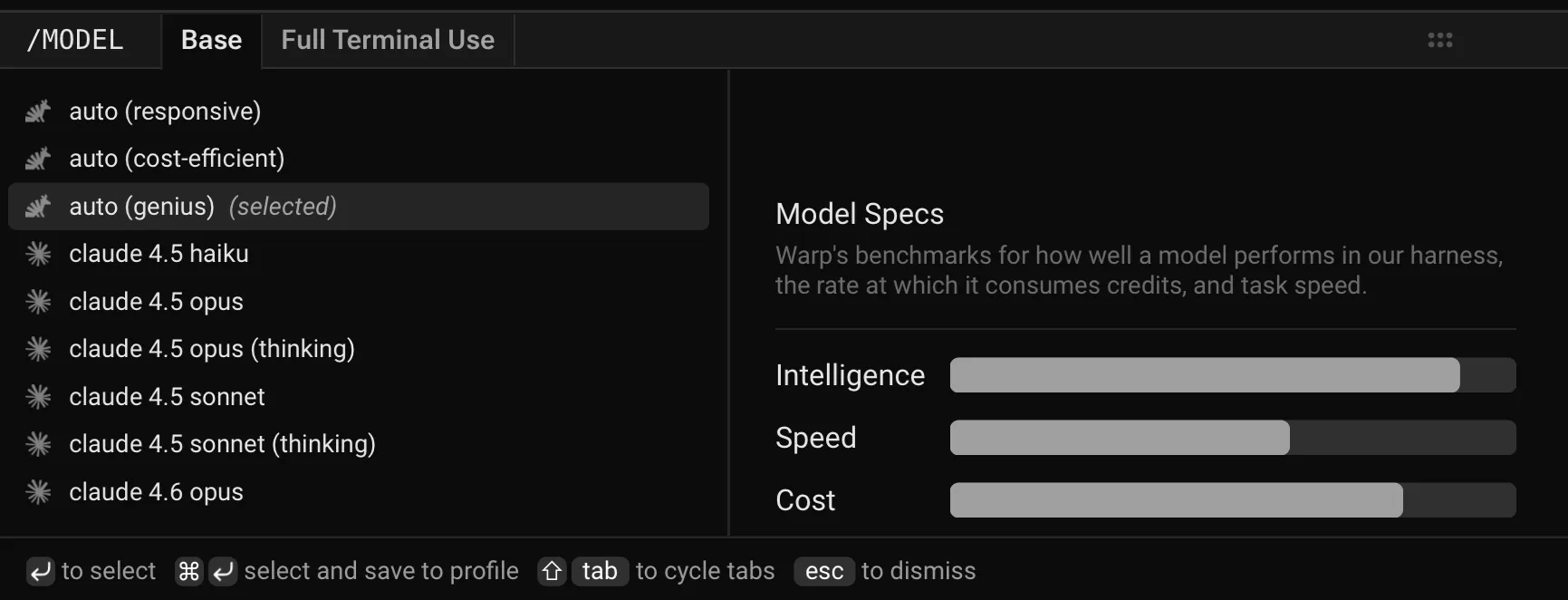 Model selector in Warp’s input. To change models, click the displayed model name (for example, *Claude Sonnet 4.5*) to open a dropdown with all supported options. Your selection will automatically persist for future prompts. ### Model fallback [Section titled “Model fallback”](#model-fallback) Warp uses a model fallback system to ensure uninterrupted service if your selected model becomes temporarily unavailable due to provider outages or capacity issues. **How it works:** * If your selected model isn’t available, Warp automatically uses a fallback model from a predefined chain to continue your conversation without errors. * As soon as your originally selected model becomes available again, Warp automatically switches back to it. * The fallback model is selected to provide comparable quality and capabilities to your original choice. ### Configuring models per Agent Profile [Section titled “Configuring models per Agent Profile”](#configuring-models-per-agent-profile) You can configure the base model for each [Agent Profile](/agent-platform/capabilities/agent-profiles-permissions/), alongside the Agent’s autonomy, tool access, and other permissions. The base model is also used for [Planning](/agent-platform/capabilities/planning/). Edit your default profile or any other profile directly in **Settings** > **Agents** > **Profiles**. ### Zero data retention policies [Section titled “Zero data retention policies”](#zero-data-retention-policies) Warp integrates with multiple Large Language Model (LLM) providers to power its AI-driven features. **These providers include, but are not limited to:** * OpenAI * Anthropic * Google * xAI * Fireworks AI Warp has executed **Zero Data Retention (ZDR)** agreements with these providers. This means that, by default across all plans: * LLM providers commit not to train their models on any customer-generated data processed through Warp’s services. * LLM providers commit to delete inputs and outputs after generating the relevant output, within a fixed time period. Warp enforces these commitments through both technical measures and contractual safeguards with the LLM providers.
# Active AI Recommendations
Canonical page: [/agent-platform/local-agents/active-ai/](https://docs.warp.dev/agent-platform/local-agents/active-ai/)
> Active AI Recommendations proactively suggest fixes and next actions based on your command line errors, inputs, and outputs.
Active AI Recommendations proactively suggest fixes and next actions based on your terminal errors, inputs, and outputs. Features include Prompt Suggestions that activate Agent Mode, Next Command predictions from your shell history, and Suggested Code Diffs that automatically surface fixes for command-line errors. ### Prompt Suggestions [Section titled “Prompt Suggestions”](#prompt-suggestions) Prompt Suggestions are contextual, AI-powered suggestions that activate Agent Mode. These banners will provide suggestions for what to ask Agent Mode in specific scenarios, similar to how Warp already suggests commands to run. To disable, please visit **Settings** > **Agents** > **Warp Agent** > **Active AI** > **Prompt Suggestions** 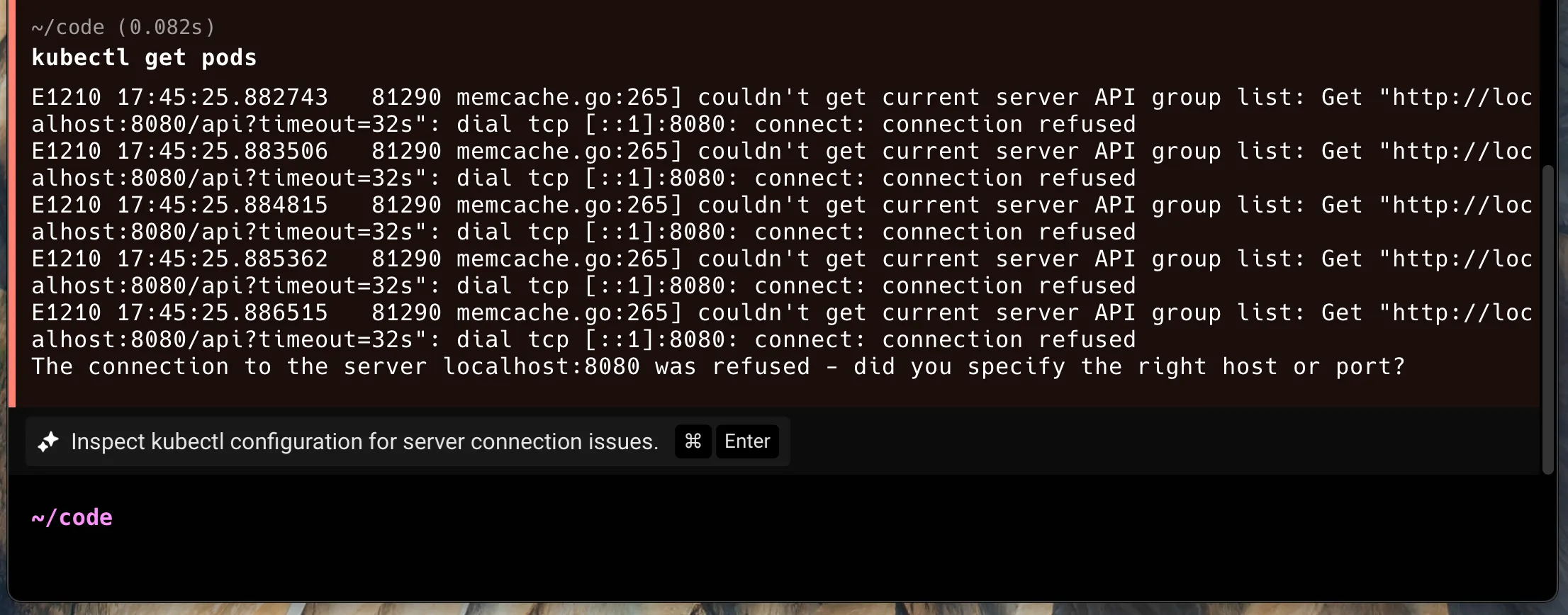 #### Accepting a prompt suggestion [Section titled “Accepting a prompt suggestion”](#accepting-a-prompt-suggestion) If you press `CMD-ENTER` (on macOS), `CTRL-SHIFT-ENTER` (on Linux/Windows), or click on the chip, the suggestion will auto-populate into your input and run against [Agent Mode](/agent-platform/local-agents/interacting-with-agents/) (with the most recent block attached).  ### Next Command [Section titled “Next Command”](#next-command) Next Command uses AI to suggest the next command to run based on your active terminal session and command history. It uses your active terminal session contents and an LLM to generate commands. To disable, please visit **Settings** > **Agents** > **Warp Agent** > **Active AI** > **Next Command** 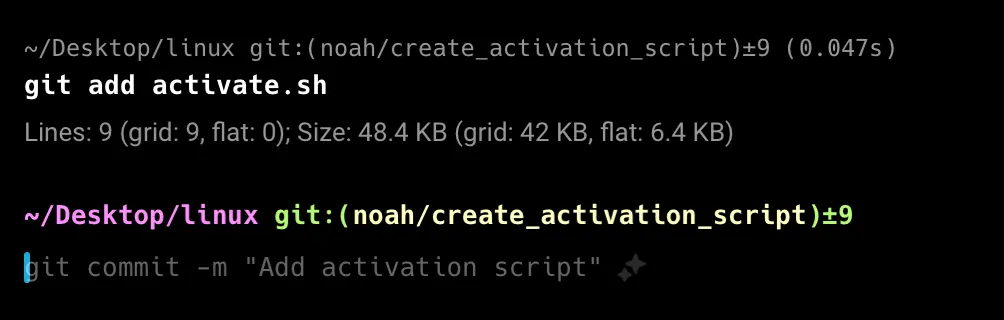 #### Accepting Next Command suggestions [Section titled “Accepting Next Command suggestions”](#accepting-next-command-suggestions) Press `→` or `CTRL-F` to accept a Next Command suggestion into your input buffer, then press `ENTER` to execute it. You can change the accept keybinding (for example, to `TAB`) via the inline keybinding picker that appears next to the suggestion. #### Billing [Section titled “Billing”](#billing) Next Commands are unlimited across all of Warp’s plans, including the Free plan. For the latest information on other AI limits and other pricing details, see [Warp pricing](https://www.warp.dev/pricing). ### Suggested Code Diffs [Section titled “Suggested Code Diffs”](#suggested-code-diffs) Suggested Code Diffs automatically surface potential fixes for command-line errors encountered within Warp. These are most often compiler errors, but they may also include other situations where Warp can confidently predict a straightforward resolution, such as simple merge conflicts. 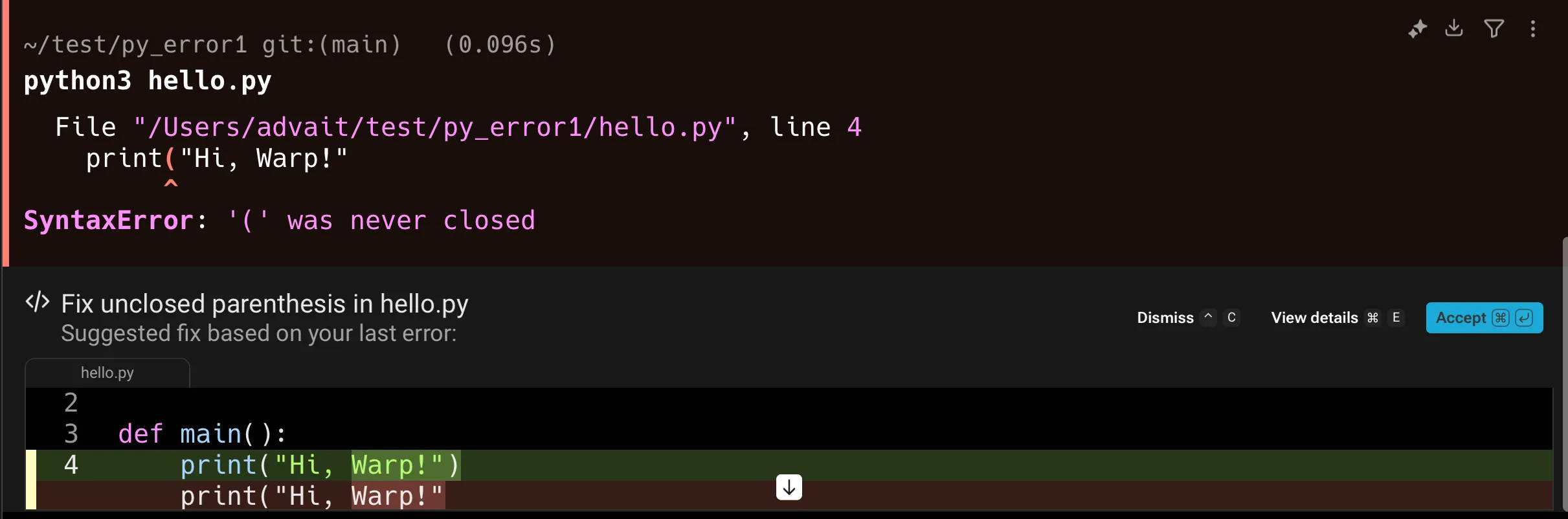 When an error occurs, Warp evaluates whether it is appropriate for an LLM to generate a fix. If so, a “Generating fix” banner will appear while Warp prepares a proposed diff. You can stop this process at any time by pressing `CTRL + C` or the stop button.  #### **Using a suggested code diff** [Section titled “Using a suggested code diff”](#using-a-suggested-code-diff) Once the diff is generated, you can either dismiss it or accept it. Acceptance can be done directly via the buttons in the diff view, or with `CMD + ENTER` on macOS and `CTRL + ENTER` on Windows/Linux. You can also view additional details of the diff by pressing `CMD + E` (macOS) or `CTRL + E` (Windows/Linux), which expands the view to allow further inspection (including refining or editing it). You can also use `↓` to view the entire diff. **Billing** Suggested Code Diffs do not count toward your AI request limits. There are maximum limits to the number of code diffs surfaced per month, which scales based on your plan tier. For the latest details on plan limits and pricing, see [Warp pricing](https://www.warp.dev/pricing). ## Active AI privacy [Section titled “Active AI privacy”](#active-ai-privacy) See our [Privacy Page](/support-and-community/privacy-and-security/privacy/) for more information on how we handle data with Active AI.
# Agent context overview
Canonical page: [/agent-platform/local-agents/agent-context/](https://docs.warp.dev/agent-platform/local-agents/agent-context/)
> How to attach various forms of multi-modal context directly to Warp's Agent within a prompt.
In Warp, you can pass different types of input directly to the Agent to guide its behavior and improve response quality. These inputs are known as **Agent Context**: ad-hoc pieces of information you manually supply during a session. **You can attach context in several ways:** * [Blocks as Context](/agent-platform/local-agents/agent-context/blocks-as-context/) - share output from your terminal to help the Agent understand errors, logs, or previous commands. * [Images as Context](/agent-platform/local-agents/agent-context/images-as-context/) - include screenshots, diagrams, or other visuals to provide additional clarity. * [URLs as Context](/agent-platform/local-agents/agent-context/urls-as-context/) - attach public webpages so the Agent can extract and reference their content. * [Selection as Context](/agent-platform/local-agents/agent-context/selection-as-context/) - attach code snippets from the editor or review panel to enrich your prompts with precise context. * [Using @ to Add Context](/agent-platform/local-agents/agent-context/using-to-add-context/) - reference files, folders, code symbols, or Warp Drive objects directly in your prompts. Commands you run inside an agent conversation are automatically included as context for your next prompt. For details, see [Blocks as Context](/agent-platform/local-agents/agent-context/blocks-as-context/). *** This is distinct from other persistent or automatic sources of context, such as [Rules](/agent-platform/capabilities/rules/), [Warp Drive as Agent Mode Context](/knowledge-and-collaboration/warp-drive/agent-mode-context/), and [Model Context Protocol (MCP)](/agent-platform/capabilities/mcp/), which the Agent also uses when available.
# Blocks as Context
Canonical page: [/agent-platform/local-agents/agent-context/blocks-as-context/](https://docs.warp.dev/agent-platform/local-agents/agent-context/blocks-as-context/)
> Attach blocks from your terminal as context so Warp’s Agent can understand errors, outputs, or previous commands when responding to your queries.
Attach terminal output blocks to your agent prompts so the agent can understand errors, commands, and outputs from your current or previous sessions. Blocks can be attached with keyboard shortcuts, mouse clicks, or automatically within agent conversations. ## Attaching blocks as context [Section titled “Attaching blocks as context”](#attaching-blocks-as-context) Warp’s Agent can use blocks from your Agent conversations as context to better understand your queries and generate more relevant responses. You can attach a block directly from the terminal block list by clicking the AI sparkles icon on it and selecting “Attach as context.” 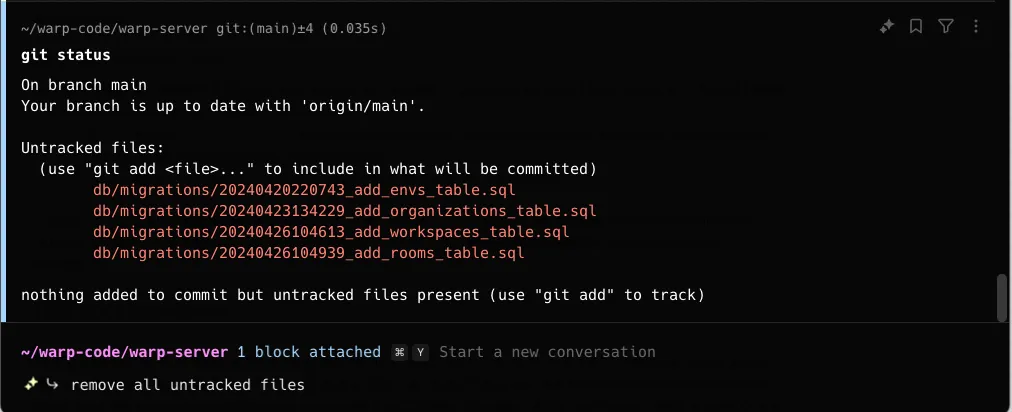 Attaching a block as agent context. The most common use case is to ask the AI to fix an error. You can attach the error in a query to Agent Mode and type “fix it.” **If you’re already in Agent Mode, use the following ways to attach or clear context from your query:** * macOS **Attach a previous block** * To attach blocks to a query, you can use `CMD-UP` to attach the previous block as context to the query. While holding `CMD`, you can then use your `UP/DOWN` keys to pick another block to attach. * You may also use your mouse to attach blocks in your session. Hold `CMD` as you click on other blocks to extend your block selection. **Clear a previous block** * To clear blocks from a query, you can use `CMD-DOWN` until the blocks are removed from context. * You may also use your mouse to clear blocks in your session. Hold `CMD` as you click on an attached block to clear it. * Windows **Attach a previous block** * To attach blocks to a query, you can use `CTRL-UP` to attach the previous block as context to the query. While holding `CTRL`, you can then use your `UP/DOWN` keys to pick another block to attach. * You may also use your mouse to select blocks in your session. Hold `CTRL` as you click on other blocks to extend your block selection. **Clear a previous block** * To clear blocks from a query, you can use `CTRL-DOWN` until the blocks are removed from context. * You may also use your mouse to clear blocks in your session. Hold `CTRL` as you click on an attached block to clear it. * Linux **Attach a previous block** * To attach blocks to a query, you can use `CTRL-UP` to attach the previous block as context to the query. While holding `CTRL`, you can then use your `UP/DOWN` keys to pick another block to attach. * You may also use your mouse to select blocks in your session. Hold `CTRL` as you click on other blocks to extend your block selection. **Clear a previous block** * To clear blocks from a query, you can use `CTRL-DOWN` until the blocks are removed from context. * You may also use your mouse to clear blocks in your session. Hold `CTRL` as you click on an attached block to clear it. *** ## Block visibility across views [Section titled “Block visibility across views”](#block-visibility-across-views) Blocks in Warp belong to either the terminal view or a specific agent conversation: * **Terminal blocks** - Commands you run directly in the terminal. These always appear in your terminal block list and can be attached as context to multiple conversations. * **Agent conversation blocks** - Commands executed within an agent conversation (either by you or the agent). These only appear within that specific conversation and don’t clutter your terminal block list. This separation keeps your terminal view clean while preserving full context within each conversation. *** ## Automatic context in agent conversations [Section titled “Automatic context in agent conversations”](#automatic-context-in-agent-conversations) When you’re working inside an agent conversation, any shell commands you run are automatically included as context for your next query. This means you can: 1. Run a command to see its output 2. Ask the agent about the results without manually attaching the block For example, in an agent conversation, run `npm test` and then ask “why did these tests fail?”—the test output is already part of the conversation context. You can also manually attach terminal view blocks to add additional context from commands you ran outside the conversation. *** ## Pending and attached context [Section titled “Pending and attached context”](#pending-and-attached-context) When you select blocks in terminal view and start a new conversation, those blocks become **pending context**: * **Pending context** - Blocks are selected but the conversation hasn’t started yet. If you deselect the blocks (`ESC` or `CMD-K` on macOS, `ESC` or `CTRL-K` on Windows/Linux), they’re removed from the agent view. * **Attached context** - Once you submit your first query, the pending blocks become attached to the conversation and remain part of the context.
# Images as Context
Canonical page: [/agent-platform/local-agents/agent-context/images-as-context/](https://docs.warp.dev/agent-platform/local-agents/agent-context/images-as-context/)
> Attach screenshots, diagrams, or other images to your prompt so Warp’s Agent can use visual context when generating responses.
Attach screenshots, diagrams, or other images directly to agent prompts so the agent can use visual context when generating responses. Warp supports drag-and-drop, copy-paste, and file upload for up to 5 images per request across all supported models. ## **Attaching images as context** [Section titled “Attaching images as context”](#attaching-images-as-context) To provide visual context, you can attach images directly to an agent prompt. This is useful for including screenshots, diagrams, or other visual references alongside your query. You can attach images in the following ways: * Using the **image upload button** found on the toolbelt (either on the bottom left or right), depending on which input mode you’re using:  Attaching images in Universal Input.  Attaching images in Classic Input. * Copy and paste images directly (e.g. right-click an image > “Copy image” or copy from a file manager) into Warp. * Drag and drop images, such as from a file manager or screenshot utility. You can attach up to **5 images per request**, and up to **20 images across a single conversation**. Each image is sent to the model provider and immediately discarded — nothing is stored on Warp’s servers. Caution **Cloud agent conversations do not currently support image attachments.** Image attachment is only available in local agent conversations. If you need to provide visual context to a cloud agent, describe the image contents in your prompt or reference the image file path within the cloud agent’s [environment](/agent-platform/cloud-agents/environments/). ### Model behavior and image handling [Section titled “Model behavior and image handling”](#model-behavior-and-image-handling) All supported models listed in [Model Choice](/agent-platform/inference/model-choice/) can interpret image input. Attaching images will consume additional requests, proportional to the number of images added. To stay within model limits, Warp will intelligently resize images before passing them as context, minimizing token usage and respecting the model’s maximum image dimensions.
# Selection as Context
Canonical page: [/agent-platform/local-agents/agent-context/selection-as-context/](https://docs.warp.dev/agent-platform/local-agents/agent-context/selection-as-context/)
> Attach text or diffs directly from Warp’s editor or Code Review panel as context for your Agent prompts.
Attach text selections or diff hunks directly from Warp’s code editor or Code Review panel as context for agent prompts. Select code, press a keyboard shortcut, and Warp inserts the file path, line numbers, and content into your prompt automatically. ### Attaching selections from Warp’s native code editor [Section titled “Attaching selections from Warp’s native code editor”](#attaching-selections-from-warps-native-code-editor) When you have Warp’s [native code editor](/code/code-editor/) open beside a regular pane, you can easily attach specific lines of code as context: 1. **Select text** in the editor. A tooltip will appear in the bottom-right corner of the selection. 2. **Add as context** by clicking the tooltip or using the keyboard shortcuts `Cmd + L` (macOS) or `CTRL + SHIFT + L` (Windows or Linux). 3. Warp automatically adds the relative file path and context, in addition to the line numbers of the hunk, as a formatted string into the prompt. This makes it easy to highlight just the lines you want the Agent to analyze or modify. 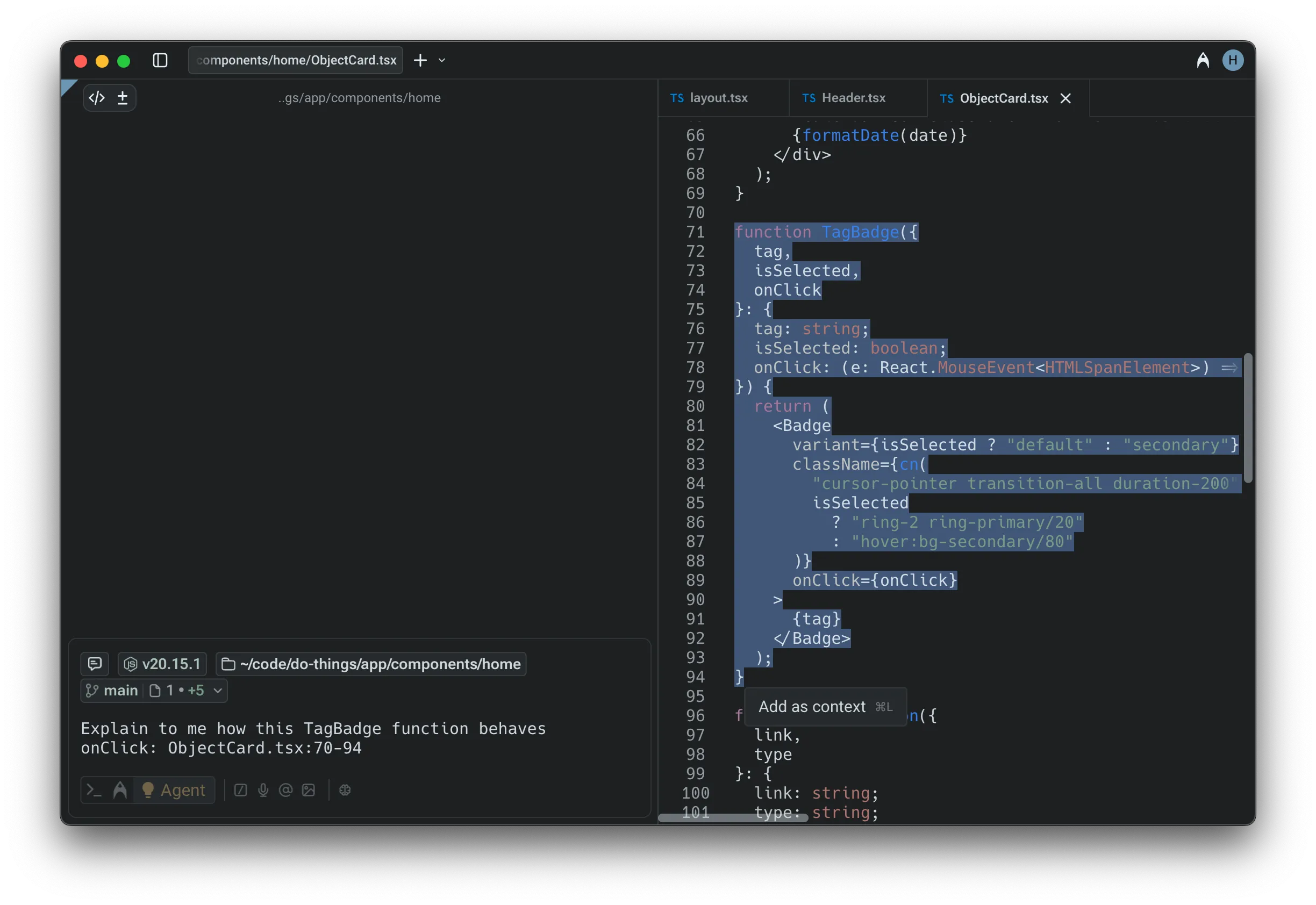 Selecting code as agent context. ### Attaching selections from Warp’s Code Review panel [Section titled “Attaching selections from Warp’s Code Review panel”](#attaching-selections-from-warps-code-review-panel) You can also directly attach context from the [Code Review panel](/code/code-review/): 1. Hover over any **diff hunk** to reveal the option to attach it as context.  2. Attaching a diff will automatically insert the relevant file path and changed lines into your prompt. This helps the Agent understand exactly what has been modified, making it easier to request explanations, feedback, or follow-up edits. 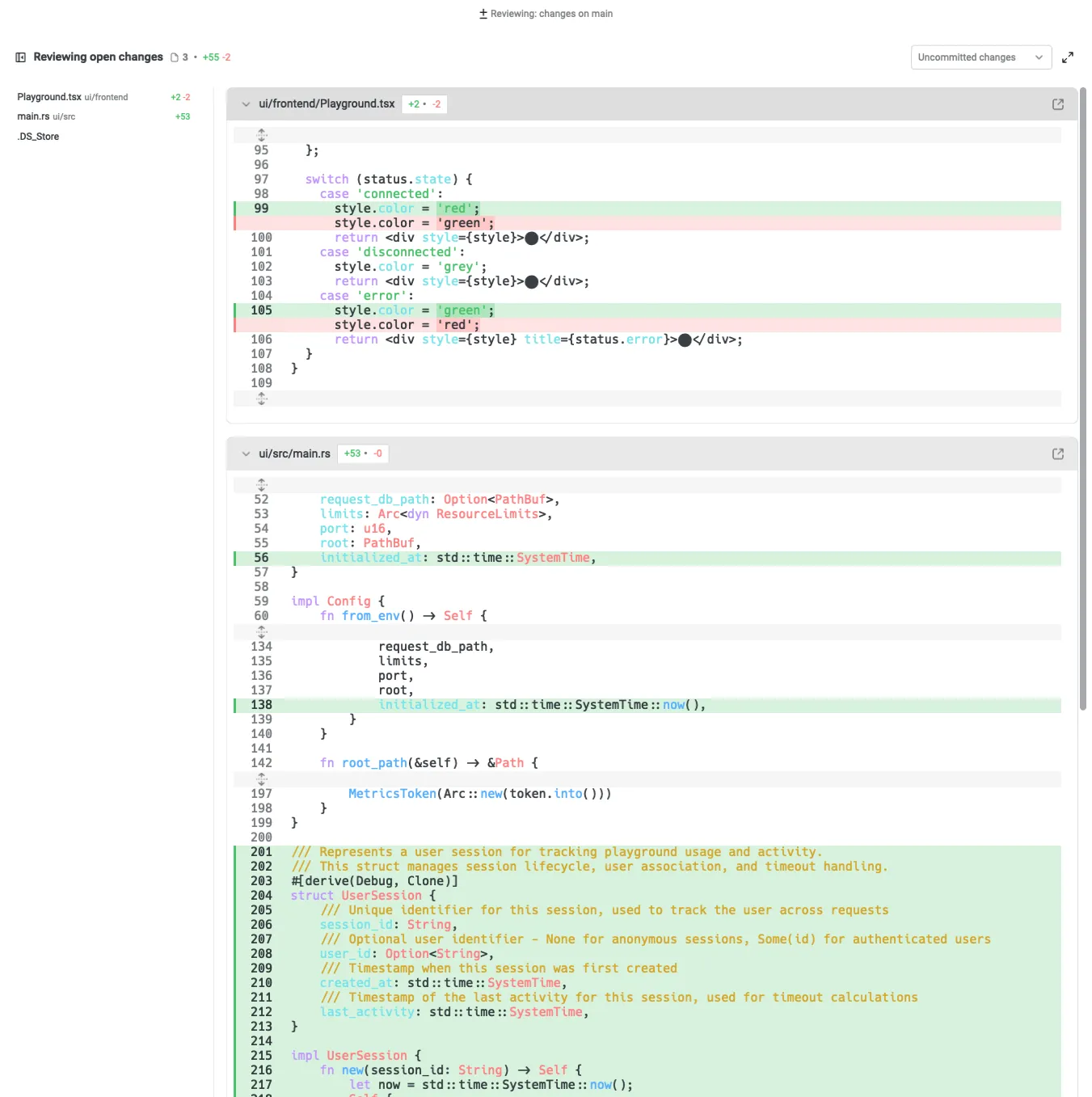 ### Attaching code to a third-party agent session [Section titled “Attaching code to a third-party agent session”](#attaching-code-to-a-third-party-agent-session) You can select code, files, or snippets and feed them directly to a running third-party CLI agent session without copy-pasting or switching tools. When a third-party agent (Claude Code, Codex, OpenCode, etc.) is running in a Warp tab, select text in Warp’s code editor or Code Review panel and attach it as context to that agent’s session using `Cmd + L` (macOS) or `CTRL + SHIFT + L` (Windows/Linux). This works the same way as attaching context to Warp’s built-in Agent. For more on third-party agent support, see [Third-Party CLI Agents](/agent-platform/cli-agents/overview/).
# URLs as Context
Canonical page: [/agent-platform/local-agents/agent-context/urls-as-context/](https://docs.warp.dev/agent-platform/local-agents/agent-context/urls-as-context/)
> Attach a public URL to your prompt so the agent can reference that page's content.
Attach a public URL to any agent prompt to provide page content as context. Warp scrapes the page and surfaces the extracted text directly to the model, giving the agent access to documentation, references, or any publicly accessible web content. ## Referencing websites via URLs [Section titled “Referencing websites via URLs”](#referencing-websites-via-urls) You can attach a public URL to any prompt to provide page content as context. Warp will scrape the page and surface the extracted text directly to the model. * Only publicly accessible pages are supported. * The full page is added to the model’s context, which may increase credit usage for long documents. * Only the specific URL you provide is processed. The agent won’t explore the site, follow links, or crawl beyond that page. 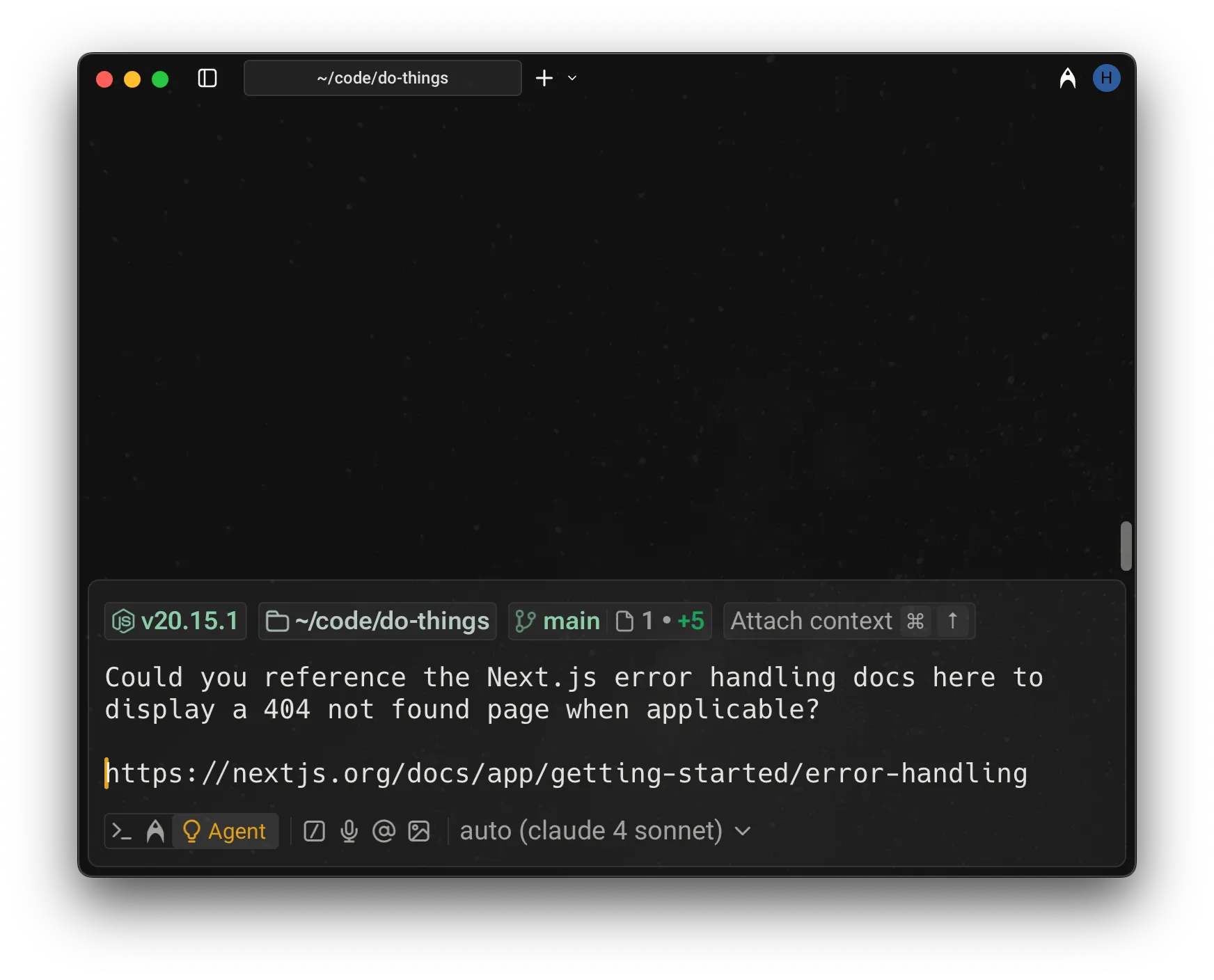 Example of referencing docs via a URL.
# Using @ to Add Context
Canonical page: [/agent-platform/local-agents/agent-context/using-to-add-context/](https://docs.warp.dev/agent-platform/local-agents/agent-context/using-to-add-context/)
> Use @ to reference files, folders, code symbols, and Warp Drive objects as agent context.
Use the @ symbol in agent prompts to reference files, folders, code symbols, Warp Drive objects, and blocks from other sessions as context. The @ menu searches your entire Git repository from the project root and works immediately without codebase indexing. ## How the @ context menu works [Section titled “How the @ context menu works”](#how-the--context-menu-works) You can attach specific files, folders, code symbols, Warp Drive objects, and blocks from other sessions as context to a prompt using the @ symbol. When you’re inside a **Git repository**, typing @ opens a context menu that allows you to search for and select files or directories to include. **Note**: the search in the @-context menu is always relative to the root of the Git repository, even when you’re working in a subdirectory. This means you can reference *any* file or folder tracked in the repo, regardless of the current working directory. 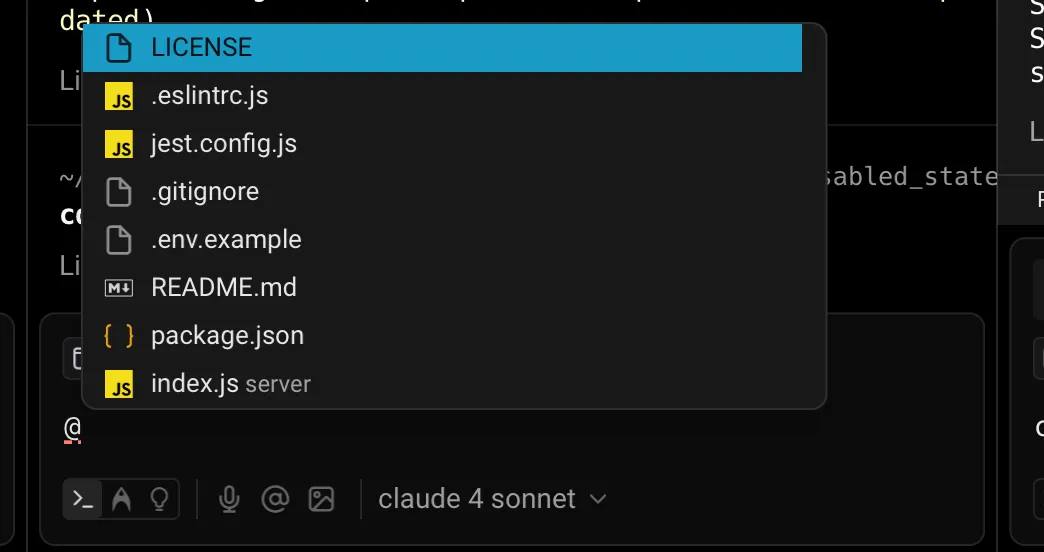 File search using the @ symbol. Additionally, no codebase indexing (via [Codebase Context](/agent-platform/capabilities/codebase-context/)) is required — file search is available immediately in any Git-initialized directory. The search also respects `.gitignore` rules and will exclude ignored files from the results. 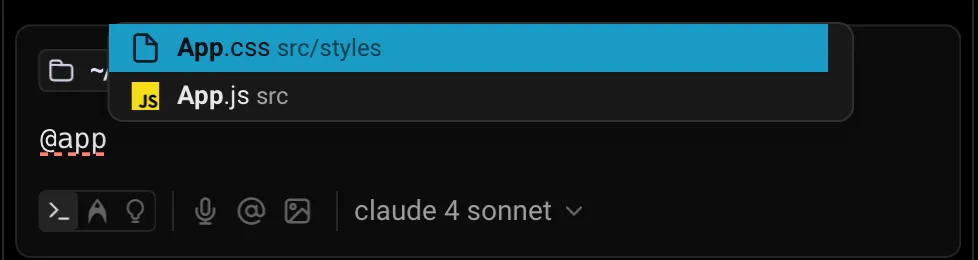 Filtering files with @app. 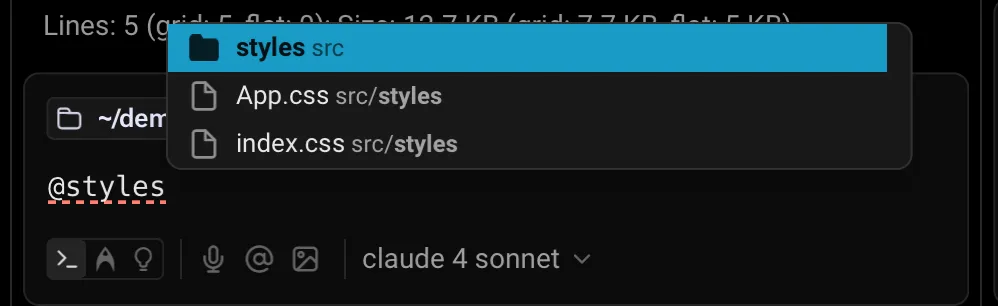 Referencing a folder with @styles. ### Referencing code symbols [Section titled “Referencing code symbols”](#referencing-code-symbols) The @ menu can also be used to fuzzy-search for code symbols in your codebase. This includes functions, classes, interfaces, etc. If you type something like `@main`, Warp will surface a matching `main()` function and insert it into your prompt as a reference with the line number. By pointing the Agent to a specific symbol, you can give it exactly the context it needs to make a targeted edit or explanation. [Referencing code symbols with @ context video](https://www.loom.com/embed/da0c491bd2a44ed58d4fbdf2c260b019) ### Referencing Warp Drive objects [Section titled “Referencing Warp Drive objects”](#referencing-warp-drive-objects) Warp Drive objects are another way to attach context with **@**. You can reference: * [Workflows](/knowledge-and-collaboration/warp-drive/workflows/) — parameterized commands you can name and save in Warp with descriptions and arguments. * [Notebooks](/knowledge-and-collaboration/warp-drive/notebooks/) — runnable documentation consisting of markdown text and list elements, code blocks, and runnable shell snippets that can be automatically executed in your terminal session. * [Rules](/agent-platform/capabilities/rules/) — reusable guidelines and constraints that inform how Agents respond to your prompts. When you select one of these objects, Warp inserts a reference token into your prompt. The contents of the object are then automatically passed as context to the Agent. [Referencing Warp Drive objects with @ context video](https://www.loom.com/embed/abd065af9fea421d925664135341c682) ### Referencing blocks from other sessions [Section titled “Referencing blocks from other sessions”](#referencing-blocks-from-other-sessions) You are not limited to the current terminal session. With @, you can also bring in blocks of output from earlier sessions. In the demo below, Ian shows how he previously ran cargo clippy and now wants help fixing the reported errors. Typing `@cargo clippy` surfaces the relevant block, which you can insert into your prompt. Once added, the Agent parses the output and generates fixes or explanations directly. You can also reference live blocks, not just those that have already completed execution. [Referencing blocks with @ context video](https://www.loom.com/embed/a4e72847341044cca2fed59a6299e1b7) ### Why @ to reference context? [Section titled “Why @ to reference context?”](#why--to-reference-context) Attaching context with @ helps you: * Reference exact outputs instead of copy-pasting entire logs * Attach relevant files or directories without leaving Warp * Reuse existing context and knowledge in Warp Drive This makes Agent interactions more accurate, clearer, and efficient, without additional setup.
# Cloud-synced conversations
Canonical page: [/agent-platform/local-agents/cloud-conversations/](https://docs.warp.dev/agent-platform/local-agents/cloud-conversations/)
> Sync agent conversations to the cloud to access them across devices, share with teammates, and continue past conversations from anywhere.
Warp can sync your [agent conversations](/agent-platform/local-agents/interacting-with-agents/) to the cloud, making them accessible across devices, shareable with teammates, and persistent even after logging out. This enables you to pick up where you left off on any machine, share context with collaborators, and access past [cloud agent](/agent-platform/cloud-agents/overview/) conversations. ## Key capabilities [Section titled “Key capabilities”](#key-capabilities) * **Persistence across devices** - Your conversations remain available when you log out and back in, or switch to a different machine. * **Access to past cloud agent conversations** - View and restore cloud agent conversations after they complete. * **Link sharing with access controls** - Share conversations with specific teammates or your team, with configurable permissions. * **Web viewing** - View shared conversations in a browser without installing Warp. * **Local continuation** - Restore any cloud conversation and continue it locally on your machine. [Cloud-synced conversations](https://www.loom.com/embed/54038cf41219485dad3adb1d811e7e9a) ## Enabling cloud conversations [Section titled “Enabling cloud conversations”](#enabling-cloud-conversations) Cloud conversation sync is controlled by a setting in Warp: 1. Open **Settings** > **Privacy** 2. Enable **Store AI conversations in the cloud** When enabled, your Agent conversations automatically sync to the cloud as you interact with the Agent. When disabled, conversations are stored locally on your machine only. Caution If cloud conversations are disabled, conversation data is lost when you log out and cannot be shared with others. Cloud agent conversations are always stored in the cloud regardless of this setting. ## How it works [Section titled “How it works”](#how-it-works) ### Conversation syncing [Section titled “Conversation syncing”](#conversation-syncing) When cloud conversations are enabled, Warp automatically syncs your conversation data after each Agent interaction. This happens in the background and does not affect your workflow. Cloud conversations store a snapshot of the conversation state at each sync point. If you open the same conversation on two different machines, each continues independently from that snapshot—changes on one machine do not sync to the other in real time. ### Continuing vs. forking [Section titled “Continuing vs. forking”](#continuing-vs-forking) When you restore a cloud conversation: * **Your own conversations** - You can continue the conversation directly, and updates sync back to the cloud. * **Shared conversations from others** - Continuing creates a fork, giving you a new conversation that starts with the shared context but does not modify the original. This behavior mirrors [Conversation Forking](/agent-platform/local-agents/interacting-with-agents/conversation-forking/), where you branch off to explore a different direction without affecting the source conversation. ## Managing cloud-synced conversations [Section titled “Managing cloud-synced conversations”](#managing-cloud-synced-conversations) Cloud-synced conversations appear in all the usual conversation management entrypoints alongside your local conversations. You can browse, search, restore, and delete them just like any other conversation. See [Interacting with Agents](/agent-platform/local-agents/interacting-with-agents/) for detailed information on navigating and managing conversations, including keyboard shortcuts and the Conversation Panel in [Terminal and Agent modes](/agent-platform/local-agents/interacting-with-agents/terminal-and-agent-modes/). * **Browse** - View all your local and cloud-synced conversations in one place. * **Search** - Find conversations by title or content. * **Restore** - Click a conversation to load it into your current session and continue where you left off. * **Delete** - Remove conversations you no longer need. Deletion is permanent and immediate. *** ## Sharing conversations [Section titled “Sharing conversations”](#sharing-conversations) You can share any cloud conversation with teammates via a link. ### Creating a share link [Section titled “Creating a share link”](#creating-a-share-link) To share a conversation: 1. Open the conversation you want to share 2. Access the share options through the conversation menu 3. Configure access permissions: * **Anyone on your team** (default) - All team members can view * **Specific people** - Enter email addresses to grant access * **Anyone with the link** - No authentication required By default, shared conversations are visible to anyone on your team. ### Viewing shared conversations [Section titled “Viewing shared conversations”](#viewing-shared-conversations) Recipients can view shared conversations in two ways: * **On the web** - Open the link in a browser to view the conversation transcript without installing Warp. * **In Warp** - Click “Open in Warp” to load the conversation in the desktop app, where you can continue it locally. When you continue a shared conversation from someone else, Warp creates a fork so you can build on the shared context without modifying the original. ## Cloud agent conversations [Section titled “Cloud agent conversations”](#cloud-agent-conversations) [Cloud agents](/agent-platform/cloud-agents/overview/) run in the cloud, and their conversations are automatically stored regardless of your local cloud conversations setting. ### Accessing cloud agent conversations [Section titled “Accessing cloud agent conversations”](#accessing-cloud-agent-conversations) You can access any past cloud agent conversation: * **View transcripts** - Access the full conversation history of any past cloud agent run. * **Restore locally** - Load a cloud agent conversation into your local Warp session to review or continue the work. This is useful when a cloud agent completes a task and you want to review what it did or continue from where it left off. *** ## Privacy and data [Section titled “Privacy and data”](#privacy-and-data) ### Enterprise controls [Section titled “Enterprise controls”](#enterprise-controls) Enterprise administrators can disable cloud conversation storage for their organization through the [Admin Panel](/knowledge-and-collaboration/admin-panel/). When cloud conversation storage is disabled by your organization: * Conversations are stored locally only and not synced to the cloud * You cannot share conversations or access them across devices * Cloud agent conversations are still accessible through the Warp dashboard ### Storage limits [Section titled “Storage limits”](#storage-limits) Cloud conversation storage limits vary by plan. For free users, Warp automatically removes the oldest cloud conversations when you reach your limit to make room for new ones. Your conversations are always preserved locally on your machine—only the cloud-synced copies are removed. For current storage limits by plan, see our [pricing page](https://www.warp.dev/pricing). ### Deleting conversations [Section titled “Deleting conversations”](#deleting-conversations) When you delete a conversation, it is removed permanently and immediately. Make sure you no longer need a conversation before deleting it. *** ## Related features [Section titled “Related features”](#related-features) * [Interacting with Agents](/agent-platform/local-agents/interacting-with-agents/) - Learn about conversation mechanics, follow-ups, and context windows. * [Conversation Forking](/agent-platform/local-agents/interacting-with-agents/conversation-forking/) - Branch conversations to explore different directions. * [Session Sharing](/agent-platform/local-agents/session-sharing/) - Collaborate in real time on a live Agent session. * [Cloud Agents Overview](/agent-platform/cloud-agents/overview/) - Run agents in the cloud from triggers, schedules, or integrations. * [Handoff between local and cloud agents](/agent-platform/cloud-agents/handoff/) - Promote a local conversation to a cloud agent run, or continue a finished cloud run.
# Agent code diffs and review
Canonical page: [/agent-platform/local-agents/code-diffs/](https://docs.warp.dev/agent-platform/local-agents/code-diffs/)
> How to review, refine, and apply code changes generated by Warp’s Agents with the built-in diff editor in Agent Conversations.
When Warp’s agent generates code changes, they appear as visual diffs in a built-in editor. Review proposed changes line by line, refine them with natural language, make manual edits, or accept them to apply the modifications to your files. ## Reviewing code diffs [Section titled “Reviewing code diffs”](#reviewing-code-diffs) During an Agent Conversation, Warp can generate code diffs that open directly in a built-in diff editor. This lets you review proposed changes line by line, refine them with natural language, or make manual edits before choosing whether to apply them. It’s a fast, transparent way to stay in control of agent-generated code. Caution If the `Apply Code Diffs` permission is set to `Always allow` in [Agent Profiles & Permissions](/agent-platform/capabilities/agent-profiles-permissions/), code diffs are applied automatically without being surfaced for review. If it’s set to `Agent decides` or `Always ask`, you’ll always be prompted to review diffs before they’re applied. 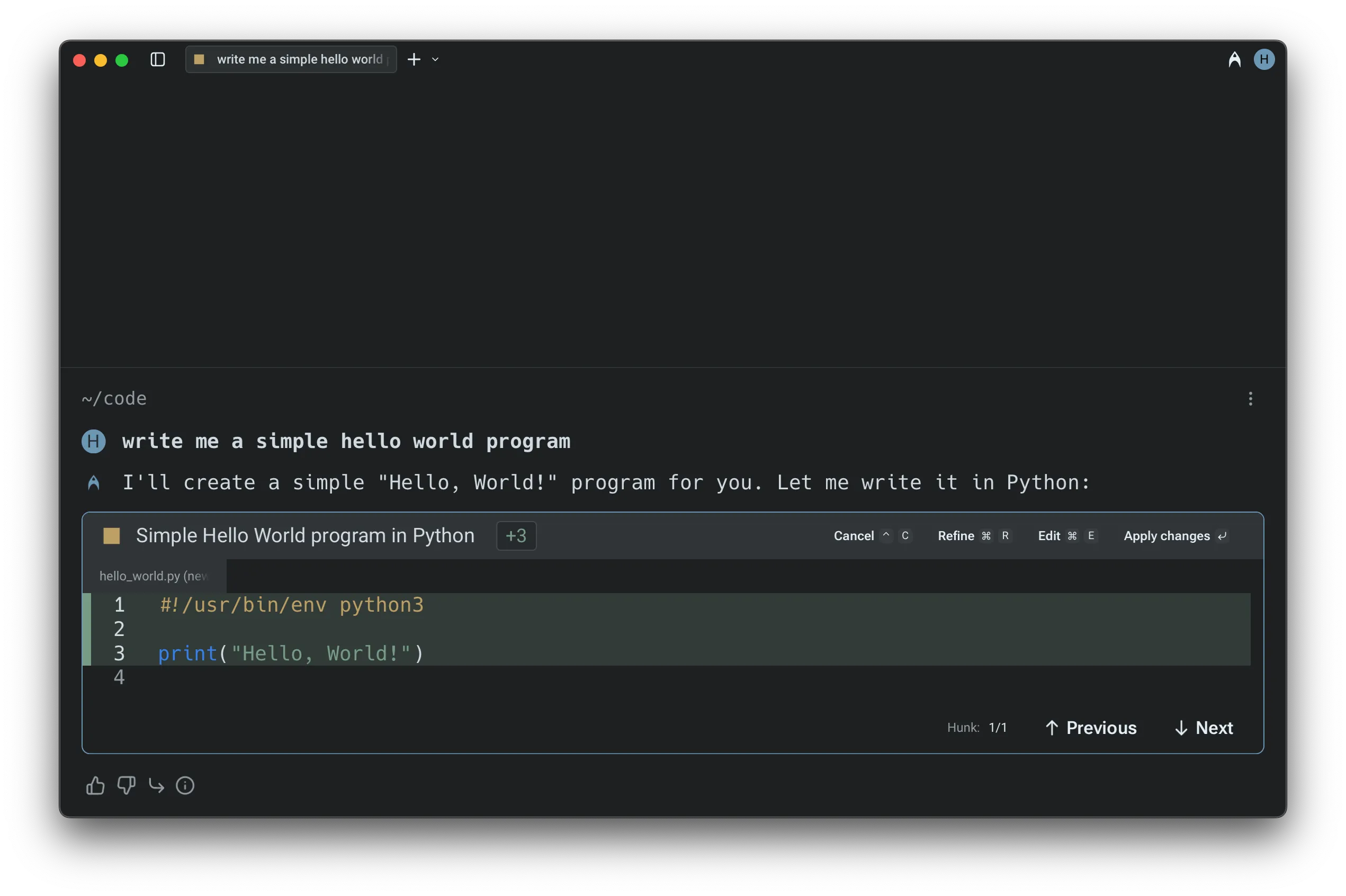 A code diff surfaced in an Agent Conversation. You can also choose whether Warp automatically opens the [Code Review](/code/code-review/) panel the first time you accept a diff in a conversation. ## **Navigating and applying diffs** [Section titled “Navigating and applying diffs”](#navigating-and-applying-diffs) When an Agent generates a code diff, Warp opens it in a built-in text editor with a visual diff view. Changes are grouped into clear hunks for easy inspection. * Use the `UP` and `DOWN` arrow keys (or mouse clicks) to move between hunks. * For multi-file changes, use `LEFT` and `RIGHT` arrow keys to switch between files. * Once satisfied with the changes, you can apply the diffs using `ENTER` or clicking “**Accept Changes**” to apply the modifications. Caution These modifications will not be applied to the files unless you explicitly accept them. ## **Refining or editing the diffs** [Section titled “Refining or editing the diffs”](#refining-or-editing-the-diffs) If the initial suggestion needs more work: * Press `R` or select the “**Refine**” button to provide follow-up instructions in natural language. The agent will regenerate the diff based on your input. * To manually adjust the code, press `E` or click “**Edit**” to switch into an editable view. * To cancel a pending operation, use `CTRL-C` (on macOS, Windows, or Linux). Similarly, you can exit the editor at any time with `ESC` . 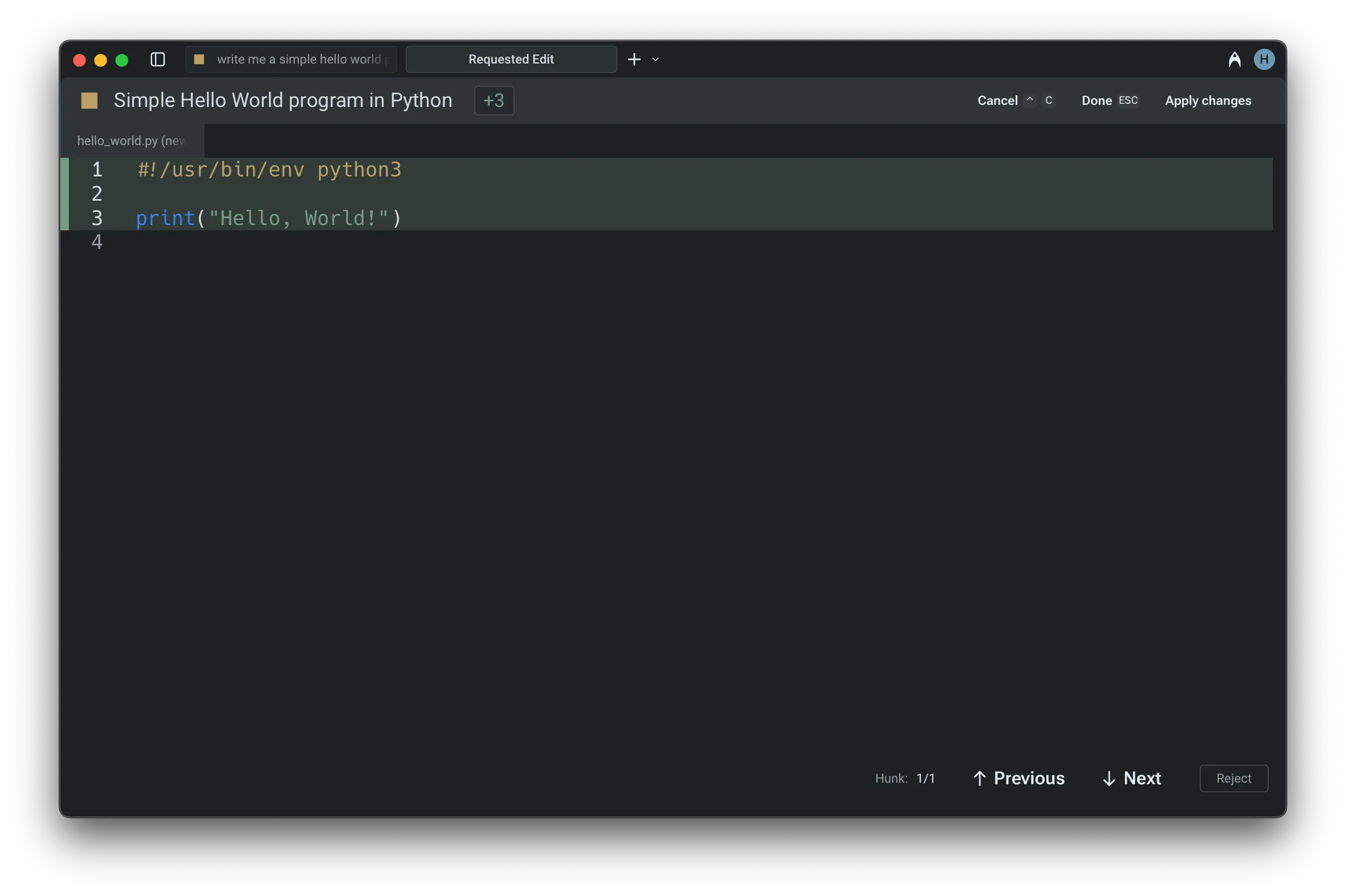 Editing a code diff in Warp’s code editor. ## Accepting diffs and continuing in Agent Mode [Section titled “Accepting diffs and continuing in Agent Mode”](#accepting-diffs-and-continuing-in-agent-mode) When the Agent generates a code diff outside of an active conversation — for example, from a suggested code banner or a passive recommendation — you can accept the diff and seamlessly continue in Agent Mode. After accepting, Warp opens (or returns to) the Agent conversation with the applied changes as context, so you can immediately ask follow-up questions or request further modifications without starting a new conversation. ### Demo: Editing Agent Code in Warp [Section titled “Demo: Editing Agent Code in Warp”](#demo-editing-agent-code-in-warp) Here’s an example from [Warp Guides](/guides/), where Zach demonstrates how to review and edit Agent code diffs natively in Warp: 
# Generate (Legacy)
Canonical page: [/agent-platform/local-agents/generate/](https://docs.warp.dev/agent-platform/local-agents/generate/)
> Use natural language to look up commands or input, accessible either directly from the command-line input or inside any interactive command or program.
Generate (Legacy) turns natural language queries into precise terminal commands or contextual suggestions inside interactive CLI tools. Type `#` in the command line to describe what you want, and Warp generates the matching command in real time. ## What is Generate? [Section titled “What is Generate?”](#what-is-generate) Generate helps turn natural language queries into precise commands as terminal input or contextual suggestions inside interactive commands and programs, whether you’re using psql, gdb, git, mysql, or any other CLI tool. Generate is backed by Large Language Models from API providers like OpenAI and Anthropic, and are completely opt-in. ## Ways to Generate with AI [Section titled “Ways to Generate with AI”](#ways-to-generate-with-ai) ### Generate commands as command-line input [Section titled “Generate commands as command-line input”](#generate-commands-as-command-line-input) Type `#` on the command-line input to generate command suggestions.  Typing ’#’ on the command line opens the suggestions interface. [Generating commands as command-line input demo](https://www.loom.com/embed/424a763ef0c8455e8269e541301968f2) 1. Press `` CTRL-` `` or type `#` into the text input editor to search using natural language. 2. Type in the input box what you’d like to do. For example, “replace a string in a file.” 3. Results are generated in real-time, and you can keep the current prompt or modify the prompt to generate new commands. 4. When you’ve found the command you want to execute, it can be run or saved as a Workflow onto Warp Drive to easily recall it in the future. ### \[Legacy] Generate text and contextual suggestions in interactive CLIs [Section titled “\[Legacy\] Generate text and contextual suggestions in interactive CLIs”](#legacy-generate-text-and-contextual-suggestions-in-interactive-clis) Caution **Our legacy Generate feature which works in interactive CLIs has been replaced by** [Full Terminal Use](/agent-platform/capabilities/full-terminal-use/)**, where Warp’s agent can now run and control long-running or full-screen terminal applications**.\ The agent can provide input when prompted, navigate interactive screens, and continue execution without stalling. In interactive CLI applications, you can generate input using natural language. 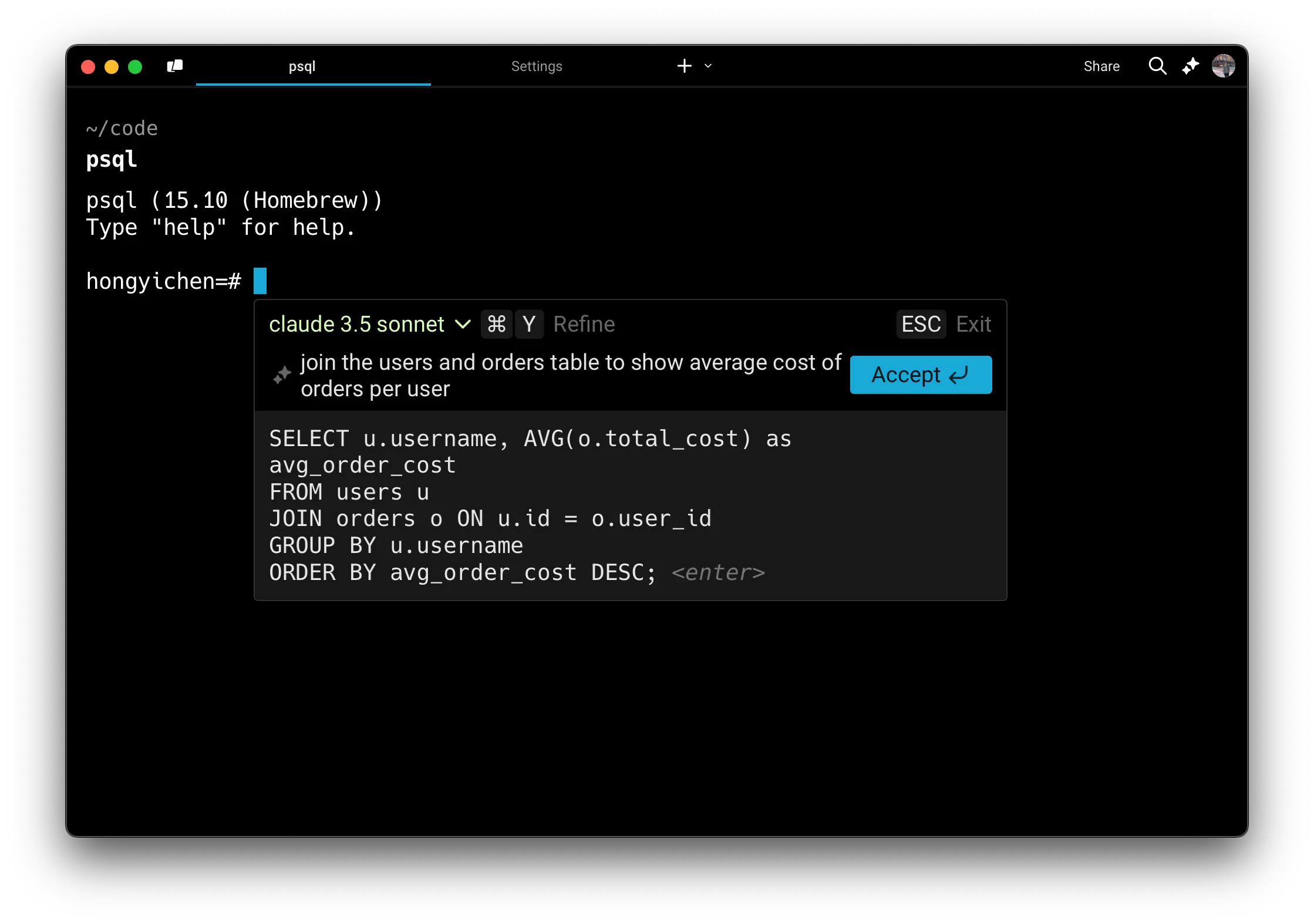 Generating a SQL query using natural language. 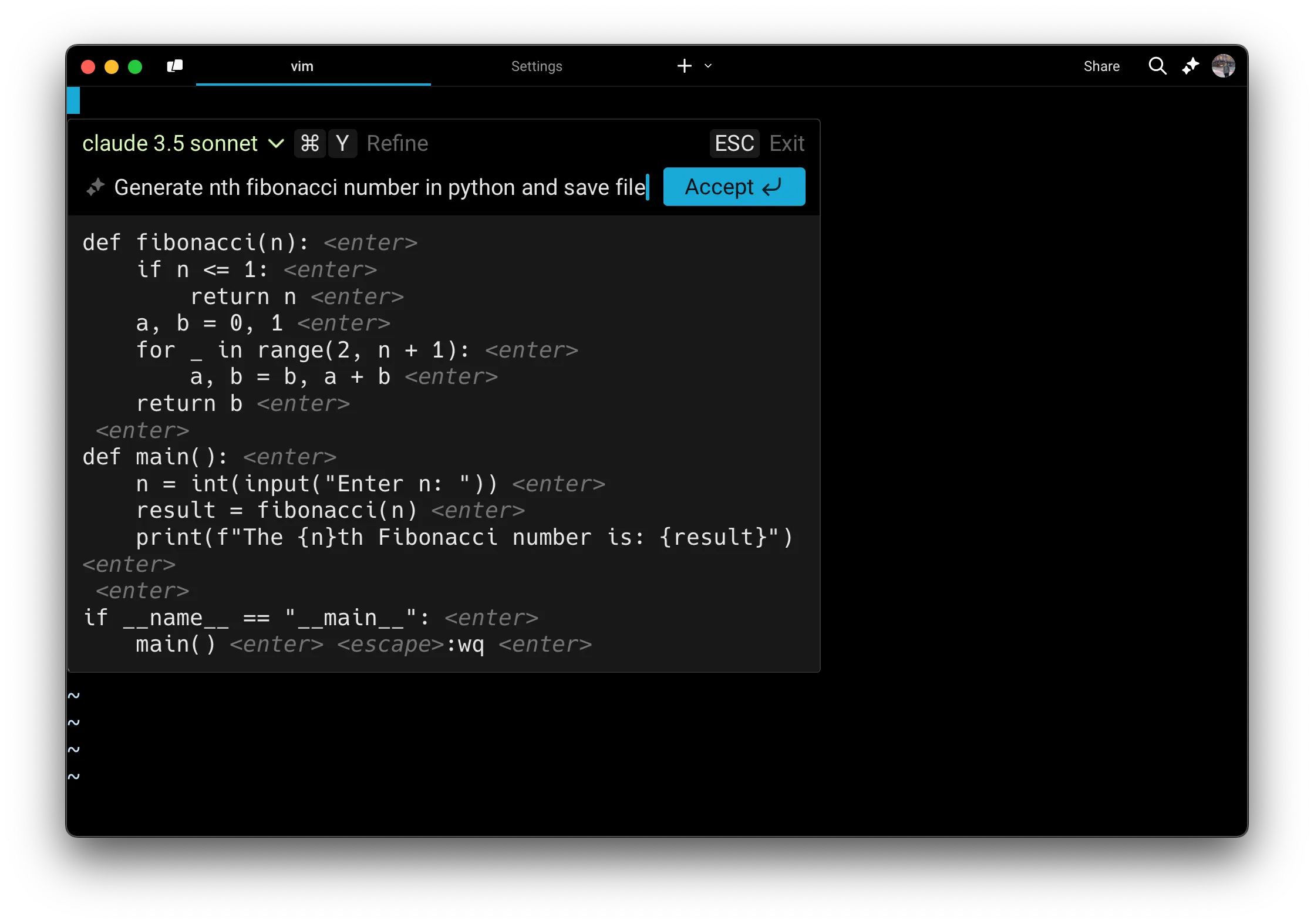 Generating Vim commands using natural language. * macOS 1. Inside a long-running, interactive command, press `CMD-I` when you see the hint text appear. 2. Type what you would like to generate in the input box. For example, “show me all tables in my Postgres database” or in Vim, “generate a recursive Fibonacci function and save it to the file.” 3. Results are generated in real time using the [LLM of your choice](/agent-platform/local-agents/generate/#supported-interactive-cli-models). 4. To refine or follow up on your query, press `CMD-Y`. You can then either edit your last message by pressing `UP ↑` or add a follow-up by typing in new text. 5. When you’ve found the text you want to add or execute, press `Enter` or click the Accept button. * Windows 1. Inside a long-running, interactive command, press `CTRL-SHIFT-I` when you see the hint text appear. 2. Type what you would like to generate in the input box. For example, “show me all tables in my Postgres database” or in Vim, “generate a recursive Fibonacci function and save it to the file.” 3. Results are generated in real time using the [LLM of your choice](/agent-platform/local-agents/generate/#supported-interactive-cli-models) 4. To refine or follow up on your query, press `CTRL-SHIFT-Y`. You can then either edit your last message by pressing `UP ↑` or add a follow-up by typing in new text. 5. When you’ve found the text you want to add or execute, press `Enter` or click the Accept button. * Linux 1. Inside a long-running, interactive command, press `CTRL-SHIFT-I` when you see the hint text appear. 2. Type what you would like to generate in the input box. For example, “show me all tables in my Postgres database” or in Vim, “generate a recursive Fibonacci function and save it to the file.” 3. Results are generated in real time using the [LLM of your choice](/agent-platform/local-agents/generate/#supported-interactive-cli-models) 4. To refine or follow up on your query, press `CTRL-SHIFT-Y`. You can then either edit your last message by pressing `UP ↑` or add a follow-up by typing in new text. 5. When you’ve found the text you want to add or execute, press `Enter` or click the Accept button. A couple of other examples of interactive CLIs where you can invoke Generate: * **Database REPL** (e.g. `psql`, `mysql`, `sqlite`): Generate SQL queries such as “create a table to store user data” or “show me all the rows in orders for the last month” * **Text editors** (e.g. `vim`, `nano`): Quickly generate text such as a markdown header, a code block comment, or a boilerplate CSS class. * **Python REPL** (e.g. `ipython`, `python`): Quickly generate Python snippets such as “create a simple plot of x” or “write a unit test for this function” * **Debugger tools** (e.g. `gdb`, `lldb`): Get commands for setting breakpoints or inspecting memory * **Version control** (e.g. `git rebase -i`): Speed up complex git commands by describing your goal such as “interactively rebase master onto feature-branch” * **Cloud provider shells** (e.g. `gcloud`, `aws cli`): faster setup or resource management such as “create a new Kubernetes cluster” or “provision a new RDS instance” Caution If you experience any issues with Generate, please visit known issues for [troubleshooting steps](/support-and-community/troubleshooting-and-support/known-issues/#online-features-dont-work).
# Interacting with agents
Canonical page: [/agent-platform/local-agents/interacting-with-agents/](https://docs.warp.dev/agent-platform/local-agents/interacting-with-agents/)
> Manage agent conversations across sessions with follow-ups, context blocks, and multi-thread support.
Agent conversations in Warp are multi-turn interactions tied to terminal sessions. Continue previous threads with follow-ups, manage conversation history, attach context from blocks and files, and run multiple conversations simultaneously across windows, tabs, or panes. ## Conversations with Warp’s Agent [Section titled “Conversations with Warp’s Agent”](#conversations-with-warps-agent) Conceptually, a conversation is a sequence of AI queries and blocks. Conversations are tied to sessions and you can run multiple Agent Mode conversations simultaneously in different windows, tabs, or panes. Conversations work best when the queries are related. If your new question builds on the last one, continue in the same conversation. If it is unrelated, it is better to start a new one so that the context remains relevant. ### Staying in a conversation (follow-ups) [Section titled “Staying in a conversation (follow-ups)”](#staying-in-a-conversation-follow-ups) By default, if you ask an AI query immediately after interacting in Agent Mode, your query is sent as a **follow-up** to the current conversation. * In **Classic Input**, you’ll see both the pink highlight bar on the left side of the block and a bent follow-up arrow (↳) next to your input. The conversation input chip also shows which conversation you are in. * In **Terminal and Agent modes** (the default), the conversation view provides a dedicated space for multi-turn interactions. The conversation panel shows which conversation you are in. **To follow-up on a previous conversation:** * Simply continue prompting the agent if you are already in an active conversation. * Open the **Conversations menu** (`CMD + Y` on macOS, `CTRL + SHIFT + Y` on Windows/Linux), select a conversation, and then enter your query. * Alternatively, click the pink conversation chip in the input field to resume. You don’t have to wait for the agent to finish before lining up your next prompt. With [prompt queueing](/agent-platform/local-agents/interacting-with-agents/prompt-queueing/), you can queue follow-ups while the agent is still responding and have them send automatically in order.  Continuing an agent conversation in Classic Input.  Continuing an agent conversation in the conversation view. #### Agent tips in the input [Section titled “Agent tips in the input”](#agent-tips-in-the-input) While Warp’s agent is thinking and processing your request, Warp may surface short tips with helpful workflows and ways to use Warp. These tips appear under the Warping indicator. 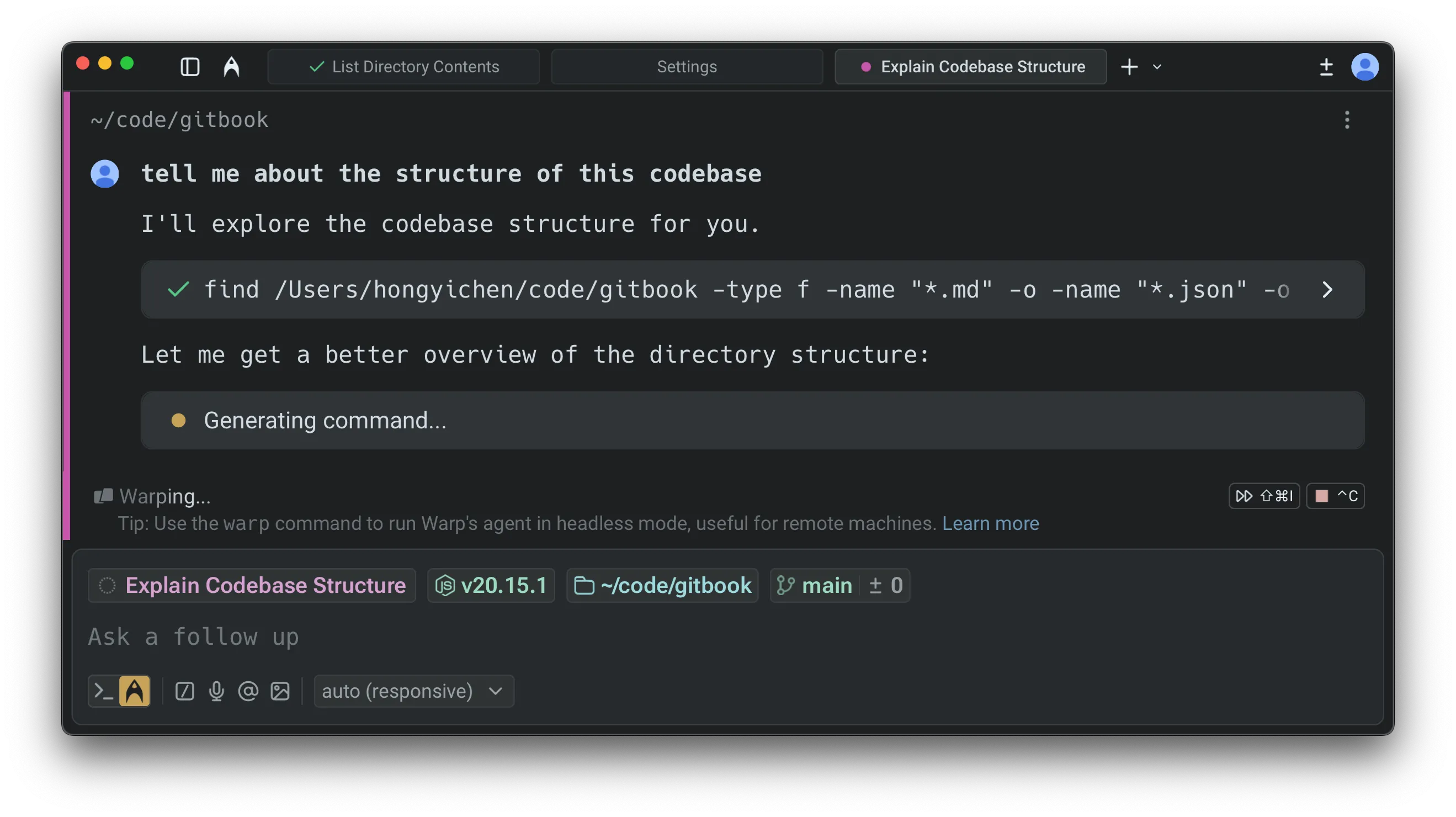 You can enable or disable these tips in two places: * **Settings**: **Settings** > **Agents** > **Warp Agent** > **Input** > **Show agent tips** * **Command Palette**: Open the Command Palette (`CMD + P` on macOS, `CTRL + SHIFT + P` on Windows/Linux), then select “**Show Agent Tips**” or “**Hide Agent Tips**” ### **Managing conversations** [Section titled “Managing conversations”](#managing-conversations) You can view previous conversations or start a new conversation via the **Conversations Menu** (`CMD + Y` on macOS, `CTRL + SHIFT + Y` on Windows/Linux). [Agent interaction controls walkthrough](https://www.loom.com/embed/9cc2451412be43e389a6b1414ea185e4) ### **Starting a new conversation** [Section titled “Starting a new conversation”](#starting-a-new-conversation) Warp automatically creates a new conversation in a few situations. For example, if you ask an AI query after running a shell command or if three hours pass without activity, Agent Mode will start a fresh conversation. Visual indicators differ slightly depending on input mode: * In **Classic Input,** a new conversation begins when there is no follow-up arrow (↳) next to your input. * In **Terminal and Agent modes**, starting a new conversation opens a fresh conversation view. Use the conversation panel to see all active and past conversations. - macOS You can also start a new conversation manually at any time: * In **Classic Input**, press `CMD + I` or press `BACKSPACE` while in follow-up mode. * In **Terminal and Agent modes**, press `CMD + ↵` to start a new conversation, or use the `/new` slash command. * Open the **Conversations Menu** using `CMD + Y` and select “New Conversation”. - Windows You can also start a new conversation manually at any time: * In **Classic Input**, press `CTRL + I` or press `BACKSPACE` while in follow-up mode. * In **Terminal and Agent modes**, press `CTRL + SHIFT + ↵` to start a new conversation, or use the `/new` slash command. * Open the **Conversations Menu** using `CTRL + SHIFT + Y` and select “New Conversation”. - Linux You can also start a new conversation manually at any time: * In **Classic Input**, press `CTRL + I` or press `BACKSPACE` while in follow-up mode. * In **Terminal and Agent modes**, press `CTRL + SHIFT + ↵` to start a new conversation, or use the `/new` slash command. * Open the **Conversations Menu** using `CTRL + SHIFT + Y` and select “New Conversation”.  Starting a new Conversation in Classic Input.  Starting a new Agent Conversation in agent conversation view. ## Context window management [Section titled “Context window management”](#context-window-management) Every conversation with an agent consumes tokens stored in a **context window**. The context window (sometimes called *context length*) is the amount of text (measured in tokens) that a Large Language Model (LLM) can process at one time. **The size of the context window depends on the model you are using.** As tokens accumulate and exceed the context window, performance and response quality may degrade. If the context window is exceeded, the model may lose track of earlier parts of the conversation, and **Warp will automatically summarize the conversation to free up space**. ### Warp provides a **context window usage indicator** to help you track this: [Section titled “Warp provides a context window usage indicator to help you track this:”](#warp-provides-a-context-window-usage-indicator-to-help-you-track-this) When less than 20% of the window is used, no indicator is shown. As more tokens accumulate, the usage bar progresses to reflect how much of the context window has been consumed.   As you approach the limit, the indicator turns red to warn that the context window is nearly full.  Once the limit is exceeded, Warp automatically summarizes the conversation so you can continue without losing important context.  The context window usage indicator is available in agent conversation views. ## Conversation segmentation [Section titled “Conversation segmentation”](#conversation-segmentation) Warp automatically detects when your query has shifted to a new topic. When this happens, it suggests starting a new conversation instead of continuing in the same context. These options appear in the block list, where you can decide whether to branch off into a new conversation or keep going with the current one.  You can also create a new conversation manually at any time by using the keyboard shortcut, opening a new tab, or opening a new pane. * macOS * Start a new conversation: `CMD + SHIFT + N` * Open a new tab: `CMD + T` * Open a new pane: `CMD + D` * Windows * Start a new conversation: `CTRL + SHIFT + N` * Open a new tab: `CTRL + SHIFT + T` * Open a new pane: `CTRL + SHIFT + D` * Linux * Start a new conversation: `CTRL + SHIFT + N` * Open a new tab: `CTRL + SHIFT + T` * Open a new pane: `CTRL + SHIFT + D` ## Conversation Panel [Section titled “Conversation Panel”](#conversation-panel) The **Conversation Panel** on the left side of the window is the home for browsing and switching between agent conversations. It’s designed to make multi-threaded work obvious: you can see what’s active, what you ran recently, and jump back into any thread without guessing where your context went.  ### Panel layout [Section titled “Panel layout”](#panel-layout) The conversation panel is split into two dropdowns (collapsible sections) that help you navigate between conversations: #### Active [Section titled “Active”](#active) The **Active** dropdown lists conversations where you have sent at least one query since opening them. Simply expanding a conversation does not make it active—you need to interact with the Agent first. * Select a conversation to switch to it immediately. * The conversation you’re currently viewing is highlighted. * Cloud agent conversations and Oz runs always appear in **Active** while they are open. #### Past [Section titled “Past”](#past) The **Past** dropdown lists your recent conversation history. Each row typically shows: * Conversation title * When it happened (for example, “8 min ago”, “3 days ago”) * Working directory (when relevant) Use **Past** to restore a previous conversation. When you select a past conversation, Warp reopens it in a new tab or your active pane, letting you continue where you left off. ### Conversation storage [Section titled “Conversation storage”](#conversation-storage) By default, your agent conversations are stored locally on your machine. You can optionally enable **cloud-synced conversations** to: * Access your conversation history across different devices * Share conversations with teammates * Retain conversations when you log out or switch machines For full details on enabling cloud sync, sharing conversations, and accessing cloud agent conversations, see [Cloud-synced Conversations](/agent-platform/local-agents/cloud-conversations/). ### Search [Section titled “Search”](#search) Use the search field at the top of the conversation panel to quickly find your conversation. * Type to filter conversations by title (and, in some builds, by directory/context). * Useful when you have many threads and want to jump directly to one. ### New conversation [Section titled “New conversation”](#new-conversation) Click the **New conversation** button at the bottom of the **Active** conversation list to start a new conversation. Starting a new conversation creates a fresh thread in the **Active** dropdown, without deleting or overwriting your previous ones. ### Navigation behavior [Section titled “Navigation behavior”](#navigation-behavior) Navigation between [Terminal and Agent modes](/agent-platform/local-agents/interacting-with-agents/terminal-and-agent-modes/) is designed to be direct: * **Clicking an active conversation** - Takes you directly to that conversation view. * **Clicking a past conversation** - Opens the conversation in a **new pane**, preserving your current context. * **Command Palette** - Open the Command Palette and type `conversations:` to filter and navigate directly to any conversation. * **`⌘Y` conversation selector** - Opens a dedicated menu showing your existing and past conversations. This works in both terminal view and agent view. * **Up-arrow history** - Shows both past shell commands and past prompts you’ve sent in recent conversations. The behavior differs by context: * **In terminal view** - Shows both past shell commands and recent conversations. * **In agent view** - Shows past prompts you’ve sent in conversations. *** ### Ways to move around [Section titled “Ways to move around”](#ways-to-move-around) Use `esc` or the back button to return to terminal mode, `⌘Y` to open the conversation selector, or `⌘↩` to start a new conversation. For a complete list of keyboard shortcuts and slash commands, see [Terminal and Agent modes - Keyboard shortcuts](/agent-platform/local-agents/interacting-with-agents/terminal-and-agent-modes/#keyboard-shortcuts-quick-reference). ### Exit confirmation for in-progress conversations [Section titled “Exit confirmation for in-progress conversations”](#exit-confirmation-for-in-progress-conversations) Exiting a conversation that is still in progress will **cancel** the agent’s current work. To prevent accidental cancellations, Warp shows a confirmation hint: * **First exit attempt** - The hint changes to “Press again to exit” (or similar). * **Confirmation window** - You have about 2 seconds to press `esc` or `^C` again to confirm. * **After confirmation** - Warp exits the conversation and cancels the in-progress request. This confirmation step ensures you don’t accidentally lose work when the agent is mid-task.
# Conversation Forking
Canonical page: [/agent-platform/local-agents/interacting-with-agents/conversation-forking/](https://docs.warp.dev/agent-platform/local-agents/interacting-with-agents/conversation-forking/)
> Branch into a new agent thread with full context to explore alternatives without altering the original conversation.
Warp allows you to **fork conversations** to create a new thread that inherits all of the context, messages, and history from an existing conversation. This is useful when you want to branch off in a new direction without affecting the original conversation. [Forking a conversation from a previous point video](https://www.loom.com/embed/15164f2abc19437ebefb47a8c6b52eb8) ### How conversation forking works [Section titled “How conversation forking works”](#how-conversation-forking-works) * When you fork a conversation, the new thread starts with the same context and history as the original. * Any follow-ups in the forked conversation do **not** impact the original. Likewise, continuing in the original conversation does not change the fork. * Forked conversations behave just like any other conversation: you can move them into new windows, panes, or tabs. * Your selected model and execution profile are preserved in the forked conversation. *Example*: You can fork a conversation to explore an alternate solution, ask “what if” questions, or continue down two separate paths in parallel. ### How to fork a conversation [Section titled “How to fork a conversation”](#how-to-fork-a-conversation) There are five ways to fork an existing conversation: #### **1. From the Command Palette** [Section titled “1. From the Command Palette”](#1-from-the-command-palette) Open the menu using the Command Palette (`CMD + Y` on macOS / `CTRL + SHIFT + Y` on Windows/Linux). Select **Fork current conversation** to fork your current conversation, or fork a specific conversation from open conversations. 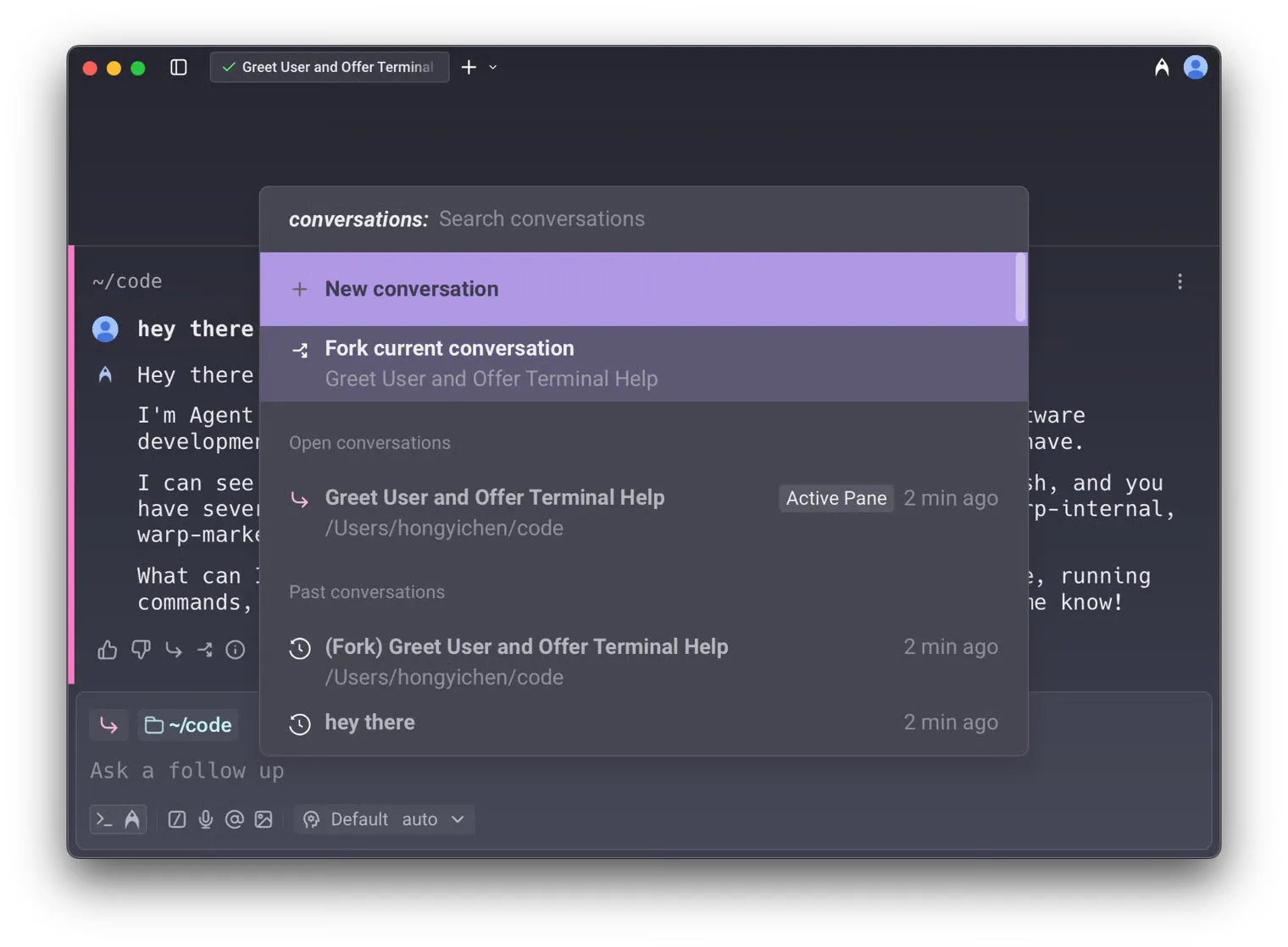 In addition, when you hover over any open conversation in the Command Palette, you’ll see a **fork button**. This lets you fork not only active conversations, but also inactive and historical ones. 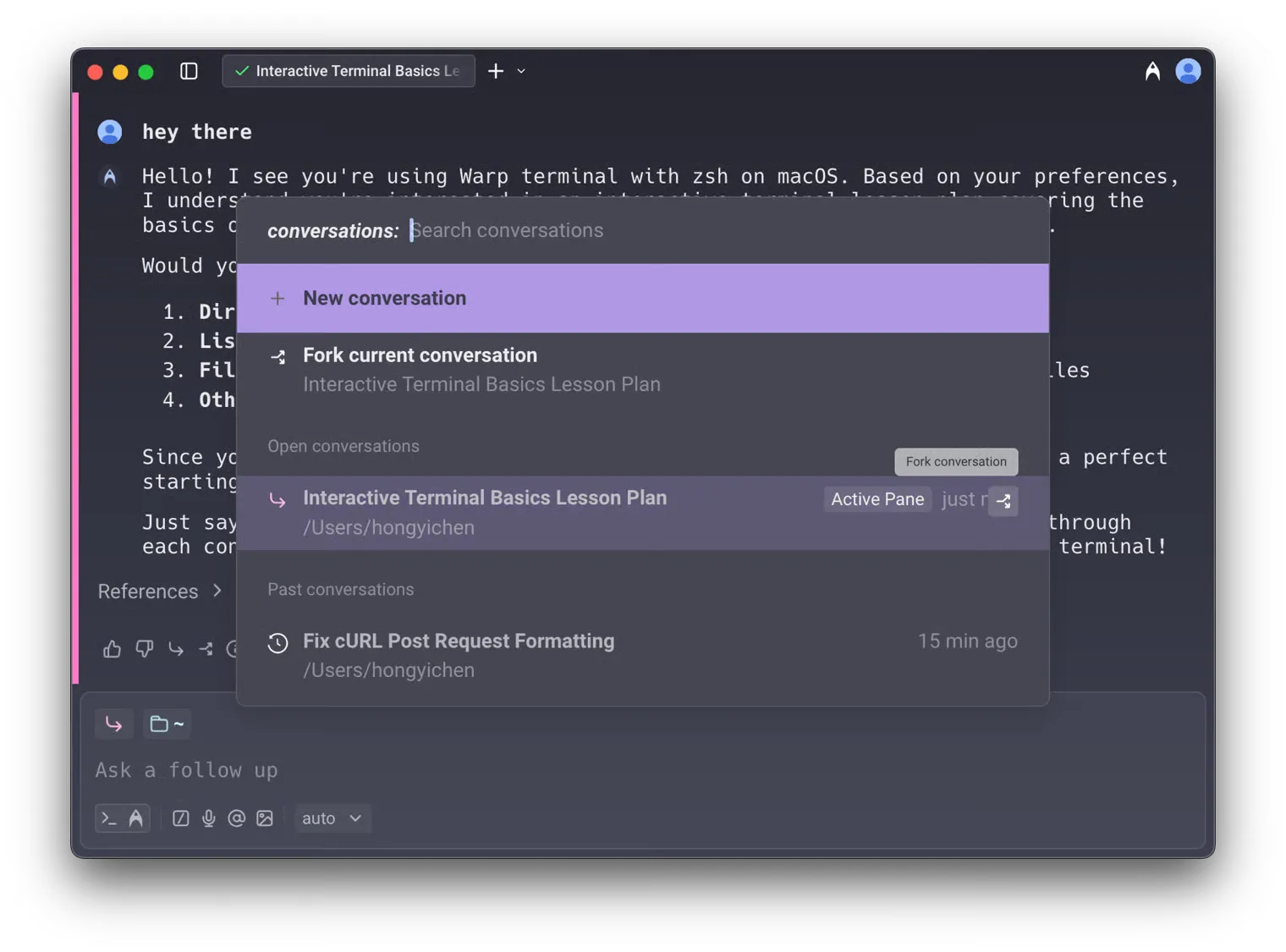 You can also access this conversation view from the conversation chip in the current conversation.  #### **2. From the footer of the most recent AI response block** [Section titled “2. From the footer of the most recent AI response block”](#2-from-the-footer-of-the-most-recent-ai-response-block) In any conversation in the block list, click the **fork button** in the footer of the most recent AI block. A new conversation opens in a separate pane with the full context of the original. 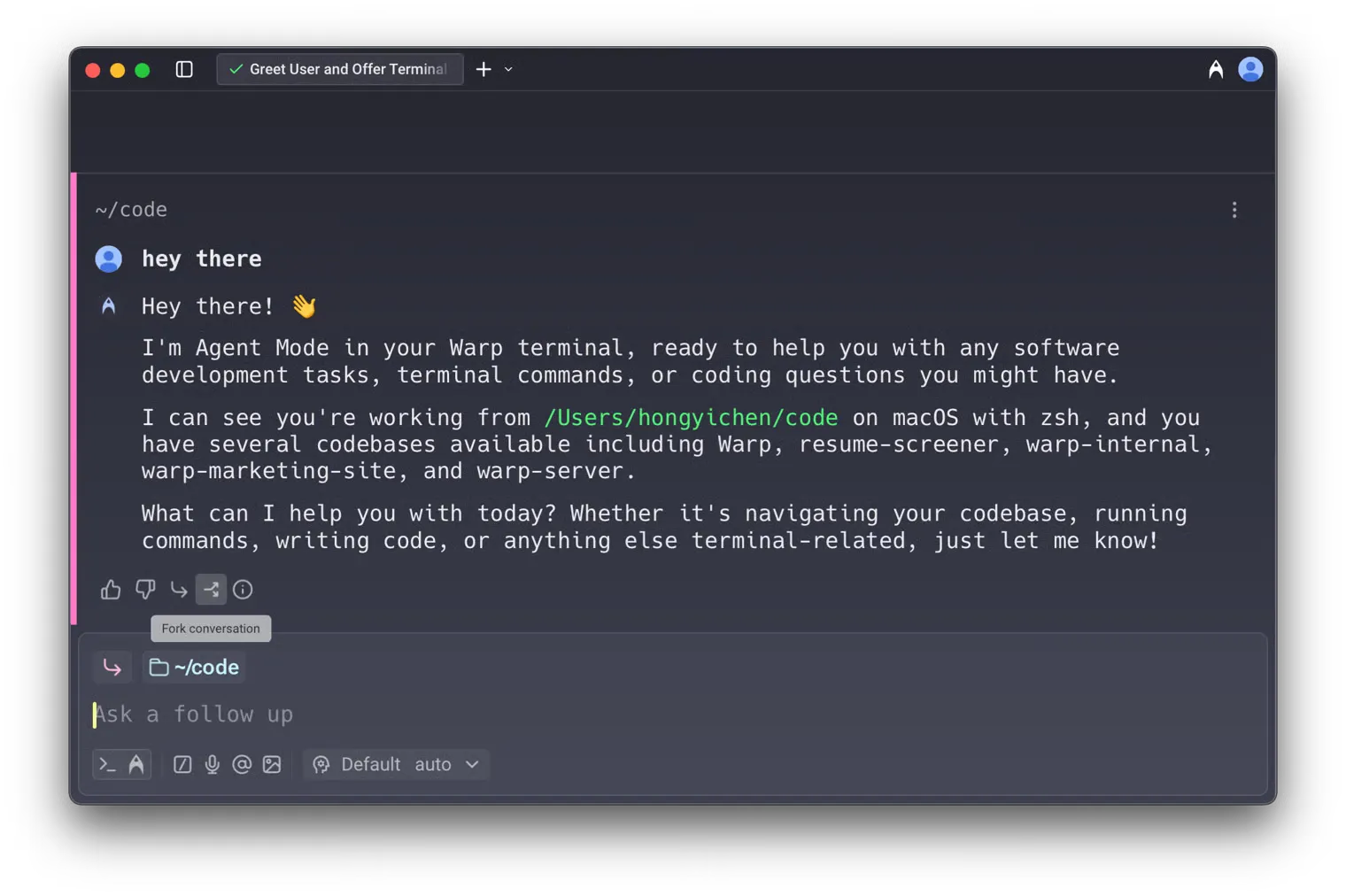 #### **3. Using the `/fork` slash command** [Section titled “3. Using the /fork slash command”](#3-using-the-fork-slash-command) Type `/fork` in the input to fork the current conversation. You can optionally include a prompt after the command, and Warp will send that prompt in the newly forked conversation. * Press `Enter` to open the fork in a new pane (default) * Press `⌘+Enter` (macOS) or `Ctrl+Enter` (Windows/Linux) to open the fork in the current pane *Example*: `/fork Can you try a different approach?` Forks the selected conversation and immediately sends `Can you try a different approach?` in the forked conversation. #### **4. Using the /fork-and-compact slash command** [Section titled “4. Using the /fork-and-compact slash command”](#4-using-the-fork-and-compact-slash-command) Type `/fork-and-compact` to fork the current conversation and automatically compact the forked version. This combines forking with [context window management](/agent-platform/local-agents/interacting-with-agents/#context-window-management), giving you a fresh start with a summarized context. * Press `Enter` to open the fork in a new pane (default) * Press `⌘+Enter` (macOS) or `Ctrl+Enter` (Windows/Linux) to open the fork in the current pane 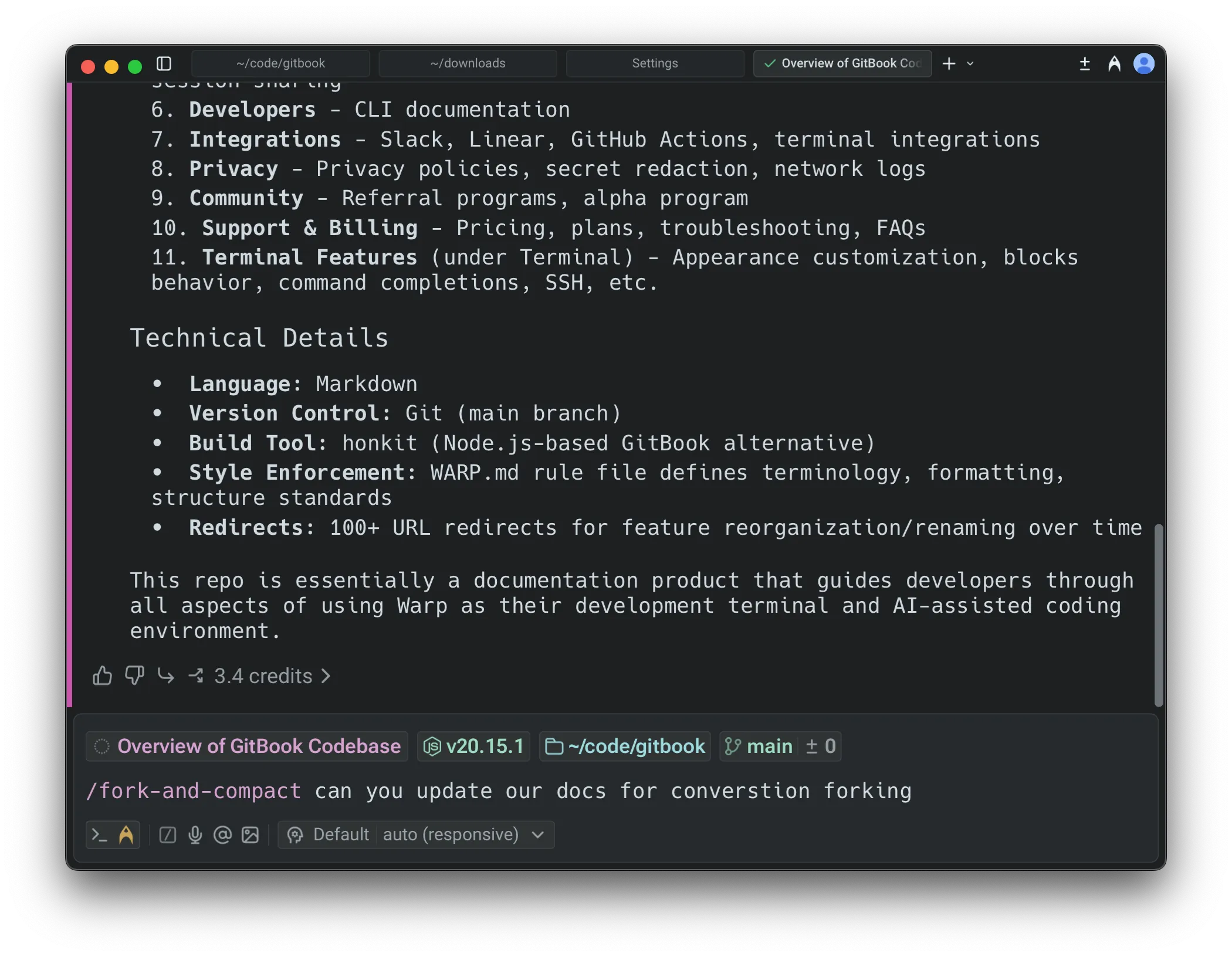 #### **5. Using the `/fork-from` slash command** [Section titled “5. Using the /fork-from slash command”](#5-using-the-fork-from-slash-command) Type `/fork-from` to open a searchable menu of all queries in the current conversation. Select a query to fork the conversation from that specific point—everything up to and including that exchange is included in the fork, but subsequent messages are excluded. This is a more discoverable alternative to right-clicking on an agent response block. ### Fork from anywhere in a conversation [Section titled “Fork from anywhere in a conversation”](#fork-from-anywhere-in-a-conversation) In addition to forking from the end of a conversation, you can fork from any point in the conversation history. This lets you return to an earlier agent response and branch off in a new direction from there. 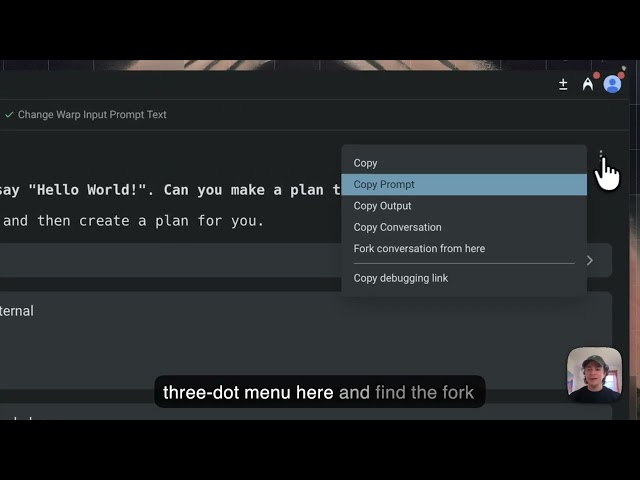 To fork from a specific point, **right-click** on any agent response block or click the three-dot menu in the top-right corner of the block. * Select **Fork conversation from here** to create a new conversation that includes everything up to and including that response, but excludes any queries or responses that came after it. **This is particularly useful for:** * **Exploring alternate paths** - Go back to a point where the conversation was on track and try a different approach. * **Managing your context window** - If a conversation has grown too long, fork from an earlier point to continue with only the relevant context. * **Preventing context pollution** - When a conversation has accumulated errors or gone off track, fork from before those issues occurred to start fresh. ### Settings [Section titled “Settings”](#settings) You can configure the default layout for forked conversations in **Settings** > **Features** > **Open forked conversation layout**: * **Split Pane** (default): Opens the forked conversation in a new pane alongside your current view. * **New Tab**: Opens the forked conversation in a new tab. This setting controls the default behavior when forking via the Command Palette, AI block footer button, or slash commands (when pressing `Enter`). ### Using forked conversations [Section titled “Using forked conversations”](#using-forked-conversations) * Once forked, you can continue prompting as if you were still in the original conversation. The original conversation remains unchanged, allowing you to reference or continue both in parallel. * For example, after forking you can ask *“Could you explain more?”* and Warp responds using the inherited context. **Forking is especially useful when:** * You want to explore different approaches without losing the original thread. * You need to keep one conversation “clean” while experimenting in another. * You want to reuse context or specific blocks from older conversations.
# Prompt queueing
Canonical page: [/agent-platform/local-agents/interacting-with-agents/prompt-queueing/](https://docs.warp.dev/agent-platform/local-agents/interacting-with-agents/prompt-queueing/)
> Queue follow-up prompts while an agent is still responding, then have Warp send them automatically and in order as each response finishes.
Prompt queueing lets you line up follow-up prompts while an agent is still working. Instead of waiting for the agent to finish—or interrupting it to send your next idea—you queue prompts and Warp sends them automatically, one at a time, as each response completes. 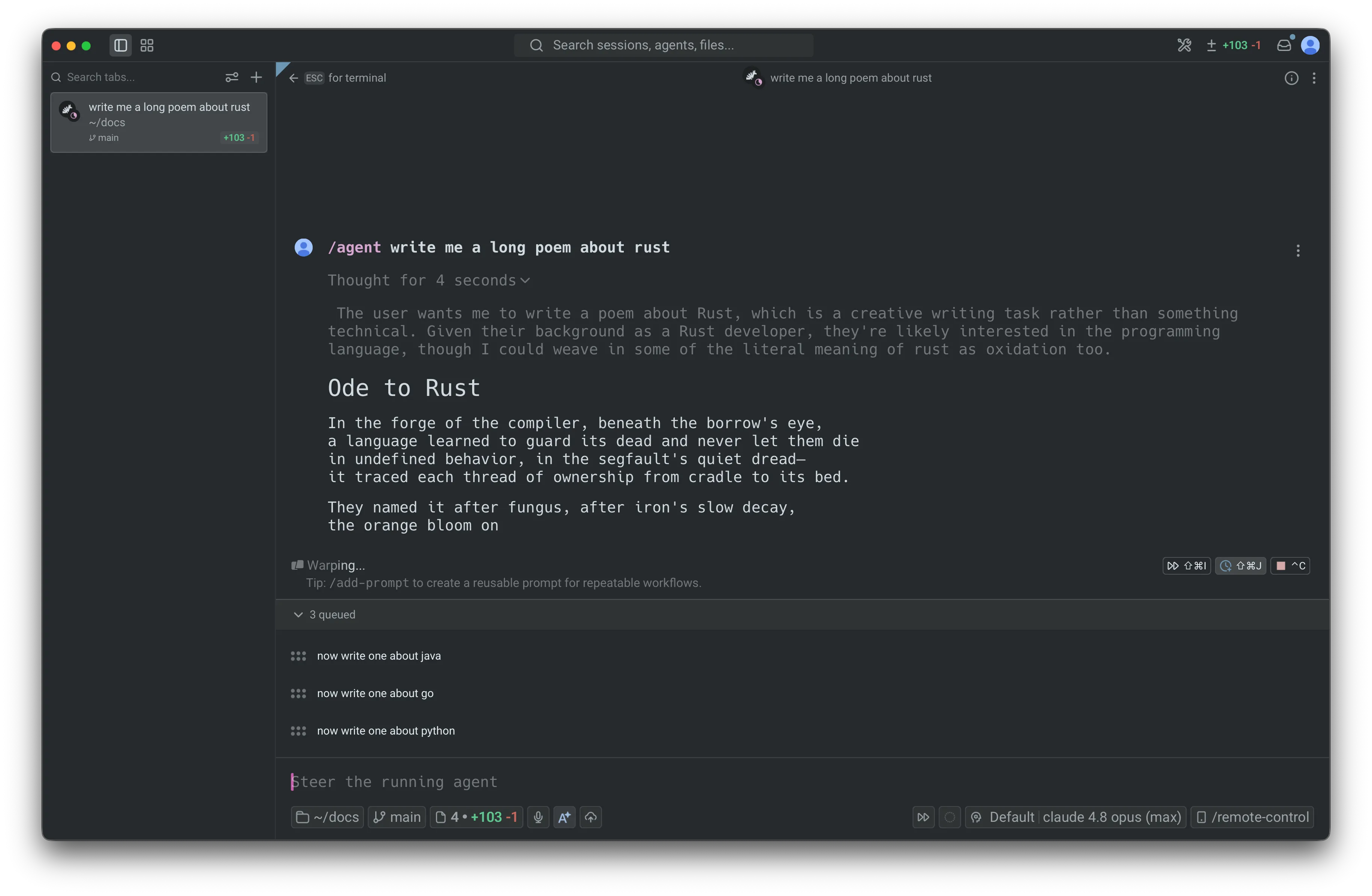 The queued prompts panel, with three prompts queued while the agent responds. ## Key features [Section titled “Key features”](#key-features) * **Auto-queue toggle** - Turn on auto-queue so every prompt you submit while the agent is busy joins the queue instead of interrupting the current response. * **`/queue` slash command** - Queue a single follow-up prompt inline, without switching modes. * **Queued prompts panel** - View, reorder, edit, and remove every pending prompt from one collapsible panel above the input. * **Automatic sequential sending** - Queued prompts fire one at a time as the agent finishes each response, in the order you set. * **Per-conversation queues** - Each conversation keeps its own queue and auto-queue state, which persist when you leave and re-enter the conversation. * **Cloud agent support** - Queue follow-ups for cloud agents, even while the environment is still setting up. ## How it works [Section titled “How it works”](#how-it-works) Each agent conversation has its own queue. When the current response finishes successfully, Warp sends the next prompt in the queue. This continues one prompt at a time until the queue is empty. Queued prompts use the same submission flow as prompts you send manually, so slash commands, skills, and other input behave the same way. A few things to know: * **Shell commands are never queued.** If you submit in shell mode, Warp runs the command in the terminal immediately, regardless of your auto-queue setting. * **Queues don’t persist across restarts.** A conversation’s queue is cleared when the conversation is deleted or cleared, and queues do not persist after an app restart. * **One prompt is in flight at a time.** Warp waits for the current response to finish before sending the next queued prompt. ## Queueing a prompt [Section titled “Queueing a prompt”](#queueing-a-prompt) There are three ways to queue prompts. The auto-queue toggle and `/queue` act on the active conversation; the default submission mode setting controls what happens app-wide. ### Auto-queue toggle [Section titled “Auto-queue toggle”](#auto-queue-toggle) The auto-queue toggle is the fastest way to queue several prompts in a row. While the agent is responding, a clock-plus icon appears in the warping indicator (the status bar above the input). 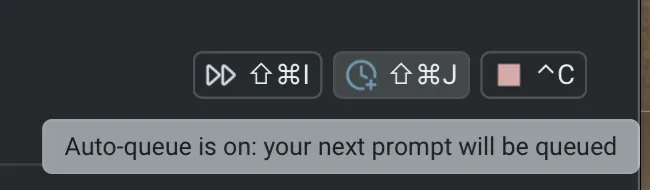 The auto-queue toggle in the warping indicator. 1. Click the clock-plus icon, or press `⌘+Shift+J` (macOS) or `Ctrl+Shift+J` (Windows/Linux). The icon turns the accent color to show auto-queue is on. 2. Type a prompt and press `Enter`. Because the conversation is in progress, the prompt is added to the queue instead of interrupting the current response. The input refocuses so you can keep queuing. The toggle is per-conversation and stays on across responses until you turn it off, so you can queue as many prompts as you like. Switching to another conversation shows that conversation’s own toggle state. ### `/queue` slash command [Section titled “/queue slash command”](#queue-slash-command) Use `/queue` to add one follow-up prompt without turning on auto-queue. 1. In an agent conversation, type `/queue` followed by the prompt—for example, `/queue run the tests and fix any failures`. 2. Press `Enter`. The prompt is added to the queue and the input clears. `/queue` requires an active conversation and a prompt. If you run `/queue` without a prompt, Warp shows an error. Note: If the agent is idle, `/queue` sends the prompt immediately. It only queues prompts while a response is in progress. ### Set the default submission mode [Section titled “Set the default submission mode”](#set-the-default-submission-mode) By default, submitting a prompt while the agent is responding interrupts the current response and sends your new prompt right away. You can change this default so new conversations queue instead. 1. In the Warp app, go to **Settings** > **Agents** > **Warp Agent** > **Input**. 2. For **Default prompt submission mode**, choose one of: * **Interrupt response** - Cancel the in-flight response and send the new prompt immediately (the default). * **Queue until response finishes** - Hold the new prompt until the current response finishes, then send it. This setting is the default for conversations that you haven’t explicitly toggled. The per-conversation auto-queue toggle always overrides it for that conversation. 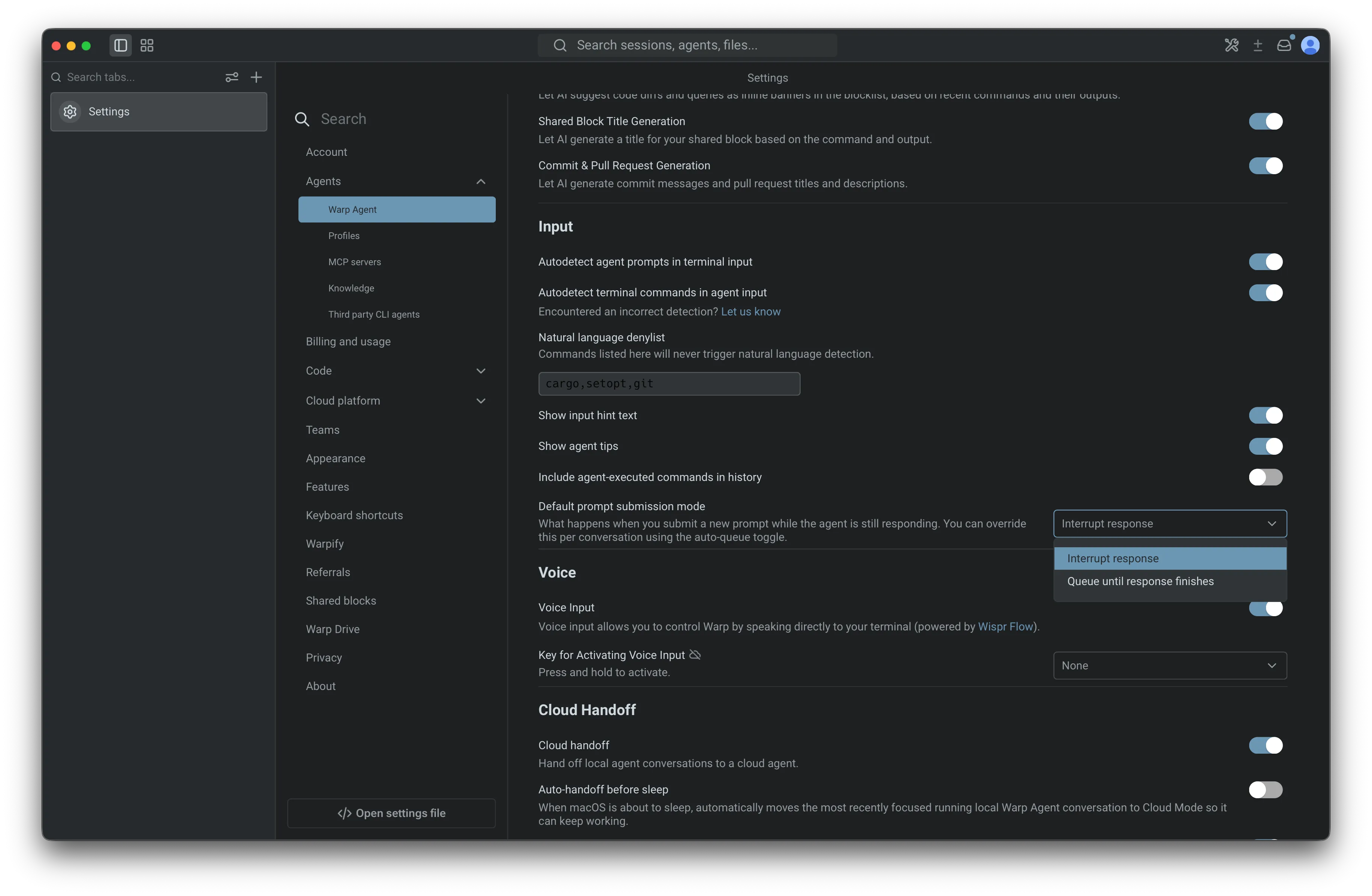 The Default prompt submission mode setting under Agent input settings. ## Managing queued prompts [Section titled “Managing queued prompts”](#managing-queued-prompts) When a conversation has at least one queued prompt, the queued prompts panel appears between the warping indicator and the input box. Its header shows the count, such as **2 queued**, with a chevron to collapse or expand the list. The panel is expanded by default, and prompts are listed from top (next to send) to bottom (last to send). Hovering a row reveals controls for that prompt: * **Reorder** - Drag a row up or down by its handle to change the order. The row at the top of the list always sends next. * **Send now** - Click the up-arrow icon to send that prompt immediately instead of waiting for the agent to finish the current response. * **Edit** - Click the pencil icon to edit the prompt inline. Press `Enter` to save your changes or `Esc` to cancel. * **Delete** - Click the trash icon to remove the prompt from the queue. If the input is empty, Warp moves the deleted prompt into the input so you can revise and resend it. If the input already has text, the deleted prompt is discarded. 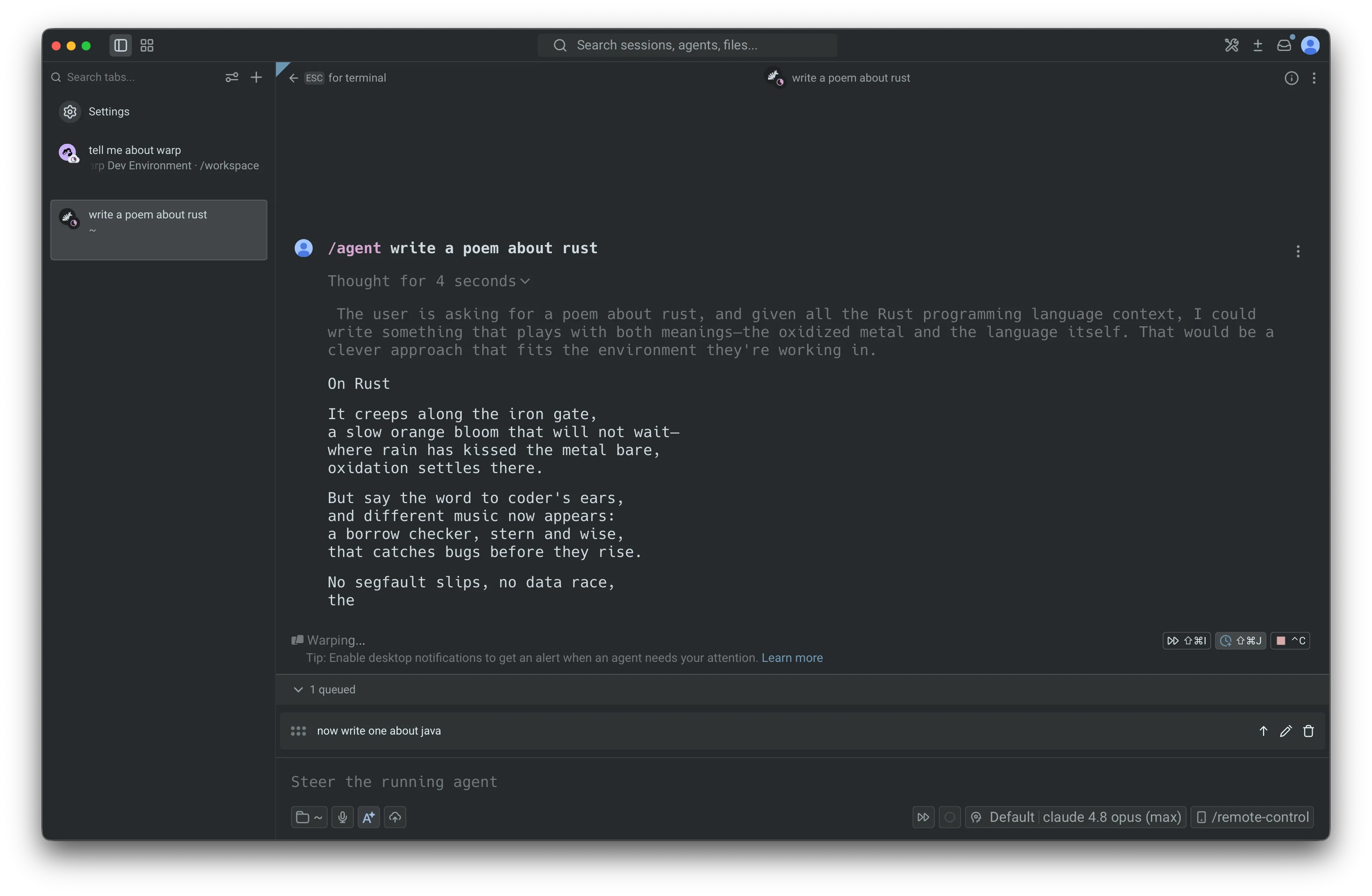 A queued row with its send now, edit, and delete controls revealed on hover. Deleting the last prompt removes the panel, since the queue is now empty. ## When sending pauses [Section titled “When sending pauses”](#when-sending-pauses) Queued prompts only continue after a response finishes successfully. If the response errors, is stopped, or is interrupted with `Ctrl+C`, Warp pauses the queue so you can review what should happen next. The queue stays intact, and no queued prompts are discarded. When sending pauses and you’re viewing that conversation, Warp helps you pick up where you left off: * If the input box is empty, the first queued prompt is removed from the queue and its text is placed in the input so you can review and resend it. * If the input box already has text, the queue is left untouched. Any remaining prompts stay in the panel so you can review, edit, reorder, or delete them. Sending resumes automatically the next time the conversation completes a response cleanly. ## Prompt queueing with cloud agents [Section titled “Prompt queueing with cloud agents”](#prompt-queueing-with-cloud-agents) Prompt queueing also works for [cloud agents](/agent-platform/cloud-agents/overview/), including while a cloud environment is still setting up. You can queue follow-up work before the agent is live, and Warp sends those prompts once the agent is ready and the current response finishes. For cloud agents, the prompt that started the run appears as a locked first row in the queue because it has already been accepted by the agent. You can’t edit, reorder, or delete that first prompt, but any follow-up prompts queued behind it remain editable. 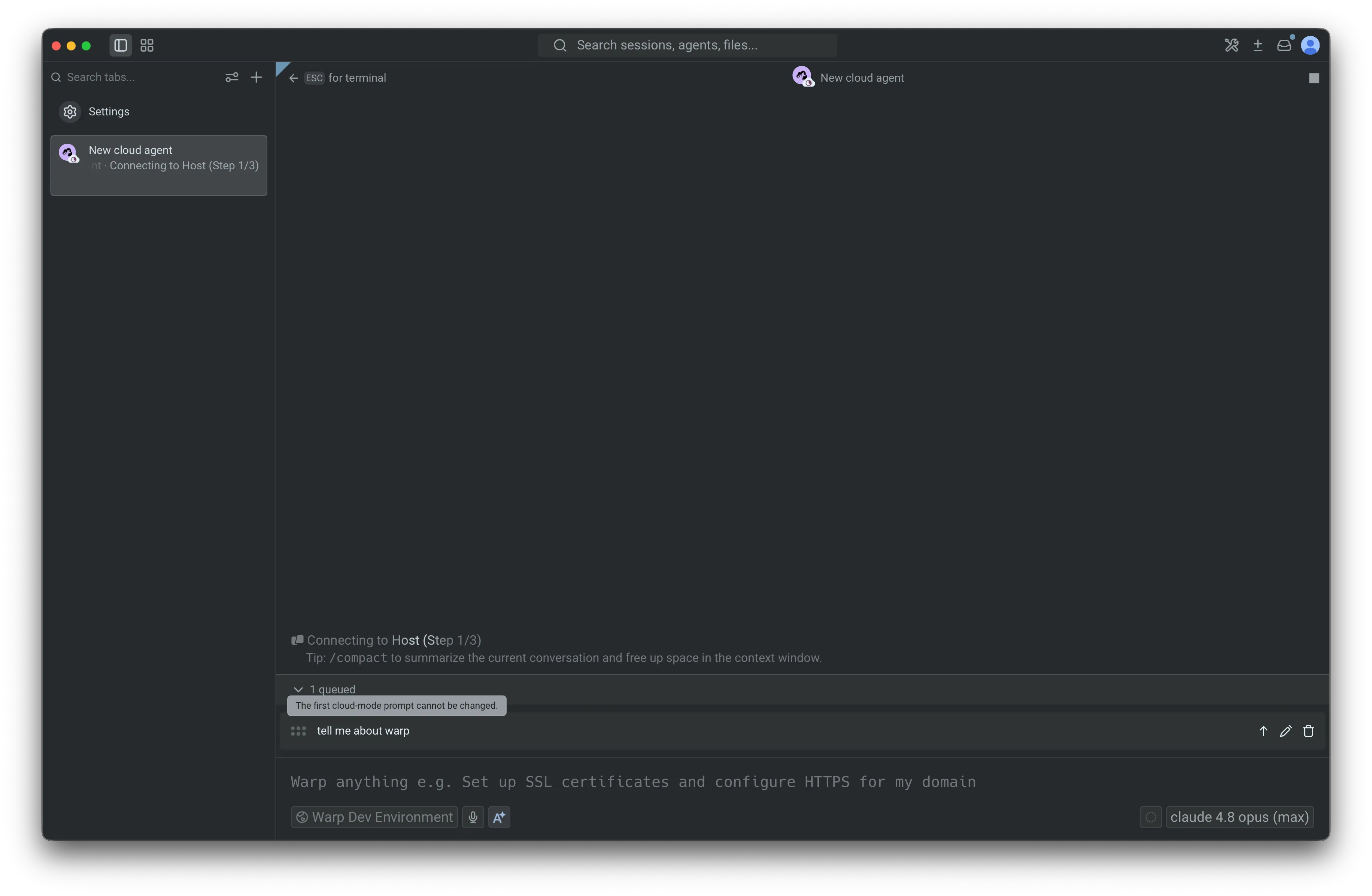 A cloud run’s locked initial prompt during environment setup. While the environment is setting up, queued prompts wait until the cloud agent is live. After setup, the locked row is removed and the rest of the queue sends in order as each response completes. Because cloud conversations keep running after you leave the agent view, their queues continue to send in the background and are restored when you return. ## Related pages [Section titled “Related pages”](#related-pages) * [Slash Commands](/agent-platform/capabilities/slash-commands/) - The full list of built-in commands, including `/queue`. * [Terminal and Agent modes](/agent-platform/local-agents/interacting-with-agents/terminal-and-agent-modes/) - How input is routed between the terminal and the agent. * [Cloud agents overview](/agent-platform/cloud-agents/overview/) - Run agents in the cloud from any trigger.
# Terminal and Agent modes
Canonical page: [/agent-platform/local-agents/interacting-with-agents/terminal-and-agent-modes/](https://docs.warp.dev/agent-platform/local-agents/interacting-with-agents/terminal-and-agent-modes/)
> Warp provides two distinct modes: a clean terminal for commands, and a dedicated conversation view for multi-turn agent workflows.
Warp provides two distinct modes: a clean terminal for running shell commands, and a dedicated conversation view for multi-turn interactions with Oz, Warp’s agent. Terminal mode keeps the interface minimal by default, while Agent Mode surfaces full controls for model selection, voice input, image attachments, and conversation management.  *** ## Key terminology [Section titled “Key terminology”](#key-terminology) Before diving in, here are two key concepts: * **Terminal session** - Your shell environment where you run commands. This is the default mode when you open Warp—a clean, traditional terminal input. * **Agent conversation** - A multi-turn interaction with Oz. Conversations maintain context across exchanges and have their own dedicated view with richer controls. Terminal and Agent modes make switching between these two contexts seamless while keeping them visually distinct. *** ## Why two modes [Section titled “Why two modes”](#why-two-modes) Terminal and Agent modes separate your terminal and agent workflows into distinct contexts: * **Clean terminal by default** - Minimal input when you’re running commands. Agent controls appear only when you need them. * **Dedicated conversation view** - Multi-turn agent workflow spaces have full controls like model select, voice input, image attachments, and conversation history. * **Explicit mode switching** - The current mode is clearly visible, enabling better workflow organization—you can separate, minimize, and expand different conversations. *** ## Two distinct modes [Section titled “Two distinct modes”](#two-distinct-modes) ### Terminal mode (default) [Section titled “Terminal mode (default)”](#terminal-mode-default) Terminal mode is the default when you open a new tab or pane. * Looks and behaves like a traditional terminal input. * Agent controls are not always visible, keeping the interface clean. * A message bar shows contextual hints for interacting with agents.  **Terminal mode hints** The message bar at the bottom of the terminal provides contextual guidance: * **Default hint** - Shows `⌘↩ for new agent` when the input is empty. * **Send to agent** - Shows `⌘↩ to send to agent` when you have text that could be a prompt. * **Error block attachment** - When the last command failed, shows a hint to attach the output as agent context (e.g., `⌘↑ attach 'npm install...' output as agent context`). * **Attached context indicator** - Shows when you have blocks or text selections attached (e.g., `⌘↩ to send to agent with 'git status' attached`). * **Continue conversation** - When your last visible item is an agent conversation block, shows `⌘Y to continue conversation`. If auto-detection is enabled, Warp labels your input as “agent” or “shell” before you submit, showing “(autodetected)” in magenta. See [Understanding auto-detection](#understanding-auto-detection) for configuration and override methods. **Disabling the message bar:** To hide the terminal mode hint bar while keeping AI features enabled, go to **Settings** > **Features** > **Terminal Input** and toggle off **Show terminal input message line**. This only hides the contextual hints—it does not disable any AI functionality. Caution If you disable the message bar while auto-detection is enabled, you won’t see the visual indicator that tells you whether Warp detected your input as a shell command or an agent prompt. Consider also disabling auto-detection (**Settings** > **Agents** > **Warp Agent** > **Input**) if you turn off the message bar. ### Agent conversation view (expanded UI) [Section titled “Agent conversation view (expanded UI)”](#agent-conversation-view-expanded-ui) * A dedicated conversation view with richer agent controls including model select, voice input, image attachments, and conversation management. * Familiar “charms” (current directory, git branch, diff view entry point, etc.) are still available. * Designed for multi-turn workflows and managing multiple conversations. 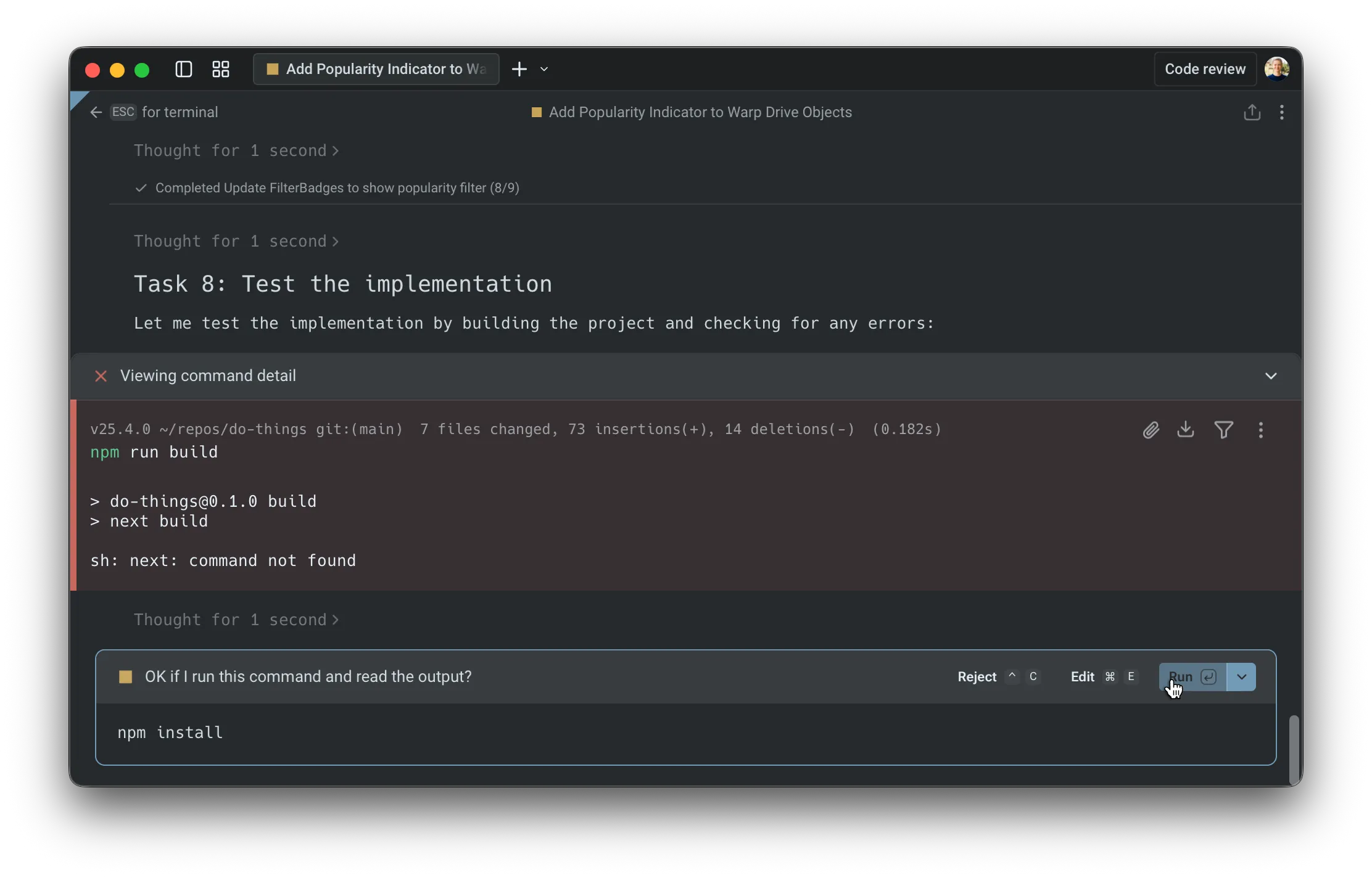 The dedicated Agent Conversation View. **Key difference** Agent controls appear only when you’re in a conversation, keeping your terminal clean otherwise. In the previous UI, agent controls were always present. With Terminal and Agent modes, these controls are hidden by default and appear **once you enter an agent conversation.** #### Customizing the input toolbelt [Section titled “Customizing the input toolbelt”](#customizing-the-input-toolbelt) The chips and buttons on the agent input toolbelt can be reordered, hidden, or moved between the left and right sides of the input. Right-click the input in an agent conversation and select **Edit agent toolbelt** to open the editor. Your layout persists across app restarts. Agent Mode-specific items include the model selector, autodetection toggle, Context Usage, and fast forward toggle. Shared items like voice input, file attachment, and context chips appear in both the Agent Mode toolbelt and the [CLI coding agent toolbelt](/agent-platform/cli-agents/overview/#customizing-the-toolbelt). **Block origin and visibility** Blocks in Warp belong to either the terminal view or a specific agent conversation: * **Terminal blocks** - Commands you run directly in the terminal always appear in your terminal block list and can be attached as context to any conversation. * **Agent conversation blocks** - Commands executed within an agent conversation (either by you or the agent) only appear within that specific conversation and don’t appear in the terminal block list. In agent conversations, context is managed automatically, with optional manual attachment from terminal view: * **Automatic context** - Commands executed within an agent conversation are included as context for subsequent prompts. * **Manual attachment** - You can attach terminal blocks to bring in outputs from outside the conversation. * **Conversation scope** - Agent conversation blocks stay scoped to that conversation, while terminal blocks remain in the terminal block list. This separation keeps your terminal view clean while preserving full context within each conversation. For shortcuts, pending vs. attached context, and block selection behavior, see [Blocks as Context](/agent-platform/local-agents/agent-context/blocks-as-context/). #### Cloud agent conversations [Section titled “Cloud agent conversations”](#cloud-agent-conversations) In addition to local agent conversations, you can start **cloud agent conversations** that run in an isolated cloud environment. Cloud agents are useful for: * Running parallel agents across multiple tasks * Running agents remotely on hosted computers (offloading compute from your local machine) * Running agents autonomously in the cloud * Checking in on your agents from anywhere To start a cloud agent conversation, press `⌥⌘↩` (Option+Command+Enter on macOS, or `Ctrl+Alt+Enter` on Windows/Linux) from terminal mode. You can also use the welcome block’s “Start cloud project” action. Cloud agent conversations have a few differences from local conversations: * **Environment selector** - Choose which [Warp Environment](/agent-platform/cloud-agents/environments/) to run in * **Credits indicator** - Shows your remaining cloud agent credits * **Different zero state** - The conversation header indicates “New cloud agent conversation” Cloud agent conversations are always stored in the cloud. For more details on accessing and sharing cloud conversations, see [Cloud-synced Conversations](/agent-platform/local-agents/cloud-conversations/). **Accessing running or past cloud conversations:** * **From the conversation list panel** - Cloud conversations appear alongside local conversations. Click to open. * **From the management view** - Use the [Agent Management view](/agent-platform/cloud-agents/managing-cloud-agents/) to see all cloud agent runs, filter by status, and click any row to open the conversation. * **From the Oz web app** - Access your cloud agents from the [Oz web app](https://oz.warp.dev) to manage runs from any browser. For more on cloud agents, see [Cloud Agents Overview](/agent-platform/cloud-agents/overview/). *** ## Understanding auto-detection [Section titled “Understanding auto-detection”](#understanding-auto-detection) Auto-detection (which detects whether you’re typing natural language or a shell command) helps Warp interpret each input as either a shell command or an agent request. When auto-detection is enabled, Warp shows an **inline indicator** in the prompt (for example, “(autodetected)” in magenta).  ### How it works [Section titled “How it works”](#how-it-works) **In terminal mode:** When you type text that appears to be a natural language request (e.g., “Summarize the dependencies in this project”), Warp labels it as “agent” and displays the “(autodetected)” indicator. Pressing Enter will send your input directly to the agent in a new conversation, creating a “quicksend” workflow for text-only requests. **In agent conversation view:** When auto-detection identifies your input as a shell command, Warp displays a distinct UI border around the input to indicate the mode switch. This helps you understand that your input will run as a command rather than being sent to the agent. ### Settings [Section titled “Settings”](#settings) ### Override methods [Section titled “Override methods”](#override-methods) There are multiple ways to override auto-detection: * **Keyboard shortcut** - Press `⌘I` to switch between command and Agent Mode. * **`!` prefix** - In agent view, prepend `!` to your input to force it to run as a shell command (e.g., `!ls` or `!git status`). Common examples: * You typed something that looks like a command, but you intended an agent request. * You typed a sentence, but you intended it to run as a command (rare, but it happens). ### Defaults for new vs existing users [Section titled “Defaults for new vs existing users”](#defaults-for-new-vs-existing-users) Auto-detection is enabled by default for new Warp users. For users who had Warp before Terminal and Agent modes were introduced, auto-detection is disabled by default to preserve their existing workflows. *** ## Entering and navigating conversations [Section titled “Entering and navigating conversations”](#entering-and-navigating-conversations) ### How to enter a conversation [Section titled “How to enter a conversation”](#how-to-enter-a-conversation) There are several ways to start or enter an agent conversation: #### A) Use the `/agent` or `/new` slash command [Section titled “A) Use the /agent or /new slash command”](#a-use-the-agent-or-new-slash-command) Type `/agent` or `/new` in terminal mode to enter the agent conversation view. This is the recommended way to explicitly switch to Agent Mode. * `/agent` or `/new` - Opens a new agent conversation view with full controls * `/agent ` - Sends your prompt directly to the agent in a new conversation #### B) Use the keyboard shortcut [Section titled “B) Use the keyboard shortcut”](#b-use-the-keyboard-shortcut) Press `⌘↩` (Command+Enter on macOS, or `Ctrl+Shift+Enter` on Windows/Linux) to enter the conversation view immediately. This is a shortcut for `/agent`. **Use this when you want to:** * attach an image * use voice input * access other conversation-only controls before sending your first message #### C) Quicksend with auto-detection [Section titled “C) Quicksend with auto-detection”](#c-quicksend-with-auto-detection) When auto-detection is enabled in terminal mode, you can start a conversation immediately: 1. Type a natural language request (e.g., “Summarize the dependencies in this project”). 2. If Warp detects it as an agent request, it shows an “(autodetected)” indicator. 3. Press Enter to send directly to the agent in a new conversation. This “quicksend” method is useful for quick, text-only requests when you don’t need conversation-only controls like voice input or image attachments. #### D) Continue from the up-arrow history menu [Section titled “D) Continue from the up-arrow history menu”](#d-continue-from-the-up-arrow-history-menu) Press `↑` (up arrow) to open an inline history menu. The menu contents vary by context—see [Navigation behavior](/agent-platform/local-agents/interacting-with-agents/#navigation-behavior) for details on how up-arrow works in terminal view vs. agent view. #### E) Click an active AI suggestion [Section titled “E) Click an active AI suggestion”](#e-click-an-active-ai-suggestion) When [Active AI Recommendations](/agent-platform/local-agents/active-ai/) is enabled, Warp displays contextual prompt suggestions based on your recent activity. Clicking any of these suggestions opens the agent conversation view and sends that prompt immediately. *** ### Navigating conversations [Section titled “Navigating conversations”](#navigating-conversations) Warp includes a **Conversation Panel** for browsing and managing your agent conversations. For details on the panel layout, navigation, and conversation storage, see [Agent Conversations](/agent-platform/local-agents/interacting-with-agents/). ### Using slash commands [Section titled “Using slash commands”](#using-slash-commands) **In an agent conversation** 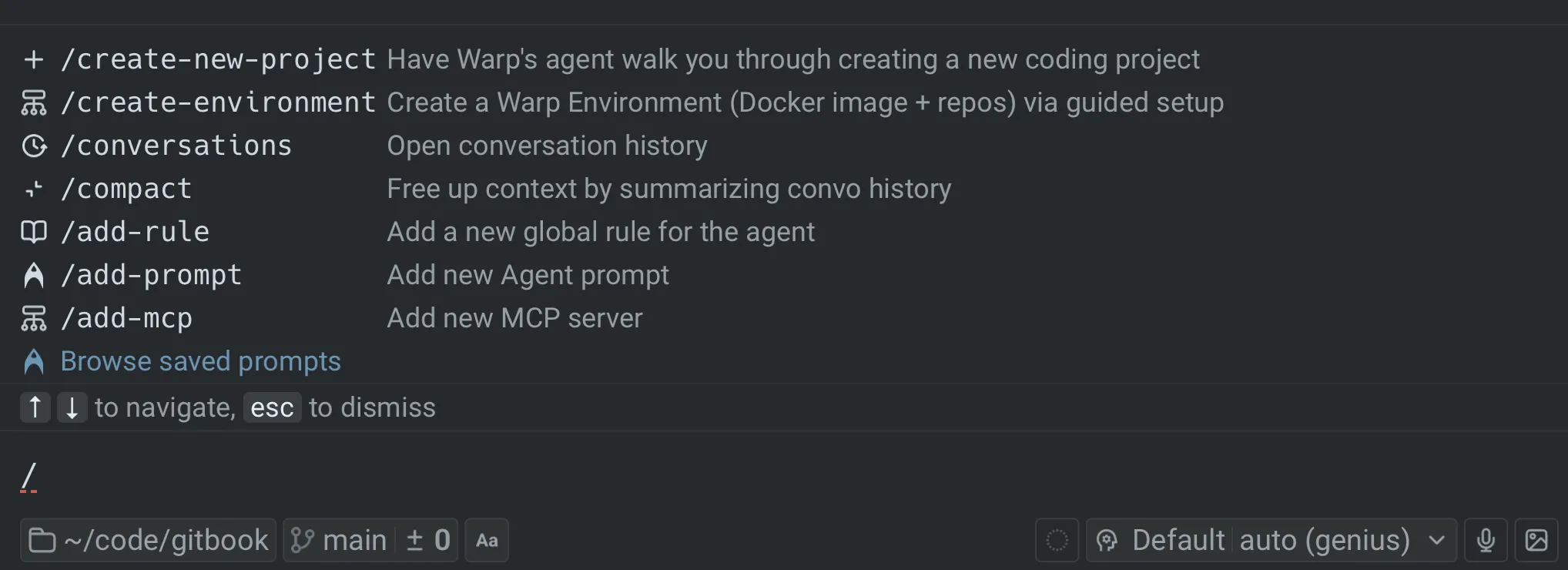 While you’re in an agent conversation, you can access Warp’s [slash commands](/agent-platform/capabilities/slash-commands/) any time by typing `/` in the input. * Type `/` to open the command menu * Keep typing to filter commands (for example: `/conversations`, `/compact`) * Use `↑` / `↓` to navigate and `Enter` to run * Press `esc` to dismiss the menu **Key slash commands in Agent Mode:** * `/new` or `/agent` - Start a new conversation. * `/plan` or `/plan ` - Enter agent view and start a planning conversation. The agent will create an implementation plan before making changes. * `/conversations` - Open the conversation list panel. * `/compact` - Summarize and compact the current conversation to free up context window space. * `/fork` - Fork the current conversation into a new thread. Press `Enter` to fork in the existing pane, or `⌘↩` (`Ctrl+Shift+Enter` on Windows/Linux) to fork in a new pane. * `/fork-and-compact` - Fork the conversation and automatically summarize it. * `/fork from` - Choose a specific point in the conversation to fork from. A menu appears showing your previous queries—select one to fork from that point. * `/model` - Select or change the AI model for the conversation. Slash commands are a quick way to take common actions without leaving the keyboard. **In terminal mode** 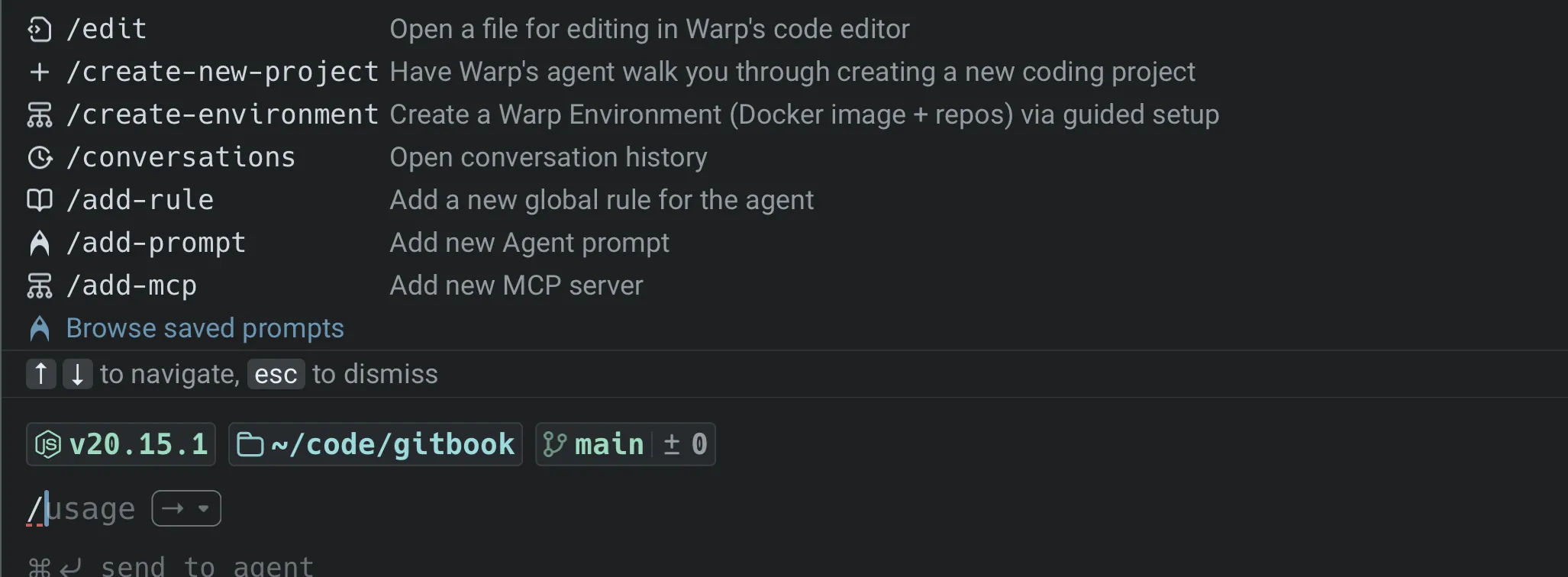 Slash commands aren’t just for agent conversations. You can also type `/` in terminal mode to open a limited set of commands. For the complete list of available slash commands, see [Slash Commands](/agent-platform/capabilities/slash-commands/). ### Forking conversations [Section titled “Forking conversations”](#forking-conversations) Forking lets you branch off from an existing conversation to explore a different direction without losing your original thread. **How to fork:** 1. In an agent conversation, type `/fork` and press `Enter`. 2. Choose where to open the forked conversation: * `Enter` - Fork in the current pane (replaces the current view). * `⌘↩` (`Ctrl+Shift+Enter` on Windows/Linux) - Fork in a new pane (keeps the original visible). **Fork and compact:** Use `/fork-and-compact` to fork and automatically summarize the conversation. This is useful when your context window is getting full but you want to continue building on the same work. **Fork from a specific point:** Use `/fork from` to choose exactly where in the conversation you want to branch from: 1. Type `/fork from` and press `Enter`. 2. A menu shows your previous queries in the conversation. 3. Select the query you want to fork from. 4. Choose `Enter` (existing pane) or `⌘↩` / `Ctrl+Shift+Enter` (new pane). This is helpful when you want to go back to an earlier point and try a different approach. For more forking methods and use cases, see [Conversation Forking](/agent-platform/local-agents/interacting-with-agents/conversation-forking/). *** ## Using Agent Mode as the default experience [Section titled “Using Agent Mode as the default experience”](#using-agent-mode-as-the-default-experience) If you prefer to type natural language at any point in a terminal session and have it automatically routed to an agent, you can configure this using the “default mode for new sessions” setting. 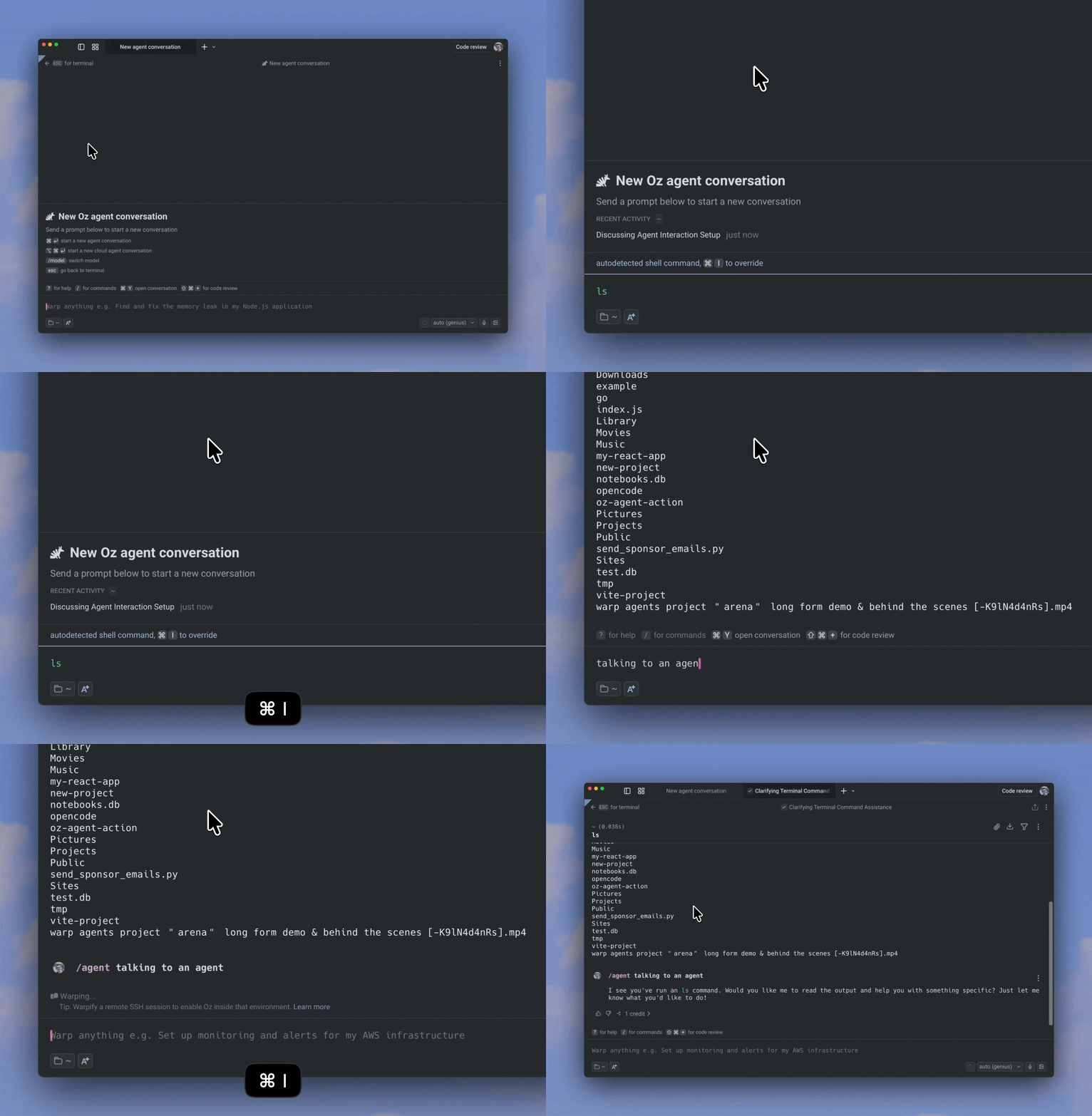 Using Agent as your default for new tab sessions. ### Step 1 — Set new tabs to open in agent view [Section titled “Step 1 — Set new tabs to open in agent view”](#step-1--set-new-tabs-to-open-in-agent-view) By default, new tabs and panes open in terminal mode. To launch directly into an agent conversation instead: 1. Go to **Settings** > **Features** > **General**. 2. Change **Default mode for new sessions** to **Agent**. ### Step 2 — Enable auto-detection in Agent Mode [Section titled “Step 2 — Enable auto-detection in Agent Mode”](#step-2--enable-auto-detection-in-agent-mode) With auto-detection enabled in agent view, Warp automatically detects whether your input is natural language or a shell command, routing it to the agent or running it in the terminal accordingly. You can also use the “toggle input mode” keyboard shortcut to override auto-detection and force either “shell” or “agent” mode. 1. Go to **Settings** > **Agents** > **Warp Agent** > **Input**. 2. Toggle on **Autodetect terminal commands in agent input**. Press `⌘I` (macOS) or `Ctrl+I` (Windows/Linux) to manually toggle between shell and Agent Mode at any time, overriding auto-detection. *** ## Keyboard shortcuts (quick reference) [Section titled “Keyboard shortcuts (quick reference)”](#keyboard-shortcuts-quick-reference) In conversation view, press `?` to show/hide the full shortcuts panel. Here are the key shortcuts: ### Navigation and mode switching [Section titled “Navigation and mode switching”](#navigation-and-mode-switching) * **Start new agent conversation** (from terminal mode) - `⌘↩` (macOS) / `Ctrl+Shift+Enter` (Windows/Linux) * **Start new cloud agent conversation** (from terminal mode) - `⌥⌘↩` (macOS) / `Ctrl+Alt+Enter` (Windows/Linux) * **Send to agent with attached context** (from terminal mode) - `⌘↩` (macOS) / `Ctrl+Shift+Enter` (Windows/Linux) when blocks are selected * **Tag agent into long-running command** - `⌘↩` (macOS) / `Ctrl+Shift+Enter` (Windows/Linux) while an interactive command is running * **Exit conversation** (back to terminal mode) - `esc` * **Stop agent / exit on empty input** - `^C` / `Ctrl+C` * **Open conversation selector** - `⌘Y` (macOS) / `Ctrl+Y` (Windows/Linux) * **Toggle conversation list panel** - `⌘⇧H` (macOS) / `Ctrl+Shift+H` (Windows/Linux) * **Override auto-detection** (switch shell ↔ agent) - `⌘I` (macOS) / `Ctrl+I` (Windows/Linux) ### Input modifiers [Section titled “Input modifiers”](#input-modifiers) * **`!`** - Prepend to force shell mode (e.g., `!ls`) * **`/`** - Open slash command menu * **`@`** - Open context menu (attach files, symbols, etc.) * **`?`** - Show/hide keyboard shortcuts panel ### Conversation actions [Section titled “Conversation actions”](#conversation-actions) * **Resume a paused/cancelled conversation** - `⌘⇧R` (macOS) / `Ctrl+Alt+R` (Windows/Linux) * **Toggle auto-accept** (for agent tool executions) - `⌘⇧I` (macOS) / `Ctrl+Shift+I` (Windows/Linux) * **Open code review pane** - `⌘⇧+` (macOS) / `Ctrl+Shift++` (Windows/Linux) * **Toggle plan panel** (if a plan exists) - `⌘⌥P` (macOS) / `Ctrl+Alt+P` (Windows/Linux) ### In slash command / fork menus [Section titled “In slash command / fork menus”](#in-slash-command--fork-menus) * **Navigate menu items** - `↑` / `↓` * **Select** (fork in existing pane) - `Enter` * **Select and open in new pane** - `⌘↩` (macOS) / `Ctrl+Shift+Enter` (Windows/Linux) * **Dismiss menu** - `esc` ### Customizing keybindings [Section titled “Customizing keybindings”](#customizing-keybindings) You can customize keyboard shortcuts for slash commands and other actions in **Settings** > **Keyboard shortcuts**. This lets you assign your preferred key combinations to frequently used commands. For example, to bind a keyboard shortcut to the `/agent` slash command: 1. Open **Settings** > **Keyboard shortcuts** 2. Search for “agent” or the slash command you want to bind 3. Click the shortcut field and press your desired key combination 4. The shortcut is saved automatically This is useful for actions you perform frequently, like starting a new conversation or opening the conversation list.
# Voice input for agents
Canonical page: [/agent-platform/local-agents/interacting-with-agents/voice/](https://docs.warp.dev/agent-platform/local-agents/interacting-with-agents/voice/)
> Voice enables natural language interaction with Warp, letting you speak commands and queries directly to your terminal.
Warp’s Voice feature transforms how you interact with your terminal, letting you naturally speak commands and questions instead of typing them. This is especially powerful when combined with Agent Mode for complex operations or when you need to explain longer scenarios. [Voice Demo](https://www.loom.com/embed/77399be4e434443488bbe267b3548552) ## Getting started with voice [Section titled “Getting started with voice”](#getting-started-with-voice) ### Initial setup [Section titled “Initial setup”](#initial-setup) First-time users will need to grant microphone permissions: * On macOS: Accept the system permission prompt or allow Warp microphone access in > **System Settings** > **Privacy & Security** > **Microphone** * On Windows: Allow Warp microphone access in **Settings** > **Privacy & Security** > **Microphone** * On Linux: Configure through system sound settings ### Using voice [Section titled “Using voice”](#using-voice) There are two ways to activate Voice: 1. **Microphone Button in Agent Mode** * Click the microphone icon in Agent Mode * Start speaking when the indicator shows it’s listening * Click again to stop recording 2. **Hotkey Method** * macOS * Press and hold the `Fn` key (configurable) to start recording * Speak your command or query while holding the key * Release the `Fn` key to stop recording and transcribe * Windows * Press and hold the `ALT-RIGHT` key (configurable) to start recording * Speak your command or query while holding the key * Release the `ALT-RIGHT` key to stop recording and transcribe * Linux * Press and hold the `ALT-RIGHT` key (configurable) to start recording * Speak your command or query while holding the key * Release the `ALT-RIGHT` key to stop recording and transcribe 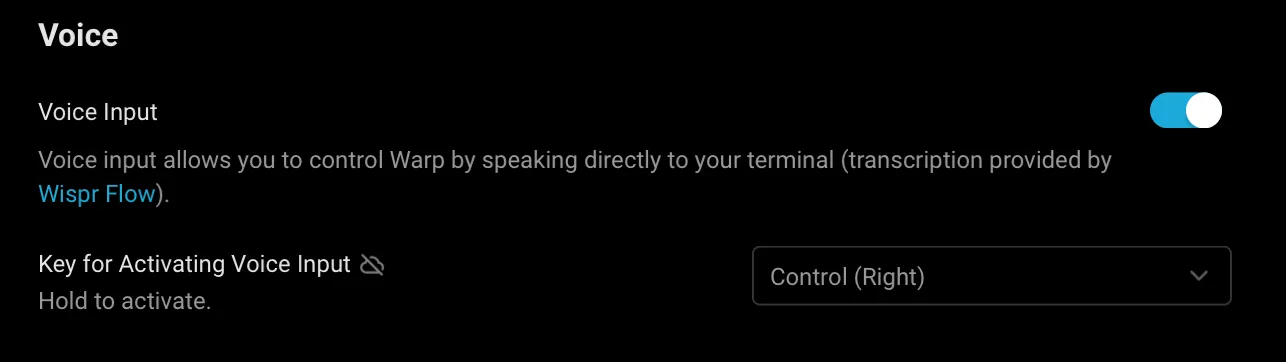 Voice input settings. ### Sample use cases [Section titled “Sample use cases”](#sample-use-cases) Voice input makes complex interactions with Agent Mode more natural and efficient. Instead of typing lengthy queries, you can speak naturally to accomplish various tasks. For example, you can say “Create a new Node.js project, install Express and MongoDB, then set up a basic server with a health check endpoint,” or “What’s the difference between chmod and chown? Give me examples of when to use each one.” You can also describe multi-step system tasks like “Find all log files in my project that contain errors from the last 24 hours, create a summary of the errors, and email it to me.” Agent Mode breaks down these requests into the necessary commands and provides detailed explanations. Voice input is not limited to just Agent Mode - it works across all of Warp’s input interfaces. Whether you’re using the Find dialog to search through text, entering commands in the terminal, or working with other input editors, you can use voice commands to quickly input your text.  Voice input in a Warp editor. ## Privacy & security [Section titled “Privacy & security”](#privacy--security) The transcription is powered by [Wispr Flow](https://wisprflow.ai/). Voice data is processed in real-time by Wispr Flow and is not retained as a recording after transcription. ## Usage limits [Section titled “Usage limits”](#usage-limits) Voice features have anti-abuse limits in place to ensure fair usage. These limits are subject to change as we continue to improve the service. ## Troubleshooting [Section titled “Troubleshooting”](#troubleshooting) ### Common issues [Section titled “Common issues”](#common-issues) 1. **Microphone not detected** If your microphone isn’t being detected, first check your system permissions to ensure Warp has access. You should also verify that your microphone is properly connected to your system. If issues persist, try restarting Warp to reset the connection. 2. **Poor transcription quality** To improve transcription quality, try to minimize background noise in your environment. Position yourself closer to the microphone while speaking, and verify that your microphone input levels are properly adjusted in your system settings. For best results, speak clearly at a natural pace and use complete sentences to provide better context. When referring to specific file names or commands, enunciate them clearly. It’s also recommended to review the transcription before sending to ensure accuracy. 3. **Feature not activating** If the Voice feature isn’t activating, confirm that your hotkey settings are correctly configured in Warp. Check for any conflicting keyboard shortcuts that might interfere with Voice activation. Also ensure that you’re running the latest version of Warp, as older versions can have compatibility issues. If you are on an Enterprise plan, your administrator may have disabled Voice functionality, or it may be pending approval.
# Interactive Code Review
Canonical page: [/agent-platform/local-agents/interactive-code-review/](https://docs.warp.dev/agent-platform/local-agents/interactive-code-review/)
> Review agent-generated code, leave inline comments, and have Warp's native agent or any supported third-party CLI agent apply your feedback.
Interactive Code Review lets you review agent-generated code, leave inline comments on specific lines, batch your feedback, and send all requested changes to the agent in a single pass. It works with Warp’s native agent and supported third-party CLI agents like Claude Code and Codex. ### Overview [Section titled “Overview”](#overview) Interactive Code Review lets you review, annotate, and refine code generated by any supported agent, whether that’s Warp’s native Agent or a third-party CLI agent running in Warp. Instead of relying on an AI to review another AI’s output, Warp keeps the developer in control. You can inspect diffs, leave inline comments, batch feedback, and send all requested changes back to the agent in a single pass.  **Interactive Code Review builds on Warp’s existing** [Code Review](/code/code-review/) **panel.** For details on diff views, reverting hunks, opening files, and all available entry points, see the Code Review documentation. ### Supported agents [Section titled “Supported agents”](#supported-agents) Interactive Code Review works with any supported agent running in Warp: * **Warp’s native Agent** — the built-in agent in Agent Mode * **Third-party CLI agents** — Claude Code, OpenAI Codex, OpenCode, Amp, Auggie, Copilot CLI, Cursor CLI, Gemini CLI, Droid, and Pi For the full feature matrix and setup details for each CLI agent, see [Third-Party CLI Agents](/agent-platform/cli-agents/overview/). *** When an agent modifies files, Warp automatically gathers those edits into a diff. Opening the Code Review panel shows you every change the agent made. From there, you can leave comments on specific lines or blocks, review your comment list, and submit all feedback to the agent at once. The agent applies the requested updates and returns an updated diff for further review. This gives you a familiar pull-request style workflow inside Warp without switching editors or tools. ### Leave inline comments [Section titled “Leave inline comments”](#leave-inline-comments) Select any changed line or block and add a comment describing what you want adjusted. Warp anchors each comment to the relevant file and line so the agent understands exactly what to fix. 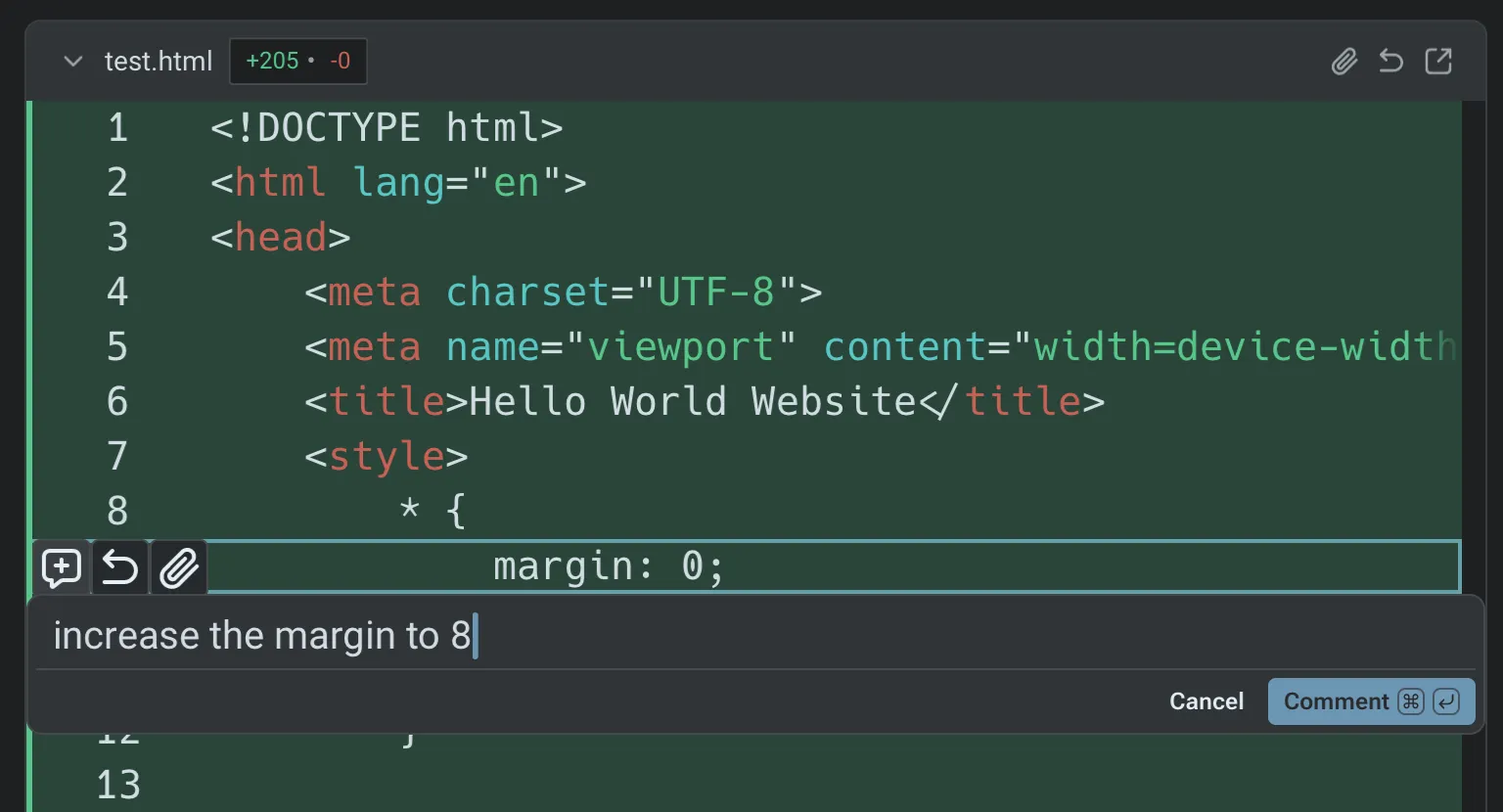 Inline comments in the Code Review panel. ### Batch comments and submit once [Section titled “Batch comments and submit once”](#batch-comments-and-submit-once) Add as many comments as you need before submitting them. The agent receives your entire batch of feedback, applies the changes in one iteration, and returns an updated diff for verification. 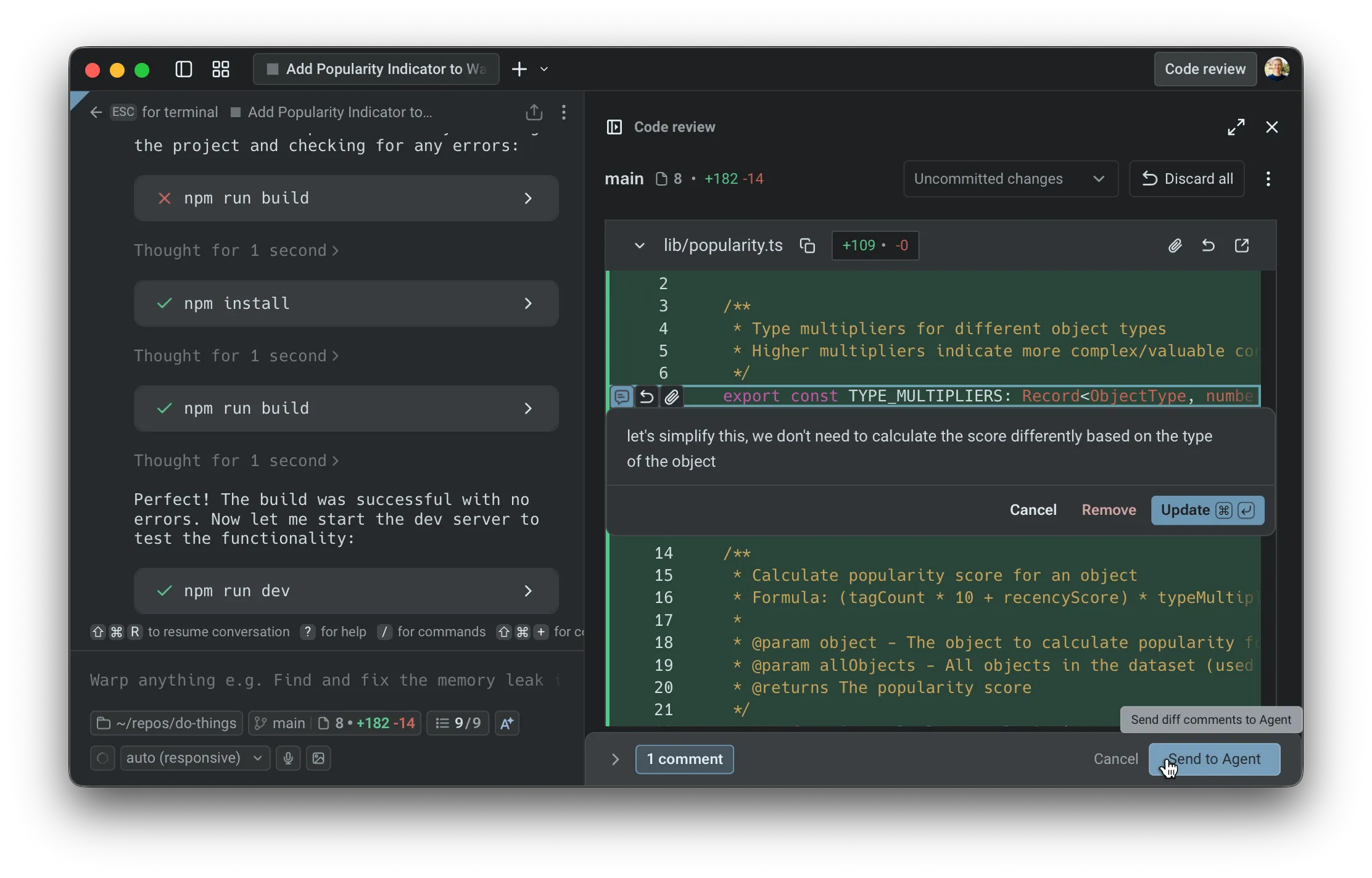 Adding comments directly in the Code Review view. ### Example demo [Section titled “Example demo”](#example-demo) In the example from Kevin on the Warp team, you’ll see how to: * open the Code Review panel after an agent produces changes * browse the diffs for each edited file * add multiple inline comments * review all comments in the list view * send those comments to the agent for resolution * inspect the updated diffs once the agent applies the changes This workflow can be repeated until the code matches your expectations. [Submitting inline code review feedback to an agent video](https://www.loom.com/embed/bdeb2eb1ff3640faa2cbacda9420c3a8) *** ## Next steps [Section titled “Next steps”](#next-steps) Once you’re comfortable reviewing agent code locally, try running agents in the cloud for longer or parallel tasks. * **[Cloud Agents quickstart](/agent-platform/cloud-agents/quickstart/)** - Run agents on Warp’s infrastructure for background tasks like PR review, issue triage, and dependency updates. * **[Attach agent session context to GitHub PRs](/guides/agent-workflows/how-to-attach-agent-session-context-to-github-prs/)** - Share the agent’s prompt, plan, commands, logs, validation, and reviewer asks with the PR. * **[Skills](/agent-platform/capabilities/skills/)** - Turn successful agent workflows into reusable, shareable instructions.
# Warp Agents overview
Canonical page: [/agent-platform/local-agents/overview/](https://docs.warp.dev/agent-platform/local-agents/overview/)
> Powerful AI features like agents, code review, voice, and active AI recommendations, fully integrated into the Warp Agentic Development Environment.
Warp’s local agents are interactive agents embedded directly in the terminal that help you write code, debug issues, run commands, and automate development tasks using natural language. Agents operate with full context from your codebase, Warp Drive, and connected tools, while you stay in control of every action. ## AI in Warp [Section titled “AI in Warp”](#ai-in-warp) Warp includes intelligent agents designed to help you build, test, deploy, and debug while keeping you in control. Interactive agent conversations in Warp can look up commands, execute tasks, fix bugs, and adapt to your workflows. You can manage agent behavior directly, with full context from your Warp Drive and your team. Warp’s client is open source under [AGPL v3](https://github.com/warpdotdev/warp/blob/master/LICENSE-AGPL) at [`warpdotdev/warp`](https://github.com/warpdotdev/warp). The agent surface you’re reading about is built in the open — see [Contributing to Warp](/support-and-community/community/contributing/) to read the code, file issues, or shape the roadmap. ## What you can do with agents [Section titled “What you can do with agents”](#what-you-can-do-with-agents) This section covers how to interact with Warp’s agents and the capabilities available during agent conversations: * [Interacting with Agents](/agent-platform/local-agents/interacting-with-agents/) - Manage AI conversations tied to sessions, attach context, continue previous threads, or start new ones. * [Agent Context](/agent-platform/local-agents/agent-context/) - Attach images, URLs, files, code blocks, and selections as context for your prompts. * [Model Choice](/agent-platform/inference/model-choice/) - Pick your preferred LLM from a curated set of top models, or let Warp choose the optimal one. * [Full Terminal Use](/agent-platform/capabilities/full-terminal-use/) - Let the agent drive interactive terminal apps, seeing live output and running commands. * [Interactive Code Review](/agent-platform/local-agents/interactive-code-review/) - Review agent-generated diffs, leave inline comments, and have the agent address your feedback. * [Task Lists](/agent-platform/capabilities/task-lists/) - Track complex workflows with automatic task lists that update progress in real time. * [Web Search](/agent-platform/capabilities/web-search/) - Allow agents to search the web for up-to-date information. * [Third-Party CLI Agents](/agent-platform/cli-agents/overview/) - Run third-party CLI agents like Claude Code and Codex with Warp’s built-in agent toolbelt. * [Active AI Recommendations](/agent-platform/local-agents/active-ai/) - Get proactive fix recommendations based on errors and outputs. * [Voice](/agent-platform/local-agents/interacting-with-agents/voice/) - Talk to Warp’s agent using voice commands. For foundational capabilities like planning, rules, MCP servers, and agent profiles, see [Capabilities](/agent-platform/capabilities/).
# Agent Session Sharing
Canonical page: [/agent-platform/local-agents/session-sharing/](https://docs.warp.dev/agent-platform/local-agents/session-sharing/)
> Share live agent sessions so collaborators can view, steer, and interact with agent activity from any device — in real time or asynchronously.
**Agent Session Sharing** extends Warp’s regular [Session Sharing](/knowledge-and-collaboration/session-sharing/) to include full visibility and control over Agent activity. Share any agent session — Oz or third-party — so collaborators can watch progress, review output, and steer the agent from the Warp app, a web browser, or a mobile device. Use Agent Session Sharing when teammates need the execution context behind an agent’s work, not just the final answer or code diff. A shared agent session can show the prompt, responses, thinking states, tool use, planning steps, terminal output, and follow-up messages in one reviewable link. [Agent Session Sharing in action — sharing a live session and collaborating across devices.](https://www.loom.com/embed/89e0e99c9bbf463a8a5e5bc2e96dabe4) ## Key capabilities [Section titled “Key capabilities”](#key-capabilities) * **Full Agent visibility** - Viewers see Agent prompts, responses, thinking states, tool use, planning steps, and [credit](/support-and-community/plans-and-billing/credits/) consumption in real time * **Cross-device access** - Open shared sessions from the Warp app, any web browser, or a mobile device. No install required for web viewers. * **Collaborative editing** - Grant edit access so collaborators can send their own Agent queries, execute commands, and start new conversations * **Multi-viewer support** - Multiple participants can observe and interact with the same session simultaneously, each with their own cursor and avatar * **Remote Control** - Publish third-party agent sessions to the cloud for persistent, asynchronous monitoring and steering from anywhere. See [Remote Control](/agent-platform/cli-agents/remote-control/). ## Review agent work with a shared session [Section titled “Review agent work with a shared session”](#review-agent-work-with-a-shared-session) When you share an agent session, collaborators can inspect the work at the same level of detail you saw while the agent was running. This is useful when: * A teammate wants to review how an agent reached a conclusion * A reviewer needs the agent’s execution context alongside a PR or code diff * An agent used a third-party CLI tool and you want a persistent record of the terminal session * A workflow needs asynchronous review from a teammate on another machine or mobile device Share the link only with collaborators who should be able to see the session contents, including prompts, terminal output, and any context visible in the scrollback. ## How it works [Section titled “How it works”](#how-it-works) When you share an agent session, Warp publishes it to the cloud and generates a shareable link. The session stays in sync — any new agent output or terminal activity appears for all viewers in real time. The person who shares the session controls who can view and who can interact. ## Sharing a session [Section titled “Sharing a session”](#sharing-a-session) 1. Start or open an agent session in Warp. The agent can be Warp’s built-in agent, a third-party coding agent, or any interactive agent running in your terminal. 2. Open the share action from any of these entry points: * **Command Palette** - Search for “Share session” * **Pane header** - Click the overflow menu in the pane header * **Right-click context menu** - Right-click inside the session pane * **`/remote-control` chip** - For third-party agent sessions, click the `/remote-control` chip in the agent view footer or the CLI footer to publish and share instantly. See [Remote Control](/agent-platform/cli-agents/remote-control/) for details. 3. Choose your starting point (full scrollback, no scrollback, or a specific block). 4. Confirm the share. Warp uploads the session to the cloud and generates a shareable link. 5. Copy the link and share it with teammates, or open it on another device. 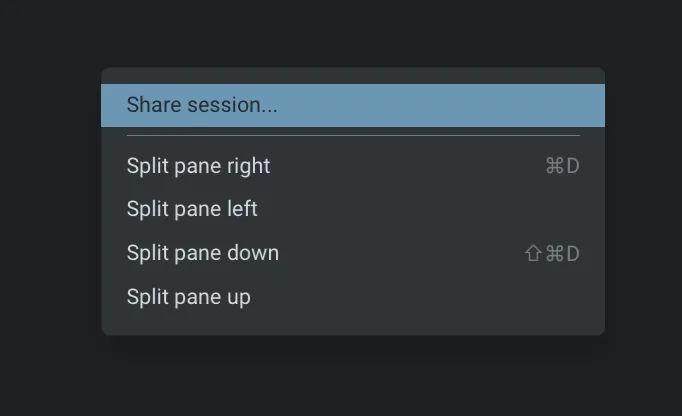 Start a shared session via the right click menu. 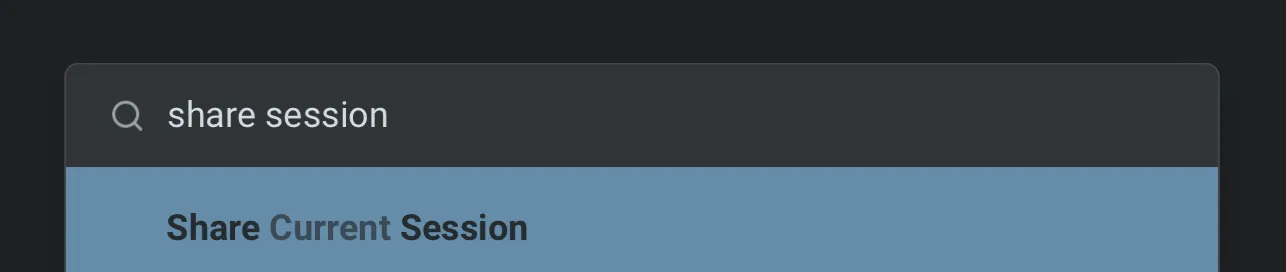 Start a shared session via the Command Palette. ## Viewing shared sessions [Section titled “Viewing shared sessions”](#viewing-shared-sessions) Shared sessions are accessible from: * **Warp app** - Paste the link into Warp on a different machine for the full app experience * **Web browser** - Open the shared link in any browser. No app install required. * **Mobile** - Open the link on a phone or tablet browser to check on progress while away from your desk The web experience mirrors the desktop view, showing complete Agent activity including thinking steps, tool use, and terminal output. ## Collaboration and steering [Section titled “Collaboration and steering”](#collaboration-and-steering) ### Watching Agent activity [Section titled “Watching Agent activity”](#watching-agent-activity) Viewers see Agent actions unfold live as the sharer interacts with the Agent: * **Thinking animations** - Real-time indicators of Agent reasoning * **Tool use and planning** - Visible tool calls and planning steps * **Credit consumption** - Live credit usage for the session * **Final responses** - Completed Agent output ### Edit access [Section titled “Edit access”](#edit-access) If a viewer requests edit access, the sharer can approve it. Once approved, collaborators can: * Send new Agent queries * Type directly into the prompt * Execute commands * Start and switch Agent conversations * Run terminal commands alongside Agent queries ### Multi-viewer sessions [Section titled “Multi-viewer sessions”](#multi-viewer-sessions) Multiple participants can join the same session from different machines, browsers, or environments. All participants: * See each other’s avatars and cursors * Watch Agent activity in sync * Edit together when granted access * Run terminal or Agent commands concurrently ## Related pages [Section titled “Related pages”](#related-pages) * [Remote Control](/agent-platform/cli-agents/remote-control/) * [Third-Party CLI Agents](/agent-platform/cli-agents/overview/) * [Cloud Agent Session Sharing](/agent-platform/cloud-agents/viewing-cloud-agent-runs/) * [Attach agent session context to GitHub PRs](/guides/agent-workflows/how-to-attach-agent-session-context-to-github-prs/) * [Session Sharing (terminal)](/knowledge-and-collaboration/session-sharing/)